
Build Context
Today: attach selected context to the outcome note.
Start from the same outcome note you used yesterday.
Found this page without the email series? Start here: Your first Smart Loop
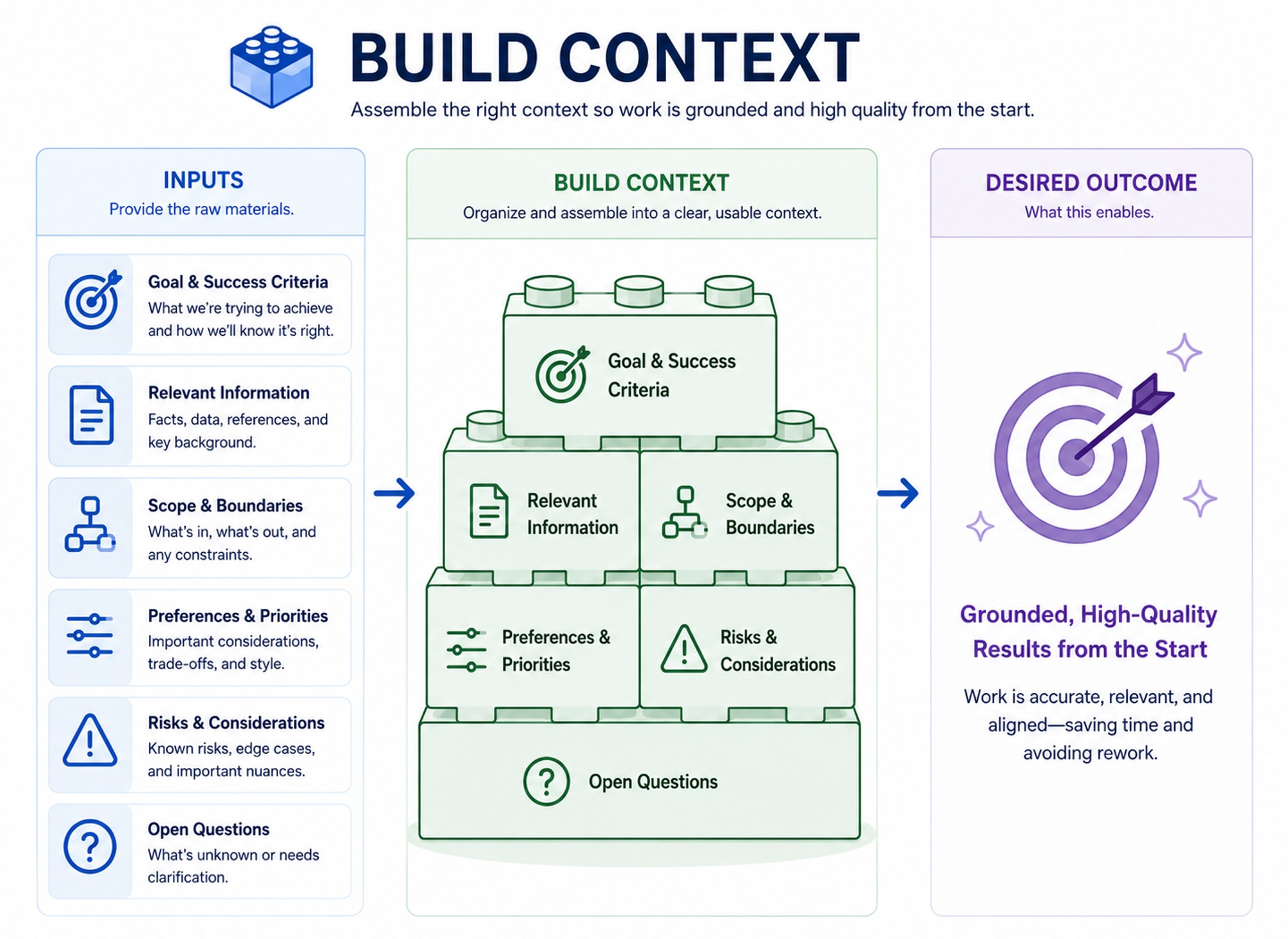
Today's note change
The Context section becomes useful enough to support the next delegation.
Instead of trusting memory, automated retrieval, or a giant context dump, you attach the smallest useful context so you can choose what matters.
Before you start
Required:
- The desired outcome is written in one outcome note.
- The note has 3-5 lines under
What Done Looks Like.
Optional:
- Smart Context is installed and enabled if you want to create a visible context package.
- Smart Lookup is installed and enabled if you want to search by meaning.
- Smart Environment has indexed enough of the vault for related results to appear.
What your note should show
Before:
- useful notes are scattered
- context is guessed from memory
- more context feels safer than better context
- the next delegation could start from missing or noisy material
After:
- the outcome note has selected context attached
- each source has a reason to be included
- context can be inspected, improved, reused, or trimmed after review
Add this to your note
Copy this section, then replace the placeholders with the smallest useful context for the next delegation.
## Context

- [[note AI should use]]
	- Use for: [why this note matters to the next result]
- [[another useful note]]
	- Use for: [what this should help clarify, constrain, or produce]
- [external source]
	- Use for: [why this source belongs]
Want to build context without using links? Copy this Smart Context codeblock into the note and use the Smart Context Builder.
```ctx
```
Brainstorming questions
- What note might matter most for the next delegation?
- What source might best prevent a generic answer?
- What context might distract from the current outcome?
- What decision might make the context boundary easier or unnecessary?
Make the change
- Start from the same outcome note.
- Add or update the
Contextsection. - Add three useful context items.
- Write why each source belongs.
- Keep only what helps the next delegation.
- Use a Smart Context codeblock when the context package should remain visible and reusable.
Weak vs stronger
Weak:
- links are added because they are related
- the note has a pile of context with no reason
- the next delegation depends on a large, noisy dump
Stronger:
- each source has a visible reason
- context is small enough to inspect
- the next delegation can start from selected support instead of memory or guesswork
You know it worked when...
- The note has a
Contextsection with useful links, selected sections, or a Smart Context codeblock.
Use Smart Plugins to make this easier
This step can be completed by adding links and notes manually.
Smart Context helps by providing advanced context management features, like reusable context packages and attaching external context like code files.
Smart Lookup helps when you know the kind of note you need, but not the filename or exact wording. Drag results from the lookup into the Context section to quickly add them as links in the note.
If you get stuck
| Stuck on... | Do this |
|---|---|
| Missing the previous step | Go back to Clarify the finish line and add 3-5 lines under What Done Looks Like. |
| Not sure what belongs in context | Add the smallest useful source, then improve the context after review shows a gap. |
| The note feels too broad | Split the work into a smaller outcome note. |
| The result is likely to be generic | Improve the desired outcome or What Done Looks Like before copying more context. |
| Too many related notes appear | Pick the 2-3 that most directly affect the next result. |
How this same move scales
Bigger outcomes may need larger context packages, named contexts, selected note sections, or sub-outcomes with their own context.
The move stays the same: choose the smallest useful context before the next delegation.
Additional resources
- How I build context in my Obsidian notes
- Smart Context Builder
- Smart Context codeblock
- Smart Lookup search workflow
- Find useful notes without organizing first
- Copy the note and attached context as an assignment
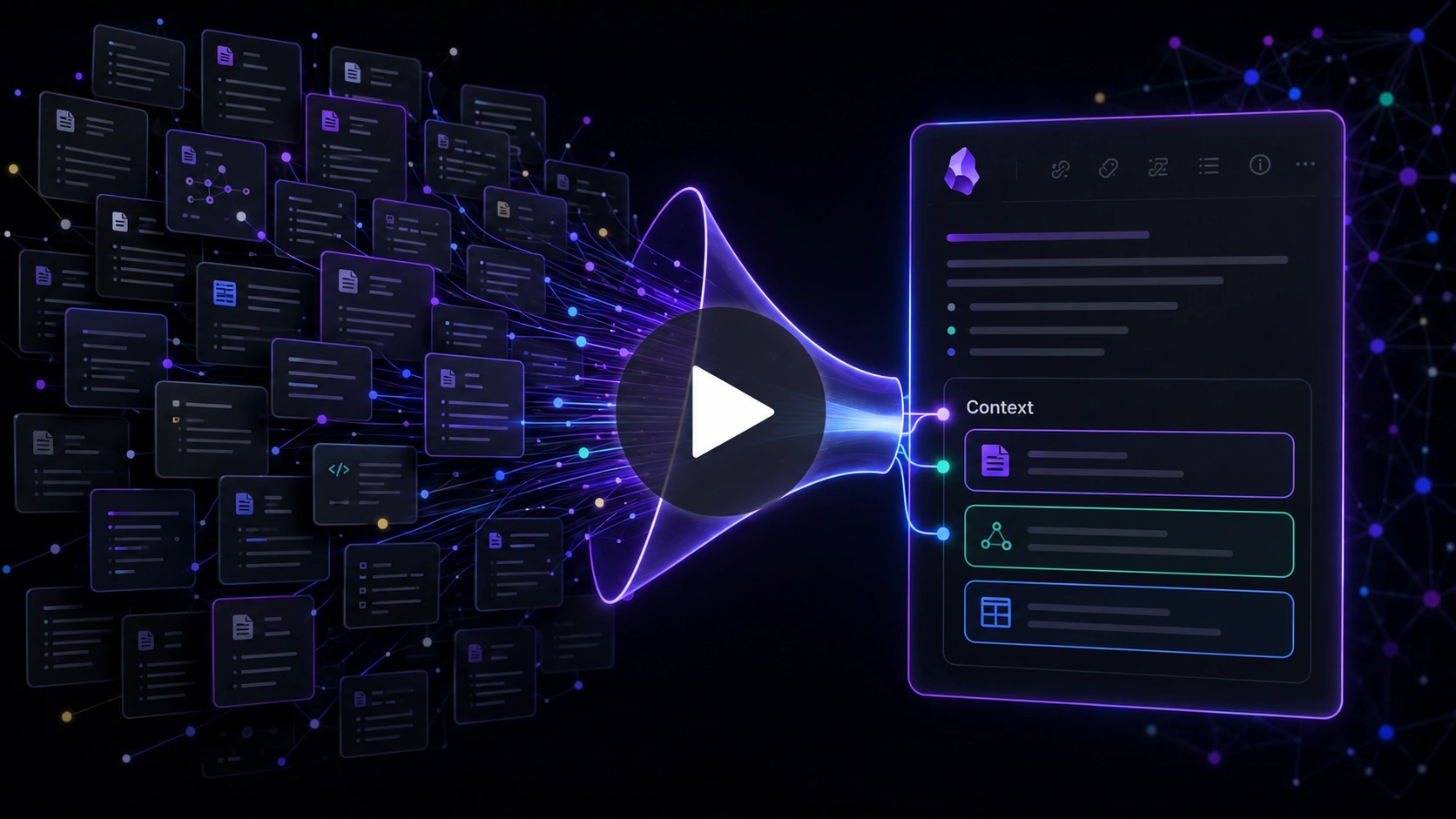
See Callum narrow related notes into selected context that can stay attached to the outcome note.
Continue the Smart Loop
- Create the outcome note
- Clarify the finish line
- Build context (current)
- Delegate the work
- Review and improve
- Protect trusted context
- Scale the Smart Loop
Review the full workflow: Smart Loop