
Smart Context
Smart Context turns notes and other supported sources into a package you can inspect before copying, exporting, or sending it.
The first current-note copy workflow is available in Core. This page shows the complete Pro interface. Requirements and availability summarizes the edition boundaries.
Start with Getting started with Smart Context. The first workflow copies one active note at Depth 0 and verifies the pasted result.
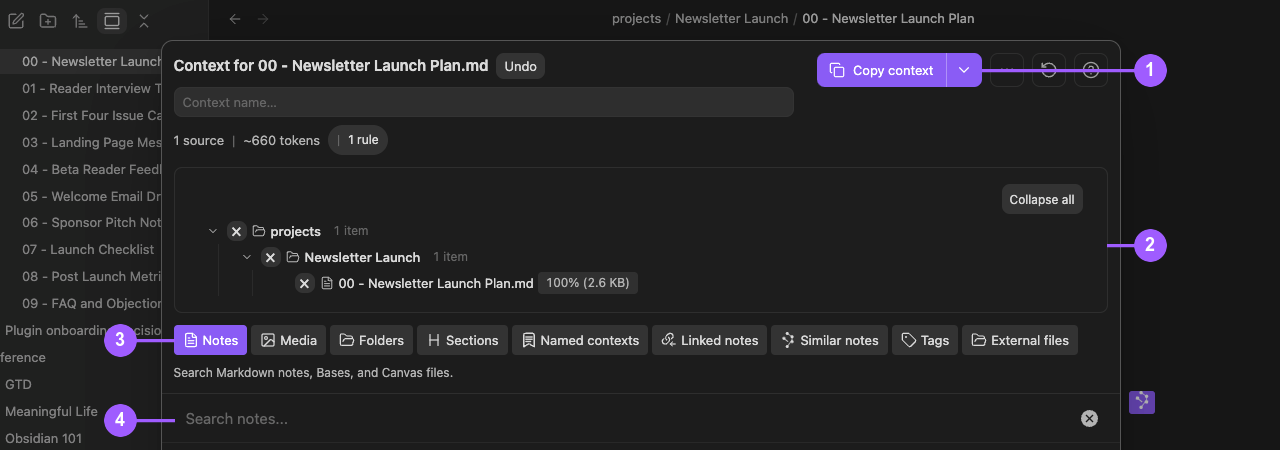
What the numbers show:
- Copy context is the action to use after reviewing the package.
- The expanded source tree shows what the package currently contains.
- The source-mode tabs choose how to find more evidence.
- Search results are candidates until you add them.
In this guide
- Copy reviewed context
- Start from the current note
- Build reusable context packages
- Inspect and recover Context rules
- Save and reuse named contexts
- Attach a context manifest to a note
- Add external files
- Copy images and PDF pages
- Use Canvas and Bases as sources
- Customize copied text
- Use Smart Context on mobile
- Recover from missing or oversized sources
Copy reviewed context
Choose the smallest output that fits the task. A completed copy notice shows that the action ran. The pasted or opened result shows whether the content is correct.
| Output | Edition | What it puts on the clipboard | Verify |
|---|---|---|---|
| Copy text | Core and Pro | A text package with a context tree and source items. | Paths, source bodies, and exclusions match the reviewed package. |
| Copy media | Pro | One composite clipboard image built from selected images and rendered PDF pages. | Every intended image or page appears and remains readable. |
| Copy ZIP | Pro | A ZIP file reference. | Open the archive and inspect its file list before sharing it. |
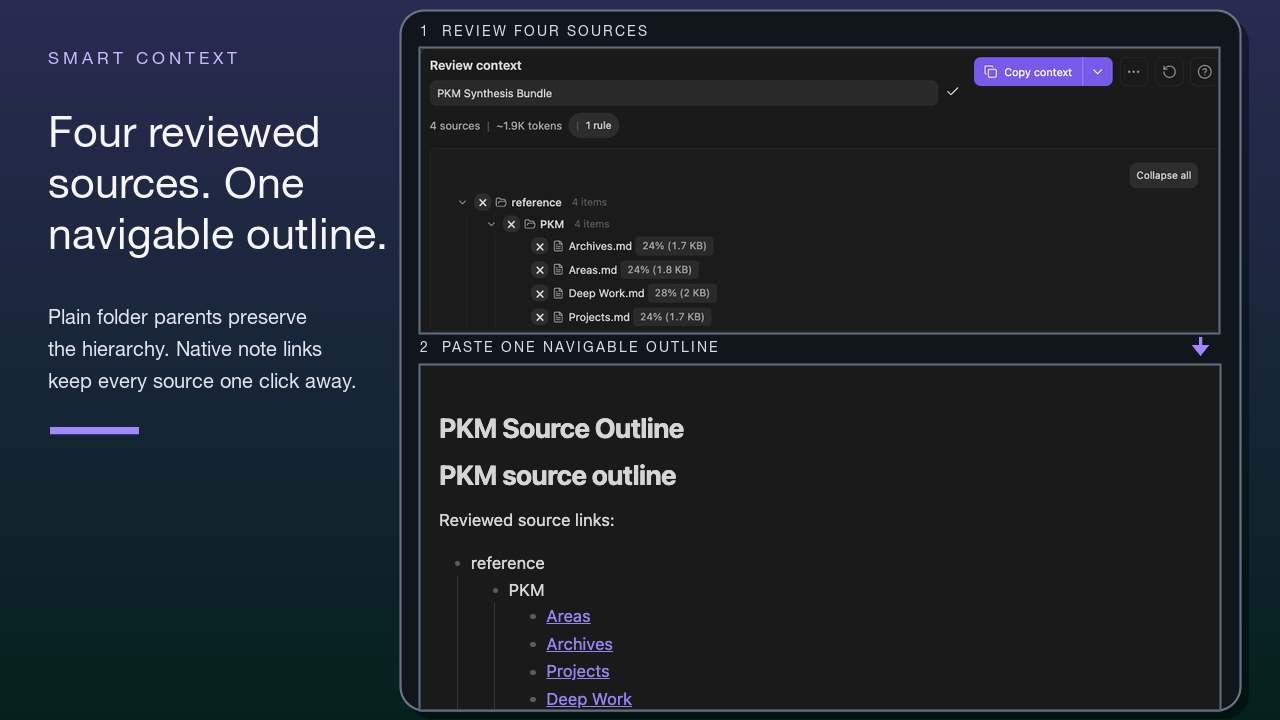
| Copy link tree | Core current-note command and Pro package menus | A compact text hierarchy of source links. | The hierarchy contains the intended sources. |
| Copy with Template | Core and Pro, with Smart Templates | A template-shaped text result. | The selected template and sources both appear. This action is added by Smart Templates when it is installed and the package contains items. |
If a media or ZIP safety limit appears, cancel and reduce the selection. Use Zip anyway only after reviewing the warning and destination.
Choose depth-based or direct copy
Only current-note modal copy opens the estimated Copy context depth chooser. Use it when the active note is the traversal root and you need to compare depth and backlink rows.
The following actions are direct and do not open that chooser:
| Starting surface | Package boundary |
|---|---|
| A fixed-depth current-note command | Uses the depth and backlink mode named by the command. |
| Selected notes or folders in Files | Uses the eligible selected sources. |
| One folder from its context menu or the folder picker | Uses the folder's eligible contents. |
| Context Builder | Uses the reviewed Builder package as it currently resolves. |
| A Smart Context codeblock | Quick copy uses the resolved codeblock package. Its menu can apply a selected depth without opening the current-note chooser. |
| A named-context dashboard row | Uses the saved package as it currently resolves. |
Use a direct action only when the package boundary is already correct. Use Builder when sources need review, removal, or naming before copy. Copy text and Copy media are separate clipboard actions; when a task needs both, copy and verify each output separately.
File navigator actions
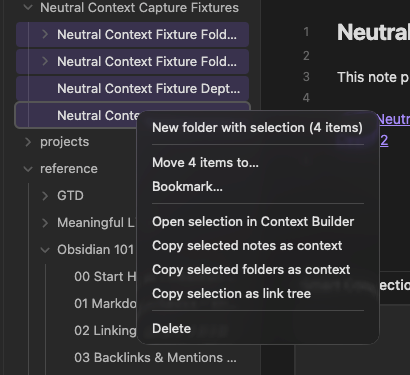
Right-click a supported selection in Obsidian's Files view, then choose the action that matches the amount of review you need:
| Action | Use it when | What happens |
|---|---|---|
| Copy selected notes as context | At least two selected Markdown notes already form the right package. | Copies them immediately. No link-depth chooser opens. |
| Copy selected folders as context | At least two selected folders already form the right package. | Resolves their eligible notes into one direct package. |
| Copy selection as link tree | A mixed selected set should be represented as a compact hierarchy of Obsidian links. | Copies the selected hierarchy without opening the link-depth chooser. |
| Copy folder contents to clipboard | One folder already defines the right package. | Resolves that folder's eligible contents and copies them immediately. No link-depth chooser opens. |
| Copy folder as link tree | One folder should be represented as a compact hierarchy of Obsidian links. | Copies the folder hierarchy without opening the link-depth chooser. |
| Open selection in Context Builder | Selected notes or folders need review, removal, naming, or another output. | Opens the selection as a reviewable Builder package. |
| Open folder in Context Builder | One folder needs review before copy. | Opens the folder-derived package in Builder. |
| Select folder to copy contents | A searchable folder picker is faster than navigating the Files view. | Resolves the chosen folder and copies its eligible contents immediately. No link-depth chooser opens. |
Use direct copy when the selection is already correct. Use Builder when you must remove items, name the package, choose another output, or examine Pro Rules. Direct file and folder actions do not use a selectable link depth. Use the current-note workflow when the task requires link traversal.
Use a link-tree output only when the destination needs an outline of source links rather than the full note text, and when that option is available.
Start from the current note
Core and Pro expose different first-copy controls:
- Core: From the Command Palette, run
Smart Context: Copy current text to clipboard (choose link depth). In the Copy context modal, select the Depth 0 row marked Current note. Selecting the row copies immediately. - Pro: Choose the Smart Context: Copy current ribbon action. The menu begins with Choose link depth... and direct depth choices. Open Depth 0 - current note. Then choose Copy text.
Pro also provides Smart Context Pro: Copy current context clipboard (choose link depth) in the Command Palette. It opens the estimated Copy context modal. Selecting a row copies immediately.
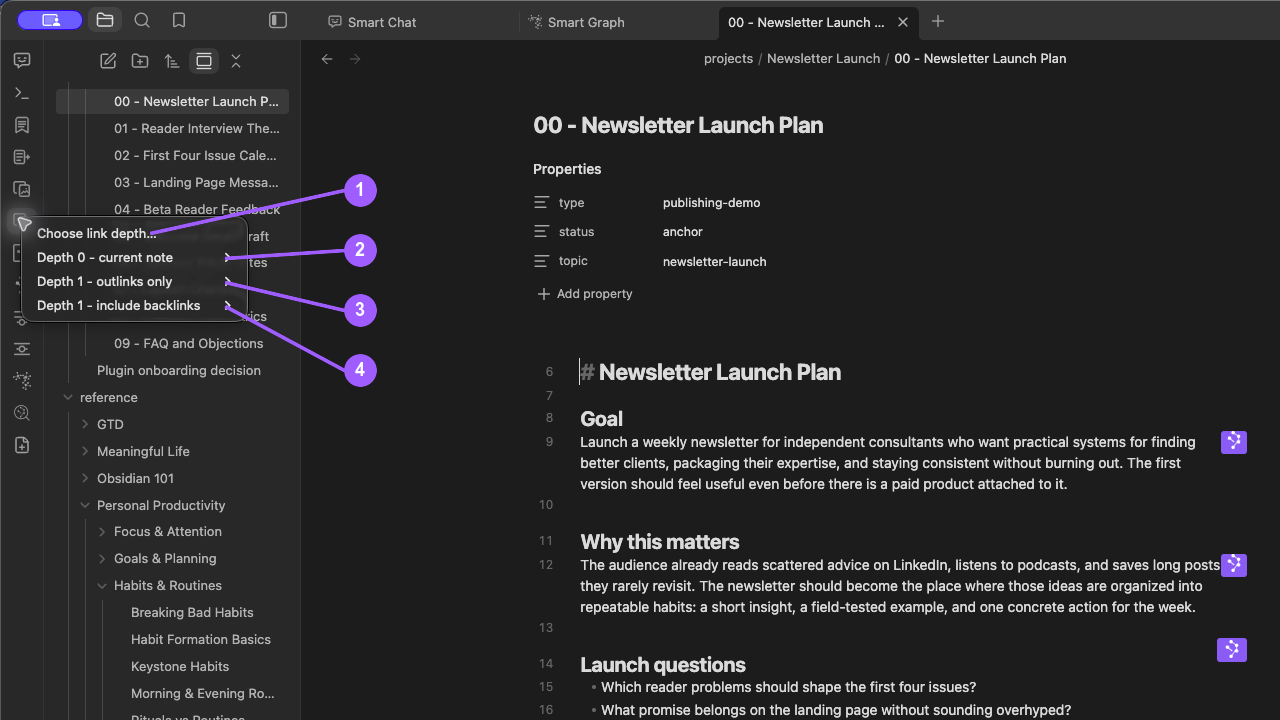
What the numbers show:
- In the Pro menu, Choose link depth... opens the estimated modal.
- Depth 0 - current note opens the direct output submenu for the active note and material it embeds.
- Depth 1 - outlinks only opens the direct output submenu for outgoing linked notes.
- Depth 1 - include backlinks opens the direct output submenu for incoming and outgoing links.
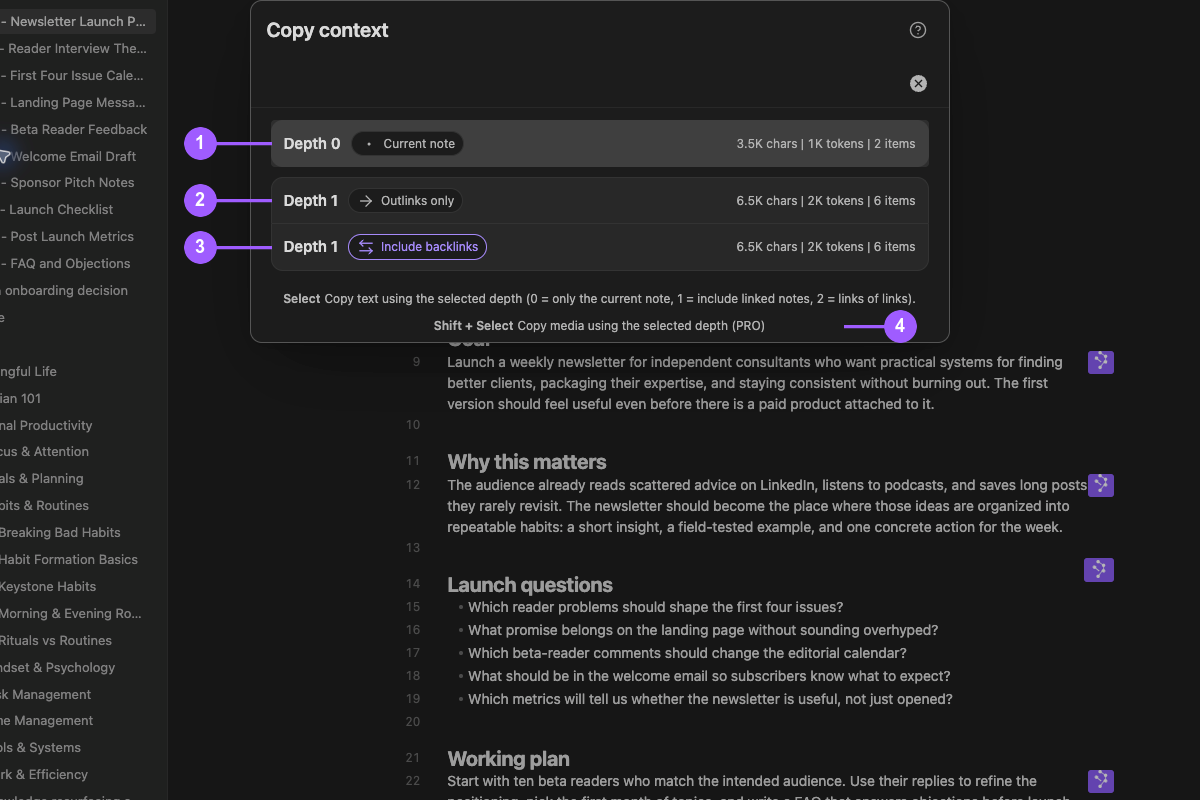
What the numbers show:
- In the Copy context modal, selecting Depth 0 with Current note copies text immediately.
- Depth 1 with Outlinks only follows outgoing links.
- Depth 1 with Include backlinks follows incoming and outgoing links.
- In Pro, Shift + Select copies media for the selected depth.
Depth 0 does not traverse ordinary links. Embedded notes can still appear because they are part of the current note's rendered content. Higher depths follow links breadth-first.
Choose the smallest useful depth
| Depth | Adds | Use it when |
|---|---|---|
| 0 | The current source, embedded material, and depth-0 codeblock additions. | The active note already contains the assignment and evidence. |
| 1 - outlinks only | Notes linked from the starting source. | Intentional outgoing links hold the missing evidence. |
| 1 - include backlinks | Outgoing and incoming linked notes. | Notes that point to the starting source also matter. |
| 2 or 3 | Additional linked layers. | A bounded multi-hop relationship is required and the larger package remains reviewable. |
Fixed-depth commands skip the chooser and work well as hotkeys. Core provides direct copy for depth 0, depth 1, and depth 1 with backlinks. Pro adds depth 2 and depth 3, with and without backlinks.
The first Smart Context codeblock in the active note can add items to the depth-0 package. When those additions change the result, the chooser can show a No codeblock row so you can copy the note without them. Embedded notes and a Base embedded in the starting source are also handled at depth 0.
Character, item, and token counts are estimates for choosing a manageable package. The destination can count tokens differently.
For either edition, finish the workflow this way:
- Open the note that owns the task.
- Copy at the smallest useful depth using the controls for your edition.
- Read the copy notice for file and character counts.
- Paste into a clean note or composer.
- Make sure that the
(current)source, every<item>path, and all embedded material are correct. - Widen the depth only when the missing evidence is linked from or back to the note.
In Pro, hold Shift while choosing a depth in the chooser when you intend to copy media instead of text.
Build reusable AI context packages in Obsidian
From the Command Palette, run the Builder command for your installed edition:
- Core:
Smart Context: Open new context in builder - Pro:
Smart Context Pro: Open new context in builder
In either edition, you can also choose the Smart Context: Open Builder ribbon action. Builder separates the package being reviewed from the source mode used to find evidence.
Read the active package
The Builder header shows Build context, Add sources, and a review area with:
- the active or saved context name
- source count
- estimated token count
- a hierarchical source tree
- copy and package-management controls
In Pro, the header also shows the Rules count. Token counts are estimates. A destination can tokenize the same text differently.
Choose among the nine source modes
| Source mode | Edition | Use it for |
|---|---|---|
| Notes | Core and Pro | Markdown notes, Bases, and Canvas files. |
| Media | Pro | Images and PDF attachments that need visual context. |
| Folders | Pro | A dynamic folder-derived source group. Direct folder copy remains available in Core. |
| Sections | Core and Pro | A specific heading or block instead of a whole note. |
| Named contexts | Core and Pro | A saved, reusable source package. |
| Linked notes | Pro | Notes connected to an intentional starting source. |
| Similar notes | Pro | Semantically related candidates that still require review. |
| Tags | Pro | A snapshot of notes currently matching a tag; later tag changes do not update the package automatically. |
| External files | Pro, desktop | Files or folders outside the vault. |
The search footer shows the available keyboard action. Enter adds the highlighted source. Cmd + Enter or the right arrow opens available blocks or sections. Shift + Enter follows links up to the available depth. Use Left Arrow to return to the parent suggestion list.
Choose Sections when only one heading or block is relevant. A smaller section usually produces a more inspectable package than a whole long note.
Check where each source came from
Keep the tree expanded long enough to verify where each source came from. Direct, section-derived, folder-derived, and named-context-derived items can have different update and exclusion behavior.
For mixed-origin packages, expand each branch and read its origin badge. A named context or folder can expand into more items than its dashboard count because its saved rules are applied when Builder resolves the package.
Leaf rows can show source type, size, share of the package, origin, and missing-source state. Remove or restore a missing source before relying on the result. In Core, edit a source named context when one of its derived items cannot be removed independently.
The current source-row menu lists Open source, View connections, and Remove from context in that order. Use the menu to inspect the source, continue discovery in Connections, or change package membership. Make sure that the intended destination or package change appears after the action.
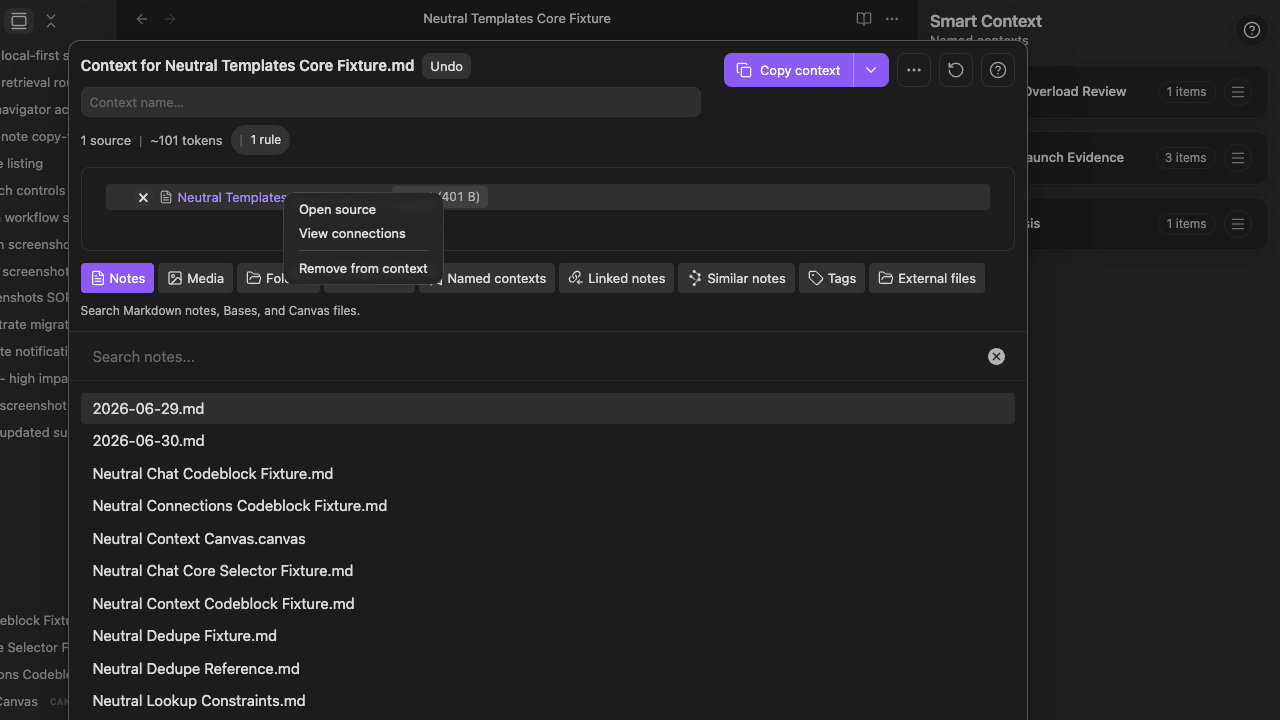
Remove, clear, or manage the package
Removing a direct source removes that selection. In Pro, an inherited item can come from a folder or another dynamic group. When you remove that item, Pro can create an exclusion rule. The rule keeps the item out while the group remains included.
After a rename, duplication, clear, deletion, or source removal, reopen the package. Make sure that the intended change appears. Clear removes the current package contents. Delete context removes a saved context definition.
Inspect and recover Context rules
Edition: Pro.
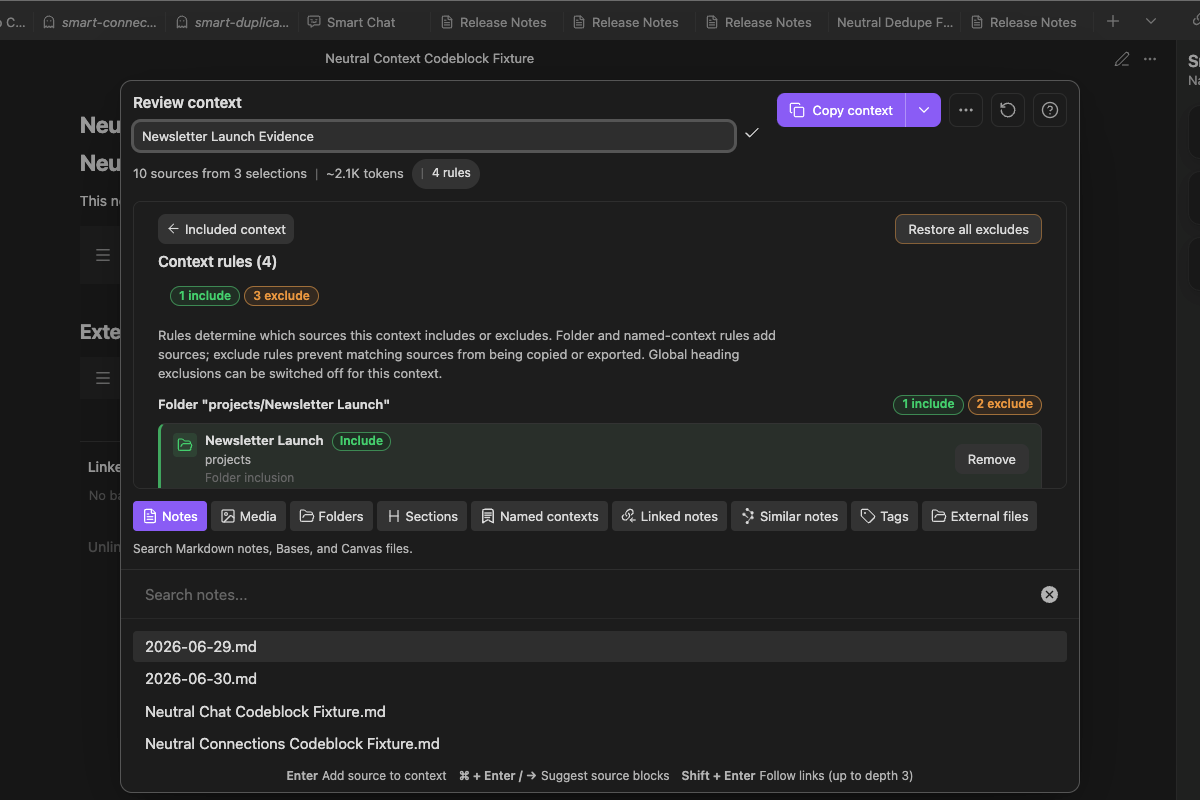
Open the rule-count control before copying a package assembled from folders, tags, or other dynamic sources.
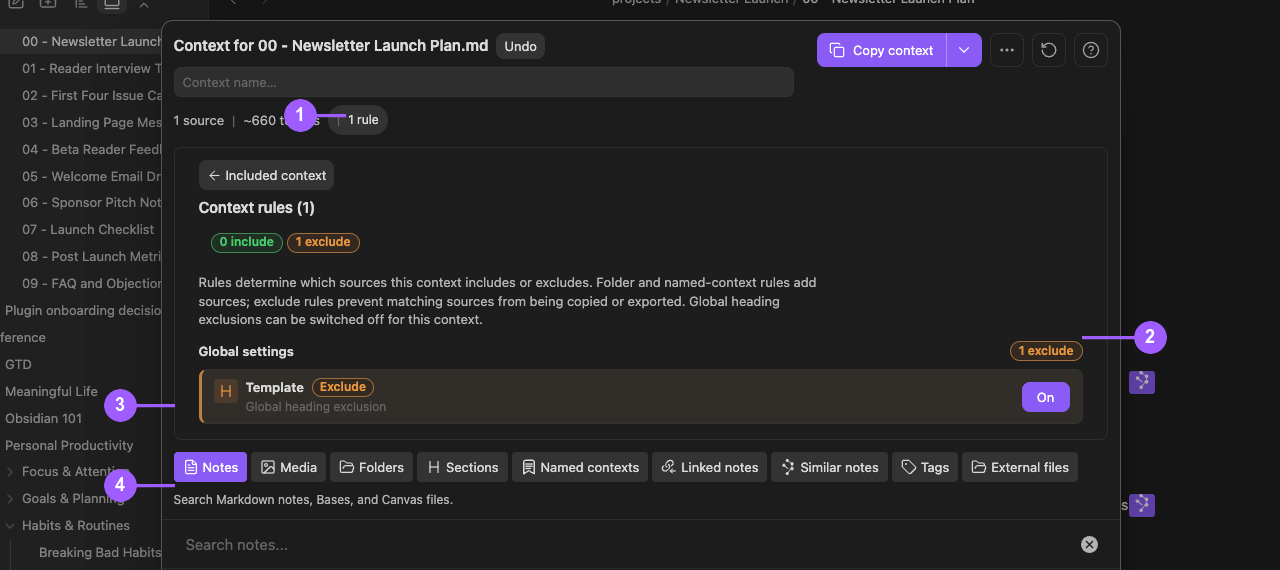
What the numbers show:
- The visible
1 rulechip preserves continuity with the reviewed package. - The global
1 excludecount and override show the current exclusion state. - The Template global heading-exclusion row is visibly On for this package.
- Source-mode tabs remain available while Rules are inspected.
Rules make dynamic packages easy to review:
- Include records a dynamic group that contributes sources.
- Exclude keeps a matching source or heading out.
- Switching off a global heading exclusion creates an exception for this context. It does not delete the global rule.
- Removing an included group changes the package. It is not the same as restoring one excluded child.
Excluded source rows expose Restore for individual recovery. The Rules overview exposes Restore all excludes for bulk recovery. Use the narrowest applicable control. These controls change Context rules, not the source notes. Reopen the package and make sure that the intended sources return before copying.
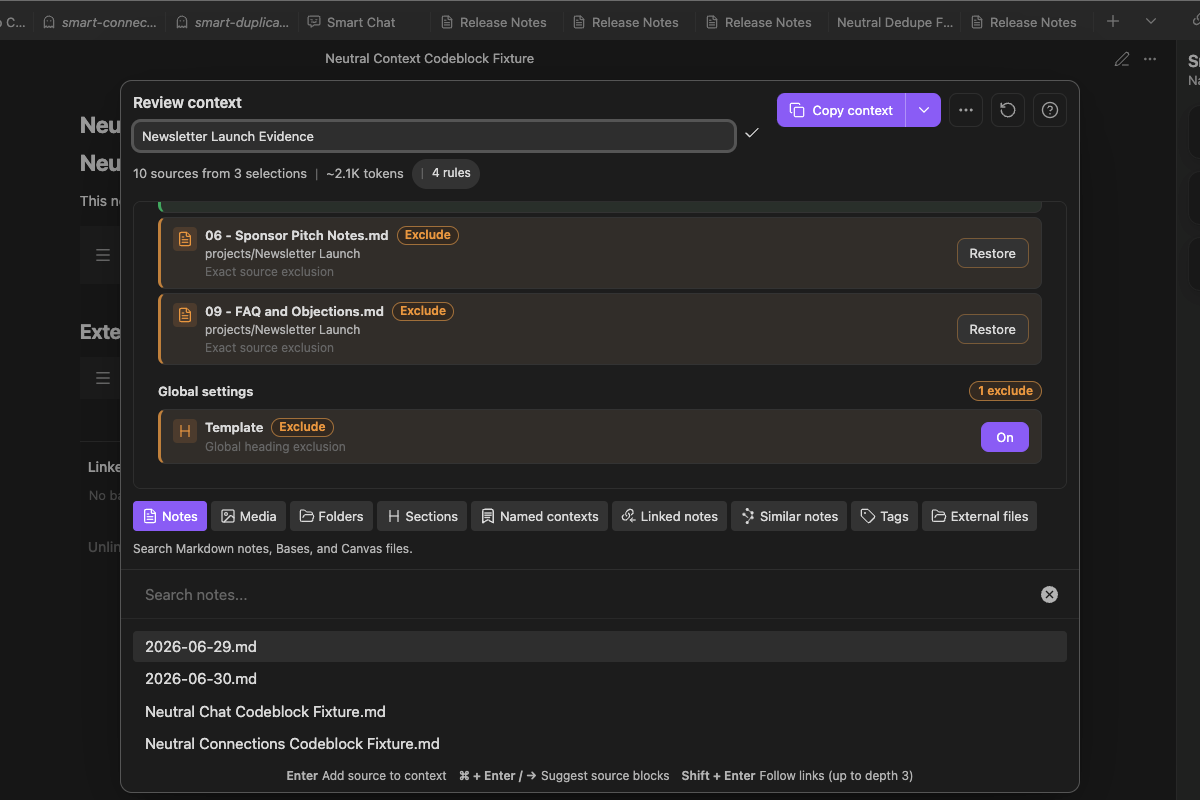
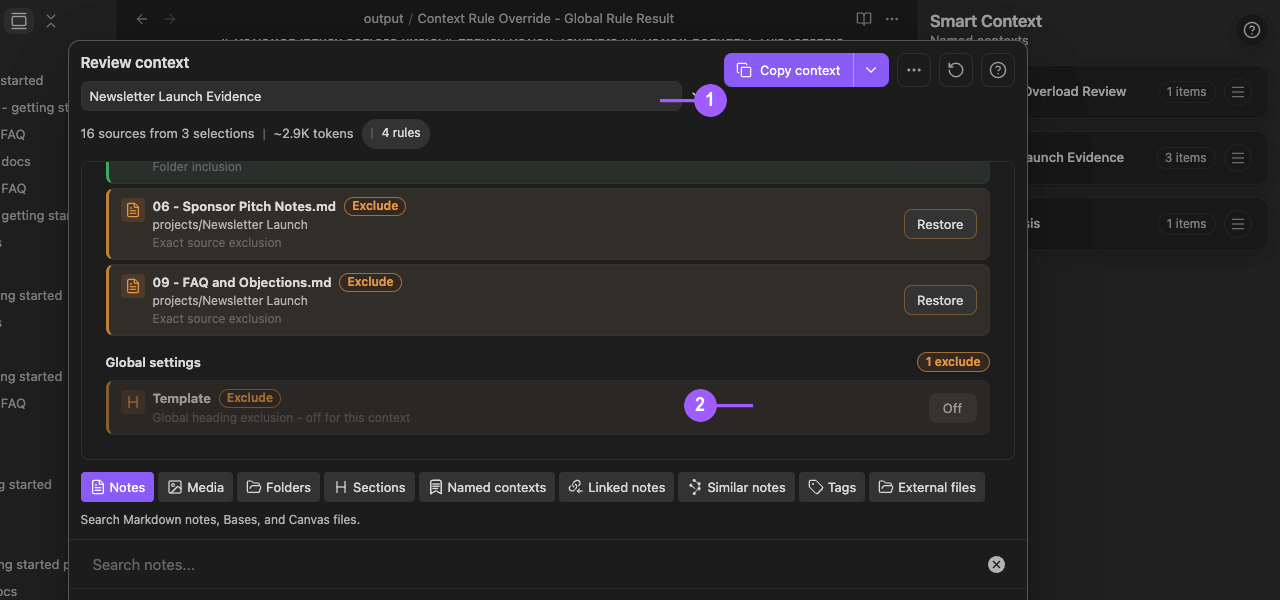
Override a global heading rule for one context
- The context name and source boundary identify the package being edited.
Templateis a global heading exclusion and is On for this package.
-
The package and sources stay the same.
-
Turning
TemplateOff creates an exception for this context. -
Switch the override.
-
Copy the package.
-
Make sure that the excluded heading appears.
-
Restore the rule.
-
Copy the package again.
-
Make sure that the heading is omitted.
-
Make sure that the source remains included.
The override does not change the source note.
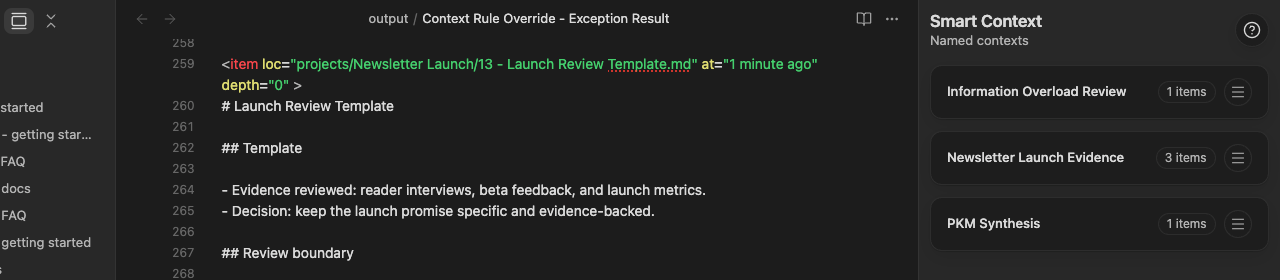
With the package exception active, the compiled source includes Template, its two reviewed lines, and the following Review boundary.
After the global exclusion is restored, the same source wrapper and Review boundary remain while the Template section is absent.
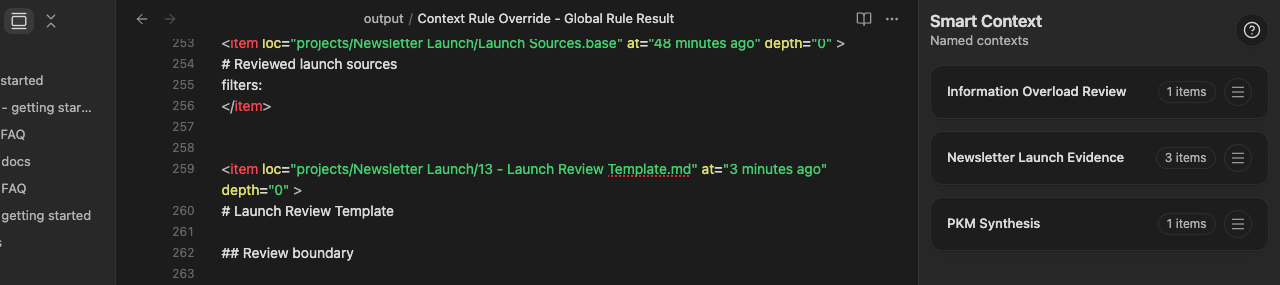
These excerpts verify the pictured heading boundary, not completeness of the whole context package.
Save and reuse named contexts
A named context stores a reviewed source definition. Reopen it to resolve the current context package.
Save a named context
Enter a clear name in Builder after the source list is correct. In Pro, check Rules too. Use a name that describes the reusable source set. For example, use Newsletter Launch Evidence instead of the one-off prompt.
Reopen and inspect before reuse
Open the named-context dashboard or select Named contexts in Builder. Before copying, check the source count, availability, and estimate. In Pro, also check Rules. A saved name does not guarantee that every source is present or current.
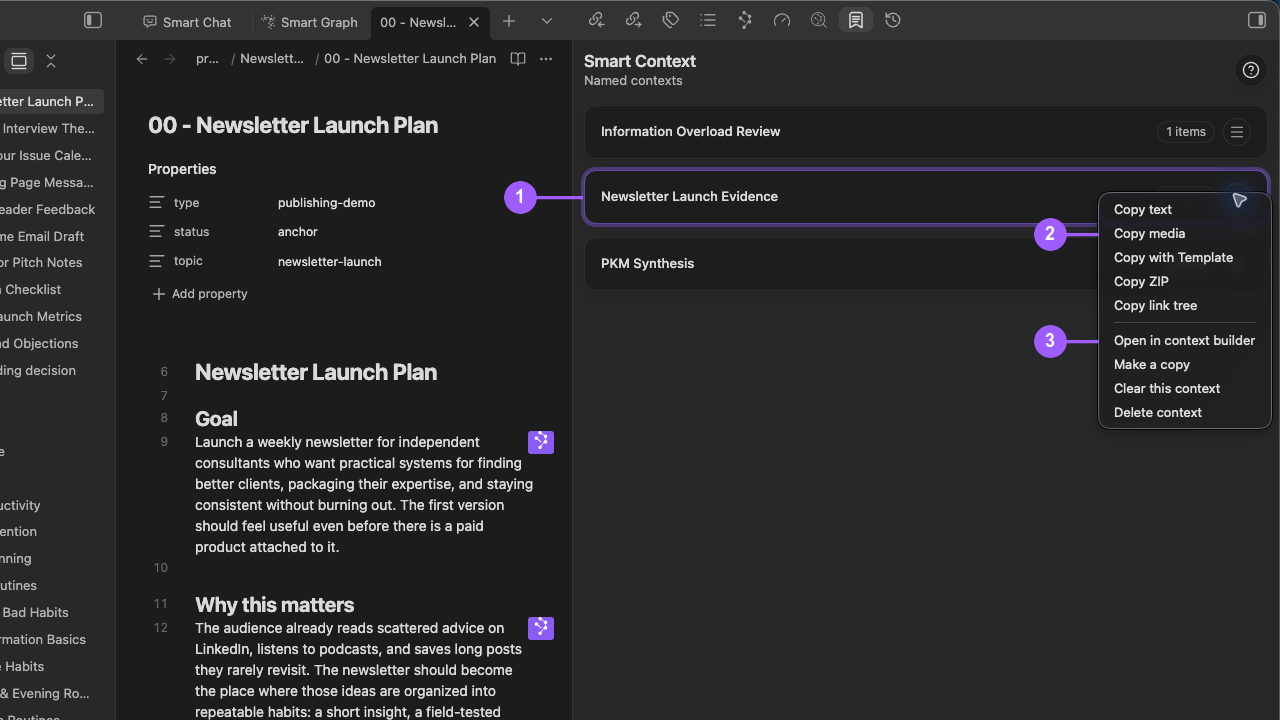
What the numbers show:
Newsletter Launch Evidenceis the selected named context whose menu is open.- Copy text, media, ZIP, and link-tree choices provide different outputs from the same package. Copy with Template is supplied by Smart Templates when available.
- Builder, copy, clear, and delete choices manage the selected named context.
Use the dashboard to:
- reopen a named context in Builder
- copy its resolved package
- duplicate a named context
- rename a named context
- clear a named context
- delete a named context
Make a copy, Clear this context, and Delete context affect the saved definition. Before you select one of these actions, make sure that the selected name is correct.
After a lifecycle action:
- Reopen the package.
- Check its name.
- Check its source count.
- Check source availability.
- In Pro, check Rules.
Add to and reuse a named context by drag and drop
Drop notes, folders, Connections results, Lookup results, and supported media where available onto an existing named-context row. Folders expand recursively into supported context items. After the drop, verify the updated source count and resolved tree.
Named-context-to-named-context drops are not supported because they can create direct or transitive cycles. When one saved context should reference another, add the referenced named context through Named contexts in Builder.
Drag the row header into Smart Chat to add a named-context reference. Drag the same header into a supported Markdown editor to insert a complete canonical ctx codeblock.
Attach an AI context manifest to an Obsidian note
A Smart Context codeblock keeps a source manifest beside the note that uses it. Run the command for your installed edition:
- Core:
Smart Context: Insert codeblock - Pro:
Smart Context Pro: Insert codeblock
Core codeblocks accept local note paths and ctx:: named-context lines:
```ctx
projects/Newsletter Launch/00 - Newsletter Launch Plan.md
projects/Newsletter Launch/04 - Channel Plan.md
ctx:: Newsletter Launch Evidence
```
Pro also accepts supported relative external include and exclude lines:
```ctx
../example-project/src
!../example-project/dist
!*.test.js
```
In Reading view, use the rendered action bar only after the source and rendered tree match. The ctx, context, and smart-context fence aliases render the same Smart Context surface. Rewrites preserve the alias used in the note.
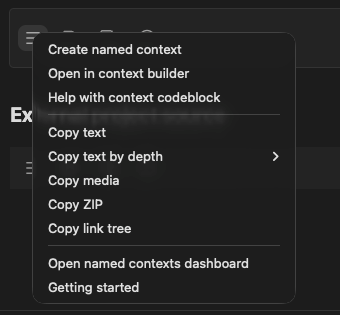
Open the manifest in Builder when it needs review. Copy text, media, ZIP, or a link tree only after the rendered sources match the fence.
The menu can also create a named context, open the named-context dashboard, or copy at a selected depth. Pro external include lines and ! exclusion lines remain visible in the note so the package boundary can be reviewed later.
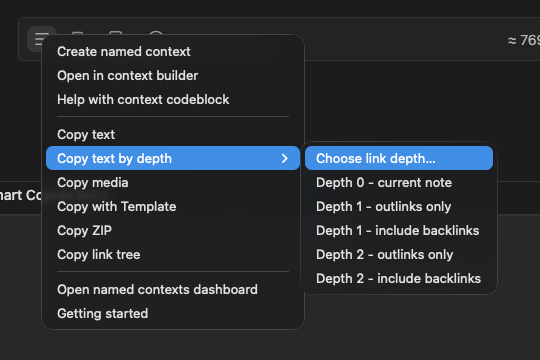
Choose the copy scope
Use the codeblock copy action when you want only the package resolved from that codeblock.
Use the regular current-note copy workflow when you want one package containing the active note, sources selected by the current-note depth, and the first Smart Context codeblock's resolved sources. Direct declarations from that codeblock join the current-note package at Depth 0 and do not start additional link traversal by themselves.
Check the rendered codeblock
Compare the fenced source with the rendered tree. Use an action only after the two views match. After copying or opening the block in Builder, make sure that named contexts resolve to the intended sources. In Pro, make sure that external paths also resolve correctly.
Add external files and code repositories to Smart Context
Edition: Pro. Desktop only.
External files adds files and folders outside the vault. Store portable relative paths when possible. Never publish an absolute home path.
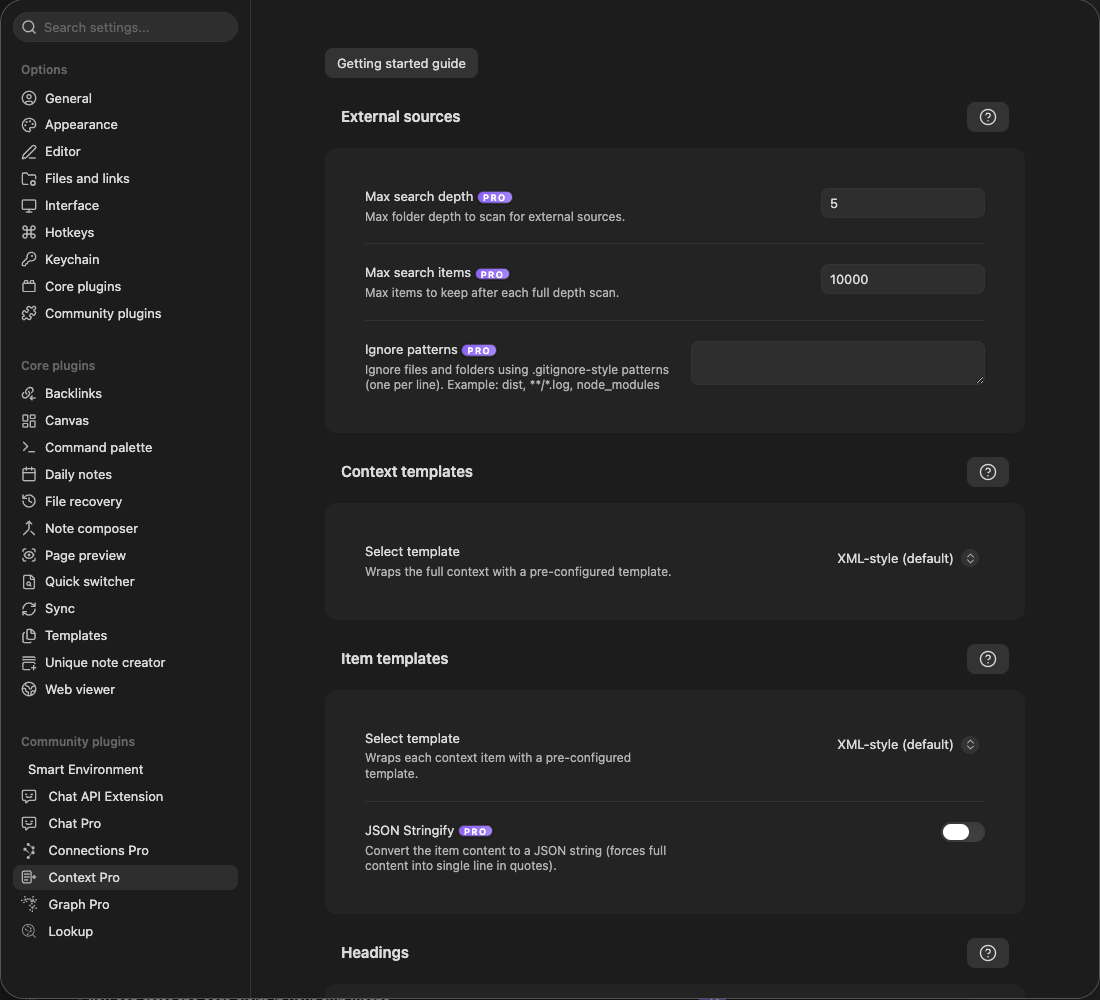
Set Max search depth and Max search items to bound external discovery. Before you scan a repository, exclude dependencies, generated output, caches, and secrets with ignore patterns.
The supported syntax includes:
../example-project/srcto include a relative source tree!../example-project/distto exclude a relative subtree!*.test.jsto exclude matching files
After you add an external path, expand the resolved tree. Make sure that included files are present. Make sure that excluded folders and patterns are absent. External files are desktop-oriented.
Use Max search depth, Max search items, ignore patterns, and scan limits to keep repositories reviewable. The external-folder item cap is applied to raw scan results per folder expansion: scan-time regex filters run before the cap, while structured exact and folder exclusions run after it, so excluded candidates can prevent later eligible candidates from being considered. Exclude dependencies, builds, caches, generated output, secrets, and unrelated packages before copying. Prefer one broad folder exclusion over many child exclusions when the boundary is stable.
Copy images and PDF pages as AI context
Edition: Pro.
Use Copy media for screenshots, diagrams, whiteboards, PDF tables, charts, figures, slide snapshots, and other visual evidence. It places media on the clipboard separately from Copy text.
Prepare the sources before copying:
- Embed a required visual in the starting note when it must be available at Depth 0.
- When the note only links to an attachment, use the smallest depth that reaches it.
- The media count reports how many items the selected package and depth resolved.
Use the route that matches the package you are reviewing:
- Current note: Use the current-note controls described above. In the Pro menu, choose the smallest useful depth and then Copy media. In the estimated depth chooser, Shift + Select copies media for the selected depth.
- Builder or named context: Review the resolved package, then choose Copy media from its copy menu. In Builder, use Media to add the intended images or PDF files before copying.
At Depth 0, supported media embedded in the starting note is eligible. Linked attachments are eligible only when they fall within the selected link depth. Use the media count to choose the smallest depth that still includes the intended visuals. Text estimates describe the text package; the media count describes the candidate composite image.
Copy media renders supported images and each selected PDF page into one composite clipboard image. Image aspect ratios are preserved, and PDF pages remain attributable through their file and page labels. The clipboard result contains media only. When the task also needs text, run Copy text separately and verify both pasted outputs.
After copying:
- Read the copy notice. Use its media count as a quick check that the intended attachments were found.
- Paste into the exact destination you plan to use.
- Confirm that a destination which accepts pasted images shows an image attachment or thumbnail for the composite.
- Confirm that every intended image and PDF page is present and readable.
- Check filenames and page labels where the destination displays them.
- Compare the pasted composite with the reviewed package before sending.
- If the destination rejects the paste, retry in an empty composer before changing the sources.
- If the destination is text-only, use Copy text instead.
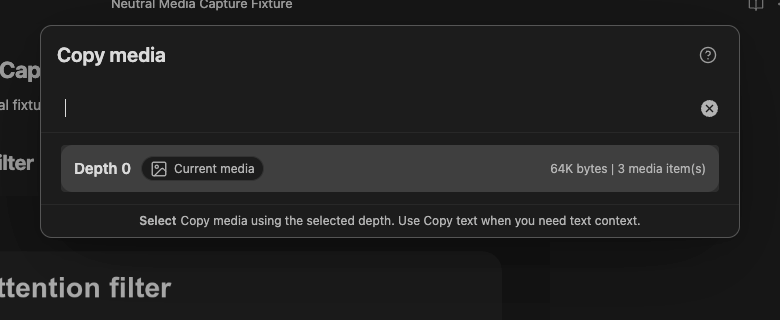
Clipboard capabilities vary by platform and destination, so an app can paste only the format it supports. Smart Context does not fetch images that exist only as external web URLs. If the safety limit appears, reduce the number of items or their resolution.
Use Canvas as a source
Use the current-note copy workflow while a Canvas file is active. The Notes source mode also includes Canvas files for Builder workflows. Add a Canvas only when its referenced material belongs in the package, then inspect the resolved source tree before copying.
Use a Canvas when you already organize the project visually, want to review relationships before copying, or need a quick snapshot of linked notes. Supported file cards provide the starting sources, and the selected depth determines whether Smart Context also follows links from them.
At Depth 0, the active Canvas contributes sources represented directly by its supported file cards. Higher depths follow linked evidence from those resolved sources. The copied result represents source content, not the Canvas layout: card positions, groups, and edge meaning are not encoded as semantic structure. Use Copy media or another visual export when the Canvas arrangement itself is part of the evidence.
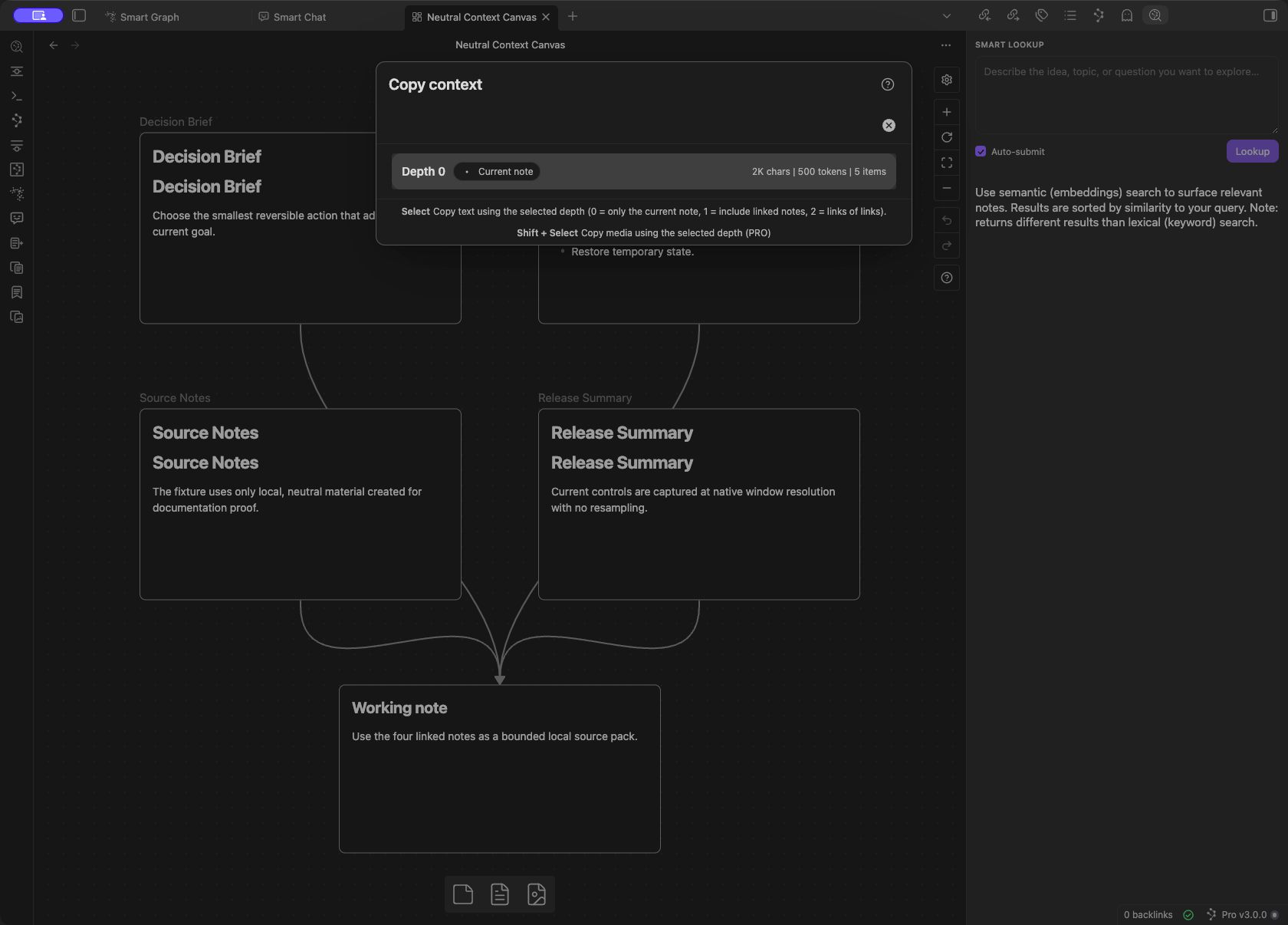
The chooser applies link depth to the Canvas-resolved file cards. Text copy does not preserve card positions, groups, or edge meaning.
Use Bases as a source
The Notes source mode includes Bases. Add the Base. Then examine which notes or rows appear in the reviewed tree.
Use depth 0 for the rendered Base itself. Use depth 1 only when notes linked from the rendered output are required. Narrow the Base first: the rows currently visible in the source view are not a guaranteed copy boundary. After copying, inspect which rows, filters, properties, links, and rendered text reached the destination. Relative this.file or this.note behavior must be judged from the compiled result, not the Base view alone.
Smart Context can compile a .base as context. Semantic Connections scoring inside Bases is a separate Connections Pro capability.
Add a Base in Builder
- Open Builder.
- Choose Notes.
- Search for and add the
.basefile. - Expand the context tree to see the resolved rows or notes.
- Remove unrelated material.
- Use Depth 0 for the rendered Base. Use Depth 1 only for a known linked note.
If more records appear than expected, return to Depth 0 or add the required notes directly instead of widening the package again.
Customize copied text
Smart Context settings control how the complete package and each source item are formatted. Current presets include structured XML, Markdown headings, JSON, and custom templates.
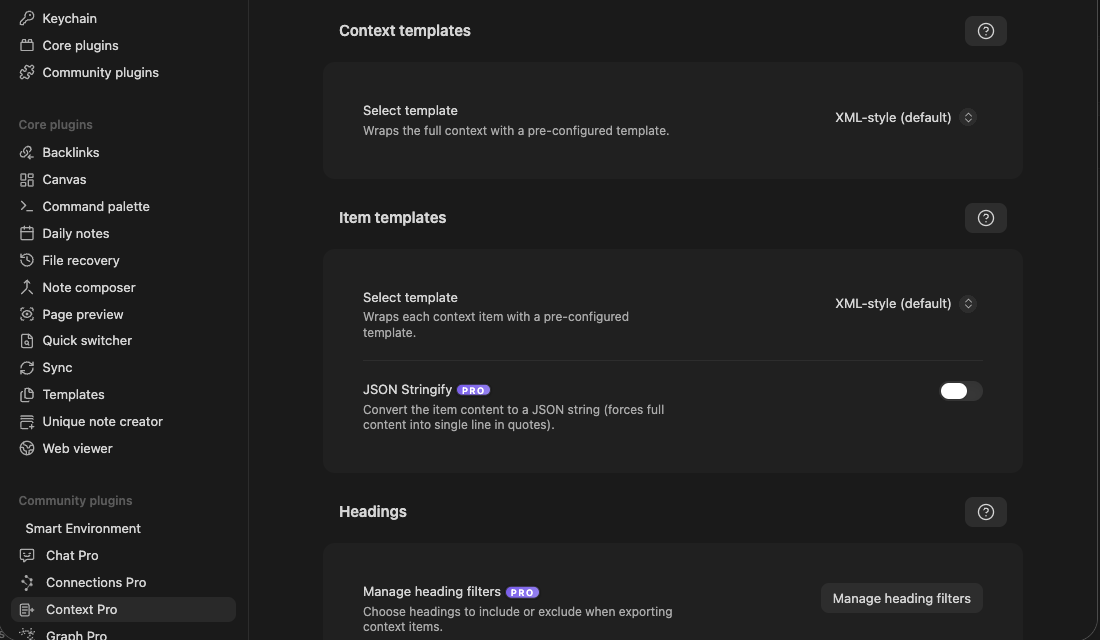
Choose an output preset. Paste a small package. Examine the exact structure. Then use the preset in a larger workflow.
JSON Stringify is the Pro serializer-backed output path. Handwritten JSON templates can become invalid when copied content contains quotes, backslashes, newlines, control characters, or trailing delimiters. Test pasted JSON with a parser before you use it in downstream automation.
The context template controls the overall wrapper, including headers, footers, and the optional file tree. The item template controls how each note title or path appears and, where supported, can format whole-note and block items differently.
Long wrappers and a file tree increase copied size. Remove nonessential wrapper content when the package exceeds the destination limit.
The context template can use {{FILE_TREE}} for a hierarchical source map. Item templates support:
| Variable | Value |
|---|---|
{{KEY}} |
Full item key or path |
{{ITEM_NAME}} |
File or block name without folder path or extension |
{{TIME_AGO}} |
Relative modified time or Missing |
{{LINK_DEPTH}} |
Link depth, default 0 |
{{EXT}} |
File extension when available |
{{IS_CURRENT}} |
A marker when the item belongs to the active note |
{{FILE_TREE}} marks the first active-note match as current. Use {{IS_CURRENT}} when every matching item needs a marker.
Apply heading filters
Edition: Pro.
Heading filters change the copied package, not the source notes. Matching is case-insensitive. When a source has at least one configured Include heading, Smart Context copies only sections whose headings match. Otherwise, it removes sections that match Exclude headings and preserves the remaining content.
Block-only items and external-file items are not sliced by source-note heading filters. Examine a small pasted package before you apply heading filters to a larger workflow.
Use Smart Context on mobile
In-vault note, section, named-context, codeblock, and text-copy workflows can remain useful on mobile. External file and folder browsing requires desktop filesystem access. A named context created on desktop can still open on mobile, but external items in it cannot resolve there.
Clipboard behavior depends on the mobile operating system, Obsidian version, destination app, and payload size. There is no universal maximum: start with a small depth and verify the actual paste in the destination.
Recover from missing or oversized sources
| What you see | What to do |
|---|---|
| A missing-source row | Remove the row or restore the file. Reopen the context. Check the tree. |
| A folder marked truncated | Narrow the folder, use a Section, or split the package. |
| An incomplete-output confirmation | Cancel the copy. Reduce the selection. Copy again unless the partial package is intentional. |
| A media safety-limit warning | Reduce the number of images or PDF pages, or lower their resolution. |
| An empty copy result | Make sure that the package contains at least one included item. Make sure that Rules did not exclude all items. |
| Clipboard copy fails | Keep Builder open. Retry once. If the copy fails again, copy a smaller package or use ZIP. |
| Current-note package is too broad | Reduce link depth. |
| Folder package is too broad | Use a hand-picked selection or open the folder in Builder. |
| Template overhead is too large | Remove nonessential wrappers and the file tree. |
| One long note dominates the package | Select a Section or block-level item in Builder. |
Character, item, token, and size estimates are approximate; destination limits apply to the actual copied or archived output.
Privacy and trust
Smart Context assembles the package in Obsidian. Content can leave Obsidian when you copy, paste, export, or send it to another application or provider.
Before sending:
- inspect every source and exclusion
- remove private or irrelevant material
- verify relative paths do not reveal a host identity
- inspect the pasted text or media in the destination
- treat model output as untrusted until reviewed against the sources
Requirements and availability
This page documents the current desktop Pro interface. The first useful copy does not require Pro.
| Edition | Current boundary |
|---|---|
| Core | Current-note copy with the depth chooser. Direct selected-note and folder copy. Builder note and block selection. Named contexts. Note and named-context codeblocks. Template-driven exports. Canvas sources. |
| Pro | Media, images, and PDFs. External files, folders, and repositories. Dynamic folder and tag groups in Builder. Exclusions and heading filters. Richer Bases rendering and advanced workflows. |
Direct folder copy is Core. A dynamic folder or tag group inside Builder is Pro. Basic .base source handling is not a Pro-only claim. Pro adds the richer Bases workflow.
Use the live Smart Plugins Store to see which Context edition is installed and active. External files requires desktop file access. Copy with Template requires Smart Templates. On mobile, use only the source and output controls visible in that build. Examine the pasted result before you send it.