
Obsidian native graph
Trace explicit links
- Shows links already written into the vault.
- Shows how your notes are explicitly linked.
Official Smart Plugins site Smart Plugins are independent third-party plugins for Obsidian. Smart Connections is the flagship plugin.
Semantic graph for Obsidian
Smart Graph arranges indexed notes by semantic similarity so you can explore regions, possible bridges, and outliers — then open the notes behind them.
Available with Pro on Obsidian desktop.
Read the map
Regions, possible bridges, and outliers can direct attention across a growing body of notes.

Region
A dense group can suggest a shared theme worth investigating.
Understand regions
Bridge
A generated bridge between regions can point to an overlap worth checking. It is not a link written in your notes.
Understand bridges and links
Outlier
A small or distant group can suggest a niche topic, a coverage gap, or an unexpected note worth checking.
Interpret Graph patternsWhy another graph
Obsidian native graph
Smart Graph
Use both when you want to compare semantic proximity with the links you created. See the native Graph comparison and how Graph lines work.
Move through the map
Search finds labels and paths, selection keeps chosen notes visible, and scope redraws the map around a smaller source set.
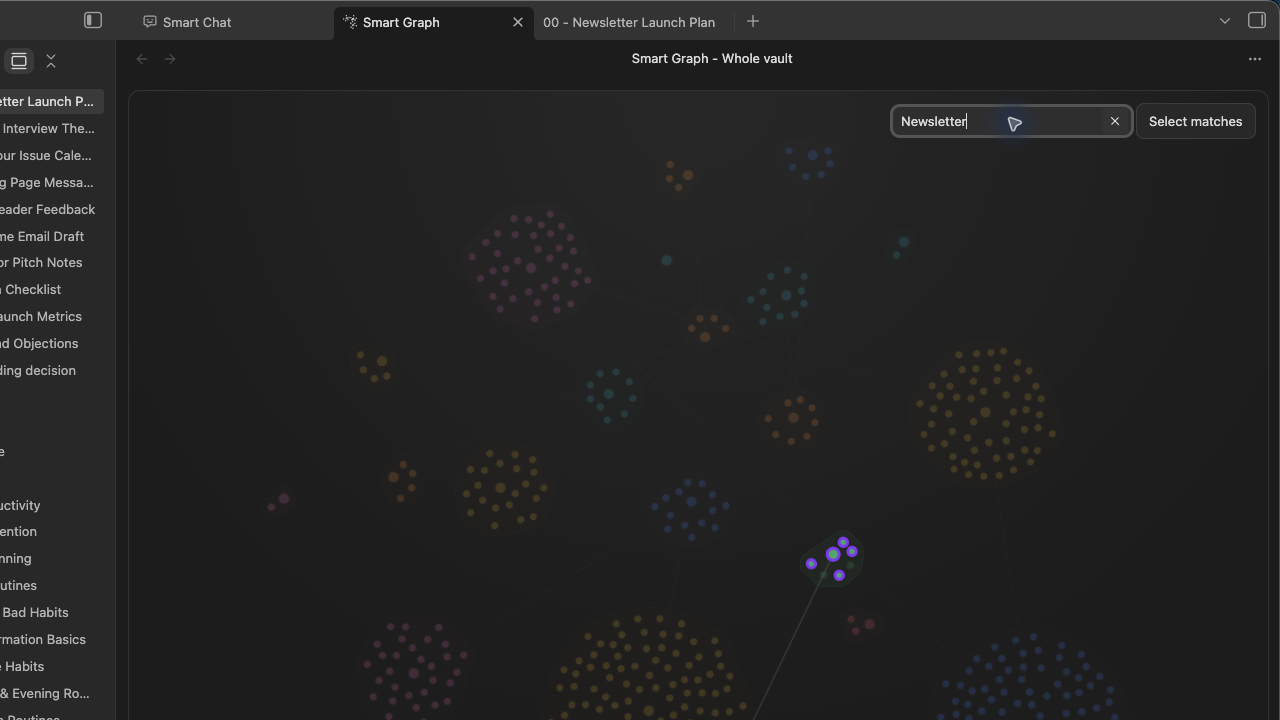
Search the graph
Find matching labels and paths while the rest stays visible.
Use Graph search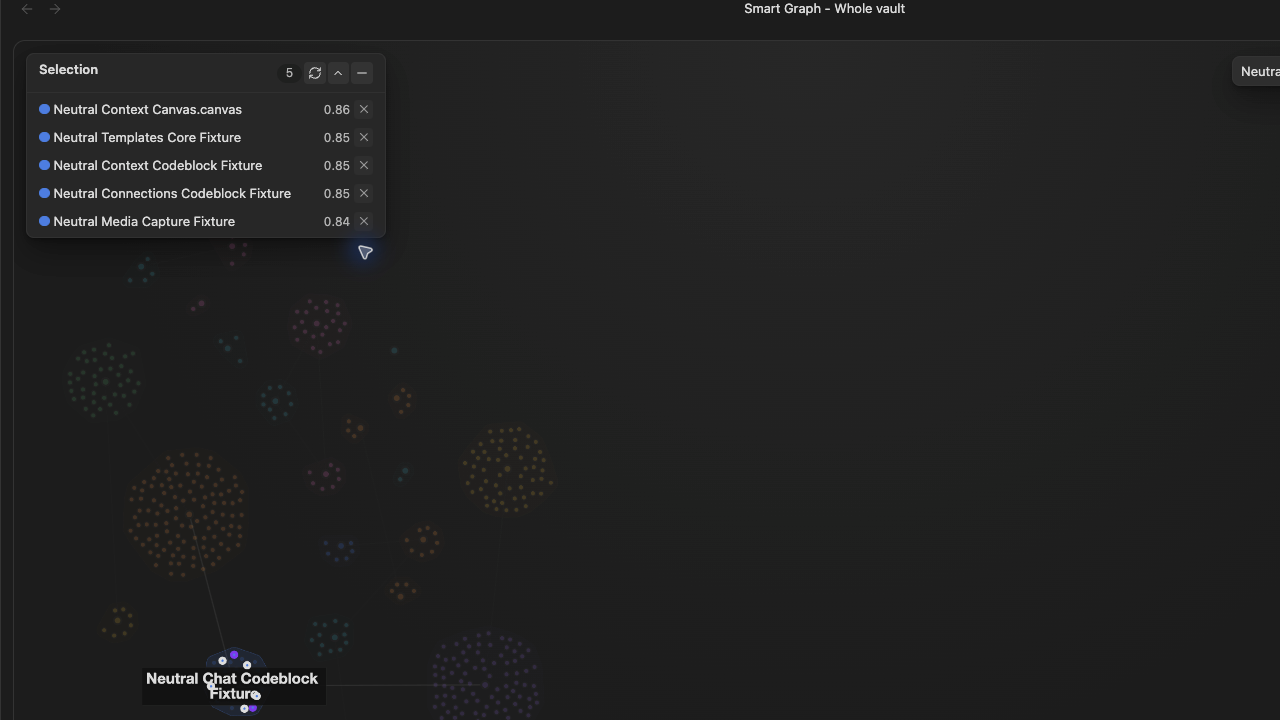
Select notes to review
Keep selected note names visible in the Notes panel while you decide which sources to inspect or use.
Use the Notes panel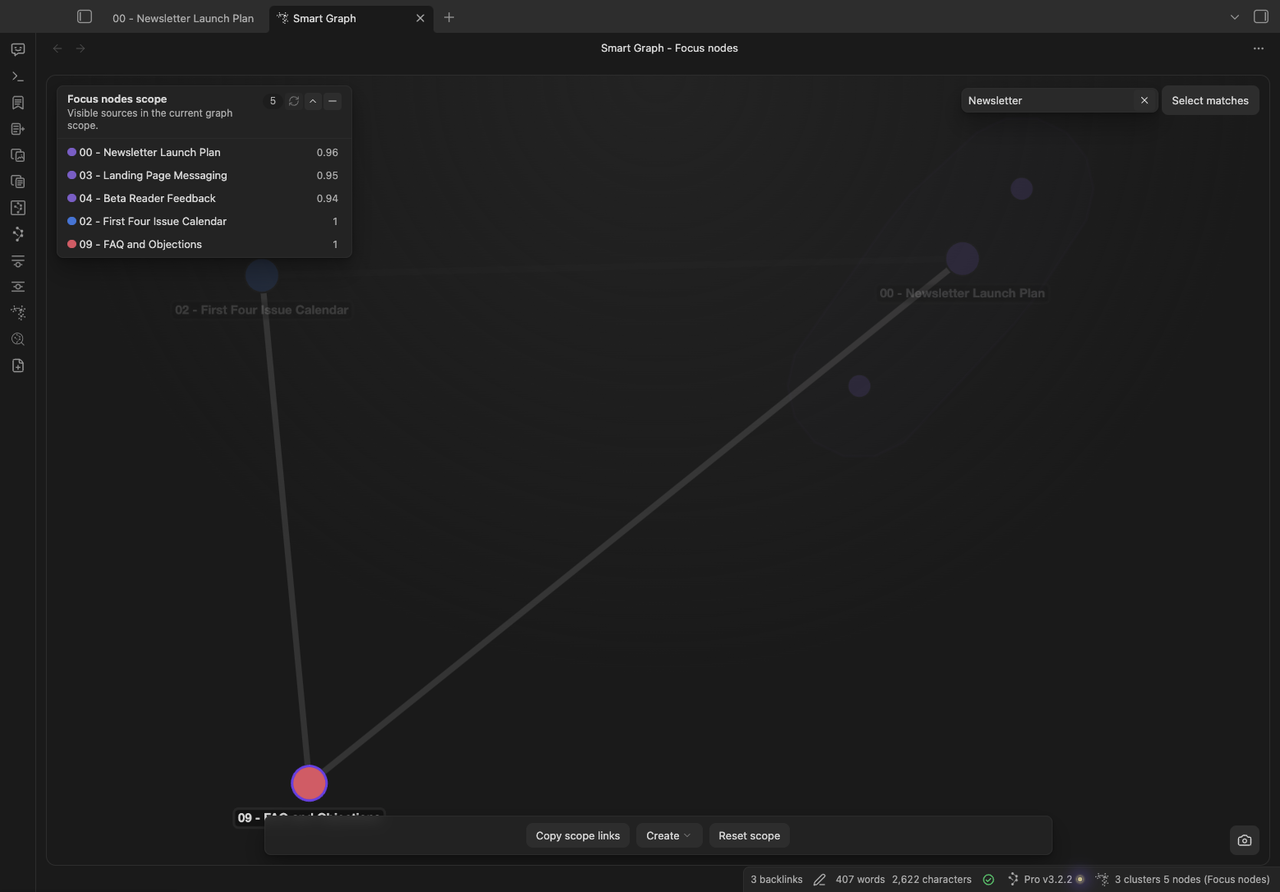
Focus the view
Render the graph around a cluster, selected notes, or a Neighborhood.
Follow the trail
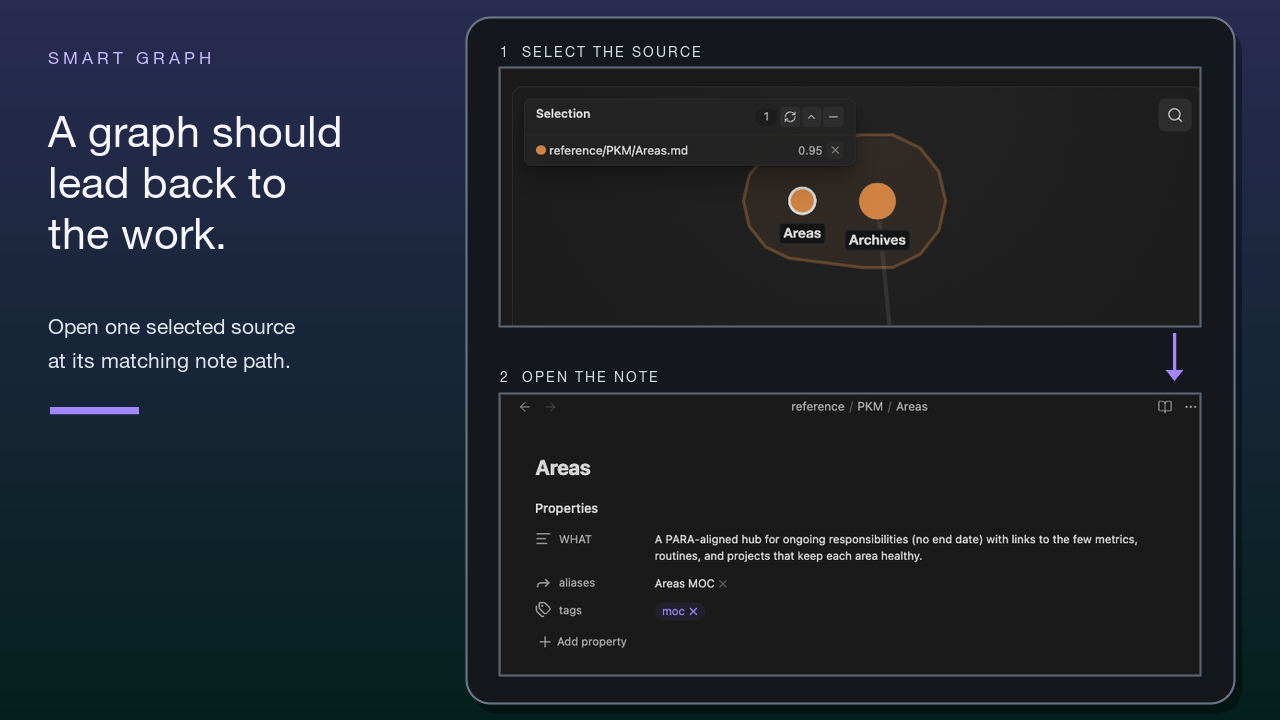
The graph directs attention; the original notes provide the evidence. Select a node or region, confirm its notes, and open them before deciding what the pattern means.
Follow the first note-opening walkthrough in Getting Started.
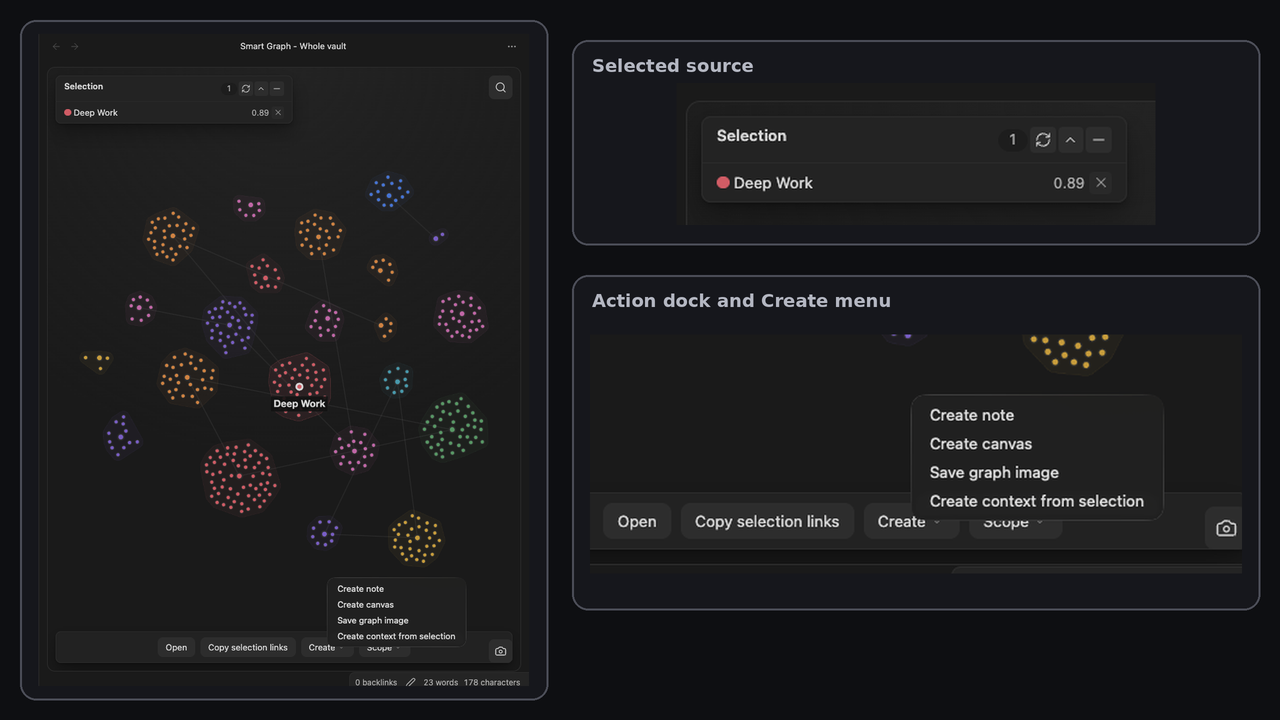
Carry it forward
Choose by question
Smart Graph starts with a set of notes and asks what patterns appear. Other surfaces start from a current note, a typed question, exact text, or authored links.
Explore patterns across several notes.
Surface related notes from the note in view.
Search semantically from a typed phrase or question.
Find exact text, paths, tags, operators, or regex.
Explore authored links between notes.
How it works
Smart Graph uses embeddings to place indexed notes closer together when their content is semantically similar. The selected scope determines which notes enter the map.
What can change
What appears can change with the indexed sources, embedding model, scope, and layout settings.
Learn how to interpret GraphAvailable with Pro
Smart Graph is available through Pro on desktop. The sources you want to explore must be indexed; a current-note Neighborhood also needs the active note in that index. Check the live Smart Plugins Store for current access.
Questions before you add it
Smart Graph arranges indexed notes by semantic similarity into regions you can explore, with source nodes you can select and open.
Obsidian's native graph centers authored links. Smart Graph starts from semantic similarity and can also overlay authored links when Show links is active.
Semantic bridges are generated lines between cluster representatives. Show links adds authored links with arrowheads that show direction; Hide links removes that overlay.
Yes. Nodes resolve to indexed source notes. Select a node to inspect or open its source in Obsidian.
Learn about Graph nodesYes. Because Smart Graph uses semantic similarity, it can form Neighborhoods even when authored links are sparse.
Inspect sources by opening selected notes. Carry a reviewed set forward by copying links, creating a note or Canvas, or adding it to Smart Context when available. Continue exploring by saving the graph image or changing scope.
Smart Graph is a Pro desktop plugin. It needs eligible indexed Smart Sources and current embeddings. A current-note Neighborhood also requires the active note to be indexed.
The current Store lists Smart Graph in the main Pro catalog rather than under Experimental. Check the live Store for the latest grouping.
Get Smart Graph through Pro, start from a note or source set you understand, and choose what to inspect next.
Smart Project lessons
Begin with a four-part introduction, followed by selected lessons from the systems, tools, and workflows behind Smart Plugins.
Subscribe to the Smart Project lessons and selected updates. Unsubscribe anytime. Privacy policy.