
Connect Pro for Obsidian
Improve your notes
without losing trust in them.
Bring AI help into your Obsidian vault while keeping the decisions, details, and context you rely on in view.
Connect Pro's proposal tools hold suggested edits in Smart Inbox. Check a correction against its source, refine the wording, and see what a move would change before applying it.
Included in Pro All-access. No charge today. Cancel before trial renewal to avoid charges.
For reviewed changes, use Connect Pro's proposal tools. Other enabled write tools can change notes directly. Understand tool access.
Requires a running Obsidian Desktop vault and a supported connection. Check your setup.
Keep your notes aligned with what was agreed.
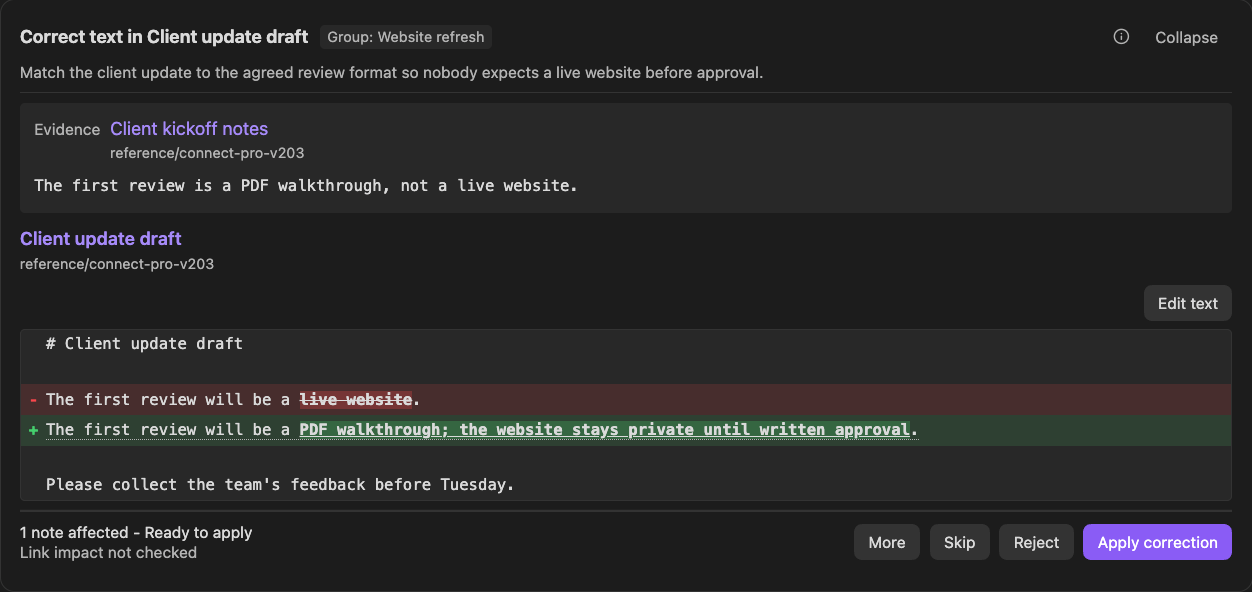
The client update promises a live website. The kickoff notes specify a PDF walkthrough. That is a different commitment, not just different wording.
Smart Inbox shows the reference beside the proposed correction. Check that the replacement reflects the agreement before relying on the updated note.
 Screenshot unavailable. Open the image to try again.
Sample project: a pending correction for Client update draft, shown beside its reference.
Make sure the correction still says what you mean.
A suggestion can fix one detail and introduce another assumption.
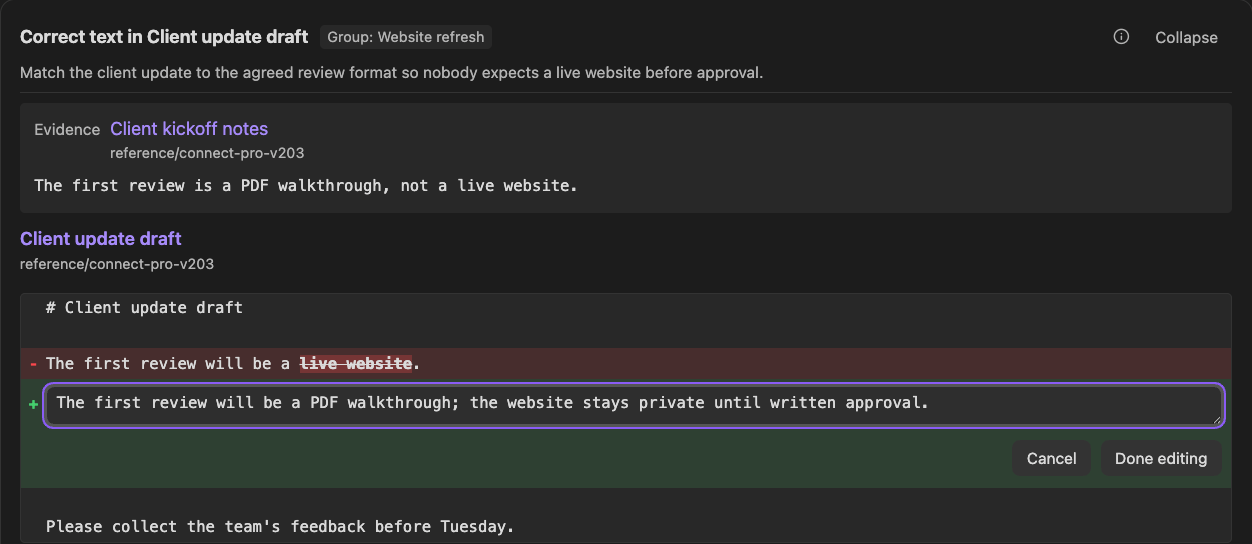
Edit the proposed replacement in Smart Inbox so it reflects what you know and intend to say. You can refine the correction without applying it to the note.
 Screenshot unavailable. Open the image to try again.
Same correction, with the replacement open for editing. Done editing keeps a review draft; applying it is separate.
Reorganize without losing the thread.
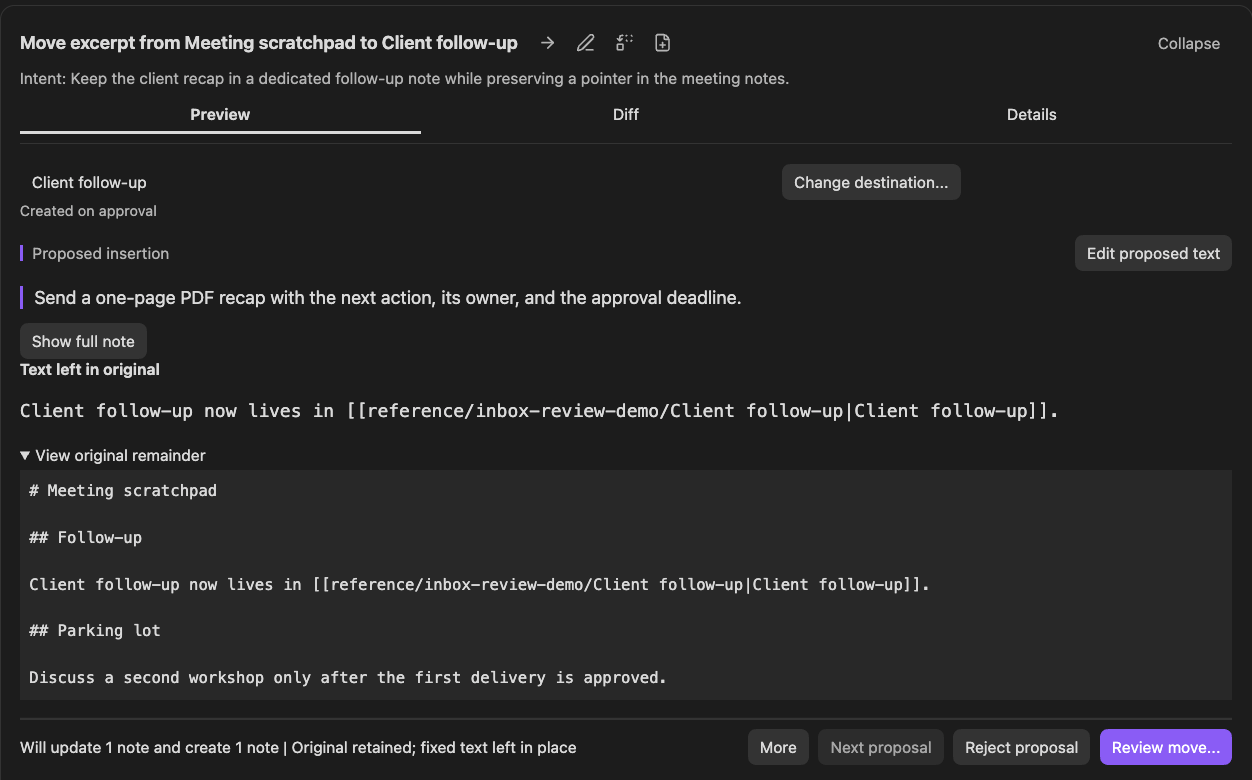
A client follow-up may deserve its own note. You still need to understand where it came from and what remains in the meeting notes.
Review the proposed follow-up, the link that would replace the original passage, and the meeting notes that would remain before confirming the move.
 Screenshot unavailable. Open the image to try again.
Separate sample project: Client follow-up is proposed, not yet created. The preview also shows what would remain in Meeting scratchpad.
Need to gather selected sections or combine complete notes? Explore reviewed moves and merges.
Use your notes without rewriting them.
Connect Pro also lets supported AI apps read your notes and retrieve relevant material. Use that context for the next draft or decision; request a proposal when the task calls for a change.
Available tools depend on your installed plugins and permissions. See examples.
Before you connect
Which AI apps can I connect?
Local MCP connects a compatible AI app on the same computer as Obsidian. The dedicated Connect Pro GPT uses a separate connection. Keep the intended vault open. Choose your setup.
Can AI change my notes without this review?
Yes, through other enabled write tools. Use Connect Pro's proposal tools for reviewed changes and check the other tools you enable. Asking AI to "only propose" is not an access restriction. Review tool permissions.
Does local access keep note content on my computer?
Not necessarily. Your AI app may send retrieved content to its model provider. Review its data handling before connecting. Read the privacy answers.
Can I undo an applied change in Smart Inbox?
Smart Inbox has no Undo command. Keep a backup or version-history workflow for your notes. Read about recovery.
Start with a note you want to keep relying on.
Choose one project note and one improvement. Review the suggestion against its source and your intent, then decide what is worth keeping.
Connect Pro is included in Pro All-access. Billing begins after the 14-day trial unless you cancel.