
Smart Context codeblock
This page is retained temporarily and may contain outdated details. Use the current Smart Context codeblock documentation for current behavior. Start with Getting started with Smart Context for the shortest verified workflow.
The Smart Context Codeblock keeps a visible context manifest inside the note that needs it.
Use it when the note body contains the instructions, and the codeblock contains the exact notes or named contexts that should travel with those instructions.
Insert the codeblock
Core command:
Smart Context: Insert codeblock (add notes & named contexts)
Pro command:
Smart Context: Insert codeblock (add external files & named contexts)
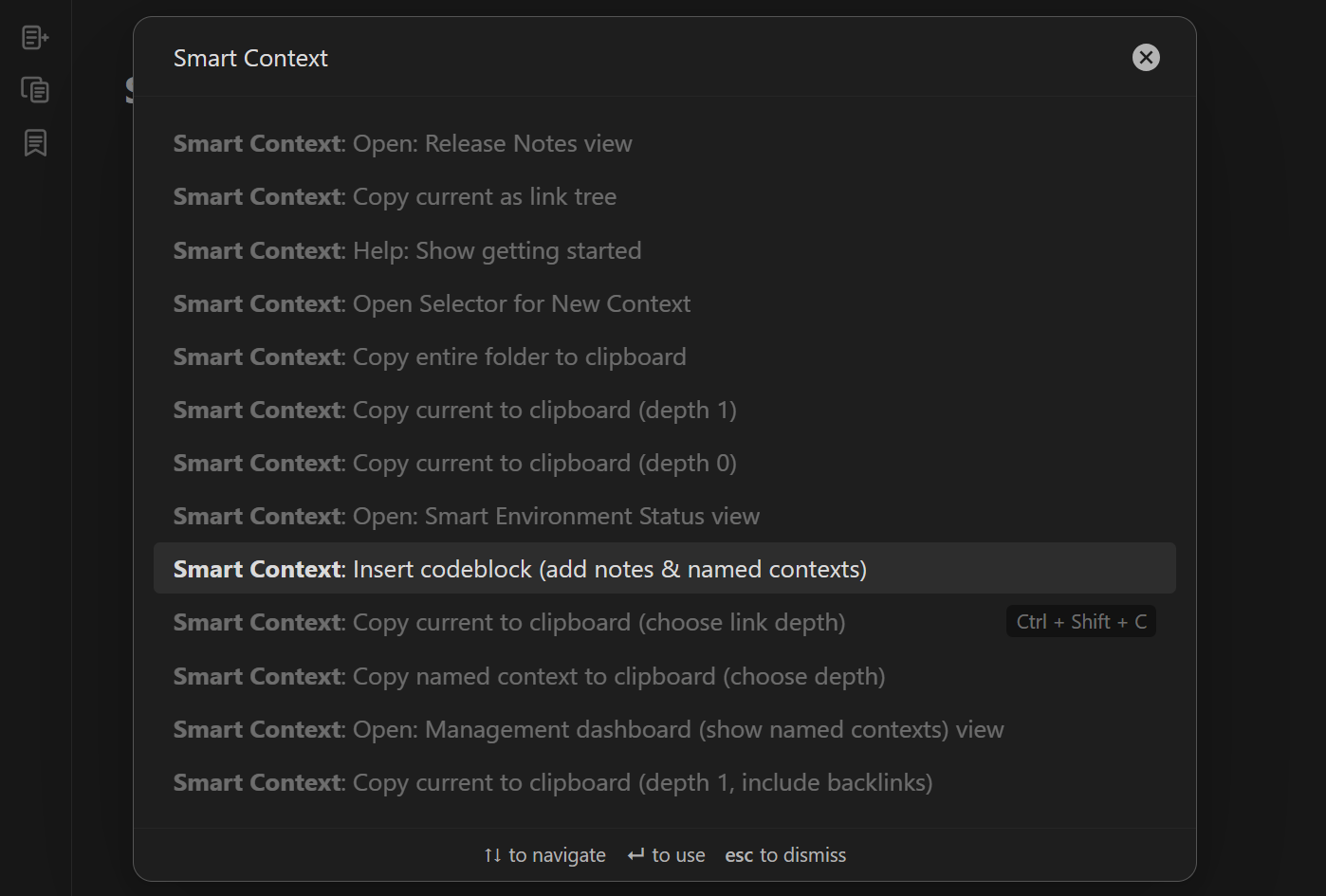
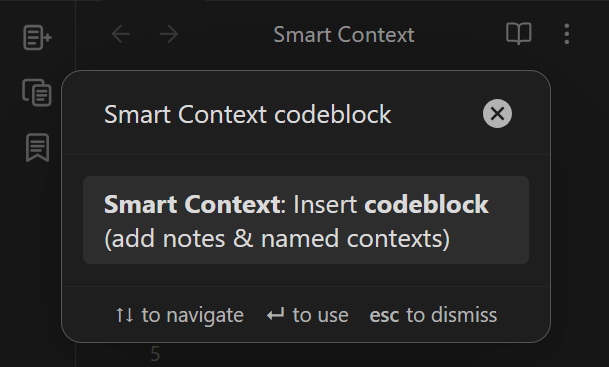
Run the command from any note to insert the block and start editing it in place.
Supported aliases
All three aliases render the same native UI:
```ctx
Projects/Alpha/Brief.md
ctx:: Weekly planning
```
ctxcontextsmart-context
The original alias is preserved when the block is rewritten.
Empty state and actions
An empty codeblock renders a compact Smart Context UI directly in the note.
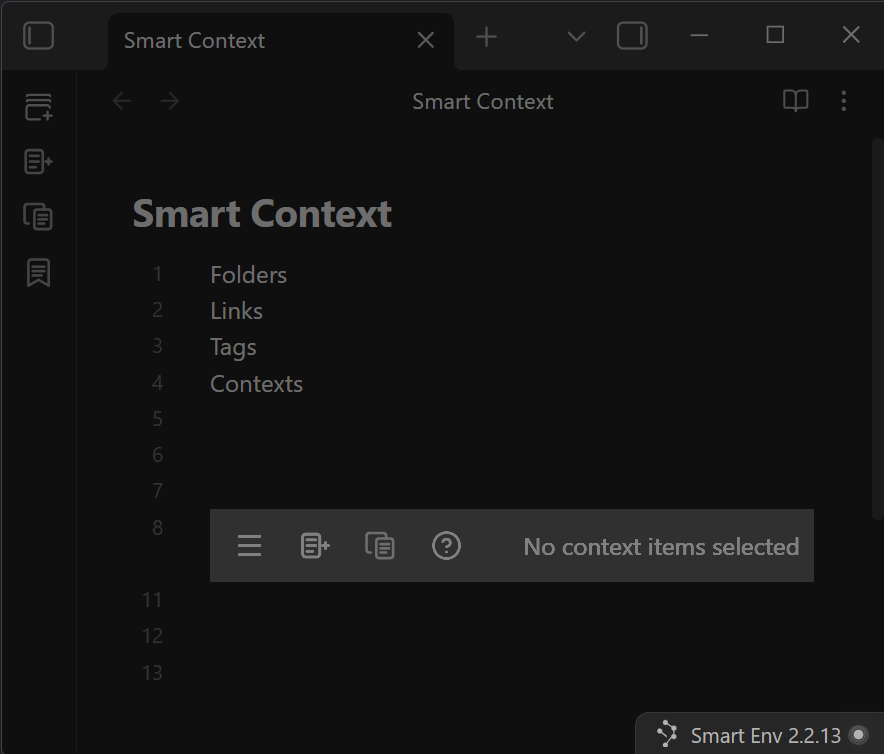
The codeblock stays in the note, so you can manage local context without switching to another surface.
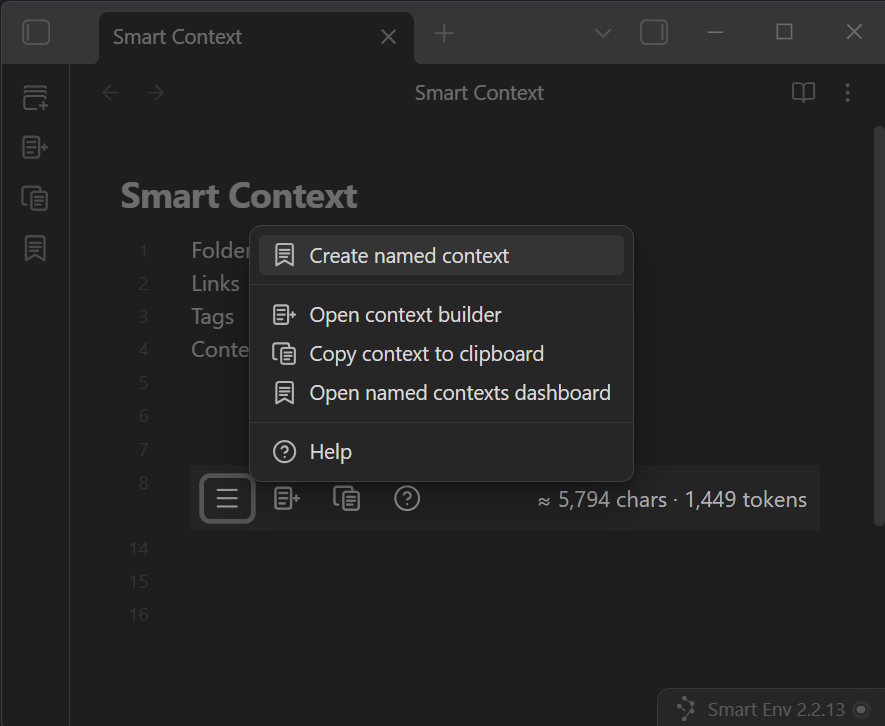
Open the codeblock menu
The menu exposes the main actions for the current codeblock.
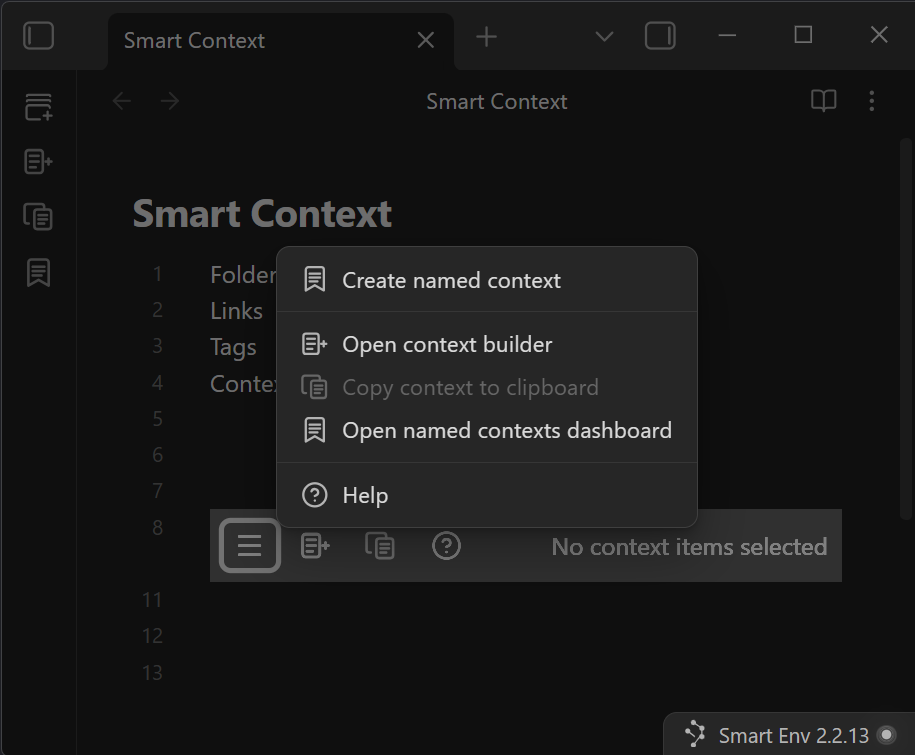
The current menu shown here includes:
Create named contextOpen context builderCopy context to clipboardOpen named contexts dashboardHelp
Create named context is the fastest way to turn a local codeblock working set into one reusable named context.
When the block has context items
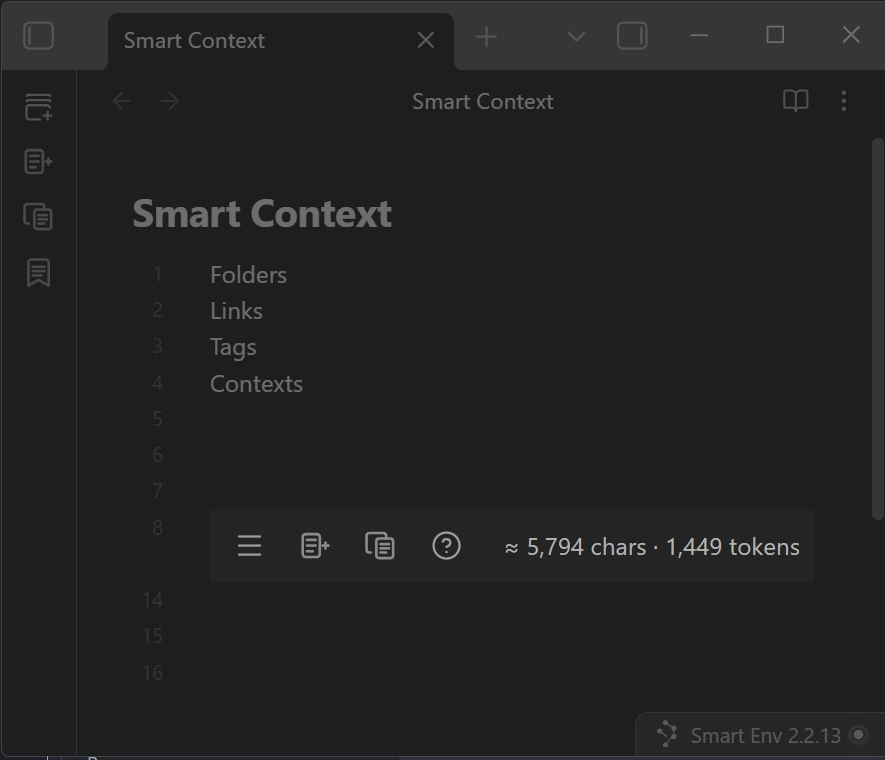
Once the block contains items, the UI shows live size estimates in the action bar.
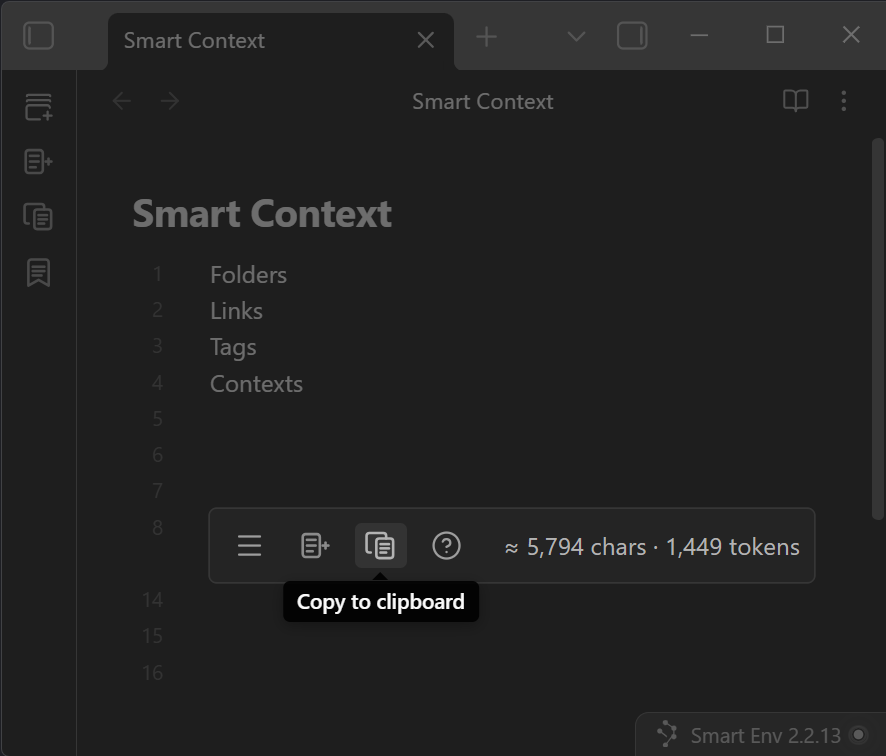
The copy button becomes the fastest way to export the current codeblock context.
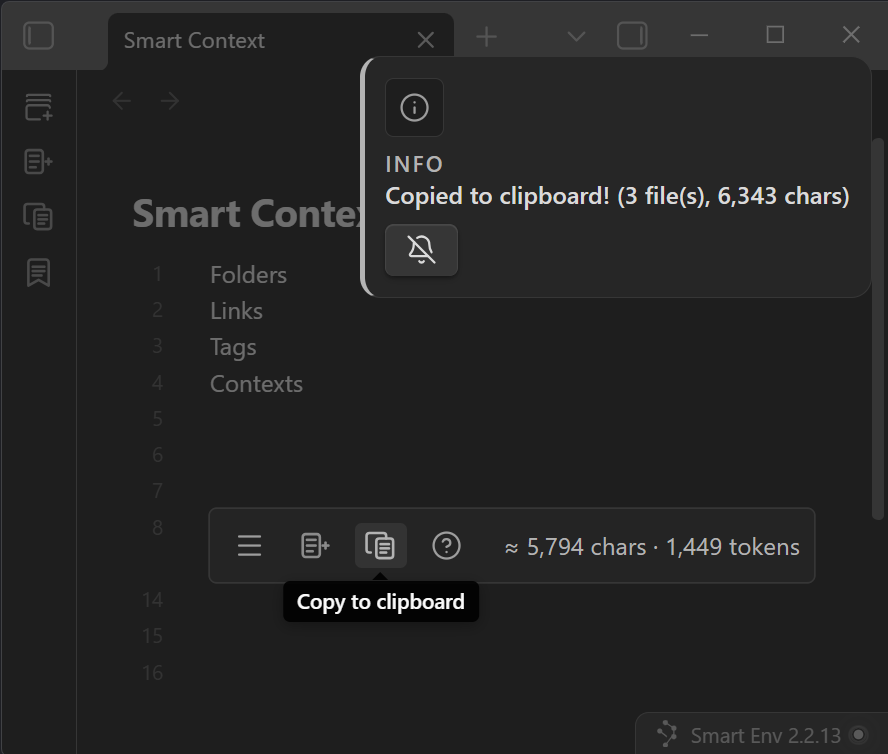
After copy, the notice confirms the export immediately inside Obsidian.
What gets written into the block
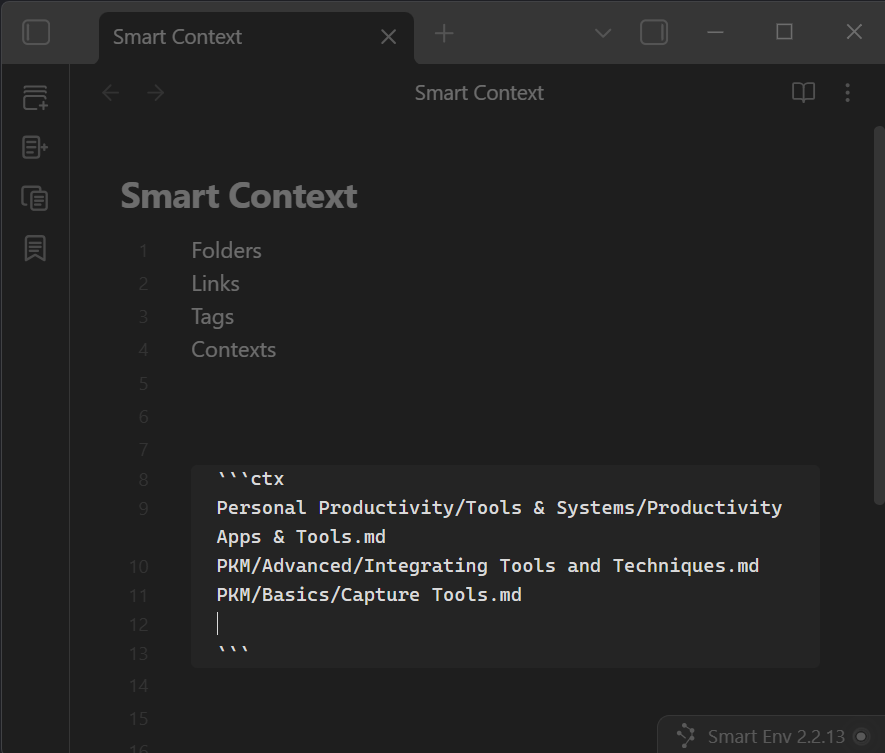
Whole sources are stored as one line per source:
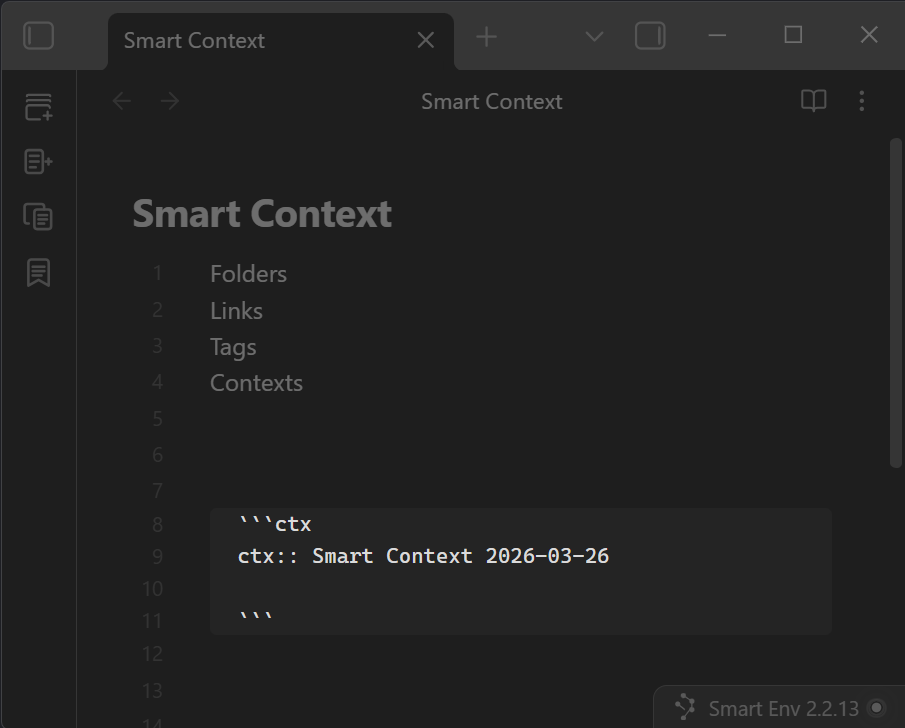
A named context is stored as a single named-context line:
That keeps the raw markdown readable and easy to diff.
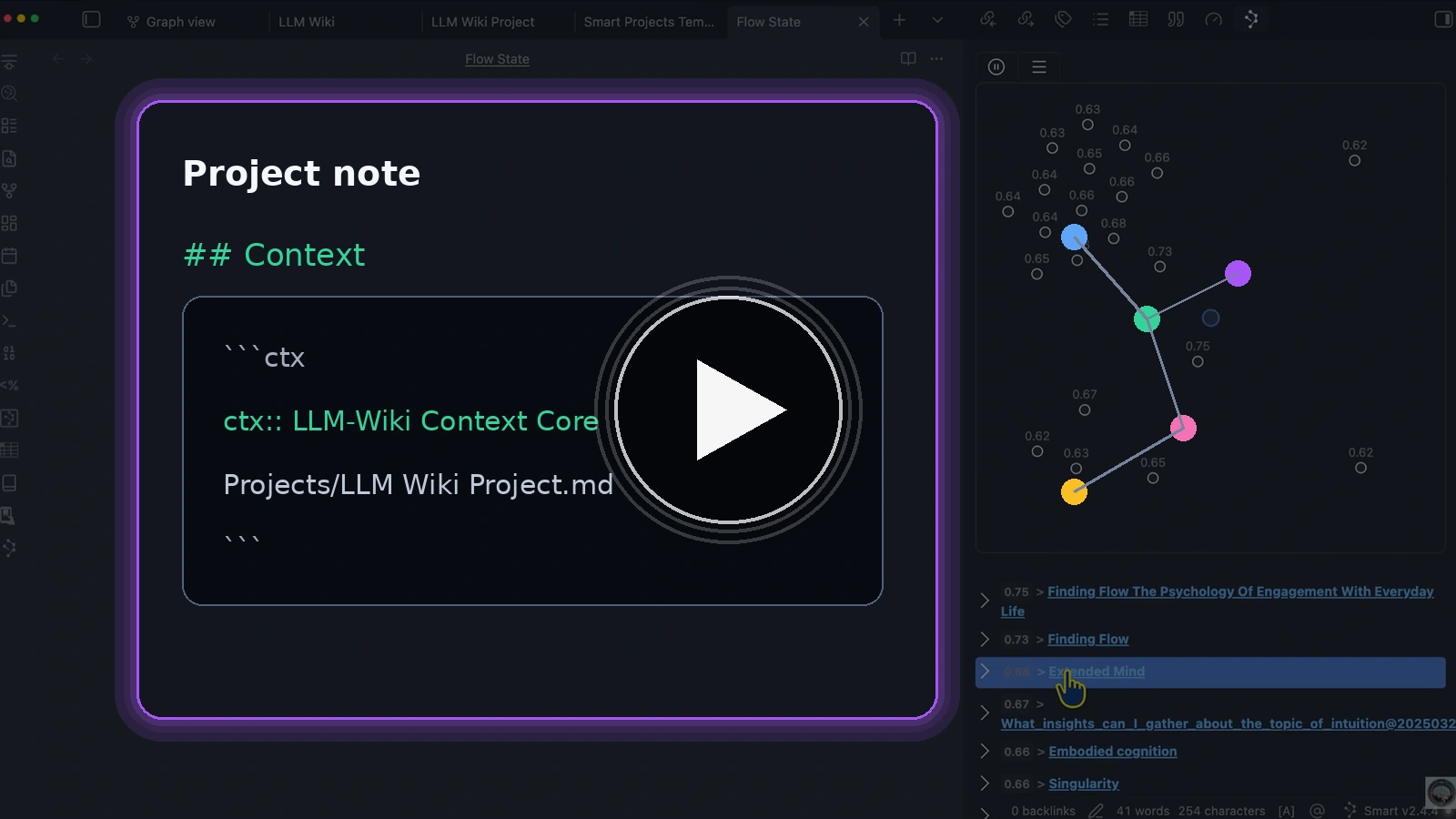
Callum inserts a Smart Context codeblock so the project note can carry the exact context list instead of depending on memory or a hidden working set.
Example:
```ctx
Personal Productivity/Tools & Systems/Productivity Apps & Tools.md
PKM/Advanced/Integrating Tools and Techniques.md
PKM/Basics/Capture Tools.md
```
Named-context example:
```ctx
ctx:: Smart Context 2026-03-26
```
Copy behavior
Use the codeblock copy action when you want only the codeblock context.
Use the regular current-note copy command when you want:
- the current note
- the hydrated codeblock context
- one combined clipboard bundle
In that current-note flow, codeblock items are treated as depth 0.
Pro adds external files and folders
On Pro, the same codeblock surface also accepts:
- external files
- external folders
- exclusion lines starting with
!
That lets one note carry both the writing instructions and the external repo files that should travel with them.
Related pages
- Build and save reusable context packs
- Reopen and reuse saved named contexts
- Copy notes and folders as AI-ready context
- Copy the current note with link-depth control
- Use file navigator actions to copy notes and folders as context
- Copy context from Obsidian Canvas files
- Copy context with images and PDFs
- Control Smart Context templates and export format