
Exploring the Connections view
This page is retained temporarily and may contain outdated details. Use the current Connections view documentation for current behavior. Start with Getting started with Smart Connections for the shortest verified workflow.
The Connections view is the daily list for notes and blocks related to what you are looking at right now.
Use this page after Smart Connections is installed and you have already seen one useful related result. If you have not installed yet, or if your first run shows no useful results, start with Getting Started.
Use the Connections view when the current note is the anchor:
What else in my vault is related to what I am looking at right now?
This guide shows how to preview results, act on useful matches, keep the right anchor steady, reduce noise, copy links, and send selected results into the next workflow.
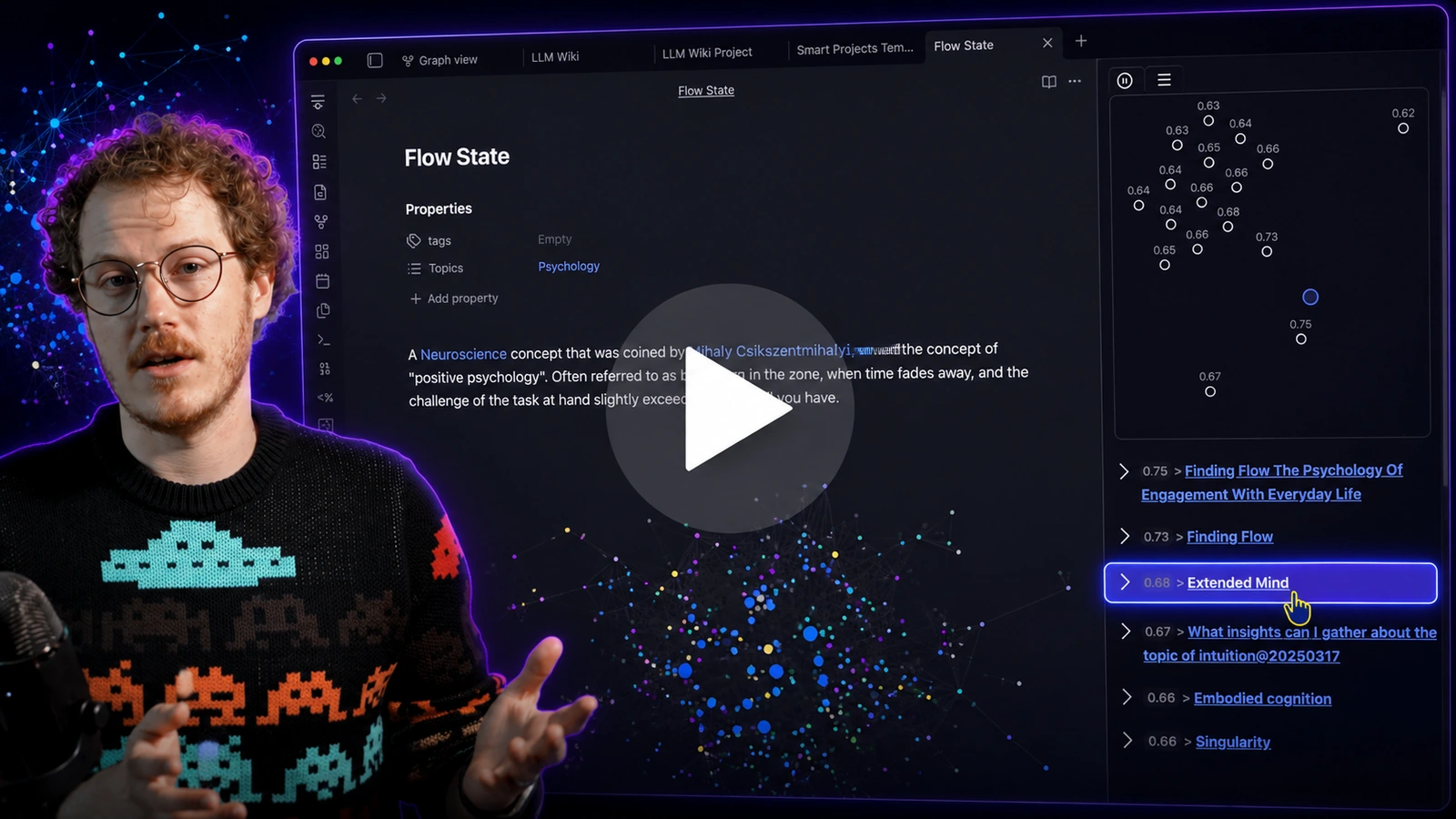
Callum types into a new note and the related notes begin to appear. That is the current-note anchor in action: more meaningful text gives Connections better material to retrieve from.
When to use the Connections view
Use the Connections view when you are already working in a note and want related material to stay visible beside the work.
It helps with:
- rediscovering forgotten work at the moment it becomes useful
- linking related notes without browsing folders or hunting search results
- noticing prior related material before you rewrite it
- turning useful suggestions into chosen links, sources, or follow-up actions
You do not need perfect folders, tags, or prior links. The note in view supplies the starting point, and you choose which results become part of your work.
Quick start: preview one result, then use it
Use the Connections list when the note in front of you is the starting point.
The goal is not to browse a list. The goal is to recover one useful idea, source, prior decision, or relationship and use it in the note you are already working on.
- Open a note.
- Open connections view
- Scan the top results.
- Gain an insight that helps progress the current note.
You know it worked when a connection reveals something relevant to the current note: an idea, source, prior decision, useful relationship, or material you can reuse.
You know it became useful when the current note changes because of that result.
Do not start with an empty test note.
Open a project note, meeting note, draft, research note, or decision note with enough text to represent what you are thinking about. Connections uses the note in view to find related notes.
A simple first artifact is:
## Related
- [[Useful related note]]
If you have not yet seen any useful result from Smart Connections, review Getting Started before continuing.
Connections vs Lookup vs exact search
Use the surface that matches the anchor.
| What starts the task | Use | Why it fits |
|---|---|---|
| A note you are already working in | Connections view | The current note determines the results. |
| A question or idea you can type | Smart Lookup | The written query determines the results. |
| Exact phrase, regex, filename, heading, or tag | Obsidian search | You need lexical matching. |
Use this rule:
Current note -> Connections.
Question -> Lookup.
Exact phrase -> Obsidian search.
Connections is not a replacement for exact search.
It is for the moment when related material should surface from the note you are already working in.
Related notes are not automatically duplicates. Use Smart Dedupe when repeated material needs review before changing notes.
Core moves after one useful result
After one result helps the current note, these moves make the list useful in daily work.
Keep the loop simple:
current note -> related result -> preview -> useful action
Preview without leaving the note
Preview helps you understand why a result appeared before you switch context.
Use either preview path:
- Expand a result in the list to inspect more content.
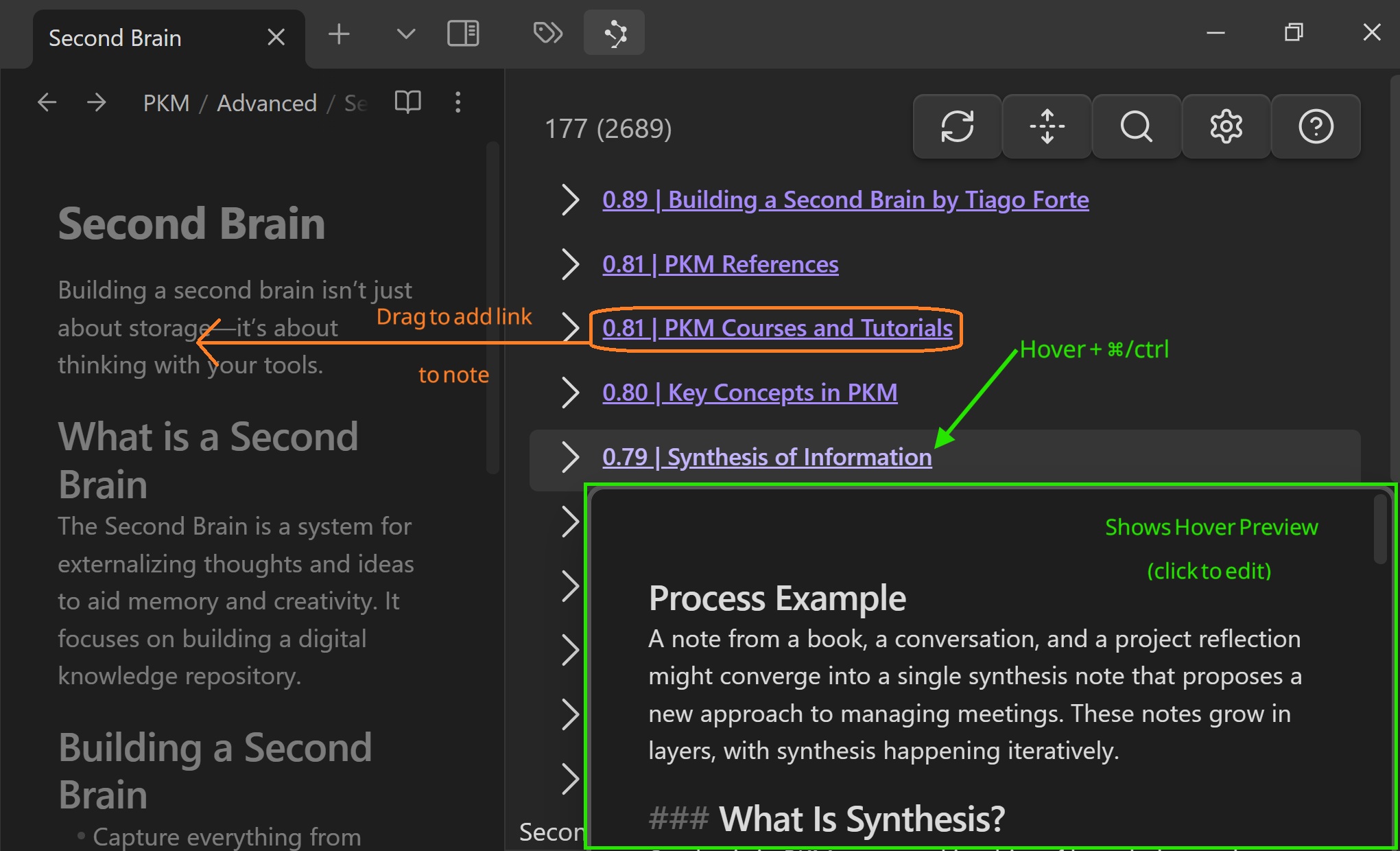
- On desktop, hold Cmd/Ctrl while hovering a result to use Obsidian Hover Preview.
Preview is not a trust ceremony and the score is not a grade. Treat each result as a lead. Keep the result only if it helps the current work.
Use preview when you want to check:
- whether the result contains useful prior reasoning
- whether the relationship is meaningful, not merely similar
- whether the note should be opened, linked, ignored, or reviewed later
Drag one useful result into the next workflow
Drag a verified result into the editor to create an Obsidian link, or move it directly into Smart Chat, an existing named-context row, Smart Graph, or the live Connections view.
Use this when you want to:
- preserve a useful relationship in the current note
- ground the current Smart Chat response
- curate the result into a reusable saved context
- compose or extend a graph scope
- make the result the fixed Connections target
A good first link pass is small:
## Related
- [[One useful related note]]
Do not turn the list into clutter. Add the result because it helps the current note, not because it appeared near the top.
Hold one anchor steady with Pause
Connections updates as the active note changes.
Use Pause when you want to keep one note as the reference point while you inspect or open results.
This is useful when you want to:
- open a result without changing the list immediately
- compare several results against the same note
- keep context stable while reviewing related material
If results do not change when you switch notes, check whether Pause is active. Switch back to Play when you want the list to follow the active note again.
Copy as a list of links
Copy results as a clean list of Obsidian links when the result set itself should become an artifact.
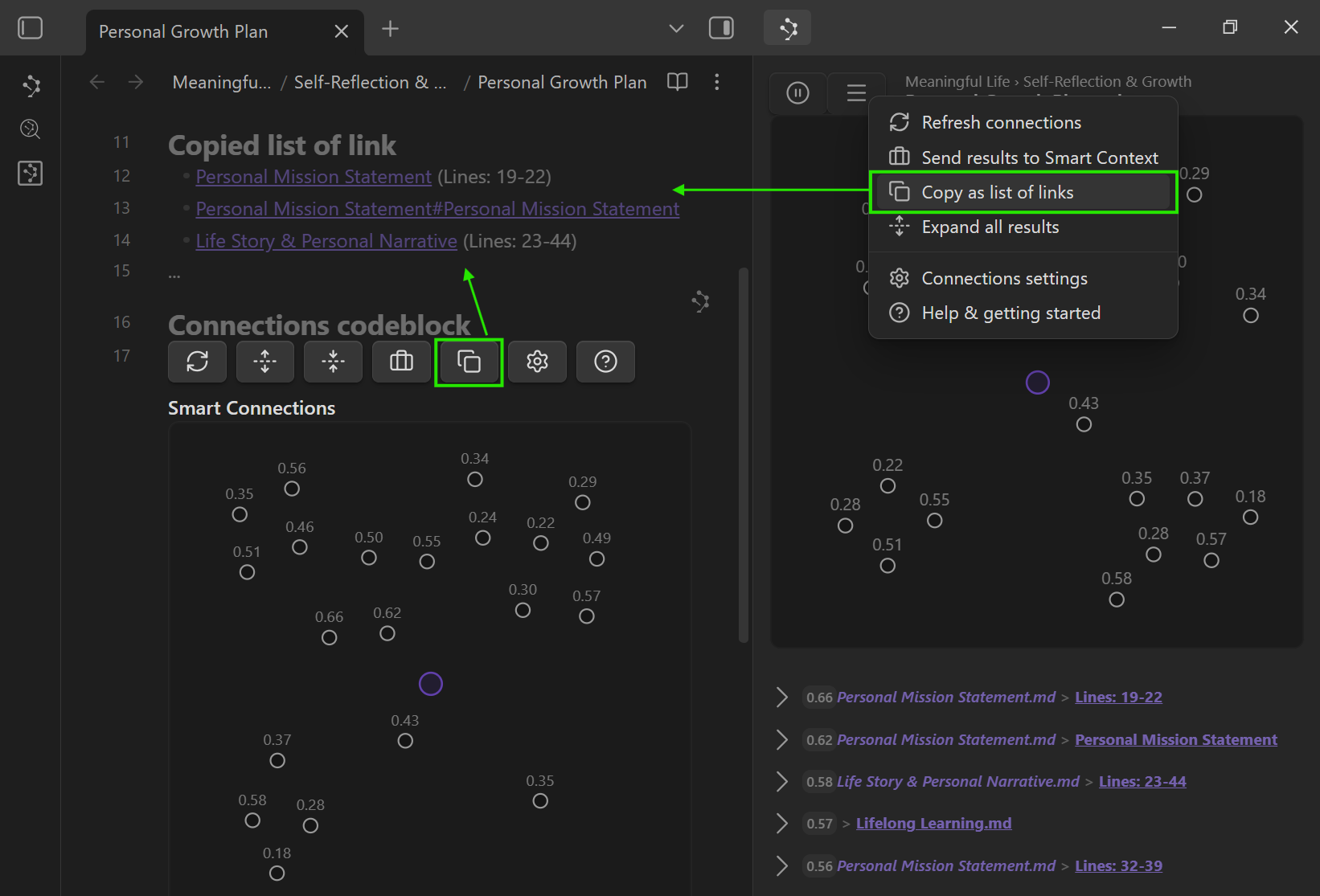
Use this for:
- Related notes sections in drafts
- meaning-ranked reading trails
- project hub updates
- reference lists for review
Send results to Smart Context
Send results to Smart Context when the useful matches should become a reviewable context bundle for AI work.
A practical flow:
- Pause the list on the note you are working from.
- Send results to Smart Context.
- Remove anything noisy.
- Reorder what matters.
- Copy the final bundle into the AI workflow that needs it.
Related:
Understanding the list
Play/Pause updates
Play/Pause controls whether the list updates as you change notes.
Use Pause when:
- you are writing and want stable context
- you want to browse while keeping one anchor note as your reference point
- you are comparing several candidate notes against the same anchor
Use Play when you want the list to refresh as the active note changes.
If the list feels stuck, make sure Play is active.
Drop one item anywhere in the live view
Drop one indexed note or block anywhere inside the rendered Connections view to pause live following and make that item the current target. The target includes the top bar, graph, result list, expanded content, and background.
Folders and multi-item drops are rejected because the view can display only one target at a time.
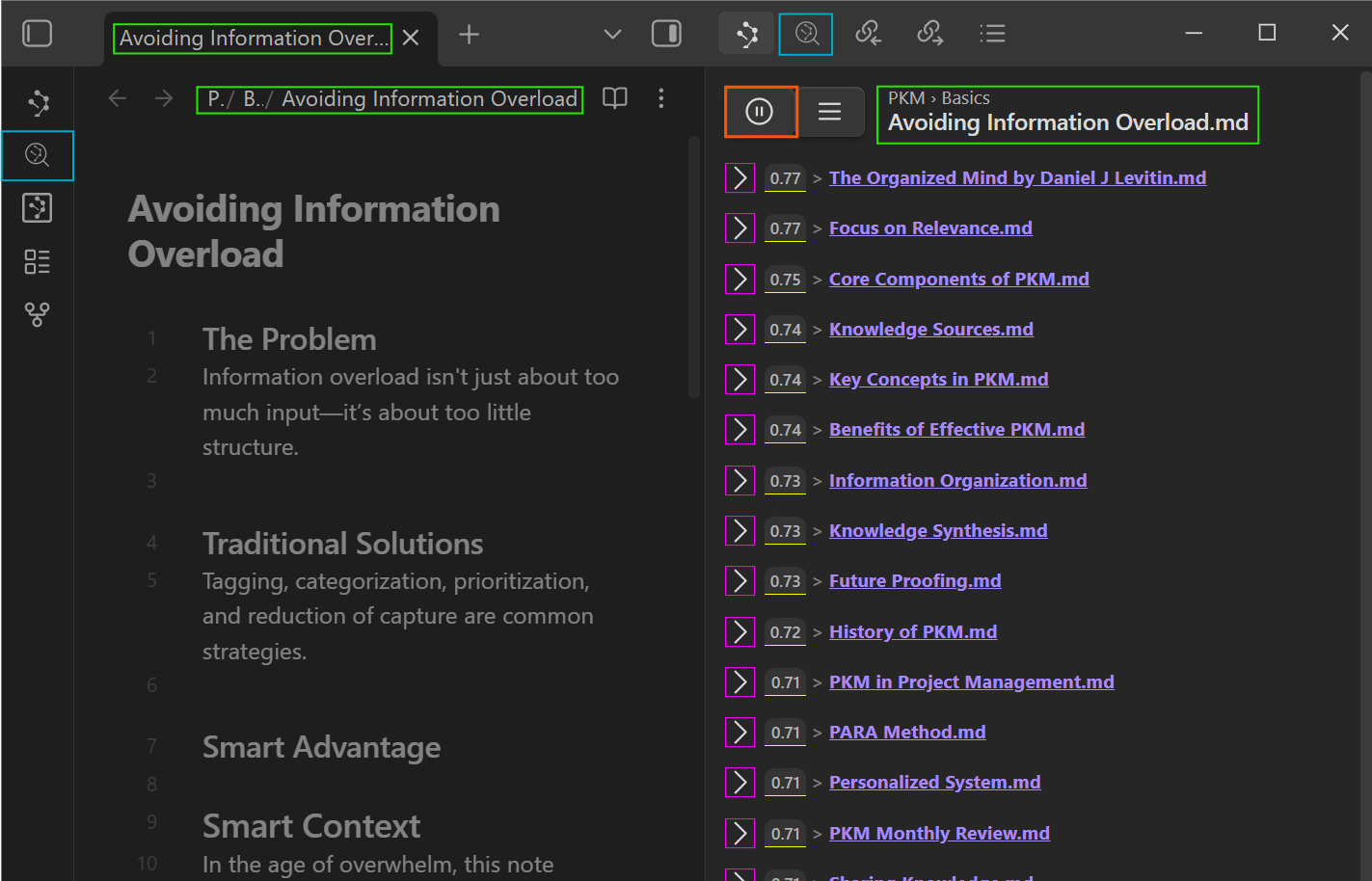
Score
Score is a ranking signal, not a grade.
Higher scores generally mean "more related" inside the current result list, but the number is a clue to inspect, not a guarantee.
Practical rules:
- Compare scores within the same list, not across different notes.
- Score ranges vary by vault content and model.
- Preview results before acting on them.
- If results feel broad or noisy, tune Sources vs Blocks, limits, and filters in Connections settings.
For scoring and ranking controls, see Connections settings and Custom algorithms.
Expand/collapse
Expand a result to preview content without opening the note.
Use it to scan faster and reduce context switching.
Click behavior
Clicking a result follows Obsidian's default link behavior:
- Click: open in the current pane.
- Cmd/Ctrl + click: open in a new tab.
- Cmd/Ctrl + Alt + click: open in a new pane or split.
Managing noise: Hide and Pin
As your vault grows, some connections will be technically related but not useful right now.
Hide
Hide removes a noisy result from the list.
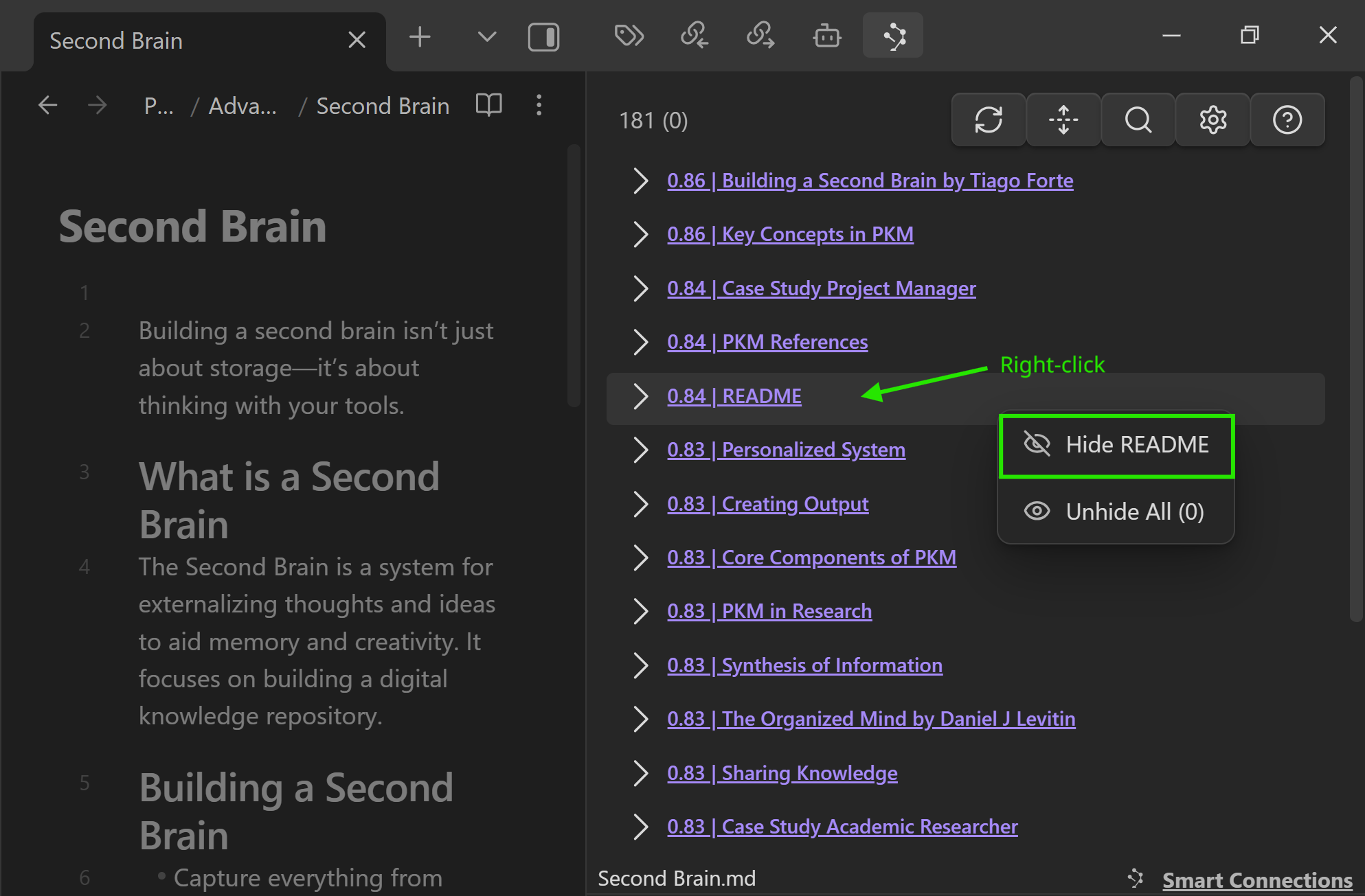
Use Hide when:
- a note is a frequent false positive
- a template, index, or archive note pollutes results
- the topic is adjacent but not relevant to the current task
Pin
Pin keeps an item visible as a stable reference.
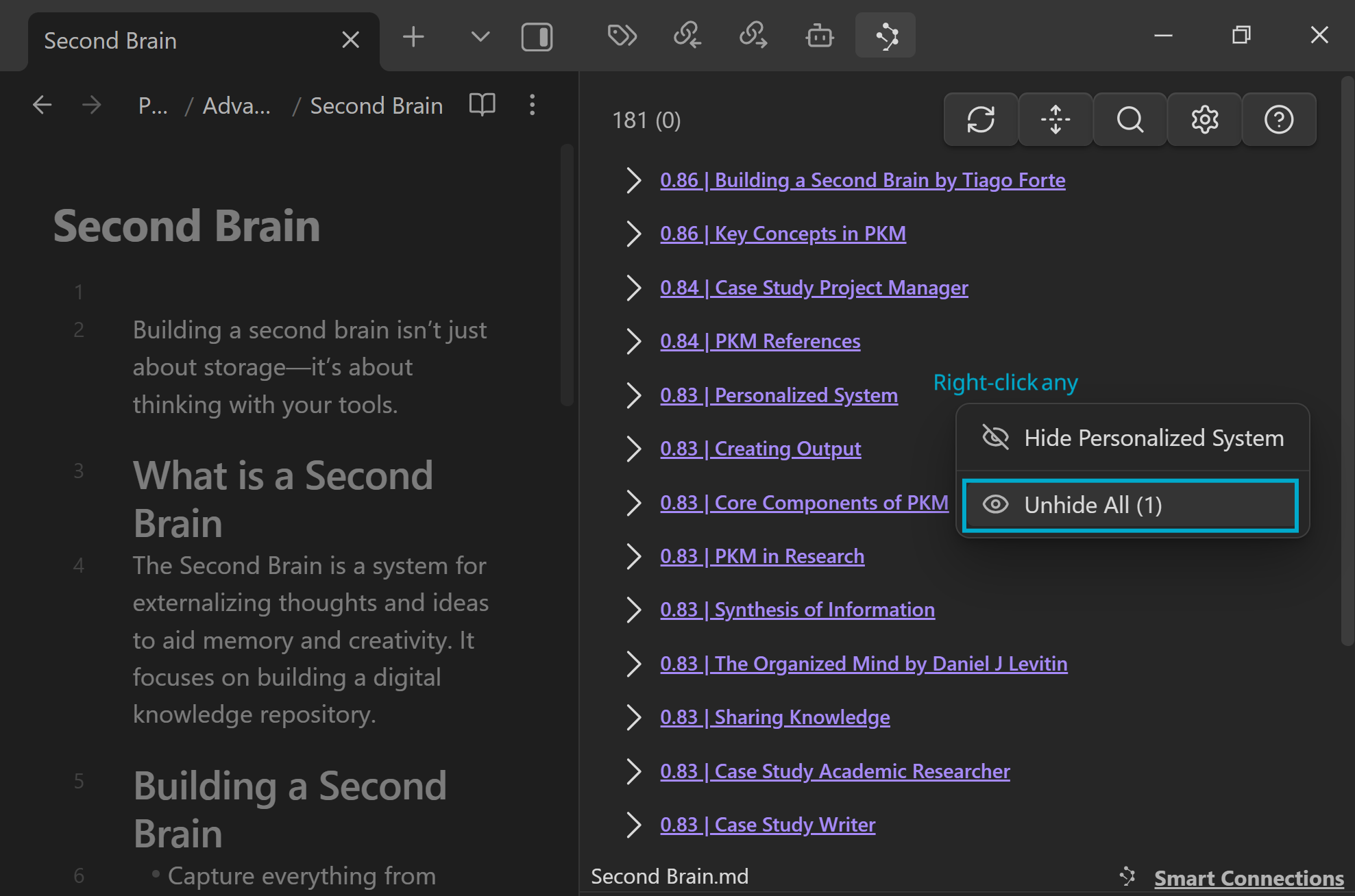
Pinning is useful when:
- one reference should stay visible while you browse
- you want a small set of important notes to remain easy to reach
- a result is useful enough that you expect to return to it during the session
Some Connections Pro scoring options can use pinned and hidden signals when you choose a feedback-aware algorithm.
List controls
The menu contains controls that turn scanning into action.
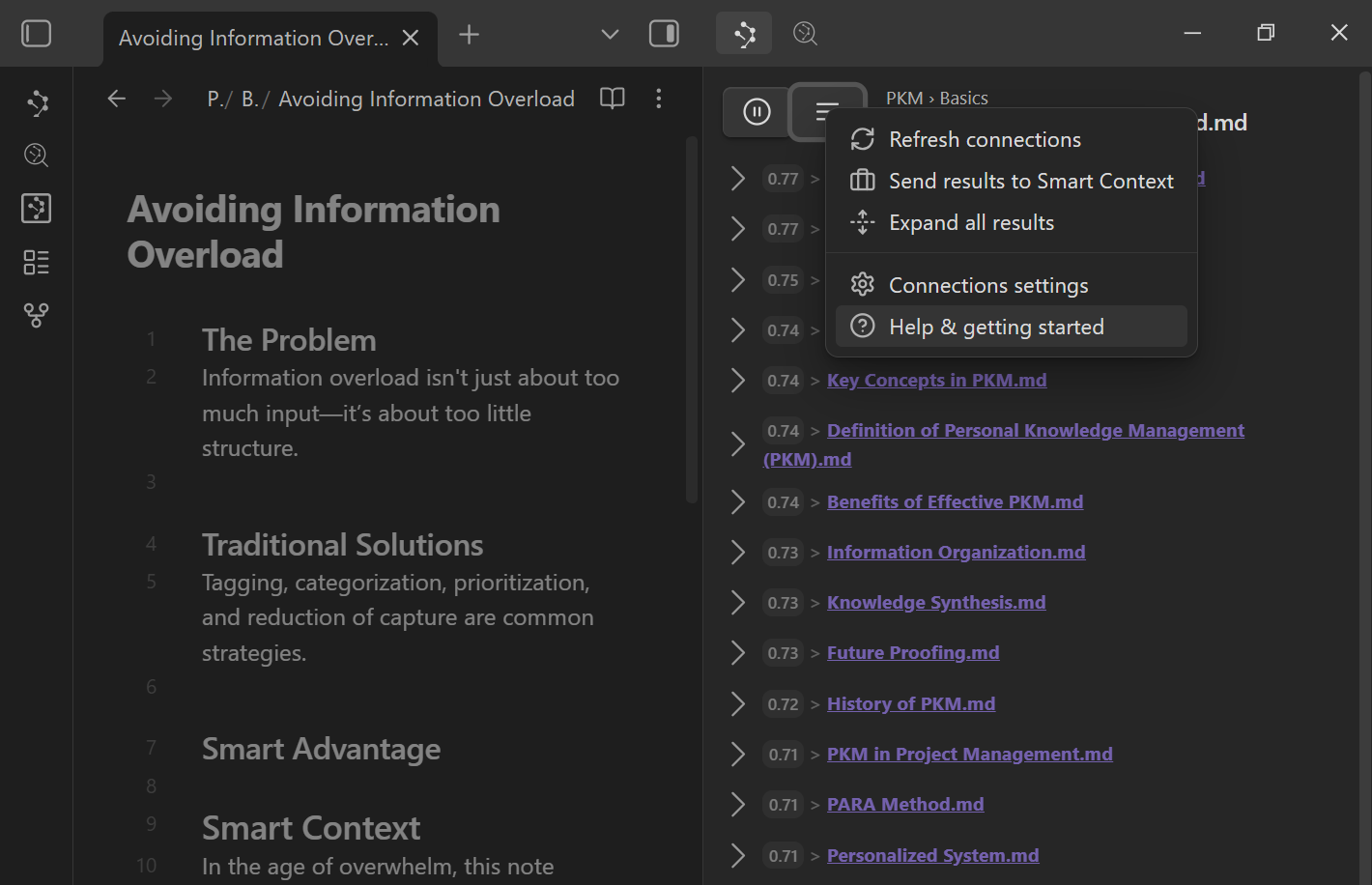
Refresh
Refresh recomputes results for the current note.
Use it when:
- you made major edits and want updated relationships
- you changed settings and want to re-run the list
- the list feels stale for the note in view
Send to Smart Context
Send results to Smart Context when the current list should become a reviewable bundle for delegating work to AI.
Use it after you have identified useful matches, not as a substitute for choosing what matters.
Learn more:
Copy as a list of links
Copy results as a simple list of Obsidian links.
Use it to:
- create a Related notes section
- build a reading trail
- paste ranked references into a project hub
- preserve the current result set before changing notes
Quick controls cheat sheet
| Control | What it does | When to use it |
|---|---|---|
| Play/Pause | Stop or resume automatic updates | Keep one anchor note steady while you browse, or resume updates for the active note. |
| Refresh | Recompute results | After major edits or settings changes. |
| Copy links | Copy ranked links | Add a clean related list to a note, hub, or trail. |
| Send to Context | Send results to Smart Context | Build a reviewable AI-context bundle from useful matches. |
| Hide/Pin | Remove noise or keep essentials visible | Reduce clutter or keep key references near the work. |
Related surfaces
Use these when your starting point changes.
| When you need | Use |
|---|---|
| Related notes at the bottom of the note | Footer connections |
| Related material beside a specific paragraph while editing | Inline connections |
| Relevance scoring inside a table or collection | Connections in Bases |
| Topic shape, clusters, or neighborhoods | Smart Graph |
| A reviewable bundle for AI work | Smart Context Clipboard |
Each linked page owns its own setup, screenshots, controls, and workflow recipes.
Common Connections view workflows
Writing: ground a draft in your existing notes
- Open the draft.
- Scan the top Connections results.
- Preview 1-2 promising matches.
- Drag the best result into a Related or References section.
- Keep writing with the recovered material in view.
Outcome: the draft uses what your vault already knows instead of starting from memory alone.
Research: build a meaning-ranked reading trail
- Open the note that best represents the topic or question.
- Pause the Connections list on that note.
- Copy results as links.
- Paste them into a Reading trail note.
- Review from the top, removing anything that does not help.
Outcome: the current note becomes the anchor for a reading sequence without manual folder browsing.
Review: recover prior reasoning before making a decision
- Open the decision, project, or meeting note.
- Scan for earlier notes that look related.
- Preview the strongest result.
- Add the recovered decision, source, or constraint to the current note.
- Open the source only if the preview is not enough.
Outcome: earlier reasoning returns before you repeat the same work.
AI work: assemble grounded context fast
- Open the note that defines the current assignment.
- Pause the Connections list.
- Send results to Smart Context.
- Remove noise and keep only useful matches.
- Ask for a specific outcome using the reviewed context.
Outcome: the AI workflow starts from selected vault context instead of a broad prompt.
When results feel stale or stuck
Use the smallest fix that matches what happened.
| What happened | Try first |
|---|---|
| Results are empty on a tiny or test note | Open a richer note with meaningful text. |
| Results are not updating when you change notes | Make sure Play is active, not Pause. |
| Relationships feel stale after major edits | Use Refresh in the Connections view. |
| A specific expected note never appears | Check whether the note or folder is excluded in Smart Environment. |
| Results are broad but at least one is useful | Keep using the useful result before tuning settings. |
| Results are repeatedly noisy after the basic workflow works | Then use limits, Sources vs Blocks, filters, hide, or Pro ranking controls. |
| You have a question rather than a note to start from | Use Smart Lookup instead. |
| You know the exact word, filename, heading, tag, syntax, or regex | Use Obsidian search. |
| Similar results look like repeated work | Use Smart Dedupe to review likely duplicates before changing notes. |
| You need the shape of a topic, not a current-note list | Use Smart Graph. |
If one meaningful note unexpectedly has no results, inspect the active note and confirm it can be embedded.
If results are absent across many notes, check vault preparation and embedding coverage in Smart Environment settings or Connections settings.
Local retrieval details
For how local embeddings, provider-backed workflows, and privacy boundaries work, see:
FAQs
See Connections FAQs.