Smart Environment settings
Smart Environment is the setup Smart Plugins reuse.
Set sources, models, and exclusions once. Smart Plugins reuse them across Connections, Lookup, Context, Chat, Templates, and other Smart Plugin workflows.
Use these settings to:
- Include or exclude vault content from indexing.
- See whether Smart Plugins are preparing, ready, or need attention.
- Rebuild or change embedding, chat, or ranking models.
- Tune indexing granularity and performance.
- Diagnose stale or missing results before judging a workflow.
Depending on your setup, these controls appear either inline within plugin settings or as a full Smart Environment page with Pro options.
Depending on what you have installed, you may see:
- Core: A compact set of controls inside Smart Plugin settings, or
- Pro: A full "Env Pro" settings tab with all Pro options
Source and embedding data is stored inside a .smart-env/ folder within your vault.
Jump to:
- Before first retrieval
- Boundary quick check
- Sources
- Manage excluded folders
- View all exclusions
- Embedding models
- Chat models (PRO)
- Ranking models (PRO)
- Notifications
- Common problems
Before first retrieval
If Connections or Lookup returns weak, empty, or stale results, check Smart Environment before deciding the product failed.
You know the setup is ready enough to test when:
- sources have been discovered or are visibly importing
- embeddings are complete or visibly progressing
- excluded folders/files match your expectations
- the active embedding model is configured
- mobile users have loaded Smart Environment when needed
Use Smart Milestones when you want a guided readiness view.
Then test with one real note:
- Open a note with enough meaningful text to anchor results.
- Open Connections or Lookup.
- Preview one result.
- If results are still wrong, check sources, exclusions, model changes, and reset/re-import guidance below.
Boundary quick check
Smart Environment settings make the main boundaries visible.
| Boundary | What to review | Practical meaning |
|---|---|---|
| Sources | included notes, folders, and source types | What Smart Plugins can prepare for retrieval and context. |
| Exclusions | excluded folders/files | What Smart Plugins should ignore during indexing. |
| Embedding model | local/default embedding configuration | Core semantic retrieval can run locally after indexing. |
| Provider models | chat/ranking providers where configured | Provider workflows use enabled integrations and the context you choose to send. |
| Status | import, embedding, rebuild, and notices | Whether it is fair to judge result quality yet. |
Related note retrieval can start locally after indexing. Provider-backed workflows are separate: when you use a configured cloud provider, that provider receives the context you explicitly choose to send through that workflow.
Watch the Smart Environment walkthrough
Callum frames Smart Environment as the shared source, model, exclusion, event, and status layer reused by Smart Plugins.
Core vs Pro settings
Core Smart Environment settings are intentionally minimal: the goal is to keep setup simple while still giving you the controls you need to rebuild and troubleshoot.
Where to find these settings in Obsidian
In Obsidian, open Settings then look for the Community plugins section. Smart Environment settings are located in one of two places depending on whether you are a Pro user:
- Core: Smart Connections or another Smart Plugin
- Pro: Dedicated Env Pro settings tab
Core settings
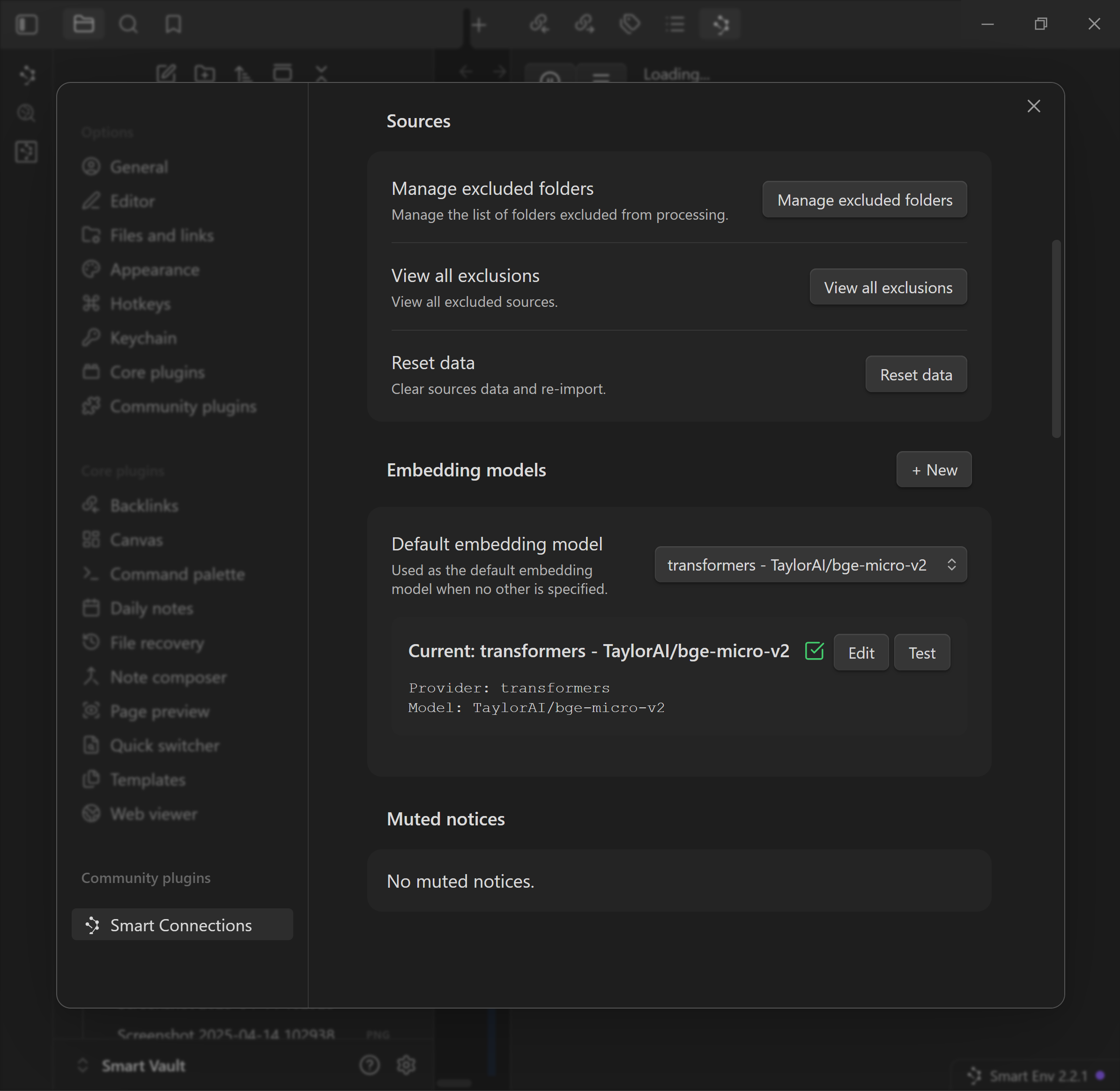
Sources
- Notes become sources automatically; you do not need to manage them one by one.
- Additional plugins may create specialized sources such as blocks, bases, or external files.
Manage excluded folders
"Manage excluded folders" button opens a folder selection UI so you can exclude entire folders from processing.
The "Manage excluded folders" UI looks like:

- A search input to quickly find folders.
- A list of folders you can select.
- Excluded folders appear in a list at the top. Click the
xto remove an exclusion.
Excluded folders are not indexed, so they will not appear in Connections/Lookup and will not be used for embeddings.
Common exclusions:
- Archives
- Backups
- Export folders
- Third-party content
- Anything you do not want to be used by Smart Plugins
After large exclusion changes, you may need to restart Obsidian or Reset data to get a clean state.
View all exclusions
Shows all files excluded from processing. This is useful to confirm whether a file is missing because it is excluded.
Use it to confirm that:
- A folder exclusion is active
- A file exclusion is active
- Something is not being excluded unexpectedly
Some exclusions may be automatic, for example items that cannot be safely processed because the file path is too long.
Reset data
Reset data / Re-import sources rebuilds Smart Environment source data and starts source preparation again. Eligible content may then require embedding preparation.
Use it when the source dataset itself must be rebuilt, such as after a damaged import or a source-policy change that cannot be resolved through normal re-indexing.
Do not use Reset data for a normal embedding-model change.
- Does not delete:
- Notes or vault files
- Smart Environment settings
- Non-source records such as Smart Chat threads
Embedding models
This controls the embedding model used for semantic features.
What you will see:
- A Default embedding model selector.
- A model marked Current.
- Separate actions such as Test model and Re-index embeddings.
After changing the model:
- Confirm the intended model is selected and marked Current.
- Choose Re-index embeddings when the selected model or embedding policy requires new vectors.
- If embedding is paused, choose Resume embedding.
- Wait until Smart Environment shows Ready.
- Open Environment stats and confirm the required eligible items have current embeddings.
Recommendation: start with the default local model. Switch only when you know the capability you need, such as multilingual or code-focused retrieval.
Muted notices
If you mute a Smart Environment notification, it will show up here.
See the "Notifications" section below for more details.
Pro settings
Pro adds deeper control over:
- What gets embedded, sources vs blocks
- Minimum lengths, to avoid embedding tiny or noisy content
- Excluding individual files
- Model configurations, including more providers and model types
Sources
Sources settings control what gets processed and what is ignored, plus the actions that rebuild source and embedding data.
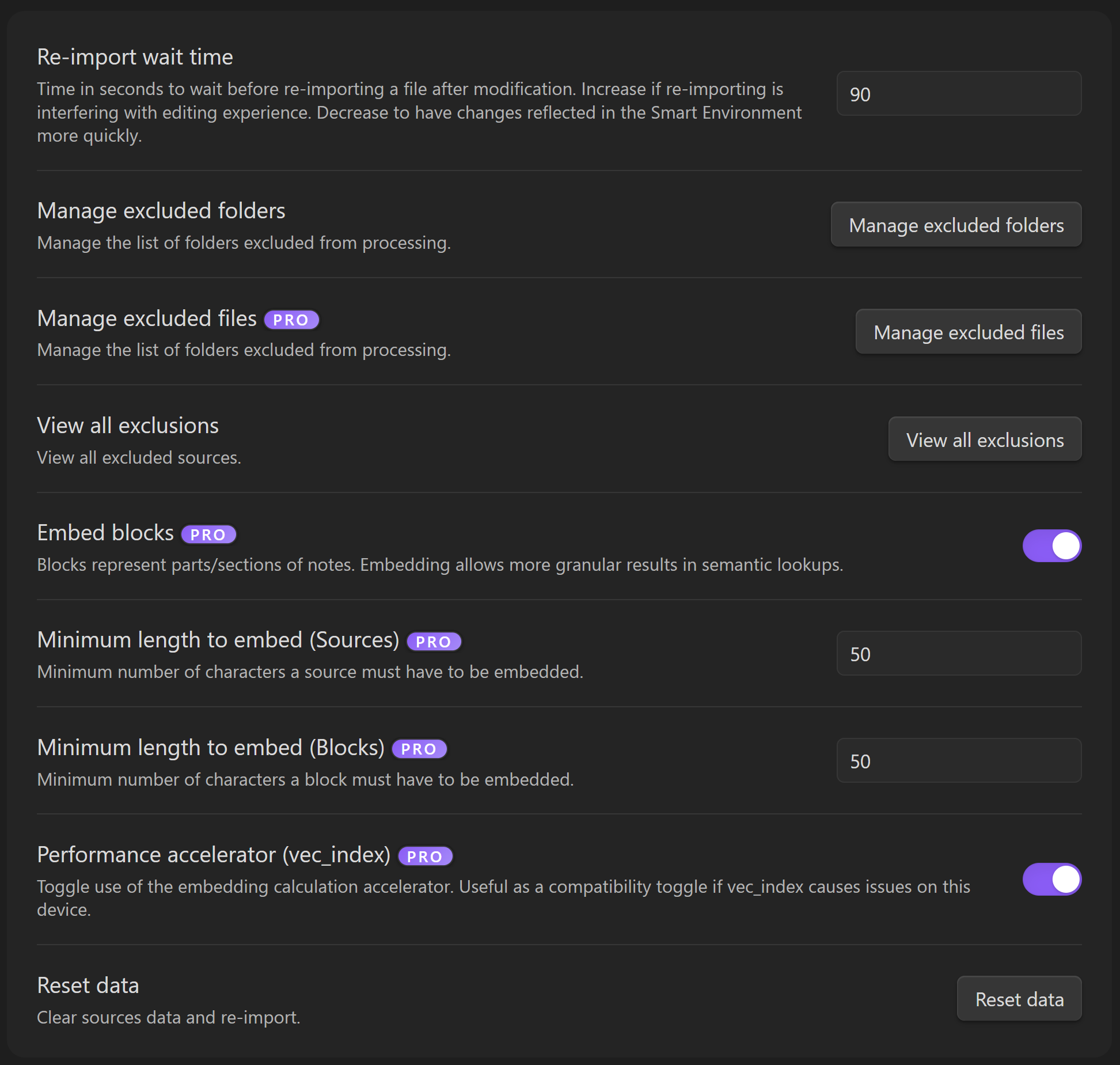
This view exposes additional source-processing controls. Items marked PRO require the Pro tier.
Manage excluded folders
Same as the Core setting. See Manage excluded folders above for more details.
Manage excluded files (PRO)
Exclude specific files without excluding an entire folder.
Useful when:
- One large file lives in an otherwise useful folder
- You want most of a folder indexed but need to ignore a few specific files
View all exclusions
Same as the Core setting. See View all exclusions above for more details.
Re-import wait time (PRO)
"Time in seconds to wait before re-importing a file after modification."
This is the wait-time before re-embedding after making edits:
- Higher = fewer repeated re-imports while editing, less CPU churn
- Lower = updates appear sooner, more frequent processing
Manually triggering re-import
As soon as you make a change the Smart Environment status bar element will change to "Embed now" followed by the number of changed files detected. Click "Embed now" to manually trigger the re-import process.
Embed blocks (PRO)
Blocks represent parts/sections of notes. Embedding allows more granular results in semantic lookups. When enabled, large documents are split into fine-grained blocks based on headings and structure, improving semantic search and context relevance.
- When enabled, the environment can embed content at a finer granularity, not just whole notes.
What it changes:
- On: Smart Environment embeds smaller chunks for finer-grained matches
- Off: embeddings are coarser and more note-level
Tradeoffs:
- On: better precision inside long notes, more storage/compute
- Off: faster, lighter, less granular
Why enable it:
- More precise semantic matches, especially for long notes.
- Better results for workflows that benefit from paragraph/section-level retrieval.
Minimum length to embed (Sources) (PRO)
"Minimum number of characters a source must have to be embedded."
If a source is shorter than this threshold, it will be skipped for embeddings.
Use cases:
- Increase the threshold to reduce noise from tiny notes/templates
- Decrease the threshold if you rely on very short notes being discoverable
Minimum length to embed (Blocks) (PRO)
"Minimum number of characters a block must have to be embedded."
Same concept as Sources minimum length, but applied to block chunks.
Reset data
Same as the Core setting. See Reset data above for more details.
Models
Model settings control which model is used for embeddings, chat generation, and ranking/reranking.

This view breaks models into three groups.
Embedding models
Embedding models generate vectors used for semantic similarity.
- Used as the default embedding model when no other is specified.
- Set the default from the dropdown.
- Click + New to add another embedding model config.
- Use Edit to change the selected model config.
- Use Test to verify the model is working.
- Current embedding model
Chat models (PRO)
Chat models are used to interact with language models via an API. These API models may be local or cloud.
- Local providers run on your machine and may need local setup.
- Cloud providers call a remote API and require keys and internet.
You can keep multiple chat model configs, local and cloud, and choose a default.
What you see:
- Default chat model: used when no other is specified
- A Current model card showing provider and model
If you see a "missing" message like the screenshot, it means:
- A provider is selected, but no specific model is configured yet.
- Fix by editing the chat model and selecting an actual model.
Provider options shown in the dropdown:
- Open Router (cloud)
- PRO: LM Studio (local, requires LM Studio app)
- PRO: Ollama (local, requires Ollama app)
- PRO: OpenAI (cloud)
- PRO: Google Gemini (cloud)
- PRO: Cohere (cloud)
- PRO: xAI Grok (cloud)
- PRO: Anthropic Claude (cloud)
- PRO: Deepseek (cloud)
Ranking models (PRO)
Ranking, or reranking, models can reorder retrieved results for better relevance after initial retrieval.
- These are used when a workflow needs a dedicated ranking/reranking model, for example to reorder results after retrieval.
- Default ranking model: used when no other is specified downstream
- "Downstream" means specific Smart Plugins may allow you to set a specific model.
- Controls:
- New: add another ranking model configuration
- Edit: change the model/provider configuration
- Test: verify the model can run
Ranking models are typically used to improve ordering of candidate results after retrieval when supported.
Events, status, and notifications
Smart Environment keeps progress visible without relying on repeated native notices.
On desktop, loading, importing, and embedding activity appears primarily in the Smart Environment status bar when possible. This keeps progress visible without interrupting the work in your note.

Open the status bar menu
Click the Smart Environment status bar item to open its current actions and inspection surfaces.
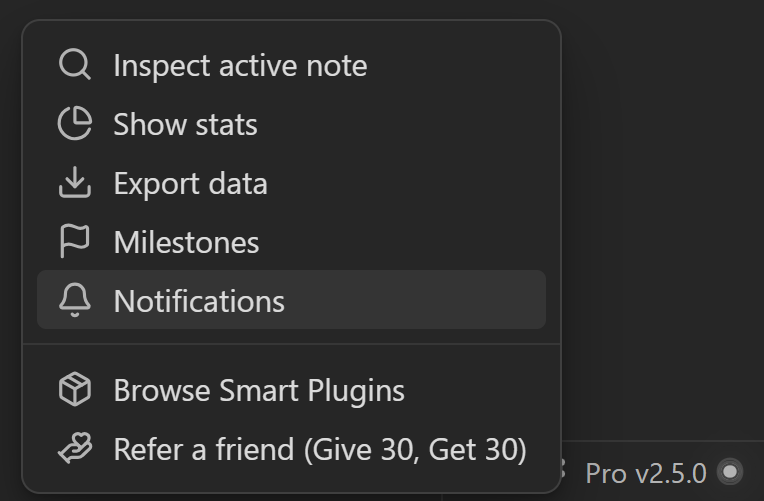
Use the menu when you want to:
- inspect current loading or embedding state
- open Smart Environment settings
- open Milestones
- review Events & notifications
- reach other Smart Plugins management surfaces available in your setup
Review the Events & notifications feed
Open Events & notifications when you need the full record of what happened.
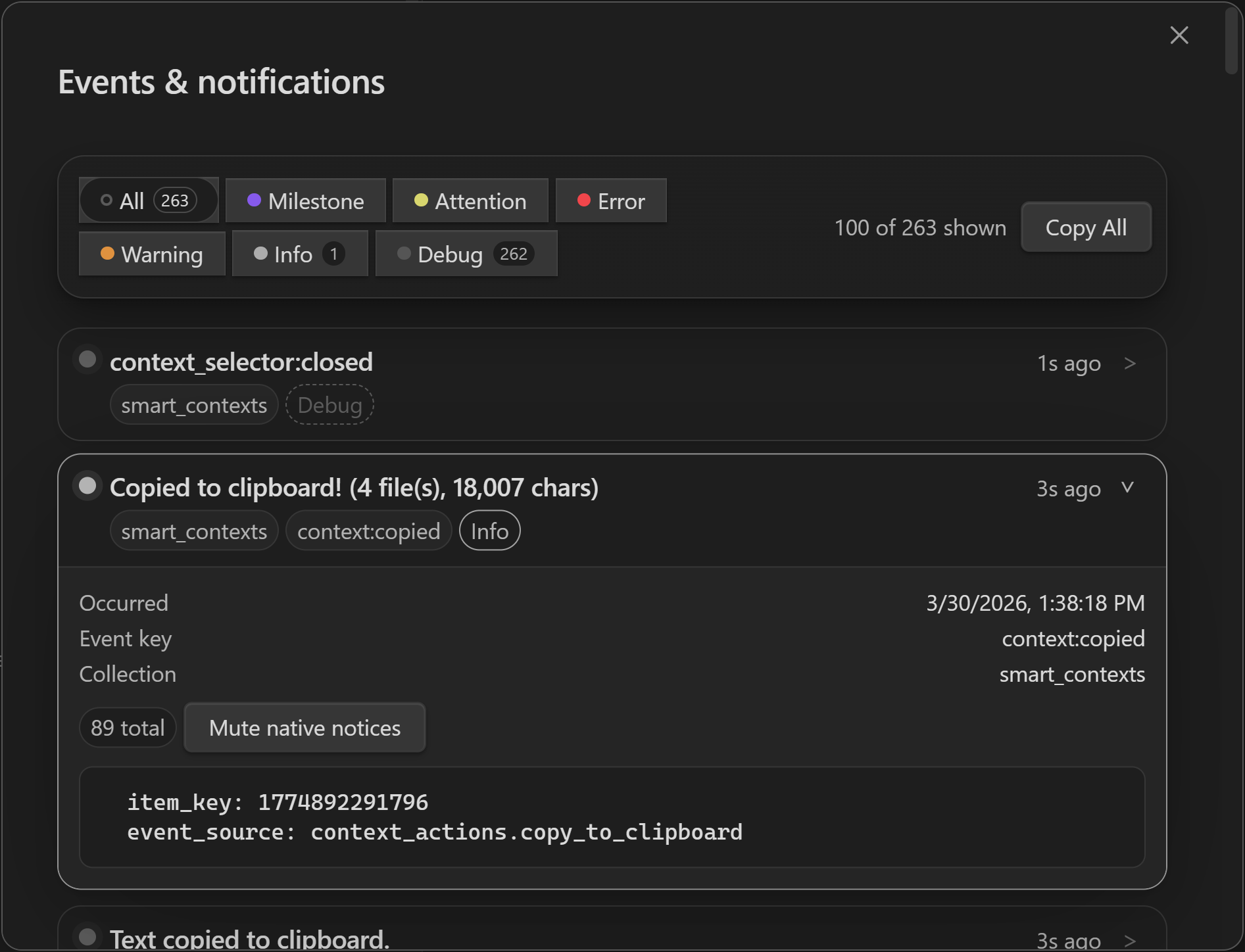
The feed can retain events even when the corresponding native notice is muted. Use it to inspect:
- milestones
- information messages
- warnings
- errors
- attention events
- richer event details and history
This is the best place to answer questions such as:
- Did the initial import complete?
- Did embedding finish?
- Was a file skipped or excluded?
- Did a model or provider report an error?
- Is Smart Environment ready enough to judge Connections or Lookup?
Control notification levels and event types
Notification controls let you reduce interruption without losing the event history.
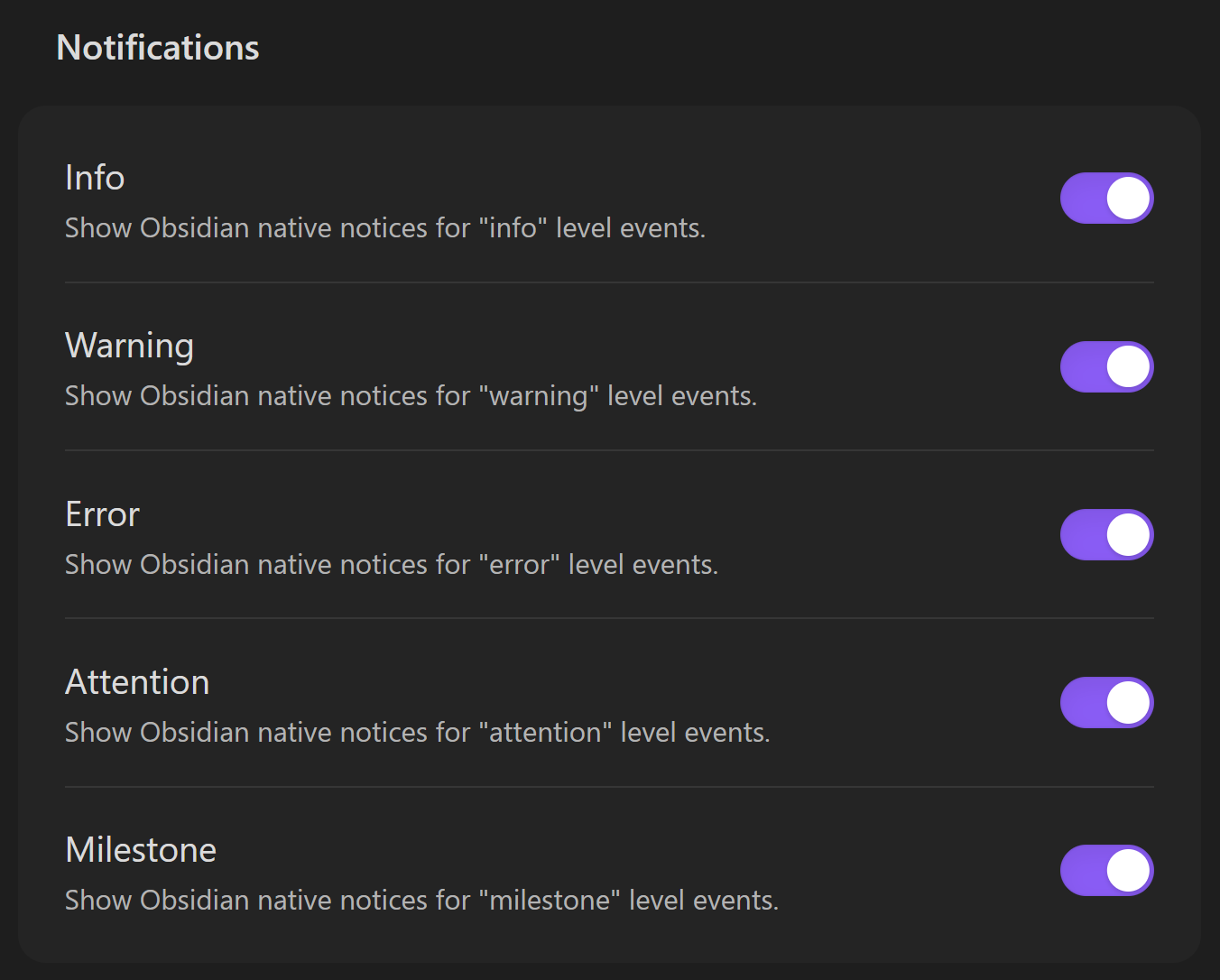
Depending on the current version, controls can include event levels such as:
- Info
- Warning
- Error
- Attention
- Milestone
Muting a notice level stops matching native Obsidian notices. The underlying events can still remain available in the Events & notifications feed.
Mute from a native notice
When Smart Environment does show a native notice, the notice can include its event level and a direct mute action.
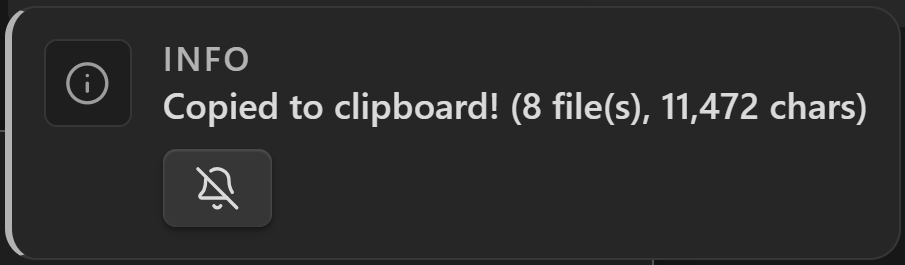
Use the direct mute action when one event type is interrupting you, then return to the feed when you need to review what happened.
Mobile status
Obsidian mobile does not have the same persistent desktop status bar. Smart Environment uses a dedicated mobile status view for loading, embedding, readiness, and event review.
See Smart Plugins on mobile for the current mobile screenshots and workflow.
Common problems
"Some notes never show up"
- Check View all exclusions to confirm the note or folder is not excluded.
"It keeps reprocessing while I edit" (PRO)
- Increase Re-import wait time.
"Matches feel too broad" (Pro)
- Enable Embed blocks and set Smart Connections result type to "Blocks"
"Everything feels slow"
- Exclude heavy folders/files and re-import
- Pro options
- Disable Embed blocks
- Increase Minimum length to embed thresholds
FAQs
Where does Smart Connections store embeddings / index data?
Embeddings and index data are stored locally in your vault under .smart-env/. That keeps Core retrieval data portable with your vault. Provider-backed workflows are separate and use the context you explicitly choose to send through configured integrations. See Smart Environment settings, Smart Connections for Obsidian, and the Privacy Policy.
Syncthing / third-party sync: what should I ignore?
If you use Syncthing or similar third-party sync, add .smart-env/ to ignore patterns to reduce duplicate writes and conflicts. Follow Smart Environment settings, review Getting Started, and keep Smart Connections for Obsidian as the canonical feature reference.
I changed embedding models but results did not change. Why?
Selecting a model does not make its embeddings current immediately. Confirm the model marked Current, choose Re-index embeddings, resume embedding if paused, wait for Ready, then inspect Environment stats before retuning Connections.
What embedding model does Smart Connections use by default?
Open Smart Environment settings and read Default embedding model. Use the model marked Current instead of relying on a remembered model name. Re-index embeddings and Test model are separate actions.