
Connections in Bases
This page is retained temporarily and may contain outdated details. Use the current Connections in Bases documentation for current behavior. Start with Getting started with Smart Connections for the shortest verified workflow.
Obsidian Bases is great at helping you manage a collection of notes. Smart Connections is great at telling you what is related to a reference note.
The Bases integration combines both:
- Add a Connections score column to any
.basefile - Sort and filter your collection by relevance to a reference note
- Use
score_connectionandlist_connectionsdirectly in Bases formulas
Connections in Bases is part of Connections Pro. Use this page when Smart Connections already works for your vault and you have a .base collection you want to score or sort.
If you have not seen any useful Connections result yet, start with Getting Started.
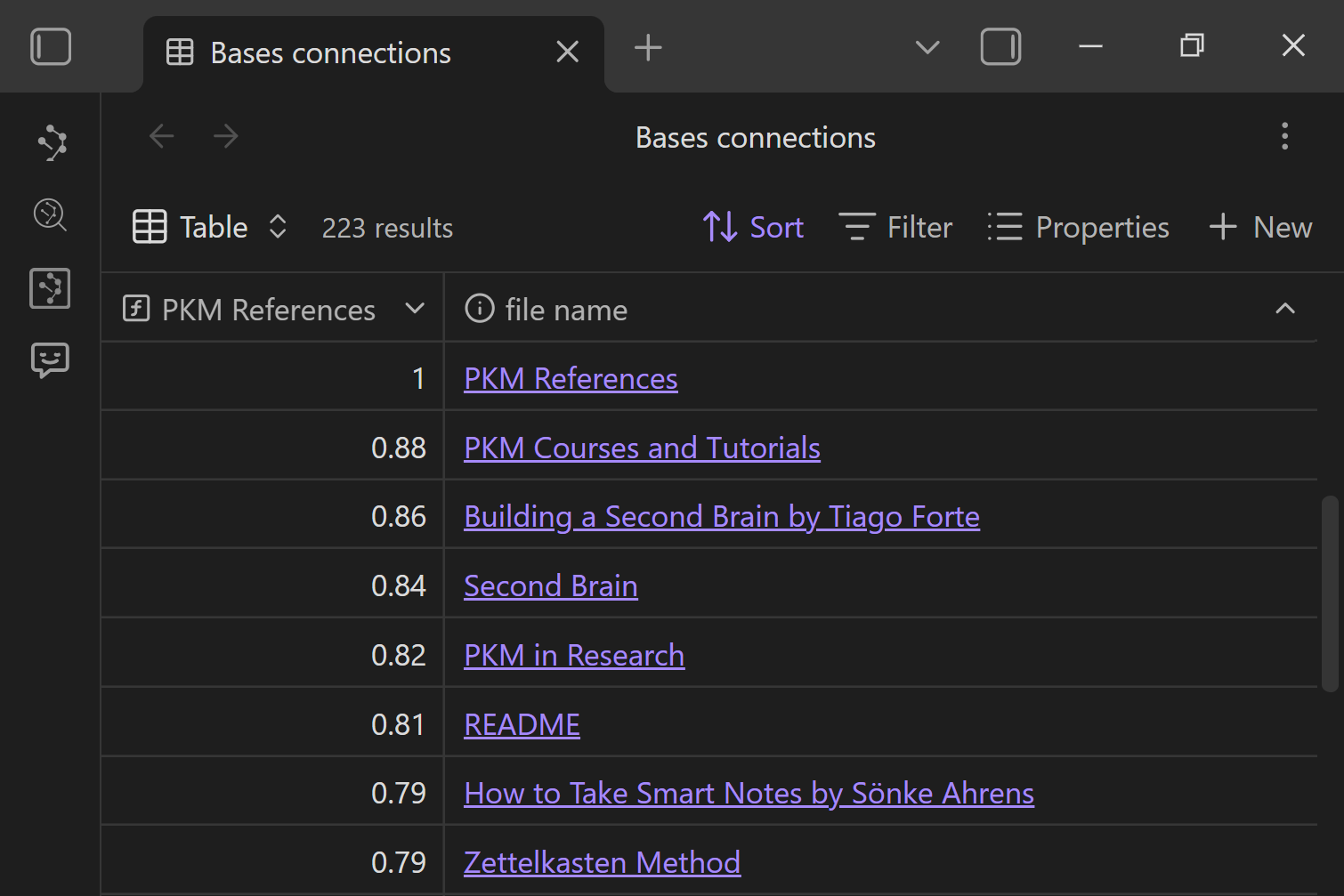
- Open a
.basefile. - Run
Add: Connections score bases column. - Pick a reference note or choose
Current/active file (dynamic). - Sort by the new score column to find relevant notes in the collection.
- Optional: add a
list_connectionscolumn to see quick link trails per row.
Who this helps
Use this when you:
- prefer dashboards and tables for planning, triage, or review
- want to compare many notes against one reference note, such as a goal, project, outline, or research question
- want a sortable shortlist before deciding what to read, link, or review
- want to prepare a reviewed candidate set before sending notes to Smart Context
Quick start
Add a Connections score column
- Open any
.basefile. - Open the command palette.
- Run:
- Smart Connections Pro: Add: Connections score bases column
- Select the reference note you want to compare everything against.
- The Base refreshes and the new column appears, ready to sort.
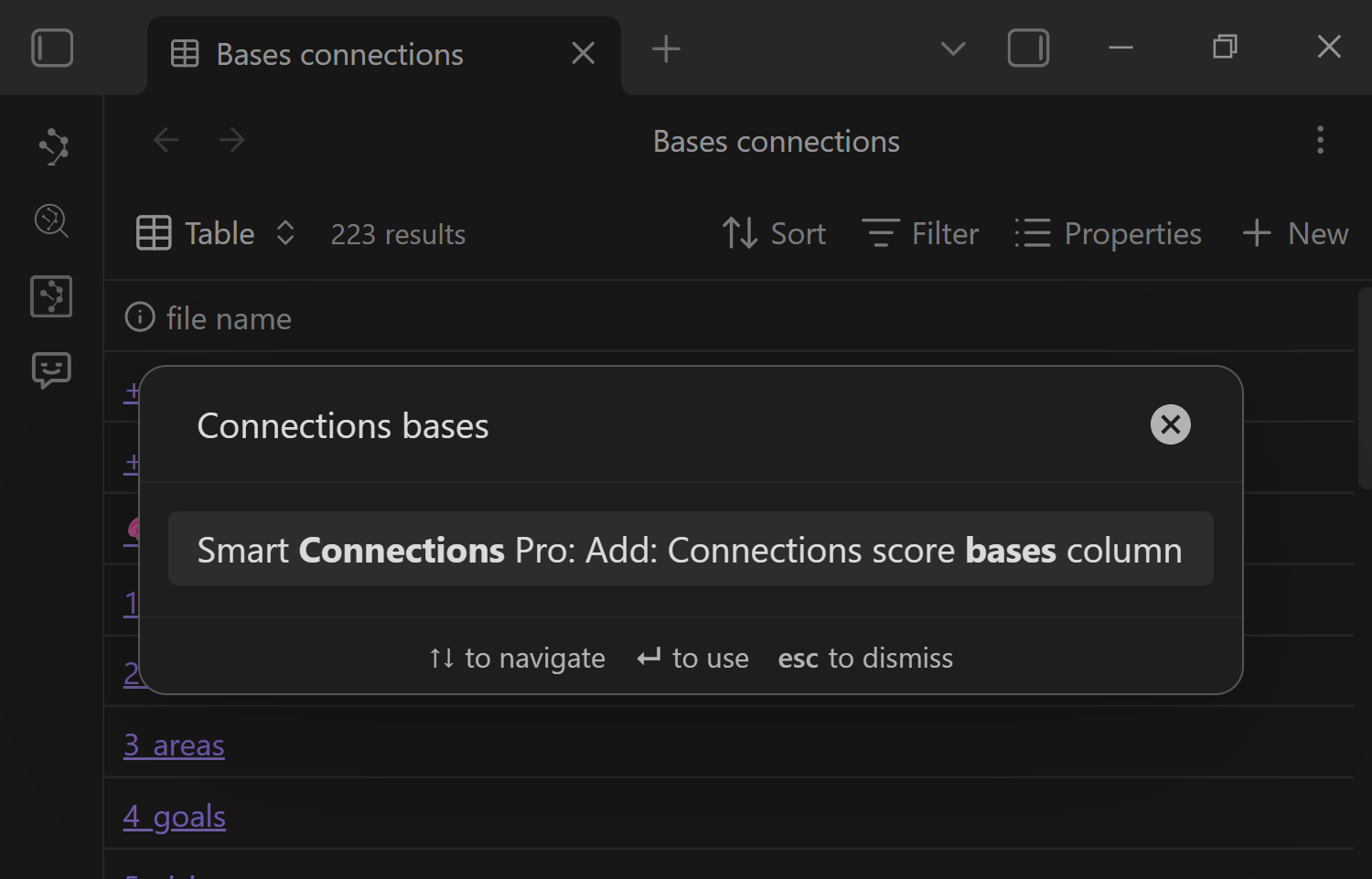
If you do not see the command, make sure the active note is a .base file.
The command only appears when a Base is the current file.
Pick a reference point
After running the command, you choose what the score should be relative to.
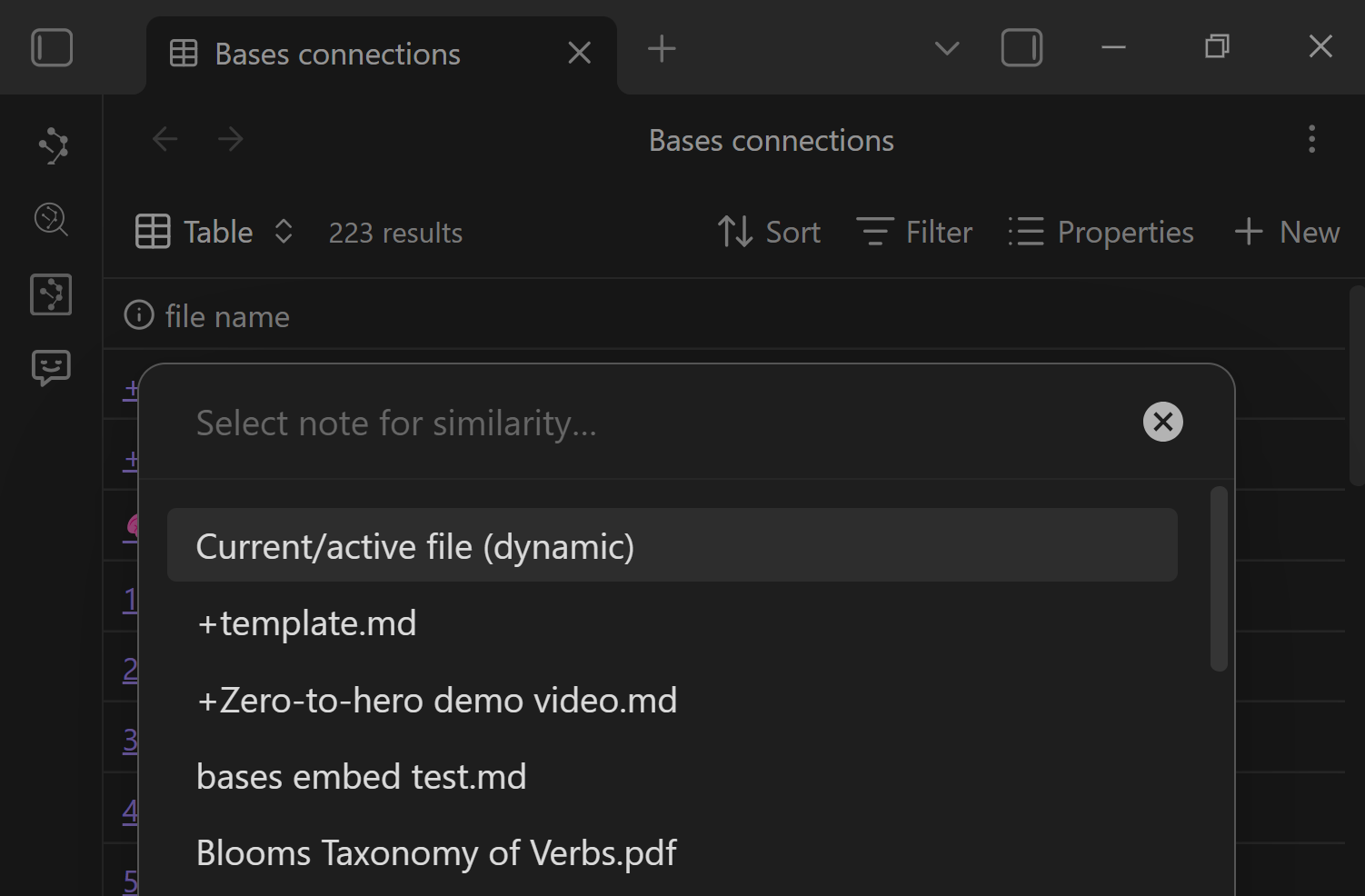
Use a fixed note
Pick a specific note when you want a stable lens, like:
- a project hub note
- a goal or objective note
- a draft outline
- a research question note
- a decision or planning note
This is useful for planning dashboards because the meaning of the score stays consistent over time.
Use the current note
Choose Current/active file (dynamic) when you want the Base to update as your active note changes.
Use this when:
- your Base is already filtered to a useful domain, such as a project folder, tag, or reading list
- you want the table to respond to the note you are currently reviewing
- you want a focused relevance dashboard rather than the full Connections list
Like other Bases functions that use the this.file property, the dynamic option works best when the Base is open in the sidebar.
Use Connections functions in Bases formulas
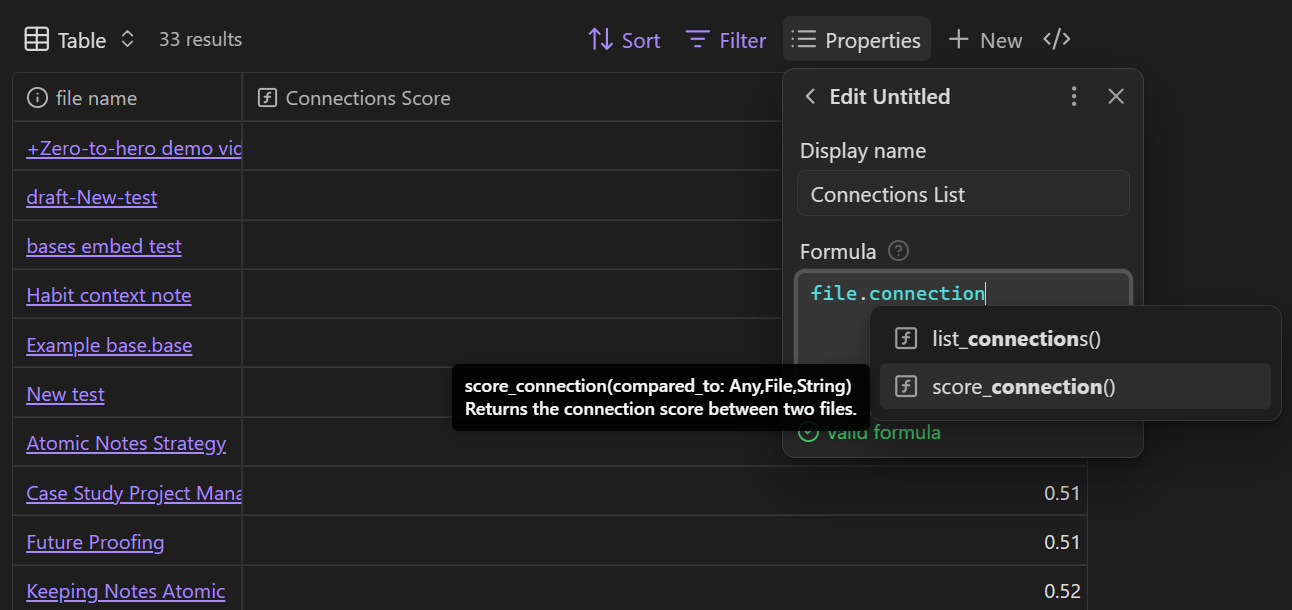
You can also build your own formula columns using the two Bases functions:
score_connection- Returns a connection score.
list_connections- Returns a list of links prefixed with the connection score.
These functions appear in Bases formula autocomplete.
Example formula usage
Use the instance form when you want the formula to read naturally for each row:
file.score_connection("+Projects/Project Alpha.md")file.list_connections()
Use the global form if you prefer explicit inputs:
score_connection(file, "+Projects/Project Alpha.md")list_connections(file)
Pair score with link trails
A score column is useful for sorting, but it can be more useful when you can jump into related context immediately.
Add a list_connections column to show a small trail of related links beside each result.
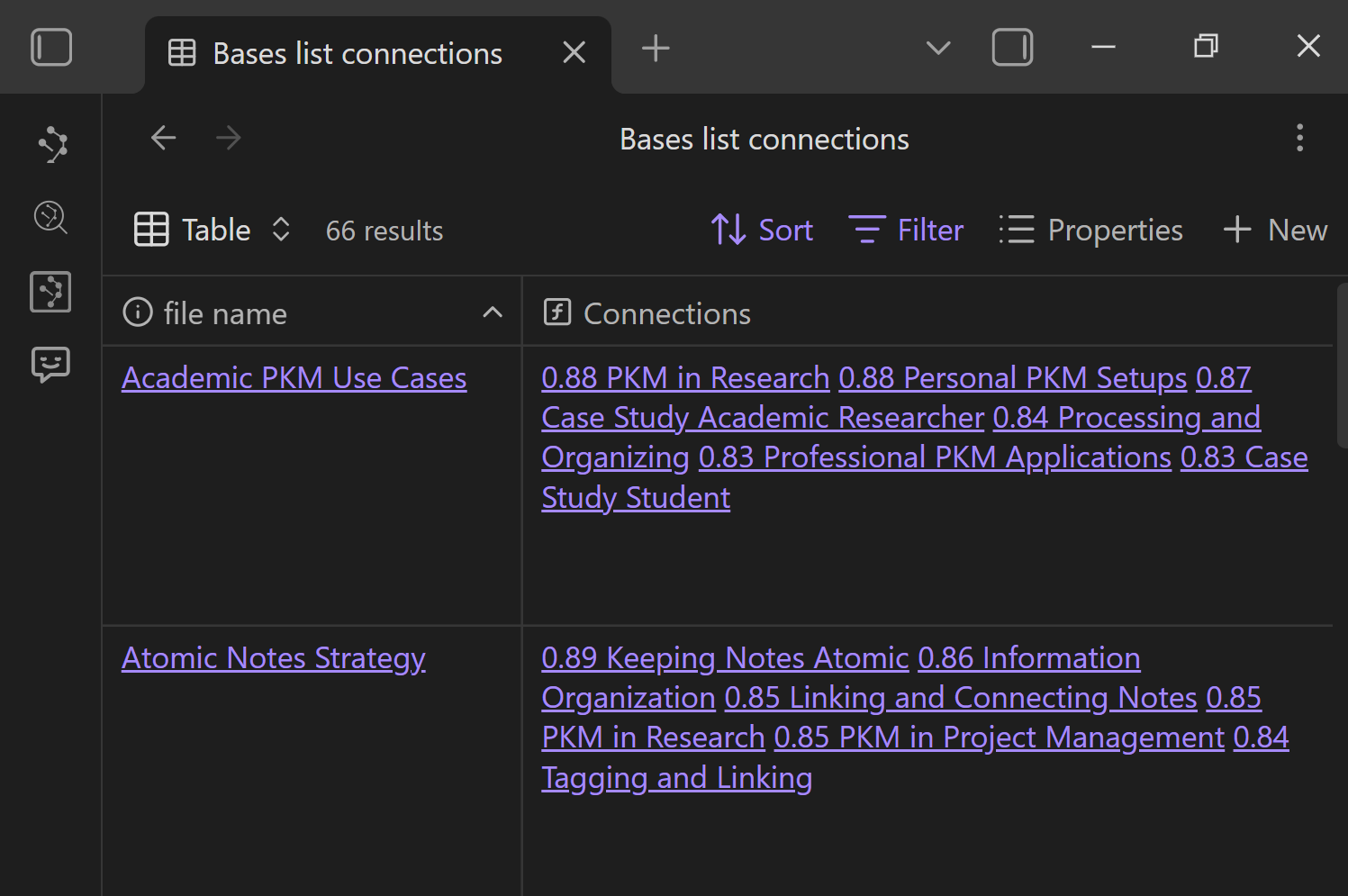
Use this when you want to sort the collection and then open the context that explains why a row may matter.
Understanding the score
Each score is calculated using your configured Connections scoring algorithm.
A few practical rules:
- Treat the number as a relative signal, not an absolute grade.
- Compare scores within the same Base and reference point.
- Score ranges vary by embedding model, vault content, and candidate set.
- Preview or open the row before treating it as useful.
- If your configured algorithm uses feedback signals, hidden or pinned items can affect future ordering. Your Base reflects those changes the next time it recalculates.
Bases is where you want the score to be actionable:
- filter first to limit the candidate set
- then sort by score to rank inside that set
Workflow recipes
These workflows are for collection-level relevance: a set of rows, one or more reference notes, and a decision about what deserves attention next.
1) Goal-driven prioritization
Use this when you have too many notes and not enough clarity about what matters for the goal.
- Create a Base for your project folder or tag.
- Add a Connections score column.
- Choose your goal note as the reference.
- Sort descending by score.
- Review the top rows and turn the useful ones into next actions.
Outcome: your review starts with notes most related to the goal note instead of folder order or memory.
2) Drafting with grounded references
Use this when you are writing and want your draft to stay anchored in existing notes.
- Make a Base of your reference notes, sources, excerpts, or prior drafts.
- Add a score column referenced to your outline or current draft note.
- Sort descending.
- Keep the Base open while you write.
- Drag useful rows into a References section as you go.
Outcome: the draft gains a reviewed reference trail from the collection you chose.
3) Research triage and reading order
Use this when you have a pile of reading and need a starting sequence.
- Make a Base for your reading list folder.
- Add a score column referenced to your research question note.
- Sort descending.
- Start reviewing from the top.
- Remove, defer, or mark rows as you decide what belongs in the current research pass.
Outcome: the reference note creates a relevance-ordered review sequence.
4) Compare against multiple anchors
Use this when you are balancing tradeoffs: multiple goals, multiple audiences, or multiple projects.
- Add one score column per anchor note, such as Goal A, Goal B, Draft, or Constraints.
- Sort by one column, then scan the others to see tradeoffs.
- Filter to the notes that score well across the lenses you care about.
- Review the outliers before making the decision.
Outcome: relevance becomes visible across multiple lenses instead of being hidden in a single list.
5) Prepare a reviewed context shortlist
Use this when you want a reviewed candidate set before packaging notes for an AI workflow.
- Add a score column referenced to the question note, draft, or assignment note.
- Sort descending.
- Select the top 5 to 15 useful rows.
- Copy links or send selected notes to Smart Context.
- Remove noise before using the bundle.
Outcome: a reviewed candidate set that is easier to package in Smart Context or another AI workflow.
6) Filtered relevance dashboard for a narrow domain
Use this when the global Connections view is too broad for a recurring review.
- Create a Base filtered to a narrow set, such as one folder, tag, project, or reading list.
- Add a score column using
Current/active file (dynamic). - Dock the Base so it stays visible.
- Browse notes normally.
- Review only the rows in the chosen collection.
Outcome: a sortable relevance dashboard limited to the collection you chose.
If Bases relevance does not help
| Symptom | Try first |
|---|---|
| The command does not appear | Make sure the active file is a .base file. |
| Scores are empty or missing across the vault | Use Getting Started to verify note eligibility and vault coverage. |
| Scores feel too broad | Filter the Base first, then sort by score inside that filtered collection. |
| A dynamic reference does not update as expected | Keep the Base open in the sidebar and confirm the reference option uses Current/active file (dynamic). |
| Scores are present but ordering feels wrong repeatedly | Review Custom algorithms and Connections settings. |
| You have a question, not a table to score | Use Smart Lookup. |
Related pages
- Use the default list surface first: Exploring the Connections view
- Ask a question instead of scoring a table: Smart Lookup
- Tune relevance and limits: Connections settings
- Tune scoring and ranking behavior: Custom algorithms
- Package reviewed rows for AI workflows: Smart Context Clipboard