
Inline connections
This page is retained temporarily and may contain outdated details. Use the current inline Connections documentation for current behavior. Start with Getting started with Smart Connections for the shortest verified workflow.
Inline connections bring related notes or blocks into the editor. Instead of switching to the Connections view, you can surface related material for a specific paragraph, heading, or sentence while you write.
Inline connections are part of Connections Pro. Use this page when Smart Connections already works for your vault and you want related material closer to the exact text you are editing.
If you have not seen any useful Connections result yet, start with Getting Started.
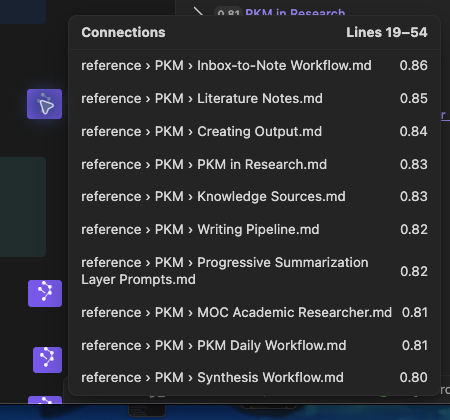
Inline connections answer: "what else is related to this block?" right where you are working.
- Hover the inline Connections icon to see related matches.
- Hold Cmd/Ctrl while hovering a match to open Obsidian Hover Preview.
- Click a match to open its note.
- Click the Connections + line numbers header to open the full list for that block in the Connections view.
- Toggle inline connections only when you want them visible while editing.
How it works
Inline connections score blocks from the current file against your vault based on your configured Connections settings. When a block has at least one match above your inline threshold, a small inline Connections icon appears at the end of that block.

The icon is intentionally minimal: it is a fast signal that the current block has related context elsewhere.
The inline surface is most useful when the paragraph, heading, sentence, or block you are editing is the thing that should determine the results.
Use the main Connections view when the whole note should be the anchor or when you want a larger result list.
Using inline connections
1. Hover to scan matches
Hover the Connections icon to open a popover list of related matches for that block.
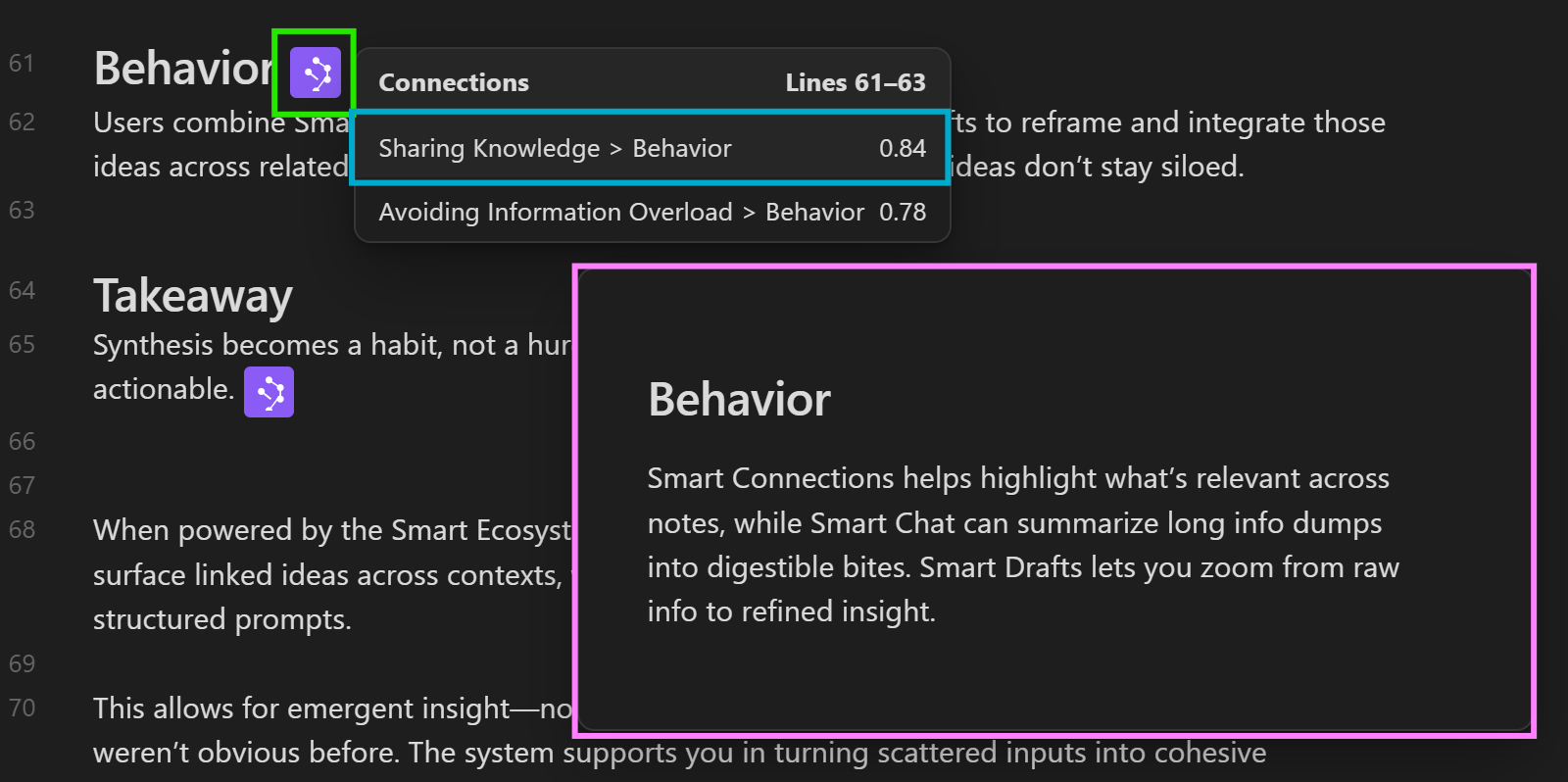
Each result shows:
- the matched note or block
- a relative score for this inline result list
- a quick path to act, such as preview or open
Treat the score as a clue to inspect, not a decision. Preview the result before you act on it.
2. Preview before you switch context
Hold Cmd/Ctrl while hovering a connection to trigger Obsidian's native Hover Preview (above in pink).
This lets you inspect the match without leaving your current note.
Use preview when you want to answer:
- Is this actually relevant to this paragraph?
- Did I already explain this somewhere?
- Should this become a link, source, or follow-up note?
3. Open the full list for the block
Click the Connections + line numbers row in the popover to open all matches for that block in the main Connections view.
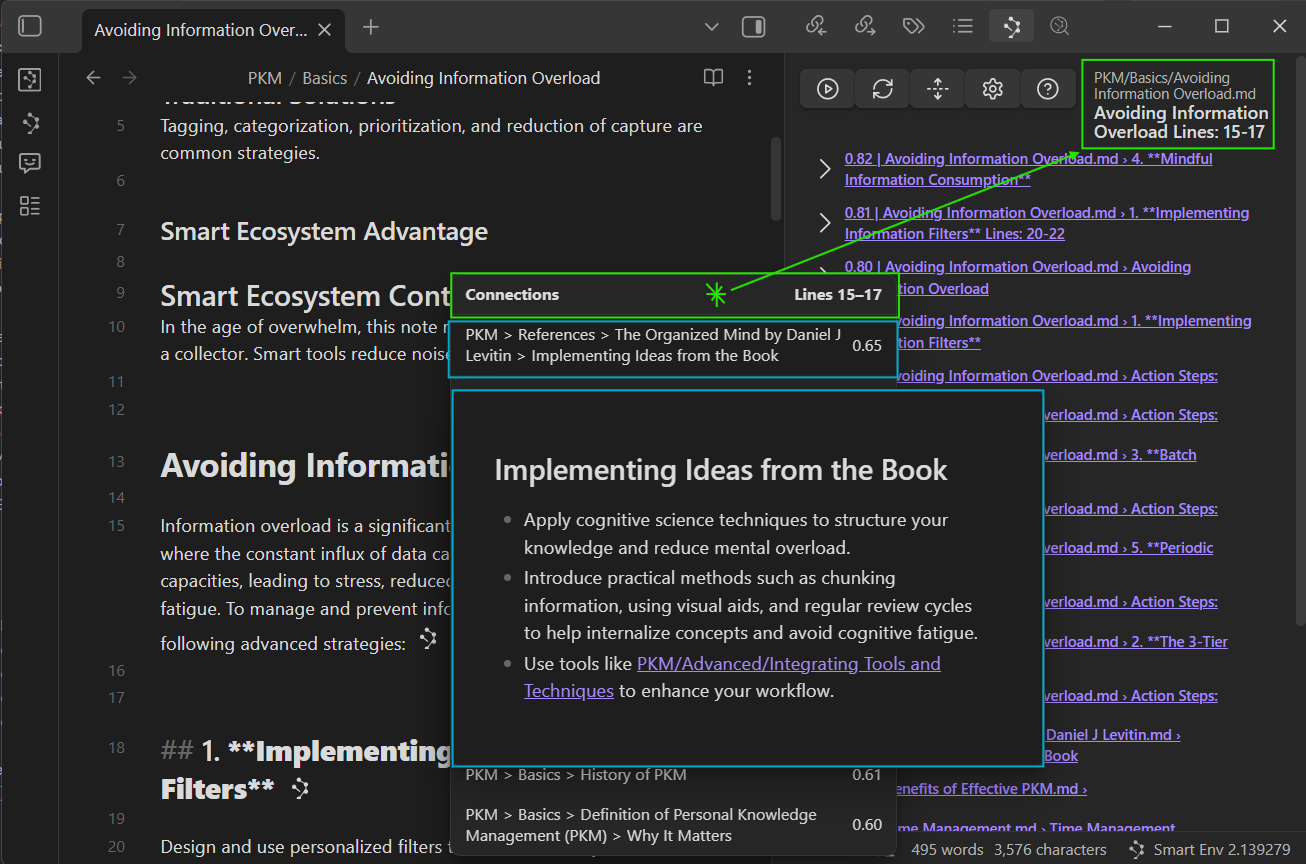
Use this when you want to:
- expand beyond the top few inline results
- switch from scanning to deeper exploration
- compare multiple candidates side-by-side in the Connections view
- copy links or send a result set to another workflow
4. Show inline connections only when you want them
If you prefer less visual noise while drafting, toggle inline connections on demand using the command palette, then assign that command to a hotkey if you use it often.
A practical flow:
- Draft normally with inline connections off.
- Toggle inline connections on when you want to add links, recover related context, or check repeated work.
- Preview or open useful matches.
- Toggle inline connections off when you return to focused writing.
Workflow recipes
Link while you draft
- Write a paragraph.
- Hover the inline icon.
- Preview 1 to 2 promising matches.
- Open the useful result or add it as a link.
- Keep drafting.
Outcome: you build links as part of writing, not as a separate cleanup session.
Ground a specific claim or paragraph
- Find the sentence, paragraph, or heading that needs support.
- Hover the inline icon for that block.
- Preview related matches.
- Add the useful source, link, or recovered decision to the current note.
Outcome: the current passage becomes better grounded in material already in your vault.
Refactor long notes
- Find a section that feels dense or disorganized.
- Use inline connections on its blocks to locate related notes you already wrote.
- Open the useful matches.
- Split, merge, or extract the current section only when the match makes the next structure clearer.
Outcome: you reduce duplication and turn one long note into a more useful set of connected notes.
Notice repeated work early
If you often restart research, inline connections can reveal "I already worked on this" at the moment you start writing.
Hover the inline icon and look for:
- a prior draft
- a similar concept explained elsewhere
- a related decision note or meeting note
Outcome: less rework, more reuse.
Use Smart Dedupe when repeated notes or blocks need side-by-side review before you change them.
Tuning inline visibility
Inline connections use Connections scoping controls, with extra controls for how much inline signal appears while editing.
Common controls include:
- Inline score threshold: how high a match must score before the icon appears
- Results limit: maximum items shown in the inline popover
- Include/exclude filters: restrict candidates by file path where available
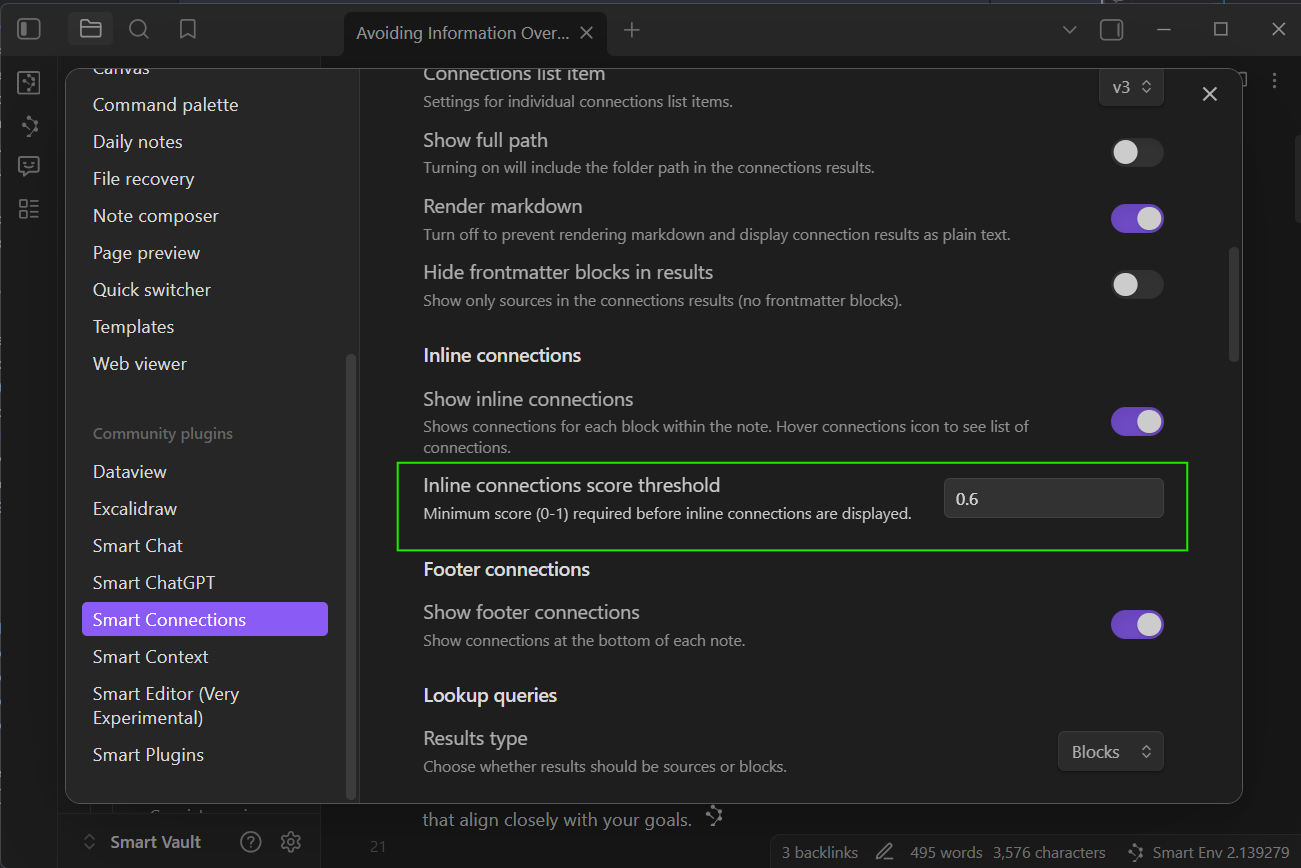
For configuration details, see inline connections settings.
Inline connections only appear when a block has matches above your inline threshold.
If normal Connections results work but inline icons do not appear, lower the inline score threshold and review inline settings.
If no useful Connections results appear anywhere, use Getting Started to verify note eligibility and vault coverage first.
When to use another surface
| When you need | Use |
|---|---|
| Related notes from the whole note | Connections view |
| Related notes at the bottom of the note | Footer connections |
| Relevance scoring inside a table or collection | Connections in Bases |
| Question-first retrieval | Smart Lookup |
| Duplicate or near-duplicate review | Smart Dedupe |
| A reviewed AI context bundle | Smart Context Clipboard |