
Getting started with Smart Connections
Install Smart Connections Core for free. Then use the note already in view to surface related notes without writing a search query. Pro is optional; it is not required for this first workflow.
Still deciding whether Smart Connections fits your workflow? Start with the Smart Connections overview.
Use this when
Use Connections when a note is already open. Use it to find earlier work, reconstruct a decision, or identify relevant missing material.
For example, Connections might surface a meeting note while you draft a project brief. Preview the result. Recover the earlier decision. Then drag the useful source into the draft to preserve the link.
Quick Start
Before you start
- Install Smart Connections from Obsidian Community Plugins. Enable it.
- Open a note with meaningful text: a project note, meeting note, draft, research note, or decision note.
- If Smart Environment is not loaded, select Load Smart Environment. Continue when the status view shows Smart Environment ready or Ready.
Core includes the Connections view, Footer connections, and the 2D similarity map. Start with the Connections view; choose extra presentation options after you have inspected one useful result.
Don't start with an empty test note. Connections uses the text in the note you are looking at as the anchor for finding connections.
Open the Connections view
- Open the note you are actively working on.
- Open the Command Palette.
- Run the command for your installed edition:
- Core:
Smart Connections: Open: Connections view - Pro:
Smart Connections Pro: Open: Connections view
- Core:
- Leave auto-refresh running. When it is active, the menu offers Pause auto-refresh.
- Make sure that ranked results appear beside the note.
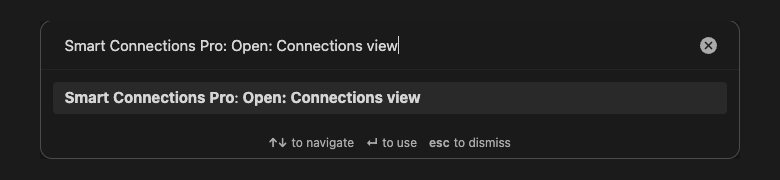
The image shows the Pro command. Core uses the same Open: Connections view command under the Smart Connections prefix.
The ribbon action opens the same Connections view when it is available. See Open the Connections view for the current entry points and auto-refresh and fixed-target behavior.
Find one useful related note
Look for ranked rows with readable source identities and relative scores. The graph is optional: choose Graph style > None to hide it while keeping the result list available. Start with the list if that is easier to read.
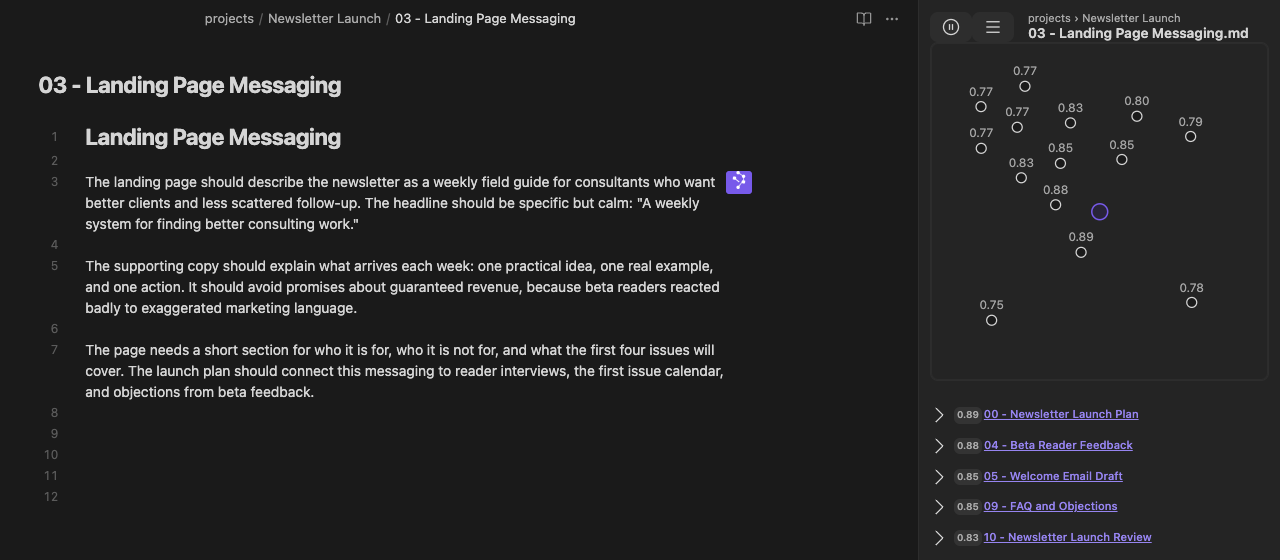
In this earlier Pro 4.8.1 example, Landing Page Messaging is the target and Beta Reader Feedback appears near the top. The same example continues through source review below; it is not a demonstration of the newer Pro result style.
Continue with how to read result rows and how the 2D similarity map works.
- Scan the first few results in the Connections view.
- Expand one promising result to inspect its contents.
- Open the source when the excerpt is not enough to judge the relationship.
See Read result rows, Expand a result, and Hover preview for more detail.
Review one source without losing the anchor
Expand a row or use Hover Preview when a quick inspection is enough. To open a source while keeping the original result set visible, choose Pause auto-refresh first. During normal note-to-note work, leave auto-refresh running.
After opening the candidate, check that the Connections target still names the starting note. The open note and the preserved target should be different. Treat the displayed score as a relative ranking signal, not a probability or quality judgment.
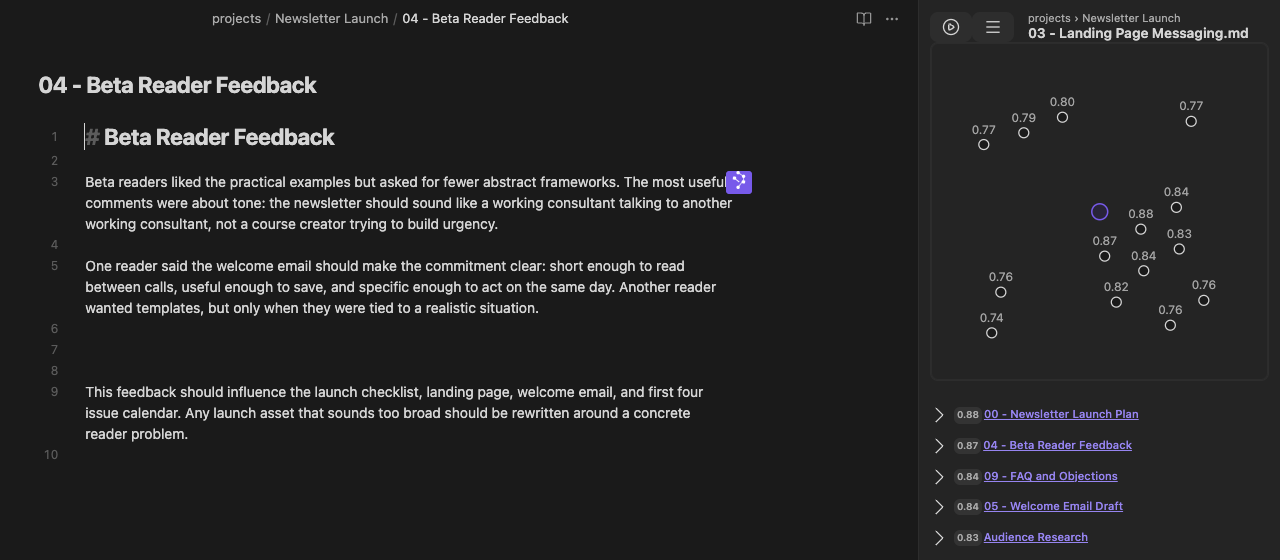
Beta Reader Feedback is open in the editor while Landing Page Messaging remains the fixed Connections target.
In this example, Landing Page Messaging remains the fixed target while Beta Reader Feedback opens for review. The source supports a bounded decision: keep the page concrete, avoid exaggerated claims, and write for a working consultant rather than a generic course audience.
Connections surfaced the source. The reviewer decides whether to change the landing page. Connections did not write or independently validate the source.
You can name the source, what it contributed, and which note, decision, or next action should change. A populated list or high score is not enough.
Use the result
After you review the source, complete the loop with one of these actions:
- Write the useful conclusion in your own words.
- Drag the result into the destination note to create an Obsidian link.
- Keep the source open for closer review.
Connections does not change the note for you.
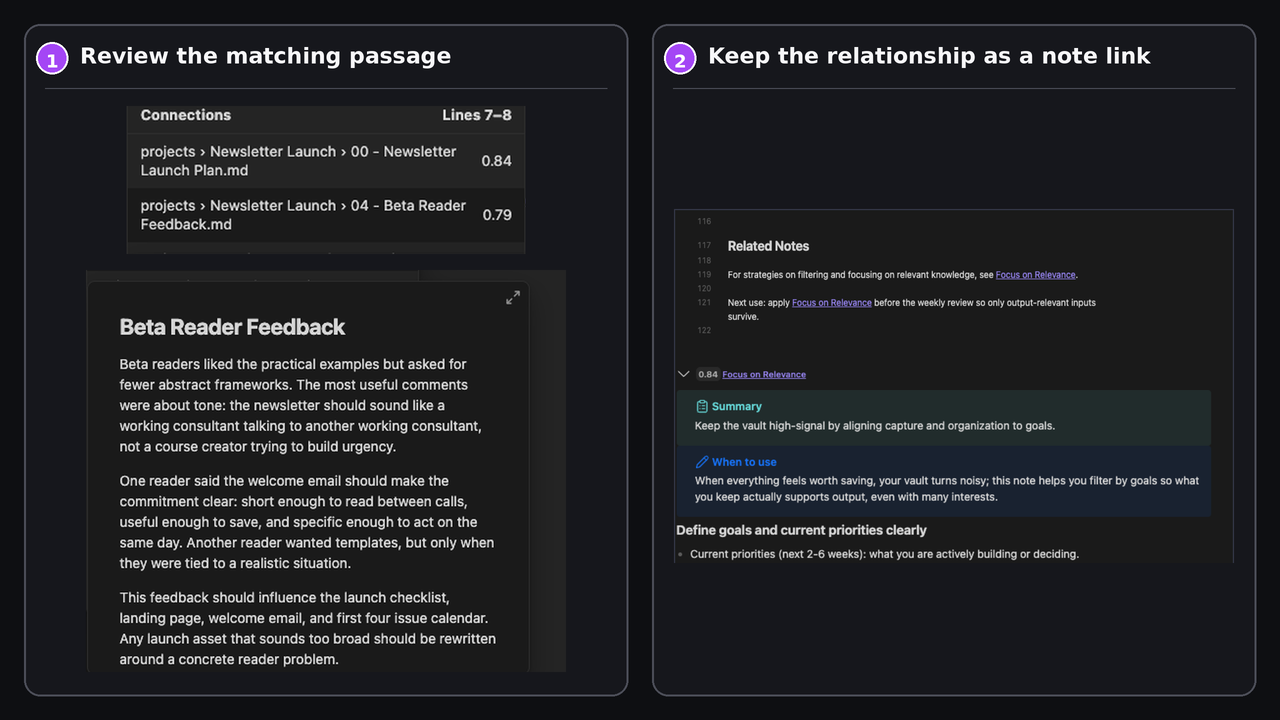
Preview the matching passage first. Add an Obsidian link only when the relationship belongs in the note.
See Drag a result into a note when the relationship should become a durable link.
Choose optional presentation controls
Once the list is useful, open the Connections menu and choose Settings > Graph style. Select None for results only, or select a component to show a graph. The same choice is available in Connections settings under Display > Graph style; there is no second graph-visibility switch to enable.
Core includes the 2D similarity map. Pro also offers 2D semantic neighborhood (Pro) and 3D semantic neighborhood (Pro). These present the current Connections candidates, not different searches or a whole-vault graph.
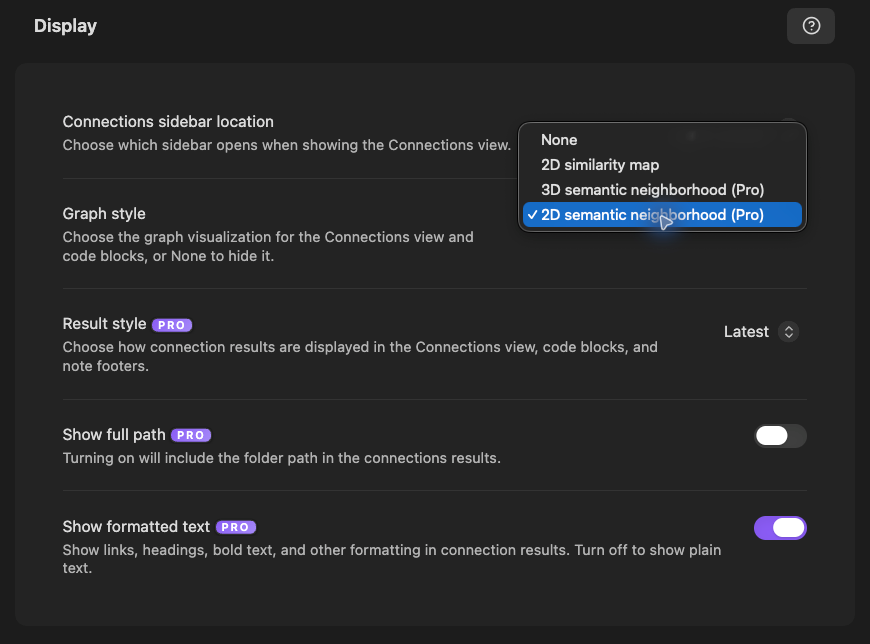
Pro 4.8.3 settings example: None and the graph components are choices in one selector. A graph is not required to finish setup; Pro-only components are labeled.
In Pro, note-link arrows represent existing authored links. Name leaders and dashed inspection guides do not. The Latest result style and Show formatted text control how source content is displayed; they do not change the source note. See presentation controls for the visual alternatives and their limits.
Open another Connections surface
Complete the Connections view workflow first. Then choose another surface when its placement fits the work.
| View | Edition | How to open it |
|---|---|---|
| Footer connections | Core, included with Pro | Run Smart Connections: Toggle: Footer connections, or enable Footer connections in Connections settings. |
| Inline connections | Pro | Run Smart Connections Pro: Toggle: Inline connections. |
| Connections in Bases | Pro | Open a .base file. Run Smart Connections Pro: Add: Connections score bases column. |
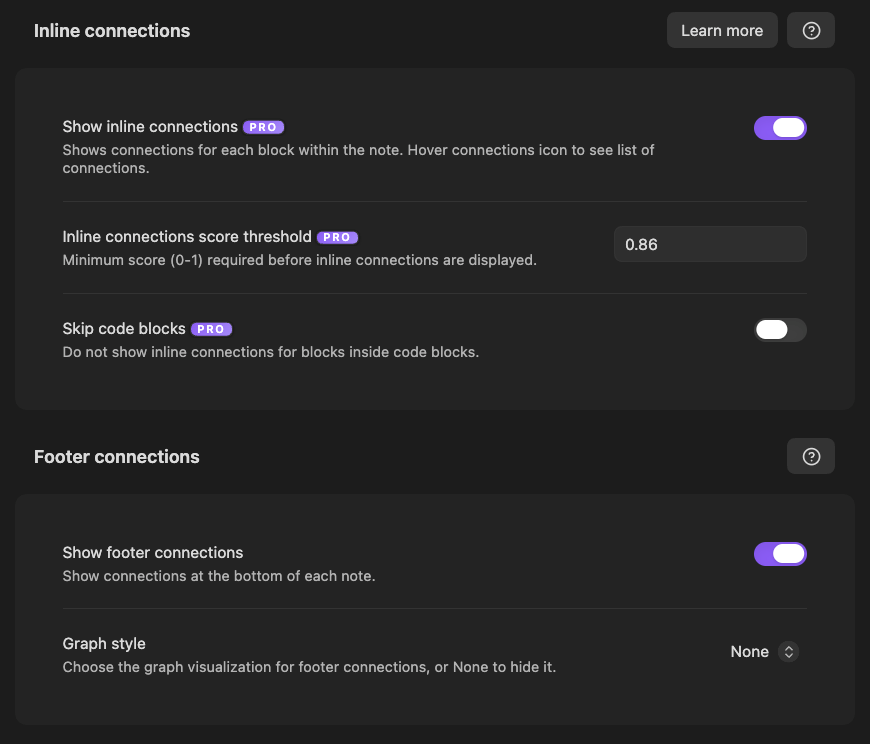
Pro 4.8.3 settings example: Inline is on and Footer is enabled with no graph. These are captured choices, not recommended defaults. Footer enablement and its Graph style are separate controls.
Inline connections
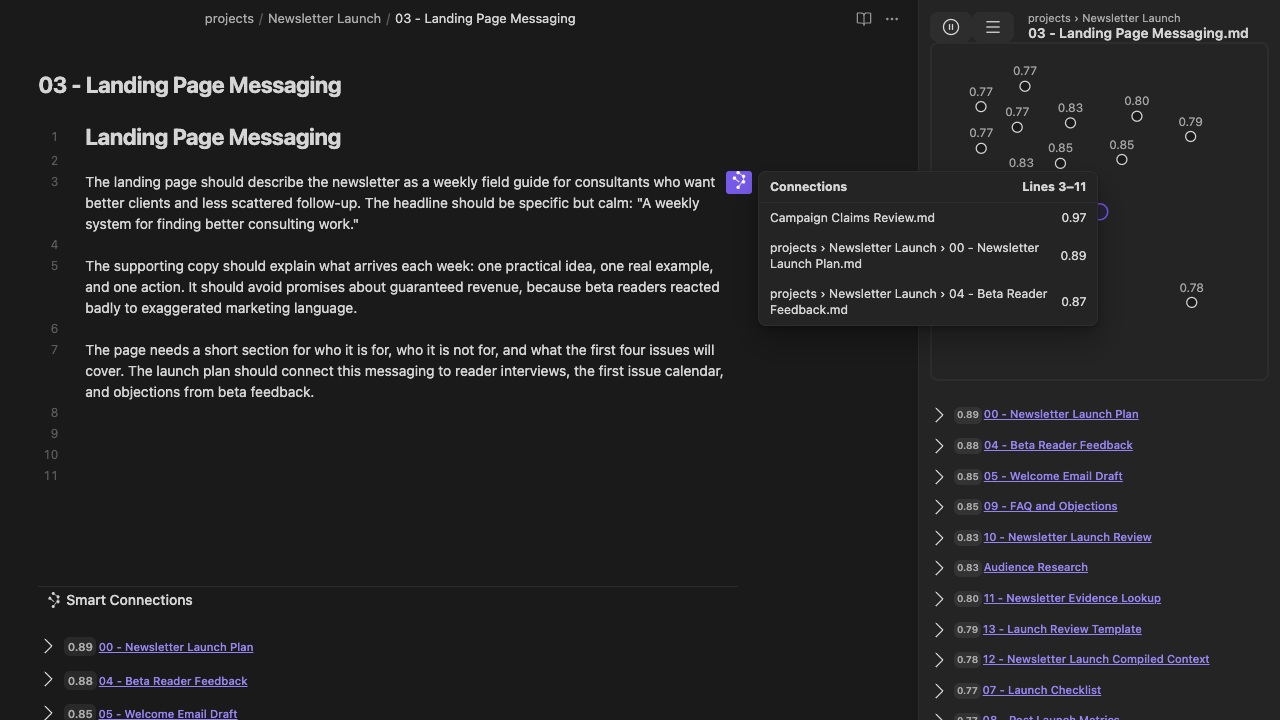
Earlier Pro 4.8.1 output example: Inline Connections uses the nearby passage as its anchor and shows its line range, source names, and relative scores. This is separate from the current settings capture above.
Continue with the Inline connections guide.
Footer connections
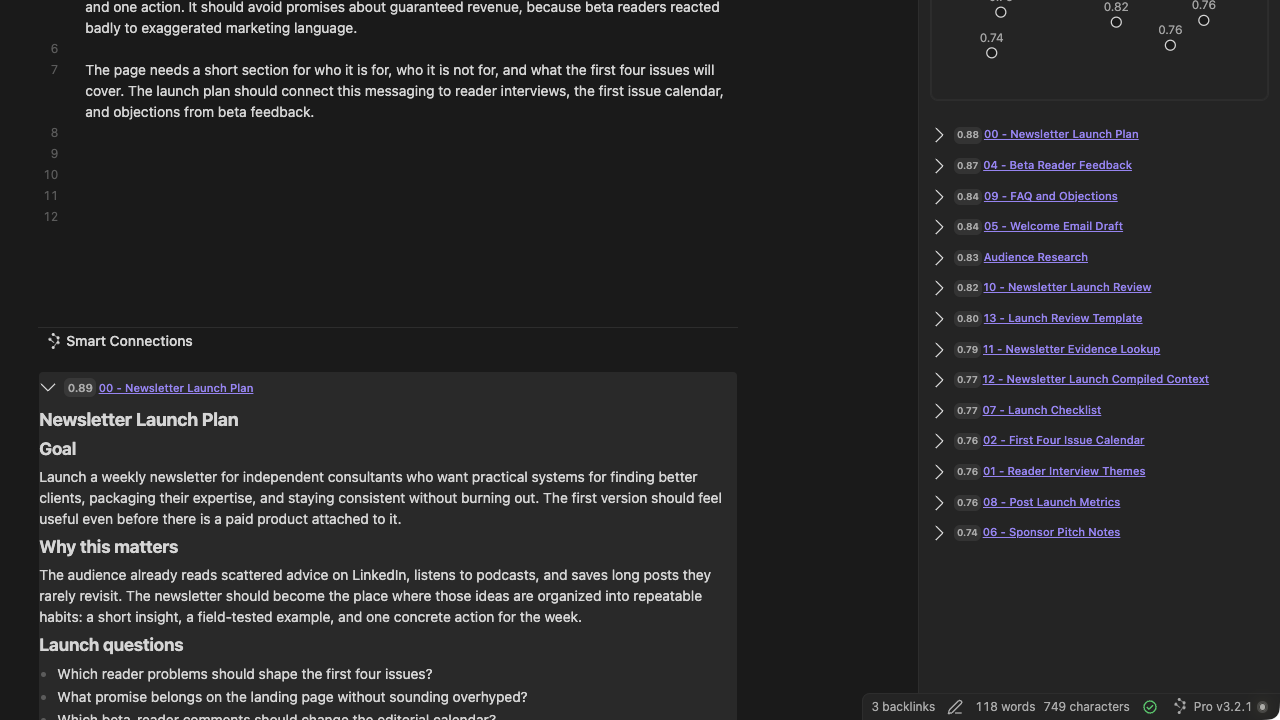
Earlier Pro 4.8.1 desktop output example: Footer Connections appears at the end of the note. Expand a result to inspect its contents before opening or linking it. Footer remains included in Core.
Use Show footer connections to enable the surface. Set the Footer's Graph style to None for a compact list, or choose a component to include its graph. This choice is independent of the sidebar's Graph style. From an expanded Footer, right-click a result and choose Settings > Graph style to change the Footer component.
Continue with the Footer behavior and recovery reference.
Connections in Bases
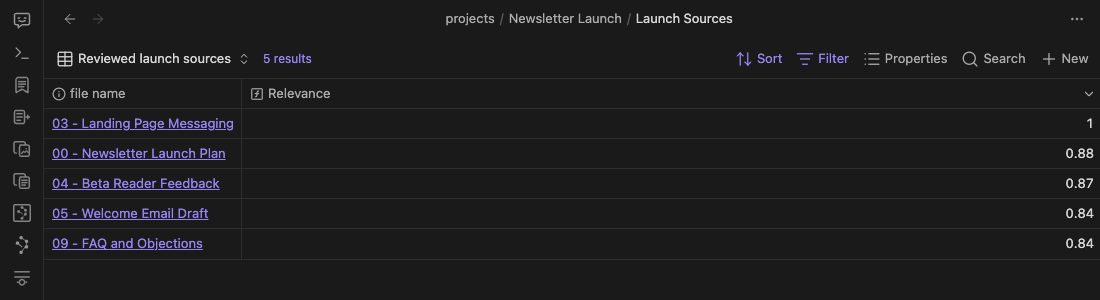
After choosing Landing Page Messaging as the reference, the same five Base rows receive relative relevance values.
If Add: Connections score bases column is absent, make sure that Smart Connections Pro is active. Make sure that the Base contains a supported note-file column.
If useful results do not appear (troubleshooting)
1. Try a richer note
Open a different note with more meaningful text. Then reopen Connections.
Empty or very short notes often provide too little material for useful results.
2. Verify the active note
If a substantive note still produces no results:
- Open Smart Environment settings.
- Make sure that the note's path is inside the intended source scope.
- Make sure that no exclusion removes the note.
- Update the source or exclusion setting.
- Reopen Connections for the same note.
See Troubleshoot empty or stale results for the full recovery sequence, including the Inspect active note route.
3. Verify vault coverage
If several substantive notes produce no results:
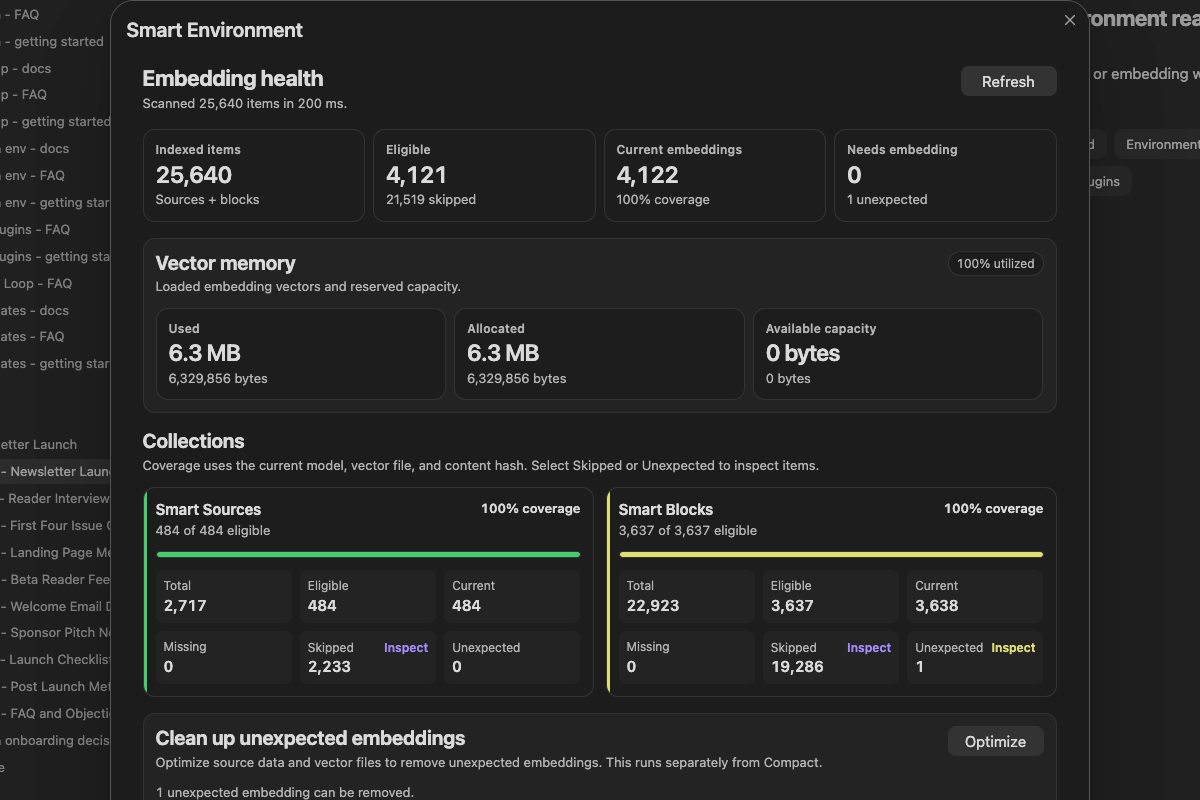
Notice Needs embedding and the Sources and Blocks coverage cards. Finish preparation before changing Connections Pro ranking settings.
Open Environment stats through one of these paths:
- Right-click the Smart Connections status-bar item. Select Show stats.
- Open the status view. Select Environment stats.
Compare Eligible, Current embeddings, Needs embedding, and the Smart Sources/Smart Blocks collection cards.
Eligible items should be current before retrieval is treated as ready. If Needs embedding remains non-zero or a collection is incomplete, allow preparation to finish or review:
When eligible coverage is current, reopen Connections from a meaningful note. Preview one result.
Choose the right starting point
Connections is for current-note discovery, not every search job.
| What starts the task | Use | Why |
|---|---|---|
| A note you are already working in | Connections | The note in view determines the results. |
| A question or idea you can type | Smart Lookup | The written query determines the results. |
| An exact word, filename, heading, tag, syntax, or regex | Obsidian search | You need exact text matching. |
| A visual map of a topic or its relationships | Smart Graph | You want to explore related notes visually instead of using one ranked list. |
| Repeated or near-duplicate material | Smart Dedupe | You need to decide what to keep, combine, archive, or ignore. |
| A reusable set of sources for AI | Smart Context | You want to assemble and reuse a specific set of notes. |
Use Smart Lookup when you are starting from a question instead of the current note.
Make it routine
For the lowest-friction routine, leave the Connections view open beside your notes while you work.
Return to it whenever the note in view makes you:
- search for earlier work
- reconstruct prior reasoning or a decision
- wonder what relevant material is missing
Repeat the same loop:
- Open or return to Connections.
- Preview one promising result.
- Apply one useful result to the work already in progress.
When a result is useful, apply it to the note, decision, or next action.
Continue from here
Use the references below for the capability or question you want to explore next.
| When you need | Continue with |
|---|---|
| Hide erroneous or pin useful results | Hide a result and Pin a result |
| Links based on connections | Make a useful relationship durable |
| Paragraph-level connections in the editor (Pro) | Inline connections |
| Related notes at the bottom of a note (Core, with a desktop example shown here) | Footer connections |
| Bases functions (Pro) | Connections in Bases |
| Scoring and ranking controls (Pro) | Scoring and ranking |
| Visual vault exploration | Getting started with Smart Graph |
| Sources vs Blocks, result limits, display controls, or symptom-driven tuning | Sources or Blocks and Tuning order |