
Footer connections
This page is retained temporarily and may contain outdated details. Use the current Footer Connections documentation for current behavior. Start with Getting started with Smart Connections for the shortest verified workflow.
Footer connections are available in Core and remain available when Connections Pro is active.
The current Version 4.0 (Graph + List) renderer and its mini graph are Pro capabilities. List only is the compact Footer path.
Most orphan notes are created at the end of writing, not the beginning.
You finish the thought, close the note, and the chance to connect it is gone.
Footer connections solve that by placing a collapsible Connections panel at the bottom of the note you are already editing. When you reach the end of the note, related notes are waiting there: ready to scan, expand, open, or drag into the draft as links.
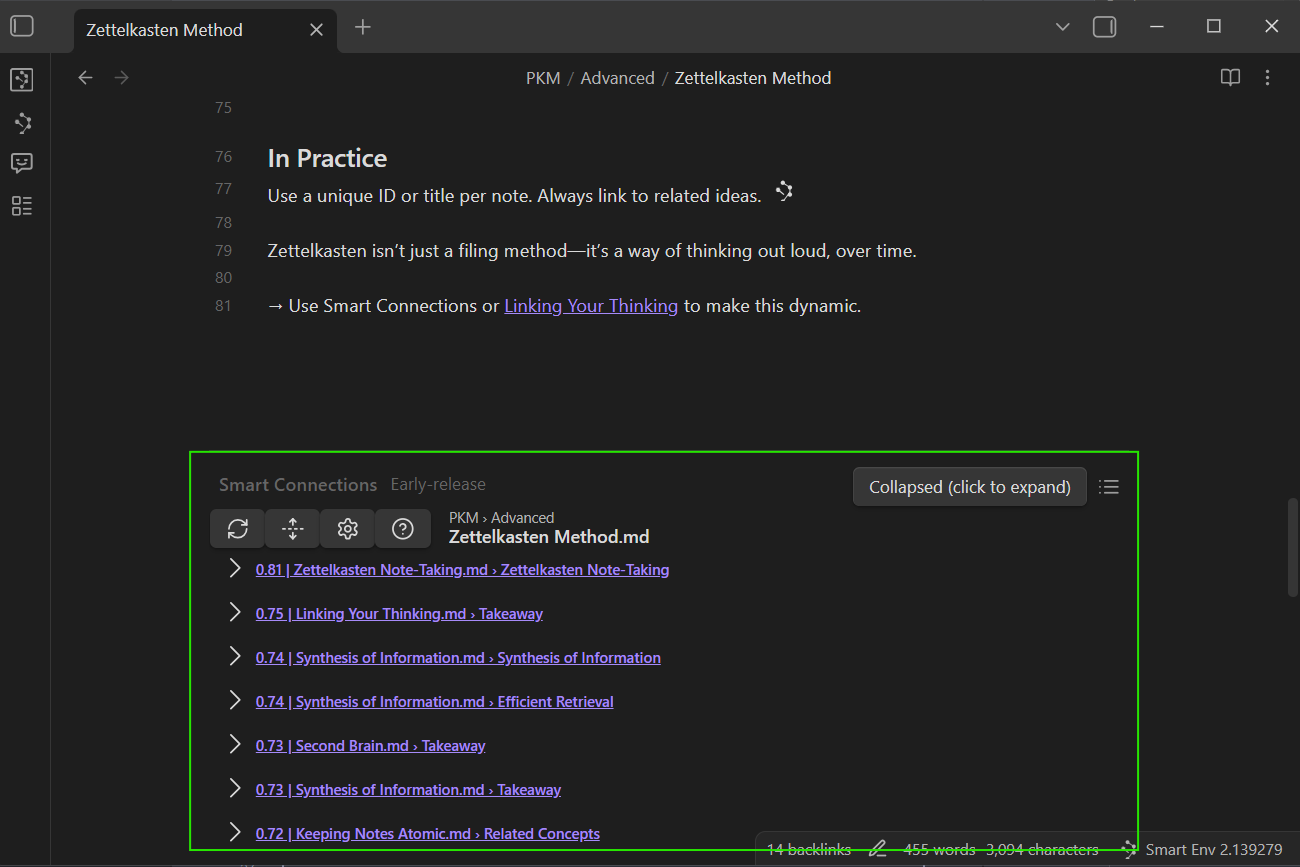
Footer connections are for the "finish this note well" moment.
- Enable Footer connections.
- Keep the default List only footer, or choose Version 4.0 (Graph + List) (Pro) in Connections settings.
- Open a meaningful note and scroll to the bottom.
- Review related notes before leaving the note.
- Drag useful results into the note or open them for confirmation.
- Collapse the panel when you want a cleaner note ending.
Quick start
- Enable Footer connections from Connections settings, the command palette, or the ribbon icon.
- Leave Footer connections list component set to List only for the compact default, or select Version 4.0 (Graph + List) (Pro) when you want a mini graph above the results.
- Open a meaningful note and scroll to the bottom.
- Use the footer to review related notes before you leave the page.
You can:
- click a result to open it
- expand a result to inspect more context
- drag a result into the editor to create an Obsidian link
- collapse the footer header when you want it out of the way
The footer only appears once the end of the note is visible. That keeps it attached to the "done writing, now connect it" moment instead of adding noise higher in the note.
If no useful Connections results appear anywhere in your vault, use Getting Started to verify note eligibility and vault coverage before tuning Footer.
Footer has its own list component selector. Changing it does not change the component used by the main Connections view or Connections codeblocks.
Why Footer connections work
The main Connections view is useful when you want to explore a result list beside the note.
Footer connections are useful when the end of the note is the right review moment.
They show up when many notes either become connected or stay isolated. That makes them especially useful when you want to:
- link a draft before moving on
- recover a note you forgot existed
- add a quick Related or References section without opening a sidebar
- keep the workflow simple on mobile or in a no-sidebar setup
Use the main Connections view when you want broader exploration, pausing, copying links, or sending results to Smart Context.
Use Footer connections when the end of the note is the right review moment: finish writing, check related notes, add one useful link, and move on.
What you can do from the footer
Choose List only or Graph + List (Pro)
The Footer connections list component setting controls only the result component mounted at the bottom of notes.
- List only is the default. It keeps the note ending compact and puts the actionable result rows first.
- Version 4.0 (Graph + List) (Pro) adds the Connections mini graph above the same result list. Use it when spatial cues are worth the additional vertical space and rendering work.
Changing this setting rerenders Footer connections without changing the main Connections view or Connections codeblocks.
Scan related notes before leaving the note
The footer keeps related notes close to the note that triggered them. This is useful when you want a fast answer to:
- "Did I already write about this?"
- "What should I link before I close this note?"
- "Which note would strengthen this draft most?"
Expand before switching context
Expand a result when you want a little more context before opening it. This helps you confirm relevance without turning a small check into a bigger detour.
Drag to create links on desktop
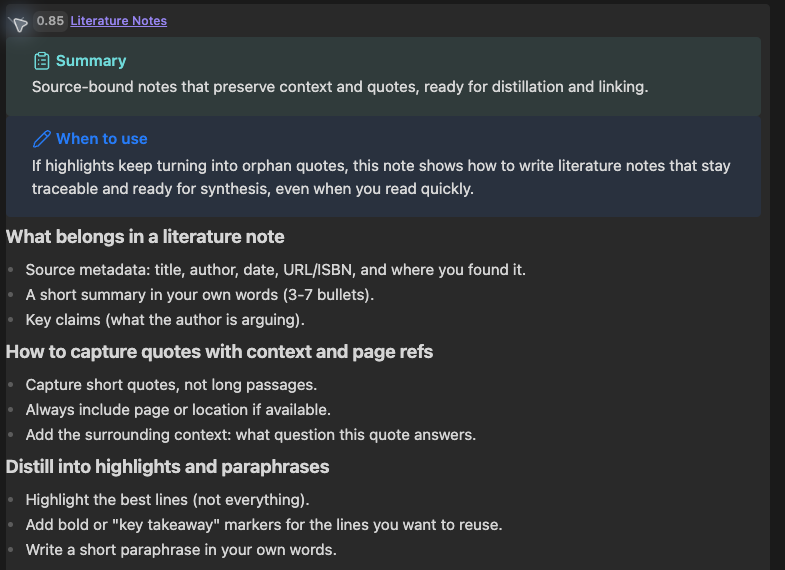
Drag a result from the footer into the editor to insert an Obsidian link directly into your note.
Use this when a suggested relationship should become part of the structure you author.
A useful pattern is:
## Related
- [[...]]

## References
- [[...]]
Open a result for closer review
Open a result when the preview is not enough and the useful next action is reading the source.
After reviewing it, return to the original note and add only the link, insight, source, or decision that helps the current work.
Collapse the footer when you are done
Click the footer header to collapse or expand the panel. This keeps the feature available without forcing it to stay visually open all the time.
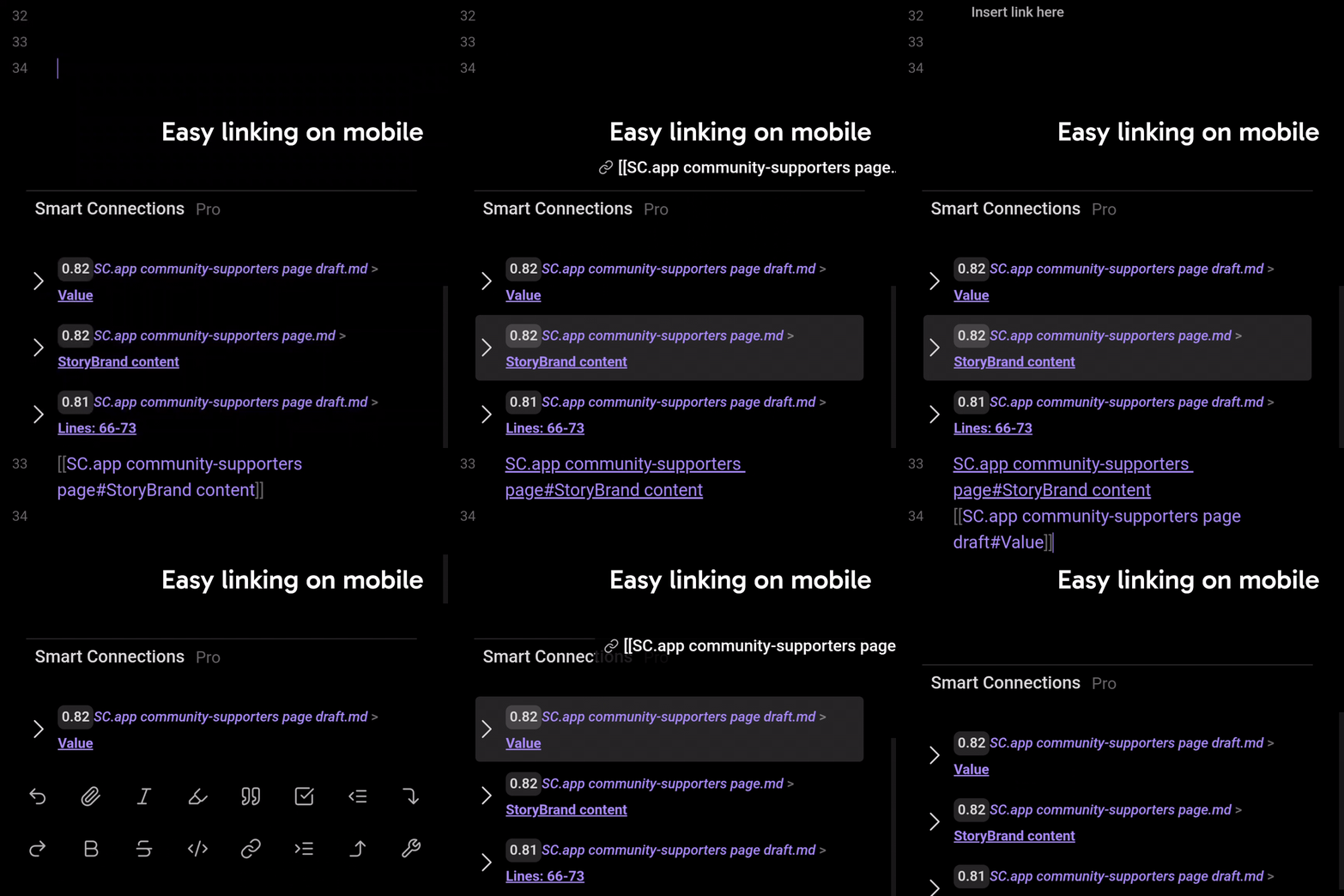
Especially useful on mobile and no-sidebar workflows
Footer connections are often the most natural Connections workflow when a side panel is inconvenient.
Instead of opening and managing a sidebar, you stay in the note, scroll to the end, and connect ideas where the note already ends. That makes quick capture, review, and linking easier on a smaller screen or simpler layout.
The default List only component supports this compact workflow. Choose Graph + List (Pro) only when the additional visual overview helps more than the extra space costs.
Platform behavior can vary by Obsidian version, device, and current Smart Connections release. For workflow-critical mobile assumptions, review current mobile notes before publishing or documenting a team process.
Workflow recipes
1) End-of-note linking pass
- Finish writing the note.
- Scroll to the footer.
- Open or expand the top 1 to 3 promising results.
- Add the useful link before leaving the note.
Outcome: fewer orphan notes and more chosen relationships in the notes you already write.
2) Mobile capture -> connect immediately
- Capture or edit a note on mobile.
- Scroll to the bottom.
- Open or expand a useful related note.
- Add the link while the connection is still obvious.
Outcome: quick notes become connected notes instead of loose fragments.
3) Final reference pass before sharing or publishing
- Finish the draft.
- Check the footer for adjacent notes, references, or prior versions.
- Pull the useful matches into a Related or References section.
Outcome: the draft leaves the vault with the most useful nearby material attached.
4) No-sidebar review habit
- Keep Footer connections enabled.
- Write normally without managing a side panel.
- Review the footer only when you reach the end of the note.
- Add one useful result or collapse the panel and move on.
Outcome: related-note review becomes part of finishing work, not a separate maintenance ritual.
Footer vs other Connections workflows
Use Footer connections when you want note-level suggestions at the end of the note. Its default List only component keeps this surface compact; select Graph + List (Pro) when you want the mini graph in the footer too.
Use the Connections view when you want broader exploration, pausing, copying links, or sending results to Smart Context.
Use Inline connections when you want related material beside a specific paragraph, heading, or sentence while editing.
Use Connections settings when you want to enable, disable, or choose the list component used by Footer connections.
If Footer results do not help
| Symptom | Try first |
|---|---|
| No useful Connections results appear anywhere | Use Getting Started to verify note eligibility and vault coverage. |
| The footer does not appear | Scroll to the end of the note and confirm Footer connections are enabled in settings. |
| The footer has no graph | This is the default. Set Footer connections list component to Version 4.0 (Graph + List) when you want the mini graph. |
| The footer takes too much vertical space | Set Footer connections list component to List only. |
| Results are weak | Try a more meaningful note with enough text to act as the anchor. |
| The footer is visually distracting | Collapse the footer header until the next end-of-note review. |
| You want broader exploration | Use the Connections view. |
| You want related material beside one paragraph | Use Inline connections. |