
Smart Plugins FAQs
What are Smart Plugins?
#Smart Plugins add focused Obsidian workflows for finding notes, preparing context, reusing prompts, managing chats, exploring graphs, cleaning up duplicates, and running approved vault actions.
Which Smart Plugin should I start with?
#Start from the material already in front of you:
- an open note -> Connections
- a question -> Lookup
- exact words or a filename -> Obsidian search
- a topic to map -> Graph
- sources to review and reuse -> Context
- a reusable prompt structure -> Templates
- an AI conversation to keep with a note -> Chat
- a reviewed vault action for chat to run -> Connect Pro
Use Getting Started with Smart Plugins for the first workflow.
Does Installed mean a Smart Plugin is active and working?
#No. Store, Environment, and product-result states are separate.
| Store label or action | Meaning |
|---|---|
| Installed + Enable | Files are installed, but the plugin is disabled. Select Enable. |
| Enabled | The plugin is enabled in Obsidian but is not reported as loaded and active in the current session. |
| Active | The plugin is loaded. |
| Update to vX | An eligible newer package is available. |
| Reload required to activate vX | Reload Obsidian so the installed version becomes active. |
| Reload required to disable | Reload Obsidian to finish disabling it. |
| Reload required for Smart Environment | Reload Obsidian so the required Environment state can take effect. |
The Store does not show a standalone Reload state or a visible Configured state. After Active, complete any model, provider, or plugin settings. When the workflow uses indexed sources, confirm that Smart Environment is Ready. Then test one result.
Use Core and Pro to identify the product track. Use Active, Installed, Open settings, and Enable on the live row to identify the next lifecycle step.
What do the other Store labels mean?
#- Install and Install Core install an eligible Core package.
- Install Pro installs the Pro package when the account has access.
- Requires Pro means current access does not permit the Pro install.
- Included in Pro identifies a capability included in the Pro track.
- Core installed identifies the installed Core package in a grouped Core/Pro row.
- Open settings is available for an active plugin when settings apply.
How do I recover the Store account row?
#Follow the state shown:
- Checking session... -> wait for the check to finish.
- Connect account -> select Login, or Copy link to login instead.
- Session needs refresh -> select Refresh, or Logout to remove the saved session.
- All-access subscription expired -> select Get Pro, Update subscription, or Refresh, as appropriate.
Signed-out users can browse and install eligible Core plugins. Pro installation and updates require current Pro access.
Why does an Active plugin still not work?
#Active means the plugin is loaded. Configuration and a successful product result are separate.
- Complete its model, provider, or plugin settings.
- If the workflow uses indexed sources and Environment says Smart Environment not loaded or Idle, select Load Smart Environment.
- For an indexed-source workflow, select Resume embedding when embedding is paused or Run re-import when re-import work is queued.
- For an indexed-source workflow, continue when the status view shows Smart Environment ready or Ready.
- If the workflow uses a provider codeblock or Smart Chat API Extension without Lookup context, skip the Environment steps. Confirm the provider or model instead.
- Test one inspectable plugin result.
If one note is missing, use Inspect active note. If several notes are missing, use Show stats or Environment stats. Review eligibility, current embeddings, and exclusions.
Is deferred loading on mobile a bug?
#No. Smart Environment can defer loading on mobile. Select Load Smart Environment. Keep the status view open until it shows Smart Environment ready or Ready. Test the first plugin result separately.
| Workflow | Mobile boundary |
|---|---|
| Connections and Lookup | Wait for Environment Ready, then make sure that one actual result works. |
| Context using in-vault notes, blocks, and named contexts | These workflows can remain useful. Examine clipboard behavior in the destination app. |
| External files and folders | Desktop filesystem access is necessary. |
| Provider chat codeblocks | Saved links can remain useful. Embedded webviews and automatic URL capture are desktop-dependent. |
| Smart Chat API Extension | Its Smart Plugin application-data storage differs from Markdown provider bookmarks. |
| Connect Pro | Local MCP is same-device only. Any separate cross-device ChatGPT route requires its own currently supported setup and readiness check, with the desktop vault running. |
Do I need to complete every milestone?
#No. Smart Milestones records supported first-use actions. Complete only the groups that match your workflow.
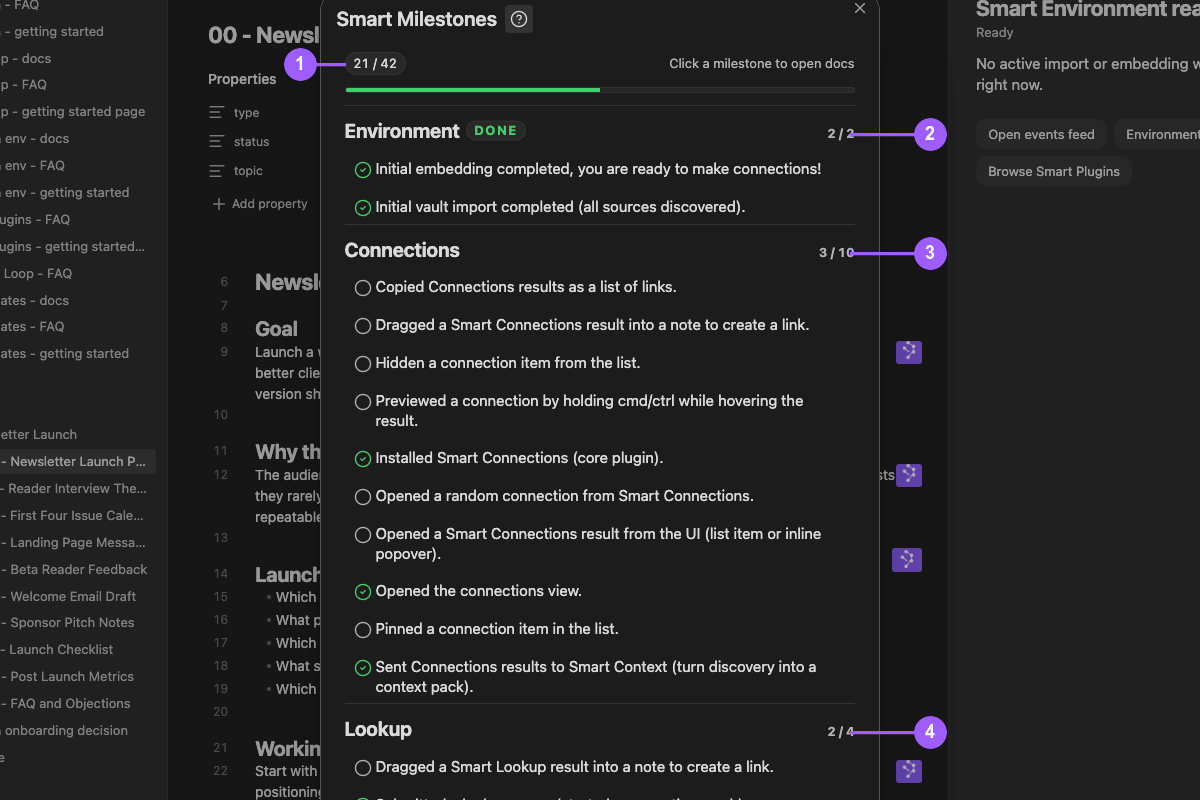
What the numbers identify:
- Overall detected progress.
- A completed Environment group.
- A partially completed Connections group.
- A partially completed Lookup group.
A checked row means its action, event, or installed-plugin state was detected. Judge result quality in the plugin itself.
How should I evaluate Pro?
#Choose one Pro workflow with a clear job in your vault. Complete its prerequisites. Produce one real result. Decide whether that result improves the work before you add another Pro workflow.