
Getting started with Smart Context
The fastest useful result is not a large context package. It is one note copied into a format you can inspect before sending it anywhere.
When to use Smart Context
Use Smart Context when an AI tool needs a bounded set of source material from your vault. Review that material before you send it.
Before you start
- Install Smart Context Core or Pro. Enable it.
- Open a meaningful Markdown note.
- Have a clean note or composer ready for the paste check.
First win: copy the current note
Edition: Core and Pro. Use the path for your installed edition.
1. Open the note that owns the task
Choose a note with a real question, desired outcome, or decision. If the note embeds another note, that embedded content can be included at Depth 0. Ordinary links are not followed until you choose a wider depth.
2. Open the current-note copy controls
Use the path for your installed edition:
- Core: From the Command Palette, run
Smart Context: Copy current text to clipboard (choose link depth). This opens the Copy context modal. - Pro: Choose the Smart Context: Copy current ribbon action. This opens the current-note menu.
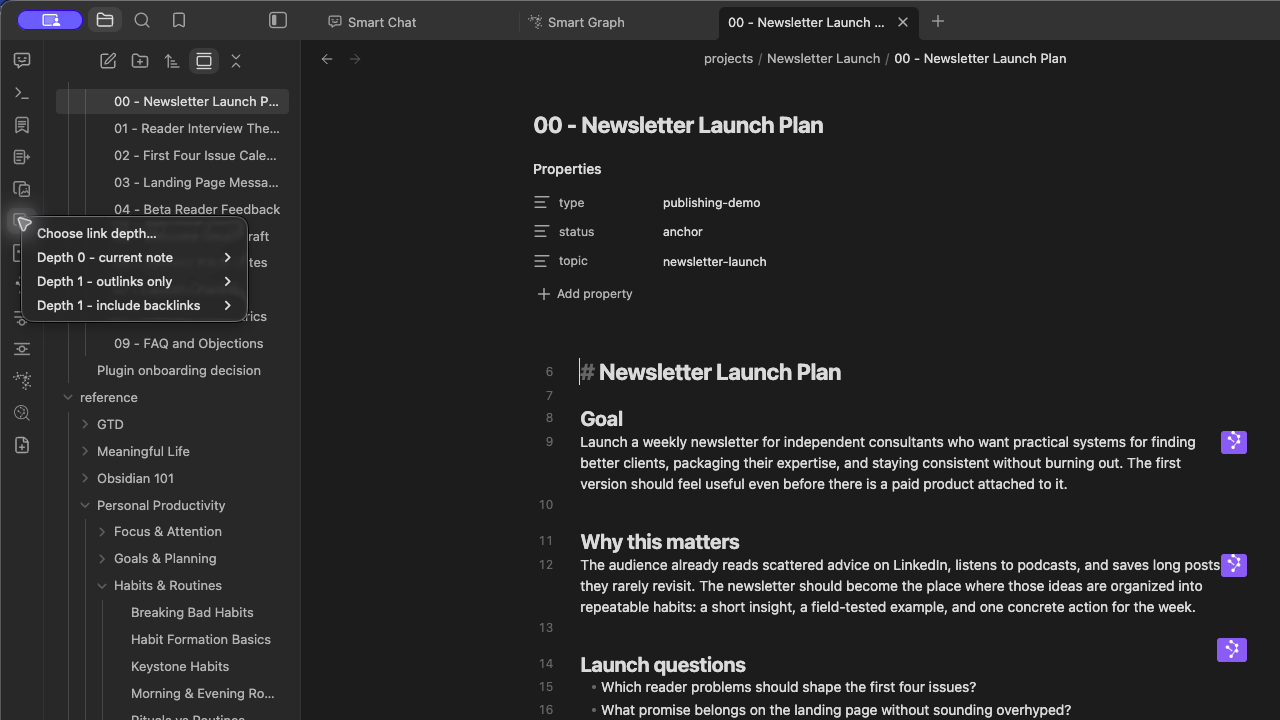
The Pro menu begins with Choose link depth... and then lists direct depth choices. Use the direct Depth 0 path for this first result.
3. Copy at Depth 0
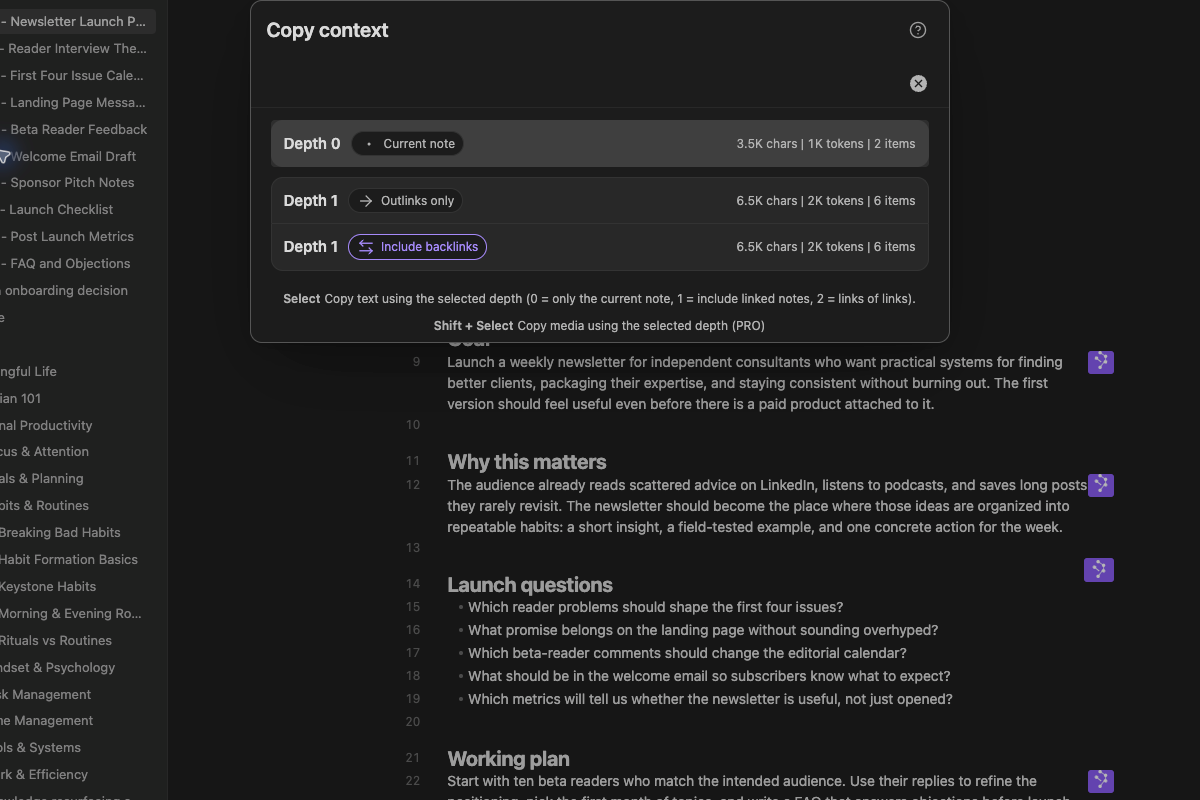
Use the path that matches the interface in front of you:
- Core modal: Select the Depth 0 row marked Current note. Selecting the row copies the text immediately. There is no separate Copy text step.
- Pro menu: Open Depth 0 - current note, then choose Copy text.
Use outlinks or backlinks only when the current note is not enough.
4. Paste and inspect the result
Paste into a clean note or composer. With the default structured output, confirm that:
- the
<context>tree names the active note as(current) - each
<item>path is expected - embedded material belongs in the package
- no unrelated linked note was pulled in
When you use a different output template, check the equivalent source names, paths, and content in that format.
The copy notice reports the number of files and characters. It confirms that the copy action ran. Inspect the pasted content to confirm that the package is correct.
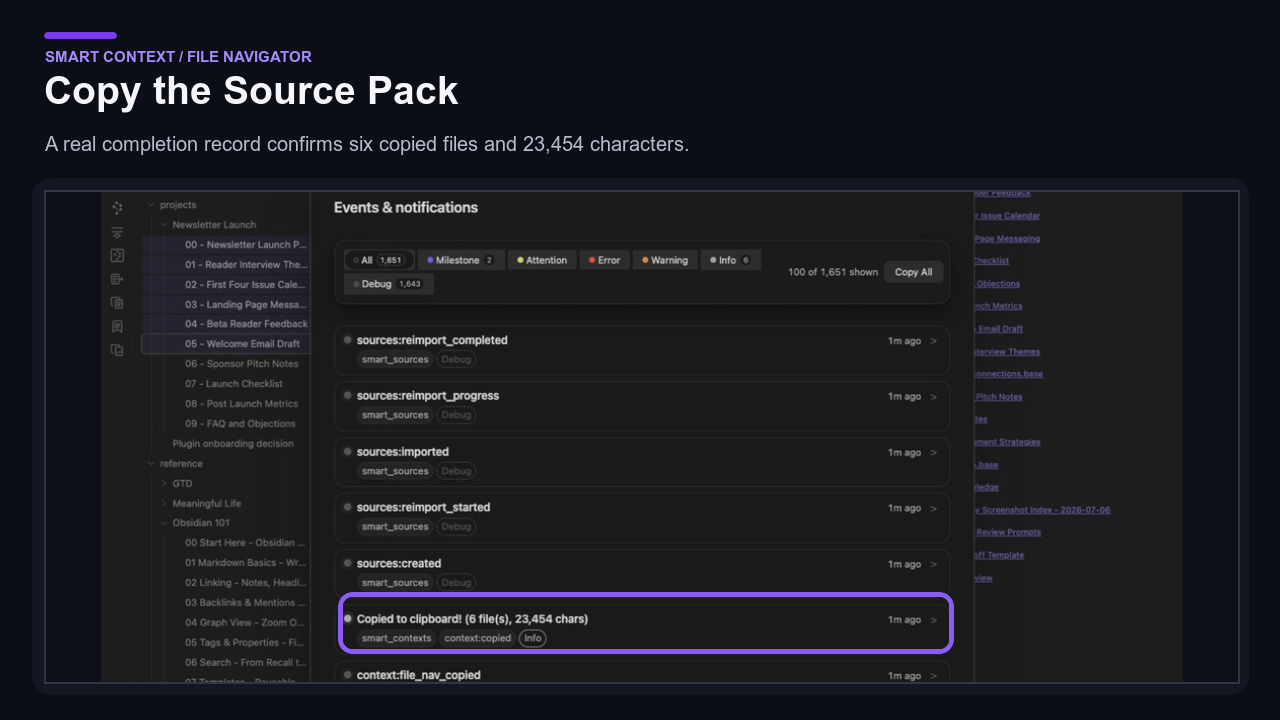
If nothing pastes, keep the source note active. Repeat the path for your edition. In Core, selecting the depth row copies immediately. In Pro, make sure that you choose Copy text from the depth submenu. Paste into a plain note first. This separates a clipboard problem from a destination-specific paste problem.
See Start from the current note for depth behavior, output choices, and recovery.
When to use Depth 1
Stay at Depth 0 when the active note and its embeds contain everything the task needs. Widen to Depth 1 only when linked notes hold necessary evidence.
- Choose Depth 1 - outlinks only when the active note intentionally links to the supporting notes.
- Choose Depth 1 - include backlinks when notes that link to the active note also contain required context.
Paste the result into a clean destination. Compare the source tree with the links that you expected. Make sure that each added note contributes evidence that the task needs. If the package becomes noisy, return to Depth 0. Alternatively, use Builder to choose sources deliberately.
When to open Context Builder
Use Builder when the package needs more than the active note. Core supports reviewed note and block selection, named contexts, and codeblocks. Pro adds dynamic folder and tag groups, exclusions and heading filters, media, external files and repositories, and richer Bases workflows.
From the Command Palette, run the Builder command for your installed edition:
- Core:
Smart Context: Open new context in builder - Pro:
Smart Context Pro: Open new context in builder
In either edition, you can also choose the Smart Context: Open Builder ribbon action.
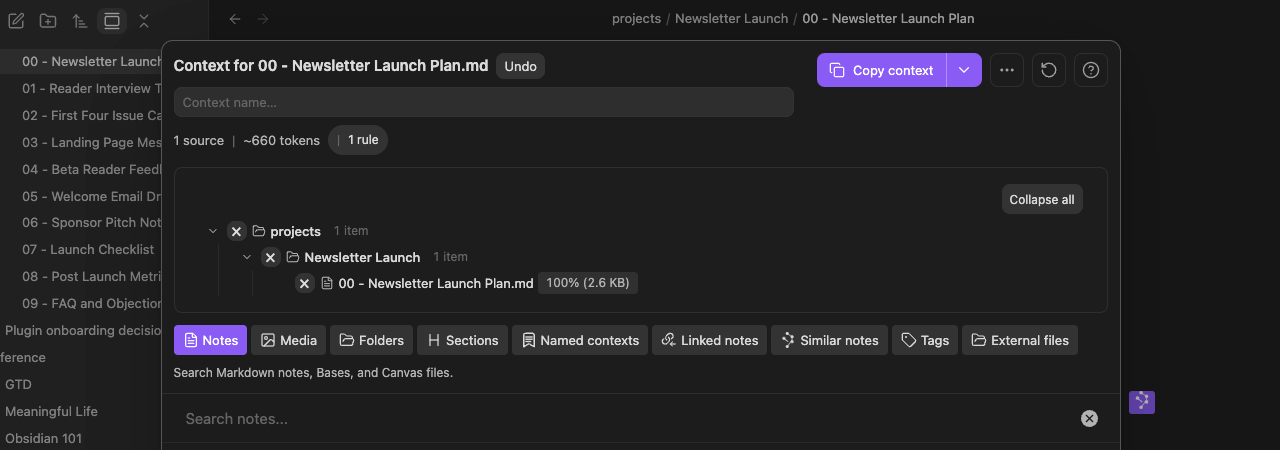
Before copying, check the source count, token estimate, and source tree. In Pro, also check the Rules count. Search results remain suggestions until you add them.
Core Builder provides Notes, Sections, and Named contexts. Pro adds Media, Folders, Linked notes, Similar notes, Tags, and External files. Choose the smallest source type that fills the gap.
Continue with the Builder guide.
Check Rules for dynamic sources
Edition: Pro.
Folders, tags, named contexts, and other dynamic sources can expand into several items. Open the rule-count control before copying.
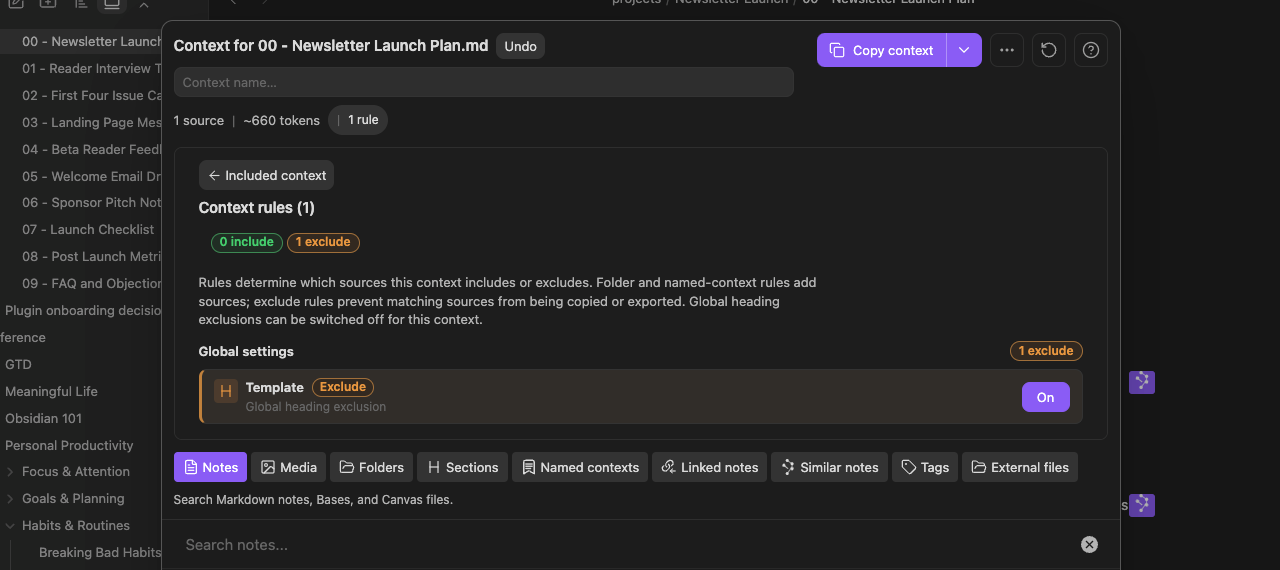
An Include rule contributes sources. An Exclude rule keeps matching material out. A global heading exclusion can be switched off for one context without deleting the global rule. Recheck the compiled output after any override.
Continue with Inspect and recover Context rules.
Reopen a named context before reuse
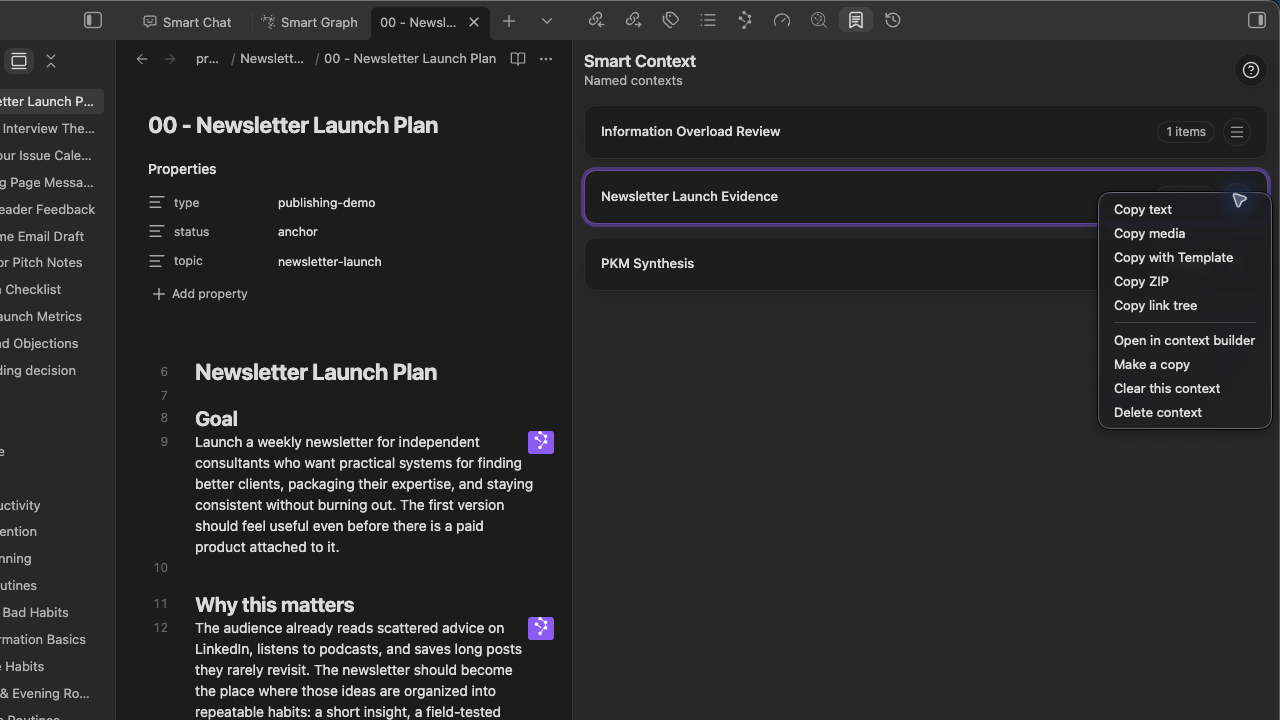
The dashboard shows saved names and item counts. Open the named context. Recheck its resolved sources and estimate before copying. In Pro, also recheck its Rules. Copy with Template appears only when Smart Templates is installed and the resolved package contains items.
See Save and reuse named contexts.
Find the other Context surfaces
Use this map after the Depth 0 result works.
| Tool | How to open it | Ready when... | Learn more |
|---|---|---|---|
| Current-note copy | In Core, run Smart Context: Copy current text to clipboard (choose link depth). In Pro, choose Smart Context: Copy current. |
The chosen depth is visible and the pasted package matches it. | Copy the current note |
| Context Builder | In Core, run Smart Context: Open new context in builder. In Pro, run Smart Context Pro: Open new context in builder. |
The intended sources and estimate are reviewable. In Pro, Rules are also reviewable. | Build a reviewed package |
| Source chooser | In Core Builder, choose Notes, Sections, or Named contexts. Pro adds the other six source modes. | The intended mode is highlighted and its candidates are visible. | Choose a source mode |
| Context rules | In Pro, choose the rule-count control beside the source and token summary. | Include, exclude, and package-specific override behavior is clear. | Inspect Rules |
| Named contexts | Name a reviewed package in Builder. Reopen it through the dashboard or Named contexts under Add sources. | The saved name, source count, and package actions are visible. | Save and reuse named contexts |
| Smart Context codeblock | Run Smart Context: Insert codeblock in Core or Smart Context Pro: Insert codeblock in Pro. Compare source and Reading view. |
The fenced ctx manifest and rendered tree describe the same sources. |
Use a codeblock |
| Media | In Pro Builder, choose Media. | The reviewed images or PDF pages also appear after paste. | Copy media |
If the answer is generic
Improve the package before making it larger:
- Put the real question and desired outcome in the task-owning note.
- Remove unrelated or stale sources.
- Replace a long note with one relevant Section.
- Check whether a folder or tag added unexpected children.
- Ask the model to name missing evidence instead of guessing.
For symptom-specific recovery, use Smart Context FAQs.
What done looks like
| Check | Done when... |
|---|---|
| Source review | Every included source and Rule has an intentional reason to be present. |
| Product result | The pasted content matches the selected depth or reviewed Builder package. |
| Workflow result | The answer uses source details or names exactly what evidence is missing. |