
Smart Plugins
Use the Smart Plugins Store to install Core and Pro plugins. Complete the next lifecycle action. If the workflow uses indexed sources, prepare Smart Environment. Confirm one plugin result.
Start with Getting Started with Smart Plugins for the first workflow. Use this page for exact Store and Environment recovery.
In this guide
- Install and update Smart Plugins in Obsidian
- Prepare Smart Environment for a plugin workflow
- Track Smart Plugin progress with Smart Milestones
Install and update Smart Plugins in Obsidian
The Smart Plugins Store is the in-app catalog for Core and Pro Smart Plugins. Core and Pro identify product tracks. They do not tell you whether a plugin is installed, loaded, configured, or producing a useful result.
Open the Smart Plugins Store
Select Browse Smart Plugins from one of these locations:
- Smart Environment settings
- a Smart Plugin settings page
- the Smart Environment status menu
- the Command Palette
Complete the shortest install path
- Find the plugin.
- Make sure that its Core or Pro label is correct.
- Select the action shown by the row: Install, Install Core, or Install Pro.
- If the row shows Enable, select it.
- Complete any exact Reload required... action shown by the Store.
- When the row shows Active, open its settings if configuration is required.
- If the workflow uses indexed sources, prepare Smart Environment.
- If the workflow uses indexed sources, continue when the status view shows Smart Environment ready or Ready.
- Provider codeblocks can skip the Environment steps.
- Open the plugin.
- Make sure that the plugin gives one result you can examine.
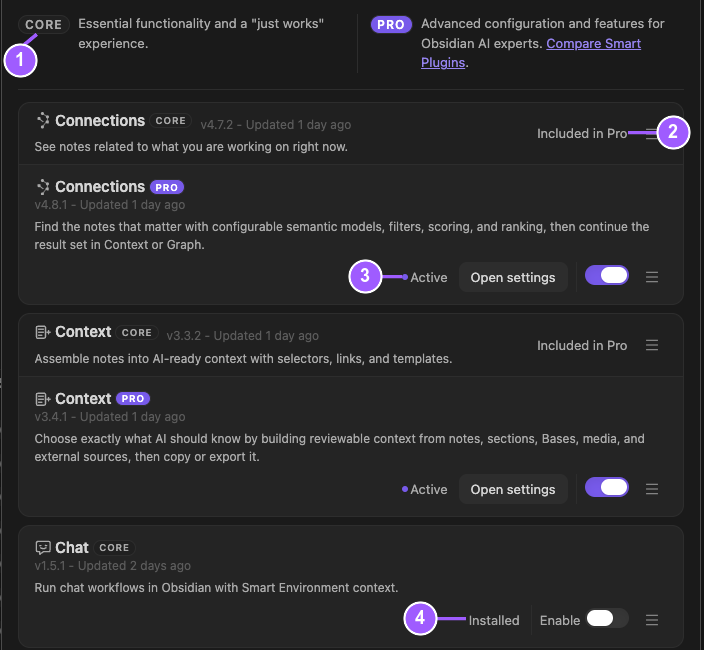
The numbers explain the Store boundaries in the image:
- Core and Pro identify product tracks, not workflow success.
- Included in Pro describes how a Core capability relates to Pro. It is not an activation state.
- Active, Open settings, and the enabled toggle show that the Pro plugin is loaded.
- Installed with Enable means the Core plugin files exist but the plugin is disabled.
Use the Core or Pro label to select the edition. Follow the action shown on the live row. Active confirms that a plugin is loaded. It does not confirm that the workflow is configured or working. Store versions and update actions change with releases. Use the current row, not a remembered label.
Read the account row
The account row can show these exact states and actions:
| Account state | Next action |
|---|---|
| Checking session... | Wait for the session check to finish. |
| Connect account | Select Login, or Copy link to login instead. |
| Session needs refresh | Select Refresh. Use Logout when the saved session should be removed instead. |
| All-access subscription expired | Select Get Pro, Update subscription, or Refresh, as appropriate. |
| Signed in | Pro install and update access follows the current account access. Logout remains available. |
Signed-out users can browse the catalog and install eligible Core plugins. Pro installation and updates require current Pro access.
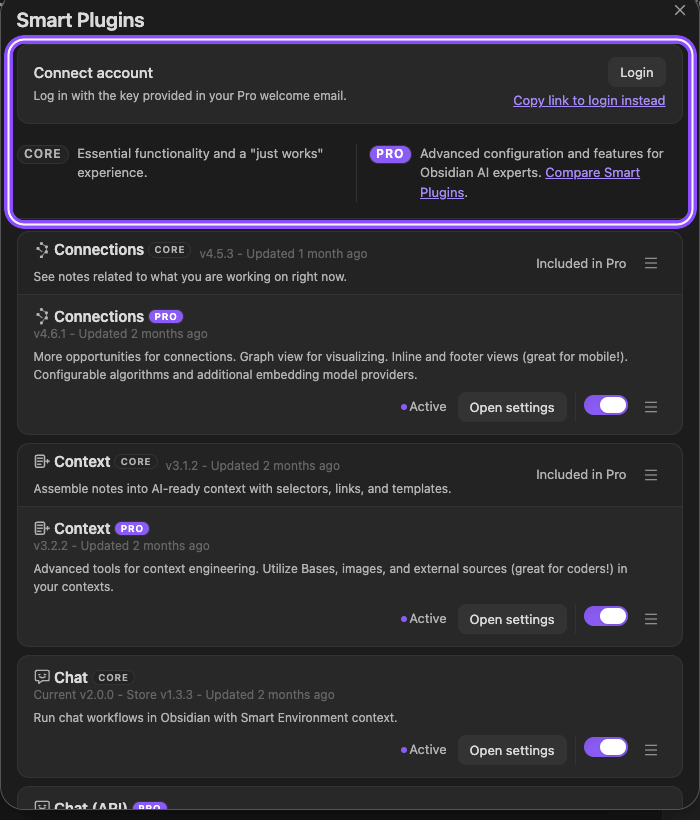
Browse the catalog sections
The Store shows the main catalog and a separate Experimental section when experimental plugins are available.
Interpret Store lifecycle states
Follow the exact label shown. The Store does not use a standalone Reload state or a visible Configured state.
| Row label or action | Meaning |
|---|---|
| Install / Install Core | Install the eligible Core package. |
| Install Pro | Install the Pro package when the account has access. |
| Requires Pro | Current access does not permit that Pro install. |
| Included in Pro | The capability is included with the Pro track shown by the Store. |
| Core installed | The Core package is installed while the grouped row also describes a Pro option. |
| Installed + Enable | Files are installed, but the plugin is disabled. Select Enable. |
| Enabled | The plugin is enabled in Obsidian but is not reported as loaded and active in the current session. |
| Active | The plugin is loaded. Open settings and the enabled toggle are available when applicable. |
| Update to vX | A newer eligible package is available. Apply the update. Then follow any reload-required label. |
| Reload required to activate vX | Reload Obsidian so the installed version becomes active. |
| Reload required to disable | Reload Obsidian to finish disabling the plugin. |
| Reload required for Smart Environment | Reload Obsidian so the required Smart Environment state can take effect. |
An enabled toggle labeled Enabled describes the toggle state. It is not the same as the Enable action for an installed but disabled plugin.
Separate loaded, configured, ready, and working
Use four checks:
- Active: the plugin code is loaded.
- Configured: required model, provider, or plugin settings are complete. This is a workflow check, not a Store label.
- Smart Environment ready or Ready: required only when the workflow uses shared indexed sources. It means that Environment work is loaded and idle.
- Working: the plugin produces one result you can examine.
Do not stop at Installed, Enabled, or Active when the desired outcome is a usable workflow.
Update an installed plugin
When the Store shows Update to vX, select it. Complete the exact reload-required action that appears. Make sure that the row returns to Active. Test the plugin result again.
Smart Environment v3 is a coordinated suite upgrade. Update every installed Smart Plugin before you restart Obsidian. Mixed v2 and v3 environments are blocked so a partial upgrade cannot appear healthy.
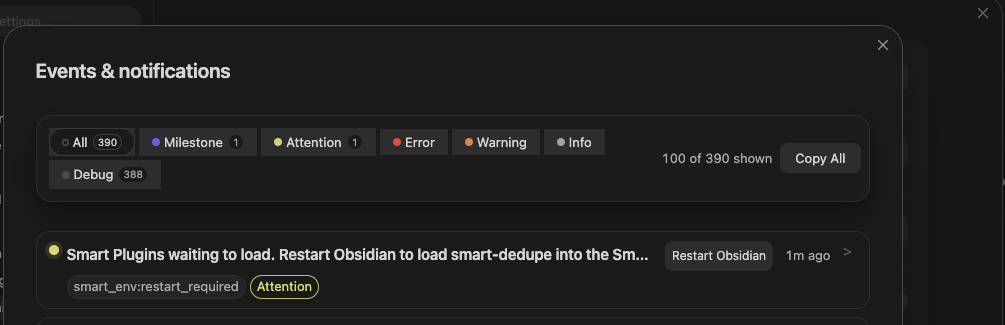
Open settings and release information
Use Open settings for the active plugin. Use the row's details or release action for the documentation or release page available to that edition.
Recover when a Store action does not complete
| Symptom | Recovery |
|---|---|
| Pro install or update is unavailable | Resolve Connect account, Session needs refresh, or All-access subscription expired in the account row. |
| Row shows Installed | Select Enable. |
| Row shows a reload-required label | Select that exact action and let Obsidian reload. |
| Row shows Enabled, not Active | Make sure that no reload-required action remains. Reload Obsidian. Reopen the Store. |
| Events & notifications says a plugin is waiting to load and shows Restart Obsidian | Select Restart Obsidian. Reopen the Store. Make sure that the plugin row is Active before testing its workflow. |
| Row shows Active, but the workflow fails | Complete plugin configuration. For an indexed-source workflow, make sure that Smart Environment is Ready. Make sure that the sources are eligible. Test one result. |
| Store says Smart Environment is required | Complete Reload required for Smart Environment. Then use the Environment recovery below. |
Prepare Smart Environment for a plugin workflow
Smart Environment supplies source discovery, import, embedding, model settings, status, events, and diagnostics used by Smart Plugins.
Read the Environment status
| Status | Meaning or next action |
|---|---|
| Smart Environment not loaded / Idle | Select Load Smart Environment. |
| Loading Smart Environment | Wait for loading to finish. |
| Importing / Re-importing | Source preparation is running. |
| Embedding | Embedding preparation is running. |
| Embedding paused | Select Resume embedding when preparation should continue. |
| Queued re-import work | Select Run re-import when the queued work should start now. |
| Smart Environment ready / Ready | The Environment is loaded and idle. Test the plugin result. |
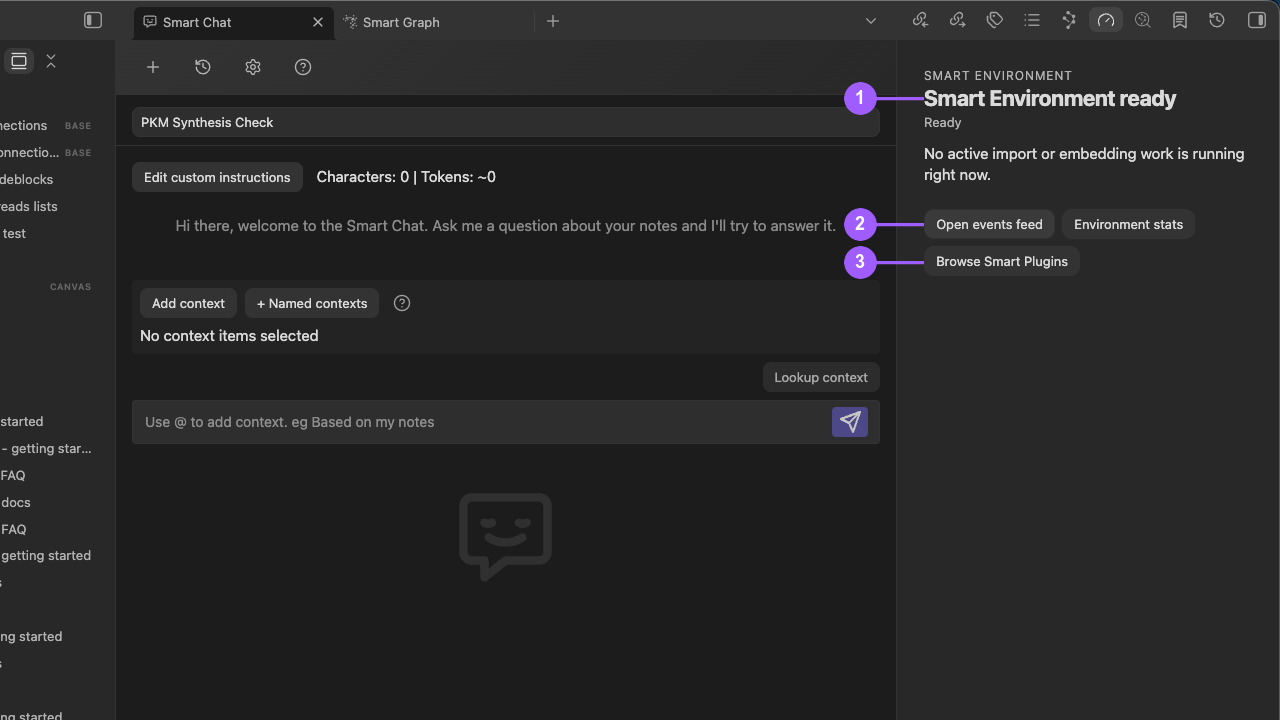
What the numbers identify:
- Smart Environment ready means Environment is loaded with no active import or embedding work.
- Open events feed and Environment stats open retained events and source-coverage diagnostics.
- Browse Smart Plugins returns to installation and activation controls.
The status view also provides Pause embedding, Open events feed, Environment stats, and Browse Smart Plugins.
Load Smart Environment from settings
When Environment settings show the pre-load state, select Load Smart Environment. Show loading status opens the current loading view.
Configure the Environment
Use the exact settings that match the task:
- Default embedding model chooses the fallback embedding model.
- Default chat model chooses the fallback Chat model when no other model is specified.
- Default ranking model chooses the fallback ranking model used by applicable features, including Connections re-ranking.
- Test model checks the selected model.
- Re-index embeddings starts embedding preparation for the current model and policy.
- Embed blocks makes eligible note sections available as smaller retrieval units.
- Re-import wait time delays automatic re-import after file activity.
- Manage excluded folders controls folder exclusions.
- Manage excluded files is available in Pro for file-level exclusions.
- View all exclusions reviews the combined exclusion set.
- Reset data opens an explicit source-data clearing confirmation. Choose Cancel unless a rebuild is intended. Choose Re-import to begin the rebuild. The confirmation does not establish deletion of Markdown note files.
Installed model lists expose + New and row controls such as Edit, Test, and Current. Current means selected. It does not prove that a test succeeded, authorization is valid, or the model will produce useful output.
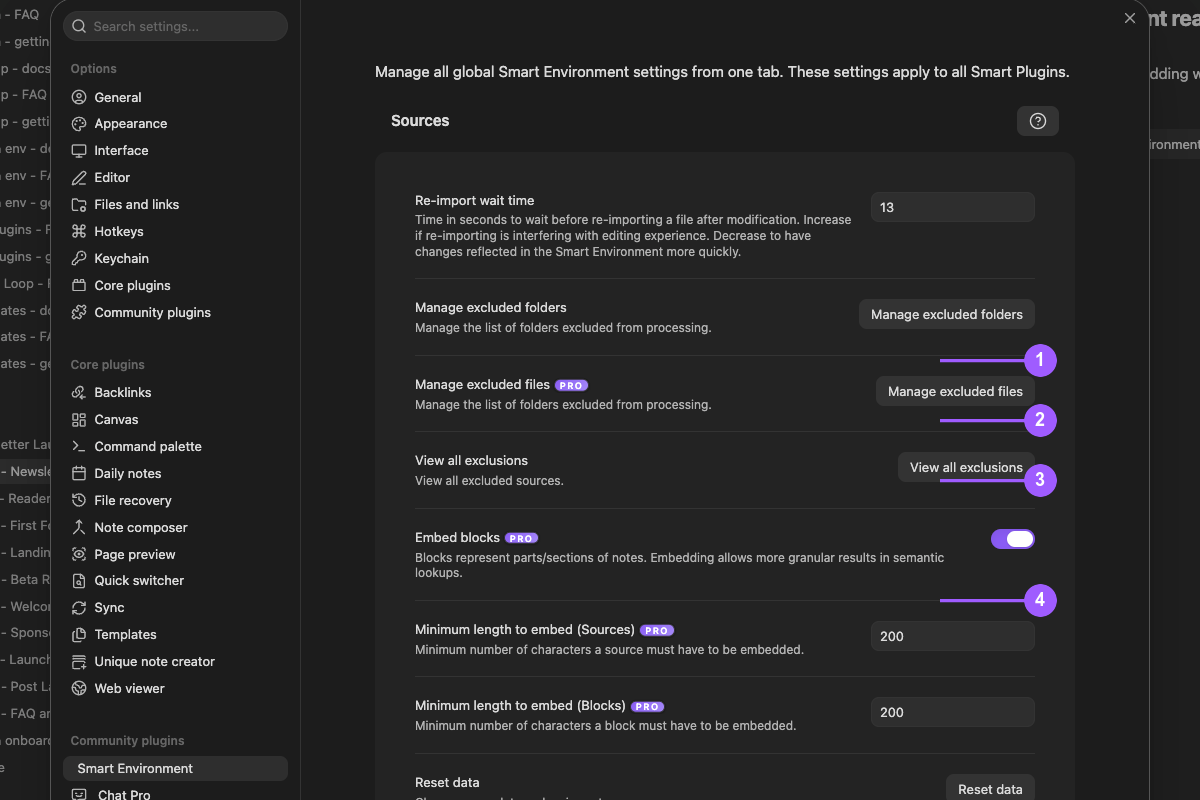
What the numbers identify:
- Manage excluded folders changes folder-level source boundaries.
- Manage excluded files adds Pro file-level exclusions.
- View all exclusions reviews the combined exclusion set.
- Embed blocks and minimum-length controls change which source and block items are eligible.
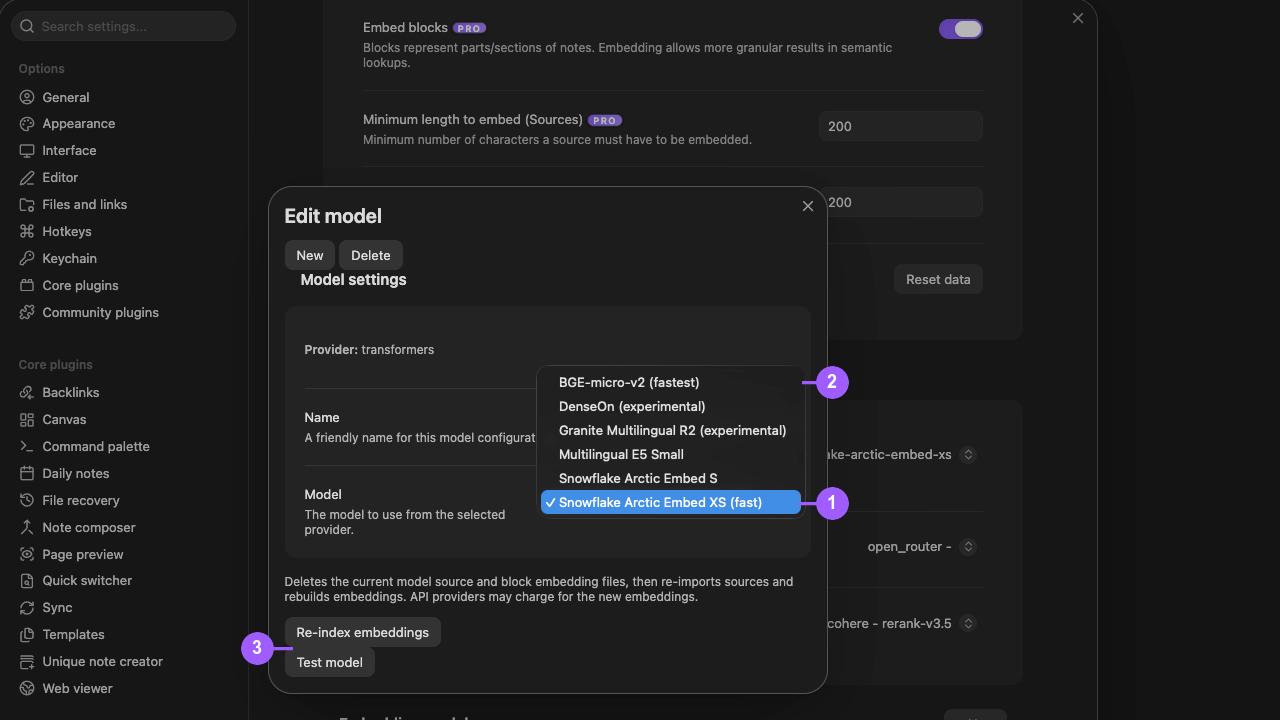
What the numbers identify:
- The selected built-in embedding model for this configuration.
- The exact available model labels, including choices marked experimental.
- Re-index embeddings and Test model as separate actions after model selection.
Export Environment data
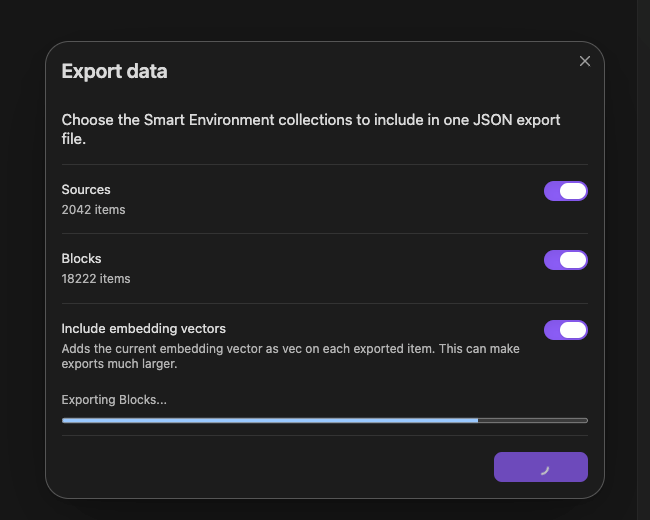
Choose Export data from the Environment status-bar menu. The export produces one JSON file.
- Select Sources, Blocks, or both. At least one collection is required.
- Enable Include embedding vectors only when downstream work needs the current vector in each item's
vecfield. Vectors can make the export much larger. - Choose Export. The dialog states that the JSON file will be saved in the vault root.
- Monitor the visible Sources and Blocks progress phases and the output filename.
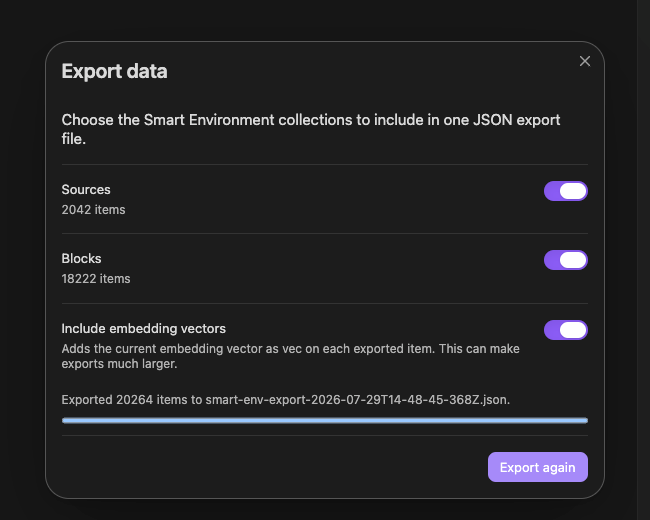
- On completion, make sure that the filename and 100 percent state appear, then open the file in the vault root. Export again starts another export.
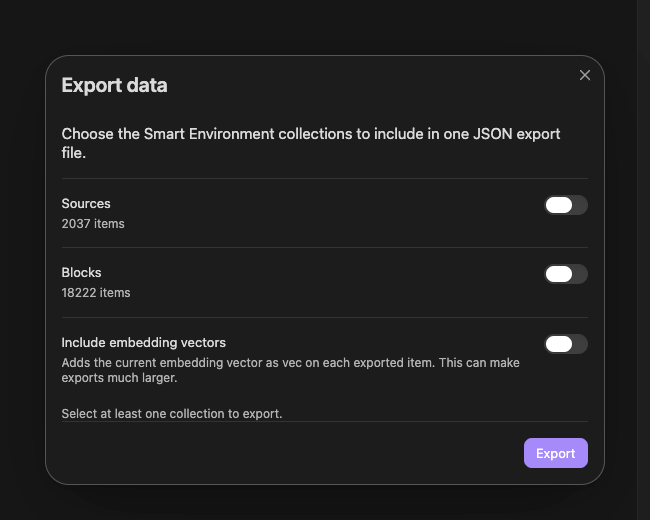
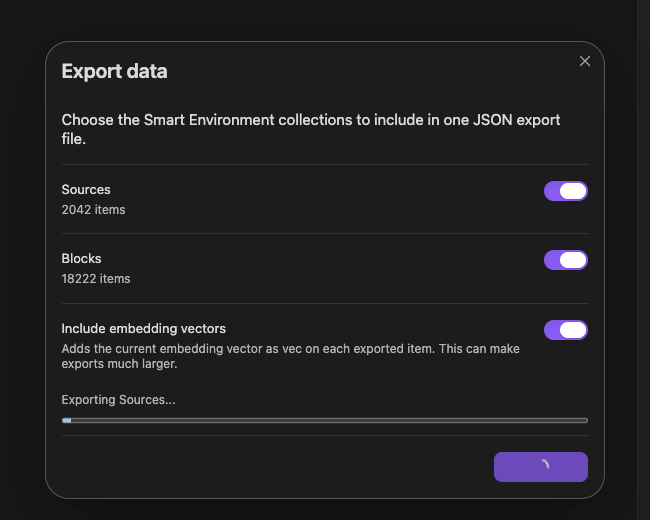
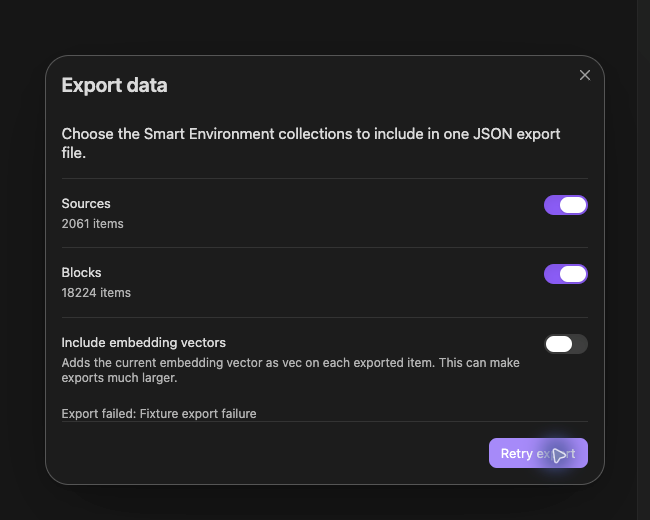
A failed run shows Export failed: ... and Retry export. Do not treat an in-progress or failed state as success, and do not rely on the dialog alone when the JSON file must be delivered.
Inspect one source
Keep the intended note active. Choose Inspect active note from the Environment status-bar menu. Source inspector can show the source identity and path, properties and links, block coverage, source data, and indexed block excerpts.
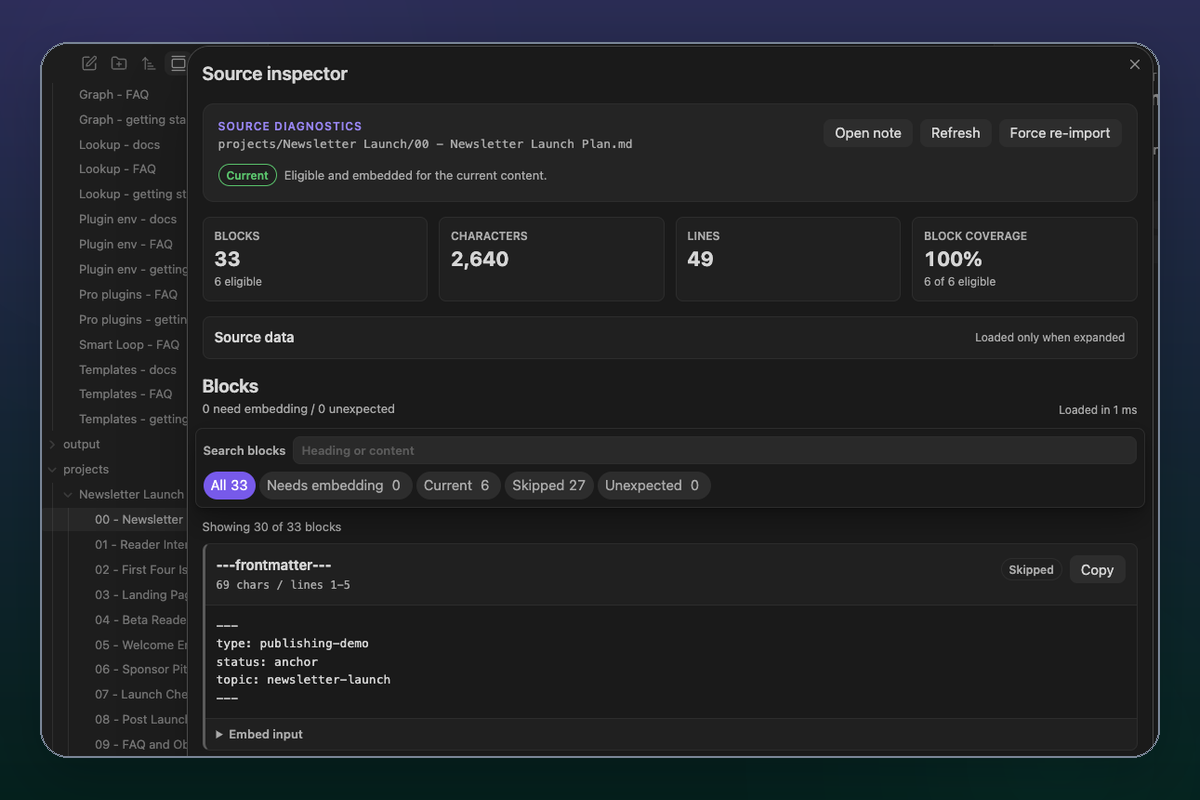
Use its status filters to narrow the diagnostic view:
- All shows the complete current diagnostic set.
- Needs embedding and Current separate pending from current block state.
- Skipped shows omitted block rows and their visible diagnostics.
- Unexpected can expose a retained row labeled Unexpected vector.
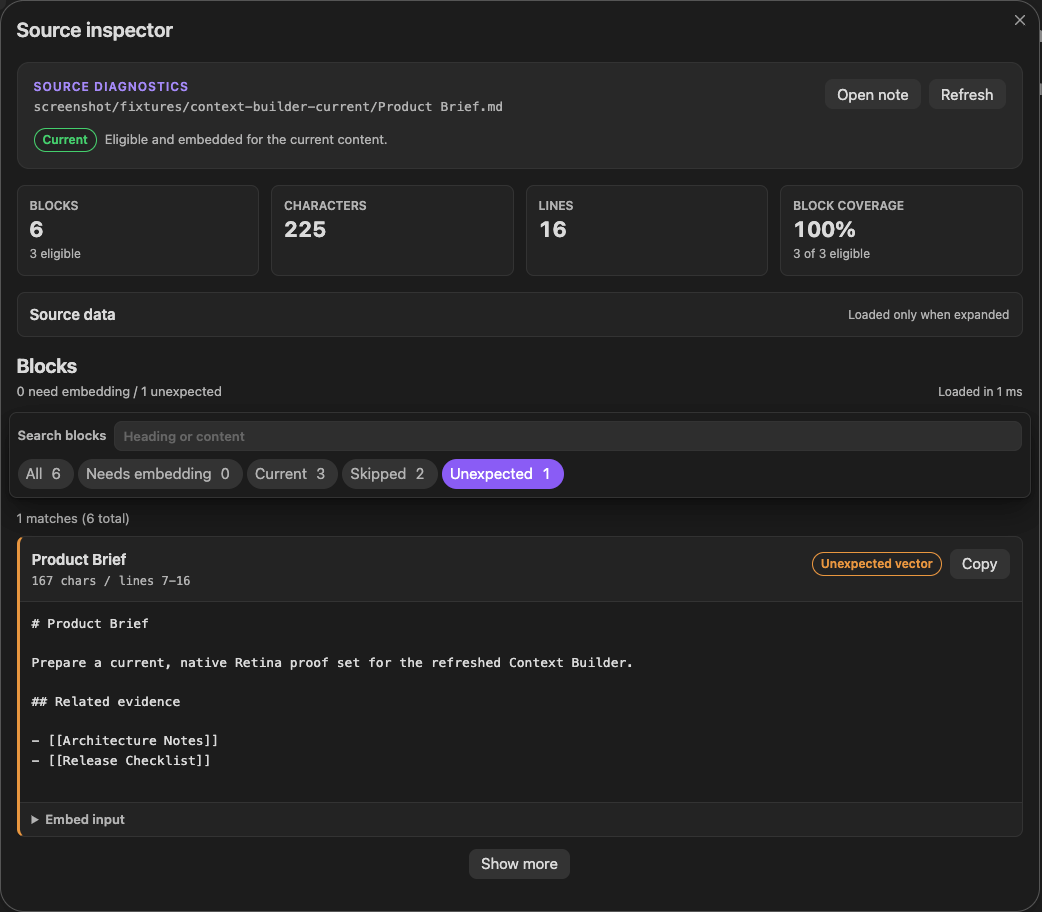
These states help locate a boundary. They do not establish root cause, repair, re-import success, or retrieval quality.
Recover by symptom
| Symptom | Recovery |
|---|---|
| One active note is missing | Keep the note active. Select Inspect active note from the status menu. |
| Several notes are missing | Select Show stats from the status menu or Environment stats from the status view. Examine eligibility. Examine current embeddings. Examine exclusions. |
| Import or embedding appears stuck | Select Open events feed. Examine retained events before you reset data. |
| Embedding is paused | Select Resume embedding. |
| Re-import work is queued | Select Run re-import. |
| Plugin is Active but returns no usable result | Make sure that configuration is complete. For an indexed-source workflow, make sure that Environment is Ready. Make sure that the relevant sources are eligible. Examine the product result. |
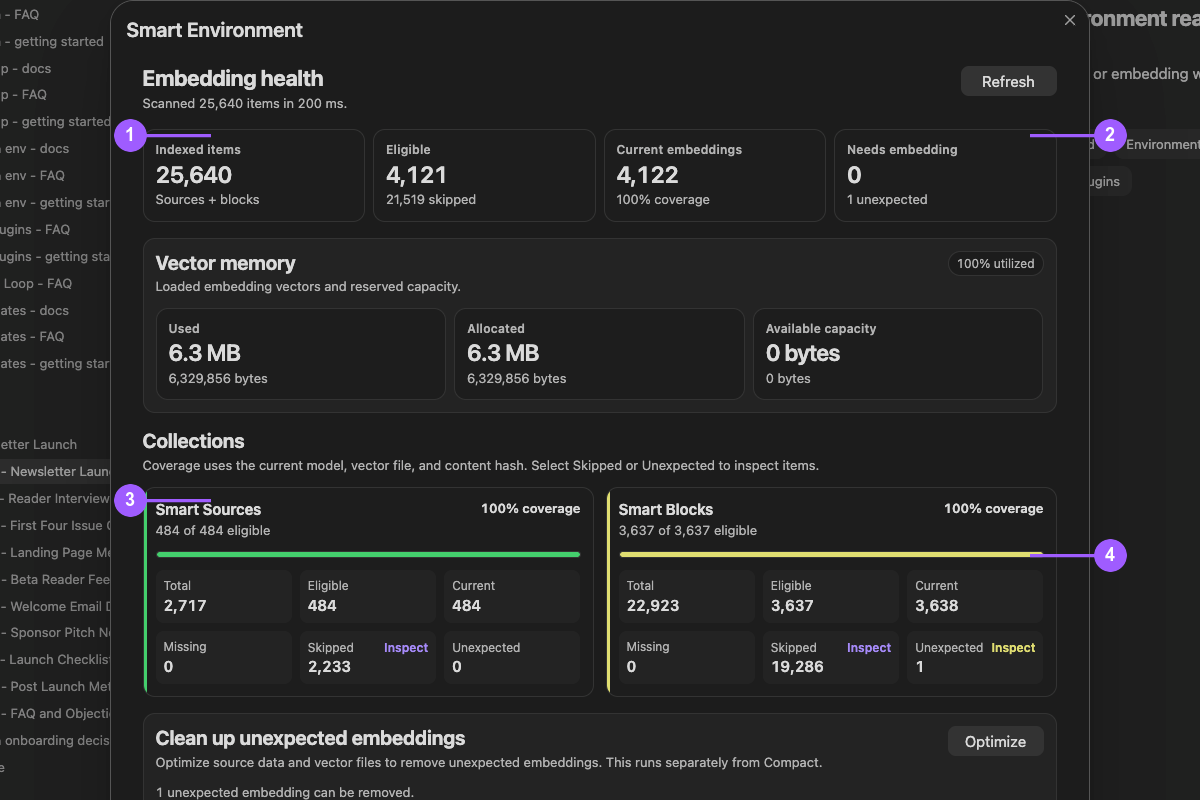
What the numbers identify:
- Total indexed items across Smart Sources and Smart Blocks.
- Work still needed plus any unexpected embeddings.
- Smart Sources eligibility and current coverage.
- Smart Blocks eligibility and current coverage.
Track Smart Plugin progress with Smart Milestones
Smart Milestones records supported first-use actions and can suggest the next feature to try. Confirm usefulness in the plugin's own workflow rather than treating a checked milestone as the result itself.
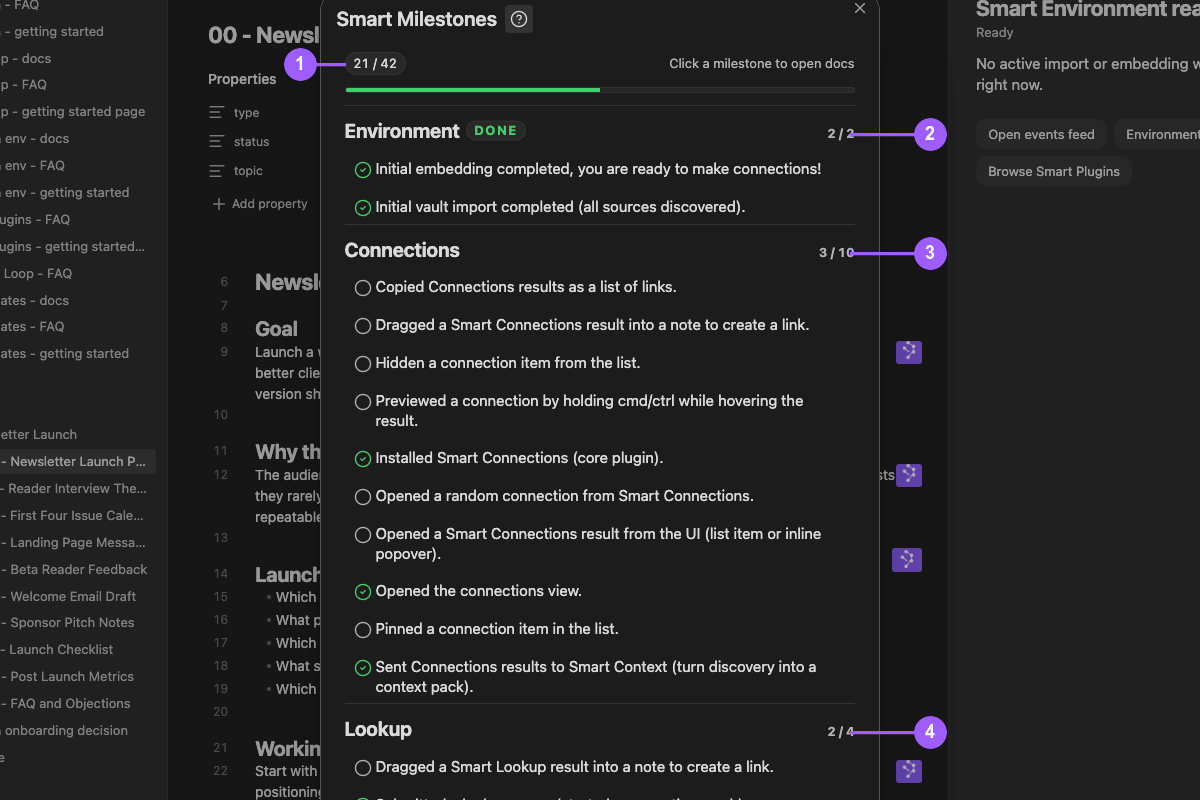
What the numbers identify:
- Overall detected progress across the visible milestone set.
- A completed Environment group.
- A partially completed Connections group.
- A partially completed Lookup group.
Open the related plugin. Examine the actual result. Milestone progress does not grade result quality.
Open Smart Milestones
Select Milestones from the Smart Environment status menu.
Review milestone progress
The modal groups milestones by plugin and workflow. Complete only the groups that support the workflows you are adopting.
A checked row means the detector recorded its action, event, or installed-plugin state. Select a milestone to open its documentation when detailed steps or recovery are needed.
Understand optional Pro milestones
Pro milestones are labeled separately and require the related Pro plugin, prerequisites, and account access.
Achievement notifications
A completed milestone can show an achievement notification after Obsidian becomes idle. Notifications appear one at a time while the app is visible.
Troubleshoot an unchecked milestone
- Confirm that the action exists in the installed plugin release.
- Confirm its prerequisites, including source import and embedding readiness when that milestone uses indexed sources.
- Repeat the action in the same Obsidian window.
- Reopen Smart Milestones.
- Inspect the feature result even if the milestone becomes checked.