
Getting started with Smart Graph
The shortest useful Graph workflow starts from a note you already understand and ends by opening one related note.
When to use Smart Graph
Use Smart Graph to explore how several notes relate. You can narrow the visible scope or turn a reviewed selection into another artifact. Start with a note you understand so the first relationship is easy to judge.
Before you start
Confirm that:
- Smart Graph Pro is installed and active
- the current note is indexed by Smart Environment
- Smart Environment is ready
If the note is missing from Environment stats or Source Inspector, fix that before judging Graph.
First win: open one related note
1. Open a meaningful note
Use a note with a clear topic and enough text to be indexed.
2. Create a graph from that note
Run Smart Graph Pro: Create graph from current note.
The view title should read Smart Graph - Neighborhood of note name. The seed note appears in the Notes panel under Selection.
3. Choose one related note
Select a nearby node whose title looks useful. If reading labels in the canvas is difficult, use this sequence:
- Choose Search nodes.
- Enter a known title fragment.
- Choose Select matches.
The Notes panel remains headed Selection while individual sources are selected. It shows their names and remove controls. Remove the seed if you want Open to launch only the new note.
4. Open and verify
Choose Open. Make sure that the expected note opens in Obsidian. Make sure that its content is relevant to the starting note.
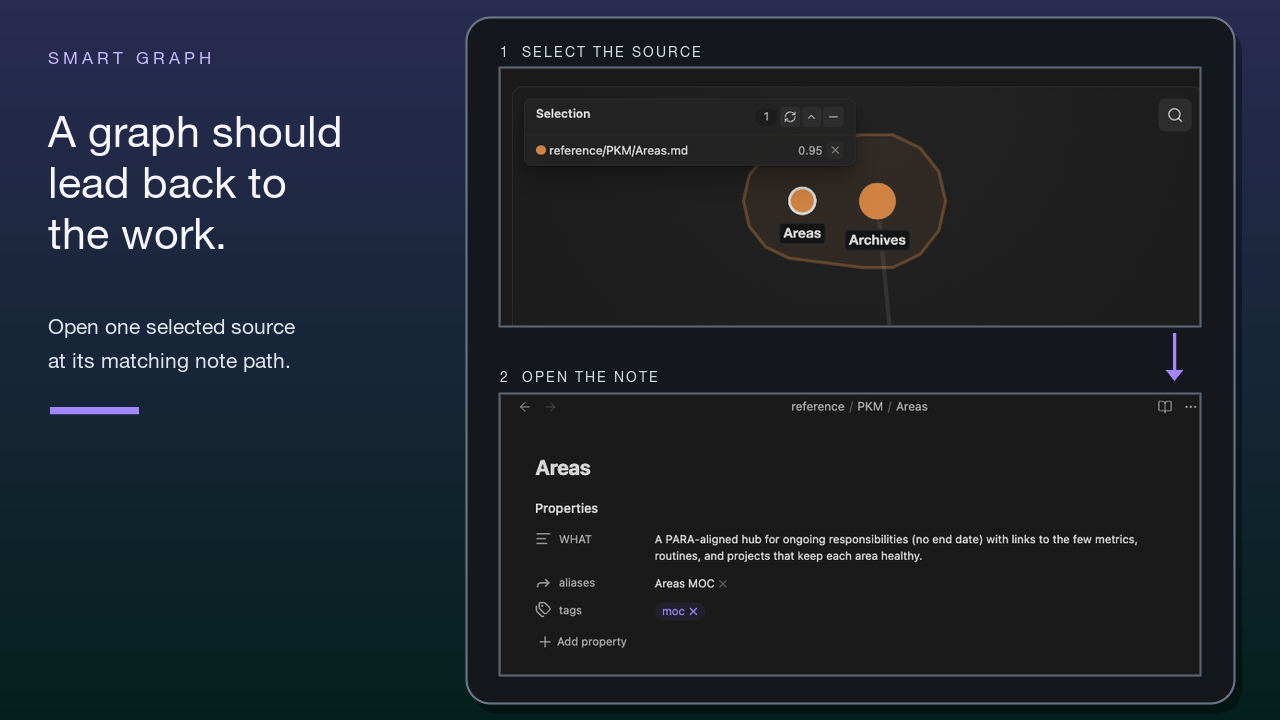
You now have a complete result: current note -> source-seeded Neighborhood -> reviewed related note -> opened source.
Continue with entry commands and source-seeded behavior.
Graph is an exploratory view. Cluster position, representative notes, and scores can change after edits, indexing, model changes, or scope changes. Record durable conclusions in normal notes and links.
Search a larger graph
Run Smart Graph Pro: Open: Smart Graph view or use the Open Smart Graph ribbon action to reveal the existing Smart Graph view when one is open; if none exists, it opens a dedicated root tab in Whole vault.
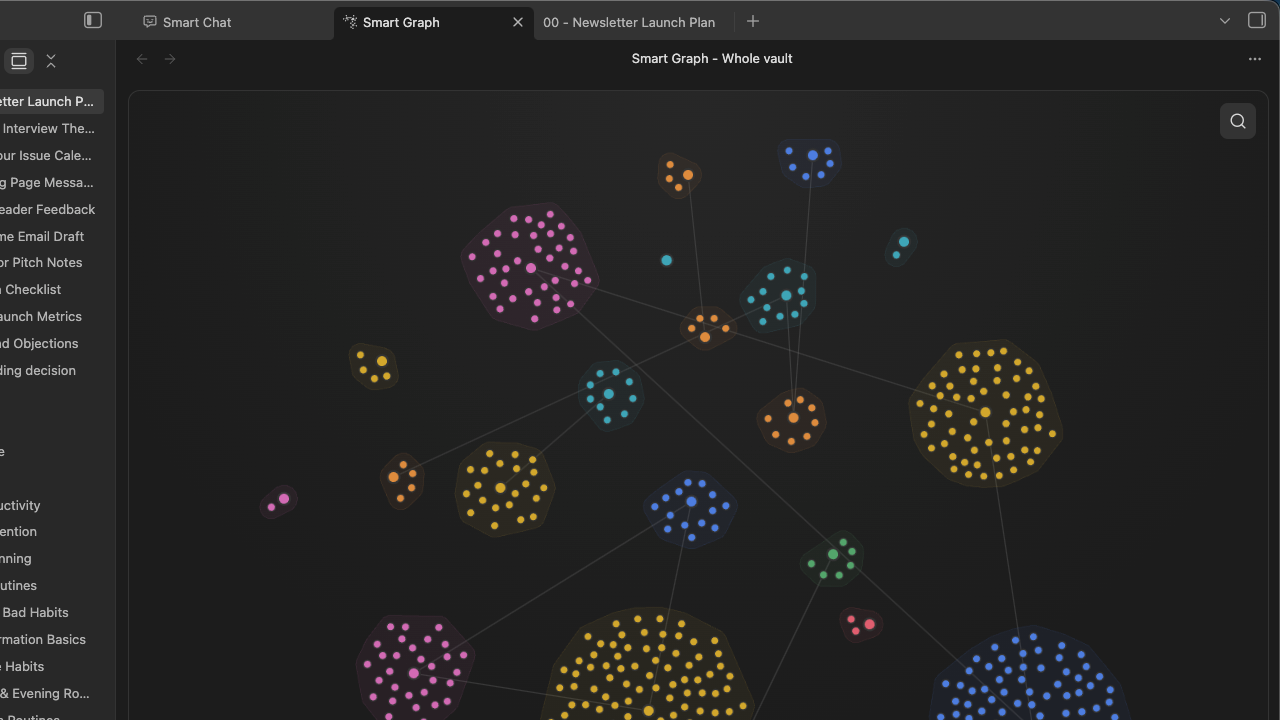
Open Search. Enter one concrete topic, such as Newsletter Launch.
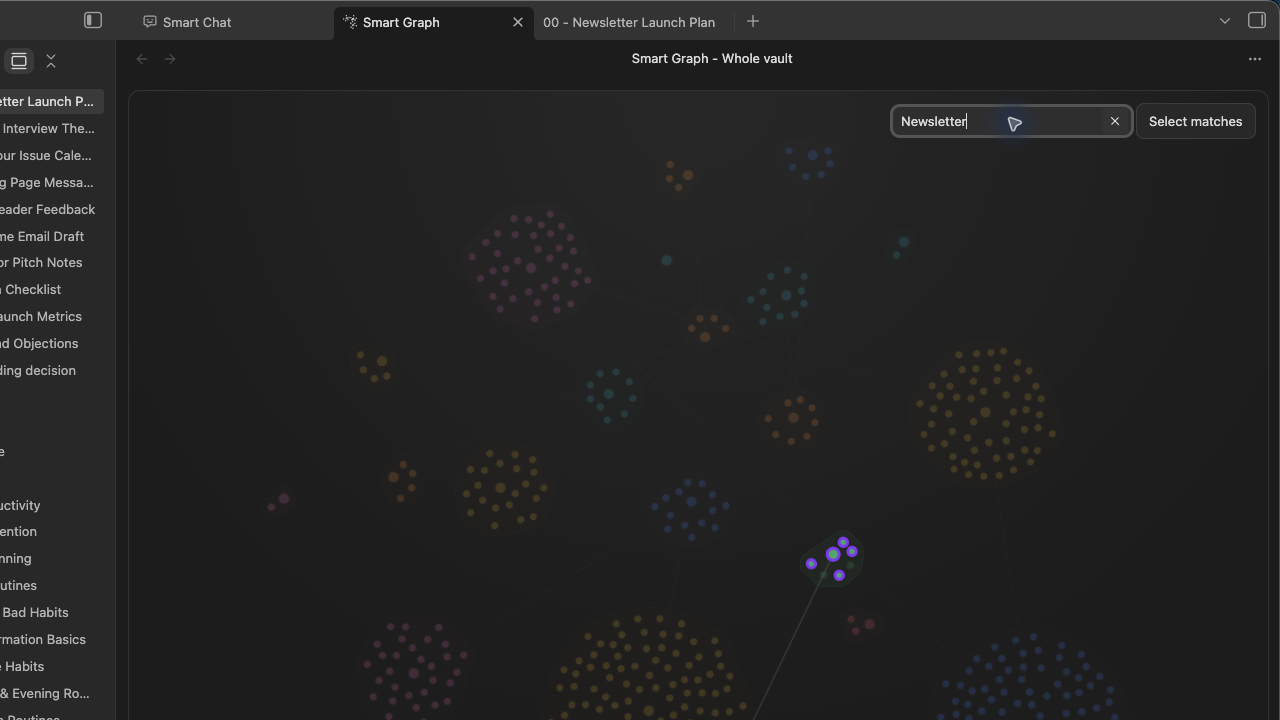
Search highlights matches and dims nonmatches. It does not change the selection until you choose Select matches.
Review a selection
The Notes panel keeps selected source identities readable. Treat scores as review signals, not guarantees.
Check:
- the selected count
- the visible source identities
- the highlighted graph nodes
- the remove controls for noisy sources
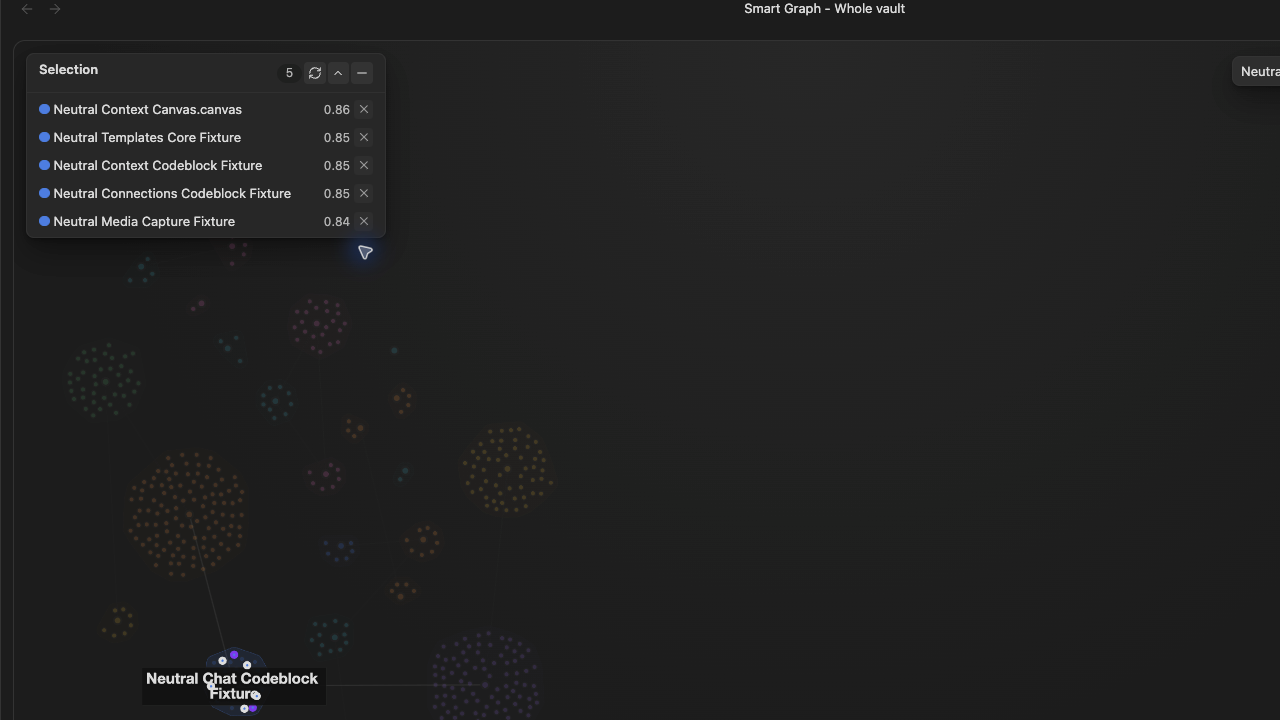
Remove anything you would not knowingly open, copy, or send into another workflow.
Search changes emphasis. Selection chooses sources for an action. Scope changes which sources Graph renders.
For selection gestures and panel behavior, see Select sources and clusters and Use the Notes panel.
Focus the reviewed nodes
Choose Scope -> Focus nodes to make the selected sources the visible Graph scope.
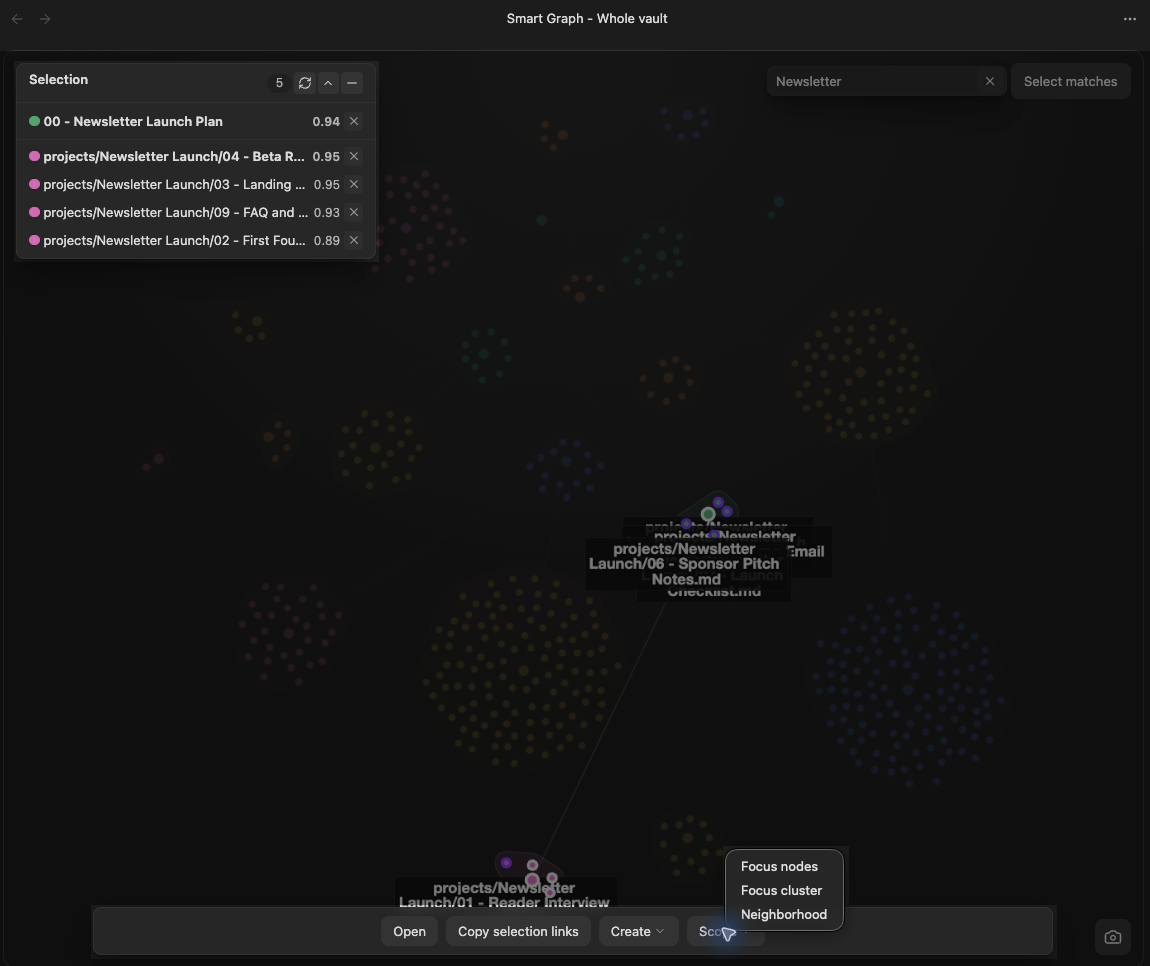
The view title changes to Smart Graph - Focus nodes. When the selection is cleared, the Notes panel is headed Focus nodes scope and lists the visible source set. Manual Focus nodes requires at least three selected sources.
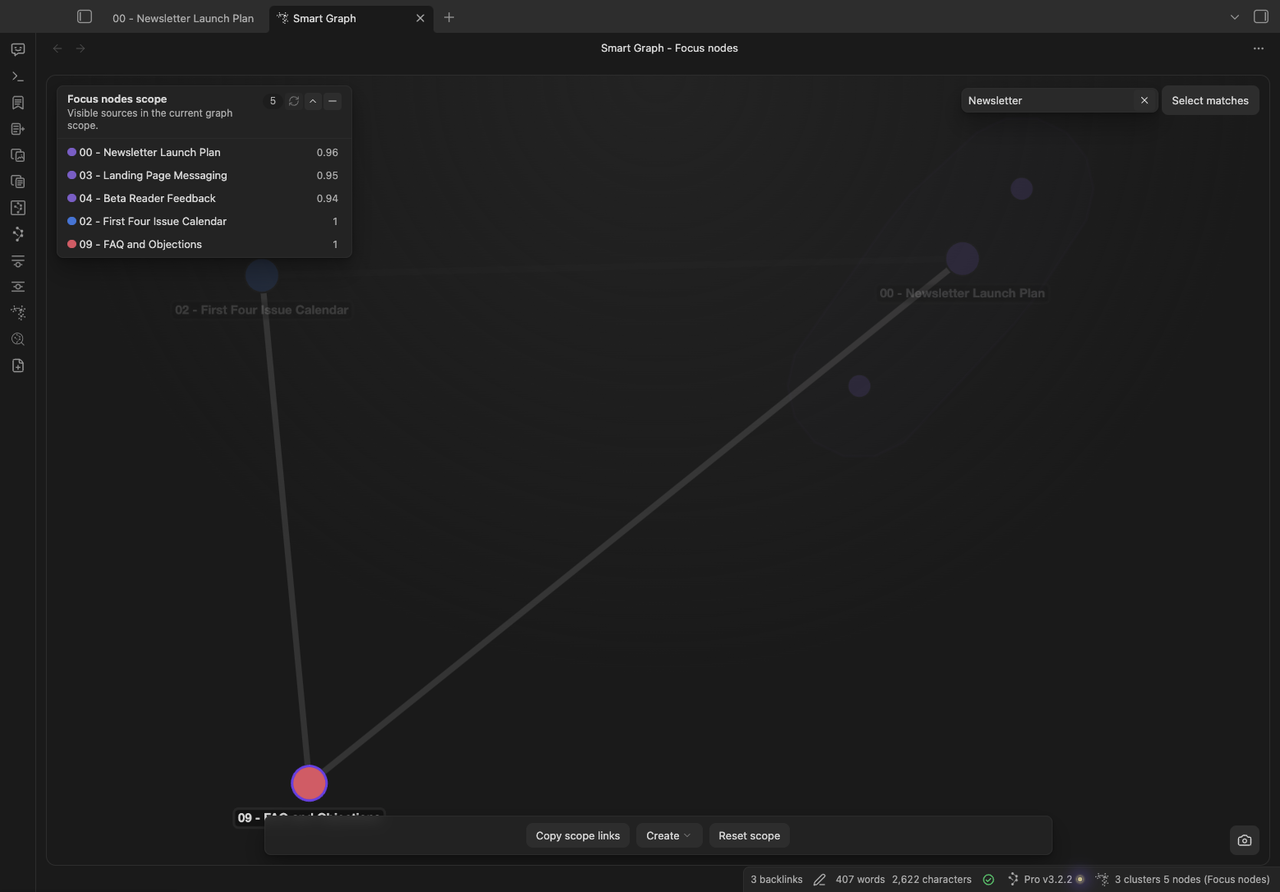
The Focus nodes title and source list confirm the five-source scope. The open search remains a separate filter inside that scope.
Turn a reviewed selection into something useful
The dock offers Open, Copy, Create, and Scope when their grouped menus are needed; a group with only one visible action renders that action directly.
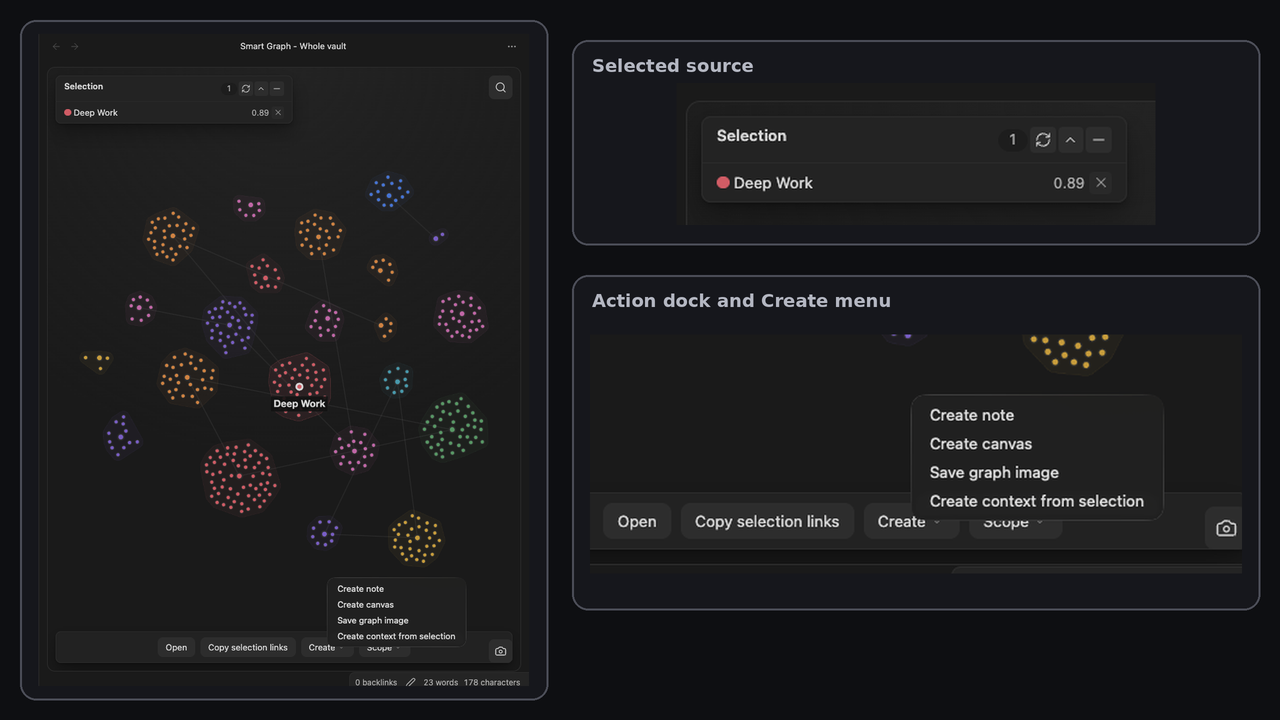
Choose an action. Inspect its destination before you treat the result as complete.
The action bar offers:
- Open to inspect selected sources
- Copy selection links to copy Obsidian links
- Create to choose Create note or Create synthesis note, Create canvas, Create context from selection, or a graph image
- Scope to focus the graph or inspect a neighborhood
After you choose an action, check its destination. Inspect the opened notes, pasted links, created artifact, or sources transferred to Context Builder.
For confirmation rules and output-specific caveats, see Use Smart Graph actions.
Find every primary Graph surface
| Surface | Open it | Ready when | Learn more |
|---|---|---|---|
| Current-note Neighborhood | Smart Graph Pro: Create graph from current note |
The view title names the seed. The seed appears under Selection. | Entry commands |
| Whole vault | Smart Graph Pro: Open: Smart Graph view |
The view title reads Smart Graph - Whole vault. | Scope modes |
| Search | Choose Search nodes. | Matches are highlighted and Select matches is available. | Search behavior |
| Notes panel | Select a node, region, or search result set. | The panel is headed Selection, Selected cluster, or Selected clusters, with source names and review controls below it. | Selection review |
| Action dock | Keep at least one source selected. | Open, Copy selection links, Create, and Scope controls are visible. | Actions and outputs |
| Authored links | Choose Show links from Graph actions. | Directed source-link arrows are visible separately from semantic bridges. | Semantic and authored edges |
If the first graph is confusing
| Symptom | First adjustment |
|---|---|
| Too many nodes | Search for one recognizable topic or use a smaller scope. |
| Search highlights the wrong area | Use a more specific term. Review the matches before you select them. |
| Selection contains noise | Remove individual sources before using an action. |
Smart Graph needs indexed Smart Sources before it can render. |
Open Source Inspector or Environment stats. Prepare eligible sources. |
Current note is not indexed by Smart Environment. |
Check the active note in Source Inspector. Re-import it or remove its exclusion. |
This scope did not return any cluster data. |
Choose Reset scope. |
| Search looks empty | Clear the query. A zero-match search does not delete nodes. |
| Canvas did not render | Run Smart Graph Pro: Refresh Smart Graph. Reopen Graph. |
| A group moved after refresh | Treat groups as recomputed current-run signals, not saved categories. |
| You need one related note | Use Connections instead. |
| You have a question to type | Use Lookup instead. |
| You need an exact word, title, heading, tag, operator, syntax pattern, or regex | Use Obsidian Search instead. |