
Getting started with Connect Pro
Bring your Obsidian notes into your AI app. Connect one app, read a note you recognize, and use that result as the starting point for your work.
Already connected? Go straight to examples. Something is not working? Find your symptom in troubleshooting.
1. Open your vault
Use Obsidian Desktop 1.12.2 or later with Connect Pro enabled and your Pro access active. Open the vault you want to use, then go to Settings > Smart Connect Pro. Keep this vault open while your AI app uses it.
[!important] Review access before connecting Connected apps may send tool inputs and returned note content to their model provider. Use an app you trust and inspect Tool permissions before your first request. Some tools can change notes directly; only proposal tools use Inbox review. How permissions work.
2. Choose your app
| Use this app | Follow these instructions |
|---|---|
| ChatGPT desktop with local MCP support | Connect ChatGPT desktop |
| Claude Desktop | Connect Claude Desktop |
| Another app with local Streamable HTTP MCP support | Connect another MCP app |
| The dedicated Smart Connect Pro GPT | Connect Remote GPT |
Desktop apps use Local MCP, a connection on this computer. The dedicated GPT uses Remote GPT. You can use either or both; enabling one does not require the other.
For desktop apps: start Local MCP
Turn on Desktop apps (Local MCP) and wait for Running on this computer. Expand Set up a desktop app. This is where you get this vault's Server URL, suggested server name, and Claude extension.
Use the values from your own settings, not a screenshot. You can also copy the URL or save the extension before starting the server.
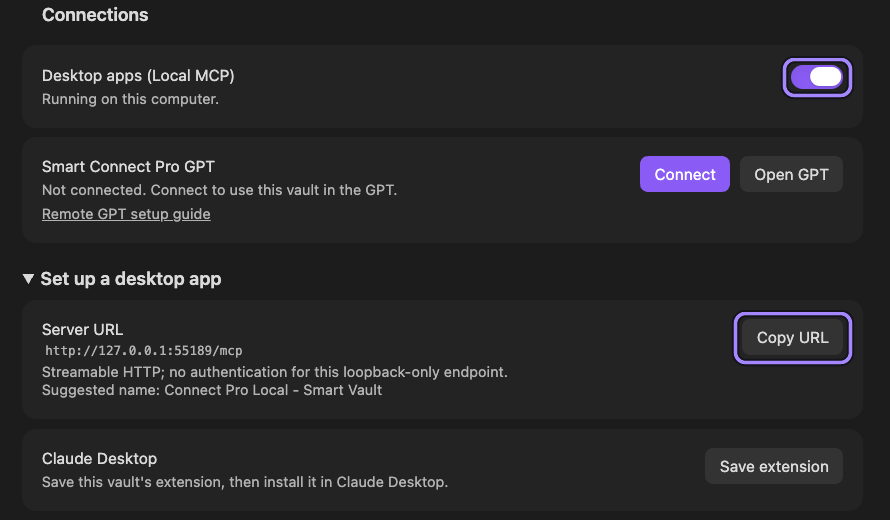
Use this vault's URL or save its Claude extension. Remote GPT does not need to be connected for Local MCP.
Connect ChatGPT desktop
Use a ChatGPT desktop build that offers local MCP server settings.
- In ChatGPT, open Settings > MCP servers > Add server.
- Enter the suggested name from Connect Pro, choose Streamable HTTP, and paste this vault's Server URL. Leave bearer-token and custom-header fields blank for this local endpoint.
- Save, then select Restart. Type
/mcpin the composer to inspect the connected servers.
OpenAI's MCP instructions cover the current menu names. If those controls are missing, check your client version and workspace configuration; the hosted connector setup is not a substitute for a local server.
Continue to read one note.
Connect Claude Desktop
- In Connect Pro settings, expand Set up a desktop app and select Save extension. Save the
.mcpbfile somewhere you can find it. - In Claude Desktop, open Settings > Extensions > Advanced settings. Under Extension Developer, select Install Extension... and choose the saved file.
- Complete the installation and enable the extension for this vault. If its tools do not appear, restart Claude Desktop to refresh the extension registry.
No save dialog? Look for smart-connect-pro-local.mcpb in the vault root; Connect Pro reports when it uses that fallback. Use this vault's generated file, not one from another installation.
Anthropic's local extension guide covers installation and organizational restrictions. Use the desktop extension, not the remote connector URL field: remote connectors run from Anthropic's cloud and cannot reach this computer's local listener directly.
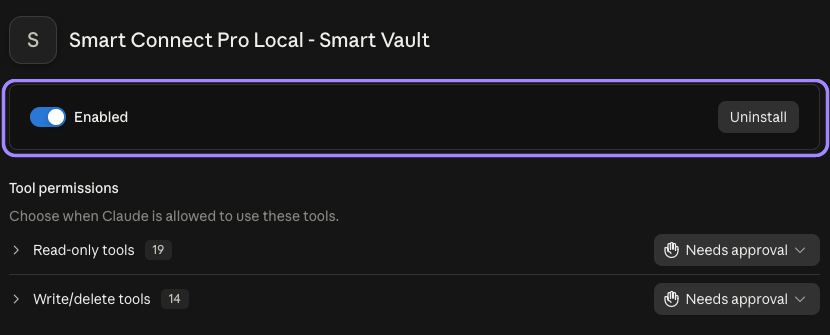
Enable the extension generated for this vault, then keep Obsidian open while using it. This installed state is separate from a successful request.
Continue to read one note.
Connect another MCP app
Add a server in the app's MCP settings using these values:
| Field | Value |
|---|---|
| Name | The suggested name in Connect Pro settings |
| Transport | Streamable HTTP |
| URL | The complete Server URL, including its port and /mcp |
| Authentication | None for this loopback-only endpoint |
Reload the app's server or tool list using its documented controls, then read one note.
The app must make requests from the same computer as Obsidian. A command-only client needs its own supported HTTP bridge; a container, virtual machine, or cloud service may not share the same local network interface. Do not expose the unauthenticated local server publicly as a workaround. Connection troubleshooting.
Use Smart Connect Pro GPT
In Settings > Smart Connect Pro, select Connect beside Smart Connect Pro GPT. Once connected, select Open GPT and use that dedicated GPT. Local MCP can stay off.
If the button says Open Pro plugins, resolve the sign-in or access requirement there. Reconnect here can replace an active session elsewhere. Follow the status shown in this vault rather than repeatedly reconnecting from competing sessions.
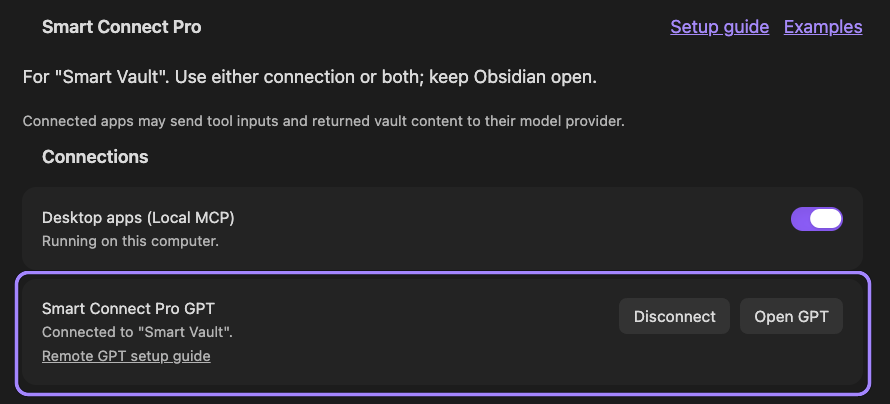
Connect this vault, then use Open GPT to start the dedicated GPT. The connected row is readiness evidence, not a completed GPT request.
Continue to read one note. Keep Obsidian open. Later, Advanced > Connect Remote GPT on startup can make reconnection more convenient.
3. Read one note
Choose a short, non-sensitive note you are comfortable sharing with the app. Use its full path within the vault, including the file extension, such as Projects/Launch brief.md. A read may send the whole note to the app even when the response quotes only one sentence.
Replace the two bracketed values and send this in your AI app:
Use only the Connect Pro connection for "[vault name]".
Read "[note path]" with an available read-only tool.
Identify the note and quote one sentence from the returned text.
Do not change anything. If you cannot resolve this exact note or use
its read tool, explain the problem rather than guessing or using
another connection.
Check the app's tool-call details and compare the returned sentence with the note in Obsidian. A result from the right note is your first working connection. A reply from chat memory, a listed server, or an empty count is not the same check.
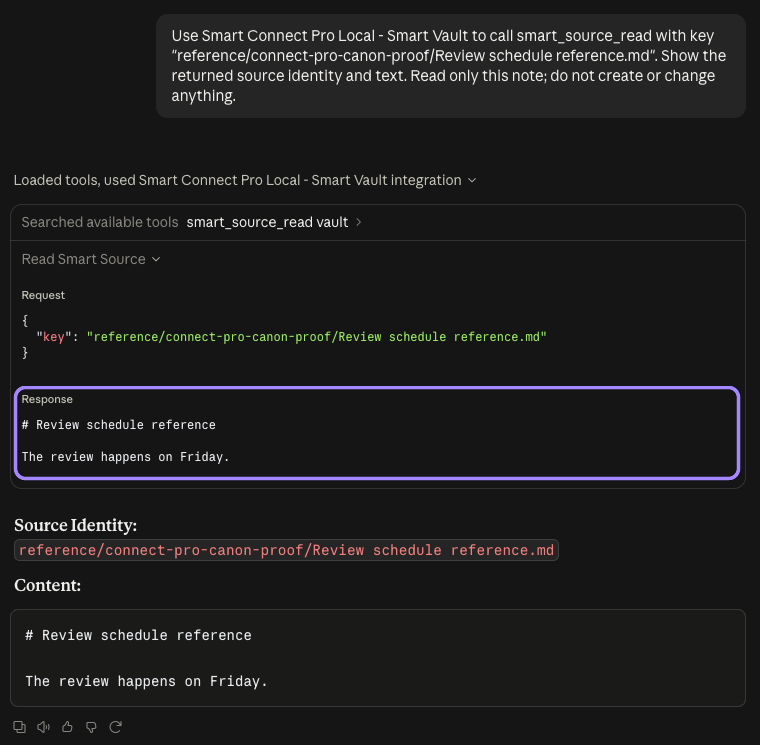
1. The tool returned this note's text. The prompt named the exact path but did not supply the sentence.

2. Compare the identity and sentence with Obsidian. These are separate capture moments from the same request; the reference note stayed unchanged.
If the note or read tool is unavailable, check the tool and source rather than enabling unrelated access. Technical users can find the read tool names in the Smart CLI reference.
Use the connection
You are ready to try a useful task. Corrections and moves are optional next steps; learn how Inbox review works before requesting them.
When finished, turn off Desktop apps (Local MCP) or disconnect Smart Connect Pro GPT, according to the connection you used. This stops new requests through that connection; it does not undo changes or guarantee cancellation of work already running.
Looking for the earlier review exercise? It is now in Practice one reviewed change, separate from setup.