
Getting started with Smart Templates
The first win is one reviewed request built from a real note and one reusable template. Current Smart Templates 2.3 copies that request for the AI interface you choose.
Before you start
- Install Smart Templates.
- Enable Smart Templates.
- Open a note that contains evidence for a real task.
- Choose a template whose expected structure you can recognize.
Current Smart Templates 2.3 does not require a Templates model or API key because the workflow ends at Copy prompt.
1. Open Template Context
Run:
Smart Templates: Open template context
You can also use the ribbon. In the file navigator, right-click a Markdown or text file. Select Open template context.
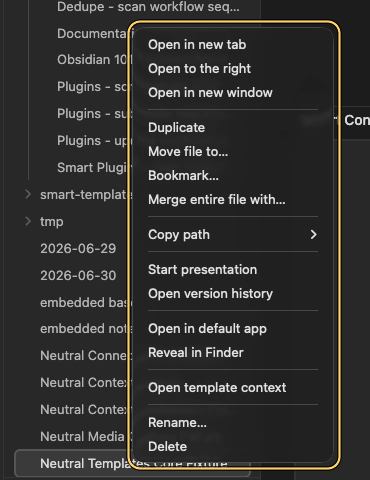
The current note is the starting context. When text is selected first, review whether the selection became the context instead of the whole note.
2. Select one template
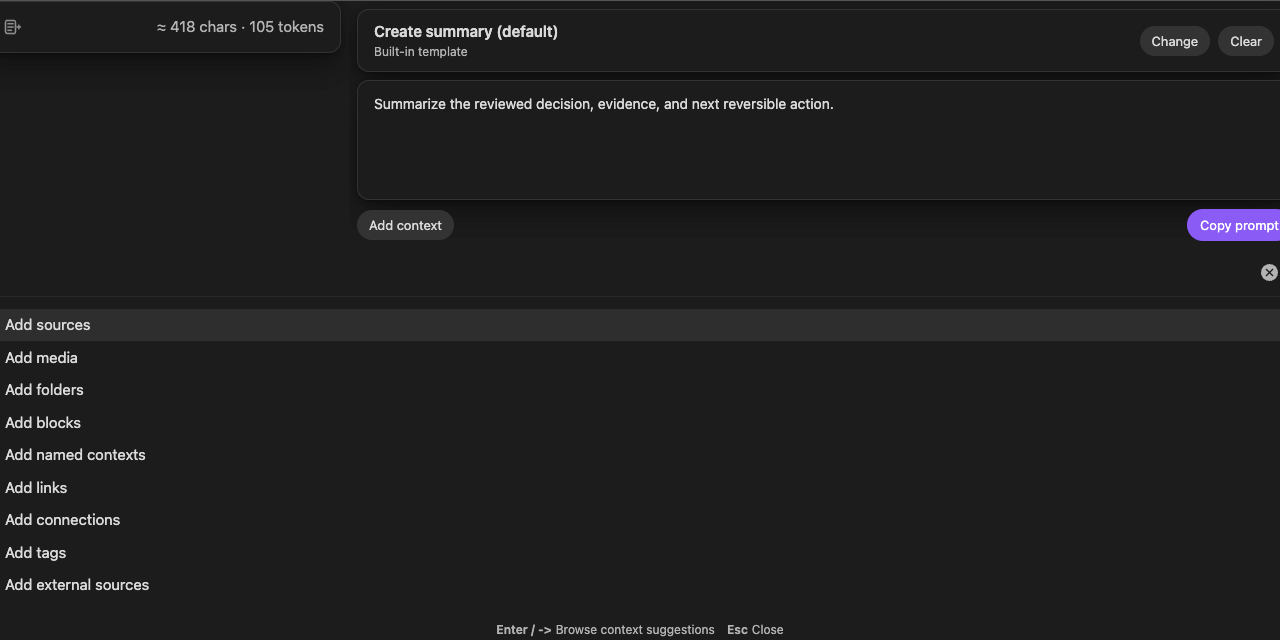
Choose Select. If a template is already selected, choose Change instead. Then select one trusted template. A built-in template such as Create summary is sufficient for the first workflow.
The template should define reusable structure. Keep the current task out of the template unless it should apply every time.
3. Add one short instruction
Write what is unique about this request. For example:
Focus on the decision, supporting evidence, and next reversible action.
Use Add context only when the current note does not contain necessary evidence. Opening the chooser does not add a source. Select the source. Review the source before you continue.
4. Review the request
Confirm:
- the intended note or selection is present
- every added source is necessary
- the correct template is selected
- the instruction is specific
- the request is small enough to inspect
Now copy and examine the prompt.
5. Copy and examine the prompt
- Choose Copy prompt.
- Paste into a clean ChatGPT, Claude, Gemini, Smart Chat, or other AI composer.
- Make sure that the context, template, and instruction are present.
- Remove anything that should not leave Obsidian.
- Send only after you examine the complete pasted request.
The first win is complete when the pasted prompt is correct and ready to run.
Current Core and Pro flow
current note or selection
  -> optional supporting context
  -> one or more templates
  -> request-specific instruction
  -> Copy prompt
  -> paste
  -> examine
  -> send
Current Smart Templates 2.3 ends at Copy prompt in Core and Pro. Generate, Regenerate, Insert, Create note, and the Templates-specific model selector belonged to the retired v1 workflow.
If something is wrong
| What happened | Try first |
|---|---|
| The wrong source appears | Close Template Context. Clear the editor selection. Reopen Template Context from the intended note or file. |
| No templates appear | Check template discovery settings or start with a built-in template. |
| The request is too large | Remove optional context before changing the template. |
| The copied prompt is incomplete | Check each part of the request. Copy the prompt again. Paste it into a clean destination. Examine the pasted content. |
| An older guide says to use Generate | That guide describes Smart Templates v1. Current Smart Templates 2.3 ends at Copy prompt. |
| The pasted request is generic | Clarify the instruction or add the missing evidence. Copy and examine the request again before sending. |
Continue after the first result
- Use the complete Smart Templates documentation for template discovery, multiple templates, the current Copy prompt workflow, and migration guidance for retired v1 controls.
- Read the Smart Templates FAQs for Core, Pro, privacy, and compatibility decisions.
- Use Smart Context when the assignment needs a deliberately assembled source package.
- Use Smart Chat when copied prompts or conversations should stay attached to the work.