
Getting Started with Smart Plugins
Start with one plugin and one task. A Store row can show that a plugin is loaded. Complete one result inside the plugin before you treat setup as finished.
When to use this guide
Use this guide when you install your first Smart Plugin or return after an update. Also use it when a Store state is unclear. The first workflow uses Connections because it gives a visible note-level result without a chat provider.
Before you start
- Open Obsidian Desktop with the vault where you want to use Smart Plugins.
- Open a meaningful note with enough text to compare against other notes.
- Make sure that Browse Smart Plugins is available from at least one of these locations:
- a Smart Plugin settings page
- the Smart Environment status menu
- the Command Palette
First win: open one related note
This is the shortest first result when you already have a meaningful note in view.
1. Activate Connections
Open Browse Smart Plugins. Find the Connections edition that you intend to use. Complete the action shown on its row.
The normal lifecycle is:
Installed -> Enable -> Enabled -> Active
If the row shows Reload required to activate version, complete that instruction. If the row shows Reload required to disable, complete that instruction. If the row shows Reload required for Smart Environment, complete that instruction. Continue only after the reload is complete. Configured is not a Store badge. It means that the plugin-specific prerequisites are complete.
In the Store, track and lifecycle are separate. Core and Pro identify the edition. Active rows expose Open settings. An installed but disabled row exposes Enable. Version and update timing can change. Follow the action on your row.
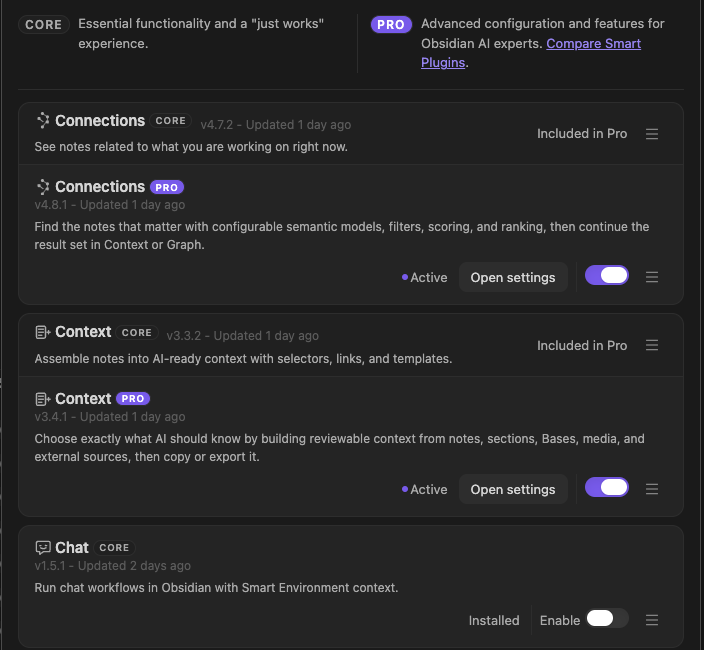
Use the track label to select an edition. Follow the exact state or action on that row. Complete the plugin-specific prerequisites. Then test one real result.
See all Store states and recovery actions.
2. Prepare the current note
Open a note with enough meaningful text to be indexed. For Connections, Smart Environment must be ready and the active note must be an eligible Smart Source.
If the status bar is still loading, wait. If the note is missing, choose Inspect active note from the Environment menu.
3. Open Connections
Use the command for the loaded edition:
- Core:
Smart Connections: Open: Connections view - Pro:
Smart Connections Pro: Open: Connections view
The view should target the active note and show ranked related notes.
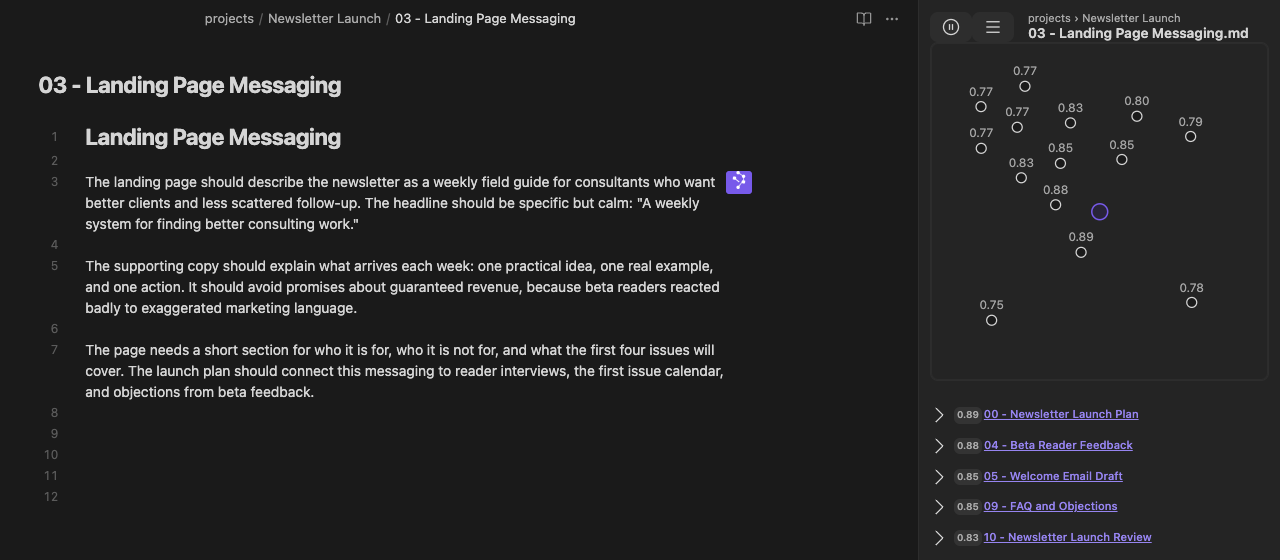
4. Open one useful result
Examine a promising title and score. Open the note. Make sure that the opened content helps the starting note.
That is the first win: active note -> related results -> reviewed source -> opened note.
Continue with Getting started with Smart Connections.
Find the shared Smart Plugin surfaces
Open these after the first result so you know where to diagnose setup, source, and model problems.
Smart Environment menu
The status-bar menu provides the current entries:
- Open status view
- Inspect active note
- Show stats
- Export data
- Milestones
- Notifications
- Browse Smart Plugins
See Store entry points, Stats, and Milestones.
Status view
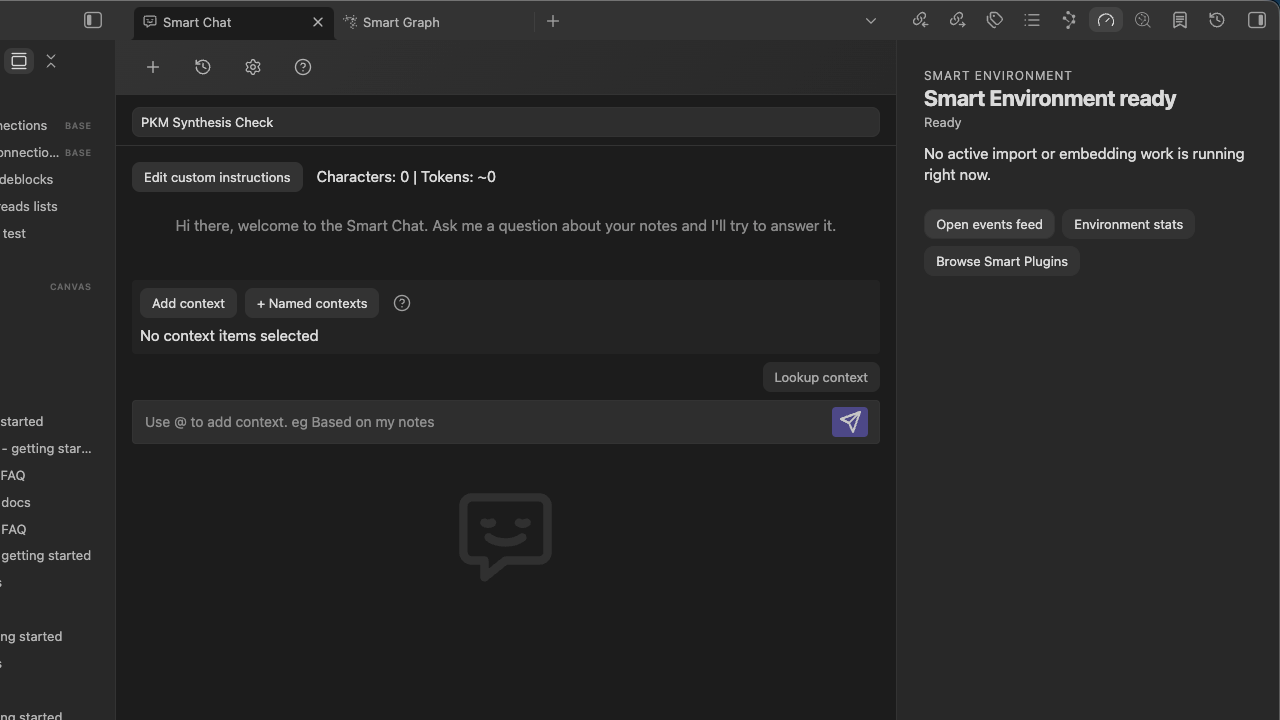
Smart Environment ready and Ready mean no import or embedding work is active. They do not prove that a plugin result will be useful. The view also exposes Open events feed, Environment stats, and Browse Smart Plugins.
See Environment readiness and recovery.
Environment stats
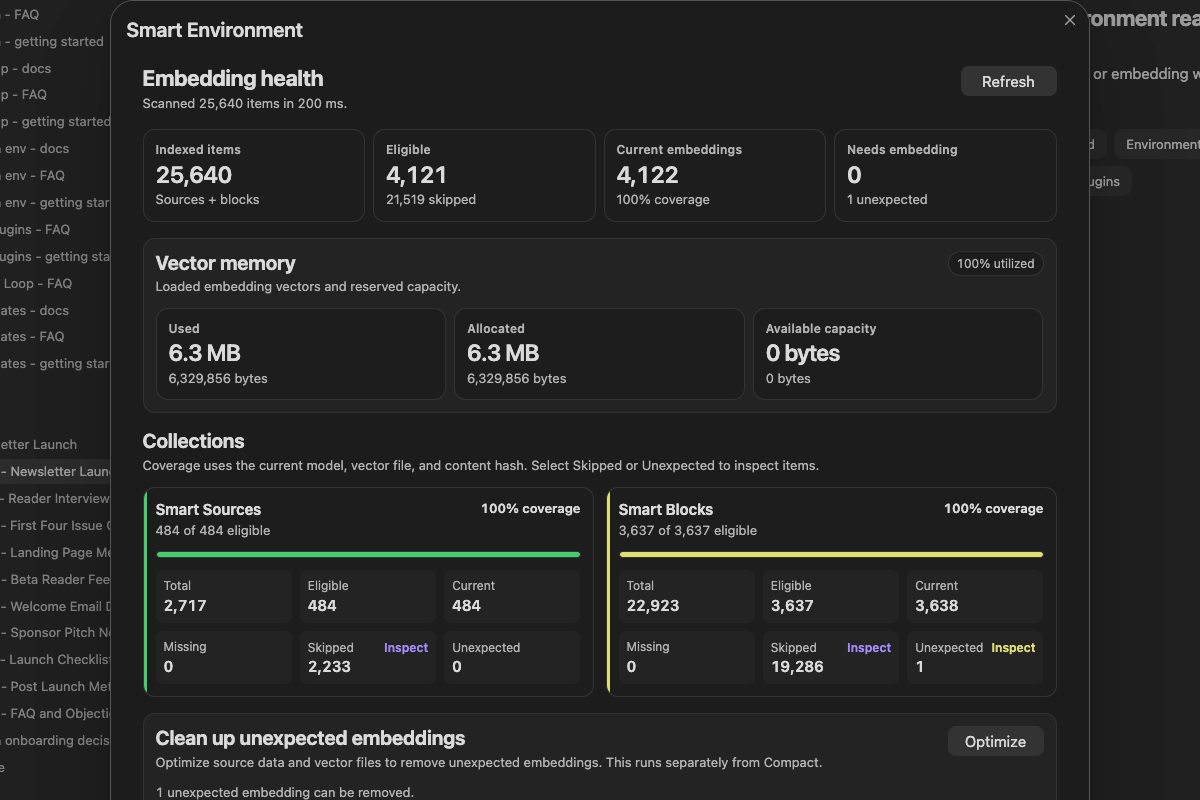
Check Eligible, Current, Missing, Skipped, and Unexpected separately. 100% coverage applies to eligible items under the current policy and model. It does not mean that every vault file is embedded.
See How to read Environment stats.
Sources and models
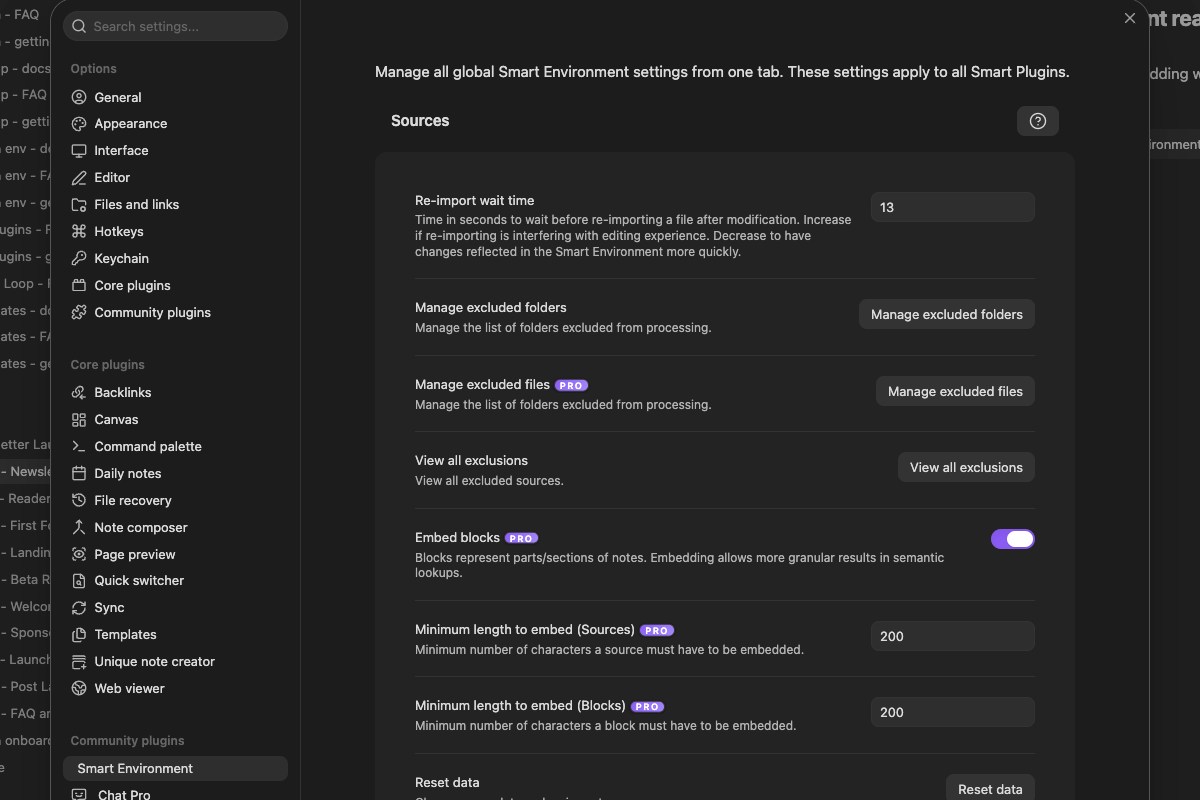
Smart Environment settings control source exclusions, block embedding, minimum lengths, and default models. Change one global setting at a time. Wait for preparation to finish. Then compare the results.
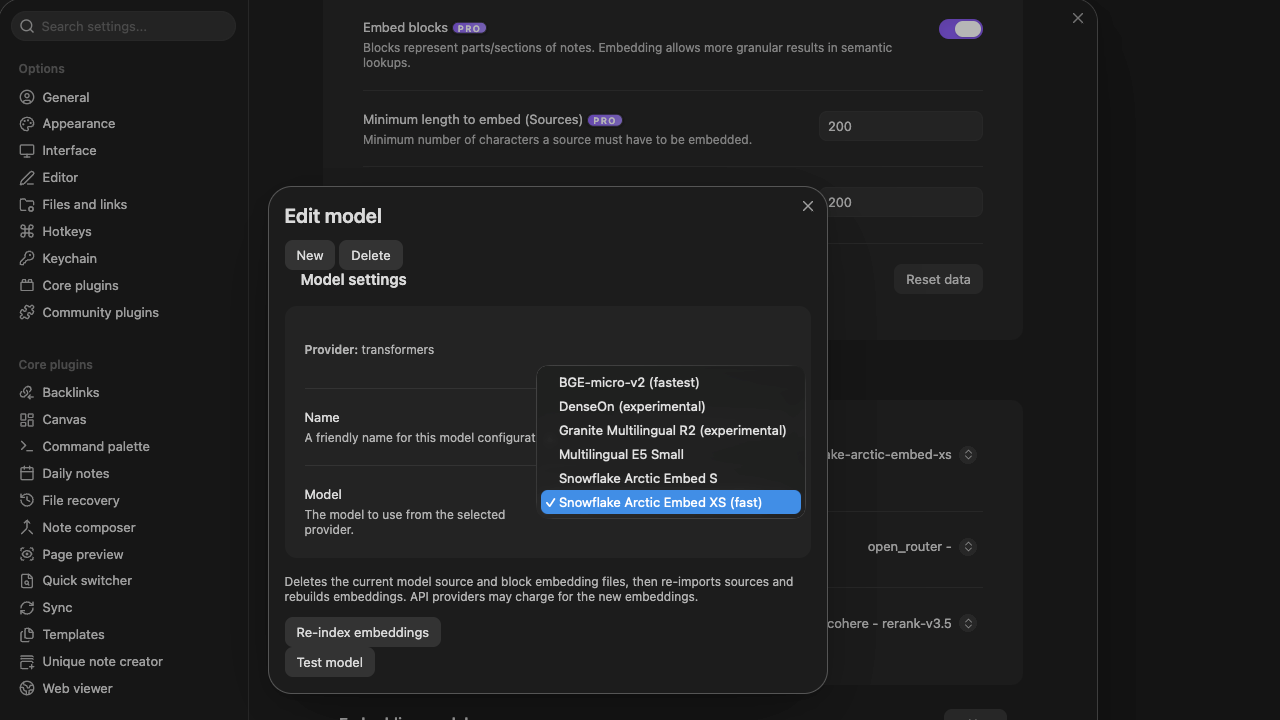
The built-in picker includes exact worker labels and marks experimental models. Switching models can require a separate index. Use Re-index embeddings only when you intend to rebuild that model's embeddings.
See Model changes and re-indexing.
Events and notifications
Select Notifications or Open events feed. Filter by Milestone, Attention, Error, Warning, Info, or Debug. Use this feed to understand retained background events. Before you send debug output to support, remove sensitive paths and content.
Smart Milestones
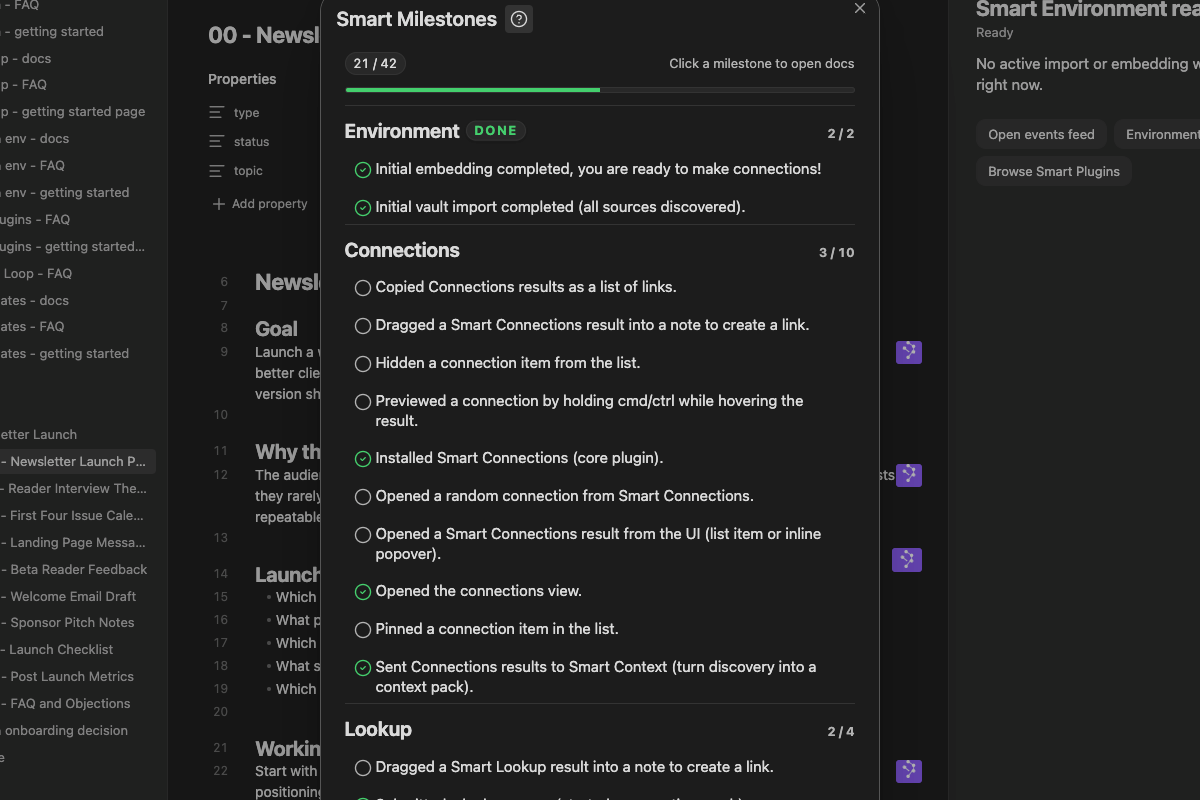
Milestones group detected actions by plugin. A checked row means the event was detected. It does not grade the quality of the result.
See How Milestones work.
Choose the next result
| Desired result | Start here | Prerequisite | Done when | Go deeper |
|---|---|---|---|---|
| Open a related note | Connections from a meaningful active note | The current note is eligible. Smart Environment is Ready. | One reviewed result opens and helps the starting note. | Getting Started -> Docs |
| Search by a phrase or question | Smart Lookup: Open: Lookup view |
Eligible indexed sources | One ranked source opens and supports the query. | Getting Started -> Docs |
| Copy the active note as context | Core: Smart Context: Copy current text to clipboard (choose link depth) -> Depth 0 / Current note. Pro: Smart Context: Copy current -> Choose link depth... -> Depth 0 - current note -> Copy text. |
Context active | The pasted package matches the current note and embeds. | Getting Started -> Docs |
| Use a provider website in a note | Insert the provider-specific Core block | The provider page is available. Sign-in is complete when required. | A real response appears and the provider URL can be reopened when the provider supplies one. | Getting Started -> Docs |
| Use Smart Chat API Extension | Smart Chat Pro: Open Smart Chat |
A compatible chat model and provider credential are configured. Smart Environment must be Ready only when the workflow uses indexed Lookup context. | A completed response is visible and reviewed. | API Extension Getting Started -> Docs |
| Explore from the current note | Smart Graph Pro: Create graph from current note |
The active note is indexed. Smart Environment is Ready. | One related note opens from the Neighborhood. | Getting Started -> Docs |
| Reuse an output structure | Open template context | Smart Templates is Active. | The copied prompt contains the intended context, template, and instructions when examined in its destination. | Getting Started -> Docs |
| Review possible duplicates | Open Dedupe from its current ribbon or Command Palette action | Smart Dedupe is Active. The scan scope is clear. | One candidate pair is reviewed without changing notes. | Getting Started -> Docs |
| Review a proposed vault change | Complete Connect Pro 2.0 setup and use one dedicated proposal Tool | Keep the intended desktop vault open. For Local MCP, the server is Running and a trusted supported client completes one recognizable read; Remote GPT is not required. Smart CLI requires the host CLI integration. | The source stays unchanged while pending. An applied or rejected Inbox decision and the resulting files match the review. Other direct writes are not automatically held for approval. | Connect Pro Getting Started -> Docs |
Recovery map
| Problem | Open | First action |
|---|---|---|
| Plugin files are present but the feature is unavailable | Smart Plugins Store | Complete Enable or the full reload-required action. |
| Environment is loading, importing, embedding, or queued | Open status view | Wait while work is active. If embedding is paused, select Resume embedding. If re-import work is queued, select Run re-import. |
| One note is missing | Inspect active note | Fix the reported exclusion, length, import, or embedding state. |
| Coverage looks wrong | Show stats / Environment stats | Inspect Missing, Skipped, and Unexpected for the affected collection. |
| A recent error needs detail | Notifications / Open events feed | Filter to Error or Warning. Expand the event. |
| Source boundaries or model choice are wrong | Smart Environment settings | Change one setting. Wait for preparation to finish. |
| Store access is missing | Smart Plugins Store | Use Refresh, Login, or the action shown for the current account state. |