
Connect ChatGPT and review bigger changes in Connect Pro for Obsidian v2.1
Split a mixed note into focused notes. Bring related guidance into one place. Keep a summary and checklist aligned with the plan they support.
Connect Pro 2.1 gives you a new ChatGPT plugin connection and expands what you can prepare for review in Smart Inbox. Ask your connected assistant to propose a useful piece of work, inspect the changes across the affected notes, refine the wording, and decide when to apply it.
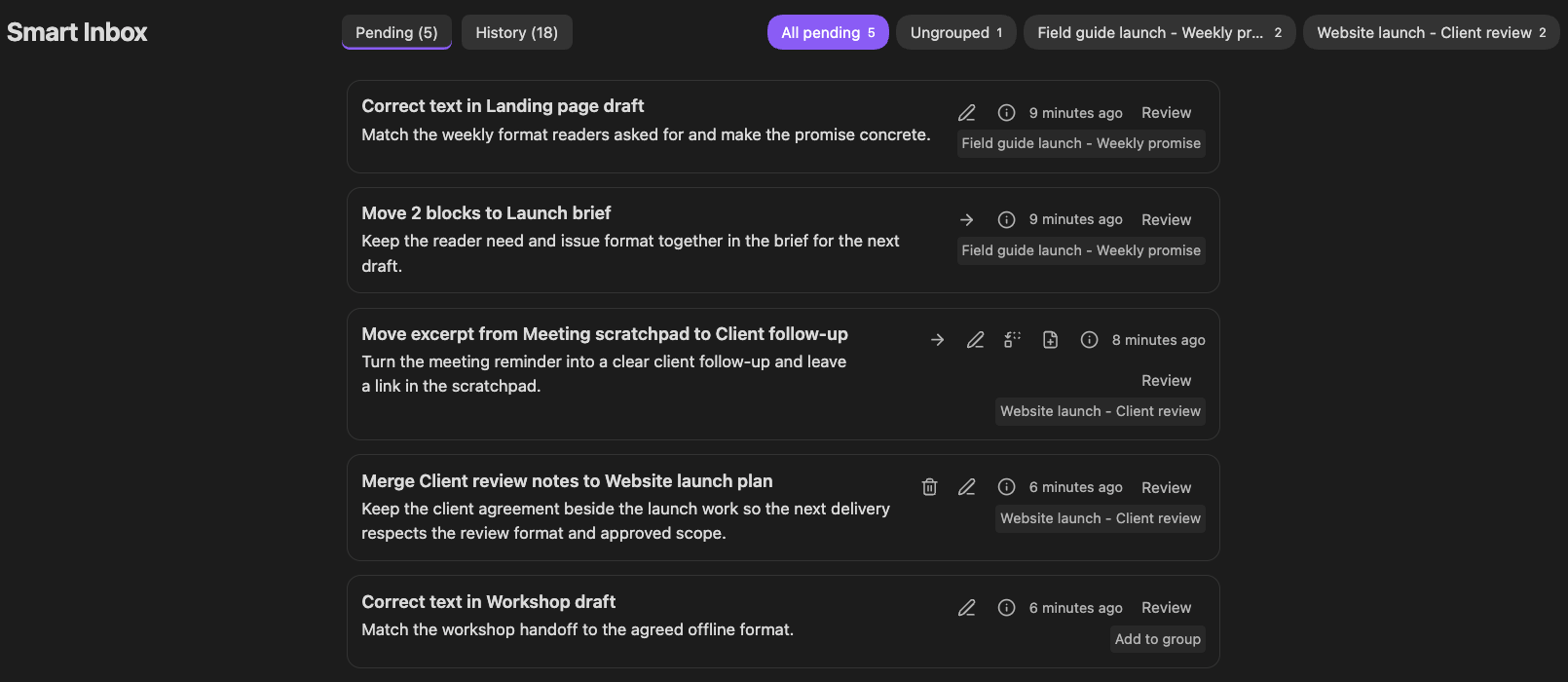
Five independent proposals, organized into two named groups and one ungrouped item. Each is still pending and has its own review; grouping does not combine approvals.
Bring your vault into ChatGPT
Use Connect Pro for Obsidian in ChatGPT to work with the notes in your open vault. The plugin is the recommended way to get started with ChatGPT. You can find the Open ChatGPT plugin button in the ChatGPT (Remote MCP) settings row and the plugin link in the status bar menu, including before you connect.
In Connect Pro settings, connect your vault and turn on ChatGPT (Remote MCP). This option is off by default and uses the active Connect session; its status shows whether the remote connection is ready. Keep the intended vault open in Obsidian while you use it. Local MCP remains available independently for desktop apps.
One MCP switch per eligible tool now controls its availability to both Local and Remote MCP. Review those choices before connecting: some tools read, some prepare Inbox proposals, and others can make changes directly. Understand tool permissions.
Watch a correction move from ChatGPT to Smart Inbox:
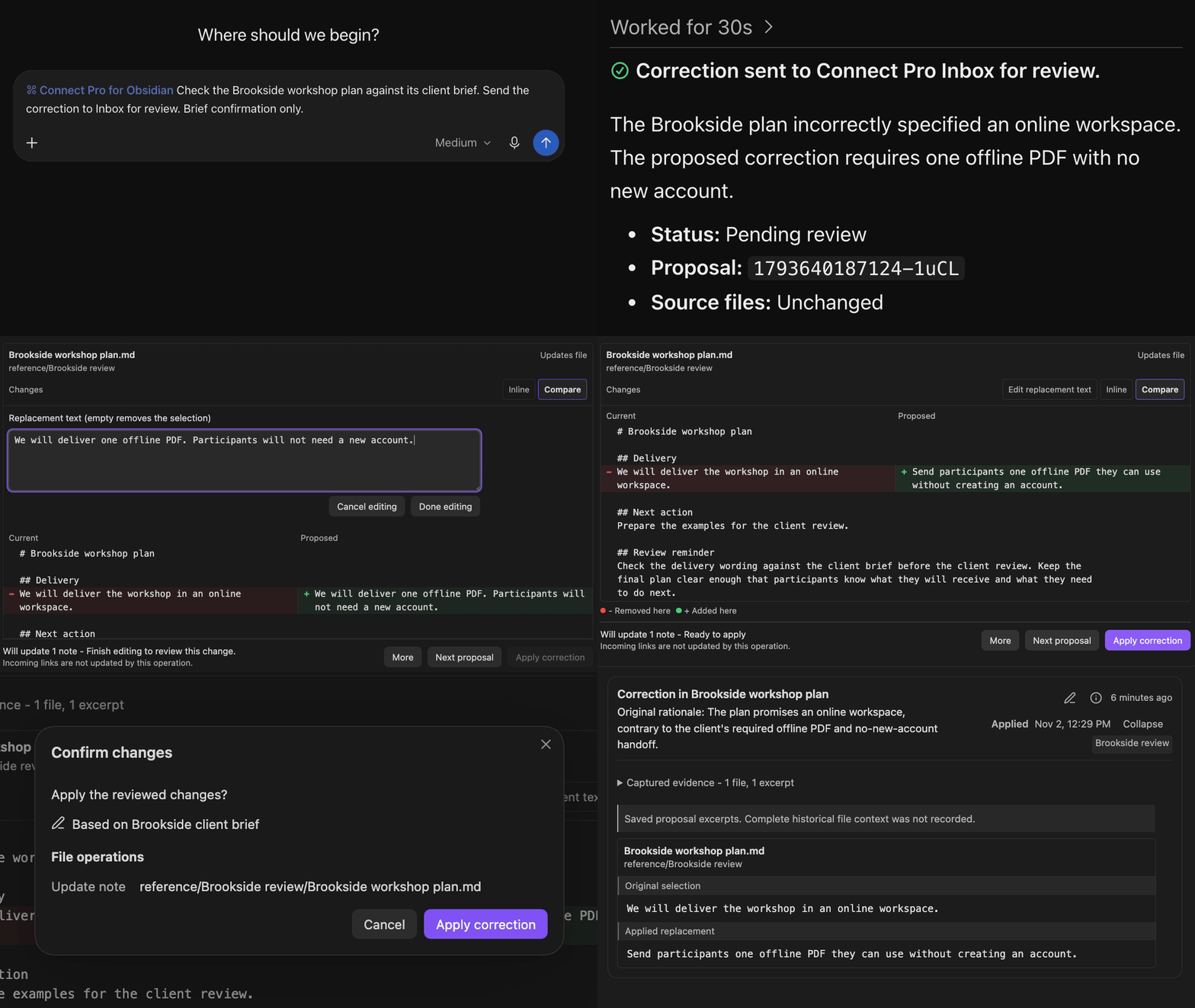
Wide and tall views of the ChatGPT-to-Inbox correction flow, including edited wording before approval. The review remains separate from applying the change.
Review a whole piece of work together
A single proposal can now create, improve, or reorganize content across one or several notes. Prepare a reusable copy, split a crowded note, or update a working note and its supporting summary together. Review every affected note and adjust the proposed wording before approving the complete proposal.
Larger reviews stay readable. When a proposal covers four or more files, a file list lets you inspect one comparison at a time, with Previous file and Next file controls. Narrow panes use a compact selector. Your edits stay with the proposal as you move between notes.
Viewed indicators help you see which comparisons you have opened, and final confirmation puts unopened files first. Viewed means opened, not approved. One approval still covers the complete proposal.
See what moves, what changes, and what stays
Choose Inline or Compare for corrections. Matching blue highlights connect moved passages with their destination, while retained text stays neutral and rewritten words remain easy to spot. Expand surrounding context when you need it, and check how the moved headings will fit into the destination.
Edit a correction inside its note panel or a moved passage inside its destination panel. Drafts, cursor position, and text selection stay in place as the review updates. Done editing keeps your proposed wording for review; applying it is a separate decision.
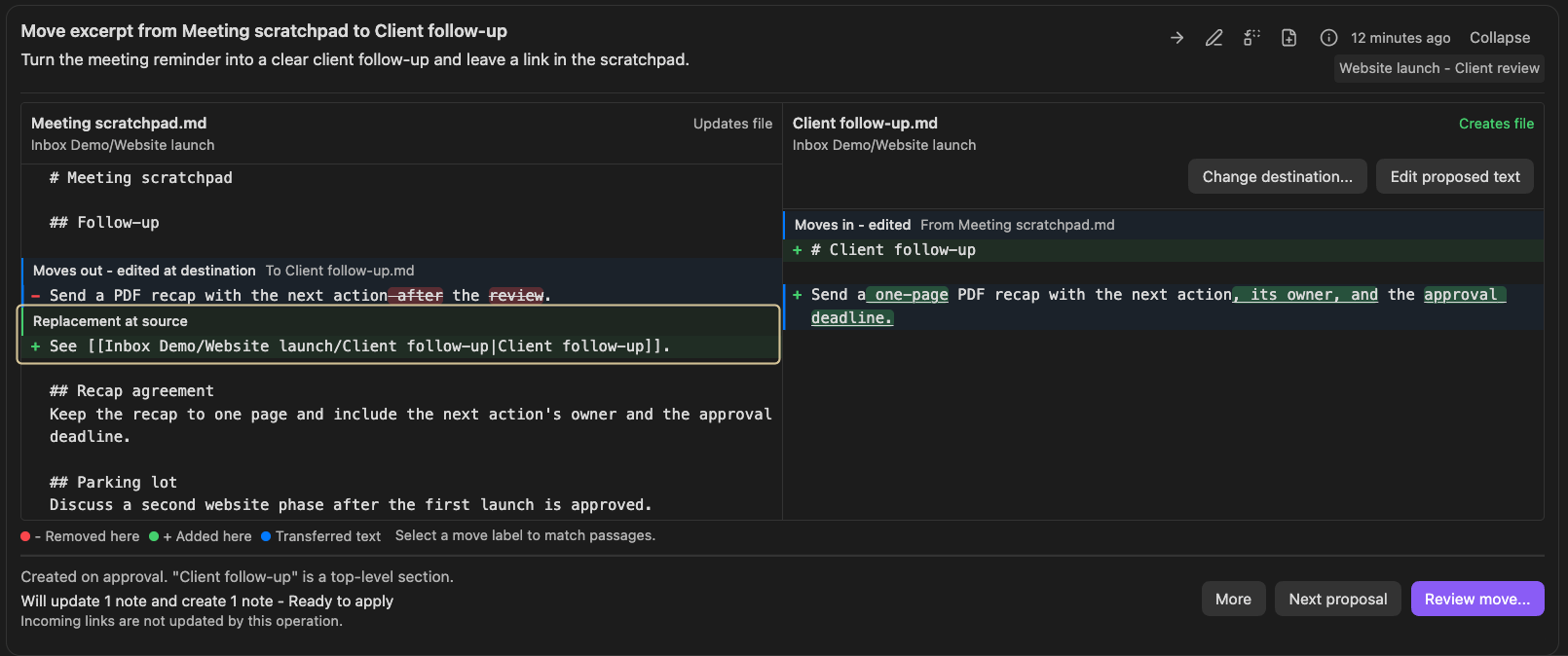
This pending move would turn a meeting reminder into a fuller follow-up and leave a link in the scratchpad. The surrounding agreement and Parking lot stay in place. The new note is created only on approval.
Merge complete notes with the consequences in view
Bring a complete note into an existing note or a new one. Compare the full source with the proposed insertion, edit the wording if needed, then review one final confirmation. The intact original moves to trash only after the destination is saved and verified.
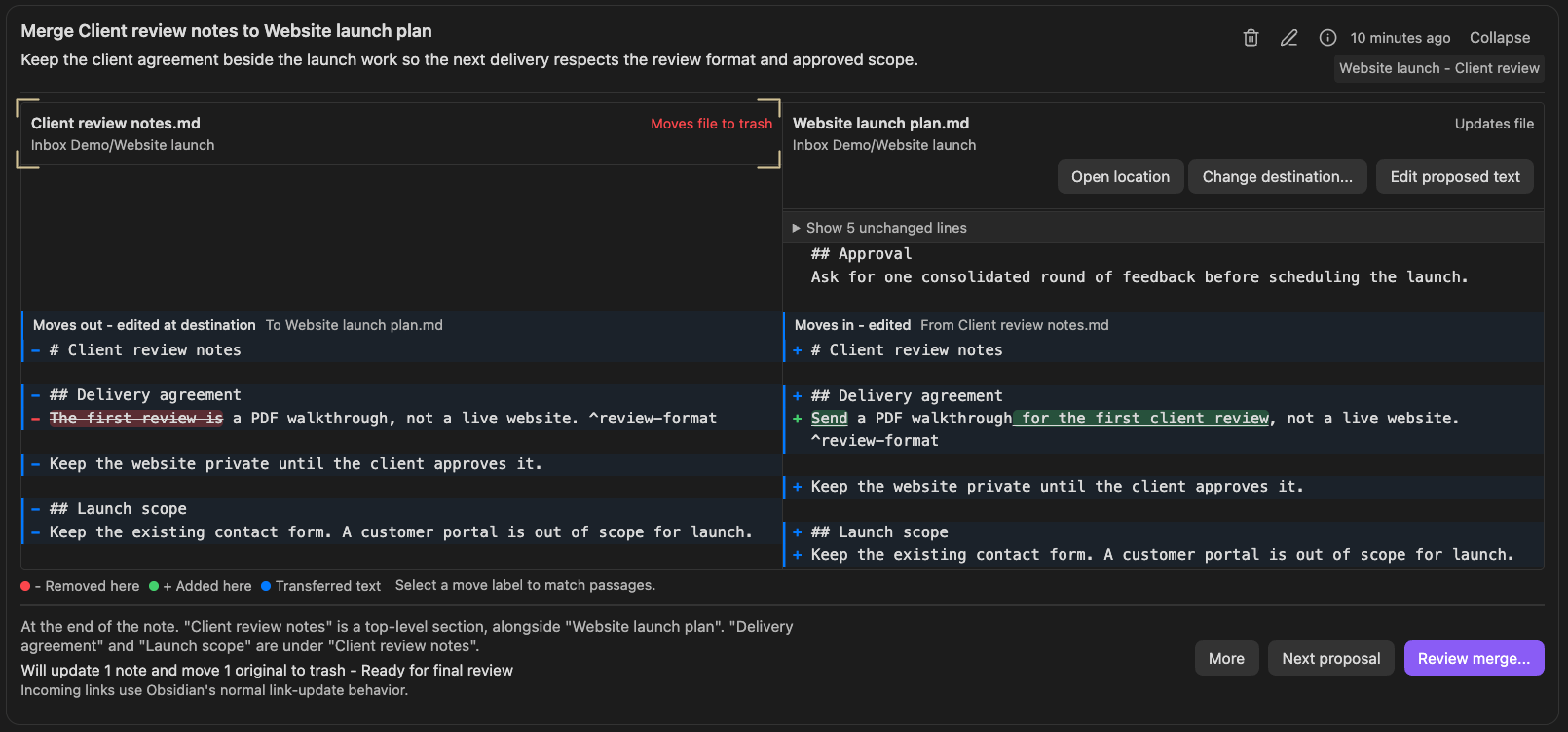
Client review notes is still pending for merge into Website launch plan. The comparison shows the rewritten delivery instruction and the source note's proposed move to trash; no merge has been applied.
Whole-note merges use Obsidian's normal link-update behavior. Depending on your preference, Obsidian may ask whether to update incoming links after the merge. Connect Pro reports the saved content and link outcome separately, including references that still need attention. Declining a link update leaves the merge applied; inspect the result without repeating the merge.
Watch a completed merge and its link-update outcome:
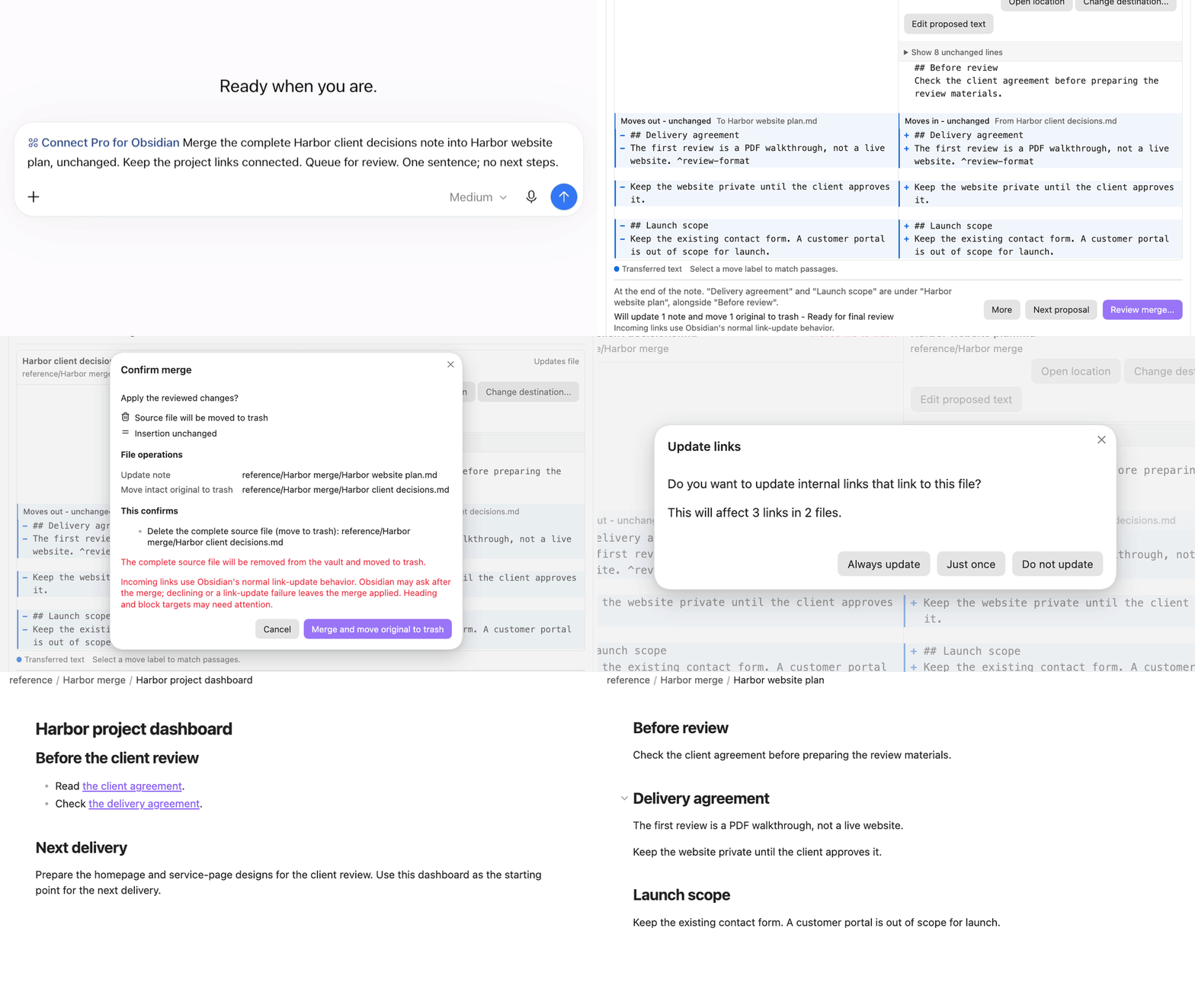
Wide and tall views of the complete-note merge and updated-link workflow. Actual link updates follow your Obsidian preference; the content merge and link outcome are recorded separately.
If the source changes while a whole-note merge is pending, reopen or refresh the same proposal to review the current source. Your rewritten insertion stays intact. An untouched insertion that simply carries the source across follows the refreshed source instead.
Keep useful decisions and come back when needed
Add an optional comment when rejecting a proposal so a connected assistant can understand that decision. Use Return to Pending to reconsider a rejected proposal without changing your notes. Previous feedback is ready to keep, edit, or clear at the next rejection.
History now opens 50 proposals at a time, with Newer and Older controls. Counts and group filters still cover the full history. Pending work stays oldest first, with group labels, proposal ages, and explanations that make the next review easier to find.
Try one useful improvement
Open the ChatGPT plugin, check the intended vault and available tools, and start with a note you recognize. Ask for one concrete improvement to be prepared for review, then open Smart Inbox to inspect it.
Use Getting started for connection requirements, the Inbox guide for review behavior, or examples for a useful place to begin.
Release notes
v2.1.0
ChatGPT connection and tool access
- Added a ChatGPT plugin connection through Remote MCP, with its own enablement and connection status. It is off by default and requires the current authenticated Connect session.
- Added an Open ChatGPT plugin button to ChatGPT (Remote MCP) settings and a plugin link to the status bar menu. Both are available before connecting and open the same plugin page.
- Added Remote MCP setup guidance, connection controls, and readiness information in settings; removed deprecated setup instructions.
- Remote MCP uses a private local listener and authenticated encrypted transport tied to the current account and Connect session. The matching Connect service support is required for the remote connection.
- Kept Local MCP available independently of the Connect session, with separate connection controls for Local MCP, Remote MCP, and Remote GPT. Remote MCP still depends on the Connect session even though its switch is separate.
- Replaced separate Local/Remote tool switches with one shared MCP availability switch per Smart action, while retaining the separate CLI switch.
- Added shared MCP availability controls for eligible native Obsidian commands exposed as individual tools. Each dedicated tool keeps its own command-specific inputs.
- Local and Remote MCP use the same definitions and behavior for mutually eligible tools. Their available tool lists can differ because broad command execution is restricted to Local MCP.
- Preserved explicit Off choices when combining older Local/Remote preferences. Settings are saved before the new controls become available; CLI choices, the local port, Remote enablement, and unrelated settings are retained.
- Excluded the generic
obsidian_clitool from Remote MCP, including renamed versions of the same broad executor. Shared tool preferences cannot override that exclusion. - Labeled Broad CLI access as Local MCP only. When enabled, it can still reach native commands whose individual tool switches are off; those switches control the dedicated tools, not the broad local executor.
- Kept eligible dedicated tools subject to their own availability settings on either MCP route, including after access is revoked. Existing Local MCP broad access and legacy Remote GPT access remain available through their respective controls.
- Improved readiness recovery and support for both empty and larger tool lists.
Related changes across notes
- Added proposals that create, revise, or reorganize content across one or several notes in one review, with editable proposed wording and a view of every affected note.
- Supported larger organizing tasks such as splitting a mixed note, bringing related guidance together, creating a reusable copy, and keeping a summary or checklist aligned with its main note.
- Added insertion choices at the beginning or end of a destination, or before or after a specific line. The selected line remains intact, and insertion at the beginning preserves note properties.
- Reject missing or ambiguous insertion locations instead of silently placing text somewhere else.
- Improved note and edit counts, grouped supporting references by note, and added explanations for insertion-only changes.
- Changed insertion highlighting so unchanged neighboring text no longer appears deleted. Actual replacements and removals remain marked.
- Ordered suggested edits by their position in each note, with matching Edit numbers connecting fields to highlighted changes.
- Made editing fields fit their contents, reduced repeated paths, and added navigation between a highlighted change and its editor.
- Added a file list and one readable comparison for proposals affecting four or more files, with Previous file and Next file controls and a compact selector in narrow panes.
- Shortened file rows while keeping edit counts and outcomes visible. Shared folder paths appear once, and exact paths remain available to distinguish notes with the same name.
- Preserved proposed wording when switching files. Cancel editing restores the complete editing session, including files that are not currently visible.
- Added Viewed indicators for comparisons opened during the current Inbox session. An indicator resets when that file's comparison changes.
- Listed unopened files first in final confirmation. Viewed indicates an opened comparison, not approval; one approval covers the entire proposal without separate file decisions.
- Kept originally captured supporting evidence available when a reference note changes. Confirmed changes receive a brief yellow warning without blocking an otherwise-ready proposal.
- Distinguished missing or unverified reference information from a confirmed change. Reference status updates automatically without a separate refresh button.
- Continued to stop application when a note that will actually be changed no longer matches the reviewed version. Supporting-reference warnings do not weaken the checks on affected notes.
Complete-note merges and link handling
- Added complete-note merges into either an existing note or a new note, with the full source and destination insertion available for review and editing.
- Move the intact original to trash only after the destination is saved and verified. Ordinary excerpt and selected-section moves retain their source notes.
- Included native Obsidian link handling for source-removing merges, including older pending proposals. Your Obsidian preference determines whether link updates happen automatically or prompt for a choice.
- Perform incoming-link discovery and updates during application, after content consent, rather than requiring a separate preflight link table.
- Report references that cannot be updated, including heading or block targets that need attention. An unsupported reference does not prevent other eligible references from being handled.
- Show content-merge and link-update outcomes separately. Declined, unavailable, or failed link updating leaves the content merge applied; it does not call for applying the merge again.
- Refresh the full current source when reopening or refreshing a pending whole-note merge, including after formatting changes, without requiring a new proposal.
- Keep rewritten insertions and reviewer edits during source refresh. An untouched insertion that matches the original source follows the refreshed source instead.
- Stop a stale merge if affected files change after confirmation, and refresh the review for a new confirmation. Nothing is applied again automatically.
A more readable Inbox review
- Added Inline and Compare layouts for corrections, with highlights for both small edits and larger rewrites. Compare is the current name for the earlier Side by side option.
- Adapted comparisons to the available space, with readable stacked or full-width layouts in narrower panes and room for two full columns in wider windows.
- Matched explanation text, editors, and comparison columns to Obsidian's editor reading width.
- Distinguished transferred text from actual additions and removals, including moves into a new file. Matching blue highlights help connect source passages with their destination.
- Used neutral grey for Kept here content so retained text is easier to distinguish from transferred text.
- Showed replacement or continuity text left at a move's source in its own comparison beneath the original selection.
- Made source outcomes explicit: retained note, empty note, or original moving to trash.
- Kept destination parent headings visible while allowing surrounding unchanged content to stay collapsed until needed.
- Added placement summaries showing where moved sections land, which headings remain alongside each other, and which become nested under another heading.
- Extended placement explanations to excerpt moves and whole-note merges, including destination sections that become part of a moved section. Plain-text moves keep a shorter summary.
- Kept placement summaries current after editing the insertion or changing destinations, and visible after Open location.
- Made single-section move titles identify the selected content and destination note.
- Moved the proposing assistant's explanation directly below the title, with expandable text and a Proposal details dialog for the full reason, locations, and change descriptions.
- Grouped compact change icons, timestamps, and review controls on the right, with the group label underneath. Collapsed cards show proposal age.
- Centered proposal cards and aligned collapsed cards with the width of the open review.
- Allowed explanations, preview text, and Proposal details to be selected and copied.
- Put correction editing inside the affected note's panel and moved-text editing inside the destination panel, with nearby controls and clearer button spacing.
- Placed reference evidence and placement details below the changes, and removed the repeated destination label.
- Let note names open their notes and folder paths copy their locations.
- Preserved insertion drafts, cursor position, selection, and position within the editor when layouts or previews refresh.
- Replaced inline approval checkboxes with one final confirmation showing the change descriptions, affected files, and relevant link consequences. Cancel returns to the pending review without applying changes.
- Kept decision controls available while inspecting a long review, with additional proposal actions under More.
Groups, feedback, and History
- Kept pending proposals oldest first and removed proposal-priority metadata and its associated behavior.
- Improved Add to group and group changes through the inline group label, and added stored group descriptions.
- Updated the Inbox when group information changes, including the active group filter.
- Prevented duplicate proposals while shared group metadata is being saved, and improved handling when group metadata cannot be loaded.
- Added optional reviewer feedback when rejecting a proposal. Connected assistants can retrieve that feedback alongside the saved decision; it remains distinct from the proposing assistant's original reason.
- Added History pages of 50 proposals with Newer and Older controls. Counts and group filters continue to cover the full history.
- Added Return to Pending for rejected proposals, allowing another review without changing source notes.
- Preserved and prefilled previous rejection comments. Keep, edit, or clear them before confirming; Cancel leaves the saved feedback unchanged.
- Added removal of unwanted pending proposals through More, without changing source notes or recording a rejection.
- Let connected assistants remove multiple pending proposals in one request, with clear reporting of completed removals if a later removal cannot be finished.
Optional review of Obsidian CLI writes
- Added Review Obsidian CLI writes, off by default, to hold Connect-mediated native commands classified as writes in the Inbox before they run. Read-only commands continue normally.
- Show exact file changes for supported note-creation and inline-append requests. Other write requests show the captured command and parameters for review.
- Apply this review option to native commands routed through Connect, including eligible dedicated MCP commands, the local broad CLI tool, and the legacy GPT CLI route. Commands outside Connect and separate Smart Tools are not globally intercepted.
- Leave already-pending proposals in the Inbox when the option is turned off. Turning it off does not apply them.
Connection reliability and settings
- Added a configurable Local MCP port in Advanced settings.
- Reduced port-unavailable errors when stopping and restarting the local server.
- Improved Remote MCP capacity handling and replenishment of available request channels.
- Improved connection shutdown handling and teardown diagnostics.
- Improved tunnel health checks with cancellation and tracking of successive failures.
- Stopped Connect and Remote MCP from repeatedly retrying rejected credentials after authentication failures. A successful user sign-in clears the stop; background token refresh, reconnecting, toggling settings, or reloading does not substitute for signing in again. Standalone Local MCP remains independent.
- Added clearer sign-in and renewal guidance for desktop authentication rejections.
- Fixed the settings button that opens the Pro plugins browser.
- Improved the Connect Pro plugin icon and registered ribbon actions during initialization while preserving their ordering.
- Removed the unused default Preview/Diff/Details tab setting that had been introduced during development.
Compatibility and maintenance
- Clarified the assistant-facing descriptions of correction, selected-block move, and excerpt-move tools, including review freshness and the meaning of saved review feedback.
- Consolidated Remote MCP into one implementation, removing the unshipped reader-only path, compatibility branches, custom version/policy negotiation, obsolete permission-copy logic, and obsolete remote command-gating logic.
- Retired separate remote-tool preference fields and the obsolete remote policy marker while preserving the saved Remote switch and shared tool choices.
- Retained the existing MCP SDK v2, actual protocol handling, account/key authentication, session binding, and legacy routes. Authenticated service-capability checks still precede private-key enrollment.
- Removed temporary tool-inventory and request dumps while retaining useful diagnostics.
- Expanded checks for shared tool availability, settings-save failures, live tool-list changes, broad local access, independent connection controls, and Remote MCP settings states.
- Updated Local/Remote compatibility checks to compare mutually eligible tools, and added coverage for renamed broad executors, revoked dedicated tools, and reported tool effects.
- Expanded checks for group descriptions, filtering, decision handling, review freshness, and attribution of saved proposal history.