
Connect Pro documentation
Use your notes from an AI app without copying them into every conversation. Connect Pro exposes enabled tools in your running Obsidian vault: read a source, find related material, inspect a Smart Context, or propose a specific change for review.
New connection? Start with Getting started. Already connected? Choose an example. Need to fix something? Open troubleshooting.
In this guide
Examples | Connections | Permissions | Inbox review | Practice a correction | Review feedback | Recovery | Smart CLI
Examples and workflows
Start with a read-oriented task. Choose your Connect Pro connection in the app and replace the bracketed values before sending a prompt. Use Tool permissions and the app's current tool list to check availability; installed plugins and access settings determine which examples you can run.
These prompts request limited tasks. They do not replace access controls, and inputs and returned content may be processed by the app's model provider.
Resume from recent notes
Find a useful place to pick up your work without opening every recent note.
Use only Connect Pro for "[vault name]".
Use the read-only recents tool or command to list up to five recent
note references. Do not read their contents or change anything.
If the tool is unavailable, tell me rather than using another connection.
What to expect: note names or references, not note bodies. The tool may return more entries than the app displays; an empty list is valid. Choose one returned note to read next.
Requires: the native recents command and Obsidian CLI support. For its dedicated Local MCP tool, enable that tool's individual switch. Remote GPT uses the native command through its CLI connection.
Find notes about a topic
Find material related by meaning, then decide which sources deserve a closer read.
Use only Connect Pro for "[vault name]".
Find up to five notes about "[topic]" using Smart Lookup.
Use query="[topic]", limit=5, results_collection_key="smart_sources",
and include_content=false. Show the source references and relevance
information actually returned, not quotations or summaries of note text.
Do not change anything. Report a missing tool or index/provider error
instead of using another connection.
What to expect: references you can choose to read, not summaries of their contents. No matches is a valid result. Semantic search may use the configured embedding provider even though this request does not return note bodies.
Requires: Smart Lookup, a ready semantic index/provider, and the permitted smart_lookup_query tool. Remote GPT uses smart:lookup:query with the same arguments.
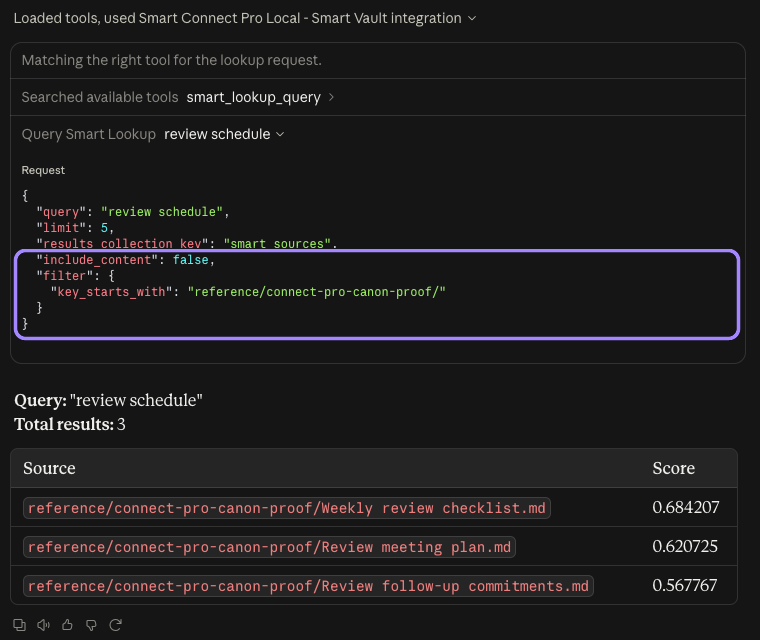
Earlier-release example, captured with Connect Pro 2.0.1: search within the demo folder for source references, then choose which notes to read. This request did not return their full text.
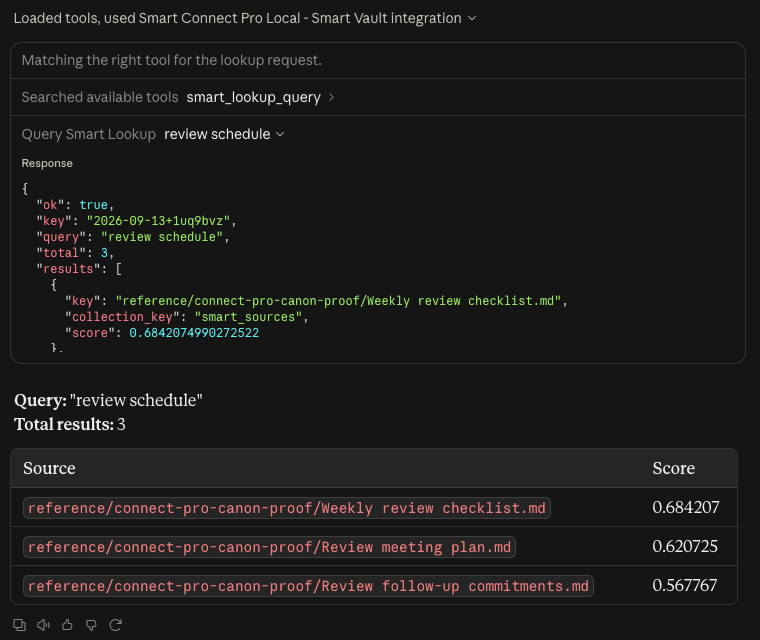
Same call, a different native result-panel scroll position. The response reports three matches; only its first result object is visible here. The three-row table is the assistant's reference-only answer, not the complete native JSON.
Inspect a named Smart Context
Check what you have already collected for a task before sending its contents to an app.
Use only Connect Pro for "[vault name]".
Get the existing Smart Context "[context name]" using
name="[context name]" and output_type="manifest".
Show its returned name, description, item count, and item references.
Do not export source text, create a context, or change its membership.
If it is unavailable, tell me rather than using another connection.
What to expect: the saved context's membership, not the contents of its notes. Names and descriptions can also contain private information. Select a member to read, or deliberately request a content export afterward.
Requires: Smart Context and smart_context_get (smart:context:get through Remote GPT). To find an existing name first, use smart_context_list or smart:contexts.
Workflows that create review items or change data
To change notes through review, practice one correction or learn the move controls. A proposal creates a pending Inbox item; applying it is a separate action in Obsidian.
Creating a Smart Context is a direct data change, not an Inbox proposal. With the relevant tools enabled, choose a new name and exact source, use smart_context_create followed by smart_context_add, then inspect the manifest. If only creation succeeds, inspect that context before retrying the add; do not repeatedly create new contexts. Use the installed tools' argument requirements.
Select and check a connection
Keep the intended vault open in Obsidian Desktop. The setup guide contains the requirements and client instructions; settings supplies this installation's URL and Claude extension.
| Connection | Use it for | Start here |
|---|---|---|
| Local MCP | A desktop app making requests on this computer | Desktop setup |
| Remote GPT | The dedicated Smart Connect Pro GPT | Connect and open the GPT |
| Smart CLI | Registered Obsidian commands | CLI reference |
Local MCP and Remote GPT are independent. A running server means it can accept requests; a successful read confirms that the app used the intended vault. Local transport does not mean the app's model runs locally.
Choose a Local MCP port
Open Advanced > Local MCP port to set an integer from 1024 to 65535. Apply saves the port and restarts Local MCP if it is enabled. Existing desktop-app configurations must then use the new Server URL; changing the port does not update those clients automatically. Leave a working port unchanged unless you need a different one.
Understand tool permissions
Open Settings > Smart Connect Pro > Tool permissions. You can inspect access while connections are off.
| Control | What it controls |
|---|---|
| Smart actions: CLI + Remote GPT | The listed Smart action through Smart CLI and Remote GPT. |
| Smart actions: MCP | The listed action exposed as an MCP tool. |
| Standalone CLI tools (MCP) | Native commands exposed as separate MCP tools. |
| Broad CLI access (Local MCP) | The general obsidian_cli MCP tool, which can call native commands. |
On Local MCP, when Broad CLI access is on, a native command can remain callable through obsidian_cli even when its individual MCP switch is off. Remote MCP never exposes that generic dispatcher; dedicated native Tools must be individually enabled and eligible. Guarded Smart actions still honor their CLI switches. Turning broad access off removes that path; it does not disable separately enabled tools or Remote GPT's native commands.
These controls are not a global command allowlist. Other enabled tools can provide additional access, and unrelated CLI commands are outside these switches. New Smart actions default to enabled; the native default selection can include writes. Review the actual controls rather than assuming a read-only starting setup.
After changing permissions, refresh your app's tool list. A disabled Smart CLI action is blocked immediately, even if its command remains listed until Obsidian restarts.
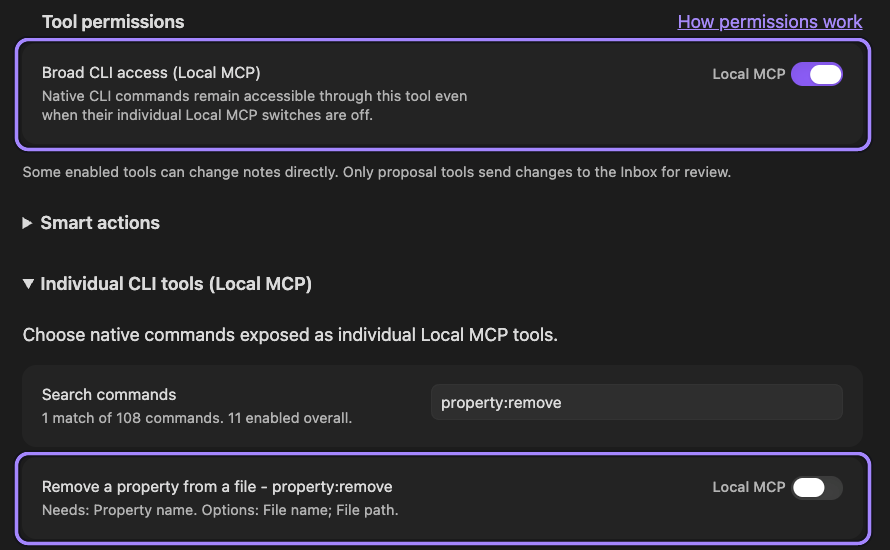
An individual MCP switch controls that dedicated tool. Broad CLI access provides a separate path to native commands.
Know whether a tool reads, proposes, or changes
A read returns information. A proposal saves an Inbox item for later review. A direct-write tool can change notes or Context data when invoked. Only the dedicated proposal tools defer their source changes to Inbox review. Client confirmation dialogs and tool effect labels are separate from that review process.
Keep a request focused
Choose the vault and exact note, block, or named context. Read current content before requesting a change. For blocks, use keys returned by the tools rather than constructing one from a heading.
When the result is unexpected, inspect the request before retrying. Advanced > Tool requests > View requests contains completed request payloads from the current Obsidian session. These can include note content. They are not saved Inbox History and do not include every failure.
Review proposed changes in the Inbox
The Inbox is where you decide whether a proposed correction, move, or complete-note merge belongs in your notes. Review the source and destination, edit the permitted insertion, then confirm the changes once. The workflow below describes Connect Pro 2.0.3.
Choose the right proposal tool
| Tool | Use it to | Keep in mind |
|---|---|---|
propose_correction |
Replace one exact claim using a reference excerpt | One independent phrase, sentence, list item, or table cell per proposal. The target excerpt must occur once in the selected target. |
propose_move_excerpt |
Move an exact passage, optionally rewriting its insertion | The source file remains unless a complete-note merge explicitly sets delete_source_file: true. This is a move, not a copy. |
propose_move_blocks |
Move complete selected blocks and their children, in order | Preserves text and heading levels. Whole-note keys, duplicates, and overlapping parent/child selections are invalid. |
Check whether the correction evidence actually supports the new wording. An older historical record should not be rewritten merely because a later decision differs.
A move must explicitly append to an existing destination or create a new .md or .txt note. Missing append targets and sections are not created automatically. A new destination file is created only when you apply the proposal.
Merge a complete note
Use propose_move_excerpt with a whole-note from_key, its entire exact current text as from_excerpt, and delete_source_file: true. Choose a different existing destination with destination_mode: append, or a new note path with destination_mode: create. Optional insert_text supplies a rewritten insertion; omit it to keep the source text unchanged. A complete-note merge cannot leave source_replacement text behind.
Review the result in Preview, compare the changes in Diff, then choose Review merge.... The final confirmation names the affected files and offers Merge and move original to trash. The intact original moves to trash only after the destination is saved and verified. This differs from moving a passage or selected blocks: those operations retain their source notes, even if a note becomes empty. Metadata is not automatically reconciled.
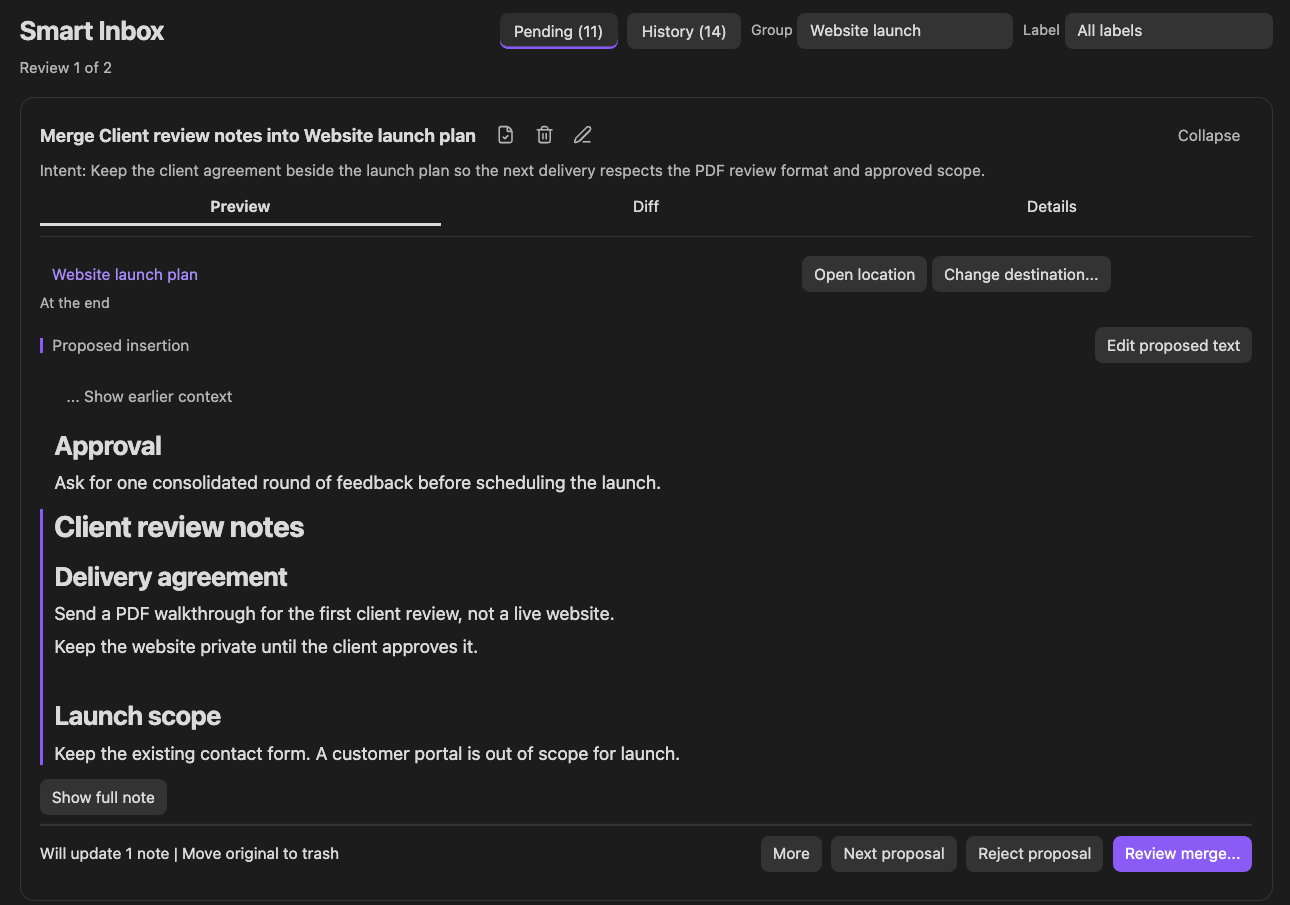
Read the proposed insertion as it will appear in the destination. The existing Approval passage remains separate from the insertion, and the footer identifies the original moving to trash. This is a pending review, not the saved result.
Source-removing merges include native Obsidian link handling, including older pending merges. No separate link_update_policy argument is needed. Link handling happens during execution, not as a required preflight reference table. Declining, unavailable support, or a link-update failure leaves the content merge applied; inspect the separate link result afterward.
Recognize a pending result
A successful proposal returns an item key, status: pending, and source_files_changed: false. The notes have not changed yet. Do not repeat the request just because it is waiting for review.
An identical, still-valid pending proposal returns the existing key with deduplicated: true. This detects an exact repeat, not a similar idea. Changing only its reason, priority, group, or label does not update that existing item. Rejection does not permanently suppress a future proposal.
Open and organize the Inbox
Use Settings > Smart Connect Pro > Review > Connect Pro Inbox, the ribbon action Open Connect Pro Inbox, or the Command Palette action Open: Connect Pro Inbox view.
Pending holds work awaiting a decision; History holds applied and rejected items. Group and Label filter independent proposals. Inline Group and Priority labels help identify the item; priority sets review order, not confidence or shared approval. Compact change icons summarize the proposed effects.
Inspect and refine the result
Pending excerpt moves and complete-note merges use three tabs:
| Tab | What to inspect |
|---|---|
| Preview | Read the formatted proposed insertion in its destination context. Expand earlier or later context, or use Show full note, when needed. |
| Diff | Choose Proposed rewrite to compare the selected source with its insertion, or Exact file changes to inspect the planned file edits. Source changes since proposal appears when a complete-note source has changed. |
| Details | Check File operations, Link behavior, and Source evidence. Use View exact changes for a named file or Refresh content review to read the current source again. |
The proposed-rewrite comparison is not the destination's before-and-after state. Shared text stays neutral; additions and removals show the actual rewrite. Wider panes can use side-by-side comparison; full-width layouts give longer passages more room. Destination parent headings and separately labeled context help locate the insertion.
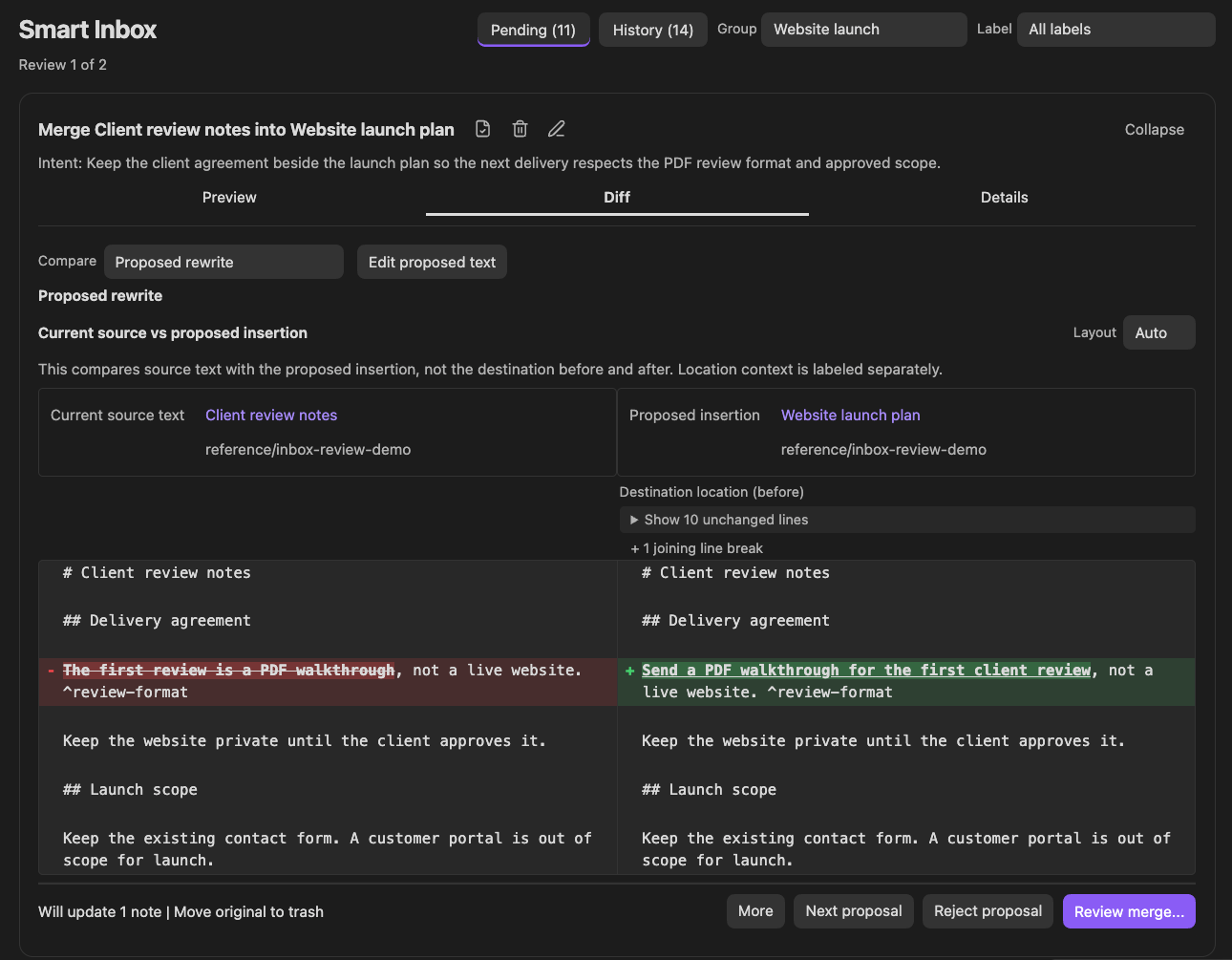
Proposed rewrite isolates the wording change while retaining the approval constraint and launch scope. Choose Exact file changes when you need to inspect each planned file edit instead.
When a move leaves continuity text behind, Text left in original shows that fixed replacement. View original remainder lets you inspect the retained source. Check the file outcome separately: moving an excerpt retains the source note; a complete-note merge moves the original to trash.
Use Edit proposed text for an excerpt or complete-note insertion. Corrections retain their own replacement editor rather than this tabbed review. Done editing keeps a local review draft; it does not apply the change or save a final decision. Cancel editing restores the text from the beginning of that editing session.
For tabbed moves, Change destination... opens the destination chooser. Select an existing note and insertion location, or Create new note....
For block moves, you can reorder the original selection; adding or removing blocks requires a new proposal. Check included child sections, heading placement, and source removals. Moving a heading does not automatically nest it under the destination heading. Ordinary passage and block moves do not retarget whole-note links.
Read the caller's intent and use Details or the available Proposal details action for the explanation, file operations, and proposal identity. Click a note name to open it; click its folder path to copy the location. The caller's explanation is context to assess, not proof that the change is correct. Corrections and selected-block moves keep their own review layouts; do not expect the three-tab layout on every proposal.
Understand link behavior before a complete-note merge
Open Details > Link behavior before confirming. Incoming links are handled during the merge using Obsidian; the pending review does not enumerate a preflight reference scope. Some references, including heading and block targets, may still need attention. Retargeting a note link does not automatically repair a missing or renamed anchor.
Obsidian's existing link-update preference controls whether links update automatically or prompt after the content merge. Declining, unavailable support, or a link-update failure does not undo the content merge. Inspect the recorded link result and affected notes afterward rather than assuming every reference was updated.
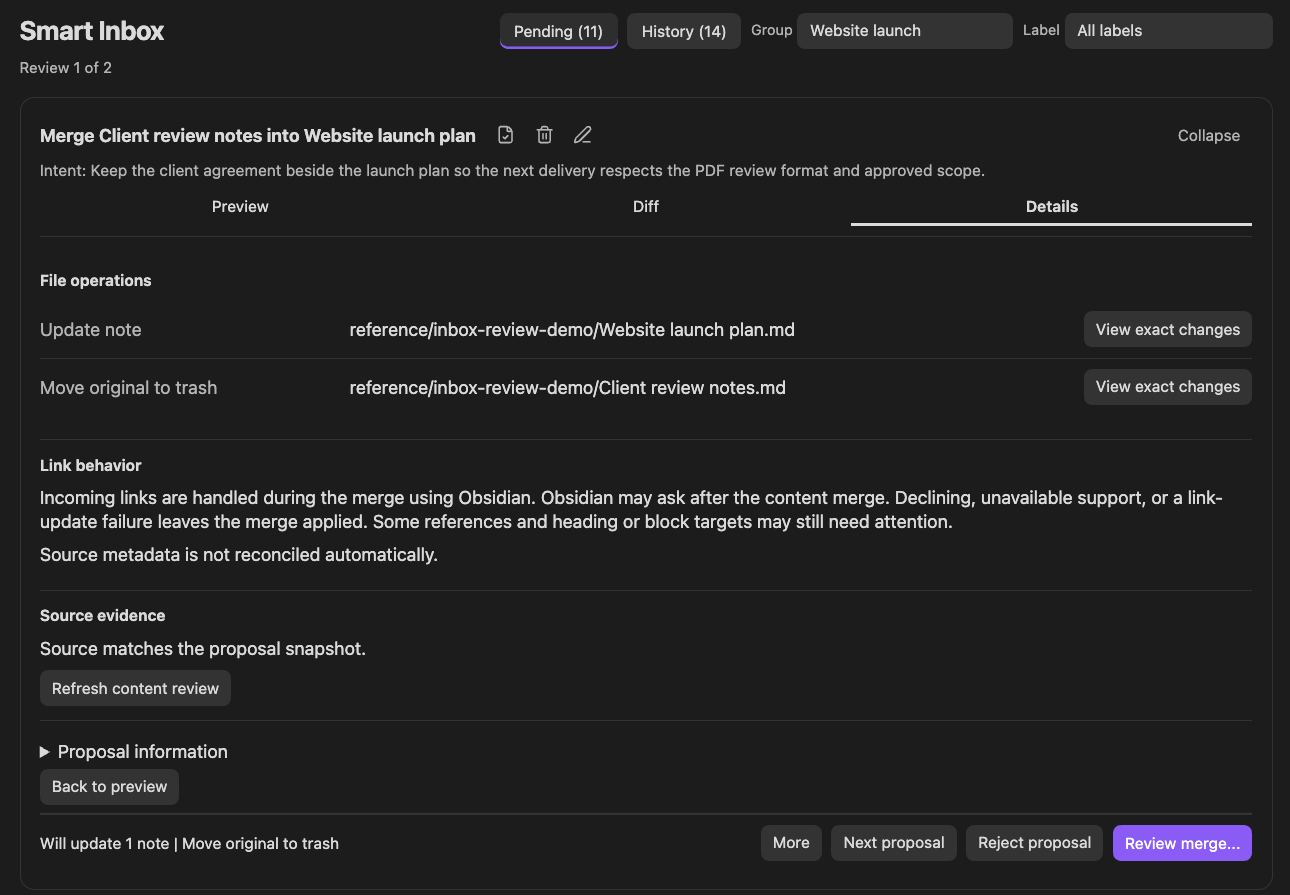
Details brings file consequences, link behavior, and source evidence together. The source matches the proposal snapshot at this checkpoint; a later source change is reviewed separately.
Keep reviewing when a source changes
Reopen a pending complete-note merge, or use Details > Source evidence > Refresh content review, to read the latest complete source without creating another proposal. An untouched, unchanged insertion follows the current source. A proposed rewrite or explicit insertion draft stays preserved.
When Source changed since proposal appears, choose Review source changes or Diff > Source changes since proposal to compare Source when proposed with Current source. This is separate from Proposed rewrite, which compares the current source and insertion. Review the new source evidence and deliberately incorporate anything the insertion still needs; refresh does not make that editorial decision for a preserved rewrite.
If files change after confirmation, the stale merge is stopped and the review refreshes for another confirmation. Nothing is applied again automatically. Partial excerpts and selected blocks still need a new proposal if their original selection no longer matches.
Confirm, reject, or leave for later
After the preview matches your intent, choose Review merge... or Review move... for a tabbed move, or the displayed apply action for another proposal. One final dialog, such as Confirm merge or Confirm move, summarizes the effects, affected files, and link consequences; there are no separate inline approval checkboxes. Cancel returns to the pending review without applying changes. Decision controls remain available while you inspect a long review.
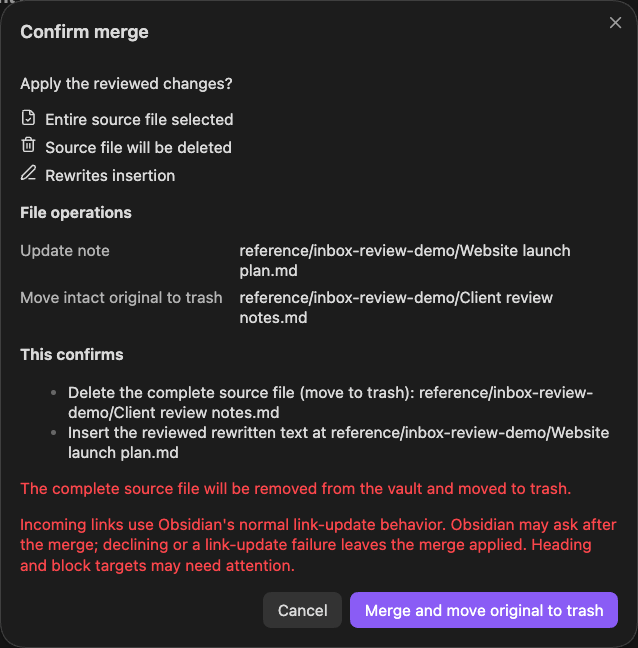
The final confirmation names both files and the reviewed rewrite. Cancel keeps the proposal pending.
Reject proposal records a decision without changing the source files. Next proposal leaves the current item pending and moves to the next review. More > Delete proposal... removes an unwanted proposal without recording rejection feedback or changing source notes. Applied and rejected items appear in History; History is not an Undo control.
For a complete-note merge, inspect the merge result and native-link result separately. Declining Obsidian's link prompt leaves the merge applied and links unchanged; unavailable support or a link-update failure also leaves the content merge applied. Do not repeat the merge to retry links. Open the destination and affected referring notes to verify the result; use any available link-only review or retry action for the recorded link scope.
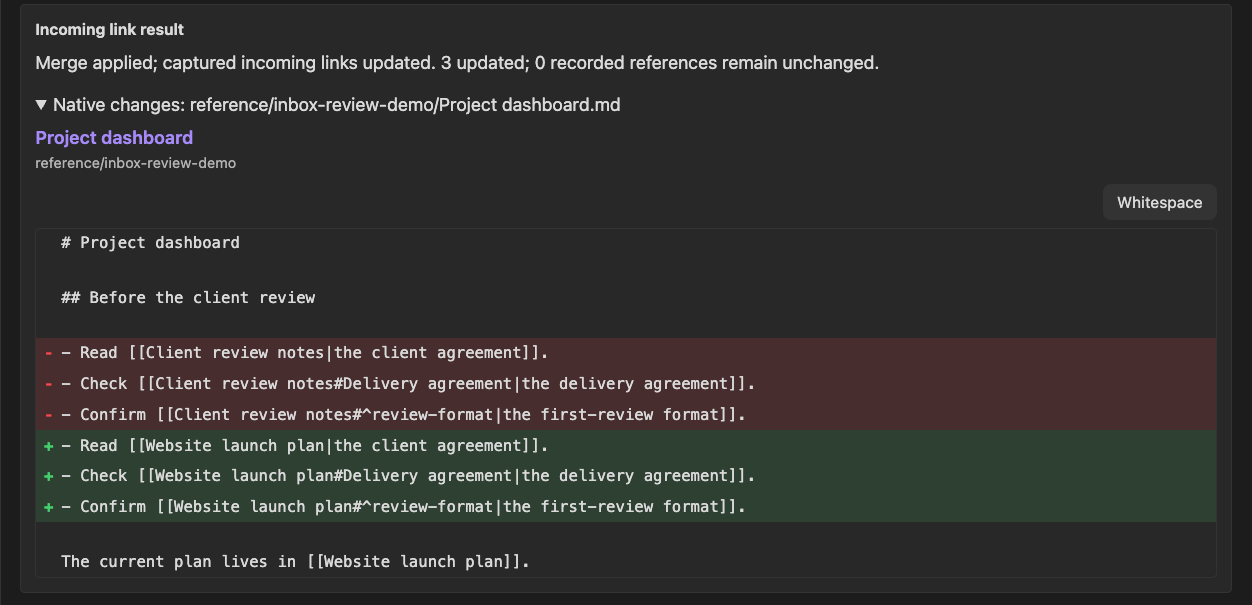
After inspecting the source update and adding its new PDF sentence to the preserved insertion, the reviewer confirmed this merge and chose Just once in Obsidian's link prompt. The three captured Project dashboard references now target Website launch plan, including the preserved heading and block reference. This proves the recorded successful link update, not universal reference coverage or repair of missing anchors.
Practice one reviewed change
After setup, use two disposable notes to learn the review loop. This exercise creates a saved proposal and changes the target only if you apply it. It is not a connection requirement.
Propose one correction
Manually prepare a reference note with The first review is a PDF walkthrough, not a live website. and a target with The first review will be a live website. Treat the PDF walkthrough as the agreed review format for this exercise. Replace the paths and vault name below:
Use only Connect Pro for "[vault name]".
Read "[reference note path]" and "[target note path]".
Use propose_correction to suggest replacing the target's live-website
claim with a PDF-walkthrough claim supported by the reference.
Make one proposal, leave it pending for review in Obsidian, and report
its item key. Do not use a direct-write tool or another connection.
The result should be pending, with source_files_changed: false. Check that the target still says the review will be a live website.
Review in Obsidian
Open the Inbox and review that item. Compare the reference evidence with the replacement. Edit the replacement only as needed, then inspect a current preview.
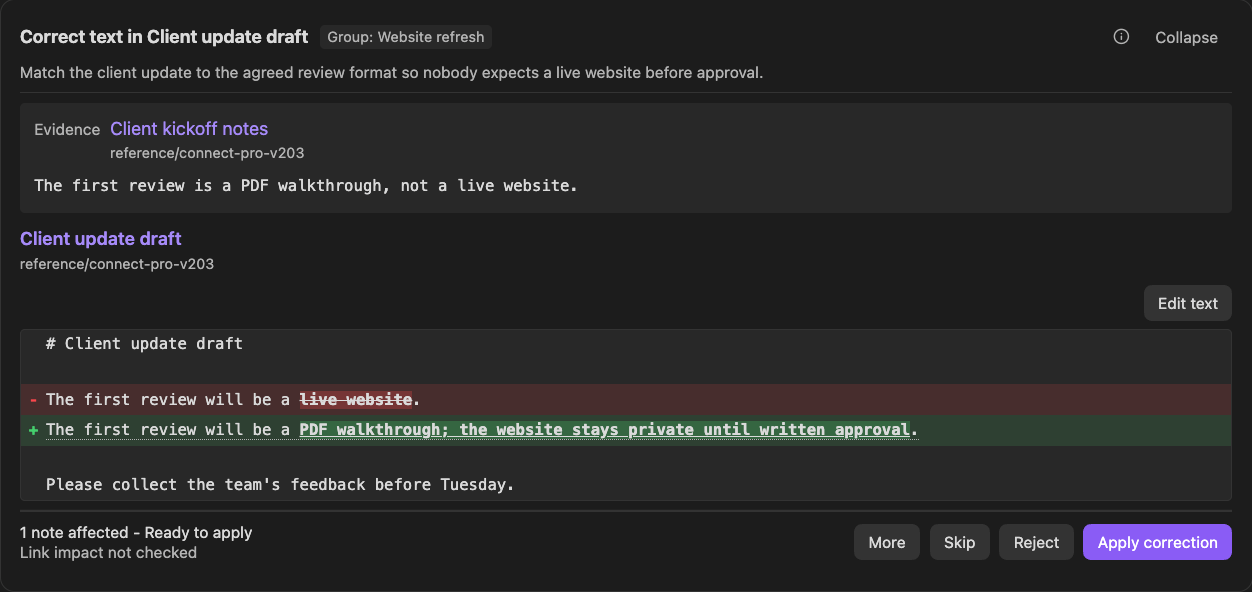
This client-project fixture also requires written approval before the website goes live. Check the full source before including that additional constraint in a proposal.
Apply or reject and inspect the outcome
Choose Apply correction, inspect the final confirmation, then confirm to make the target describe the PDF review. Choose Cancel to keep reviewing, or Reject proposal to retain the target and record rejection. Check the actual target and reference notes, then the item's History entry. The reference should be unchanged by the correction.
Read the decision and stop the route you used
When enabled, get_proposal_feedback can read the returned item key to show the recorded decision. It does not apply the proposal. Disconnect the connection you used when finished; stopping access does not undo an applied change.
Review a rewritten excerpt move
For a partial move, read the insertion in Preview, then use Diff > Proposed rewrite to compare it with the exact original passage. Edit proposed text and Done editing retain a review draft without applying it. Inspect Text left in original and View original remainder, then choose Review move.... The final confirmation offers Move and rewrite excerpt when the insertion is rewritten. After application, check both notes: the destination should contain the reviewed insertion, and the source should contain the reviewed replacement or remainder. Its original file remains unless this was explicitly a complete-note merge.
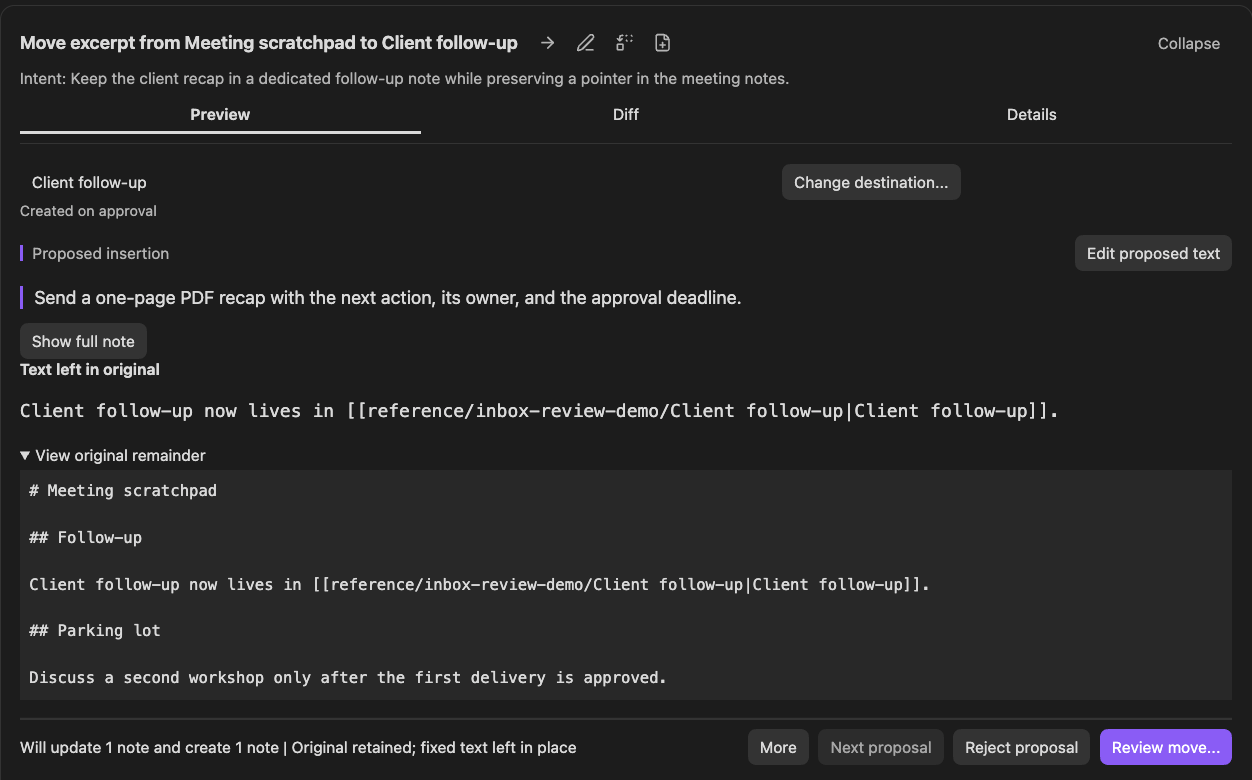
This separate proposal creates Client follow-up and leaves a deliberate pointer in Meeting scratchpad. View original remainder shows that the Parking lot remains. The screenshot is the pending preview; creation occurs only after confirmation.
Continue after the first result
Expand to a small project or review batch. Group and Label help find related items without combining approvals. Keep reading current sources before each new proposal; earlier decisions are context, not authorization.
Use proposal feedback
get_proposal_feedback returns saved proposals and decisions so an app can consult related review history. It does not read current source notes, make decisions, or automatically learn preferences.
Use an exact item key alone, or query a filtered list. Lists default to reviewed items, newest review first, and 10 results; limit accepts 1 through 25. Filters include status, proposal type, Group, and Label. Continue with the returned next_cursor as cursor alone, preserving the original query.
Applied-item comparison |
Meaning |
|---|---|
edited |
Original proposed and final applied values show what changed during review. |
unchanged |
The reviewable values matched. |
unknown |
Original comparison evidence is unavailable. Missing proposed values do not mean unchanged. |
A rejected item means the whole proposal was declined. proposal_reason is the proposer's rationale, not a human rejection reason. A pending item has no human decision.
Ground observations in item keys and relevant cases. Repeated items, a filtered page, or an empty result do not establish a general preference. Current instructions and current source text still govern the next task.
Understand approval, recovery, and stopping
Use Inbox review for the dedicated proposal tools. Other write-capable tools are not automatically held for approval there.
If a source changes, refresh and inspect the preview. Complete-note merges can continue with the same pending proposal and current source; preserved rewrites still need your review. For a partial excerpt or selected block that no longer matches, read current content and make a new proposal. If a new-note path becomes occupied, choose the intended destination again; creation does not silently become append.
Stop and inspect the named files and saved review state. A failed application can leave partial changes or an unresolved decision. The item stays blocked; simply inspecting or rejecting it does not repair files or clear the recovery requirement. Avoid a blind retry.
Connect Pro checks writes and attempts recovery after a partial failure, but it cannot guarantee full rollback across multiple files. The Inbox has no Undo command. Native link updates for complete-note merges are a separate recorded phase, not universal link or anchor repair. Keep a backup or version-history workflow.
An indexing warning after a successful application is different from a failed write. Inspect the notes and refresh indexing rather than applying the same change again.
Stopping Local MCP or disconnecting Remote GPT stops new requests through that connection. Neither control disables the other connection or Smart CLI, undoes changes, or guarantees cancellation of requests already running.
Access from another device
Local MCP is for an app on the same computer. Its 127.0.0.1 address is not a public endpoint. To use the dedicated GPT separately, follow Remote GPT setup and keep the desktop vault open; the local server's state does not establish remote availability.
Smart CLI Pro
Smart CLI exposes registered Obsidian commands for the same Smart actions. Enable host CLI support and check Advanced > Obsidian CLI integration. The installed command metadata determines available arguments.
| Smart tool | Smart CLI command |
|---|---|
smart_source_read |
smart:source:read |
smart_lookup_query |
smart:lookup:query |
smart_context_list |
smart:contexts |
smart_context_get |
smart:context:get |
propose_correction |
smart:propose:correction |
propose_move_excerpt |
smart:propose:move:excerpt |
propose_move_blocks |
smart:propose:move:blocks |
get_proposal_feedback |
smart:get:proposal:feedback |
These commands require the corresponding available, enabled action. A CLI proposal still creates a pending Inbox item. It does not bypass review.
smart_source_read uses an exact existing Smart Source key; for a vault note, use its source key rather than a block key or guessed title. A permitted native read command instead uses its own file-path arguments. Follow the live schema when resolving a note.
Older instructions may mention smart:help or smart:skills; they are not available commands in this implementation. Use the current command inventory instead.
Troubleshooting
Go to FAQ and troubleshooting for a symptom and its next check.
Related documentation
Getting started | Connect Pro FAQs | Smart Plugins documentation