
Set up Smart Chat API Extension to answer from approved notes
Use Smart Chat API Extension for answers from approved notes inside Obsidian. The model can be local or cloud.
Send one bounded question and receive one completed response from the intended model. Opening Chat, selecting a model, or attaching context is preparation, not the first win.
Smart Chat does not automatically send your whole vault. Prior conversation messages can carry forward, but attached source context does not automatically copy to the next response. Review or select the sources for each request.
Choose the correct Chat workflow
| Workflow | Use it when | Continue with |
|---|---|---|
| Core provider codeblocks | You want a provider web interface such as ChatGPT or Claude inside a note. No API model is required. | Smart Chat Getting Started |
| Universal Smart Chat codeblock (Pro) | You want one smart-chat codeblock that can hold supported provider web-thread references or Smart Chat API Extension thread references. |
Universal Smart Chat codeblock documentation |
| Smart Chat API Extension | You want a configured local or cloud model, approved sources, and saved responses inside Obsidian. | Continue below. |
Before you start
You need:
- Smart Chat Pro installed and enabled
- one compatible chat model
- valid provider credentials or a running local model server
- one small note whose facts you can verify
- Smart Environment retrieval readiness only when using Lookup context
One selected model is not enough. The model must pass its available Test action or complete a small request. If testing returns an authorization error such as 401, repair the credential before attaching sensitive sources.
Get the first written answer from approved notes
1. Confirm one working model
- Open Browse Smart Plugins.
- Make sure that Chat Pro is enabled.
- Open the Chat model controls in one of these locations:
- On the Chat Pro row, select Open settings.
- In Smart Environment settings, open the Chat model controls.
- Under Chat models, select + New.
- Select an enabled provider, such as PRO: Open Router (cloud), PRO: OpenAI (cloud), or PRO: Ollama (local, requires Ollama app).
- Enter the required provider fields.
- For a cloud provider, enter its API Key.
- For Ollama, enter the Ollama host.
- If you use Ollama, make sure that the Ollama app is running.
- If the provider must load its model list, select Refresh Models.
- Select Chat Model.
- Save or close the editor.
- If several models exist, select Default chat model.
- Make sure that the intended row is Current.
- Run Test on the row or Test model in the editor.
Stop if the interface shows MISSING MODEL, MISSING PROVIDER, or a failed test. Current means that the model is selected. Run the model test to check credentials, provider access, or the local server.
See Confirm or change the chat model.
2. Open or start a thread
Open Smart Chat in one of these ways:
- In the Command Palette under Smart Chat Pro, run Open Smart Chat.
- Select the Smart Chat ribbon action.
- Use an assigned hotkey.
Smart Chat resumes the active saved thread when possible. Otherwise it opens the newest non-deleted thread or creates a new one. Use New Chat when the resumed thread is not the right place for this test.
The toolbar also contains Chat History, Chat Settings, and Chat Help. Leave Chat History and Chat Manager until after the first completed response.
3. Write one bounded question
Open or make a small note whose claims and omissions you can verify. Write a question such as:
Using only the attached note, answer in exactly 3 short sentences.

Sentence 1: quote the approved headline.
Sentence 2: state the promise to avoid and why.
Sentence 3: name the missing page section that should be added next.

Do not suggest changing the approved headline or invent facts.
Writing the question first makes context selection inspectable and gives Lookup context a clear target.
4. Attach one known source or use Lookup context
- Use Add context when you know the grounding note.
- Type
@in the composer to choose context for the current response. - Use Lookup context when you know the question but not the source note.
- Use a saved named context when the required sources are already collected.
On the first response, enter at least three words or more than ten characters before expecting Lookup context to enable. After a completed response, Lookup can be available for a continuation.
For source controls and drag paths, use known-note context, Lookup context, and drag and drop.
5. Review the source set
Keep the smallest set containing the facts and constraints needed for the question. Remove unrelated, stale, duplicated, or untrusted sources.
When context is present, the button changes from Add context to Open context builder. Select Open context builder. Make sure that the intended sources are present before sending.
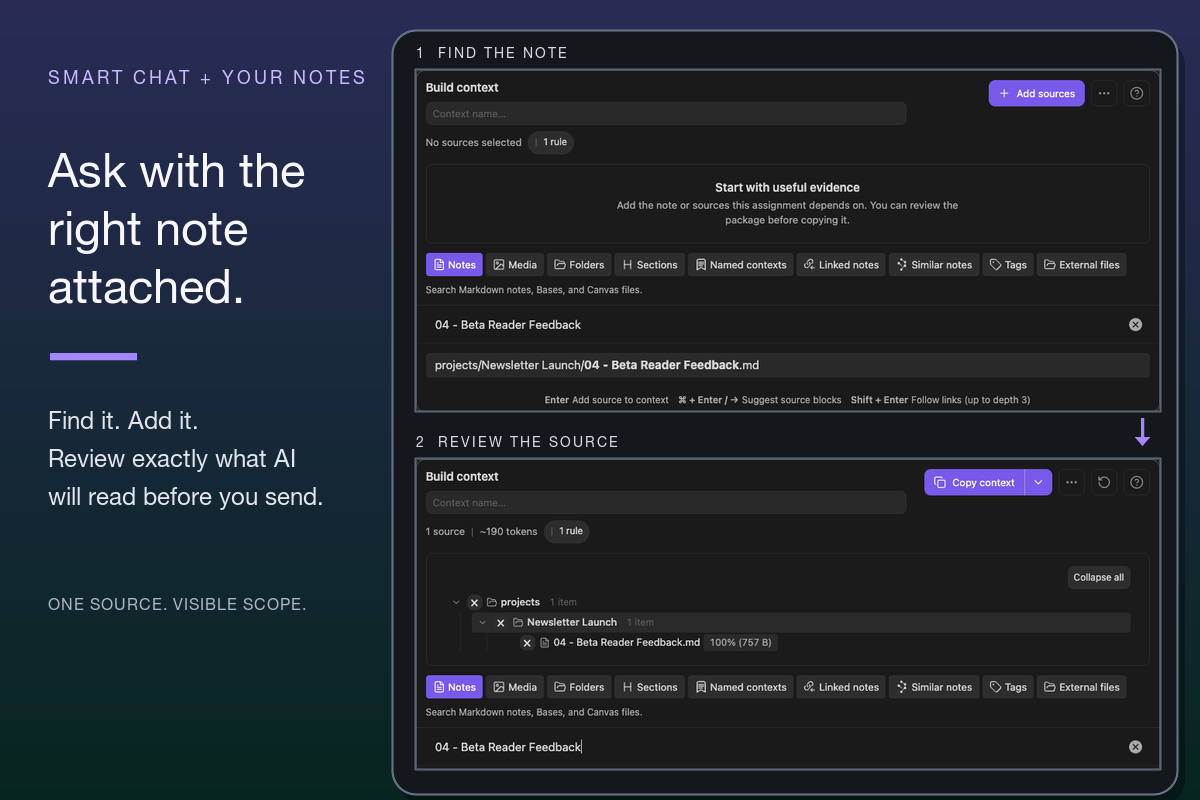
6. Send only after the request is inspectable
Make sure that the intended model, question, and approved sources are visible. Select Send or use the default Shift + Enter shortcut.
If no context is attached, Smart Chat asks whether to use Lookup context, Select context, Continue without context, or Cancel. For this workflow, cancel and attach the test note. Continuing without context can be valid for general chat, but it does not test an answer from approved notes.
After sending, expect the thread status to move through Typing or Generating... before the completed response appears. An Error state is a failed generation, not a response.
7. Verify before promoting the answer
Compare the answer with the attached note. Confirm that it quotes the approved headline exactly, states the promise to avoid and why, identifies the missing section, and does not invent a fact.
The completed response can show its model, attached context, user message, and assistant answer. Treat the answer as working material until its claims match the source.
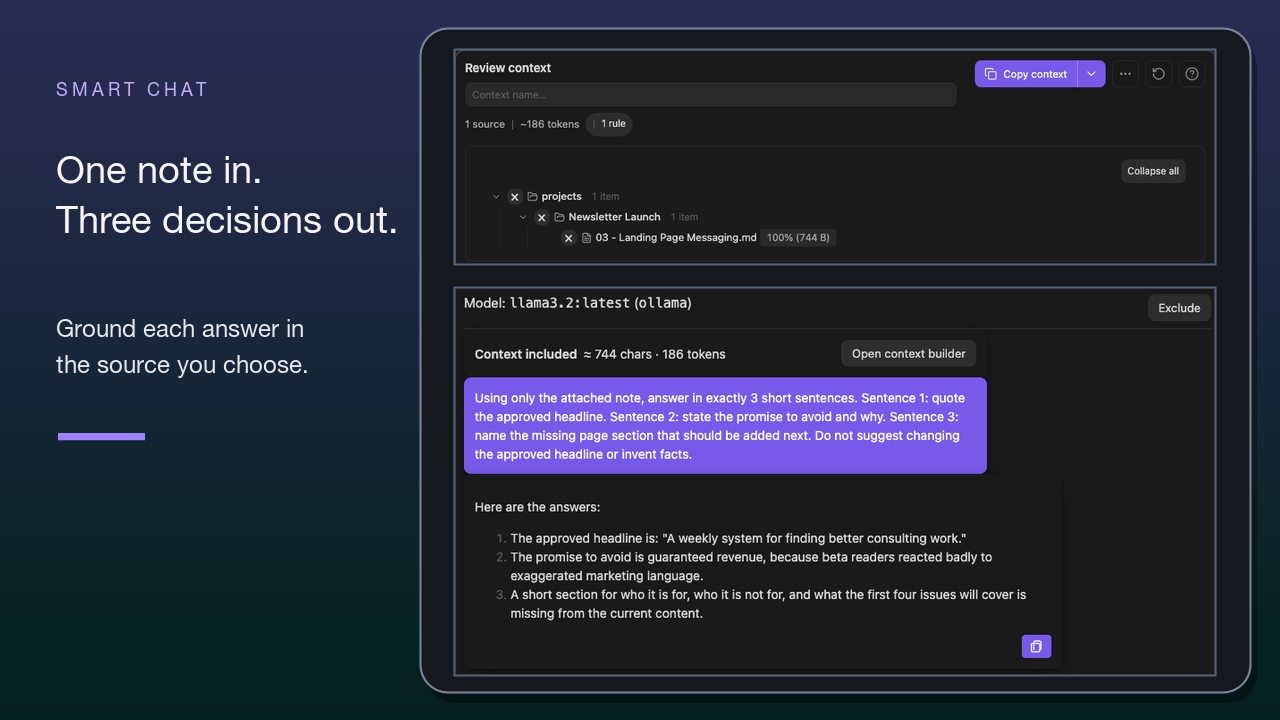
The selected local model, one-source context boundary, question, and completed answer are visible together.
You know it worked when
You know the workflow is available only after both checks below succeed.
| Success layer | First-win signal |
|---|---|
| Product result | The intended model, approved source set, user question, and completed response are visible in one thread. |
| Useful result | The answer follows the requested three-part structure, matches the attached note, and adds no unsupported facts. |
A fluent response that contradicts the source or introduces unsupported claims is not a useful first win.
Reopen and manage the successful thread
After the first response succeeds:
- Use Chat History to reopen a recent saved thread. History searches thread names and displayed recent user-prompt previews, not every word in every message.
- Press
Enterto open the selected History item. - Request deletion from History with the shortcut for your platform:
- On macOS, press
Cmd + Enter. - On other platforms, press
Ctrl + Enter.
- On macOS, press
- Before deletion, make sure that the named thread is correct.
- Run Open: Chat Manager view from the Command Palette under Smart Chat Pro. Use Chat Manager for search, rename, deletion, and counts.
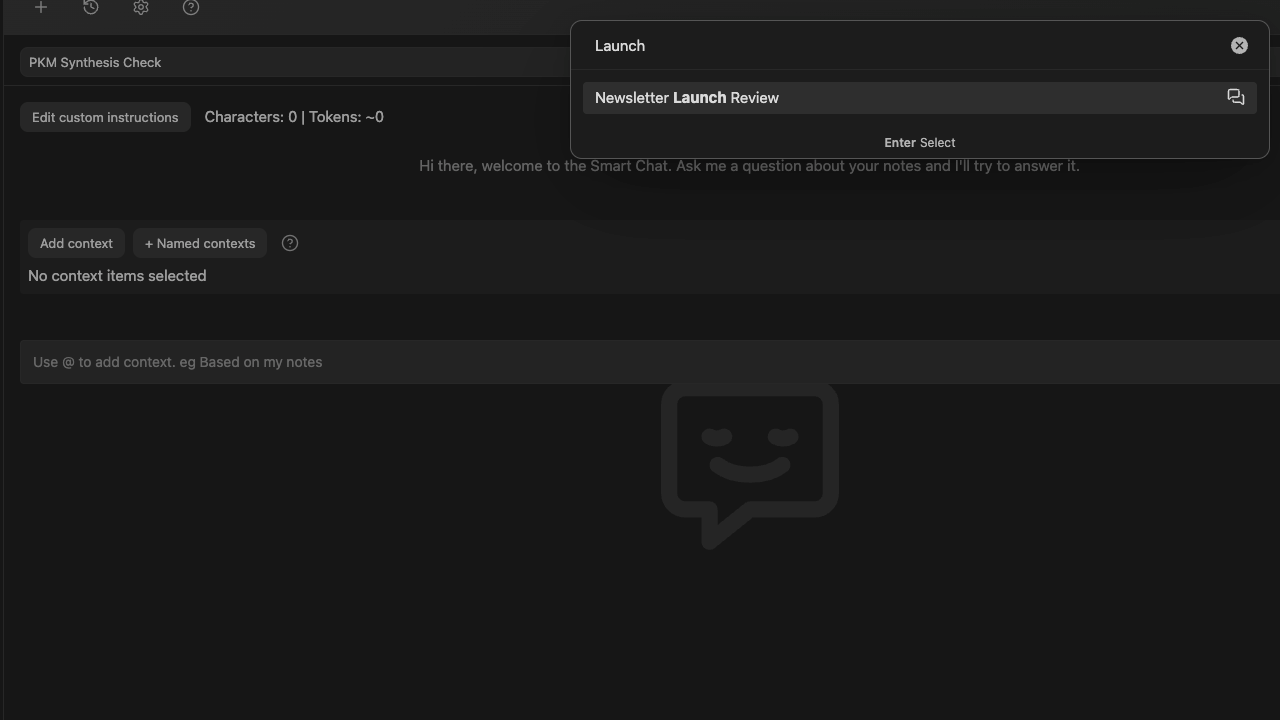
Press Enter to open the selected saved thread.
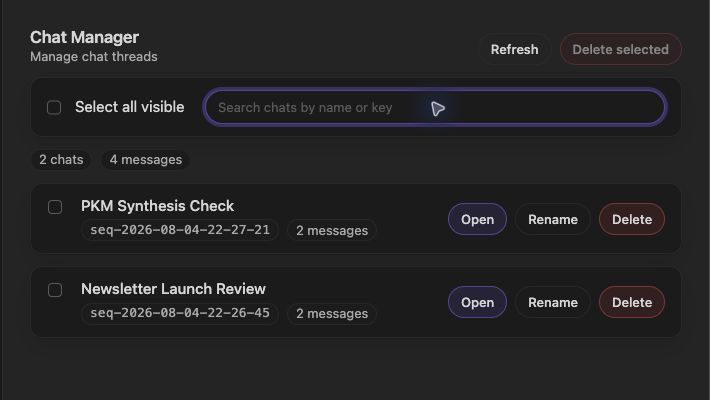
Use the row actions to open, rename, or delete the intended thread. Deletion requires confirmation.
Recover without changing everything at once
| Problem | First recovery | Detailed guidance |
|---|---|---|
MISSING MODEL |
Under Chat models, select + New. Complete the provider and Chat Model fields. Select the model under Default chat model. Make sure that the row is Current. Run Test or Test model. | Model setup |
MISSING PROVIDER |
Repair the provider, credential, or local server configuration. Run the model test again. | Model recovery |
Test returns 401 or another authorization error |
Replace or repair the provider credential. Do not send note content until the test succeeds. | Model recovery |
Error after sending |
Keep the same bounded prompt. Correct the reported model or provider problem. Retry once. | Model recovery |
| Weak Lookup candidates | Make the question more specific. Check Environment coverage. Check the exclusions. | Improve retrieval |
| Generic or unsupported answer | Clarify the required evidence. Remove weak sources. Attach the intended source set again. Send a new request. | Review context |
| Contradiction with a source | Open the source. Compare the relevant passage. Keep the response out of trusted notes until you resolve the contradiction. | Review responses |
| Expected prior sources are absent | Open Add context or Open context builder. Select the sources again. Attached context does not automatically copy to the next response. | Review context |
Data handling and next steps
A cloud provider receives the question and source content selected for its request. A local provider can remain on the machine when that local runtime is active. Confirm the selected provider's data-handling terms before sending sensitive notes.
| Next need | Continue with |
|---|---|
| Full Chat controls, persistence, context, and recovery | Smart Chat API Extension documentation |
| Saved-thread search, rename, and deletion | Thread management documentation |
| Reusable reviewed source sets | Smart Context Builder |
| Better semantic retrieval | Smart Lookup |
| Provider-thread links stored in notes | Smart Chat Core Getting Started |
| A repeatable delegation and review loop | Smart Loop |
| A specific vault change | Connect Pro |