
Smart Chat
Smart Chat has three distinct surfaces. Choose the one that matches the result you need.
| Surface | Purpose | Required readiness | First-win signal |
|---|---|---|---|
| Core provider codeblock | Render one provider web interface in a note. | Core Smart Chat enabled. Provider access or sign-in when required. | The provider returns a visible response. |
| Universal Smart Chat codeblock (Pro) | Use one smart-chat codeblock to select and track supported provider web threads or Smart Chat API Extension threads. |
Smart Chat Pro enabled; provider access/sign-in for web threads or one compatible working model for API Extension threads. | The selected provider returns a visible response, or the selected API model completes the intended response. |
| Smart Chat API Extension | Ask a configured local or cloud model in the Smart Chat workspace, with optional approved note context. | Smart Chat Pro plus a working model. Environment retrieval readiness only for Lookup context. | A completed response appears with the intended model and context. |
Start with Getting Started with Smart Chat for a Core provider response. Use Smart Chat API Extension Getting Started for a model-backed answer inside Obsidian.
Opening a view, selecting a model, inserting a block, or saving a URL is not a completed Chat result. The first win is a visible response to a concrete prompt.
In this guide
- Embed and organize AI chat threads in Obsidian
- Chat with Obsidian notes using local and API models
- Manage Smart Chat threads in Obsidian
Embed and organize AI chat threads in Obsidian
Provider codeblocks render supported provider web interfaces inside an Obsidian note. After a provider creates a recognized durable conversation URL, the block can store that URL and user-owned Active or Done state in readable Markdown.
Response success and durable saving are separate. A provider can answer while the block still represents a new or unsaved chat.
Where Smart Chat works
Provider-specific Core codeblocks and the universal Smart Chat codeblock require Obsidian desktop for the embedded provider surface and automatic URL capture. On mobile, already-saved web URLs can remain useful as external bookmarks.
The interactive codeblock must render in the main Markdown pane. If only the fence is visible, switch to Reading view in the note.
Supported providers
| Provider | Core fence | Command Palette action |
|---|---|---|
| ChatGPT | smart-chatgpt |
Insert OpenAI ChatGPT codeblock |
| Claude | smart-claude |
Insert Anthropic Claude codeblock |
| Gemini | smart-gemini |
Insert Google Gemini codeblock |
| DeepSeek | smart-deepseek |
Insert DeepSeek codeblock |
| Perplexity | smart-perplexity |
Insert Perplexity codeblock |
| Grok | smart-grok |
Insert Grok codeblock |
| Google AI Studio | smart-aistudio |
Insert Google AI Studio codeblock |
| Open WebUI | smart-openwebui |
Insert Open WebUI codeblock |
| Kimi | smart-kimi |
Insert Kimi codeblock |
The ChatGPT family also recognizes supported ChatGPT, custom GPT, Codex task, and Sora routes. Open WebUI appears when its base URL is configured.
Smart Chat Pro adds the universal smart-chat fence. Its New chat menu shows Smart Chat, ChatGPT, Claude, and Gemini directly. The additional-provider branch shows AI Studio, DeepSeek, Perplexity, Grok, Kimi, and configured Open WebUI.
Insert a Smart Chat codeblock
- Open the owning note in edit mode.
- Run the exact provider action listed above.
For the universal codeblock, run Insert Smart Chat codeblock.
- Switch to Reading view.
- Enter a prompt in the provider's input.
- Use the provider's send control.
- Make sure that a visible response appears.
A visible response shows that the workflow is working.
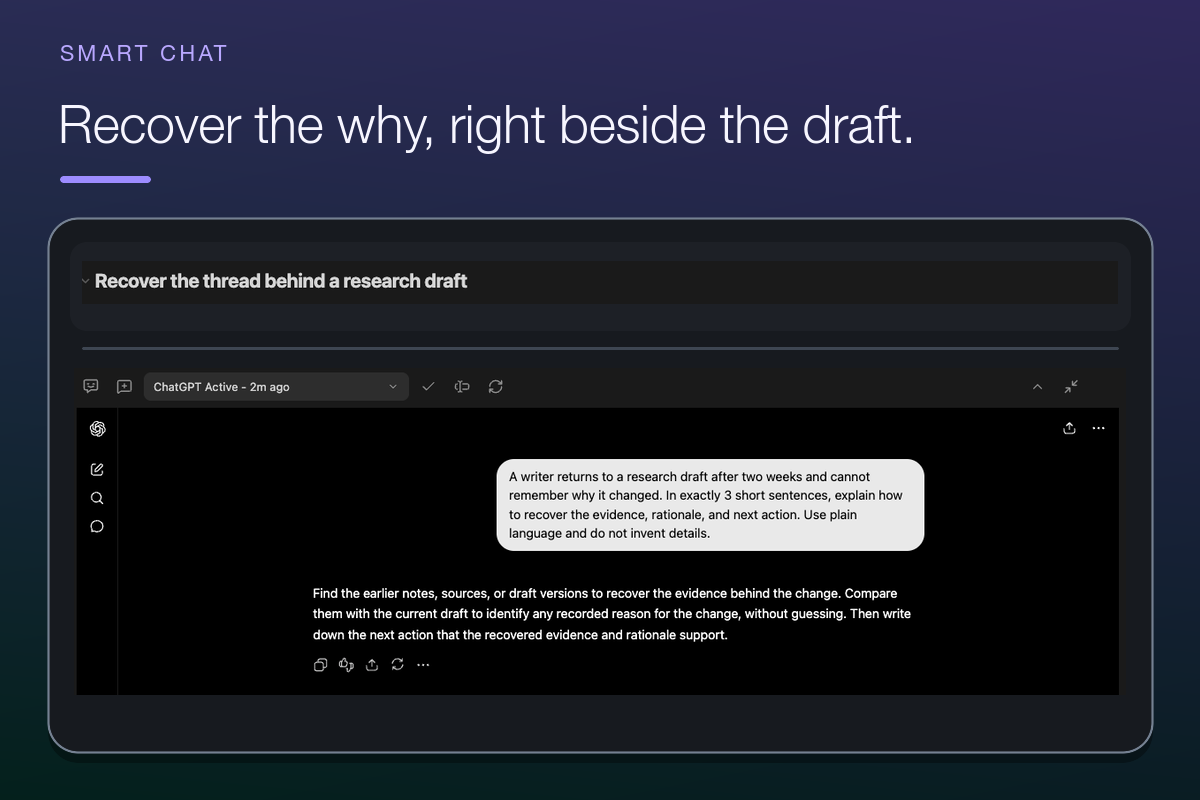
The completed response shows that the provider can answer inside the note. Saving and reopening the conversation requires a recognized durable thread URL.
Provider-specific and universal codeblocks
A provider-specific fence keeps one web-provider identity in the codeblock language. The universal Smart Chat codeblock can store supported provider web-thread references and native smart-chat: Smart Chat API Extension references.
Use a provider-specific Core codeblock for one web provider. Use the universal codeblock when one note should track several supported web-provider threads, Smart Chat API Extension threads, or both.
Can one note track several providers?
Yes. Use several provider-specific codeblocks or the universal smart-chat codeblock.
Thread storage grammar
Saved state remains readable Markdown:
chat-active:: <unix_seconds> <thread_url>
chat-done:: <unix_seconds> <thread_url>
chat-active::means the thread still needs attention.chat-done::means you reviewed the thread and closed it for now.- The timestamp supports recency displays and Dataview queries.
- The provider URL remains the durable thread reference.
- Text after a valid URL can remain as an annotation.
These fields do not store the provider transcript. They store a bookmark and user-owned review state.
Select a saved thread
When a block contains several saved threads, use the selector to choose the record the block displays. The selector shows provider, recency, and Active or Done state where supported. Selecting a thread does not remove or reorder its Markdown record.
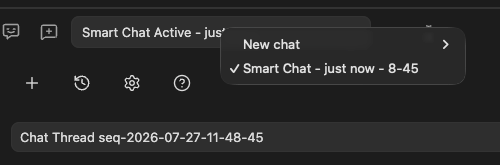
Start a new provider chat
The Core provider codeblock opens its configured web provider. In the universal Smart Chat codeblock, New chat can start a supported provider web thread or a native Smart Chat API Extension thread.
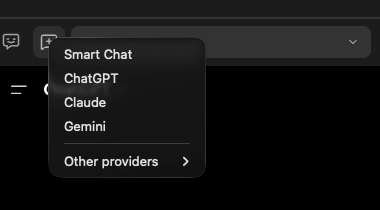
Choose a provider. Send a concrete prompt. Treat the visible response as the first result. Save the thread separately when a durable conversation URL appears.
For a small, useful first request, send:
Create a five-item review checklist for this task: [describe the task in one sentence].
Keep each item specific and testable.
Replace the bracketed text with the task owned by the note.
A relevant visible response completes the provider-response check. Durable saving is a separate step.
Smart Chat writes a bookmark only after it recognizes a durable provider conversation URL. Provider home pages, temporary new-chat routes, and unsupported routes cannot be captured automatically.
Why was a new chat not saved automatically?
The provider has not navigated to a recognized durable conversation URL, or the route is unsupported. The response can still be usable, but the block is not yet a durable bookmark.
Mark done and Mark active
Use Mark done when the selected thread no longer needs attention.
- The Markdown field changes from
chat-active::tochat-done::. - The provider conversation is not deleted or archived.
- Mark active changes the field back to
chat-active::. - Repeating the current state does not create a duplicate update.
Keep a thread Active until its saved URL reopens and its response has been reviewed. Then select Mark done and confirm that the same record appears as Done.
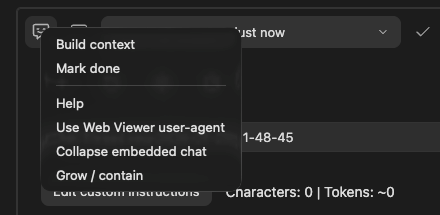
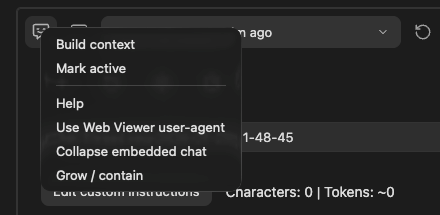
Does marking a thread done change the provider conversation?
No. It changes only the Markdown tracking state in the note.
Build context
Build context opens or reuses thread-specific Smart Context when that integration is available. It prepares a context package. It does not send a prompt.
Review the selected notes, blocks, and size estimate before copying or sending context to the provider.
Open, copy, and refresh
- Open in browser opens the selected provider thread outside the embed.
- Copy link copies its saved thread URL.
- Refresh reloads the current embedded provider page.
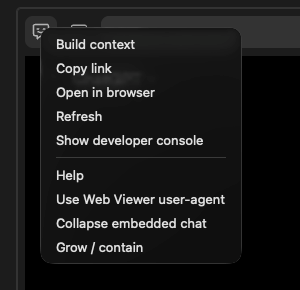
Use Build context before sending reviewed note material. Copy link, Open in browser, and Refresh operate on the selected provider thread.
These controls do not change Active or Done state. Use Show developer console only when following troubleshooting or support guidance.
Grow and contain
Use Grow / contain to toggle the embedded provider surface between expanded and note-width presentation.
This is a display setting. It does not change the thread record.
Build a thread dashboard with Dataview
If Dataview is enabled, run Insert Smart Chat thread Dataview blocks. This action inserts the supplied dashboard blocks. Alternatively, use queries such as the following.
Because state is stored as inline fields, Dataview can list Active and Done provider bookmarks.
```dataview
LIST WITHOUT ID file.link
WHERE chat-active
SORT file.mtime DESC
```
```dataview
LIST WITHOUT ID file.link
WHERE chat-done
SORT file.mtime DESC
```
These queries read note-owned provider bookmarks. They do not list Smart Chat API Extension thread records.
Provider sign-in and browser data
When a provider does not share the expected signed-in session with the embed:
- Sign in through Web Viewer.
- Return to the codeblock.
- Select Refresh.
Make sure that you can recreate the sign-in before you clear Web Viewer browser data. If refresh does not restore the session, use the provider's account-recovery guidance. Alternatively, open the saved thread externally.
Desktop and mobile behavior
Desktop provides the full embedded provider surface, automatic URL recognition, and thread controls when the block is rendered in the main Markdown pane.
On mobile or another no-webview surface, saved web thread URLs can open externally. Embedded input, new-chat capture, automatic URL saving, and state actions are unavailable.
Universal Smart Chat codeblock behavior (Pro)
The universal codeblock adds shared provider selection, stable codeblock identity, managed provider surfaces, and cross-provider controls. Insert it with Insert Smart Chat codeblock.
smart-chat codeblock
Smart Chat Pro adds one universal codeblock for supported provider threads and Smart Chat API Extension thread references.
```smart-chat
chat-id:: 002a41caaf2a4be9
chat-active:: 1700000100 https://chatgpt.com/c/example
chat-done:: 1700000200 https://claude.ai/chat/example
```
chat-id::
chat-id:: <id> gives the rendered block a stable identity. Smart Chat adds it during desktop initialization when it is missing. If you copy a block, remove the copied ID from the new block. Smart Chat can then assign a different ID.
chat-active::
chat-active:: <unix_seconds> <thread_reference> tracks a saved thread that still needs attention. Text after the thread reference is preserved as a trailing annotation.
chat-done::
chat-done:: <unix_seconds> <thread_reference> tracks a thread that you reviewed and closed for now. Marking a thread done changes only the note's tracking state. It does not archive or delete the provider conversation.
Does marking done change the provider conversation?
No. It changes only the Markdown tracking state.
Supported provider types
The universal codeblock supports ChatGPT, Claude, Gemini, AI Studio, DeepSeek, Perplexity, Grok, Kimi, and configured Open WebUI instances. Saved unknown HTTP links can still be opened as generic links, but Smart Chat cannot automatically recognize their new-thread URLs.
New chat menu
- Choose a provider from New chat.
- Send a concrete prompt.
- Make sure that a visible response appears.
Provider web threads are added to Markdown after Smart Chat recognizes a durable conversation URL.
Why was a new chat not saved?
The provider did not navigate to a recognized durable conversation URL, or the page could not be captured. A successful response and a saved bookmark are separate outcomes.
Saved thread selector
The selector shows saved active and done threads with provider and recency information. When the saved list is large, done threads move into a separate submenu so active work remains easier to reach.
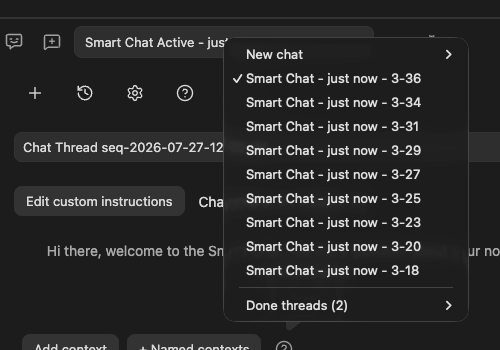
Thread actions
Visible controls depend on the selected provider and thread state. They can include:
- New chat
- saved-thread selector
- Mark done or Mark active
- Insert into chat
- Refresh embedded chat
- Collapse embedded chat or Expand embedded chat
- Grow codeblock width or Contain codeblock width
The Insert into chat menu can include:
- Clipboard
- Current selection
- Current note
- Note...
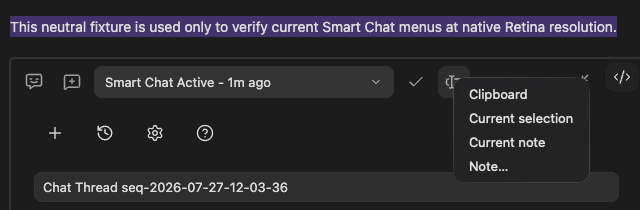
Selected text is visible behind the menu, and Current selection is available. This frame shows menu availability, not completed insertion or a sent message.
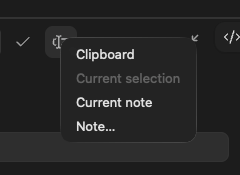
Current selection is unavailable in this captured state. The other insertion choices remain visible.
The additional-actions menu can include:
- Build context
- Copy link
- Open in browser
- Refresh
- Show developer console
- Help
- Use Web Viewer user-agent
- Grow / contain
- Show here when the same managed provider surface is active elsewhere
Embedded provider surface
A saved provider thread keeps one managed embedded surface per thread and workspace document. When the same thread is already displayed elsewhere, use Show here to move the active surface to the current block.
Why does the same thread say it is shown elsewhere?
One embedded provider surface is reused for that thread. Choose Show here to move it to the current block.
Web Viewer user-agent
Enable Use Web Viewer user-agent when a provider requires the Obsidian Web Viewer browser identity. This setting can improve sign-in or compatibility.
Configure embedded provider webviews
Open Chat Settings to configure the shared embedded surfaces:
- Height (px) sets the iframe height for embedded webviews.
- Zoom sets the zoom factor for all embedded webviews.
- Open WebUI URL sets the base URL used by the
smart-openwebuicodeblock.
These settings change embedded display or routing. They do not authenticate provider accounts, save a provider thread, or prove that a Chat model is working.
Obsidian hotkeys inside the provider surface
Supported configured Obsidian modifier hotkeys can pass through the embedded provider page. Provider input and send behavior remain controlled by that provider.
Mobile and no-webview fallback
When embedded webviews are unavailable, the codeblock renders a static bookmark list:
- saved web threads open externally
- native
smart-chat:references display as labels - new-chat capture, automatic URL saving, state actions, and embedded input automation are unavailable
Troubleshooting Smart Chat codeblocks
| Problem | Recovery |
|---|---|
| Provider surface is blank or stalled | Choose Refresh. If sign-in is required, sign in through Obsidian Web Viewer. Return to the block. Choose Refresh again. |
| Provider returns an error instead of a response | Make sure that account access works. Make sure that the provider is available. Retry the same bounded prompt. |
| Response succeeds but the block remains new or unsaved | Do not claim durable saving. Continue until the provider creates a recognized conversation URL. |
| Saved selector opens the wrong thread | Select or save the correct provider URL. Reopen it. Then change its state. |
Two copied universal codeblocks share a chat-id:: |
Back up the note. Remove the ID only from the copied codeblock. Let desktop initialization assign a new ID. |
| Only static links appear | Use the main Markdown pane on desktop for the interactive block. Static links are expected on mobile and no-webview surfaces. |
Chat with Obsidian notes using local and API models
Smart Chat API Extension is the Smart Chat Pro workflow for configured local and cloud chat models inside Obsidian. Each completed response can record the model, user message, response, and request-specific Smart Context.
Send and Lookup context require a compatible working model. A model marked Current is selected, but provider credentials or a local server can still prevent it from answering.
Before using local or API models
This workflow requires Smart Chat Pro and at least one compatible chat-completion model configured through Smart Environment. Make sure that its provider credential or local server works. Then run Test when that action is available.
If the test returns an authorization error such as 401, repair the credential before sending note content. Smart Environment retrieval readiness is required for Lookup context, but not for a general response or manually selected known context.
Open Smart Chat
Open Smart Chat with one of these actions:
- Run Open Smart Chat from the Command Palette under Smart Chat Pro.
- Use the Smart Chat ribbon action.
- Use an assigned hotkey.
The view reopens the active saved thread when possible. If that record is unavailable, it opens the newest non-deleted thread or creates a new one. Use New Chat when the reopened thread is not the right place for the next request.
Confirm or change the chat model
The thread status bar shows the default model for new completions. Select it to open the model menu.
To configure and select a working model:
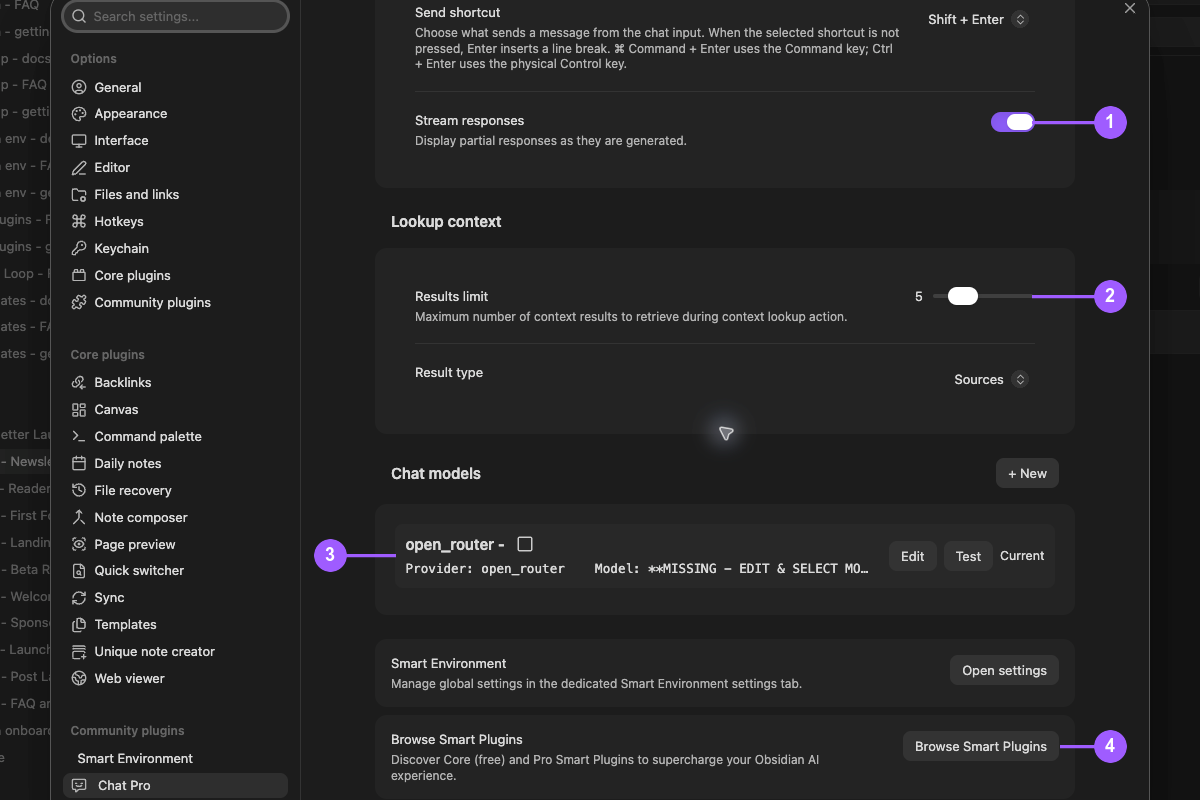
- Open Browse Smart Plugins.
- Make sure that Chat Pro is enabled.
- Select Open settings on the Chat Pro row. Alternatively, open the Chat model controls in Smart Environment settings.
- Under Chat models, choose + New.
- Select an enabled provider. Examples include PRO: Open Router (cloud), PRO: OpenAI (cloud), and PRO: Ollama (local, requires Ollama app).
- Enter the provider fields.
- For a cloud provider, enter its API Key.
- For Ollama, enter the Ollama host.
- If you use Ollama, start the Ollama app.
- If the provider must load its model list, choose Refresh Models.
- Choose Chat Model.
- Save or close the editor.
- If several models exist, choose Default chat model.
- Make sure that the intended row is Current.
- Run Test on the row or Test model in the editor.
| Visible state | Meaning | Action |
|---|---|---|
MISSING MODEL |
No usable chat model is selected. | Configure a compatible model. Select it. |
MISSING PROVIDER |
The selected model has no usable provider. | Repair provider configuration, credentials, or local server details. |
Idle or Ready |
The composer is available for a request. | Check the context. Send a small prompt. |
Typing or Generating... |
A request is in progress. | Wait for completion or an error. |
Error |
Generation failed. | Read the error. Correct its cause. Retry the same bounded prompt once. |
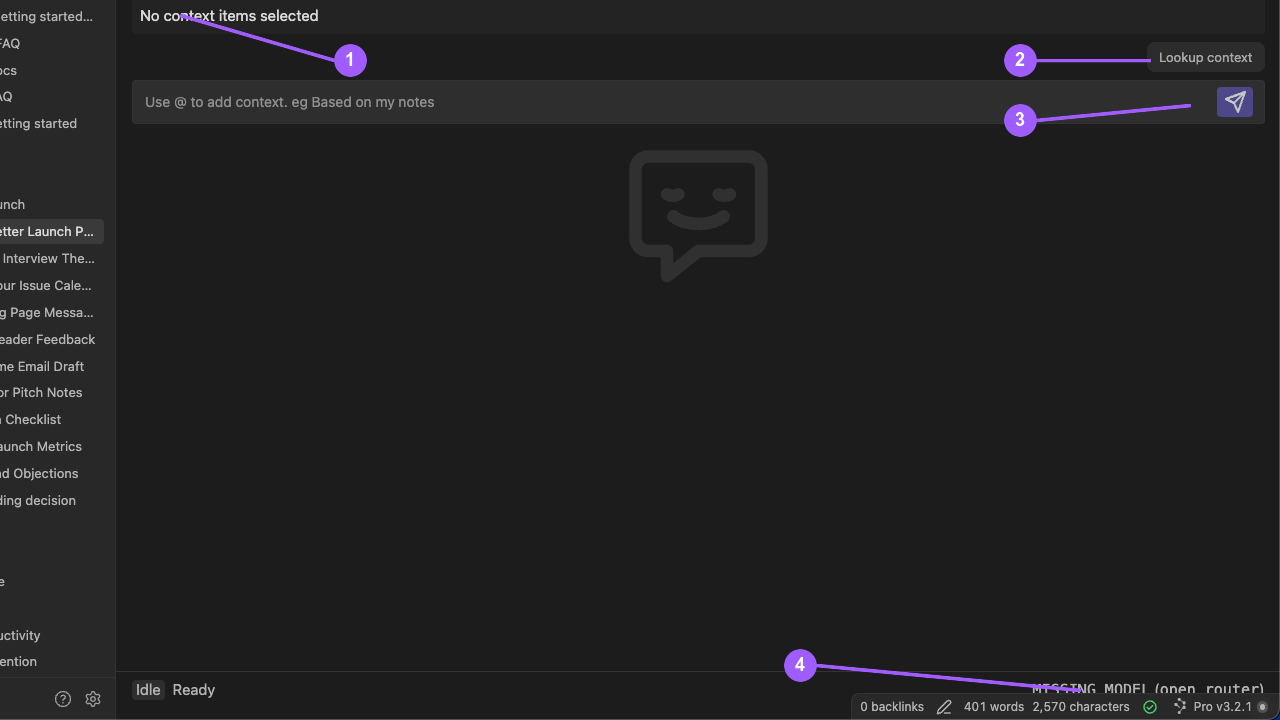
- Current means that the model is selected. Run the model test to check authorization and provider access.
- Test must succeed when the model setup provides that action.
- Choosing a model changes the default for future responses.
- A completed response retains the model and provider used for its request.
Does changing the status-bar model change an earlier response?
No. It changes the default for later responses. Completed responses retain the model metadata from their own request.
Use the thread toolbar
The toolbar contains:
- New Chat
- Chat History
- Chat Settings
- Chat Help
- a thread-name field
A changed thread name is saved when the field is committed with Enter or loses focus.
Write and send a message
The composer accepts normal text and large pasted input. Its context hint is Use @ to add context. eg Based on my notes.
- Type
@to choose context for the current response. - Send remains unavailable when the composer is empty or no usable model is configured.
- Send shortcut selects what sends from the chat input. The default is
Shift + Enter; when the selected shortcut is not pressed, Enter inserts a line break. - Stream responses controls whether partial responses appear as they are generated. A partial stream is not a completed response.
TypingorGenerating...means the request is in progress.Errormeans that generation failed. It is not a completed response.- After correcting the reported cause, retry the same bounded prompt before changing several variables.
Add known notes as context
Add context opens Smart Context for the current response. After context is attached, the control changes to Open context builder.
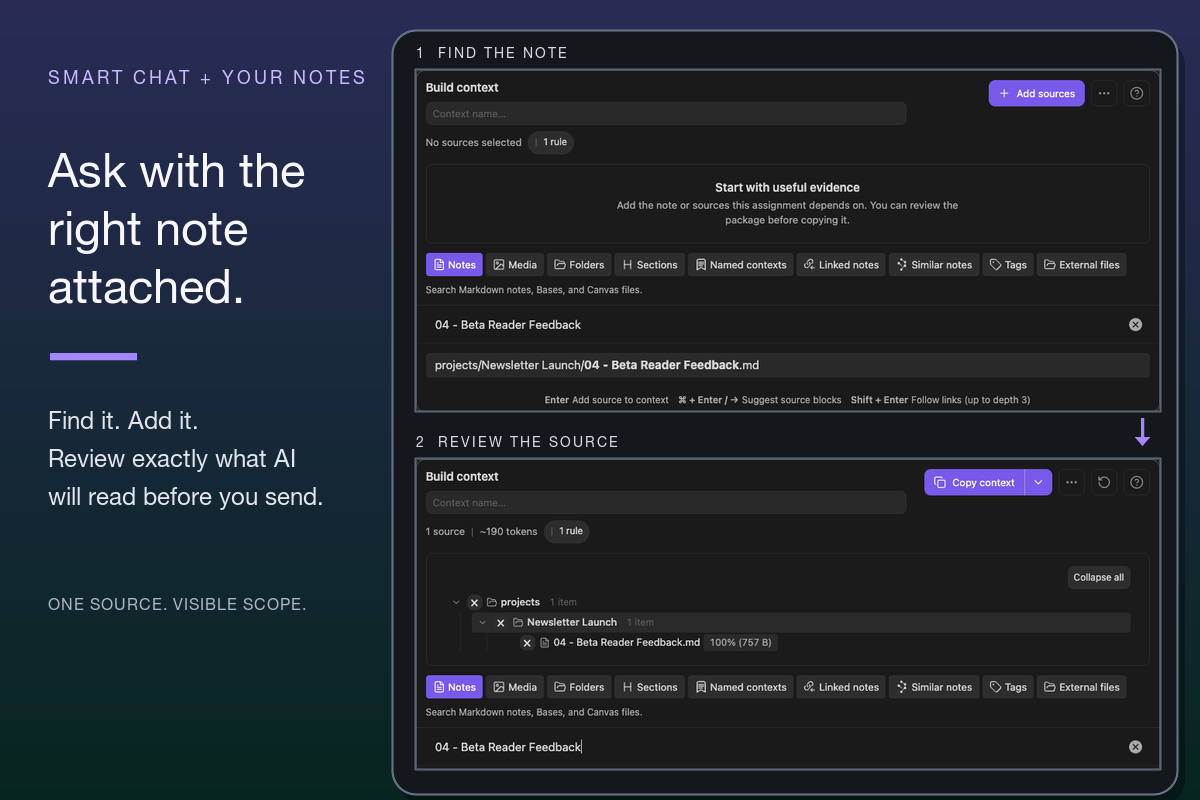
Select the exact note, then review the resulting one-source tree before Send.
Each response keeps its own reviewed context set. A later request includes prior non-excluded conversation messages, but it does not automatically copy the prior response's attached source context. Reopen the builder or select the required sources again.
Find context with Lookup
Lookup context uses the current question to retrieve likely notes or blocks.
On the first response, enter at least three words or more than ten characters before expecting Lookup context to enable. After a completed response, it can be available for a continuation.
Review the proposed sources. Remove weak, stale, duplicated, or unrelated items before sending. Lookup proposes context. It does not make the sources authoritative.
In Chat Settings, Results limit bounds the number of candidates proposed by Lookup context. Result type selects whole-note Sources or smaller Blocks. These settings change the proposed review set, not source authority or response correctness.
Drag notes, results, and named contexts into a thread
Drop any of these onto the active Smart Chat thread to add them to the current response context:
- notes and supported files from File Navigator
- Connections list results or graph nodes
- Lookup results
- named-context dashboard rows
Notes, blocks, and results are added directly. A named context is added as one reusable selection and expands to its saved sources.
Add a saved named context from the selector
You can also add a saved context without dragging it. Choose + Named contexts in the context selector. Select one saved context, then expand its source tree. Smart Chat preserves the named origin so the bundle remains distinguishable from unrelated direct attachments.
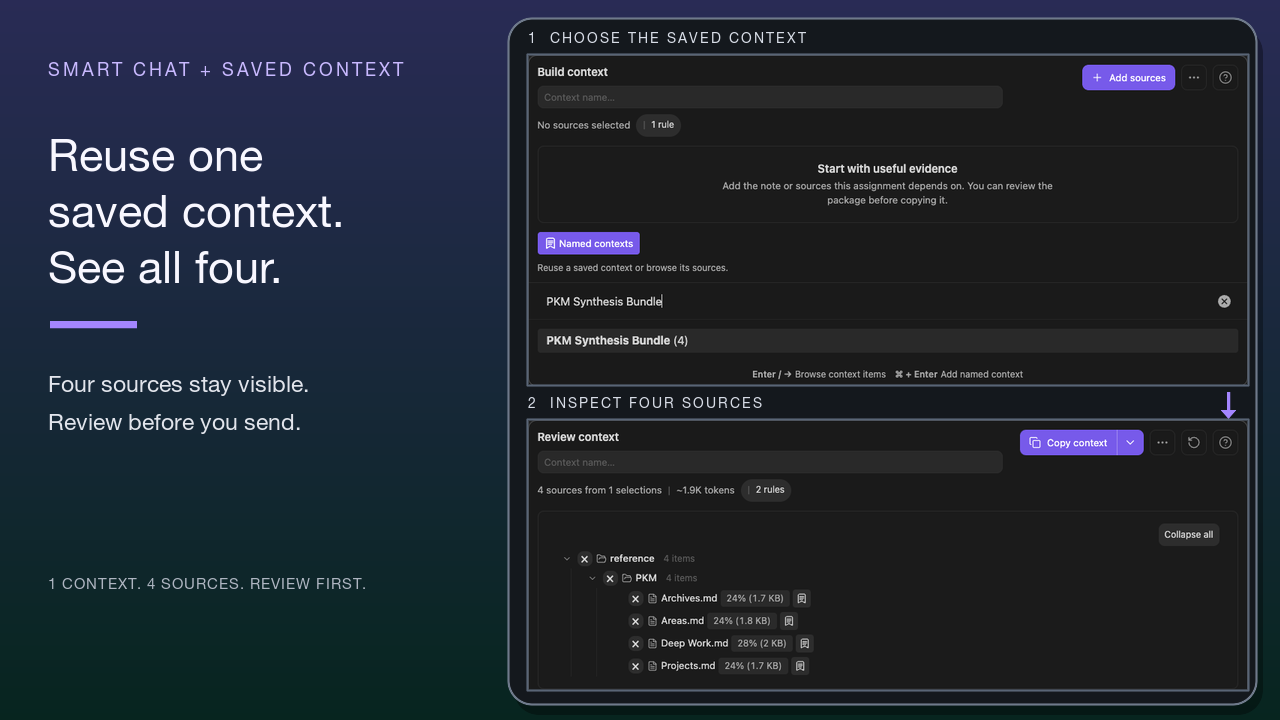
Choose one saved context, then inspect every expanded source before Send.
Review the context tree before sending. If nothing is added, the item can be unsupported, unresolved, or unavailable to the current Smart Environment. Use Add context as the fallback.
Send intentionally without context
When no context is attached, Smart Chat can offer:
- Lookup context
- Select context
- Continue without context
- Cancel
Choose Continue without context only when a general, ungrounded conversation is intentional. For a note-grounded request, cancel the send. Then attach or retrieve the intended sources.
The dialog appears only after a send attempt with a usable model and no attached context.
Why did Smart Chat warn before sending?
The current response had no attached context. Choose Lookup, select known sources, continue intentionally without context, or cancel.
Include or exclude prior messages
Exclude an earlier exchange when you do not want it to influence later responses. The exchange remains visible in the saved thread. Exclusion changes only the prior-message history sent with future requests.
Keep decisions, constraints, and ground truth. Exclude false starts, discarded drafts, and wrong assumptions.
Use Include to restore an excluded exchange to future conversation history. Neither action rewrites the completed response.
Custom instructions
Open Chat Settings. Then choose Custom instructions to manage the default instructions added to new threads. Smart Chat also supports instructions saved for one thread.
Thread instructions take precedence in that thread. Review persistent instructions when an otherwise well-grounded response behaves unexpectedly.
Chat History
Choose Chat History from the thread toolbar when you want to reopen a recent saved thread. Suggestions can show the thread name and a recent user-prompt preview.
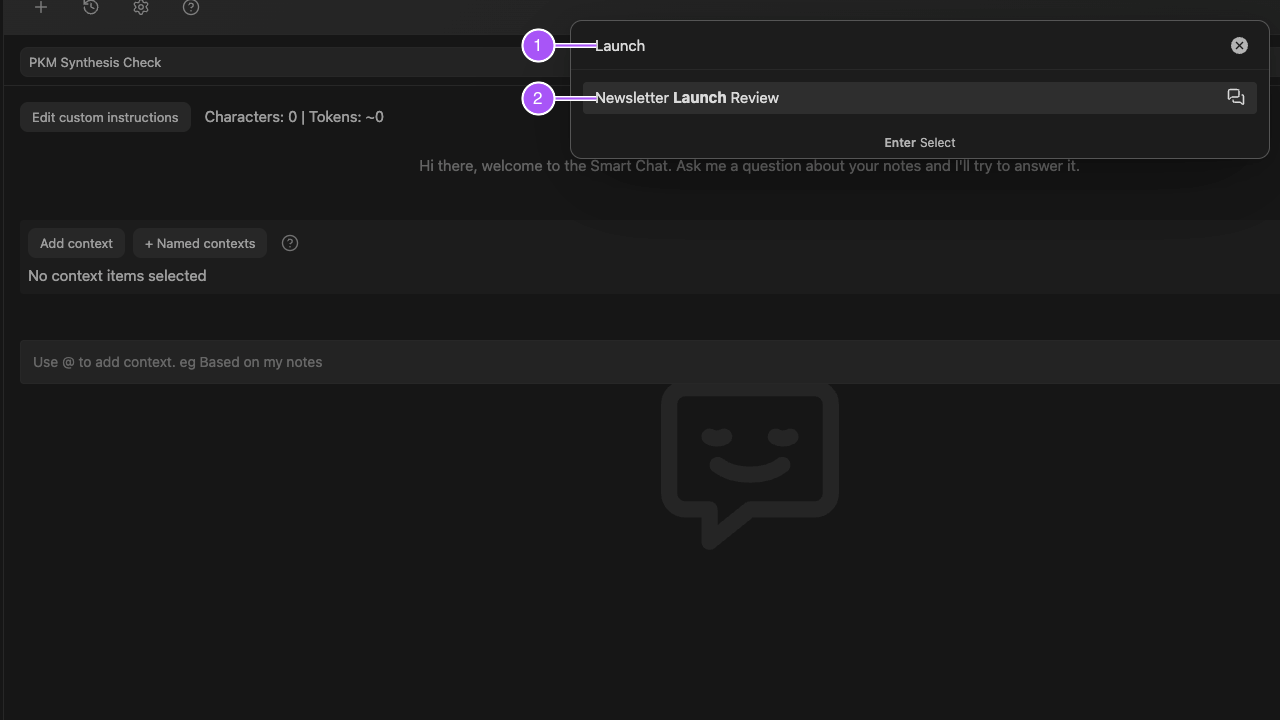
Type to filter the displayed suggestions. Press Enter to open the selected thread. History does not search every word in every message. See Use Chat History for deletion shortcuts and search limits.
Can Chat History search every word in every message?
No. History searches thread names and displayed recent user-prompt previews, not complete message bodies.
Chat Manager
Run Open: Chat Manager view from the Command Palette under Smart Chat Pro when you need deliberate thread maintenance.
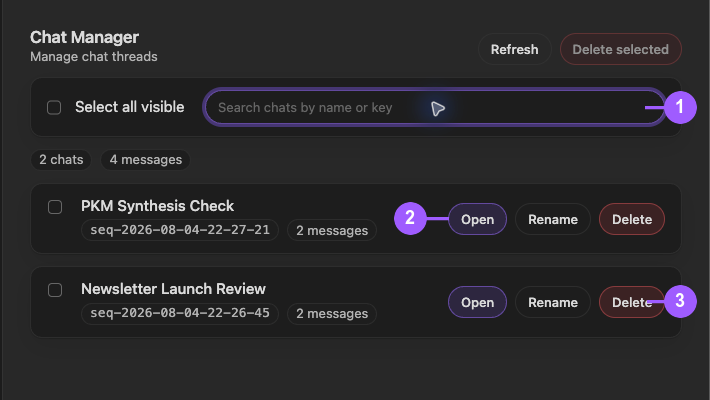
Search by thread name or key. Open uncertain records. Use the row-specific Rename or Delete action only after the intended thread is visible. See Manage Smart Chat threads for bulk selection, counts, confirmation behavior, and recovery.
Thread data, persistence, and sync
Provider codeblocks store thread URLs in Markdown. Smart Chat API Extension stores its threads, responses, and attached context as Smart Plugin application data rather than ordinary Markdown notes.
That application data can remain device-local unless your sync setup explicitly includes it. During synchronization, do not change the data on several devices at the same time. Reopen one thread. Make sure that it still contains its messages and context. Provider bookmarks stored in Markdown continue to sync with their notes.
What Smart Chat sends
Smart Chat sends only what the selected workflow needs:
- A provider codeblock sends what you type or upload through that provider's web interface. The active note and vault are not attached automatically.
- Smart Chat API Extension sends the prompt, included prior messages, and the source context selected for that response. It does not send the whole vault automatically.
- A cloud model provider receives that request under the provider's data-handling terms. A local model can keep the request on the machine when its local runtime is active.
Before you send sensitive material:
- Open the context tree.
- Remove unrelated sources.
- Make sure that the correct model or provider is selected.
- Review the destination's retention settings.
Are Smart Chat API Extension threads the same as provider codeblock bookmarks?
No. Provider codeblocks store URLs and active/done fields in Markdown. Smart Chat API Extension threads use Smart Environment records.
Review context before sending
Review source names, blocks, origin badges, and size estimates in the current Smart Context tree.
Prior non-excluded user and assistant messages can influence a later response. Attached source context is request-specific and does not automatically copy to the next response. Select or reuse the intended source set again. Remove stale items before sending.
Review completed responses
A completed response can show recorded model information, included context, the user message, and the assistant response. Include or Exclude affects future conversation history. It does not rewrite completed output.
Before promoting an answer into a trusted note:
- Make sure that the intended model handled the request.
- Open the attached context.
- Examine the source set.
- Compare factual claims with the cited or attached passages.
- Separate source-backed statements from suggestions.
- Treat a fluent but unsupported answer as a bad response, not a successful grounded result.
Recover from model and completion errors
| Failure | Recovery |
|---|---|
MISSING MODEL |
Under Chat models, choose + New. Complete its provider and Chat Model fields. Select it under Default chat model. Make sure that the row is Current. Run Test or Test model. |
MISSING PROVIDER |
Repair the provider, credential, or local server configuration. |
Model test returns 401 |
Replace or repair the provider credential before sending note content. |
Request ends in Error |
Read the error. Correct its cause. Retry the same bounded prompt once. |
| Provider rate limit, exhausted quota, or temporary unavailability | Wait until the provider permits another request, repair billing or quota when applicable, or select another working provider. Retry one bounded request. |
| Unsupported attached source type or oversized request | Remove the unsupported source, convert it to a supported format, or reduce the request. Retry the request. |
| Response is generic or contradicts sources | Keep the completed response for comparison. Reattach the intended context. Tighten the evidence requirement. Send a new request. |
| Expected sources are missing on the next response | Open Add context or Open context builder. Select the sources again. Attached context does not automatically carry forward. |
Manage Smart Chat threads in Obsidian
Smart Chat API Extension stores conversations as thread records. Use Chat History to reopen a recent thread quickly and Chat Manager for deliberate maintenance.
- Search for the target record.
- If its truncated name is uncertain, open the record.
- After a rename, make sure that the new name is saved.
- Use the name as a deletion cue only after this check.
- Delete only after the intended row or selection is visible.
Open Chat Manager
Run Open: Chat Manager view from the Command Palette under Smart Chat Pro.
Chat Manager lists Smart Chat API Extension thread records. It does not list provider URLs stored only in Markdown codeblocks.
Is Chat Manager the same as a Dataview Chat Inbox?
No. Chat Manager manages Smart Chat API Extension thread records. A Chat Inbox lists chat-active and chat-done fields stored in notes.
Search and filter
Use Search chats by name or key to filter visible rows. Filtering does not rename or delete hidden records.
Open a thread
Use Open to load the selected thread in Smart Chat. Open uncertain threads before renaming or deleting them.
Rename a thread inline
Rename happens inline in the row with Rename, Save, and Cancel.
- Enter rename mode.
- Change the name.
- Save or cancel.
A saved name remains attached to that thread record.
After choosing Save, make sure that the changed name remains on the intended row. Then use it as a cleanup cue.
Can I rename a thread without opening it?
Yes. Rename is inline in the manager row.
Delete one thread
Single-thread deletion requires confirmation beside the target row. Verify the thread name before confirming.
This removes the Smart Chat API Extension thread record. It does not remove provider-thread URLs stored in Markdown codeblocks.
Select and delete visible threads
Use Select all visible or select individual visible rows. Then choose Delete selected.
- Filter to a narrow working set.
- Select only the intended visible rows.
- Choose Delete selected.
- Confirm the bulk action.
- Review the remaining list.
Does bulk delete remove every thread matching the search?
No. It removes only selected visible rows after confirmation.
Review thread and message counts
The manager shows thread and completion totals for the current list. Counts support review. They do not indicate that a thread is safe to delete.
Confirmation and refresh states
Delete confirmation stays inside the manager and beside the affected row or selection. Use Refresh after an external change or when the visible list appears stale.
Use Chat History
Chat History is optimized for opening a saved thread from the active Smart Chat workspace. Chat Manager owns deliberate filtering, row controls, and count review.
Open History
Choose Chat History from the active thread toolbar.
History lists saved, non-deleted threads.
Thread suggestions
Each suggestion identifies a saved thread and can include its name plus a recent user-message preview.
Completion search
History filters saved thread names and displayed recent user-prompt previews. It does not provide exhaustive search across every word in saved messages.
Open the selected thread
Press Enter on a suggestion to open that thread in Smart Chat.
Delete from History
On macOS, press Cmd + Enter on a History suggestion to request deletion. On other platforms, press Ctrl + Enter. Confirm the named thread before deleting it.
What does Mod+Enter do in History?
It requests deletion of the selected History thread: Cmd + Enter on macOS and Ctrl + Enter on other platforms. The confirmation names the thread and states that deletion cannot be undone.
Search limitations
Search is designed for fast thread retrieval by the information shown in suggestions. Use Chat Manager for deliberate record maintenance.
Why can I find a thread by name but not by a phrase from the middle of the conversation?
History does not perform exhaustive full-message search.
Chat History vs Chat Manager
Use Chat History to reopen or delete a known recent thread quickly. Use Chat Manager to:
- filter names or keys
- examine counts
- rename threads
- manage selected rows
Neither tool searches every word in every message.
Troubleshooting thread management
- When a thread is missing, clear the filter.
- After you clear the filter, choose Refresh.
- Choose Save before expecting an inline rename to persist.
- History searches names and displayed recent user-prompt previews.
- Chat Manager searches names and keys.
- Review visible selected rows again after filtering.
- Open an uncertain thread instead of deleting it based only on age.
Smart Chat does not apply arbitrary AI-generated edits to your notes. It does write its own thread/bookmark state into Markdown and Smart Plugin application data. Use Connect Pro when you want an explicit general-purpose vault change.