
From Mem to Obsidian: put your notes back to work
Mem is shutting down. The ideas, decisions, and connections you've built there don't have to disappear with the app.
Save your notes first. Then open them in Obsidian and find what your next draft or decision needs. The thinking you've already done can keep working for you.
Use a computer to export from Mem and open the folder in Obsidian.
Already have the ZIP? Open and check your export.
Mem's shutdown dates
Checked November 18, 2026.
December 18, 2026: Mem becomes read-only. Writing and editing, AI features, recording, and integrations stop. Existing notes remain available to read and export. January 15, 2027: Mem closes. Download your notes and any recordings you want to keep before that date. See Mem's announcement and the founder's operational timeline.
You can save the archive before choosing your next app.
A connection that predates the shutdown
Mem's Similar mems helped inspire Smart Connections' related-note view, as described in the original launch post. In December 2023, GitHub user dougkeiller publicly attributed his move from Mem to Obsidian largely to Smart Connections. The same habit matters now: an earlier note can surface while you're working on something new.
Is Obsidian a good Mem AI alternative?
Obsidian opens Mem's Markdown export as editable notes. Smart Connections can surface related material beside the note you're working on; Smart Lookup can find notes and passages from an idea or question.
Choose which plugins to install, let their initial indexing finish, keep a separate backup, and set up device sync if you need it. The comparison below shows which Mem habits this setup can carry forward and where another tool or workflow is needed.
More columns are available. Scroll sideways or use the arrow buttons.
| What you want to keep doing | What supplies it |
|---|---|
| Read and edit your notes; reach collections and linked files | Obsidian opens the Markdown archive. Check the exported indexes and attachments before reorganizing it. |
| Discover related material beside the note you are writing | Smart Connections Core starts from the open note. This covers the related-topic habit in Mem Heads Up. |
| Find a text note or section from an idea or question | Smart Lookup Core, installed separately, searches indexed material by meaning. This is the text-retrieval habit behind Mem Deep Search. |
| Clip a web page or record audio manually | Obsidian Web Clipper and Audio recorder supply those functions. |
Generated answers, meeting transcription, calendar briefings, meeting timelines, live suggestions, and proactive reminders need a separate comparison. The two retrieval plugins above do not by themselves recreate those workflows.
If you relied on finding information inside PDFs, images, scans, or recordings, test that requirement explicitly. Opening an exported attachment confirms that the file arrived; it does not establish that its contents are searchable.
Open and check your Mem export
On a computer, follow Mem's export instructions. The Obsidian and My Computer destinations provide Markdown files. Keep the original ZIP and use an extracted copy for the move. If you don't have Obsidian, download and install it before opening the extracted folder.
On desktop, open Obsidian's vault switcher and choose Open folder as vault. Select the outer folder containing notes/, collections/, and attachments/. Opening only notes/ leaves the other files outside the vault. Keep the folders together while you check them. Mem's Obsidian guide shows the opening steps.
Find a note through its collection (illustrated example). This example Atlas vault shows notes/, collections/, and attachments/ together, with a collection index linking to a project brief.
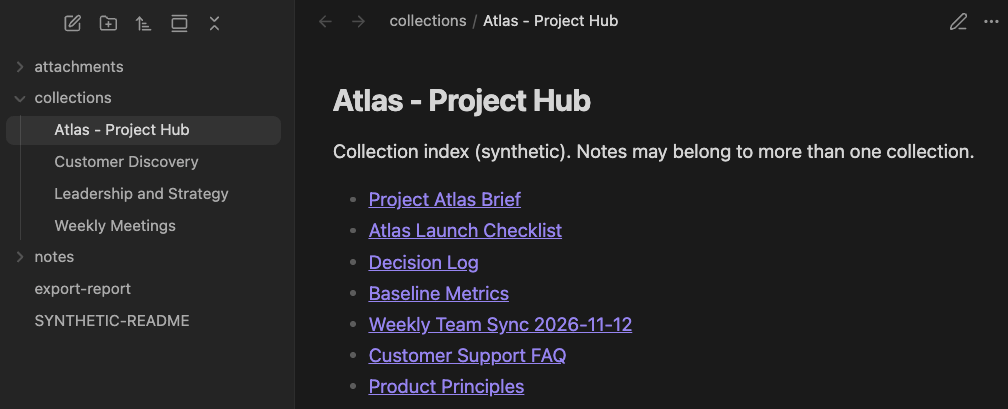
The three folders sit together, and the Atlas collection links to Project Atlas Brief.
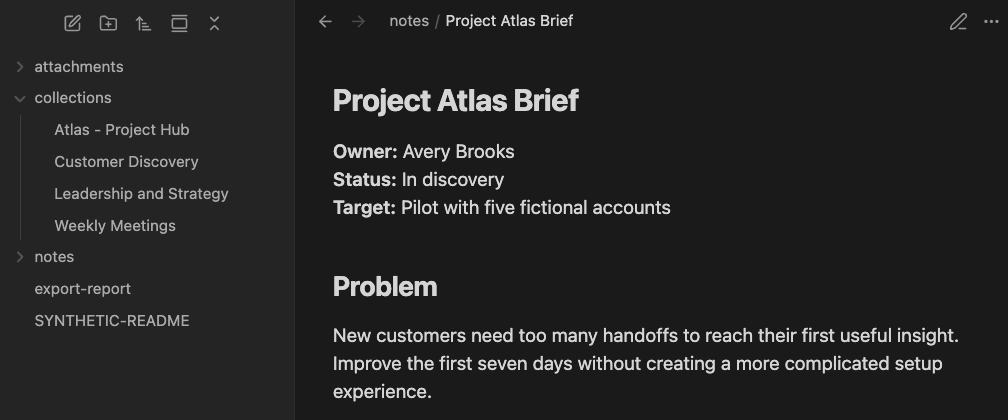
Following the collection link opens Project Atlas Brief under notes/.
More columns are available. Scroll sideways or use the arrow buttons.
| Check | What to look for |
|---|---|
| A familiar note | Read a paragraph from the middle and confirm the material you need is present. |
| A collection index | Open a file under collections/ and follow a member-note link. Collections arrive as linked index notes; a note in two collections can appear in both indexes. |
| An attachment | Open an image or PDF from inside its note. If the link fails, check whether the file exists in the extracted archive. |
| A meeting you need to keep | Check the written note, transcript, and original recording separately. Available transcripts are included by default; original audio requires selecting the recordings option when exporting. |
Open export-report.md if present, especially when something is missing. A ready download can still have gaps. Mem's verification guide explains what to check and when to retry.
If you keep changing notes in Mem after your first download, save a final copy containing those changes.
Find a passage your current work needs
Use a draft, question, or decision you already need to finish. If you remember a title or phrase, start with Obsidian Search.
For the other two starting points, let the relevant plugin finish indexing your notes first. The demonstrations below use fictional newsletter notes to show what each route can bring back.
You have a note open
Landing Page Promise is a draft describing a newsletter for independent consultants. With that note open, Smart Connections Core surfaced Beta Reader Language without a typed query.
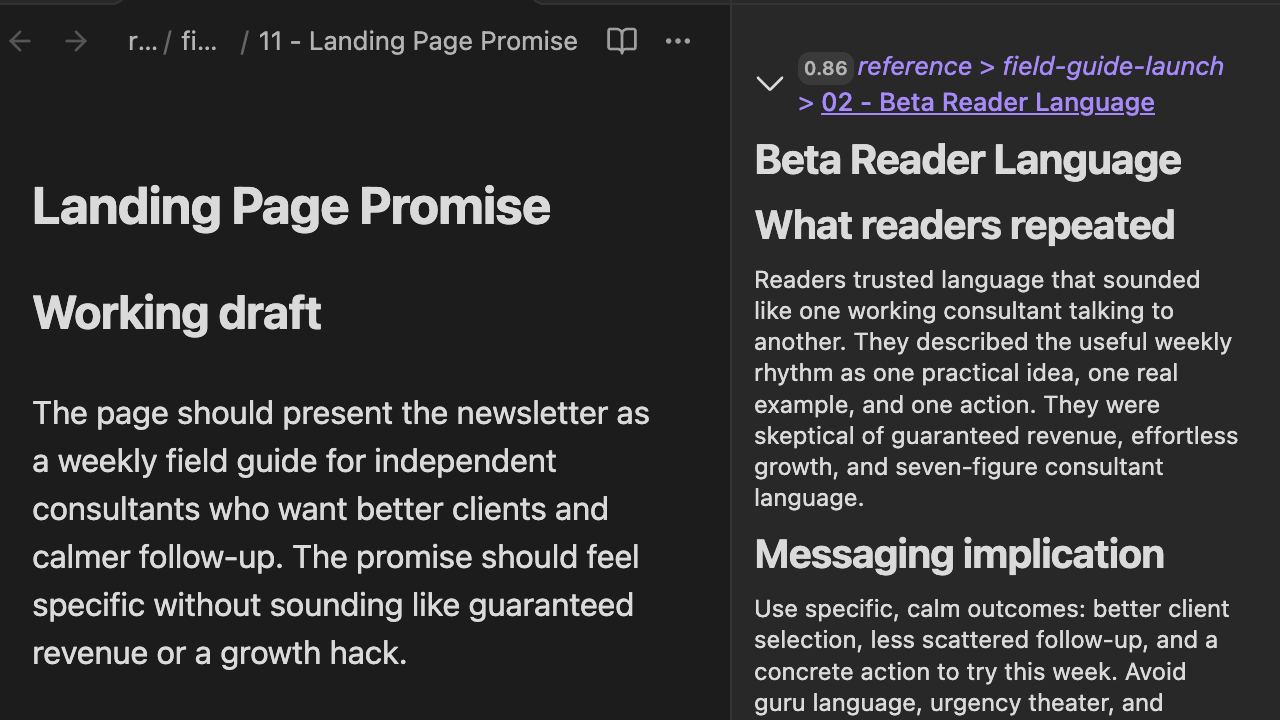
Fictional newsletter demo in Smart Connections Core: the working note and an expanded related passage appear side by side. Open the image for a larger view.
The useful sentence is:
They described the useful weekly rhythm as one practical idea, one real example, and one action.
Those words could shape a clear newsletter promise: "Each week, get one practical idea, one real example, and one action to try."
For your own work, open the note you're writing and expand a related result. Open the source for more detail, or link it in your draft so you can return to the passage.
You remember the idea
In a separate Lookup demonstration, the question is:
What did beta readers say about the newsletter's voice and weekly format?
The returned source is Beta Reader Feedback, under projects / Newsletter Launch.
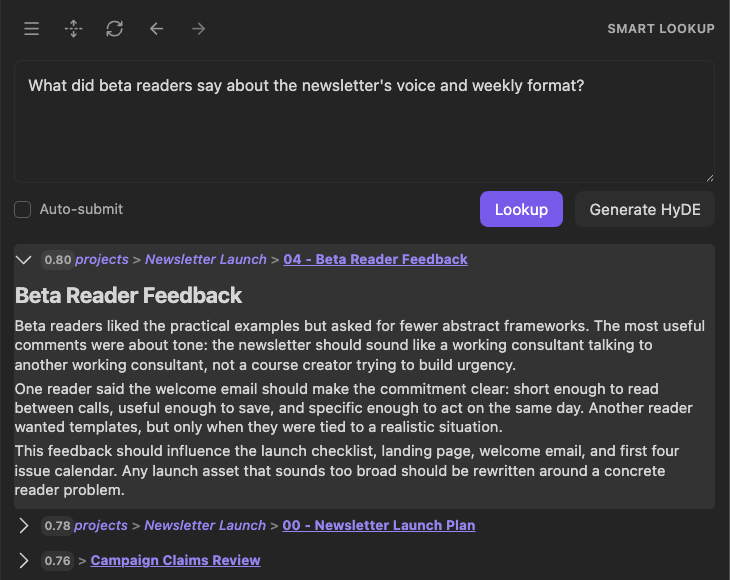
Fictional newsletter demo, captured in Pro using ordinary Lookup. The same query-based retrieval is available in free Core.
The source describes the intended reading experience:
short enough to read between calls, useful enough to save, and specific enough to act on the same day.
That feedback can guide the draft: a concise format, a working-consultant voice, and a concrete takeaway readers can use the same day.
Ask Smart Lookup a question about your own notes. Ordinary local search uses a ready index, without a chat model or provider API key. Open a returned source, or choose Blocks to find a passage inside a longer note.
Run your first semantic search
If the passage does not appear
First check that the source exists in the export. If it does, check indexing and exclusions before changing the search. The Connections getting-started guide and Lookup getting-started guide cover setup and the next checks.
Continue with the work in front of you
Saving your archive keeps the notes. Using them keeps the thinking alive. Start with the note or question in front of you, recover a useful passage, and link it to the draft or decision it helps.