
How I manage chat threads in my Obsidian notes
I delegate a lot to chat, but I do not want chat to become the place where the work lives.
For me, the outcome note owns the work. The chat thread is where I delegate work. And I want that work to be attached to the note that owns the work.
Smart Chat codeblocks make this simple by saving provider thread URLs and whether the thread is "active" or "done" right inside the note.
What I am trying to avoid
I do not want useful work disappearing in browser tabs.
I do not want to search history to find what I delegated.
I do not want raw AI responses mixed into my trusted notes.
I do not want any AI app to become the system of record for my work.
What I do instead
I keep relevant chat threads attached to the notes where I manage the work.
My priorities, desired outcomes, and Next Actions already live in those notes. When I return to a note, I am already thinking about that work, and the related AI conversations are right there.
This helps with both reflection and execution. I may return to a mission or vision discussion after weeks or months and compare that earlier thinking with what I think now. For a plugin fix, I can delegate a Next Action, move on, and return later to review the response and decide what to apply.
I do not have to make delegating and reviewing part of the same sitting. When a response is ready on my return, I can begin with review rather than wait for it to be produced.
The rule I use
I attach a chat thread to the note when I expect to return to that conversation while developing or advancing the work represented by the note.
The exact workflow
Smart Chat codeblocks to manage chat threads from inside the note.
Dataview (optional) for dynamic lists of notes with active chat threads.
Readiness check
- Use Obsidian desktop with Smart Chat installed and enabled.
1. Open the note that should own the chat thread
My workflow mostly revolves around outcome notes, so it's easy to determine which note should own the chat thread.
I usually start from the outcome note, based on which desired outcome is highest priority. Then I use the content of the outcome note to determine what should be delegated next.
Once I decide what the next action is, I delegate the work directly from the note.
2. Insert the Smart Chat codeblock
This part only has to be done once per provider block. The block can store recognized durable thread URLs and user-owned Active or Done state for the provider attached to that fence.
Add the codeblock for the provider you want to use.
For ChatGPT:
## Delegated work

```smart-chatgpt
```
The example uses the ChatGPT-specific Core fence. The universal smart-chat fence requires Smart Chat Pro.
Available provider codeblocks:
| Provider | Codeblock |
|---|---|
| ChatGPT | smart-chatgpt |
| Claude | smart-claude |
| Gemini | smart-gemini |
| Grok | smart-grok |
| Perplexity | smart-perplexity |
| DeepSeek | smart-deepseek |
| AI Studio | smart-aistudio |
| Open WebUI | smart-openwebui |
| Kimi | smart-kimi |
A new thread starts unsaved.
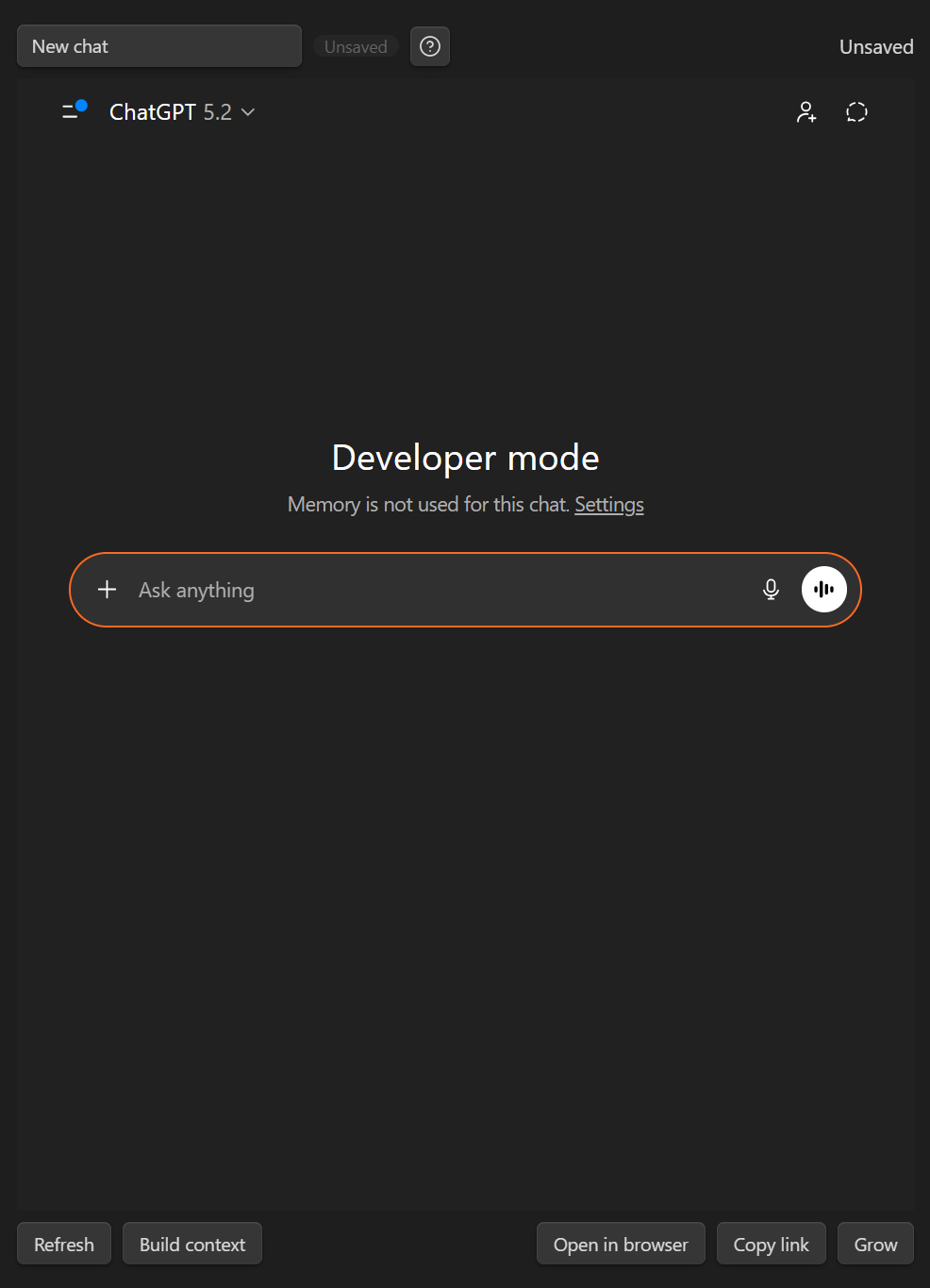
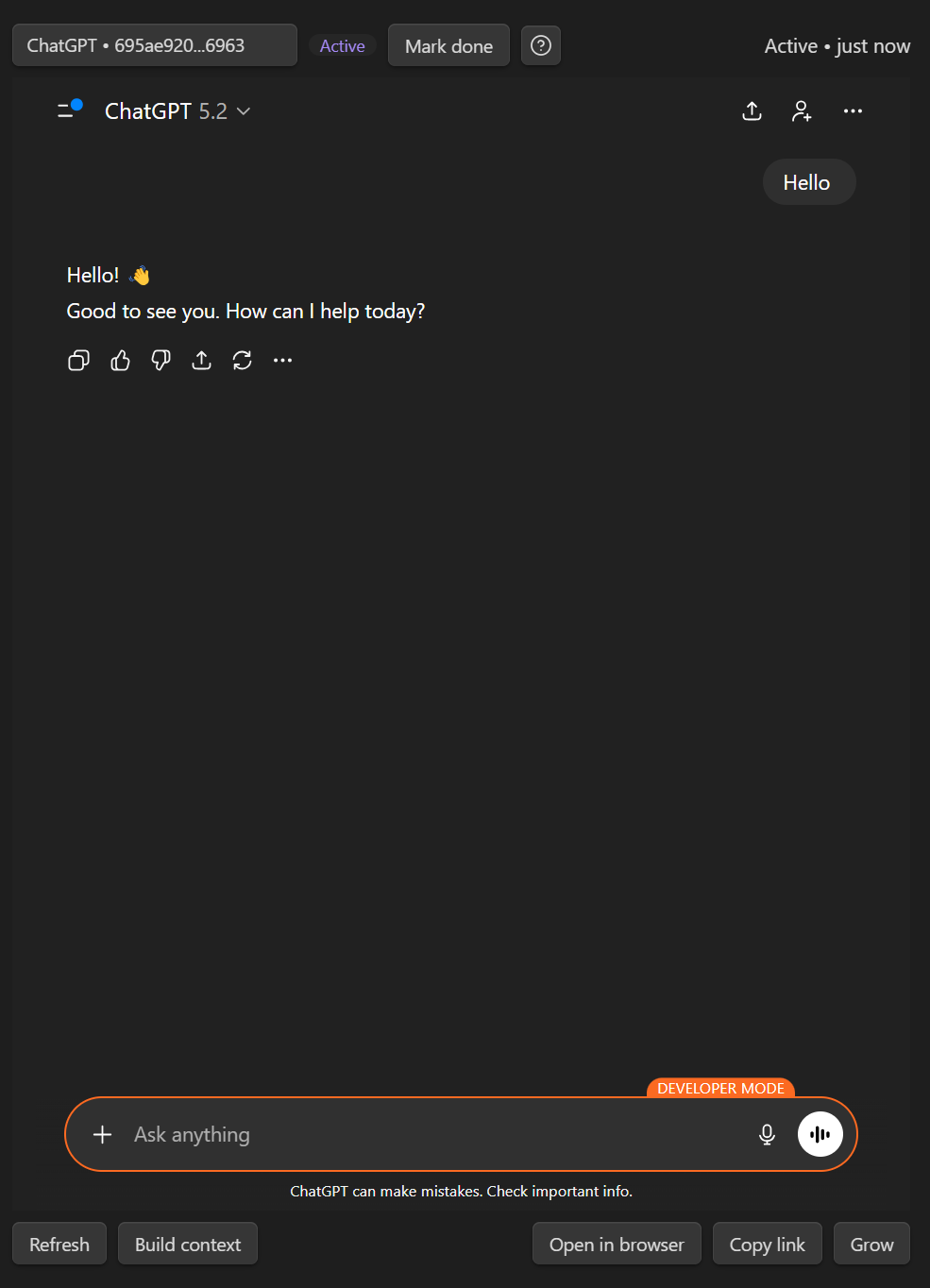
First confirm that the provider returns a visible response. Durable saving is separate: after the provider creates a recognized conversation URL, Smart Chat can store that URL in the codeblock. Reopen the saved URL before relying on it for continuity.
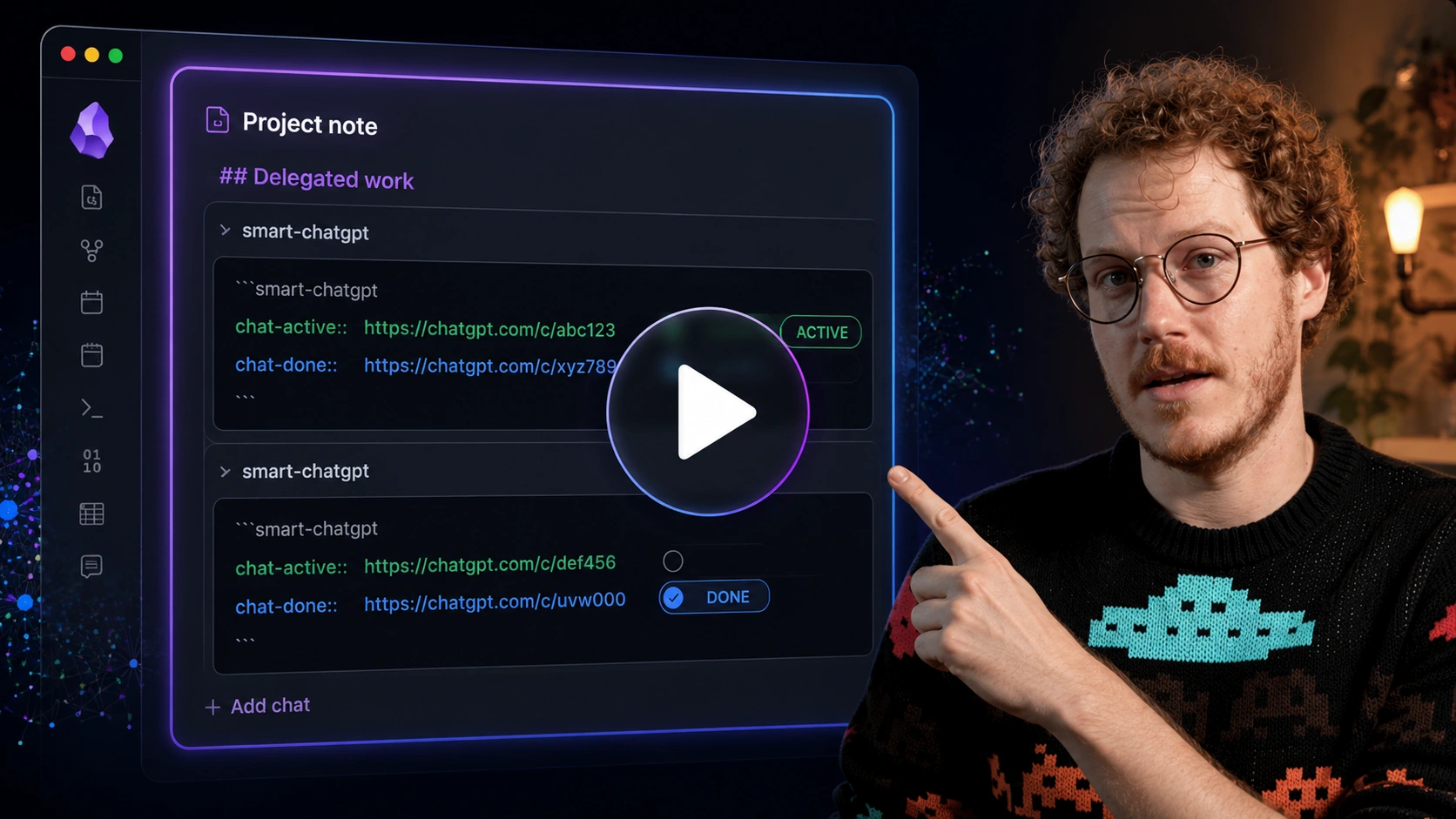
Callum marks one chat done, starts another, and can still return to the archived thread from the project note. That is the difference between a chat tab and managed delegated work.
3. Add a "Waiting for" section
If I delegate work and move on before reviewing the results, I move the next action that was delegated into a "waiting for" section.
## Waiting for
The waiting for section has a few important benefits:
- It helps me pick up from where I left off, making the review process easier to start
- It makes it easier to delegate multiple next actions and keep track of what was delegated without having to scroll through the chat threads themselves
- It enables use of advanced dynamic views that can prioritize a note based on the number of tasks in the "waiting for" section
4. Review and track progress
After reviewing the work I delegated to the chat thread, I mark a thread "done". If I need to go back to the thread, it is still available in the dropdown menu and can be changed back to "active" if necessary.

5. Track chat threads with Dataview
Because the Smart Chat codeblock saves the threads using inline variables, chat-active:: and chat-done::, Dataview can use the saved threads to produce dynamic views.
I use a simple dataview query to list recent notes with active chat threads.
```dataview
LIST WITHOUT ID file.link
WHERE chat-active
SORT file.mtime DESC
```
The query can be modified to see "done" threads like this:
```dataview
LIST WITHOUT ID file.link
WHERE chat-done
SORT file.mtime DESC
```
Dataview JS can also be used for more advanced queries.
Click to see the Dataview JS for showing totals
````md ```dataviewjs function count_field_value_instances(value) { if (value === null || value === undefined) return 0; return Array.isArray(value) ? value.length : 1; }const pages = dv.pages()
.where(p => p["chat-active"] || p["chat-done"])
.array();
const totals = pages.reduce((acc, page) => {
acc.active_total += count_field_value_instances(page["chat-active"]);
acc.done_total += count_field_value_instances(page["chat-done"]);
return acc;
}, { active_total: 0, done_total: 0 });
dv.paragraph(**Total chat-active instances:** ${totals.active_total});
dv.paragraph(**Total chat-done instances:** ${totals.done_total});
dv.paragraph(**Total tracked threads:** ${totals.active_total + totals.done_total});
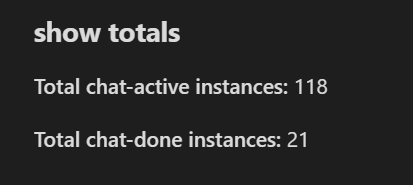
I even used this dataview compatibility to generate a nice graph comparing my chat vs cloud-codex usage since I handle threads from both platforms this way.
Common mistakes
Tracking every chat thread
Not every chat deserves management.
I track threads when losing them would create rework. I don't worry about tracking threads when I'm looking for a quick answer.
Unable to sign-in to chat via the codeblock
Enable the Obsidian "Web viewer" core plugin and sign-in using the built-in Obsidian browser. When you re-open the note with the chat codeblock then you should already be signed-in.
For more details, see the Smart Chat FAQs.
Related
| When I need to... | I use... |
|---|---|
| Create the note that owns the outcome | How I use outcome notes to go from idea to outcome in Obsidian |
| Build or attach the context package | How I build context in my Obsidian notes |
| Copy the note and context as an AI assignment | How I use my notes as assignments for delegating work to AI in Obsidian |
| Find useful notes before delegating | How I link notes without spending time organizing or searching in Obsidian |
| Separate trusted notes from raw AI output | How I maintain trust while leveraging AI in my notes |
| Read the Smart Chat codeblock docs | Smart Chat codeblocks |