
Smart Templates
Smart Templates combines the current note or selection, optional supporting context, one or more reusable Markdown templates, and a request-specific instruction.
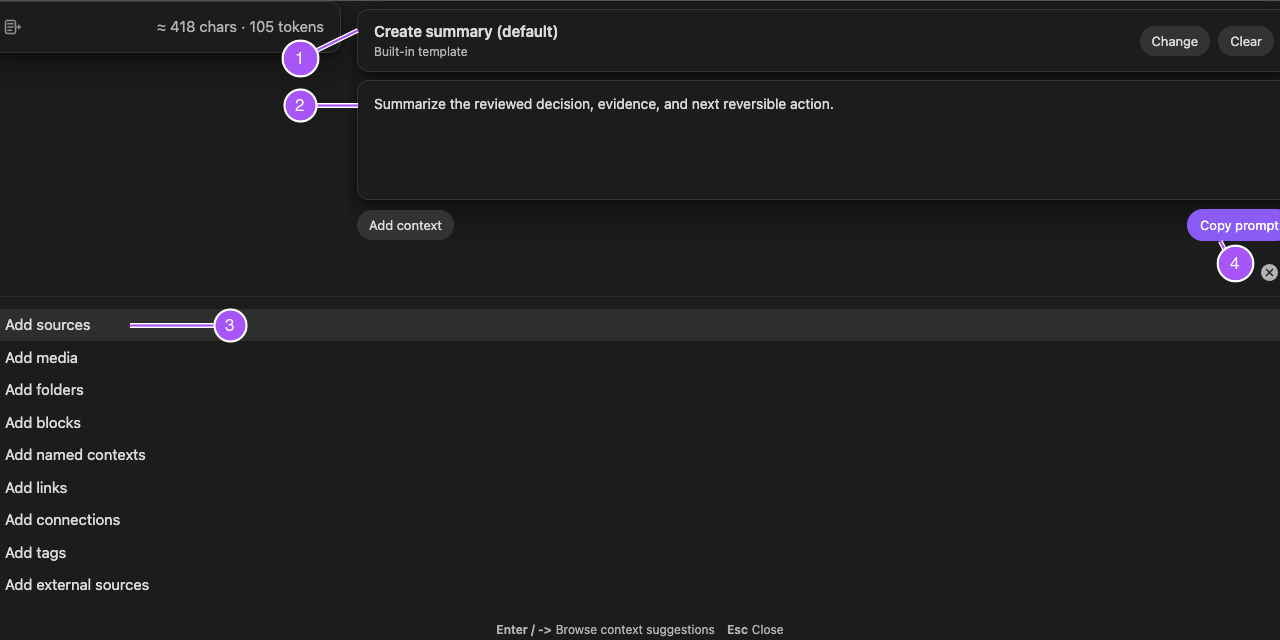
Current Smart Templates 2.3 ends at Copy prompt in Core and Pro. Paste the reviewed prompt into the chosen AI tool. Examine the pasted request before you send it.
Current output path
| Path | Use when | Completion |
|---|---|---|
| Copy prompt | You want to use ChatGPT, Claude, Gemini, Smart Chat, or another AI interface. | The pasted prompt contains the intended context, template, and instructions. |
The current workflow is:
current note or selection -> context -> template -> instructions -> Copy prompt -> paste -> examine -> send
In this guide
- Open Template Context
- Build and copy a prompt
- Review the shared modal
- Understand the retired Templates v1 generation workflow
- Troubleshoot the workflow
Build and copy AI prompts from Obsidian templates
Open Template Context
Run:
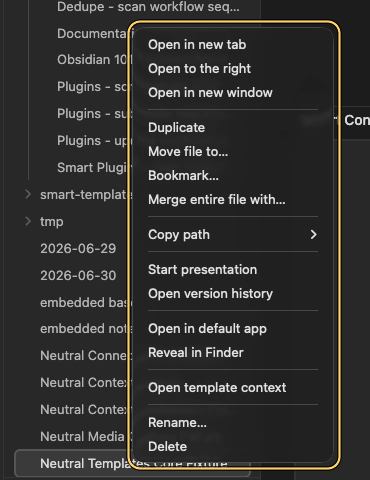
Smart Templates: Open template context
The ribbon opens the same shared modal. In the file navigator, right-click a Markdown or text file. Select Open template context. This action uses the selected file as the source, even when another note is active.
Core and Pro use the same open command and preparation modal. In current Smart Templates 2.3, both editions complete the workflow with Copy prompt.
Start from the current note or selection
Opening from the editor uses the active note as the context anchor. When supported text is selected first, the selection becomes the starting context instead of the whole note.
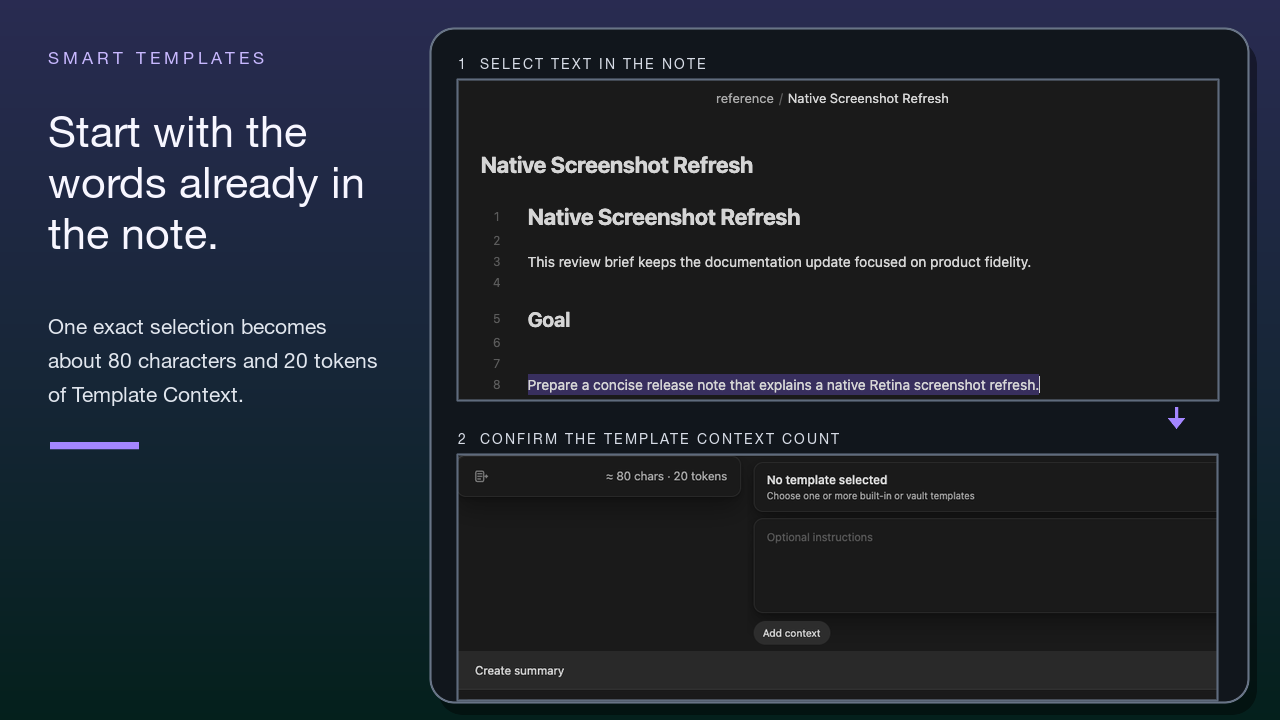
If a selection unexpectedly replaced the note:
- Close Template Context.
- Clear or adjust the editor selection.
- Reopen Template Context.
If a file-menu action used the wrong note, open the menu from the intended file. Do not rely on the active note.
Add and review context
Choose Add context only when the current note or selection does not contain enough evidence. Opening the chooser does not add a source by itself.
Review every included source before you copy. When the assignment needs a deliberately composed or reusable package, first build it with Smart Context. Review the package. Then open the package in Smart Templates.
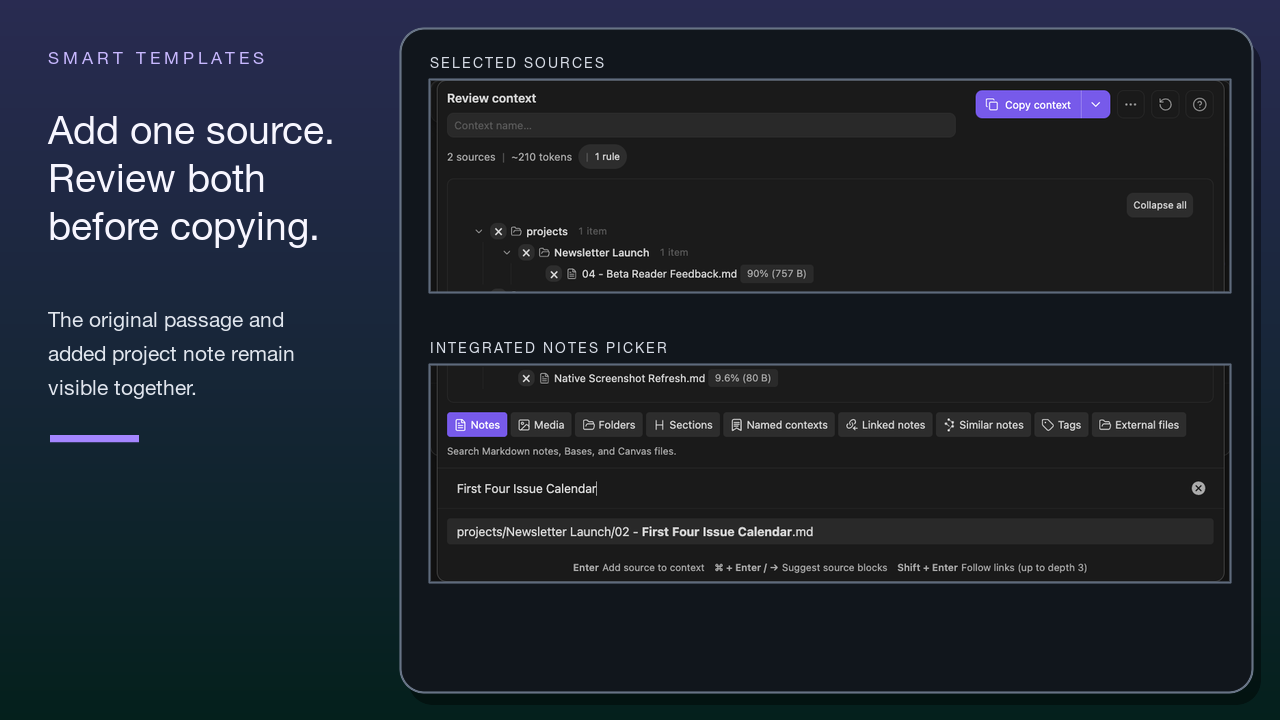
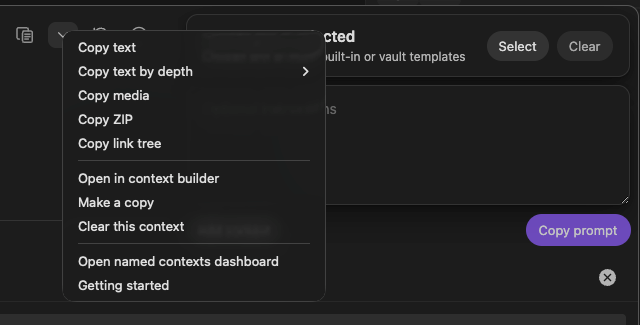
The Template Context package menu manages supporting context separately from the prepared request. Core exposes Copy text, Copy link tree, and Clear this context. Pro can also expose richer Context outputs plus Open in context builder and Make a copy. The primary Copy prompt action remains separate and completes the prepared template workflow.
Configure template discovery
Open Templates settings and use the controls that match the vault convention:
- Templates folder selects a folder whose matching notes are imported as templates.
- Naming convention specifies the file name used to detect template notes.
- Template headings selects headings whose matching blocks are imported as templates.
Open settings under Smart Environment and Browse Smart Plugins are suite handoffs, not template definitions. After changing discovery settings, reopen Template Context and make sure that the expected picker entries appear.
Select one or more templates
Choose Select. If a template is already selected, choose Change instead. Smart Templates can use:
- built-in templates
- templates from configured folders
- the Obsidian Templates folder
- notes marked with
smart template: true - notes matching configured filename rules
- matching headings inside notes
Built-in defaults allow a first workflow before vault-specific configuration.
When you select multiple templates, Smart Templates combines them in selection order. Review the finished request when order affects section sequence or instruction priority.
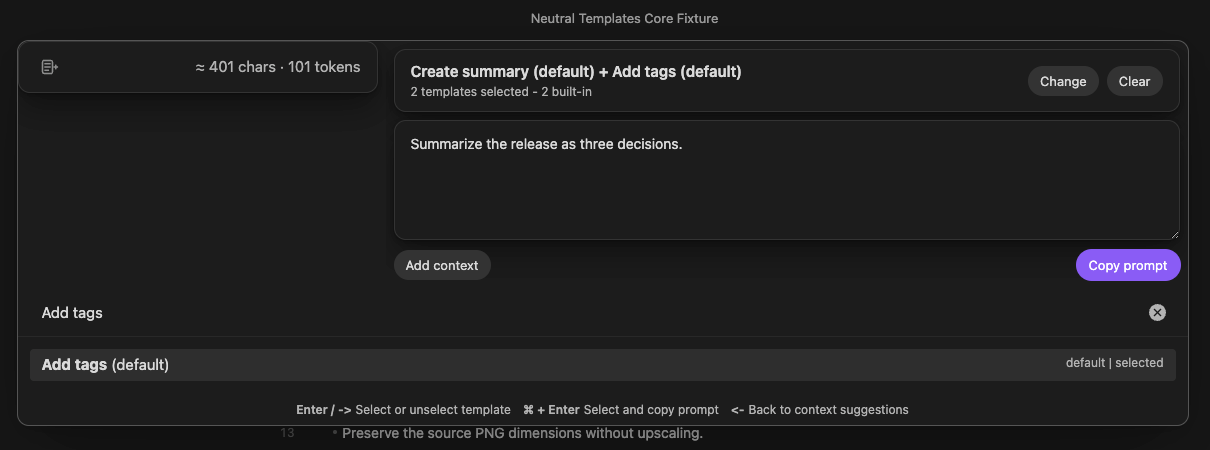
Use {{vault_tags}} in a template when the workflow should expand the vault's current tags. Verify the expansion in the finished prompt before sending it.
Add request-specific instructions
Templates should hold reusable structure. The instruction should describe what is unique about this run.
For example:
Focus on the unresolved decision, strongest evidence, and next reversible action.
Avoid repeating the complete template in the instruction. Shorter, discriminating constraints are easier to inspect and reuse.
Review the shared Template Context modal
Before choosing an output action, check:
- the starting note or selection
- any added context
- the selected templates and their order
- the request-specific instruction
- the visible size or scope estimate
- the destination you intend to use
Template suggestions and context suggestions are separate modes. Use the mode control to return to the source type you need. Selecting or clearing a template should update the request panel before you continue.
Core and Pro use the same Template Context workspace. Current Smart Templates 2.3 does not add Generate or model controls to this modal.
Copy the completed prompt in Core or Pro
After you review the request:
- Select Copy prompt.
- Paste the copied content into a clean composer or temporary note.
- Make sure that:
- the intended context is present
- unrelated sources are absent
- the selected template structure is recognizable
- the request-specific instruction is included
- source material and instructions are clearly separated
The current Core and Pro workflow does not require a Templates model because it stops at the clipboard. Content leaves Obsidian when you paste or send the copied prompt into another application or provider.
Retired Smart Templates v1 generation workflow
Smart Templates 2.3 ends at Copy prompt.
The following controls belonged to Smart Templates v1 and are not current Smart Templates controls:
- Generate
- Regenerate
- Insert
- Create note
- generated-output review inside Smart Templates
- the Templates-specific default or per-request model selector
The former /docs/templates/generate/ and /smart-templates/generate/ routes remain mapped to this section for migration. An older guide that names these controls describes the retired v1 workflow.
To complete the current workflow, reopen Template Context from the intended note or selection. Review the context, templates, and instructions. Select Copy prompt. Paste the request into the chosen AI tool. Examine the pasted request before you send it.
Troubleshooting Smart Templates
| What happened | Try first |
|---|---|
| No templates appear | Check the template folder, Obsidian Templates fallback, flags, filename rules, and heading detection in settings. |
| The wrong source is seeded | Close the modal. Clear the editor selection. Reopen the modal from the intended note or file. |
| The request is too large | Remove optional sources or build a narrower Smart Context package. |
| Copy prompt appears incomplete | Check the context. Check the template selection. Check the instructions. Copy the prompt again. Paste it into a clean destination. |
| An older guide says to use Generate, Regenerate, Insert, or Create note | That guide describes the retired v1 workflow. Use Copy prompt in current Smart Templates 2.3. |
| The pasted request is too generic | Clarify the instruction or add the missing evidence. Select Copy prompt again. Examine the pasted request before sending. |
| You expected Smart Templates to modify a note | The current workflow copies a prompt. Place reviewed output into a note through the destination workflow you chose. |