
Connect a local MCP client to your Obsidian vault
Use Connect Pro with a local MCP client or agent harness on the same computer as Obsidian. This guide covers the server settings and a first note read, without assuming a particular client interface.
For app-specific installation, use ChatGPT's local option or Claude Desktop's local option.
Before you start
Use Obsidian Desktop 1.12.2 or later with Connect Pro enabled and active Pro access. Keep the intended vault open. Your client must support a local Streamable HTTP MCP server.
Local MCP works independently of the remote Connect session. You do not need to connect ChatGPT or Claude through their directories for this route.
Review Tools > Manage tools before the first request. Dedicated proposal tools wait for review in Connect Pro Inbox; other enabled tools can change data directly. Local MCP describes the connection, not where the model runs. Your client may send tool inputs and returned note content to its model provider. Tool permissions | Privacy policy
1. Start the local server
- Open Settings > Connect Pro in the intended vault.
- Turn on Local MCP.
- Wait for Running on this computer.
If the server does not start, read the error beside the setting. For a port conflict, resolve the competing listener or choose a different Local MCP port, then retry.
2. Get this vault's server settings
Select Setup beside Local MCP. The Desktop app setup dialog contains the Server URL and suggested server name. Use Copy URL to copy the complete address.
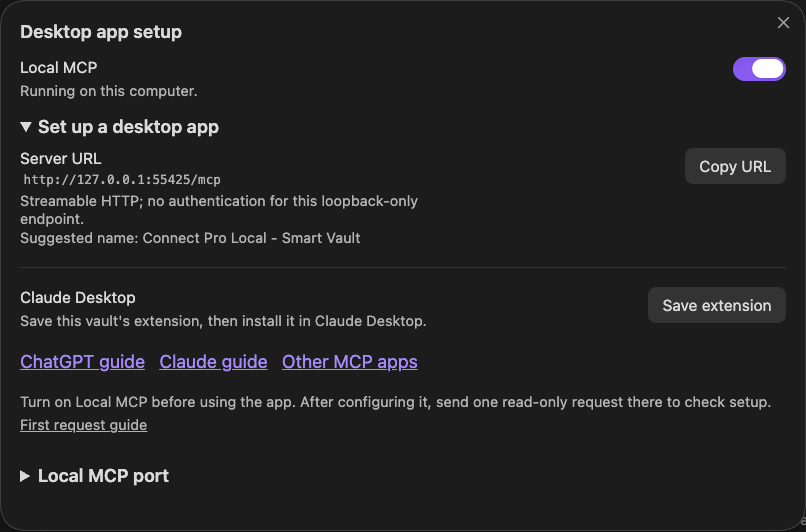
Use the values from your own installation, not the port in a screenshot.
| Field | Value |
|---|---|
| Name | The suggested name in Connect Pro settings |
| Transport | Streamable HTTP |
| URL | This vault's complete Server URL, including its port and /mcp |
| Authentication | None for this loopback-only endpoint; leave bearer-token and custom-header fields empty |
The local address is different from the public Remote MCP endpoint. Do not expose or forward the unauthenticated local server to the internet.
3. Add the server to your client
Use your client's MCP configuration to add the server with the values above. Save the configuration, then reload its server or tool list using the client's documented controls.
The MCP requests must originate from the same computer as Obsidian. A cloud-hosted connector cannot reach this computer's local listener. A command-only client needs a supported HTTP bridge; a container or virtual machine may not share the same local network interface.
4. Read a note through MCP
Choose a short note you are comfortable sharing with the client. Replace the bracketed path with its full vault-relative path, including .md:
Use only this Connect Pro MCP connection to read "[note path]".
Identify the note and quote one sentence from the returned text.
Do not use local filesystem access or another connection.
Do not change anything. If the read tool or note is unavailable,
report the problem.
Open the tool result and compare the returned sentence with the note in Obsidian. The request should use this MCP connection and return the intended note's text.
In this Claude Desktop example, Smart Connect Pro Local returns the same review date as the original Obsidian note.
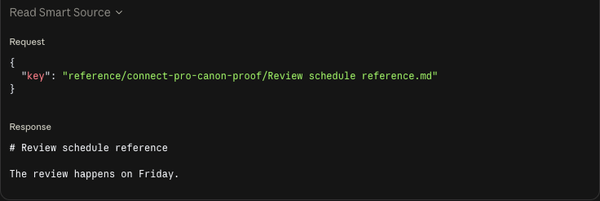

Continue in the main guide to work with the note and propose an update.
Connection help
| Problem | Check first |
|---|---|
| Local MCP is on but not running | Read the startup error. Resolve a port conflict before changing tool permissions. |
| The client cannot reach the server | Confirm Obsidian is open, Local MCP is running, and the complete URL matches this vault. |
| The port was changed | Update the client's saved URL and refresh its connection. |
| A note or tool is unavailable | Check the note path, required plugin, enabled MCP tool, and refreshed tool list. |
| The client only accepts a command | Use that client's supported HTTP bridge or a client with Streamable HTTP support. |
For further help, use Connect Pro troubleshooting.
Turning off Local MCP stops new requests through this local server. It does not stop the separate remote session, undo edits, or guarantee cancellation of work already running.