
Connect Claude to your Obsidian vault
Ask Claude to help with a project using the notes already in Obsidian. Connect Pro lets Claude read a selected note without copying it into chat.
Before you start
You need Obsidian Desktop 1.12.2 or later, Connect Pro enabled with active Pro access, and one project note to use. Install Connect Pro if needed.
Keep the intended vault open and your computer awake. The remote connection works with Claude on another device while Obsidian remains connected.
1. Connect Obsidian
- In Obsidian, open Settings > Connect Pro.
- Under Connect session, select Connect. If you see Open Pro plugins, complete account sign-in or resolve your Pro access first.
- Enable ChatGPT plugin and check its Remote MCP status. This is the current label for the shared remote connection that Claude also uses. Desktop apps (Local MCP) can remain off.
If Remote MCP shows Waiting for Connect, check the Connect session, then select Retry.
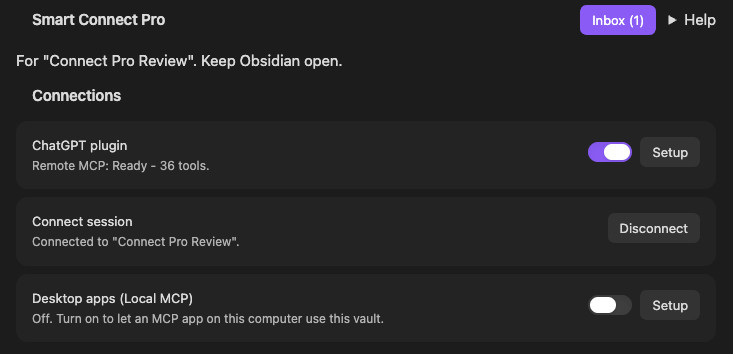
Connect session identifies the connected vault. ChatGPT plugin shows Remote MCP: Ready.
Before authorizing Claude, review Tools > Manage tools. Claude can use enabled MCP tools: dedicated proposal tools queue note changes in Connect Pro Inbox, while other enabled write tools can modify notes directly. Requested note content travels through Smart Server to Claude. Tool permissions | Privacy policy
2. Connect Claude
- Open Plugins in Claude. Select Add > Add custom connector.
- Name it Connect Pro for Obsidian and enter this URL:
https://mcp.smartconnections.app/mcp
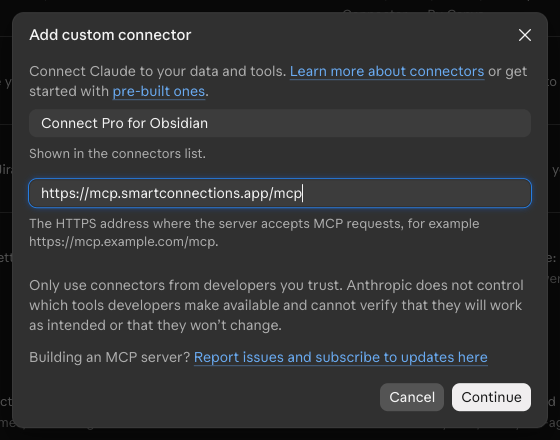
- Select Continue. Under Authentication, choose Sign in now. Under OAuth client, choose Use Claude's published identity.
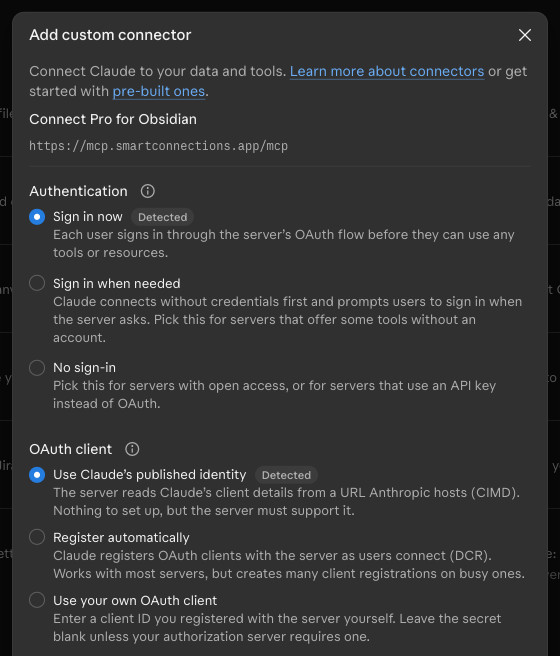
- Select Add. If Claude shows Connect for the new connector, select it. Sign in with your Connect Pro account email and connection key to complete authorization.
On Team or Enterprise, an authorized administrator first adds the custom connector in organization settings. Members then connect their accounts. Claude setup guidance.
3. Get an update from a note
In a Claude conversation, use + > Connectors to enable Connect Pro. Choose a non-sensitive project note, such as Projects/Launch brief.md, and replace the bracketed values:
Use only Connect Pro to read "[note path]" in "[vault name]".
Give me a brief update: the current goal, any recorded decision,
and the next action if stated. Say "Not recorded" for missing details.
Identify the source note. Do not change any notes.
Check that Claude used a Connect Pro read tool and that the update agrees with the note in Obsidian. If the note has no next action, Not recorded is a valid result.
Continue with a question about the project or propose one useful change for review.
If the connection does not work
| Problem | Check first |
|---|---|
| Sign-in fails | Use your Connect Pro email and connection key, not a Claude API key. Check Pro access. |
| Claude cannot reach the vault | Keep Obsidian awake; check Connect session and Remote MCP in Connect Pro settings. |
| A note or tool is missing | Check the note path, installed Smart Plugin and enabled MCP tool. Refresh Claude's connector tools. |
For other problems use Connect Pro troubleshooting. For an extension running on the same computer use Claude Desktop Local MCP setup.
Vault selection: Connect Pro uses the vault currently connected with your key. Switching vaults changes access in existing chats, too.
Disconnect in Claude to stop Claude's connector access. Stopping the shared remote connection in Obsidian also affects ChatGPT. Neither action reverses completed edits or guarantees cancellation of requests already running.