
Connect ChatGPT to your Obsidian vault
Use a project note in ChatGPT without copying its contents into the conversation.
Available as a ChatGPT plugin. The steps below use Remote MCP; the Local MCP option is at the bottom of this page.
Before you start
Use Obsidian Desktop 1.12.2 or later with Connect Pro enabled and active Pro access. Keep the intended vault open and your computer awake. Install Connect Pro if needed.
Before connecting, review Tools > Manage tools in Connect Pro settings. Dedicated proposal tools wait for review in Connect Pro Inbox. Other enabled write tools can change notes directly. Your AI app may send returned note content to its model provider. Tool permissions | Privacy policy
1. Connect Obsidian
- Open Settings > Connect Pro.
- In the Remote MCP row, select Connect. If the button says Open Pro plugins, resolve account sign-in or Pro access there.
- Enable the Remote MCP toggle and wait for Ready. The same row identifies the connected vault. Local MCP can remain off.
If the status says Waiting for Connect, select Connect. If the session is connected but Remote MCP is not ready, use Retry when offered.
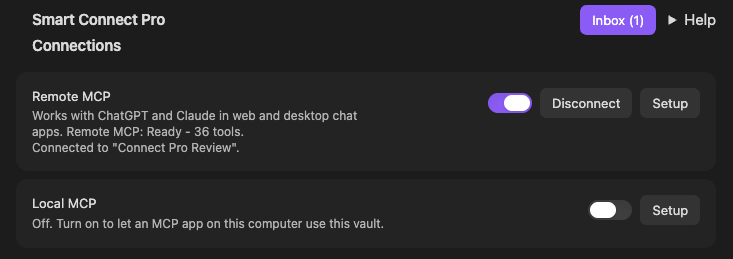
2. Connect ChatGPT
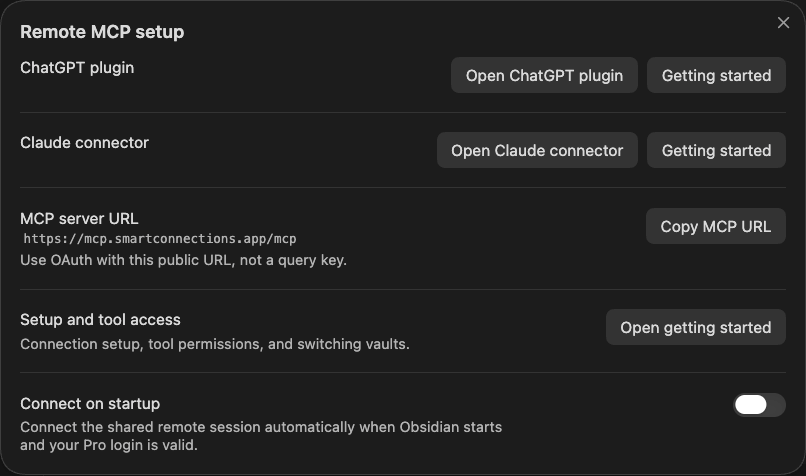
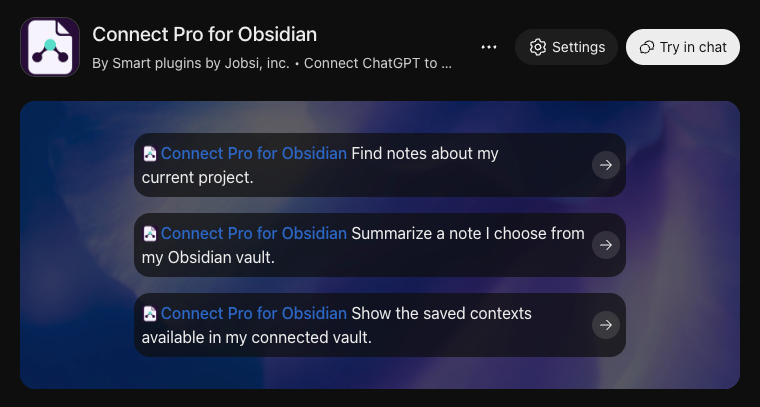
- Select Remote MCP > Setup > Open ChatGPT plugin, or open the Connect Pro for Obsidian plugin directly.
- Complete any connection prompts in ChatGPT.
- Select Try in chat. Keep Connect Pro for Obsidian attached and replace the suggested prompt with your request.
3. Get an update from a note
Choose a project note and use its full path, including the file extension:
Read "[note path]". What is the goal, what decisions are
recorded, and what is the next action?
Compare the answer with the note in Obsidian. Check the read result in ChatGPT's tool activity for the requested path and current note text.
Continue in the main guide to work with the note, propose an update, and review it in Connect Pro Inbox.
Legacy: Smart Connect Pro GPT
The dedicated Smart Connect Pro GPT is being discontinued. Use the plugin setup above for new connections. These instructions remain for existing GPT users.
In Settings > Connect Pro, select Connect in the Remote MCP row. Once connected, open the Connect Pro status-bar menu and select Open Official GPT. Local MCP can stay off.
If the button says Open Pro plugins, resolve sign-in or Pro access there. Reconnect here can replace an active session elsewhere; reconnect only when this is the intended vault.
Keep Obsidian open. Remote MCP > Setup > Connect on startup controls startup of the shared remote session used by the ChatGPT plugin, Claude connector, and legacy GPT.
If the connection does not work
| Problem | Check first |
|---|---|
| Sign-in or Pro access is unresolved | Check the account message in the Remote MCP row and open Pro plugins if prompted. |
| ChatGPT cannot reach the vault | Keep the computer awake and the vault open. Check the connection and readiness status in Remote MCP. |
| A note or tool is missing | Check the note path and Tools > Manage tools. Refresh ChatGPT's tool list if needed. |
| The wrong vault answers | Check the vault shown in Obsidian under Remote MCP and the account shown under Settings > Connected accounts on the ChatGPT plugin listing. |
For more help, use connection and access checks. For a same-computer connection, use the Local MCP option below.
Local option: ChatGPT Desktop
Use this option only with a ChatGPT desktop build that offers local MCP server settings. ChatGPT and Obsidian must run on the same computer. The remote plugin setup above is a separate route.
- Follow Local MCP server setup to start the server and copy this vault's Server URL and suggested name. A remote Connect session is not required.
- In ChatGPT, open Settings > MCP servers > Add server.
- Enter the suggested name, choose Streamable HTTP, and paste the complete Server URL. Leave bearer-token and custom-header fields empty for this loopback-only endpoint.
- Save, then select Restart. Type
/mcpin the composer to inspect the connected servers. - Use the local first-read check to read a known note through that MCP connection. Then continue with a reviewed note update.
OpenAI's MCP instructions cover client controls. If local MCP settings are absent, check the desktop build and workspace configuration. Do not put the loopback URL in a cloud connector or expose the local server to the internet.
Keep Obsidian open. A local connection does not guarantee local model processing; ChatGPT may process returned content through its provider.