
Core and Pro
Build the prompt and copy it
Best when you use ChatGPT, Claude, Gemini, Smart Chat, or another chat UI and just want a better prompt.
Official Smart Plugins site Smart Plugins are independent third-party plugins for Obsidian. Smart Connections is the flagship plugin.
Reusable AI prompts for Obsidian
Stop rebuilding the same prompt every time you use AI. Start from the note or selection you care about, apply one or more templates you already trust, and get a repeatable prompt for meeting follow-ups, research briefs, summaries, and outlines. Current Smart Templates 2.3 completes this workflow with Copy prompt in Core and Pro.
Works with your existing templates | Current note or selection as context | Core and Pro: Copy prompt
Core and Pro
Best when you use ChatGPT, Claude, Gemini, Smart Chat, or another chat UI and just want a better prompt.
Your chosen AI tool
Check the copied context, template, and instructions before sending the request. The destination produces the AI output.
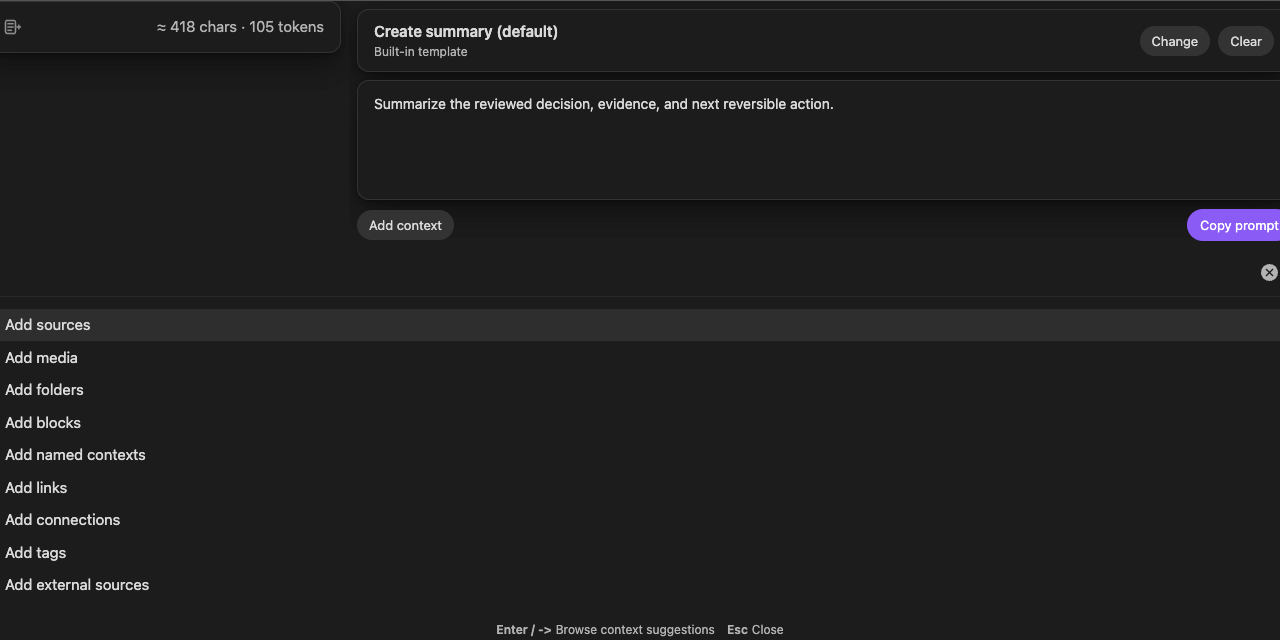
Smart Templates 2.3: start from context, select templates, and copy the prepared prompt in Core or Pro.
Install the plugin, open a note you care about, and turn that note plus one template into a repeatable AI prompt.
Step 1
Install Smart Templates from Community Plugins, then run Smart Templates: Open template context from the command palette or ribbon.
Step 2
The current note is the context anchor. If you highlight text first, the selection becomes the starting context.
Step 3
Pick one template, add a short instruction, and review the request. Click Copy prompt, paste it into your chosen AI tool, and examine it before sending.
Meeting notes: prepare a request for action items, decisions, and follow-ups.
Research notes: prepare a request for summaries, open questions, and next steps.
Drafts and outlines: keep your preferred structure instead of re-explaining it every time.
Obsidian Templates inserts predefined note content. Smart Templates uses note context plus templates to build and copy a prompt for your chosen AI tool.
Already use the Obsidian Templates folder? Point Smart Templates at the same source in Smart Templates settings .
It closes the gap between what your notes already know and what your prompt usually forgets.
The current note is the default anchor, and a text selection can replace it before you choose a template.
Learn the Template Context modal .
Use configured folders, the Obsidian Templates folder, a smart template: true flag, a filename rule, or matching headings.
Configure detection in Settings .
Core and Pro both complete the current Smart Templates 2.3 workflow with Copy prompt. Your chosen AI tool handles the request after you paste and send it.
Read the clipboard workflow or the retired v1 generation guidance .
Even before you configure vault-backed sources, Smart Templates includes defaults such as summary, tags, research paper, and diagram.
Smart Templates pays off when the structure repeats even when the raw material changes.
Package meeting notes with a template requesting action items, owners, risks, and decisions.
Start from a source note or excerpt, add supporting context, then apply a briefing template.
Keep your preferred outline, voice constraints, or section order without restating them every time.
Combine templates when one structure is not enough, such as a recommendation table plus an executive summary.
Use Smart Templates when structure is the problem. Use the rest of the ecosystem when discovery, context assembly, or ongoing chat is the bottleneck.
Need better context
Assemble the right notes, folders, or named packs before you apply a template.
Continue with attached chat
Paste copied prompts into chats that stay attached to the right notes.
Need discovery
Find related notes before packaging them into a structured prompt.
The best current proof is what you can inspect immediately: the plugin listing, the settings guide, and release notes.
Review the plugin entry and install Smart Templates from the official Obsidian directory.
See the live detection rules for folders, naming conventions, and heading-based discovery.
See the release history and distinguish current prompt-copy behavior from older workflows.
Smart Templates 2.3 prepares and copies the request in Obsidian. Examine the complete pasted prompt before sending it through your chosen AI tool.
Your templates stay in Markdown inside the vault, where they remain inspectable, editable, and shareable.
A configured cloud embedding or ranking provider can already receive eligible source text during Smart Environment processing. Copied content also leaves Obsidian when you paste or send it through another application or provider-backed tool.
Both editions use Template Context and finish with Copy prompt. Core completes the prompt-building workflow; a Pro upgrade is not required for it.
Core plugin
Free, context-first prompt building from the templates you already keep in your vault.
Pro plugin Copy prompt workflow
The current Pro surface shares the same preparation and Copy prompt completion as Core.
The fastest path from one note to one repeatable prompt.
Build a prompt from context plus templates and copy it for any external chat.
See the context-first runtime that powers both Core and Pro.
Configure where templates are found.
Open the shared modal from the command palette, ribbon, or file menu.
Understand older generation guides and continue with Copy prompt in version 2.3.
Quick answers on compatibility, Core vs Pro, privacy, and fit.
Smart Templates turns the Markdown templates you already trust into reusable AI workflows. It starts from your current note or selection, adds context, then packages that context with one or more templates. Current Smart Templates 2.3 copies the prepared prompt in Core and Pro.
No. Obsidian Templates inserts predefined note content. Smart Templates uses those same templates as AI structure layered on top of the current note or selection.
Not for the current Smart Templates 2.3 workflow in Core or Pro. It builds and copies the prompt for your chosen AI interface. The destination can require its own account, model, or provider configuration.
Current Core and Pro use the same Template Context preparation flow and end at Copy prompt. Generate, Regenerate, Insert, Create note, and Templates model controls belonged to the retired v1 workflow. Use the current Smart Plugins Store for edition access.
Smart Templates can discover templates from configured folders, the Obsidian Templates folder as a fallback, notes flagged with smart template: true, a configured filename match, or matching headings. Built-in defaults stay available even before setup.
Yes. Matching headings can act as templates, so you can keep multiple reusable template blocks inside one note.
Yes. Smart Templates can merge multiple templates in selection order when one output needs more than one reusable structure.
Yes. Select Copy prompt in Core or Pro, then paste the request into ChatGPT, Claude, Gemini, Smart Chat, or another compatible AI interface. Examine the complete pasted request before sending it.
Smart Context assembles the right notes as grounded context. Smart Templates applies reusable output structure to that context. They work well together when you need both.
Smart Templates prepares the request in Obsidian and copies it to the clipboard. A configured cloud embedding or ranking provider can already receive eligible source text during Smart Environment processing. The copied prompt leaves Obsidian when you paste or send it through another application or provider-backed tool. Review the context and destination before sending sensitive material.
Install Smart Templates from Community Plugins, open a note you already care about, run the shared modal, choose one template, add a short instruction, then click Copy prompt. The Getting Started guide walks through that first win.
Keep your best structures in Markdown, package them with the right context, and stop rebuilding prompts from scratch.
Smart Project lessons
Begin with a four-part introduction, followed by selected lessons from the systems, tools, and workflows behind Smart Plugins.
Subscribe to the Smart Project lessons and selected updates. Unsubscribe anytime. Privacy policy.