
Smart Connections settings
Tune Smart Connections for speed (limits and filters), precision (sources vs blocks, scoring/reranking), and UI defaults (how results render in lists, inline, and footer). These settings apply to both Connections (note/block suggestions) and Lookup (semantic search).
- Connections: suggestions related to the current note (or block), shown as a list (and optionally a graph).
- Lookup: an explicit search/lookup view that returns similar sources or blocks.
| Setting | What it changes | When to use it |
|---|---|---|
| Connection results type | Sources = whole notes; Blocks = sections/blocks (more granular) | Choose Sources for speed and overview; choose Blocks for precision (best when Smart Environment embeds blocks) |
| Results limit | How many results are shown per note | Lower it for speed and less noise; raise it when you want more candidates |
| Connections List Component (PRO) | List-only vs Graph + List rendering | Enable Graph + List for spatial exploration; keep List for fastest scanning |
| Connections list item (PRO) | Which metadata/snippet layout each result uses | When you want denser previews or different metadata emphasis |
| Connections sidebar location | Which sidebar opens when you launch Connections | Use Right for a dedicated side panel; choose Left to keep it near file navigation |
| Render markdown (PRO) | Whether snippets render markdown formatting | Turn on for rich previews; turn off to reduce rendering overhead |
| Include/Exclude path filters (PRO) | Restricts candidates by file path fragments | Focus results on a project area; hide archives/templates/noise |
| Frontmatter include/exclude filters (PRO) | Restricts candidates by YAML frontmatter key/value | Focus results on notes with matching metadata (ex. status:open); hide completed/archived work |
| Hide frontmatter blocks in results (PRO) | Hides YAML-derived blocks (frontmatter) from block results | Keep Blocks results focused on note content rather than metadata |
| Exclude inlinks/outlinks (PRO) | Removes notes already linked to/from the current note | When you want "new link suggestions" (not repeats of existing links) |
| Scoring algorithm (PRO) | How initial similarity scores are computed | Start with Cosine Similarity; use feedback-based options if you want your signals to influence ordering |
| Ranking algorithm (PRO) | Reorders results after scoring (reranking) | When top results are close but ordering feels off; prioritize precision over speed |
| Inline connections score threshold (PRO) | Minimum score required to show inline popovers | Raise it to reduce inline noise; lower it to see more matches while drafting |
| Footer connections (PRO) | Adds a Connections section at the bottom of notes | When you want a consistent place to browse related notes (especially on mobile) |
| Lookup results type/limit | Lookup granularity and number of results | Use Blocks for targeted answers; reduce limit for faster and simpler lookups |
These settings control what is shown in Connections and Lookup. To control what is indexed/embedded, see Smart Environment settings.
Where to find these settings in Obsidian
Open Settings -> Community plugins -> Smart Connections (or Connections Pro)
Many options are marked PRO. If you are not on Pro, you may see fewer controls than the screenshots on this page.
Connections lists
These options change what appears in the main Connections list for the current note.
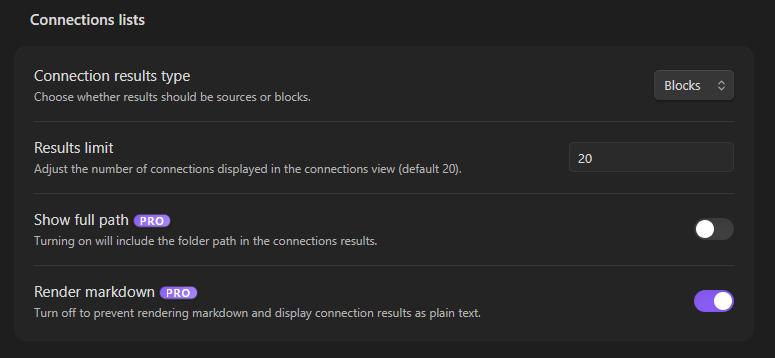
Connection results type
Choose whether Connections returns:
- Sources: whole notes (coarser, usually faster)
- Blocks: sections/blocks within notes (more precise, usually heavier)
If you choose Blocks, you will get the best results when Smart Environment is configured to embed blocks (see Smart Environment settings).
Results limit
Controls how many Connections are displayed (default 20). Lower values reduce UI load; higher values show more candidates.
Show full path (PRO)
When enabled, results include the folder path. This helps disambiguate similarly named notes and makes it easier to understand where a match lives in your vault.
Render markdown (PRO)
When enabled, result snippets render markdown.
Turn this off if you:
- Prefer plain text snippets, or
- Want to avoid markdown rendering overhead in the list UI.
Display
These settings control how the Connections list is rendered and how list items look.
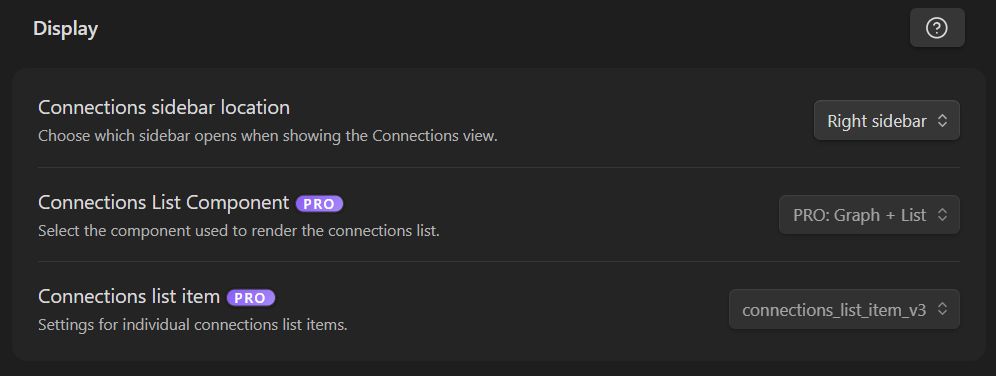
Connections List Component (PRO)
Select the component used to render the Connections list.
Example: PRO: Graph + List shows both a graph view and a list view.
Connections list item (PRO)
Select the list item renderer (template) used for each result.
This is mainly a UI preference: different item renderers may show different metadata, previews, or controls.
Connections sidebar location
Choose which sidebar pane opens when you open the Connections view.
- Right sidebar: Keeps Connections in a dedicated panel.
- Left sidebar: Keeps Connections closer to file navigation.
- If a Connections tab is already open in the opposite sidebar, Smart Connections now reopens it in the configured location.
Score algorithm
The score algorithm computes an initial similarity score between the current context and candidates.
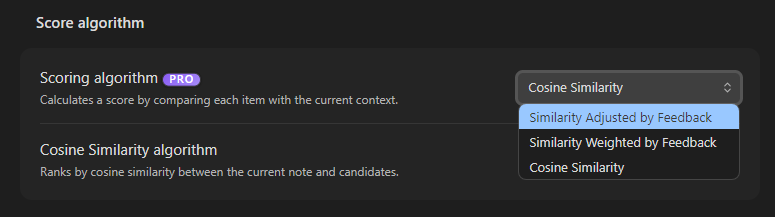
Scoring algorithm (PRO)
Select how items are scored against the current context.
Options shown in the UI include:
- Cosine Similarity
- Similarity Adjusted by Feedback
- Similarity Weighted by Feedback
- Similarity Weighted by Key + Frontmatter
The feedback-based options incorporate your feedback signals to influence future ordering. If you want a baseline, start with Cosine Similarity.
For full algorithm details and tuning guidance, see Custom algorithms.
Cosine Similarity algorithm
Ranks by cosine similarity between the current note and candidates.
Ranking algorithm
Ranking is a second step that can reorder results after the initial scoring step. This is where heavier algorithms (like reranking models) make sense, because they can be applied to a smaller set of top candidates.
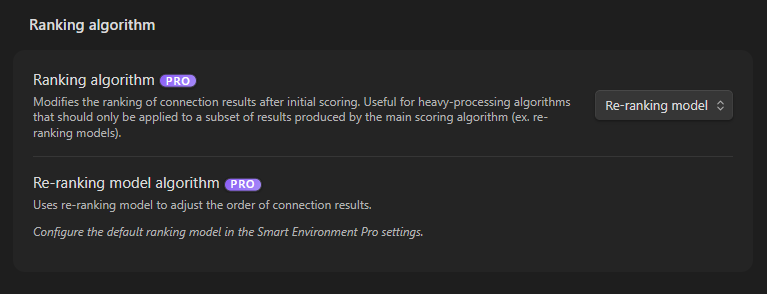
Ranking algorithm (PRO)
Enables a reranking strategy that modifies the order of results after initial scoring.
Re-ranking model algorithm (PRO)
Uses a reranking model to adjust the order of connection results.
To use a reranking model, configure the default ranking model in Smart Environment Pro settings (see Smart Environment settings).
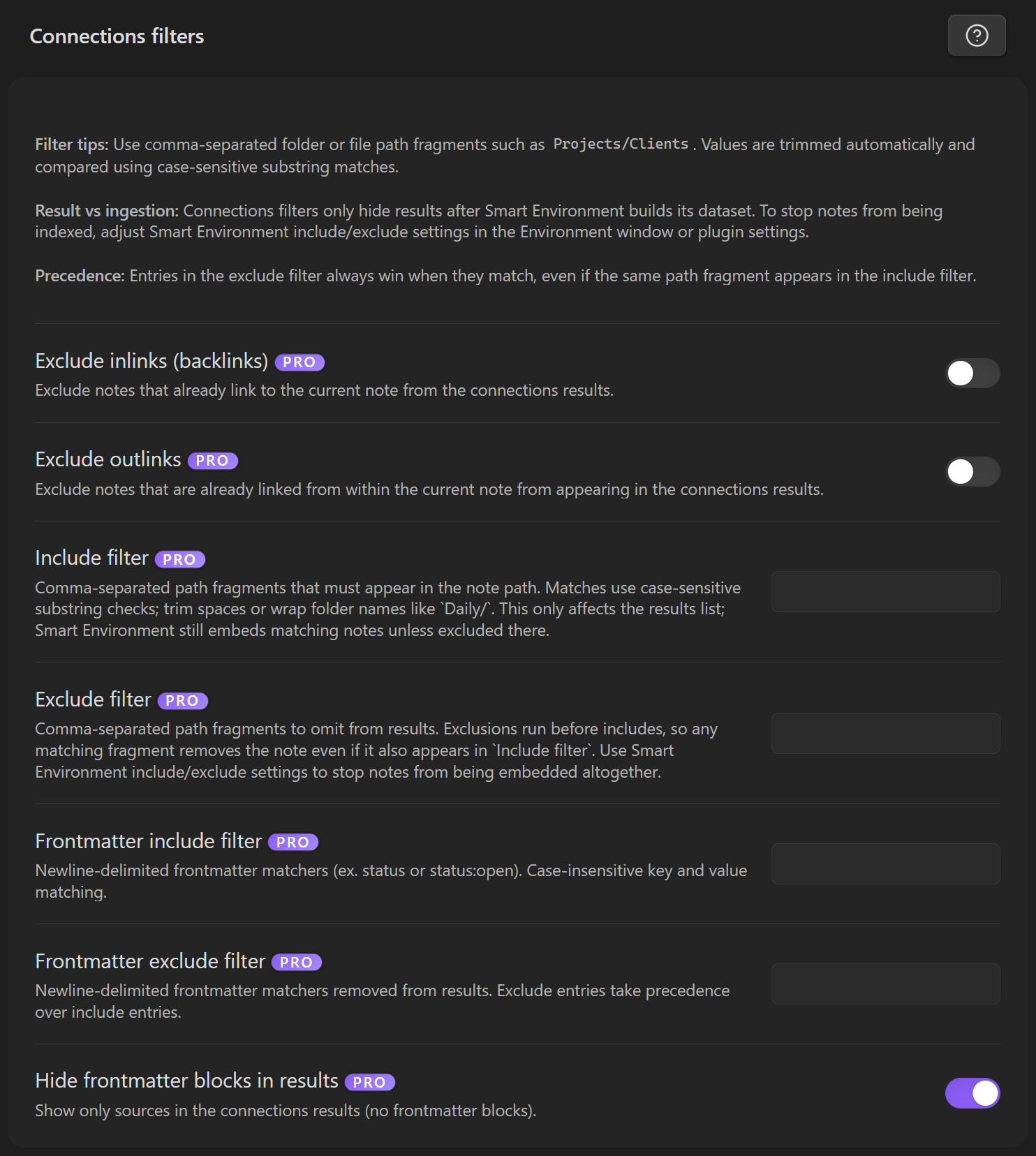
Connections filters
Filters hide items from the Connections results list.
How filters match
Connections filters support two kinds of matchers:
-
Path filters (Include filter, Exclude filter)
- Use comma-separated folder or file path fragments (example:
Projects/Clients).- Values are trimmed automatically.
- Matches use case-sensitive substring matching.
- Use comma-separated folder or file path fragments (example:
-
Frontmatter filters (Frontmatter include filter, Frontmatter exclude filter)
- Use one matcher per line.
- Use
keyto match any value (example:status), orkey:valueto match a specific value (example:status:open). - Matches use case-insensitive key and value matching.
- Use
- Use one matcher per line.
Result filters vs ingestion
Connections filters hide results after Smart Environment builds its dataset.
If you want to stop notes from being indexed/embedded at all, adjust Smart Environment include/exclude settings (Environment window or plugin settings). See Smart Environment settings.
Precedence
- Entries in the Exclude filter always win when they match, even if the same path fragment appears in the Include filter.
- Entries in the Frontmatter exclude filter always win when they match, even if the same matcher appears in the Frontmatter include filter.
Exclude inlinks (backlinks) (PRO)
Exclude notes that already link to the current note from the Connections results.
Use this when you want Connections to surface "unlinked but relevant" notes, not the ones already connected by backlinks.
Exclude outlinks (PRO)
Exclude notes that are already linked from within the current note from appearing in the Connections results.
Use this to avoid re-suggesting notes you have already linked to.
Include filter (PRO)
Comma-separated path fragments that must appear in the note path.
Use this to focus results on specific areas of your vault, like:
Daily/Projects/ClientA/People/
This only affects the results list. Smart Environment may still embed matching notes unless they are excluded there.
Exclude filter (PRO)
Comma-separated path fragments to omit from results.
Exclusions run before includes, so any matching fragment removes the note even if it also appears in Include filter.
If you want matching notes to not be embedded at all, use Smart Environment include/exclude settings (see Smart Environment settings).
Frontmatter include filter (PRO)
Newline-delimited frontmatter matchers that must be present in a candidate note's YAML frontmatter.
- One matcher per line
keymatches any value for that keykey:valuematches a specific value- Key and value matching is case-insensitive
Example:
status:open
type:meeting
project:client-a
Use this when you want Connections to stay inside a "metadata slice" of your vault (ex. only active projects).
Frontmatter exclude filter (PRO)
Newline-delimited frontmatter matchers to remove from results.
Exclude entries take precedence over include entries.
Example:
status:done
status:archived
area:private
Use this to hide completed, archived, or otherwise out-of-scope notes even if they would otherwise match by content.
Hide frontmatter blocks in results (PRO)
When using Blocks results, enabling this hides blocks that come from note frontmatter (YAML), so the list focuses on note content rather than metadata.
Inline connections
Inline connections show Connections at the block level inside the current note.
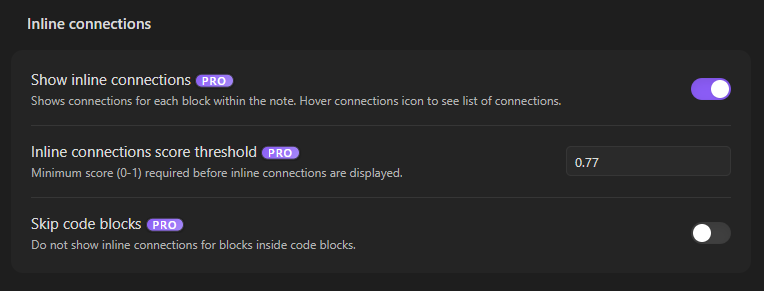
Show inline connections (PRO)
When enabled, Smart Connections shows connections for each block within the note.
Hover the connections icon to see a list of connections for that block.
Inline connections score threshold (PRO)
Minimum score (0 to 1) required before inline connections are displayed.
- Increase this to reduce noise (show fewer, stronger inline matches).
- Decrease this to see more inline matches.
Skip code blocks (PRO)
When enabled, inline connections are not shown for blocks inside code blocks.
This is useful when:
- You keep lots of code snippets in notes, and
- You do not want inline connection UI on those sections.
Footer connections
Footer connections show a Connections section at the bottom of each note.

Show footer connections (PRO)
When enabled, Connections are displayed at the bottom of each note.
This is useful if you want a consistent place to browse related notes without opening the side panel.
Lookup lists
Lookup lists control what is shown in Lookup views (and other lookup-based lists).
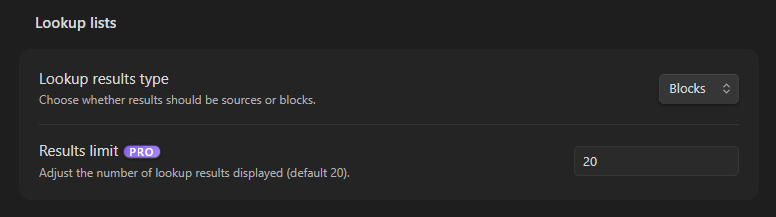
Lookup results type
Choose whether Lookup returns sources or blocks.
As with Connections results, block-level results are most useful when Smart Environment is configured to embed blocks (see Smart Environment settings).
Results limit (PRO)
Adjust the number of lookup results displayed (default 20).