
Getting Started with Smart Context
Smart Context collects notes (and optionally linked references) into a clean, templated bundle you can paste into any AI chat.

If you notice your flow breaking every time you need to gather context, this is the fastest fix.
- Install Smart Context: https://obsidian.md/plugins?id=smart-context
- Want the overview and upgrade path? See Smart Context.
AI answers are only as good as the context you provide.
Smart Context helps you feed better inputs with fewer clicks, so outputs stay grounded in your real notes.
Pick your first win (choose a path)
Path 1: "My project already lives in one folder"
Use folder copy when your notes are already grouped.
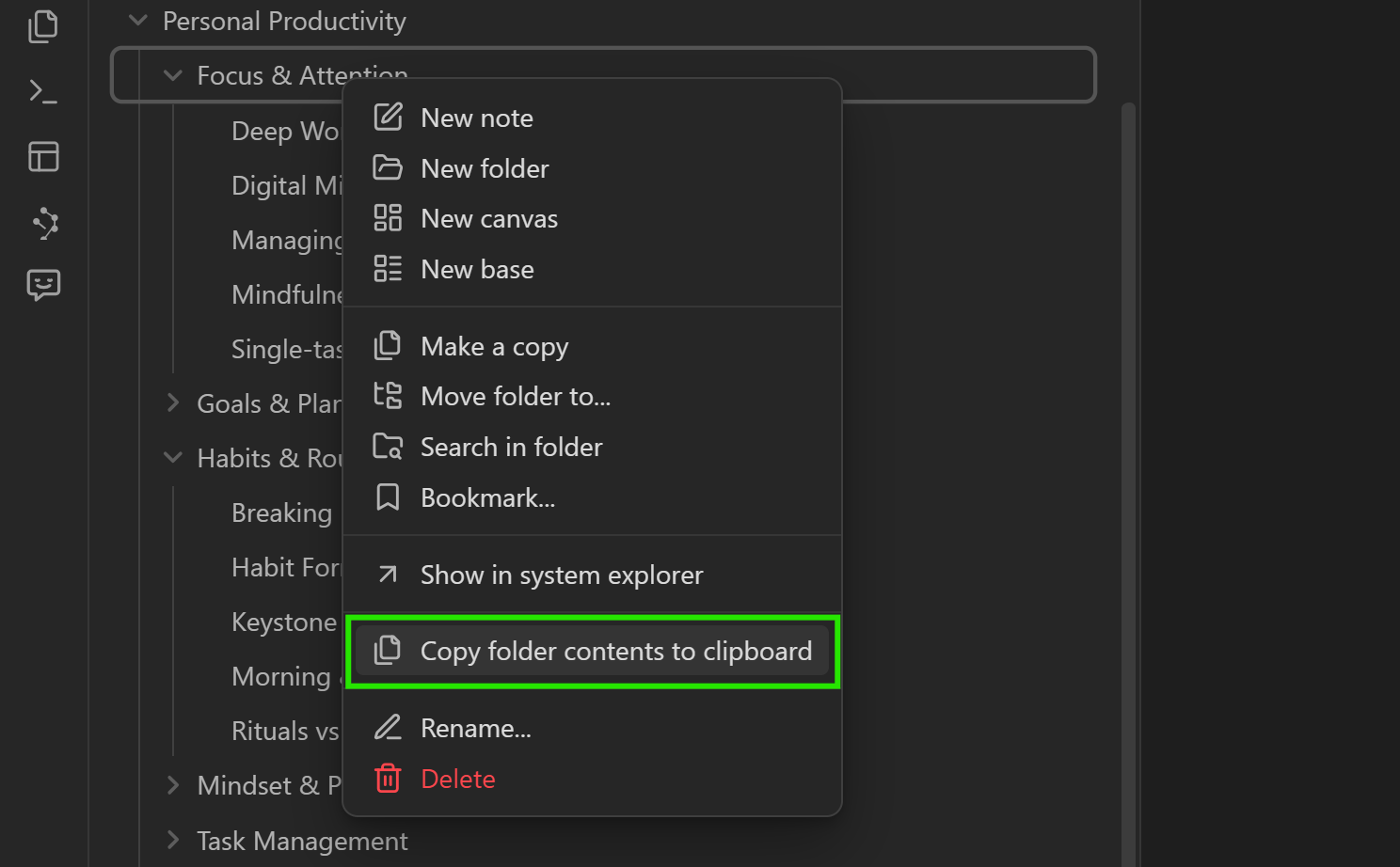
- Right click a folder -> Copy contents
- Or use the command palette -> Select folder to copy contents (best if you want a hotkey)
- Multi-select folders -> Copy selected folders from the Files menu (v2.0.2)
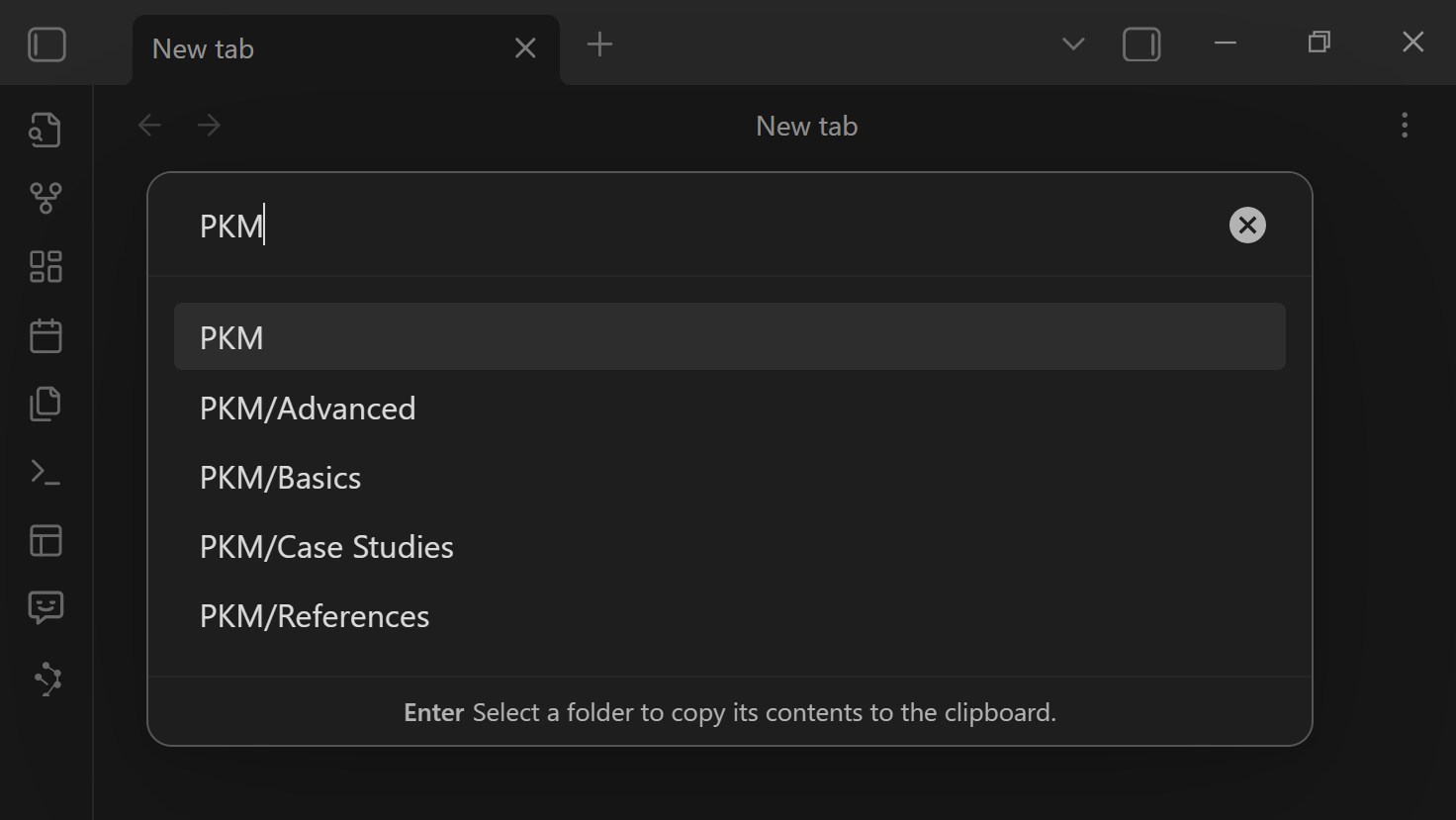
Prompt starter after you paste:
- "Summarize current status, decisions, open loops, and the top 5 next actions. Quote the note title for each claim."
Related deep dive: Smart Context Clipboard (predictable exports, link depth, token awareness)
Path 2: "My notes are scattered and I want a working set"
Use the Builder when you need a hand-picked pack across folders (and you may want to reuse it).
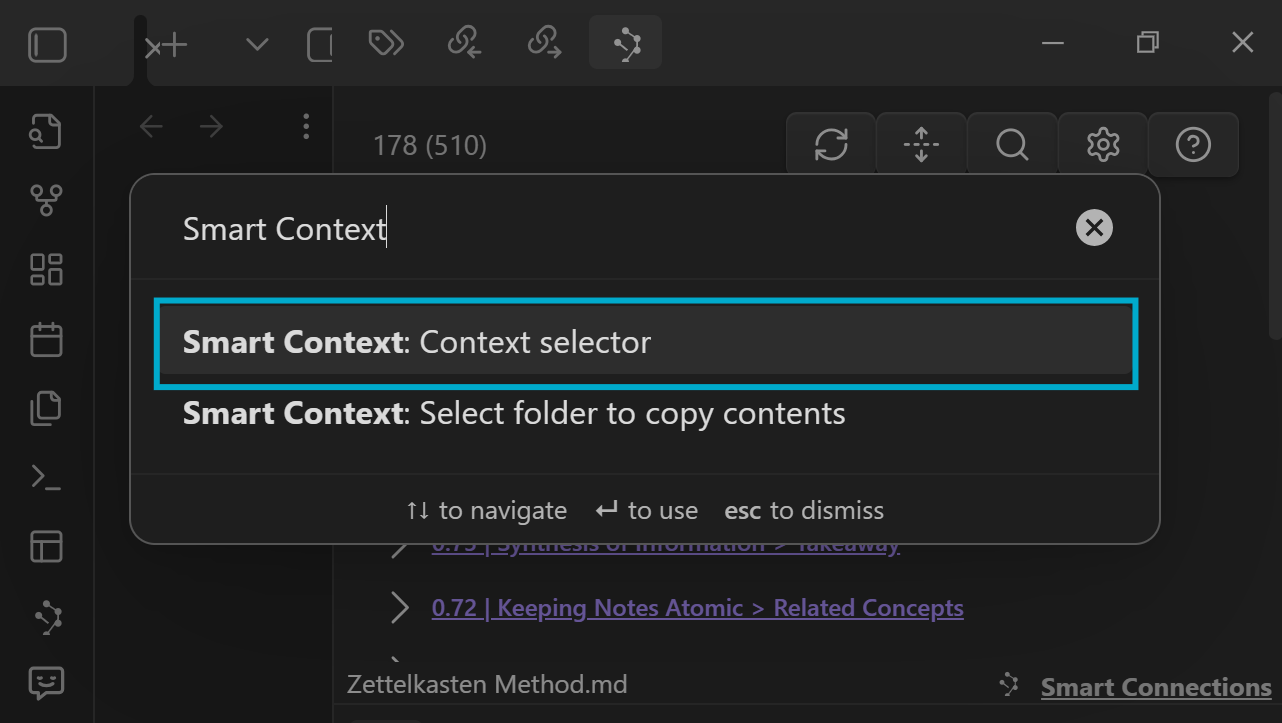
- Open the selector (Builder)
- Add notes via Visible notes / Open notes / Search
- Copy to clipboard when the set is right
- (Optional) Save it as a named context so you can reuse it
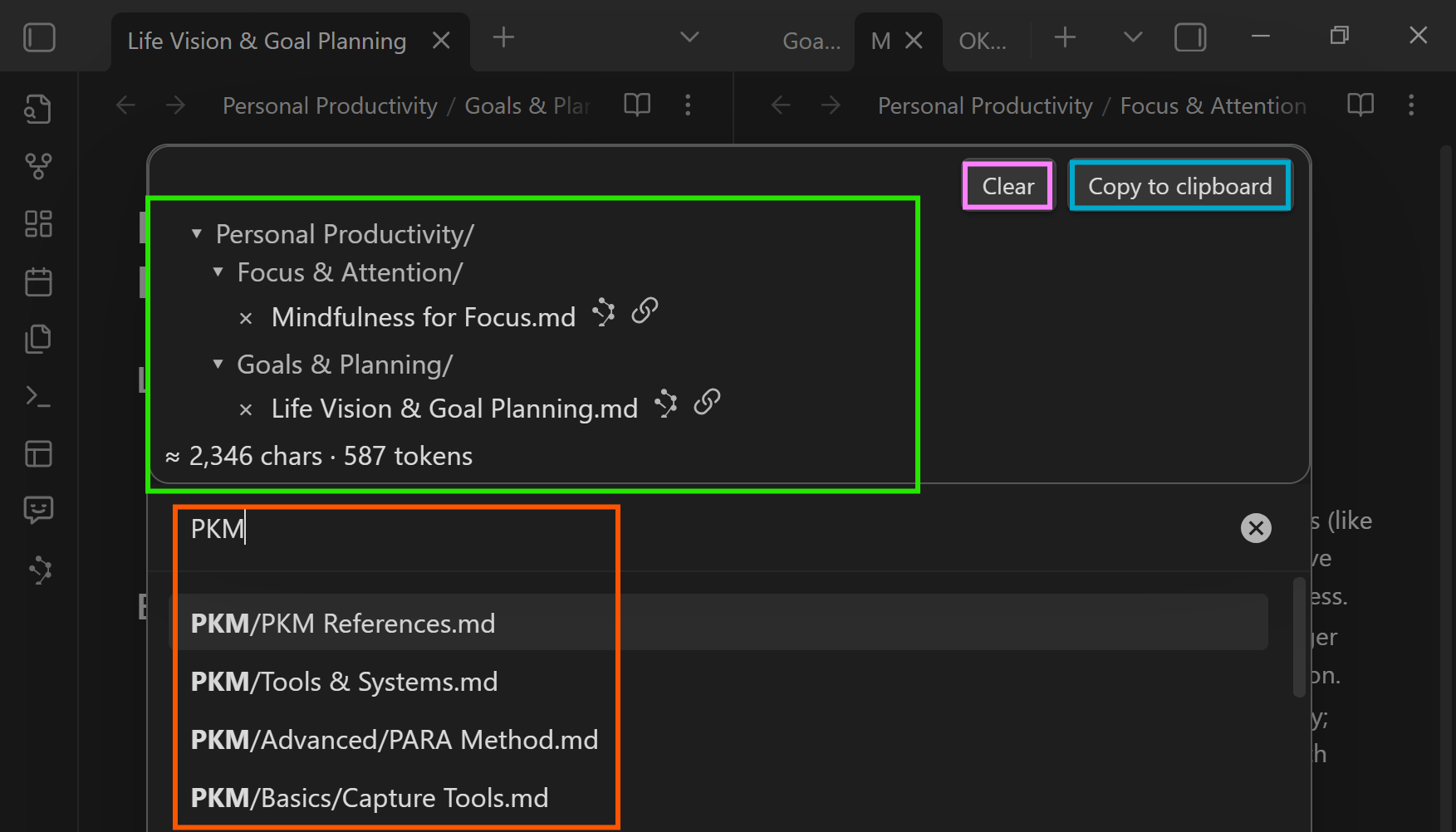
Quick start: you can open the Builder directly from file or folder selections in the file navigator (v2.0.2) to prefill a context set.
Prompt starter after you paste:
- "Extract constraints first. Then propose a plan that satisfies every constraint. If anything is missing, list only the minimum missing context."
Related deep dive: Smart Context Builder (named packs, blocks, reuse)
Path 3: "This note links to the real sources - include those too"
Use link depth when your hub note references definitions, sources, or supporting docs.
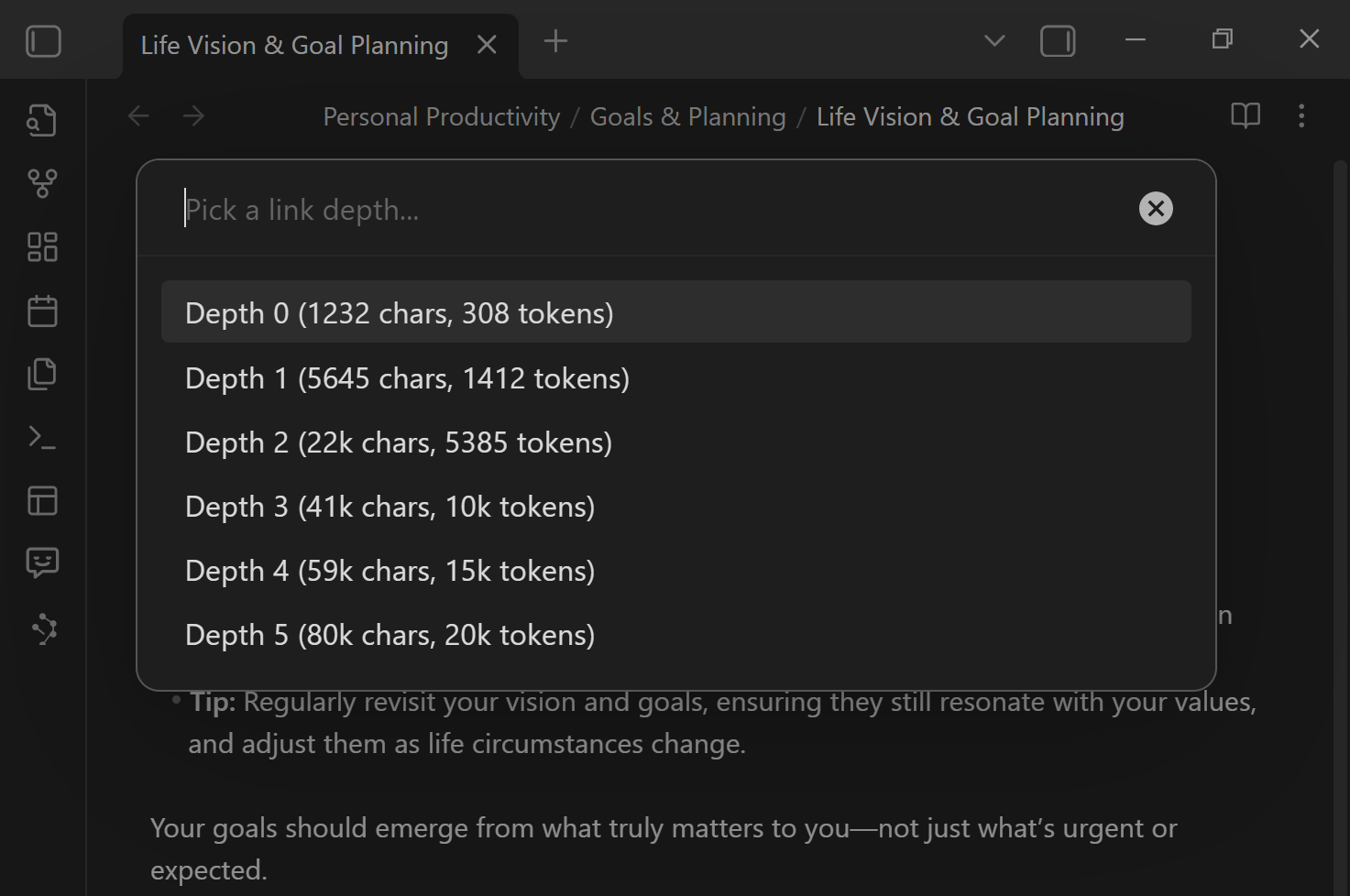
- Start from your hub note
- Export with a link depth that matches your token budget
- Depth 0 = just the core note
- Depth 1 = include direct references
- Depth 2+ = wider snapshot (can grow fast)
Prompt starter after you paste:
- "Answer using only this context. If you need more, list exactly which missing note(s) or section(s) would close the gap."
Related deep dive: Smart Context Clipboard (link depth explained + workflow recipes)
Grow a context set without hunting
Turn discoveries into context (Connections -> Smart Context)
If you use Smart Connections to resurface relevant notes, you can convert results directly into a context set you can edit and export.
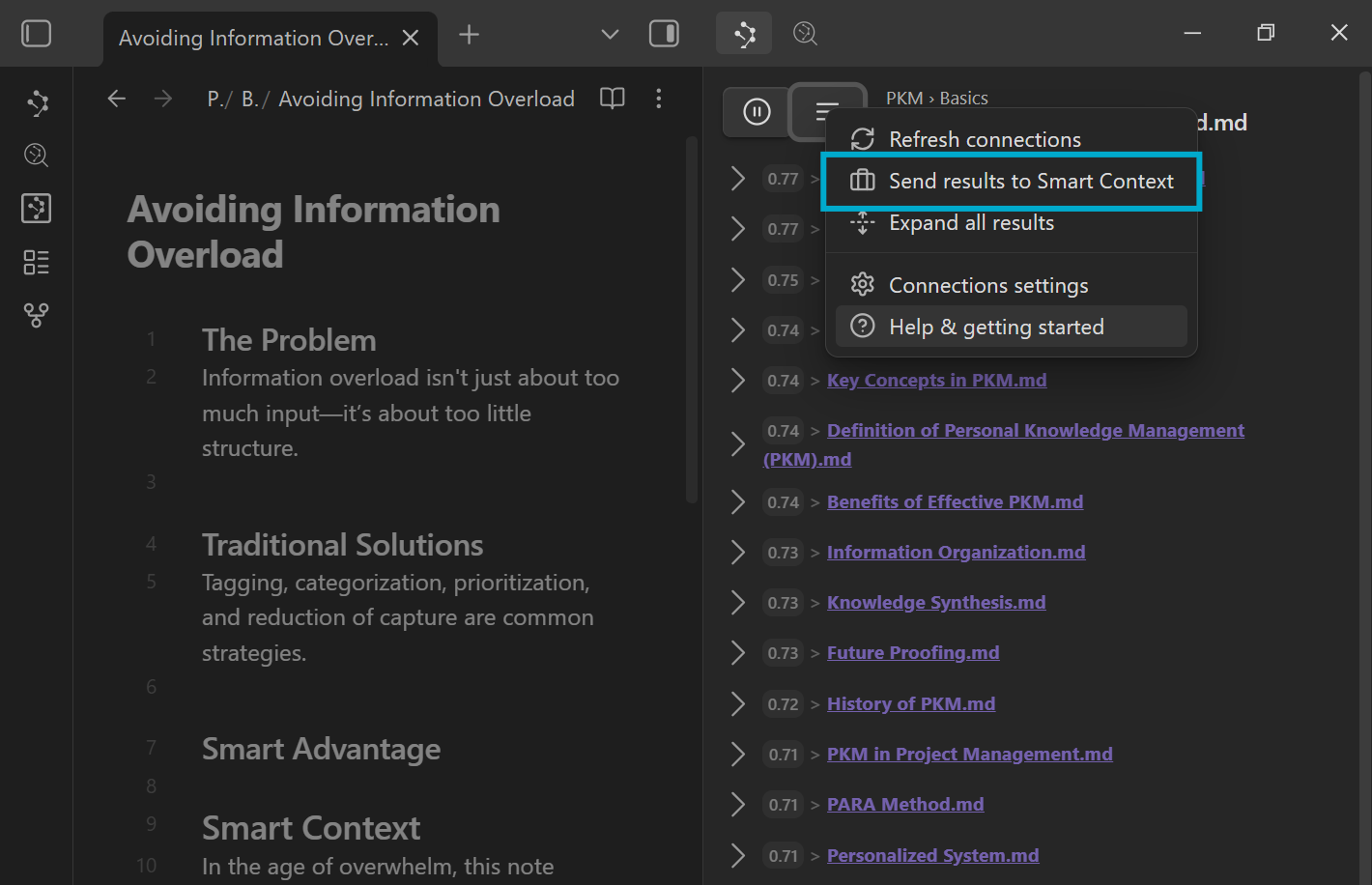
Workflow:
- Open the Connections view and scan the top matches
- Use Send results to Smart Context
- Remove noise, keep what matters, then copy
Related pages:
- Exploring the Connections view (how to scan, pause, hide, pin)
- Getting Started with Smart Connections (if you are new to Connections)
Make it repeatable (templates, packs, manifests)
Templates (control formatting)
If you want consistent prompts or machine-parsable exports, templates are the control surface.
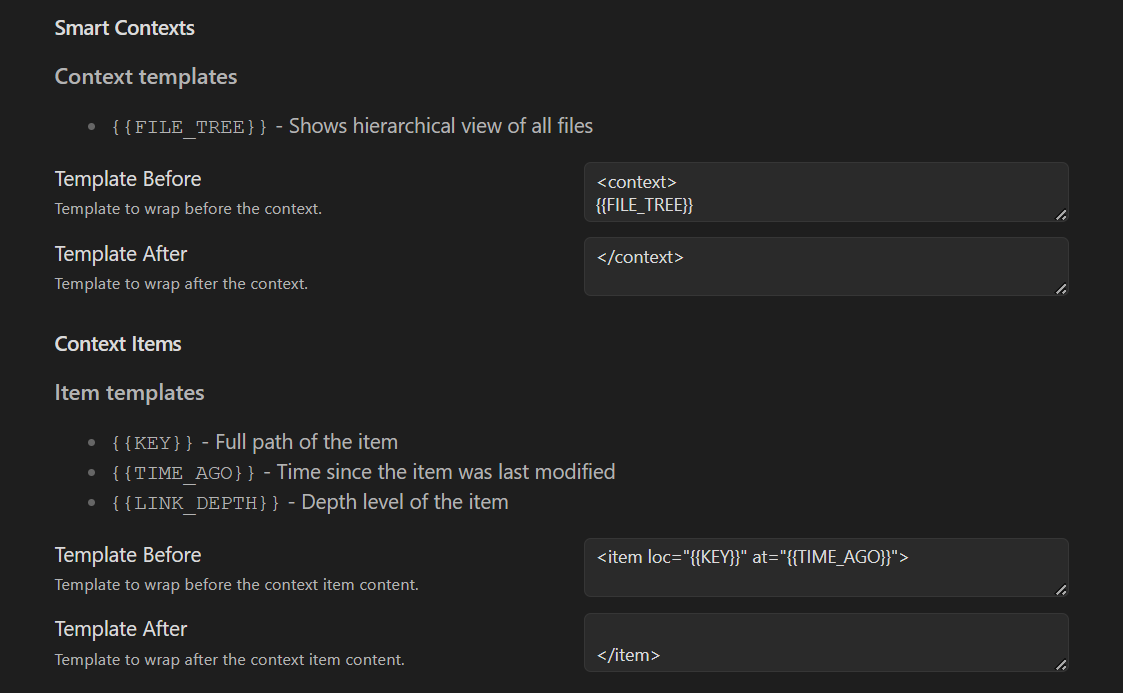
- Context templates wrap the entire export
- Item templates wrap each note/item
- Use variables like file path and modified time to keep context self-describing
Deep dive: Smart Context settings
Named context packs (reuse across sessions)
If you keep re-explaining the same project, save a named pack once and reopen it whenever you need it.
Deep dive: Smart Context Builder
Named context picker command
Need a fast way to reopen a saved context? Use the named context picker command (v2.0.2) to choose a saved context and open it directly in:
- the Copy modal (copy immediately), or
- the Builder (edit the context set).
Pinned context manifest inside a note (codeblock)
If the note itself should "carry its own context" (especially for repos and external files), use a smart-context codeblock.
Deep dive: Smart Context codeblock
The best mental model:
Builder = reusable packs
Clipboard = fast exports
Templates = reproducible formatting
Codeblock = pinned manifest attached to a note
Key commands and hotkeys
Assign hotkeys for whatever you do daily (Builder, copy current, copy folder, etc.).
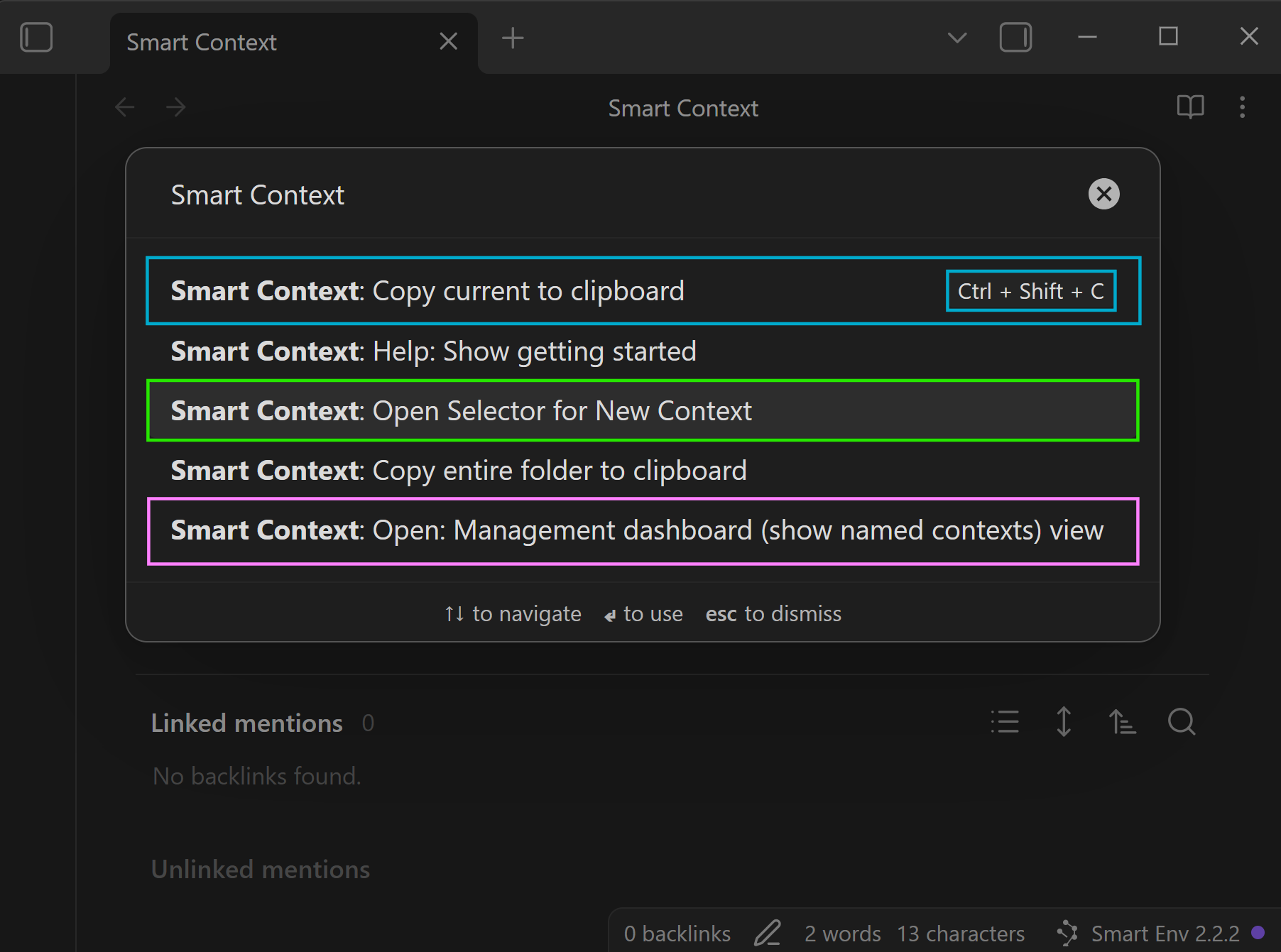
Two commands to remember
- Smart Context: Open Context Selector → starts a fresh context builder.
- Smart Context: Open Context Dashboard → opens the named context list so you can reuse packs.
Obsidian Settings -> Hotkeys -> search "Smart Context"
Pick one workflow and make it one keystroke.
If you are unsure inside the Copy modal, use the Help button for guidance (v2.0.2).
Next steps
- Go deeper on reusable packs: Smart Context Builder
- Understand exports and link depth: Smart Context Clipboard
- Make output reproducible: Smart Context settings
- Pin a context manifest inside a note: Smart Context codeblock
- Paste into a destination workflow: Smart Chat