
Core
Build the prompt and copy it
Best when you use ChatGPT, Claude, Gemini, Smart Chat, or another chat UI and just want a better prompt.
Official Smart Plugins site
Smart Plugins are independent third-party plugins for Obsidian. Smart Connections is the flagship plugin.
Reusable AI prompts for Obsidian
Stop rebuilding the same prompt every time you use AI. Start from the note or selection you care about, apply one or more templates you already trust, and get a repeatable prompt for meeting follow-ups, research briefs, summaries, and outlines. Pro adds generate inside Obsidian.
Works with your existing templates | Current note or selection as context | Core: no API setup | Pro: generate inside Obsidian
Core
Best when you use ChatGPT, Claude, Gemini, Smart Chat, or another chat UI and just want a better prompt.
Pro
Best when you want to stay in Obsidian, review output, then insert it or create a note.
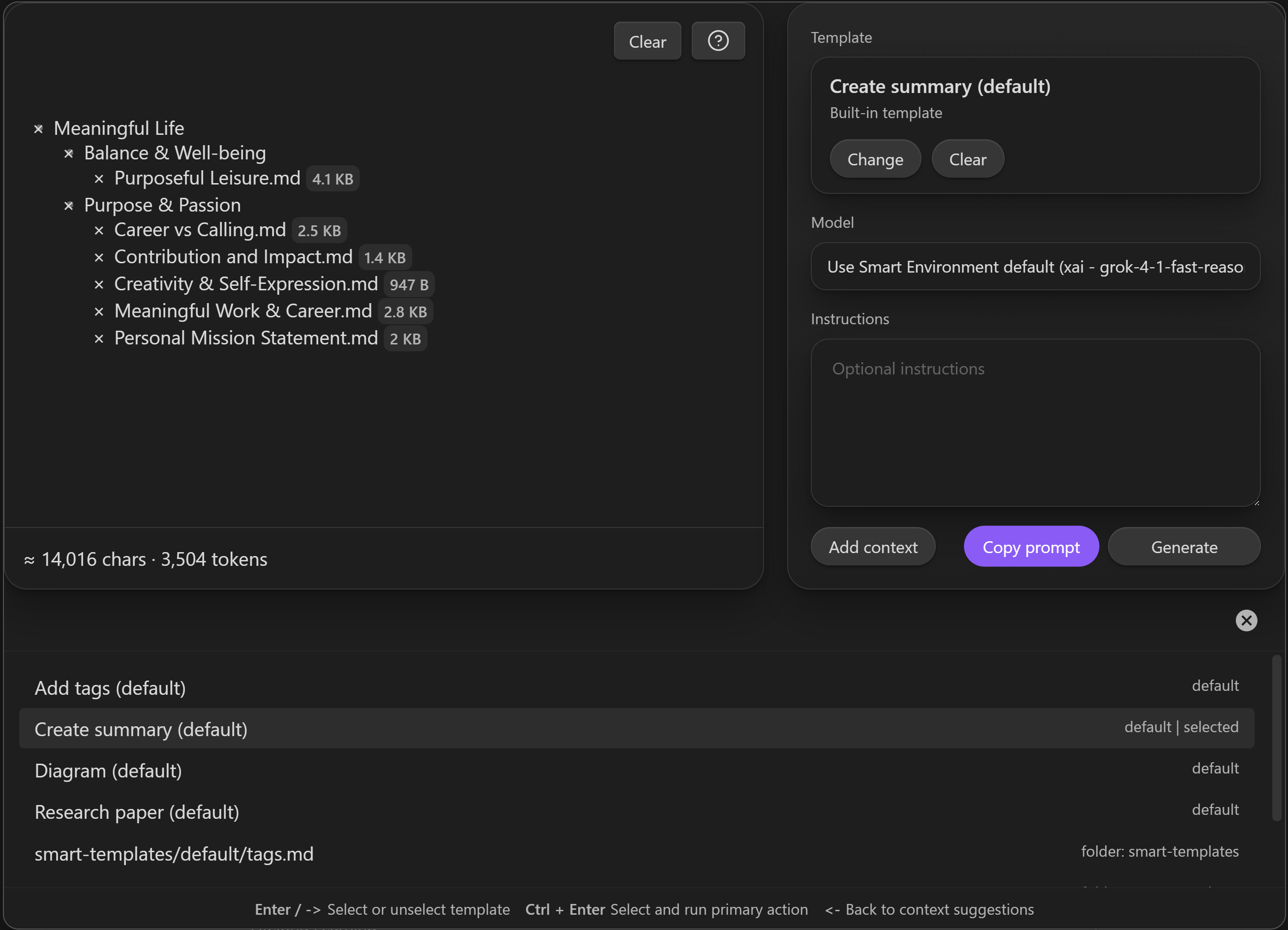
One shared v2 flow: start from context, select templates, then copy a prompt in Core or generate in Pro.
Install the plugin, open a note you care about, and turn that note plus one template into a repeatable AI prompt.
Step 1
Install Smart Templates from Community Plugins, then run Smart Templates: Open template context from the command palette or ribbon.
Step 2
The current note is the context anchor. If you highlight text first, the selection becomes the starting context.
Step 3
Pick one template, add a short instruction, then click Copy prompt in Core or Generate in Pro.
Meeting notes: turn raw notes into action items, decisions, and follow-ups.
Research notes: turn highlights into summaries, open questions, and next steps.
Drafts and outlines: keep your preferred structure instead of re-explaining it every time.
Obsidian Templates inserts predefined note content. Smart Templates uses note context plus templates to build a prompt, and Pro can generate inside Obsidian.
Already use the Obsidian Templates folder? Point Smart Templates at the same source in Smart Templates settings .
It closes the gap between what your notes already know and what your prompt usually forgets.
The current note is the default anchor, and a text selection can replace it before you choose a template.
Learn the Template Context modal .
Use configured folders, the Obsidian Templates folder, a smart template: true flag, a filename rule, or matching headings.
Configure detection in Settings .
Core exposes Copy prompt. Pro adds Generate plus a review modal for copy, insert, or create-note actions.
Even before you configure vault-backed sources, Smart Templates includes defaults such as summary, tags, research paper, and diagram.
Smart Templates pays off when the structure repeats even when the raw material changes.
Turn raw meeting notes into action items, owners, risks, and decisions.
Start from a source note or excerpt, add supporting context, then apply a briefing template.
Keep your preferred outline, voice constraints, or section order without restating them every time.
Combine templates when one structure is not enough, such as a recommendation table plus an executive summary.
Use Smart Templates when structure is the problem. Use the rest of the ecosystem when discovery, context assembly, or ongoing chat is the bottleneck.
Need better context
Assemble the right notes, folders, or named packs before you apply a template.
Best downstream pair for Core
Paste copied prompts into chats that stay attached to the right notes.
Need discovery
Find related notes before packaging them into a structured prompt.
The best current proof is what you can inspect immediately: the plugin listing, the settings guide, and release notes.
Review the plugin entry and install Smart Templates from the official Obsidian directory.
See the live detection rules for folders, naming conventions, and heading-based discovery.
See the shipping trail for context handling, prompt copy, review, and output actions.
Core is clipboard-first. Your notes stay in Obsidian unless you choose to paste the copied prompt into another tool.
Your templates stay in Markdown inside the vault, where they remain inspectable, editable, and shareable.
Pro only sends content when you explicitly choose Generate and configure a model provider.
Start with Core for clipboard-first prompt building. Add Pro when you want to generate, review, and insert results inside Obsidian.
Core plugin
Free, context-first prompt building from the templates you already keep in your vault.
Pro plugin In-Obsidian generation
Everything in Core plus generation, output review, insert, create note, and model override.
The fastest path from one note to one repeatable prompt.
Build a prompt from context plus templates and copy it for any external chat.
See the context-first runtime that powers both Core and Pro.
Configure where templates are found and how Pro behaves.
Open the shared modal from the command palette, ribbon, or file menu.
Generate, review, insert, and create notes without leaving the vault.
Quick answers on compatibility, Core vs Pro, privacy, and fit.
Smart Templates turns the Markdown templates you already trust into reusable AI workflows. It starts from your current note or selection, adds context, then packages that context with one or more templates so you can copy a prompt or generate inside Obsidian with Pro.
No. Obsidian Templates inserts predefined note content. Smart Templates uses those same templates as AI structure layered on top of the current note or selection.
Not for Core. Core builds prompts and copies them to your clipboard so you can use ChatGPT, Claude, Gemini, Smart Chat, or another chat interface. Pro adds in-Obsidian generation.
Core covers template discovery, context-first prompt building, multiple template selection, and clipboard export. Pro keeps the same shared modal, then adds Generate, review, insert, create note, and model override.
Smart Templates can discover templates from configured folders, the Obsidian Templates folder as a fallback, notes flagged with smart template: true, a configured filename match, or matching headings. Built-in defaults stay available even before setup.
Yes. Matching headings can act as templates, so you can keep multiple reusable template blocks inside one note.
Yes. Smart Templates can merge multiple templates in selection order when one output needs more than one reusable structure.
Yes. Core is clipboard-based, so the same prompt can be pasted into ChatGPT, Claude, Gemini, Smart Chat, or another chat interface. Pro adds a native generate path.
Smart Context assembles the right notes as grounded context. Smart Templates applies reusable output structure to that context. They work well together when you need both.
Core is clipboard-based: your notes stay in Obsidian unless you paste the copied prompt into another tool. In Pro, content is only sent when you explicitly choose Generate and configure a model provider.
Install Smart Templates from Community Plugins, open a note you already care about, run the shared modal, choose one template, add a short instruction, then click Copy prompt. The Getting Started guide walks through that first win.
Keep your best structures in Markdown, package them with the right context, and stop rebuilding prompts from scratch.