Smart Context Builder
Smart Context Builder is the fastest way to assemble "just enough context" from your vault for chat, drafting, research, or review.
Instead of manually copying multiple notes (and then trimming them), you build a focused set inside a keyboard-friendly Obsidian modal, then export a clean bundle to your clipboard.

Who this helps
- You reuse the same context bundles (client, project, paper, book, domain) across sessions.
- You want better AI outputs without rewriting prompts from scratch every time.
- You are tired of hunting, copying, pasting, and trimming notes before asking a question.
- You want to stay inside Obsidian while assembling context (instead of context switching to a separate app).
If you use the Builder more than once a day, assign a hotkey:
Obsidian Settings -> Hotkeys -> search "Smart Context: Open Selector for New Context".
- Open the Builder.
- Type to filter, then press Enter to add notes (or blocks).
- Trim the set (remove individual items or Clear all).
- Name it if you want to reuse it.
- Copy to clipboard.
Open the Builder
Run the command:
- Smart Context: Open Selector for New Context
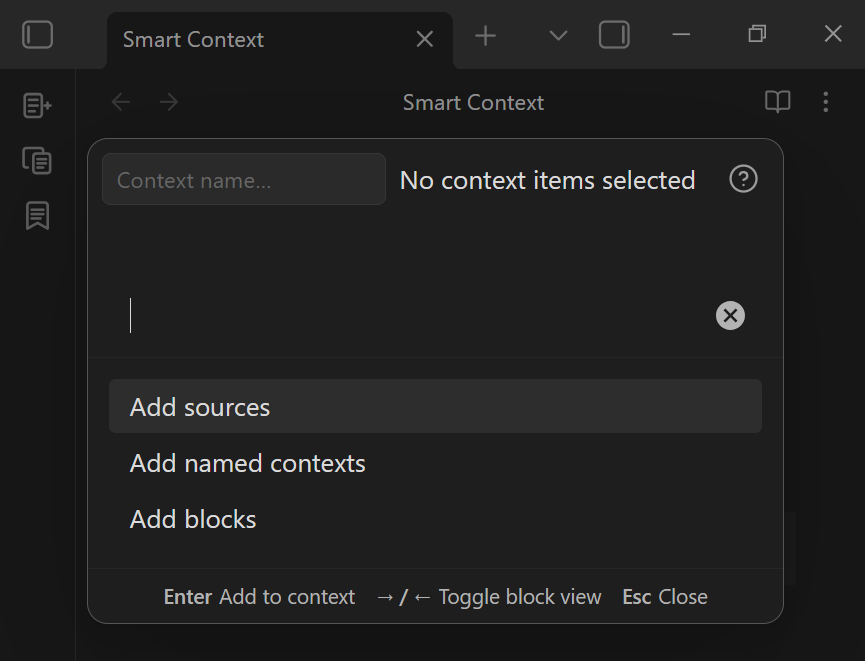
From the same command list, you may also see quick actions like:
- Copy current to clipboard (fast export of the current context)
- Copy entire folder to clipboard (best when your project already lives in one folder)
- Help: Show getting started
- Open Management dashboard (show named contexts) view (browse and reopen saved bundles)
Select notes with fuzzy search

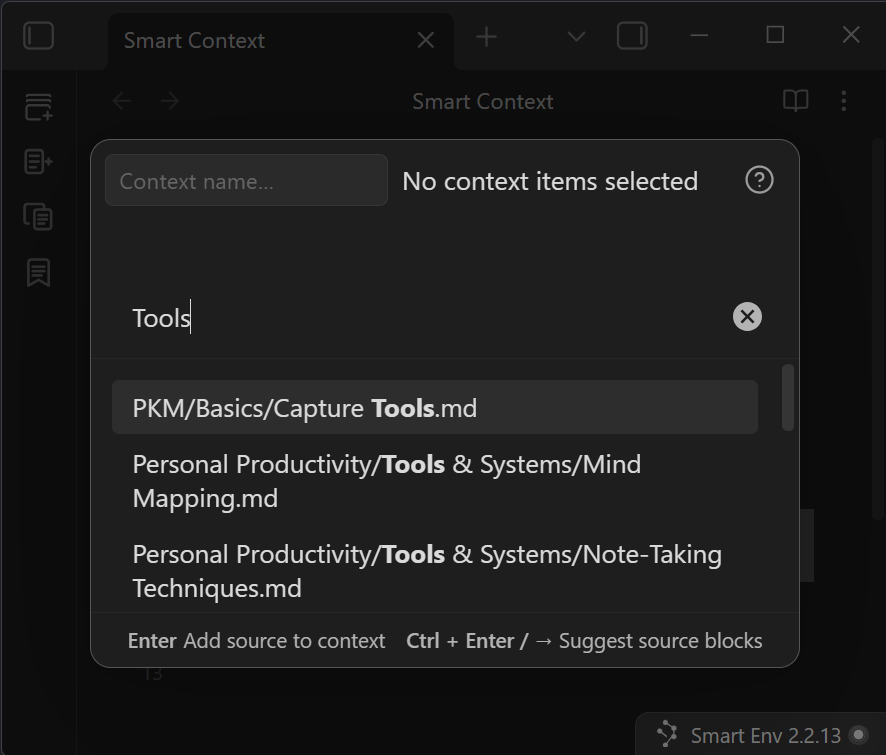
The Builder uses a native Obsidian-style modal:
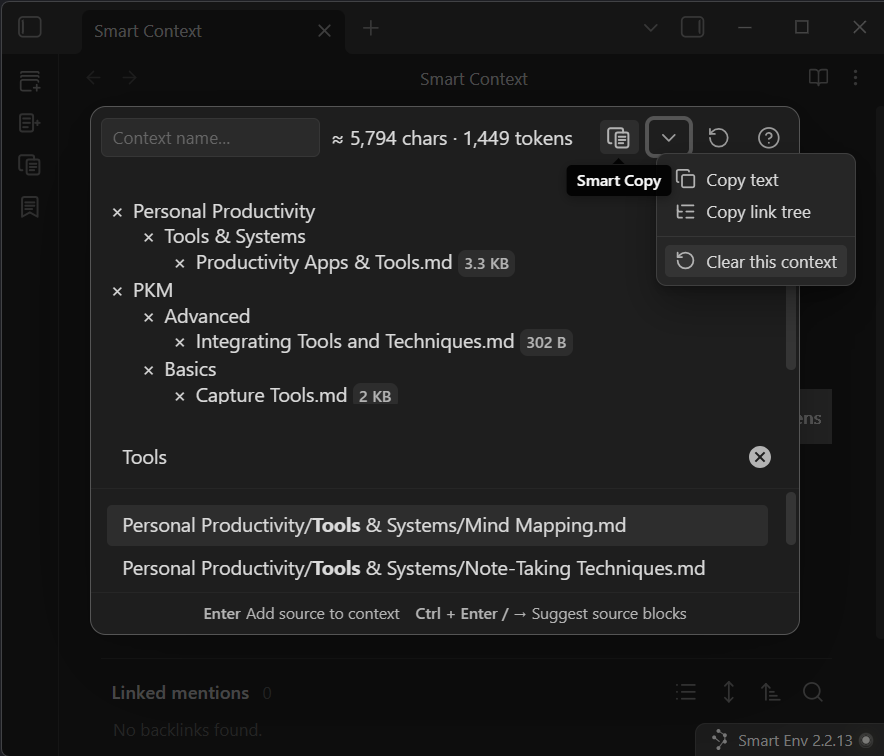
- Start typing to filter results (fuzzy search). There is no separate search box - just type.
- Use arrow keys to move the highlight.
- Press Enter to add the highlighted item to your context.

- Blue: Context name input (used to save/reuse a context).
- Pink: The currently highlighted suggestion (press Enter to add it).
- Green: Keyboard hints (Enter to add, Right Arrow to toggle block view, Esc to close).
The fastest mental model: "type, highlight, Enter".
You are building a context set the same way you pick commands in the Obsidian command palette.
Add blocks when you need precision
If you want to include only a section of a long note, toggle block view:
- Press Right Arrow to switch into block selection for the currently highlighted note.
- Select the specific blocks/sections you want and press Enter to add them to the context.
This is ideal when a note is mostly unrelated, but contains one relevant section you want to ground the model with.

When to choose notes vs blocks
Choose whole notes when:
- The note is short, focused, and mostly relevant.
- You want the model to have the full document for better grounding.
Choose blocks when:
- The note is long and only 1-3 sections matter.
- You are managing a token budget (blocks help you stay under limits).
- You want the model to follow a specific section exactly (less noise, fewer tangents).
Review and manage the context set
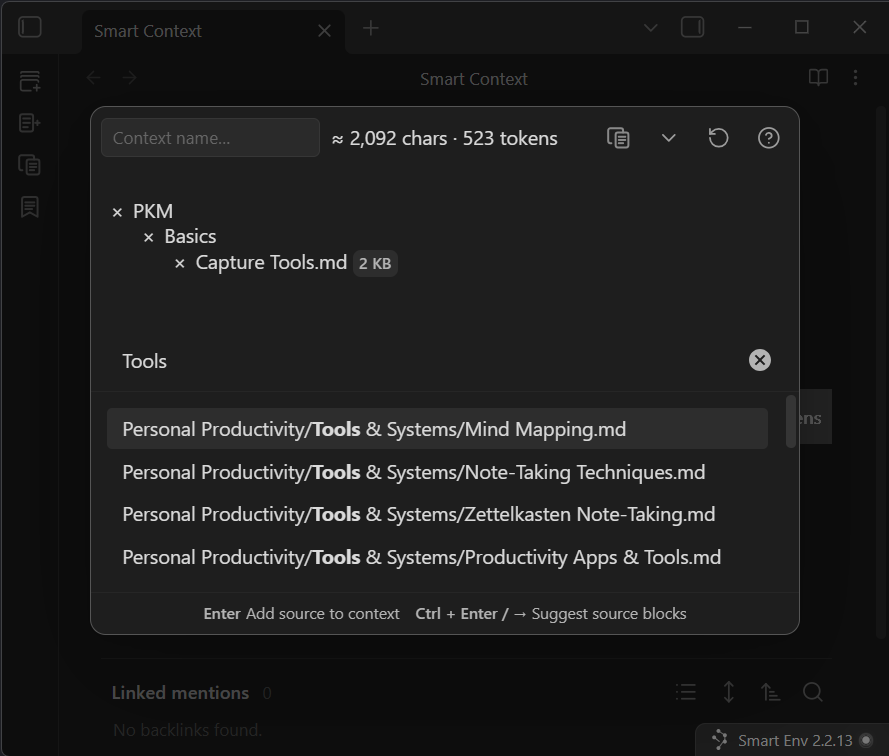
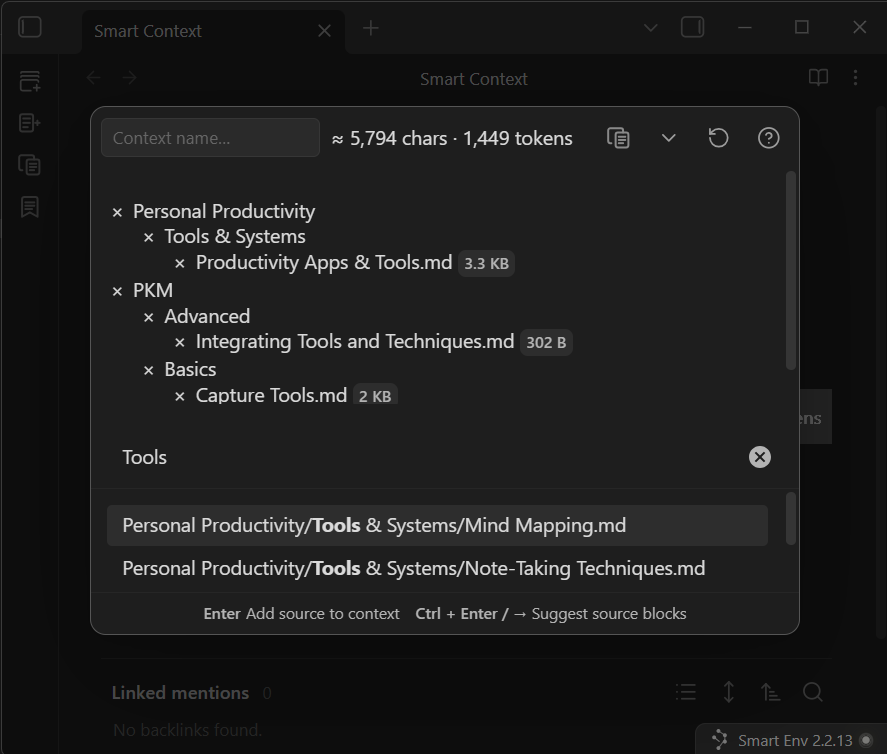
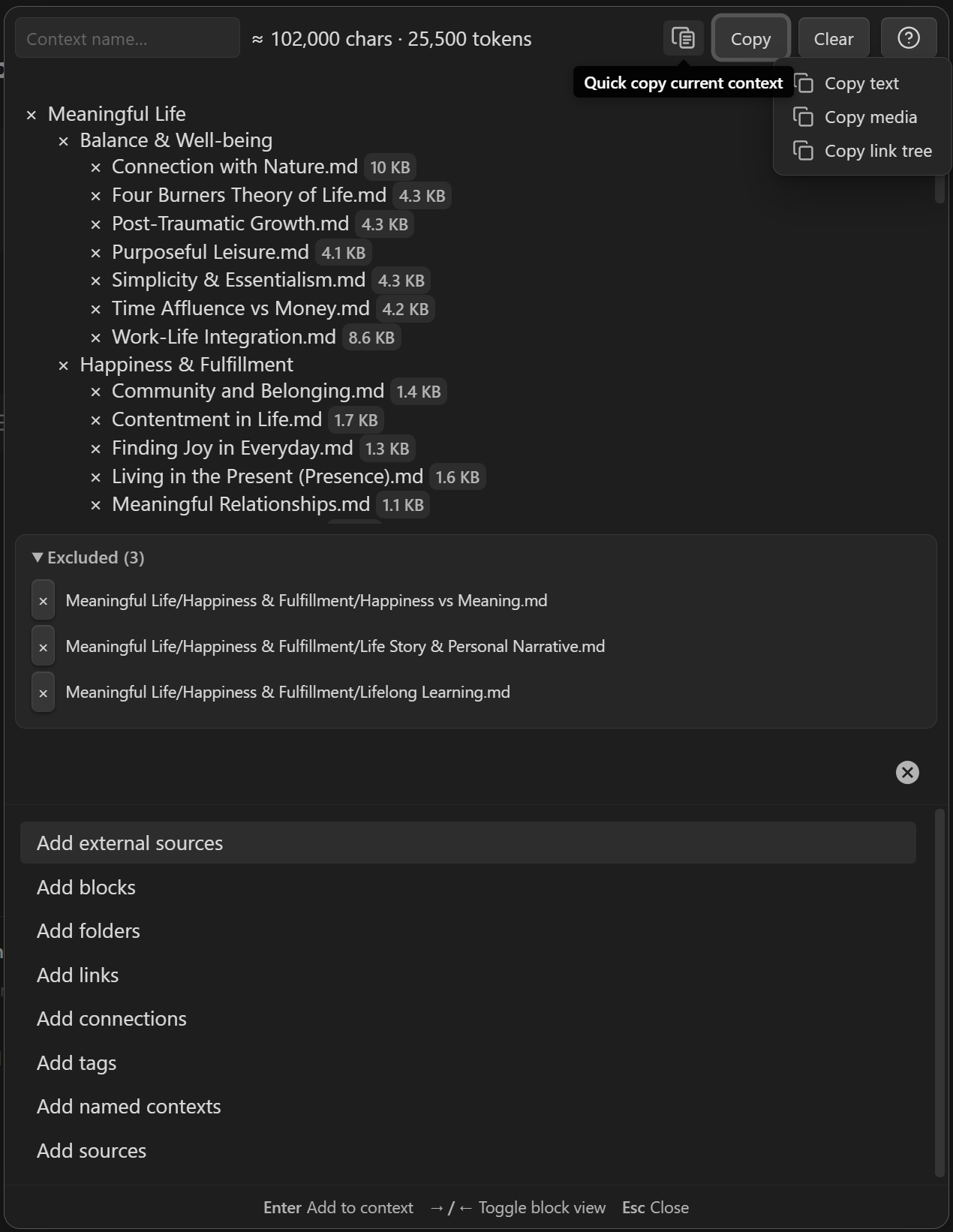
As you add items, the top panel becomes a tree view of your current selection. This makes it easy to understand "what is in the bundle" before you export it.

Remove single items, or clear everything

- Remove any individual item with the x control (highlighted in pink).
- Use Clear to remove all selected items at once.
- Watch the total size details (characters and token estimate) to keep tabs on exported context size.
- Use the per-item size to quickly find the biggest items when you need to shrink the bundle.
If the total is getting too large:
- remove the biggest item, or
- swap that note for only the few blocks you actually need.
Save a named context for reuse
If you assemble the same bundle often (a project, a client, a topic, a writing pipeline):
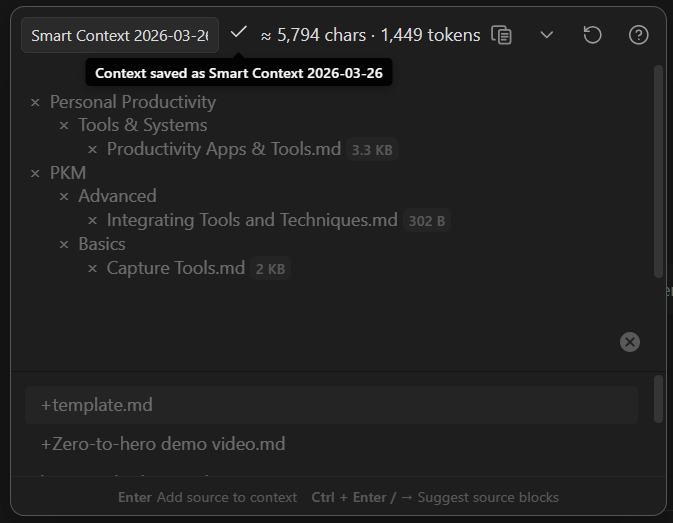
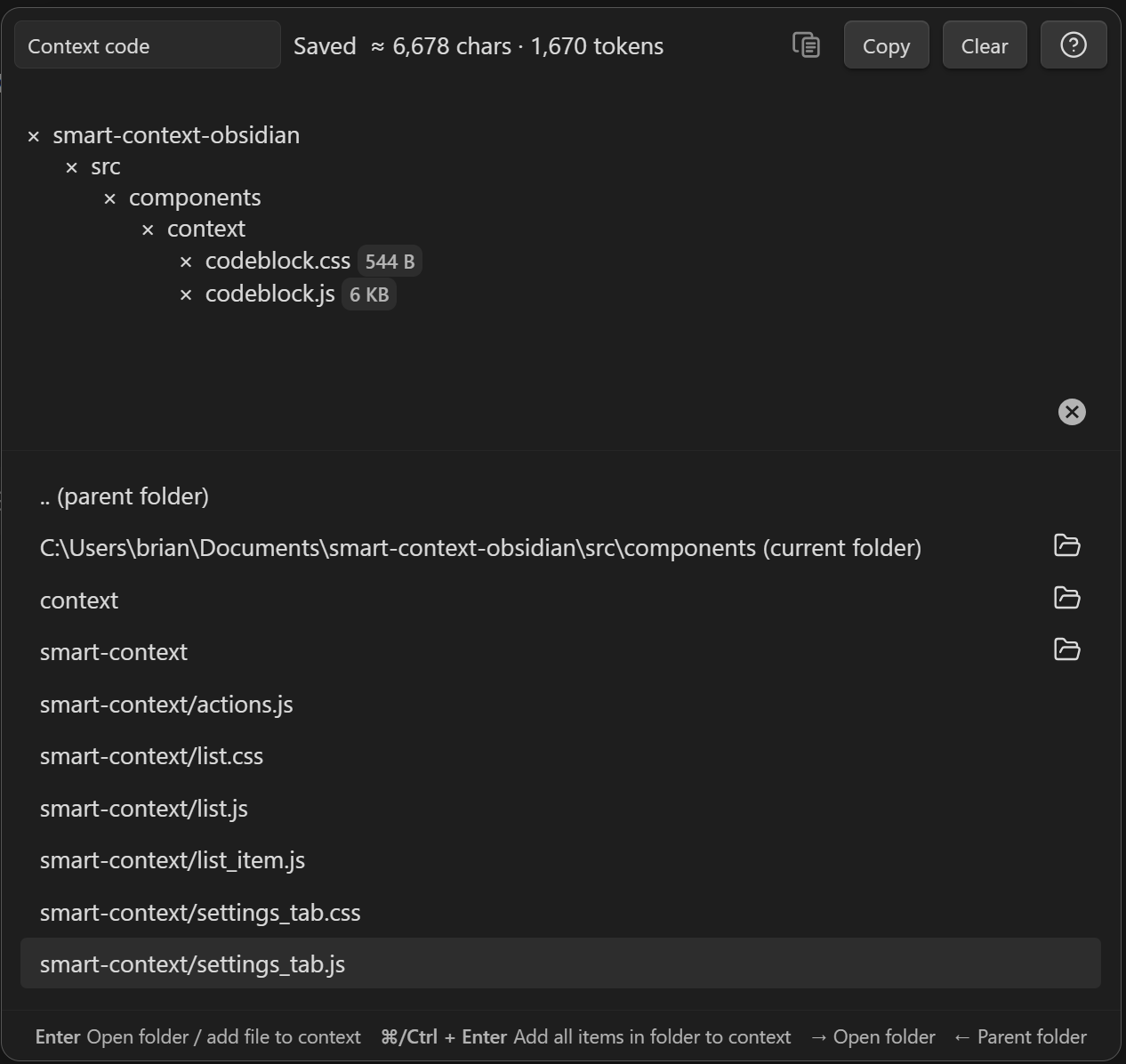
- Enter a name in the context name field.
- The Builder treats that selection as a saved, reusable context.
Named contexts are most valuable when you want consistency across sessions, for example:
- a "Client X" bundle (goals, constraints, prior decisions, drafts)
- a "Paper review" bundle (your notes, highlights, claims, open questions)
- a "Writing style" bundle (voice rules, structure, examples)
Once you have saved contexts, use the command:
- Smart Context: Open Management dashboard (show named contexts) view
This gives you a fast way to jump back into a known-good bundle without rebuilding it.
Copy to clipboard
When the set looks right, use Copy to clipboard.
That export is designed to be pasted directly into:
- an AI chat prompt,
- a draft note,
- a doc you are working on.
If you want to change how the export is formatted (wrappers, headers, file tree insertion, per-item templates), do that in Smart Context settings.
The Builder is about selection; templates are about output.
Manage named contexts

Use the Management dashboard to browse your saved contexts and reopen them quickly.
A simple pattern:
- Keep a few "always useful" contexts (work, research, personal).
- Reopen and tweak them as your project evolves.
- Copy to clipboard when you need AI-ready grounding.
Workflow recipes
These are practical, repeatable workflows that solve common AI + PKM problems.
1) Project or client "context pack" (reduce re-explaining)
Use this when you are tired of restating goals, constraints, and decisions.
- Open the Builder.
- Add your project hub note.
- Add 2-6 high-signal notes (requirements, decisions, spec, prior drafts).
- Name it (example: "Client ACME - Project Alpha").
- Copy to clipboard whenever you start a new chat or drafting session.
Outcome: the model starts grounded, and you get consistent answers across sessions.
2) Token-budget triage (stay under limits without losing signal)
Use this when your vault context is "too big to fit".
- Add the obvious notes first (broad selection).
- Watch total chars/tokens.
- For the largest notes, replace them with only the few relevant blocks.
- Remove anything that repeats the same idea.
Outcome: you keep the essential facts and constraints, without wasting tokens on noise.
3) Drafting with grounded references (write faster, fewer hallucinations)
Use this when you want AI help writing, but you want it anchored in your notes.
- Add your outline or draft note.
- Add 3-8 reference notes (research, prior writing, examples).
- Optionally add a "style rules" note if you have one.
- Copy and paste into your AI tool with a clear instruction like:
- "Use only the provided context. Produce a draft section with citations to note titles."
Outcome: faster drafting that stays aligned with your vault.
4) Precise Q&A on a long note (blocks-only for accuracy)
Use this when a long note has one section that matters right now.
- Highlight the note in the Builder list.
- Press Right Arrow to enter block view.
- Add only the relevant blocks.
- Copy to clipboard and ask the question.
Outcome: the model focuses on the exact section, not the whole document.
5) Meeting prep and follow-up (stop losing threads)
Use this when you want continuity across recurring meetings.
- Build a context with:
- last meeting notes
- current agenda
- open decisions / constraints
- Name it (example: "Weekly 1:1 - Team X").
- Reuse it before the meeting and when writing follow-ups.
Outcome: less context switching, fewer dropped commitments, better continuity.
6) Build context from discovery (Connections -> Builder)
Use this when you are exploring and want AI-ready context fast.
- Use Smart Connections to surface relevant notes around an anchor.
- Send useful results to Smart Context (then remove noise).
- Use the Builder to add a few missing "must-have" notes or blocks.
- Name it if you will reuse it.
Outcome: discovery turns into a reusable bundle, not a one-off rabbit hole.