
Use your notes to move a project forward
Choose the result you need: a useful draft from your notes, or a supported change to an existing plan. The first route uses a client-review email throughout. The second uses the recorded PDF and pilot demonstrations.
Route A: turn project notes into a useful draft
Start with the work
In this worked example, you want the feedback needed to finish a client's website. The next piece of work is the review email, not another plan for writing it.
An outcome note can begin with that desired result and links to the two sources:
| Source | What it contributes |
|---|---|
| Review decision | The first review is a PDF walkthrough, not a live website. Written approval is required before the site goes live. |
| Review scope | Ask for feedback on page order, wording, and proposed interactions. |
These are demonstration inputs. Use the actual decisions and requirements for your own project.
If the relevant source is not in mind, use Smart Connections from the note you're working on. It can surface related notes or sections; read the passage to decide whether it helps. Use Smart Lookup for a typed idea, or Obsidian Search for exact wording. Connections getting started supplies the discovery steps.
Select the sources for this request
Open Context Builder using the command for your edition:
- Core:
Smart Context: Open new context in builder - Pro:
Smart Context Pro: Open new context in builder
Use Notes to add Review decision and Review scope. Read the source names and contents in the package. Leave Launch ideas out: it concerns a later announcement, not this review email. Removing a directly selected item with Remove from context changes the package, not the note in the vault.
Use the available text-copy action and examine the pasted text before sending it. It must contain the two intended sources and their relevant instructions. Token counts do not establish that the contents are correct.
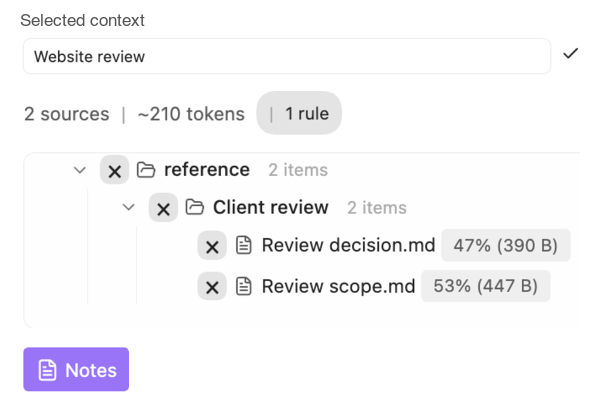
Demo: Website review contains Review decision and Review scope. Launch ideas stays outside this package.
This direct-note workflow is available in Core. Smart Context documentation covers the exact controls for your edition. You can also supply the two passages through your existing AI workflow, keeping their note names attached.
Sharing boundary: give an external AI service only material suitable for that destination. The provider receives the text you send under its own data-handling terms.
Ask for the message itself
With the two sources supplied, adapt this request:
Use only Review decision and Review scope supplied with this request.
Draft a short client review email. Explain the review format, what
feedback to give, and the approval needed before launch.
Do not invent a date, link, attachment, or client decision.
Return the email body. List missing information separately.
Do not send the email, change notes, or create proposals.
In the recorded demonstration, embedded ChatGPT returned this feedback request:
Please review the page order, wording, and proposed interactions, and let us know any changes you would like made in those areas.
The full draft also names the PDF walkthrough and preserves written approval before launch. It was checked against the two sources, accepted without revision, and manually pasted into Review email, then reopened to verify the saved wording. For your own request, make a specific revision when needed. Before sending, prepare the walkthrough and add the real recipient and available link or attachment.
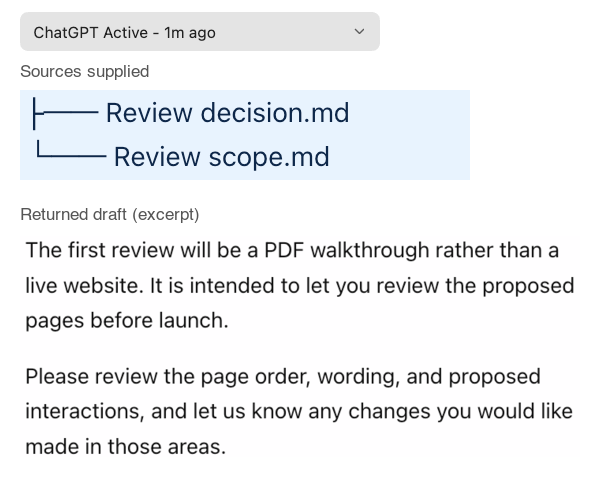
Demo: the supplied decision and scope appear in the returned draft. Excerpts from one request and its response; no email was sent.
To work inside an Obsidian note, a Core Smart Chat provider codeblock can render a supported provider on desktop. It does not automatically attach your active note: deliberately supply the context you examined. Smart Chat getting started explains the provider-codeblock route. Smart Chat API Extension is a separate configured-model workflow with its own prerequisites.
| Problem | Smallest useful response |
|---|---|
| The answer is generic | Check that the actual source passages reached the request and that the requested result is specific. |
| The answer invents a date or promise | Compare it with the source, remove the unsupported detail, and keep missing information explicit. |
| The context contains unrelated material | Remove the direct selection or start with the two intended notes. Examine the pasted result again. |
| The model or provider fails | Correct its reported access/configuration problem before sending more note content. |
Keep the result and make returning easier
Link Review email from the outcome note. Record the real next task there: for this example, prepare the PDF walkthrough before sending the message. Keeping the draft does not complete that task.
When the source selection will be useful again, name it Website review in Smart Context. Reopen it before reuse and read the resolved notes. A named context saves a definition, not a frozen copy of the source text. To revise the email later, deliberately add its current draft to that request.
A saved Smart Chat provider-thread link can provide a way back to the discussion. Trust continuity only after the recognized URL reopens the same thread. Core bookmarks store the reference and tracking state, not the full provider transcript. Smart Chat API Extension source attachments are request-specific; select them again when needed.
Keep the accepted email as ordinary text in its draft. Changes to its sources do not replace that copied passage. You can continue from the accepted work rather than recover it from a conversation each time.
Route B: carry a decision into an existing plan
A recorded demonstration used two fictional notes. Review decision called for a PDF walkthrough, while Launch plan still called for a live website. A dedicated correction changed that sentence. The writer then added the more specific preparation task separately.
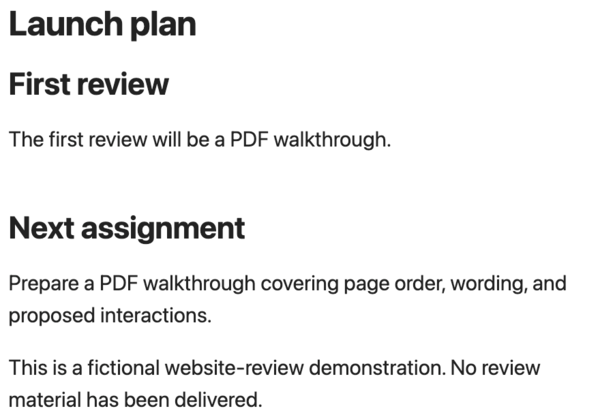
Demo: correction applied; next task added by the writer.
You can make a known edit yourself. Connect Pro becomes worth evaluating when reading, comparing, and preparing a supported change are part of the work you want help with.
Delegate the comparison, not just the replacement
In a separate recorded pilot demonstration, the request supplied the decision and plan paths without the discrepancy or replacement. The connected AI app read both, found that the plan included all teams while the decision limited it to three, and prepared one correction. That item remained pending; it was not the applied PDF correction above.
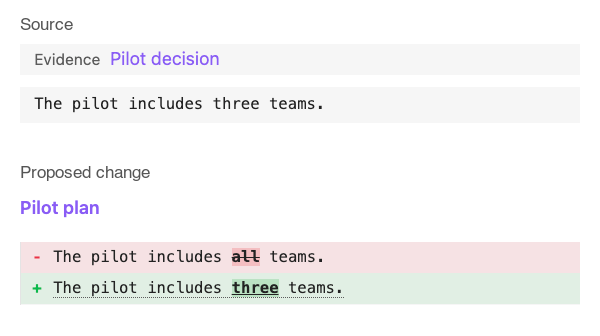
Demo: pending proposal. The proposed correction follows the three-team decision; the plan remains unchanged.
Prepare access and request one proposal
Connect Pro requires its relevant Pro access, the intended running Obsidian Desktop vault, and a supported client. Follow Connect Pro setup. Complete one recognizable read before relying on the connection.
Examine Tool permissions. Only dedicated proposal tools hold their source changes for Inbox review; other enabled tools can write directly. Broad CLI access is separate from individual tool switches. Connected tools can pass returned notes to the client's model provider. A prompt is not an access control. Permission details explain the boundaries.
Adapt this request to exact existing notes and the intended connection:
Use only Connect Pro for [vault name].
Read [decision note path] and [plan note path].
Compare the plan's instructions with the decision.
If one instruction conflicts, use propose_correction to propose one
supported correction. Include its reference excerpt, leave it pending,
and report its item key. If no correction is supported, explain why.
Do not directly edit either note or use another connection.
A successful proposal returns its identity, status: pending, and source_files_changed: false. Check that the target remains unchanged. Do not request it again just because it is waiting for your decision. If the tool is unavailable or the evidence does not support a correction, stop rather than substitute a direct write.
Examine and apply only the intended change
In the documented Connect Pro 2.0.3 correction flow:
- Open the pending item in Connect Pro Inbox. Compare the evidence, original text, proposed replacement, and reason.
- Edit the permitted replacement when necessary. Done editing retains a review draft; it does not apply the change. Examine the updated preview.
- Select Apply correction. Examine the separate final confirmation, then confirm only the intended change. Cancel returns to pending review.
- Alternatively, use Reject proposal to record rejection without changing the source. Leaving an item pending is different.
- After application, read the target and reference. Check the saved wording and surrounding meaning, and make sure the reference is unchanged. History is a decision record, not an Undo mechanism or source-file proof.
For control details and other installed versions, use the Connect Pro documentation. A Manual recovery required warning needs inspection of the named files and saved decision; blindly retrying or rejecting the item does not repair a partial write. Keep a backup or version-history route.
Use the actual next project change to evaluate whether this helps more than your existing approach. Include source preparation, comparison, review, and any repair in that judgment. A useful AI answer alone does not establish the value of the connector.
Explore Pro options. Already have the relevant access? Continue with the project rather than obtain another plan.
Get the project lessons by email