
Smart Plugins on mobile
Smart Plugins works on Obsidian mobile, but mobile needs a different UX than desktop.
On desktop, Smart Environment can surface progress in the status bar.
On mobile, there is no persistent status bar, and startup cost matters more.
So the mobile experience is built around deferred loading plus a dedicated status view.
- Open Obsidian without paying the full Smart Environment startup cost immediately.
- Tap Load Smart Environment when you actually want Smart Plugins features.
- Watch loading, embedding, and ready state in a dedicated mobile view.
- Open the events feed to inspect what happened.
Deferred loading on mobile is intentional behavior, not a broken state.
Why the mobile flow is different
Mobile has three constraints:
- startup time matters more
- there is no persistent desktop-style status bar
- long-running import and embedding work still needs a visible, inspectable home
Smart Plugins solves this by delaying Smart Environment load until requested, then opening a full status view that stays useful from first import to ready state.
1. Deferred loading notice
When Obsidian opens on mobile, Smart Environment does not immediately start full loading in the background.
Instead, you get a clear notice with a button to start it when you are ready.
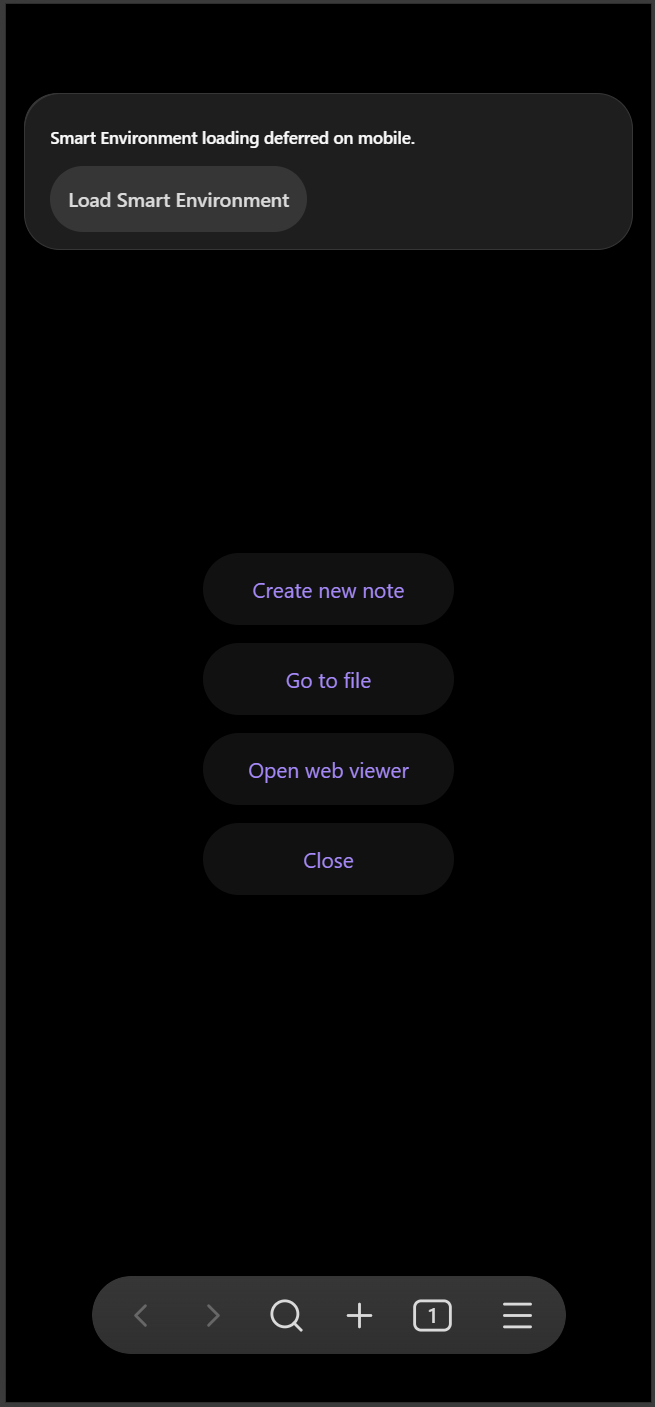
This keeps mobile startup lighter and makes the load explicit instead of hidden.
2. Starting the load opens a dedicated status view
Tap Load Smart Environment and Smart Plugins opens a mobile-friendly Smart Environment status view.
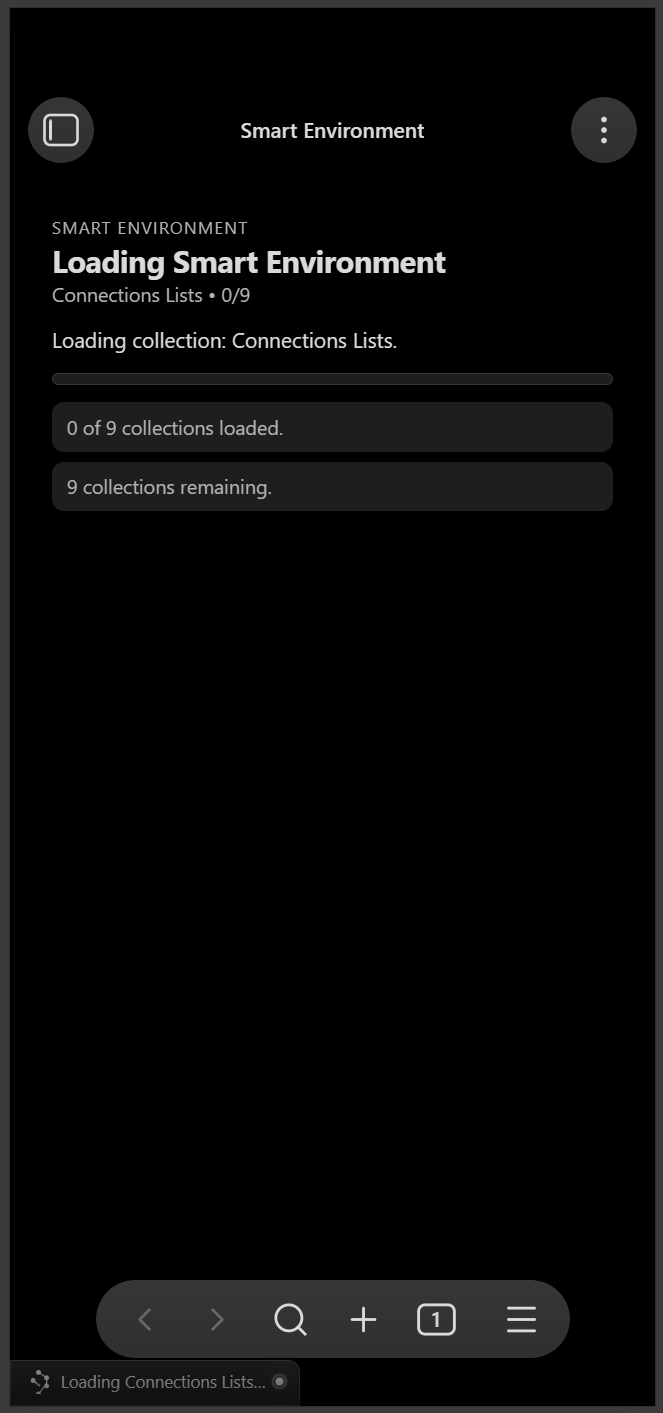
That view exists because mobile does not have the same always-visible status bar workflow as desktop.
It gives you one place to watch progress without guessing what is happening.
3. Collection loading stays visible
During the first phase, the status view shows collection-loading progress.
You can see:
- which phase Smart Environment is in
- how many collections are loaded
- how many remain
That makes the mobile flow feel inspectable instead of opaque.
4. Embedding progress stays visible
Once sources are imported, the same view shows embedding progress, the active embedding model, and live throughput.
You can also pause embedding directly from this screen.
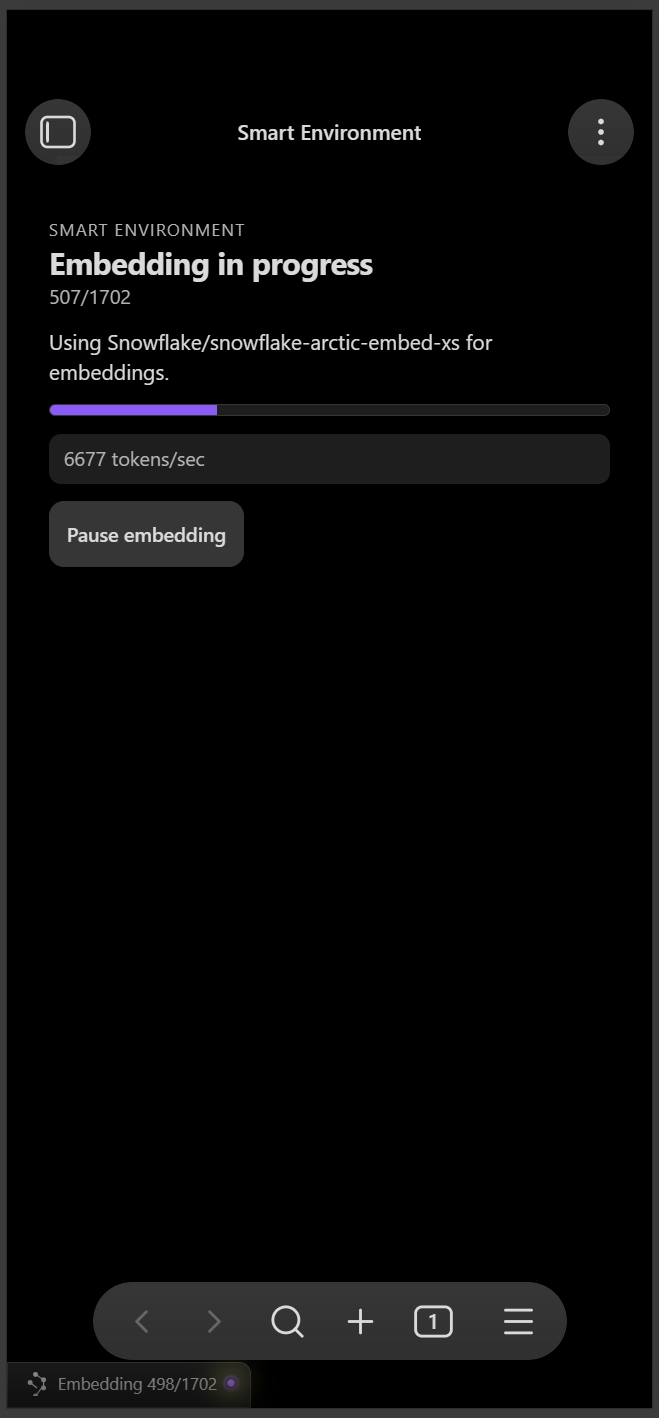
This matters on mobile because the work can take time, and a visible progress surface builds trust:
you can see that Smart Plugins is working, not frozen.
5. Ready state is explicit
When Smart Environment finishes loading and embedding, the status view changes to ready.
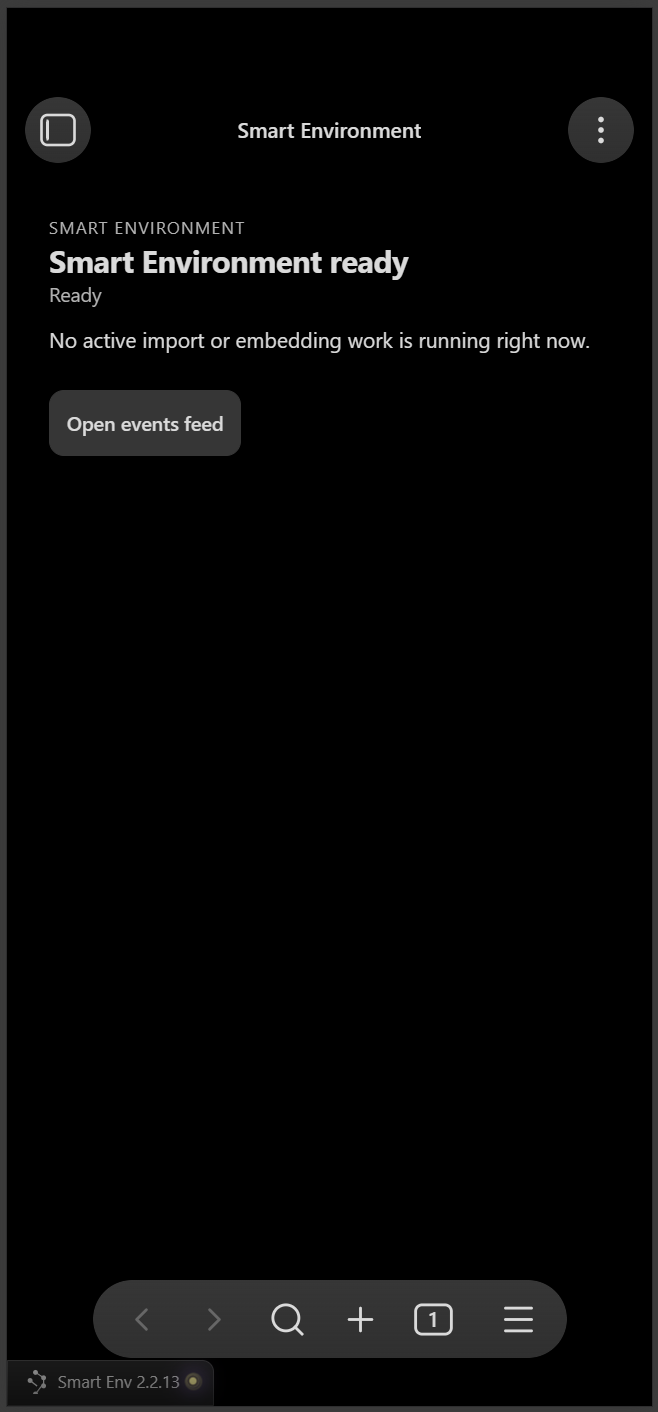
At that point, there is no active import or embedding work running.
The view becomes a clean "you are ready" checkpoint instead of disappearing.
6. Events feed replaces the missing desktop status bar context
From the ready state, you can open the events feed to inspect what happened during import and embedding.
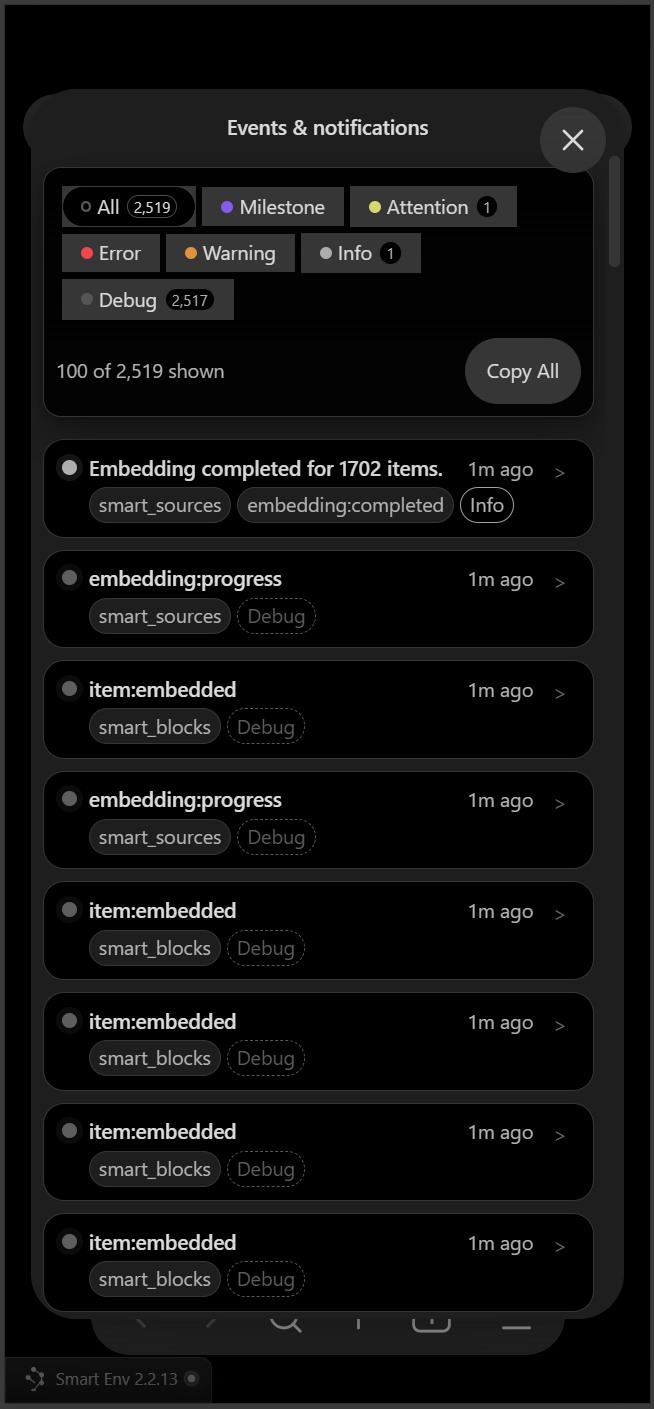
The events feed is the mobile replacement for "what happened in the status bar?"
It lets you review milestones, warnings, info messages, and debug events in one place.
Use it when you want to confirm:
- initial import completed
- embeddings finished
- a warning or skipped item needs attention
- Smart Environment is ready for Connections, Lookup, Context, or Chat workflows
Ways to start Smart Environment on mobile
You can start the load from:
- the deferred loading notice
- Smart Plugin settings pages that offer a Load Smart Environment button
FAQ
Is deferred loading on mobile a bug?
No.
It is the intended mobile behavior.
Why not just load everything immediately?
Because mobile benefits more from fast vault open time and explicit control over when heavier AI setup work starts.
How do I know when Smart Plugins is ready?
Open the Smart Environment status view.
It shows the progression from loading collections to embedding to ready.