
Connections in Bases
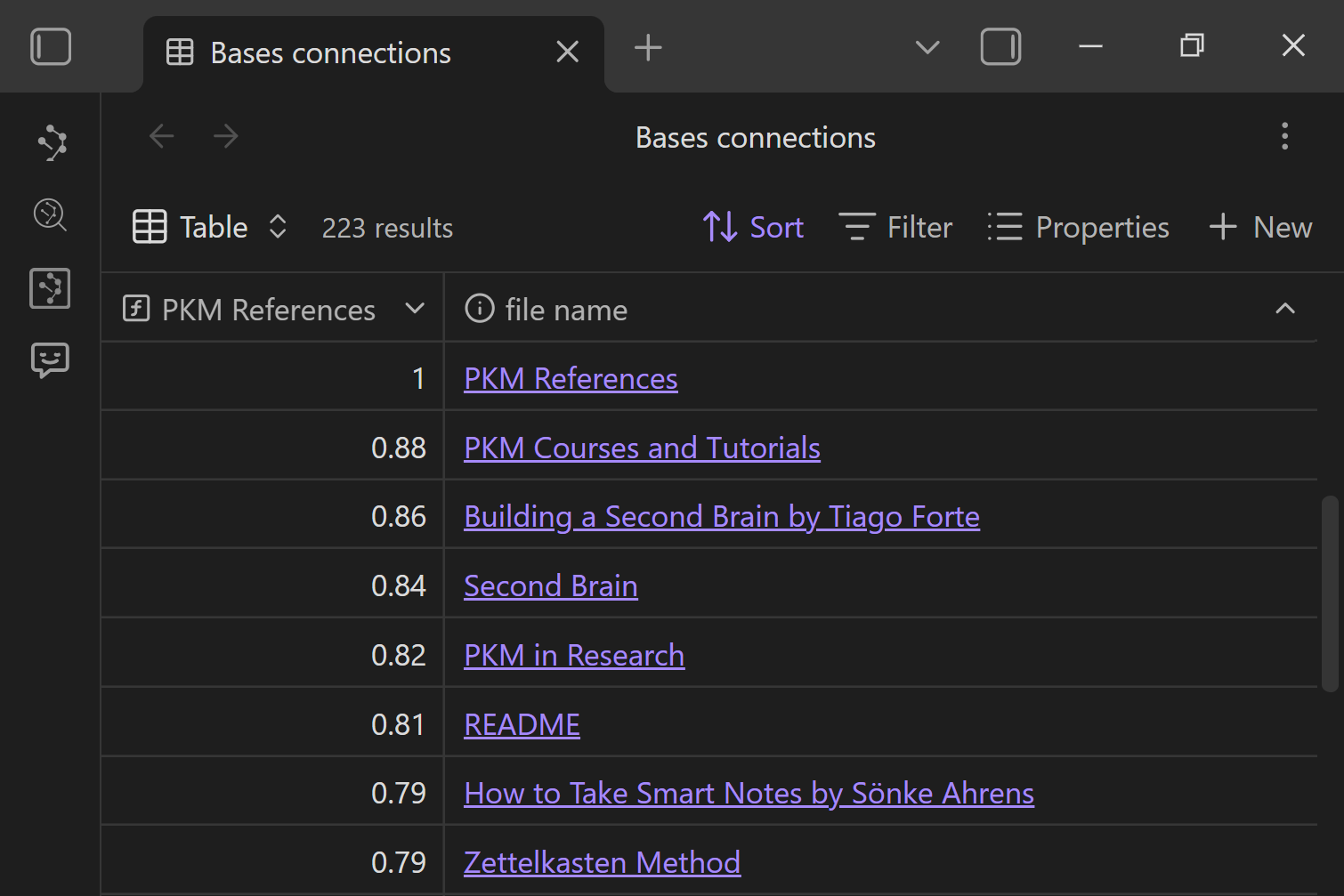
Obsidian Bases is great at helping you manage a collection of notes. Smart Connections is great at telling you what is semantically related.
The Bases integration combines both:
- Add a "Connections score" column to any
.basefile - Sort and filter your collection by semantic relevance to a reference note
- Use
score_connectionandlist_connectionsdirectly in Bases formulas
This integration is part of Connections Pro.
- Open a
.basefile. - Run "Add: Connections score bases column".
- Pick a reference note (or "Current/active file (dynamic)").
- Sort by the new score column to find the most relevant notes.
- Optional: add a
list_connectionscolumn to see quick link trails per row.
Who this helps
Use this if you:
- Prefer dashboards and tables for planning, triage, and review
- Want to compare many notes against one "anchor" (goal, project, outline, question)
- Want a lightweight way to reduce duplicate work (stop rewriting research you already did)
- Want AI-ready context faster, without guessing which notes matter
Quick start
Add a Connections score column
- Open any
.basefile. - Open the command palette.
- Run:
- Smart Connections Pro: Add: Connections score bases column
- Select the reference note you want to compare everything against.
- The Base refreshes and the new column appears (ready to sort).
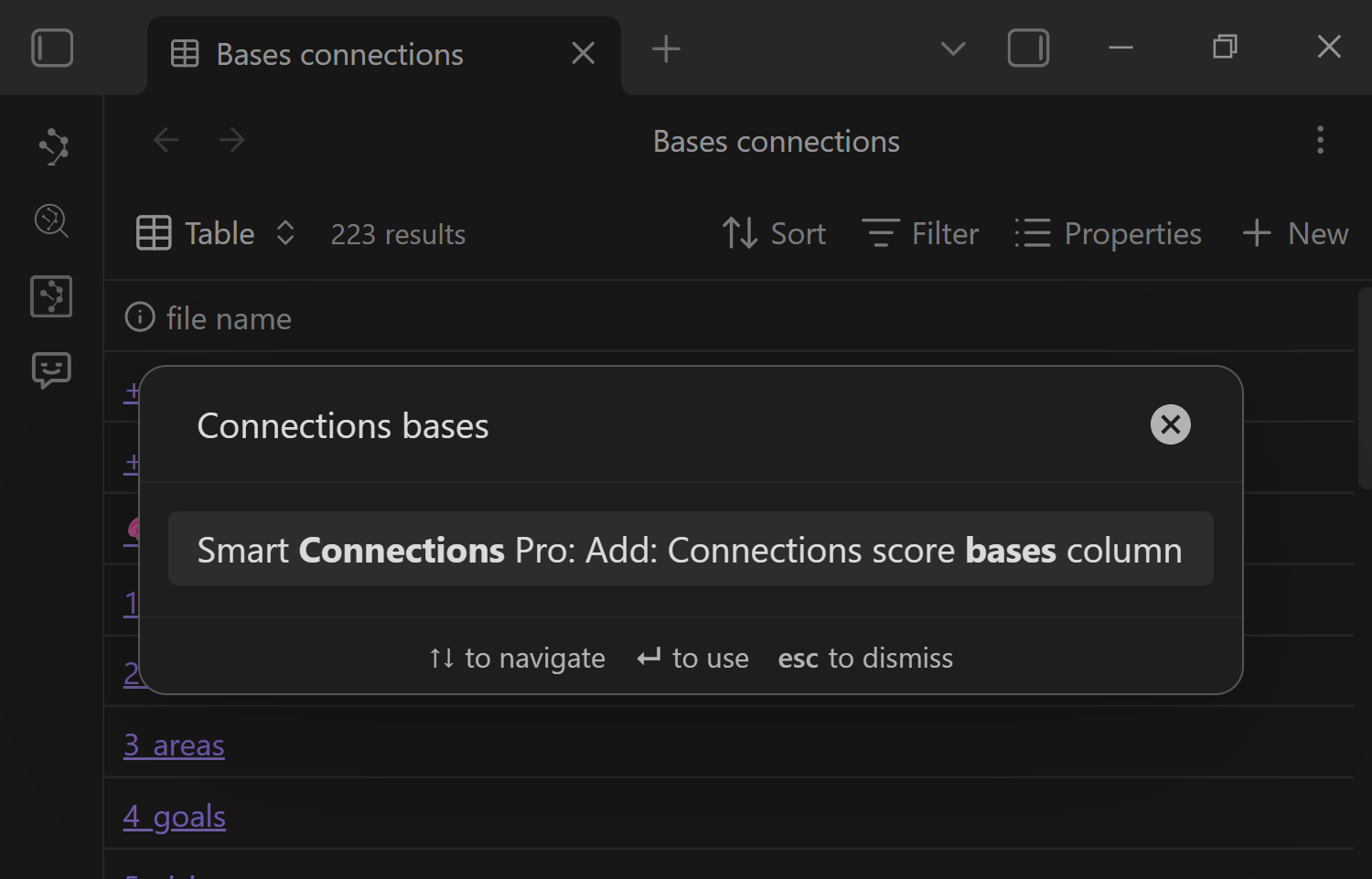
If you do not see the command, make sure the active note is a .base file.
The command only appears when a Base is the current file.
Pick a reference point
After running the command, you choose what the score should be "relative to".
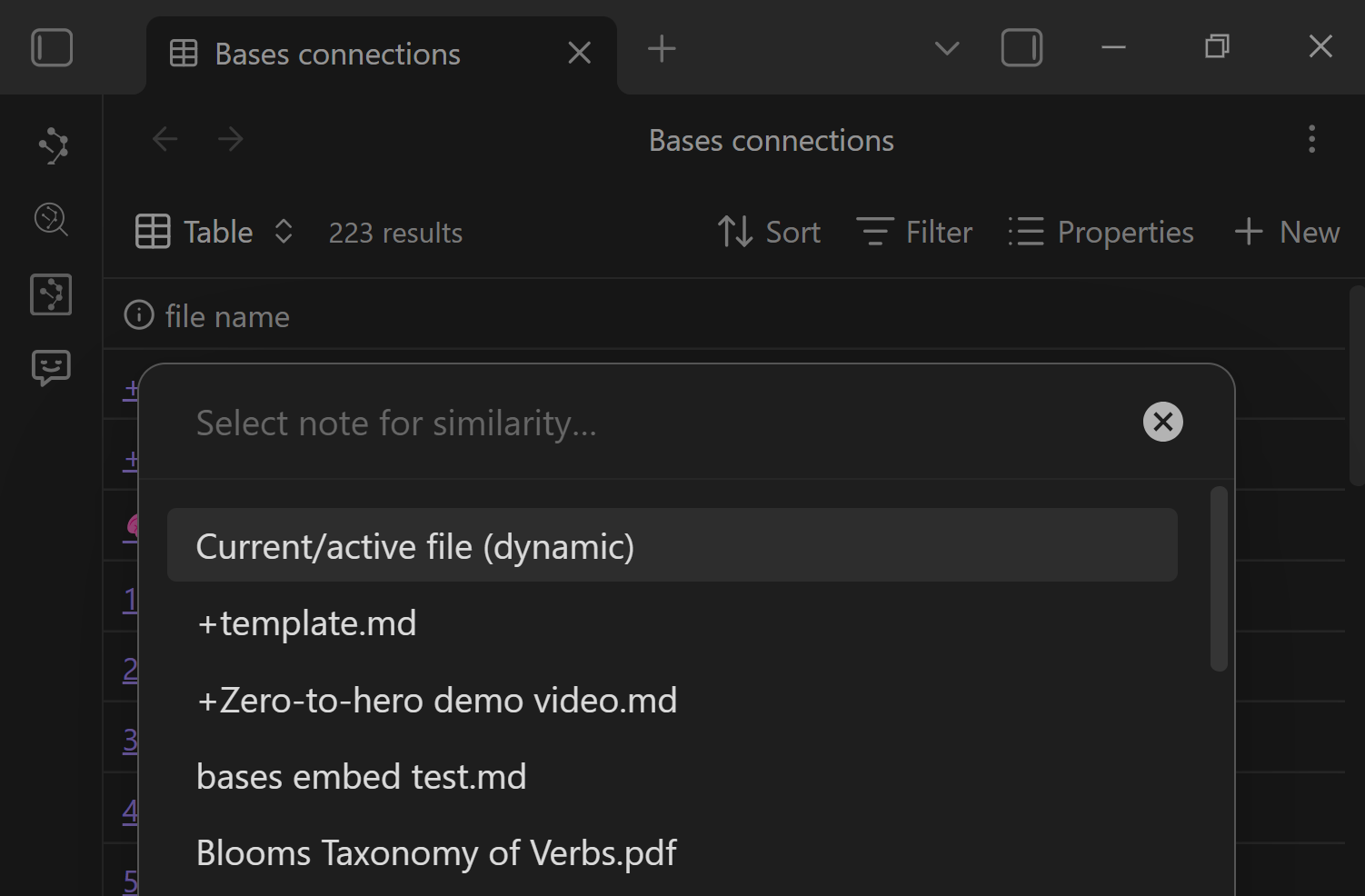
Use a fixed note
Pick a specific note when you want a stable lens, like:
- a project hub note
- a goal or objective note
- a draft outline
- a research question note
This is ideal for planning dashboards because the meaning of the score stays consistent over time.
Use the current note
Choose Current/active file (dynamic) when you want the Base to behave like a custom Connections view:
- as you open different notes, the score column updates to match your current context
- this is especially useful when your Base is filtered to a specific domain (a project folder, a tag, a reading list)
Like other bases functions that use the this.file property, for the dynamic option to work the base must be open in the sidebar.
Use Connections functions in Bases formulas
You can also build your own formula columns using the two Bases functions:
score_connection- Returns a connection score
list_connections- Returns a list of links prefixed with the connection score
These functions appear in Bases formula autocomplete.
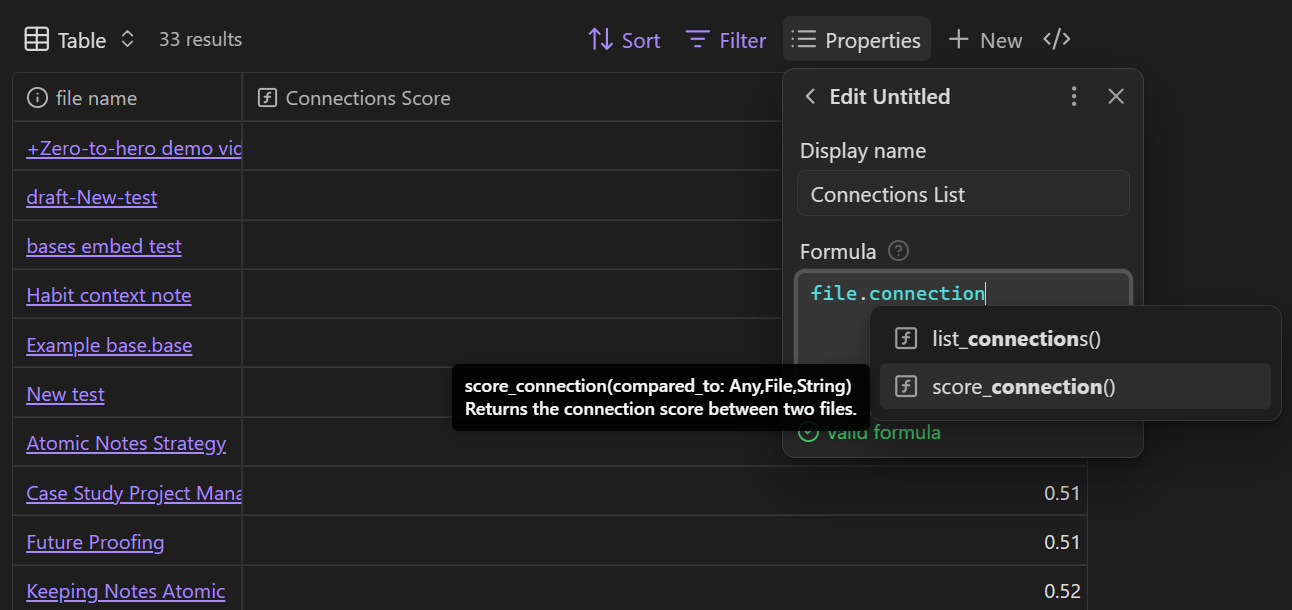
Example formula usage
Use the instance form when you want the formula to read naturally for each row:
file.score_connection("+Projects/Project Alpha.md")file.list_connections()
Use the global form if you prefer explicit inputs:
score_connection(file, "+Projects/Project Alpha.md")list_connections(file)
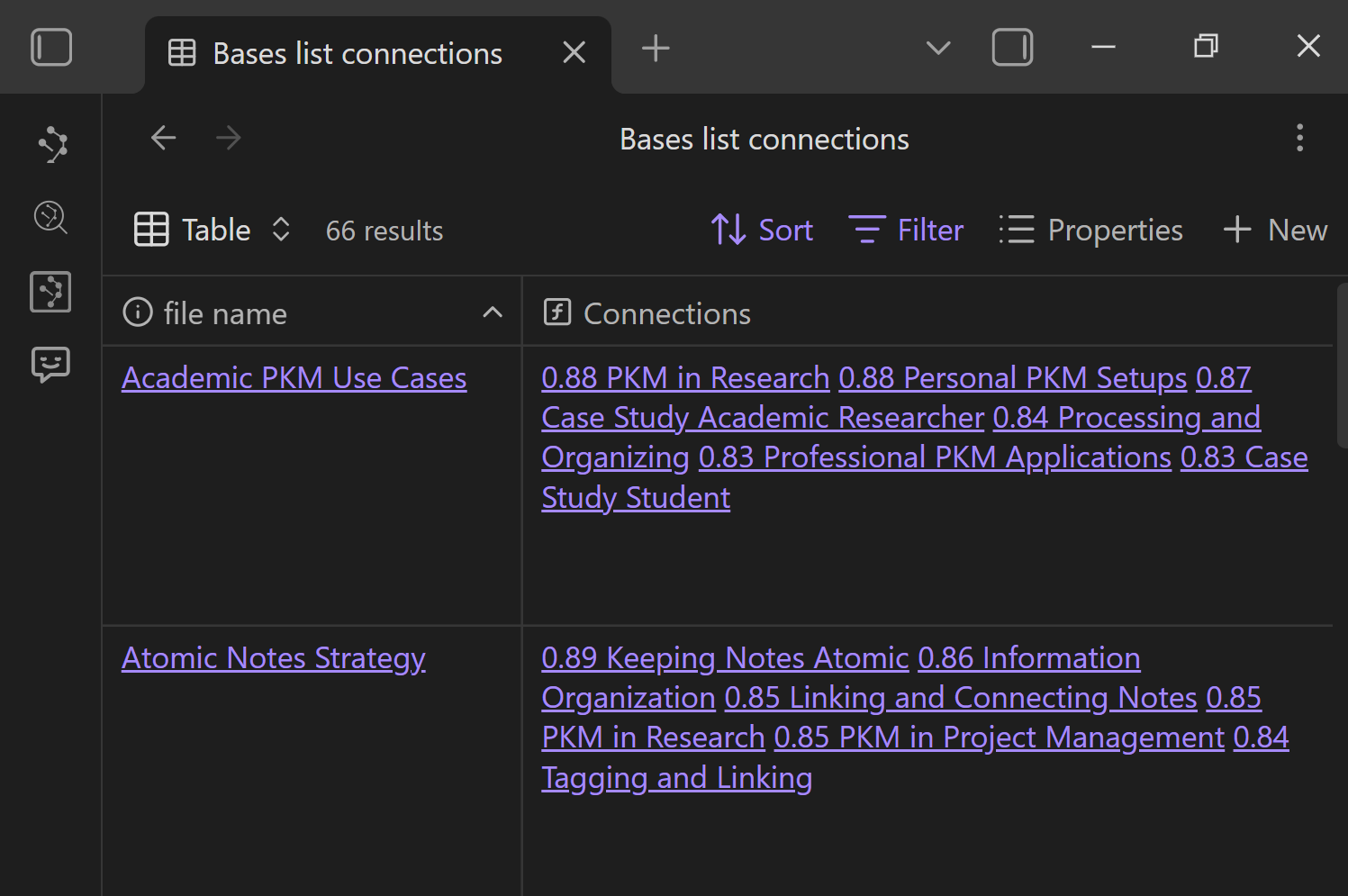
Pair score with link trails
A score column is great for sorting, but it can be even more useful when you can jump into context immediately.
Add a list_connections column to show a small trail of related links beside each result.
Understanding the score
Each score is calculated using your configured Connections scoring algorithm.
A few practical rules:
- Treat the number as a relative signal, not an absolute grade.
- Score ranges vary by embedding model and vault content.
- If you hide or pin items in Connections, those signals can affect how results are ordered in the future (and your Base will reflect changes the next time it recalculates).
Bases is where you want the score to be actionable:
- filter first (limit the candidate set)
- then sort by score (rank inside the set)
Workflow recipes
These workflows are designed around common AI + PKM pain points: too much information, weak prioritization, and context switching.
1) Goal-driven prioritization
Use this when you have too many notes and not enough clarity.
- Create a Base for your project folder (or tag).
- Add a Connections score column.
- Choose your goal note as the reference.
- Sort descending by score.
- Review the top 10 and turn the best ones into next actions.
Outcome: you stop guessing what matters, and your "next work" list stays aligned with your actual goal.
2) Drafting with grounded references
Use this when you are writing and want your draft to stay anchored in your existing work.
- Make a Base of your reference notes (sources, excerpts, prior drafts).
- Add a score column referenced to your outline or current draft note.
- Sort descending.
- Keep the Base open while you write.
- Drag the top items into a "References" section as you go.
Outcome: faster drafting, fewer missed citations, fewer repeated ideas.
3) Research triage and reading order
Use this when you have a pile of reading and want a meaning-based sequence.
- Make a Base for your reading list folder.
- Add a score column referenced to your research question note.
- Sort descending.
- Start reading at the top.
Outcome: a ranked reading trail without manual tagging or re-organizing.
4) Compare against multiple anchors
Use this when you are balancing tradeoffs: multiple goals, multiple audiences, or multiple projects.
- Add one score column per anchor note (Goal A, Goal B, Draft, Constraints).
- Sort by one column, then scan the others to see tradeoffs.
- Filter to the notes that score well across the lenses you care about.
Outcome: better prioritization when "relevance" is multidimensional.
5) Build AI-ready context packs
Use this when you want better AI outputs without prompt bloat.
- Add a score column referenced to the question note (or the draft).
- Sort descending.
- Select the top 5 to 15 notes.
- Copy links (or send them to Smart Context) and remove noise.
- Paste that bundle into your AI chat with: "Use only this context."
Outcome: better grounding, less hallucination risk, less time collecting context.
6) Custom Connections view for a narrow domain
Use this when the global Connections view is too broad.
- Create a Base filtered to a narrow set (one folder, one tag, one project).
- Add a score column using "Current/active file (dynamic)".
- Dock the Base so it stays visible.
- Browse notes normally.
Outcome: you get a "Connections view" that only considers your chosen subset.
Related pages
- See the core feature first: Exploring the Connections view
- Learn question-first discovery: Smart Lookup
- Use semantic ranking while writing: Inline connections
- Tune relevance and limits: Connections settings
- Export top-ranked rows to AI workflows: Smart Context Builder