
Smart Chat codeblocks
Smart Chat Notes lets you embed real, web-based chat UIs (ChatGPT, Claude, Gemini, Grok, Perplexity, DeepSeek, AI Studio, Open WebUI, Kimi) directly inside the note they belong to.
The core shift:
your chat threads stop being "lost in browser tabs" and become trackable artifacts inside your vault.
You can bookmark threads per note, return later, and mark them done when the loop is closed.
- Threads are saved back into the codeblock as normal markdown lines
- Threads can be marked Active or Done (with timestamps)
- Dataview can turn those lines into dashboards
If you want to send large, curated vault context to a thread from the exact note it belongs to, pair this with Smart Context Builder (or use the built-in Build context button):
Smart Context Builder
What this solves
If any of these are true, this feature will feel immediately useful:
- "I have great AI outputs, but I cannot find the thread later."
- "My project knowledge is in Obsidian, but my AI conversations live elsewhere."
- "I open 10 tabs per project and lose track of what I was waiting on."
- "I ask something that takes time, then forget to come back for the result."
- "I want to keep AI work next to the work it references."
This is not about replacing your chat provider.
It is about organizing and operationalizing your threads inside your notes.
Mental model: chat threads are tasks
A thread is a unit of work attached to a specific note.
- If you are waiting on it: keep it bookmarked in the relevant note.
- When it is resolved: click Mark done (or stop tracking it).
- Your note becomes a lightweight "async inbox" for the project.
This is how you get the asynchronous upside without losing control.
Active vs Done
- Active means: still in progress, still relevant, still waiting on something.
- Done means: the loop is closed (and you can always re-activate it later).
Two-minute quickstart
- Open the note where the work actually lives (project hub, decision note, draft, bug report, meeting note).
- Insert a Smart Chat codeblock for your provider (via Command Palette).
- Start a new chat or open an existing thread inside the embed.
- Once the provider URL becomes a real thread link, Smart Chat auto-saves it into the codeblock (pinning it to this note).
- Optional (high leverage): click Build context to curate vault context for this thread before you send the next prompt.
- When you are done with the thread, click Mark done.
You do not need a "perfect system" first.
Start by embedding one thread in one important note.
The habit is the product: always pin the thread to the note it is about.
What the embedded controls mean
Across providers, the embedded UI adds a small control layer so the note stays in charge.
Top controls:
- Thread dropdown (Thread URL list): saved/bookmarked threads for this note
- State chip: Unsaved, Active, Done
- Mark done / Mark active: toggle state for the current thread
- Help icon: opens this documentation page
Bottom controls:
- Refresh: reload the embed if the provider UI gets stuck
- Build context: open Smart Context Builder scoped to this thread
- Open in browser: jump out to a full tab when you need it
- Copy link: copy the current thread URL
- Grow / Contain: expand the embed for comfortable reading/writing
Your markdown remains the source of truth: the note stores thread links (and status), not the provider UI.
That means threads are searchable, linkable, and dashboardable like everything else in Obsidian.
Example of what gets saved into the codeblock:
```smart-chatgpt
chat-active:: 1767302492 https://chatgpt.com/c/6956e559-8060-8329-8150-7167e477c05a
chat-done:: 1767132305 https://chatgpt.com/c/69544c91-0c78-832e-8e49-d21049a33e51
```
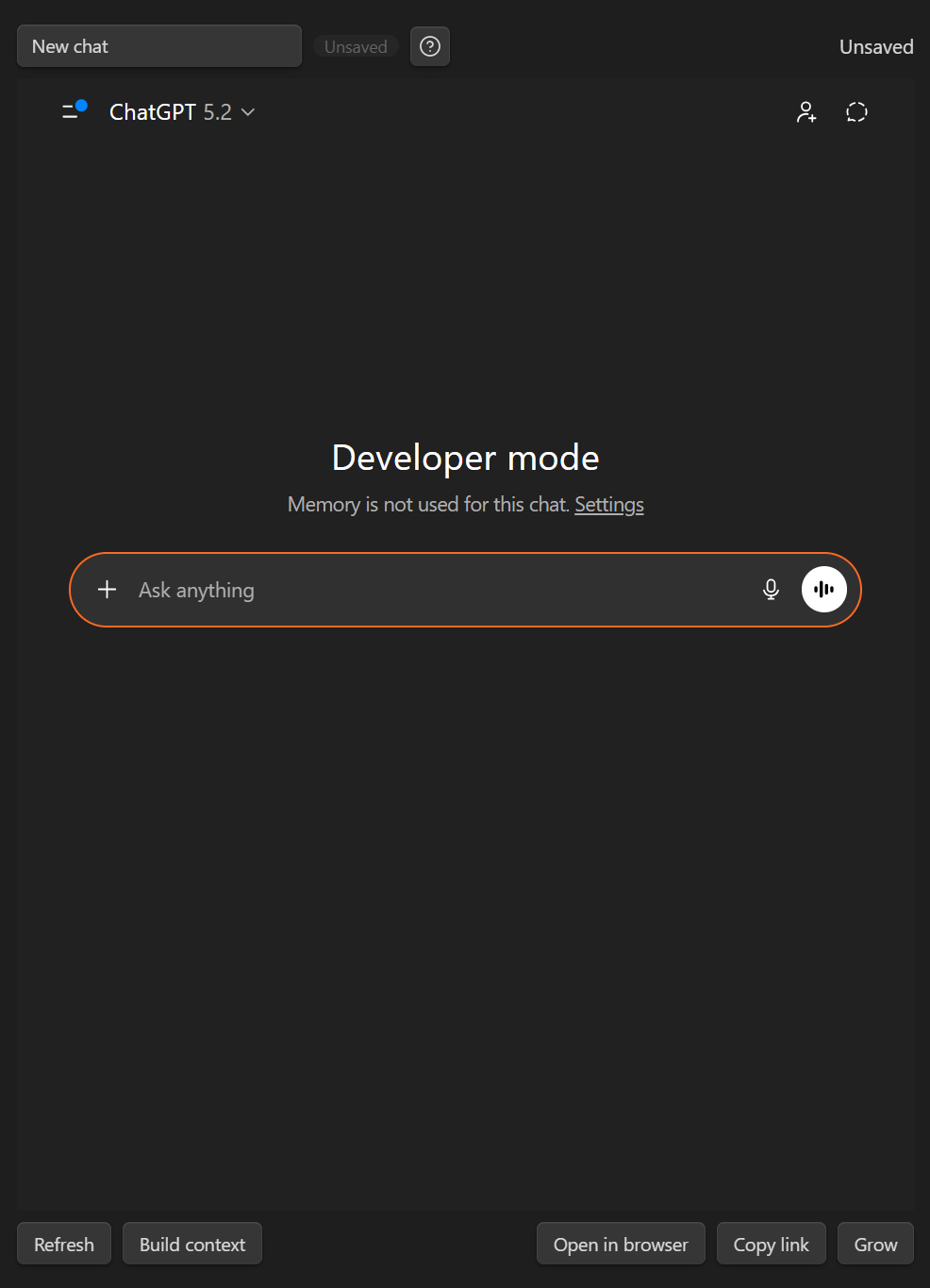
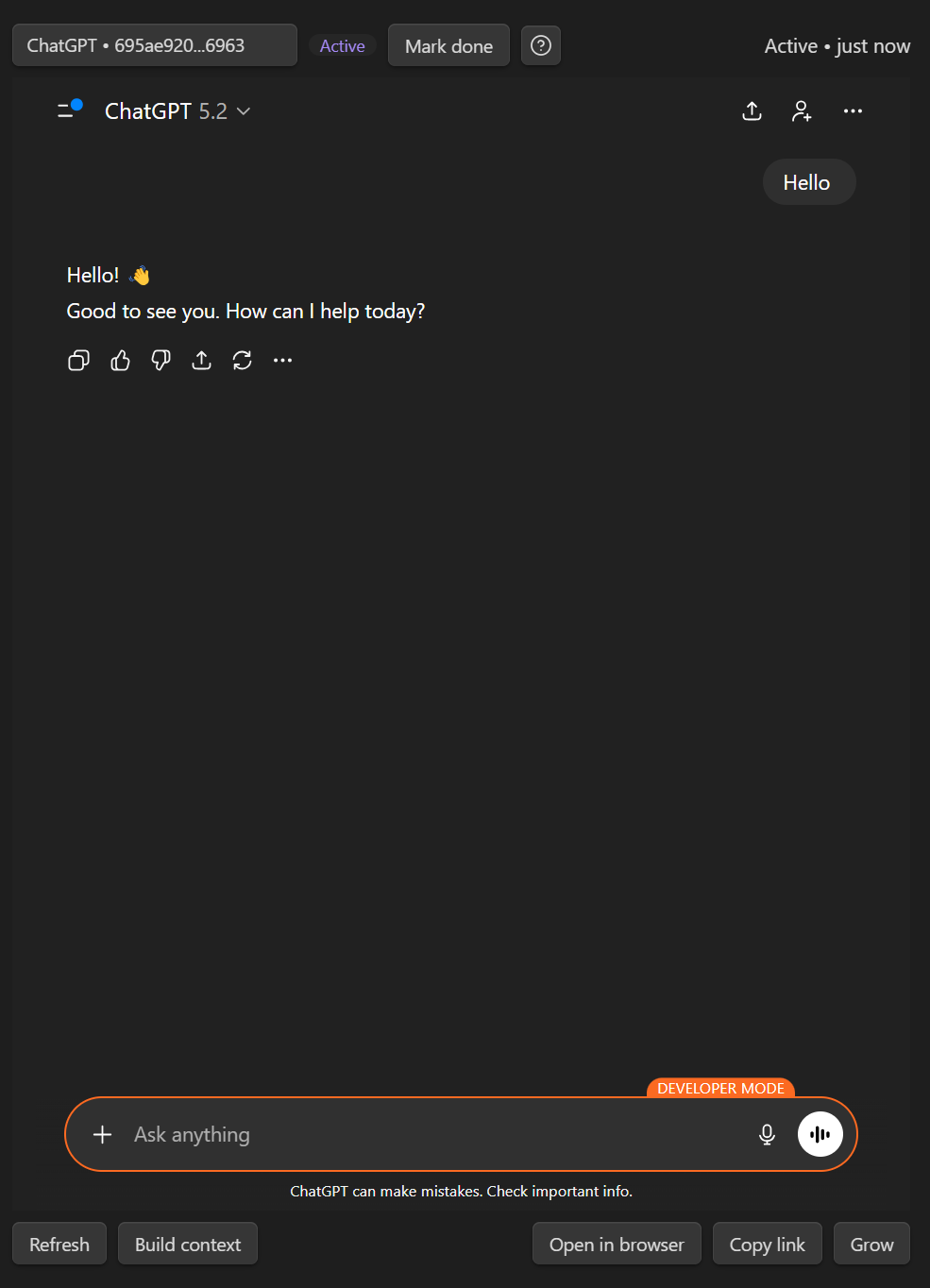
ChatGPT example: new -> active -> done
New chat (not yet saved):
Active thread (saved and tracked):
Done thread (closed loop, can be re-activated):

Supported providers
Use the codeblock that matches your provider:
| Codeblock | Provider |
|---|---|
smart-chatgpt |
ChatGPT (also recognizes Codex and Sora links) |
smart-claude |
Claude |
smart-gemini |
Gemini |
smart-grok |
Grok |
smart-perplexity |
Perplexity |
smart-deepseek |
DeepSeek |
smart-aistudio |
Google AI Studio |
smart-openwebui |
Open WebUI |
smart-kimi |
Kimi |
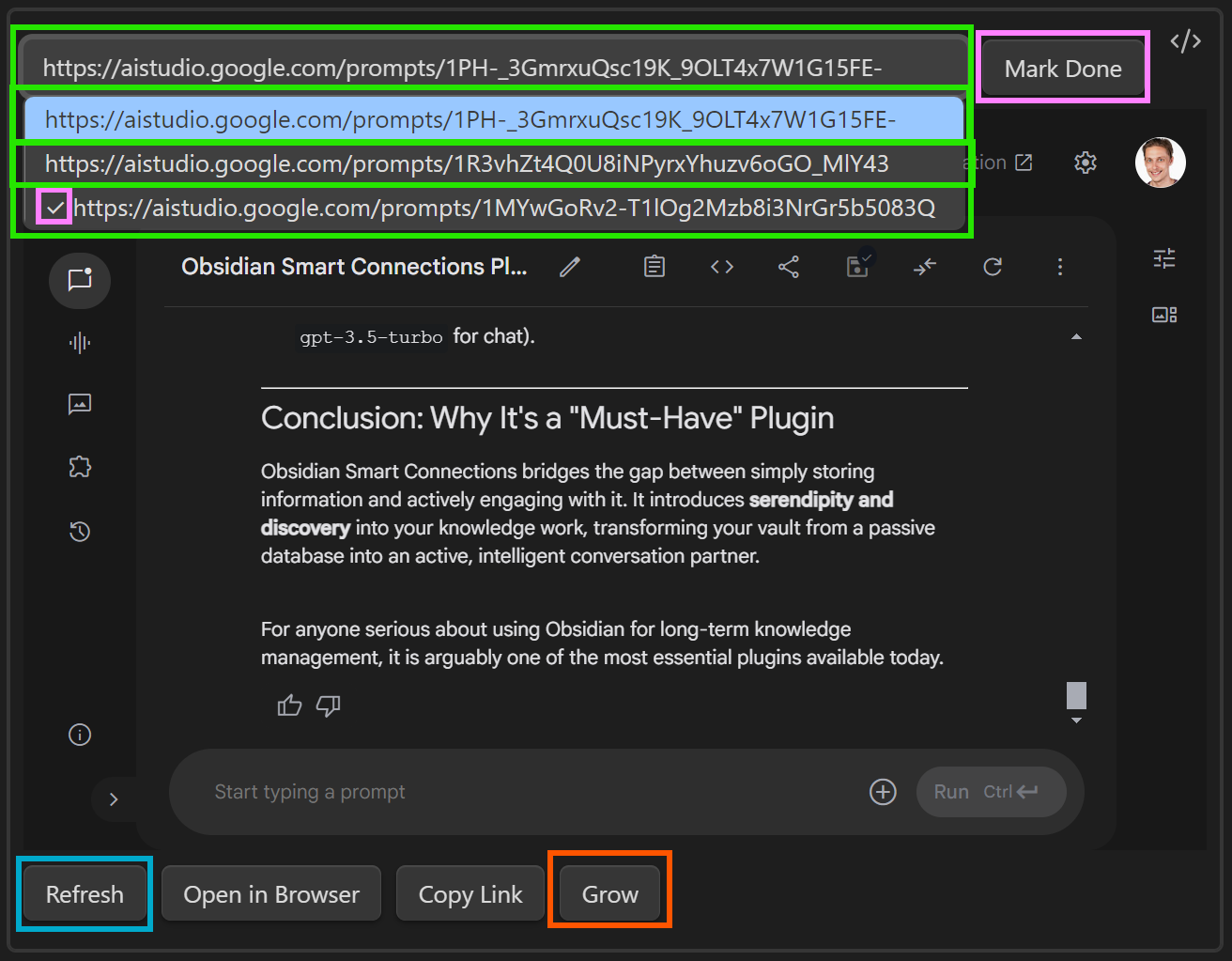
Supported platforms (annotated examples)
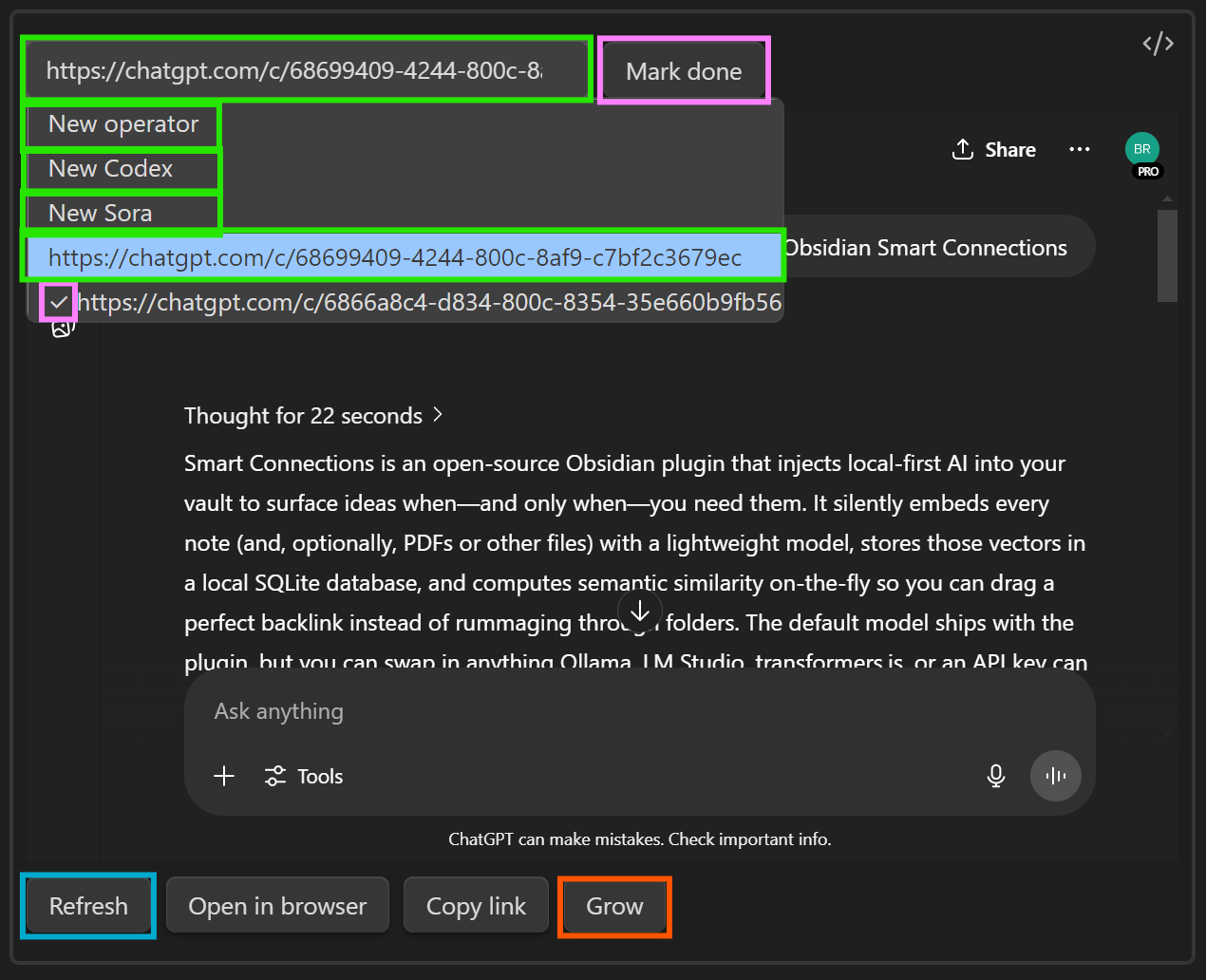
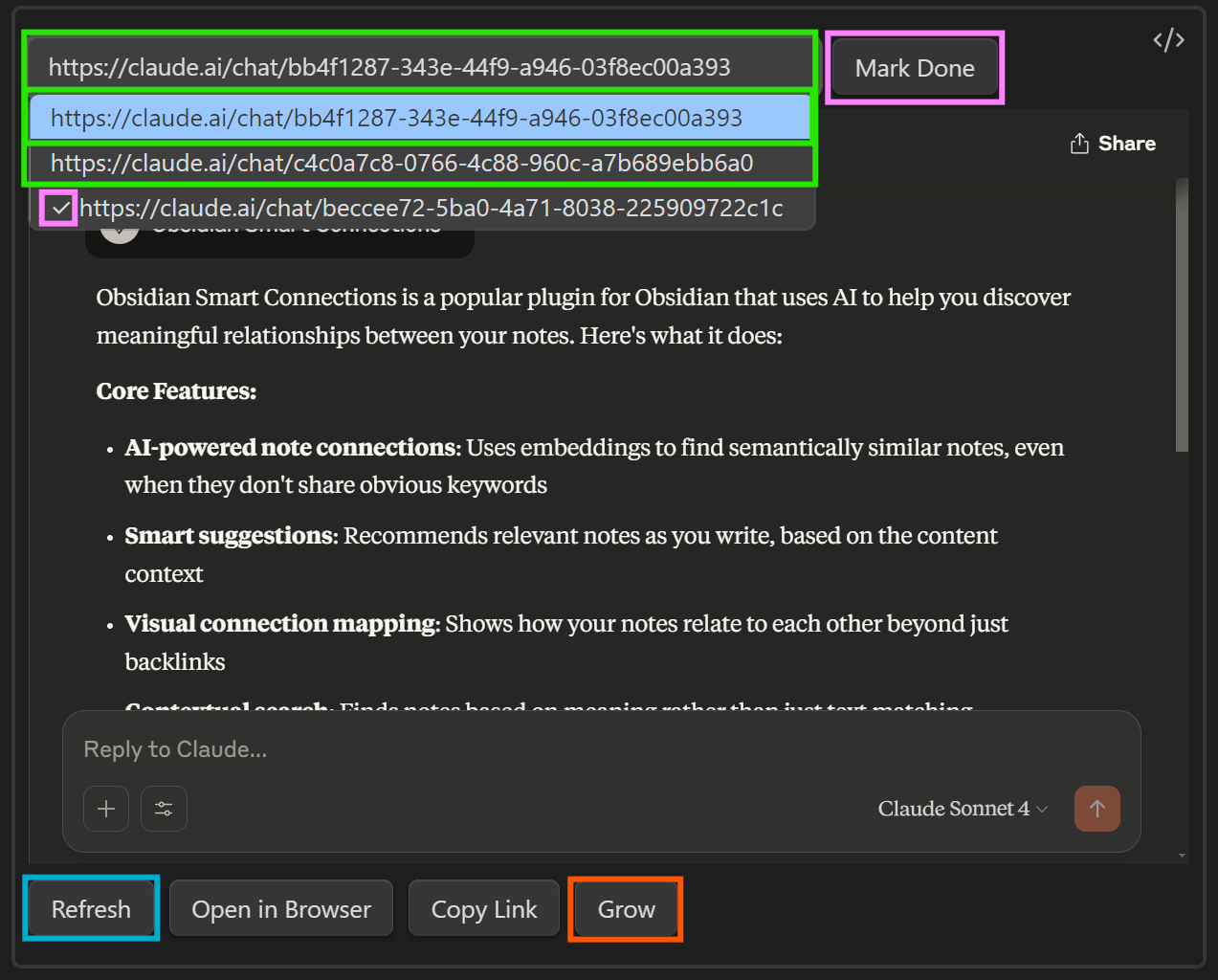
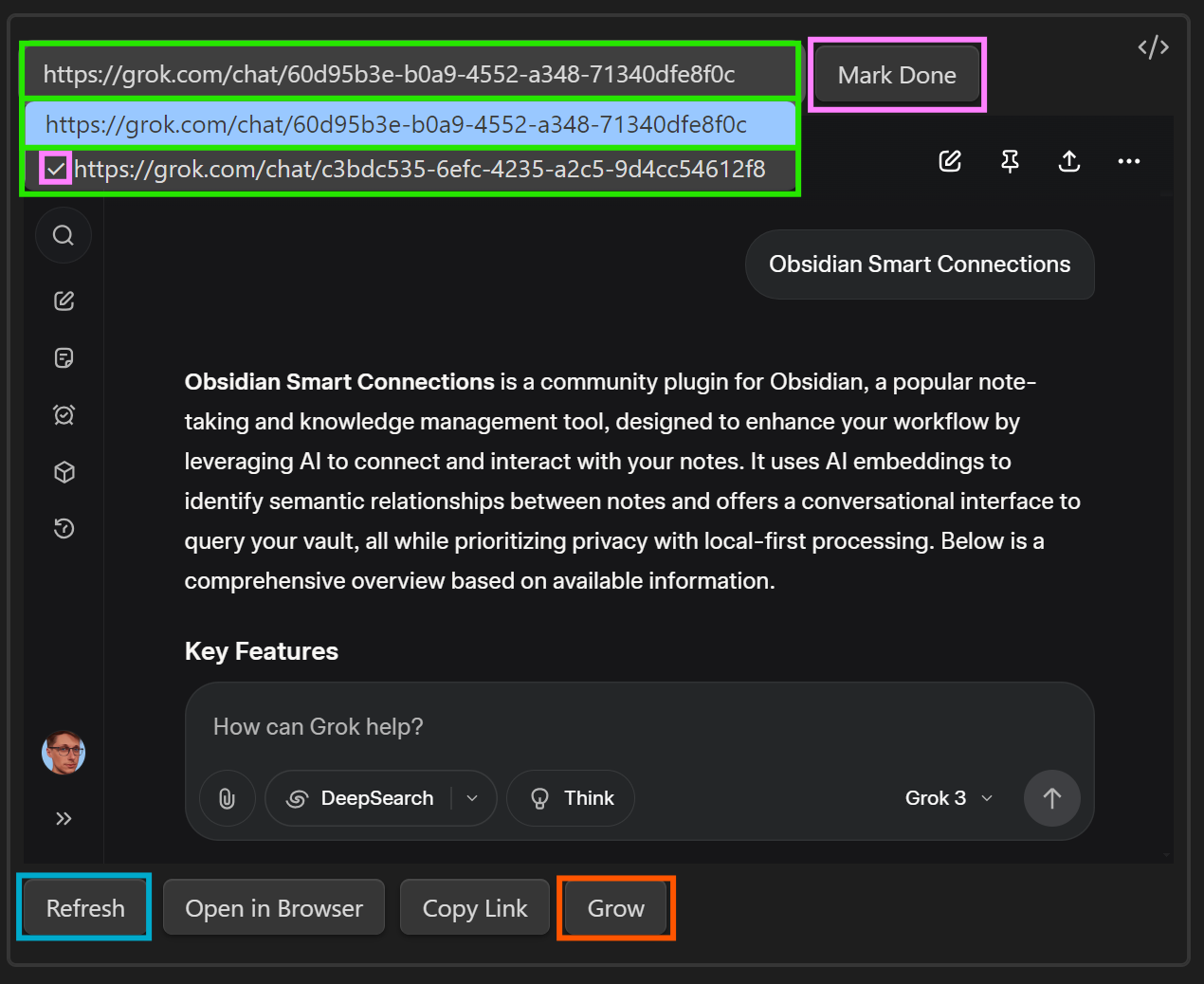
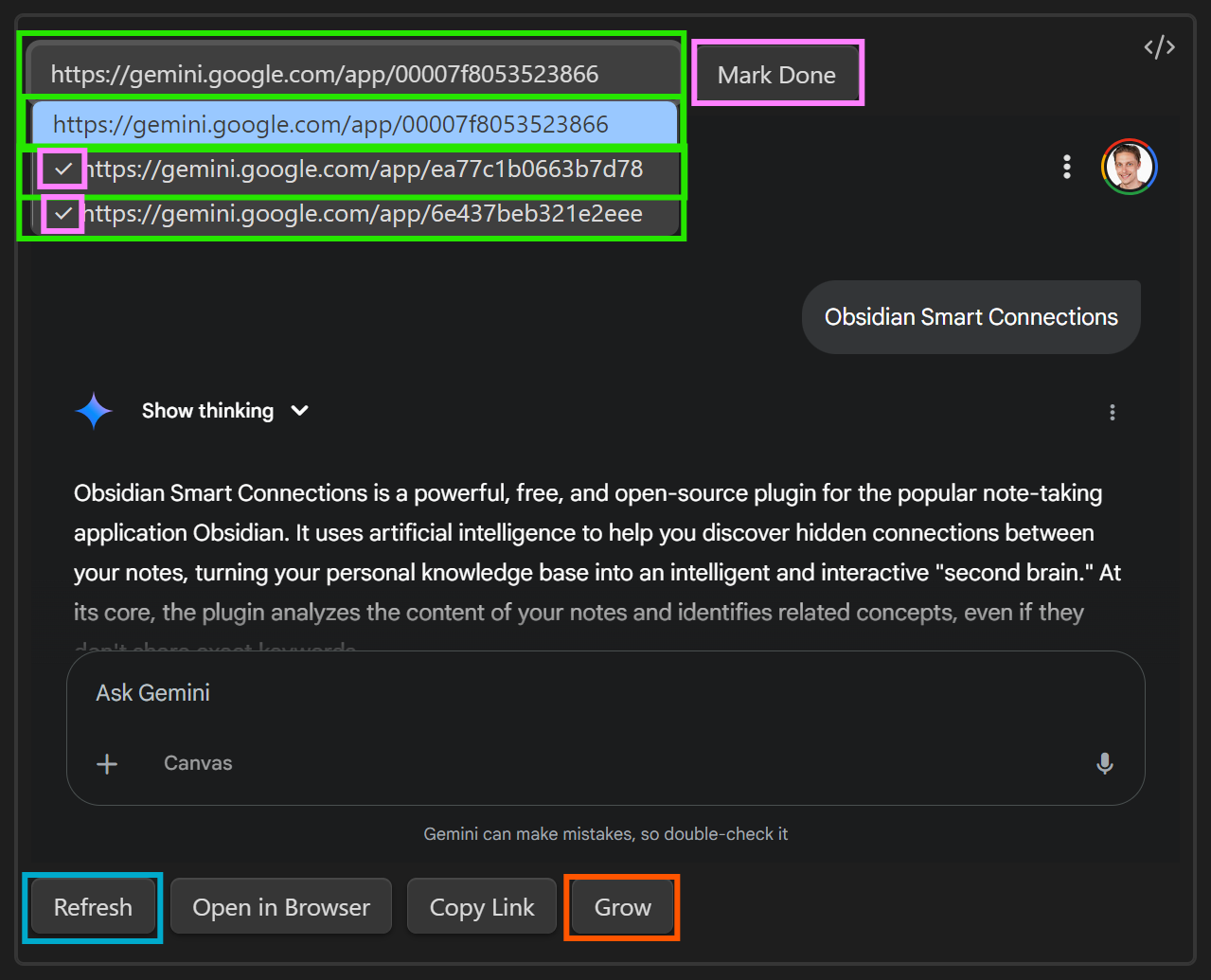
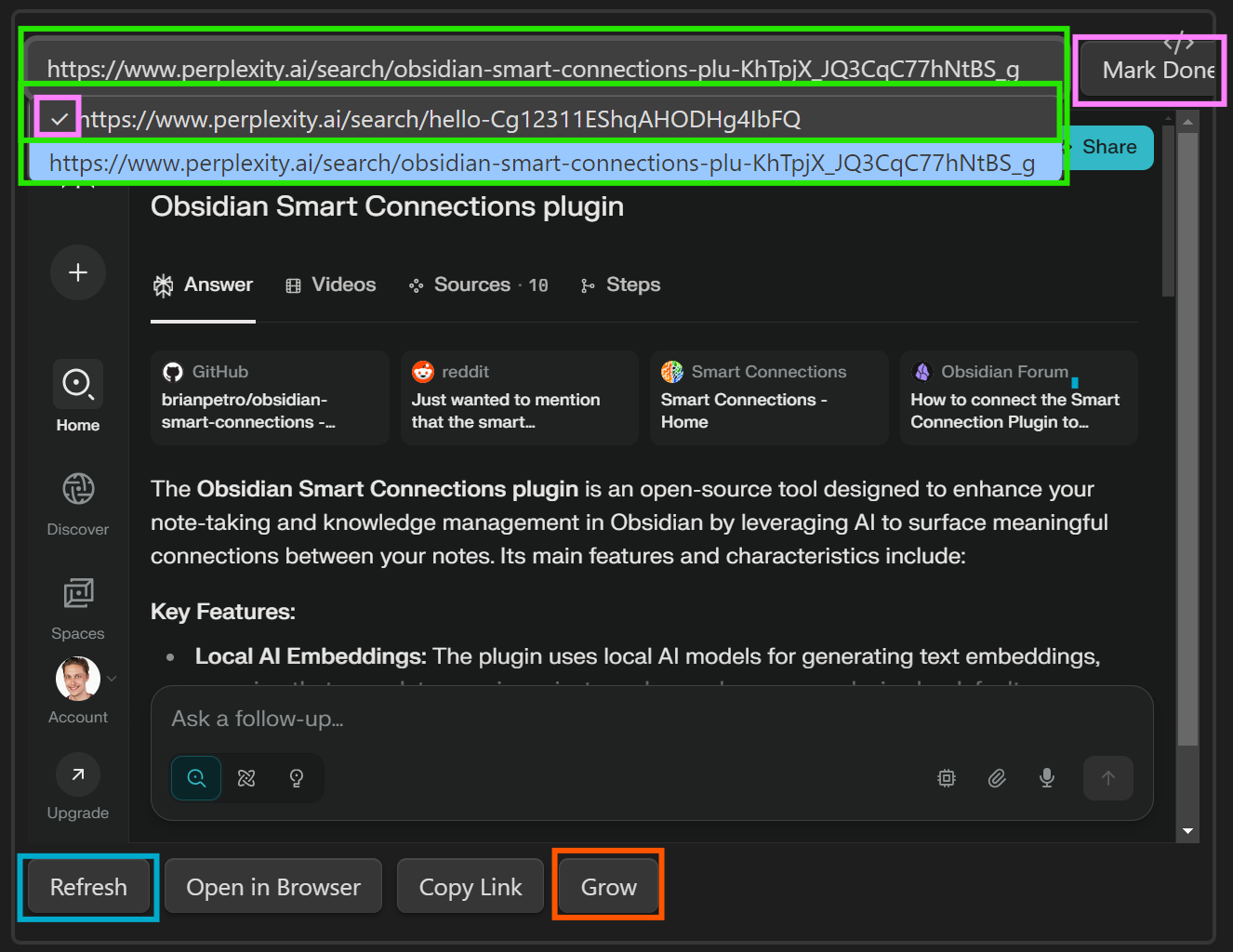
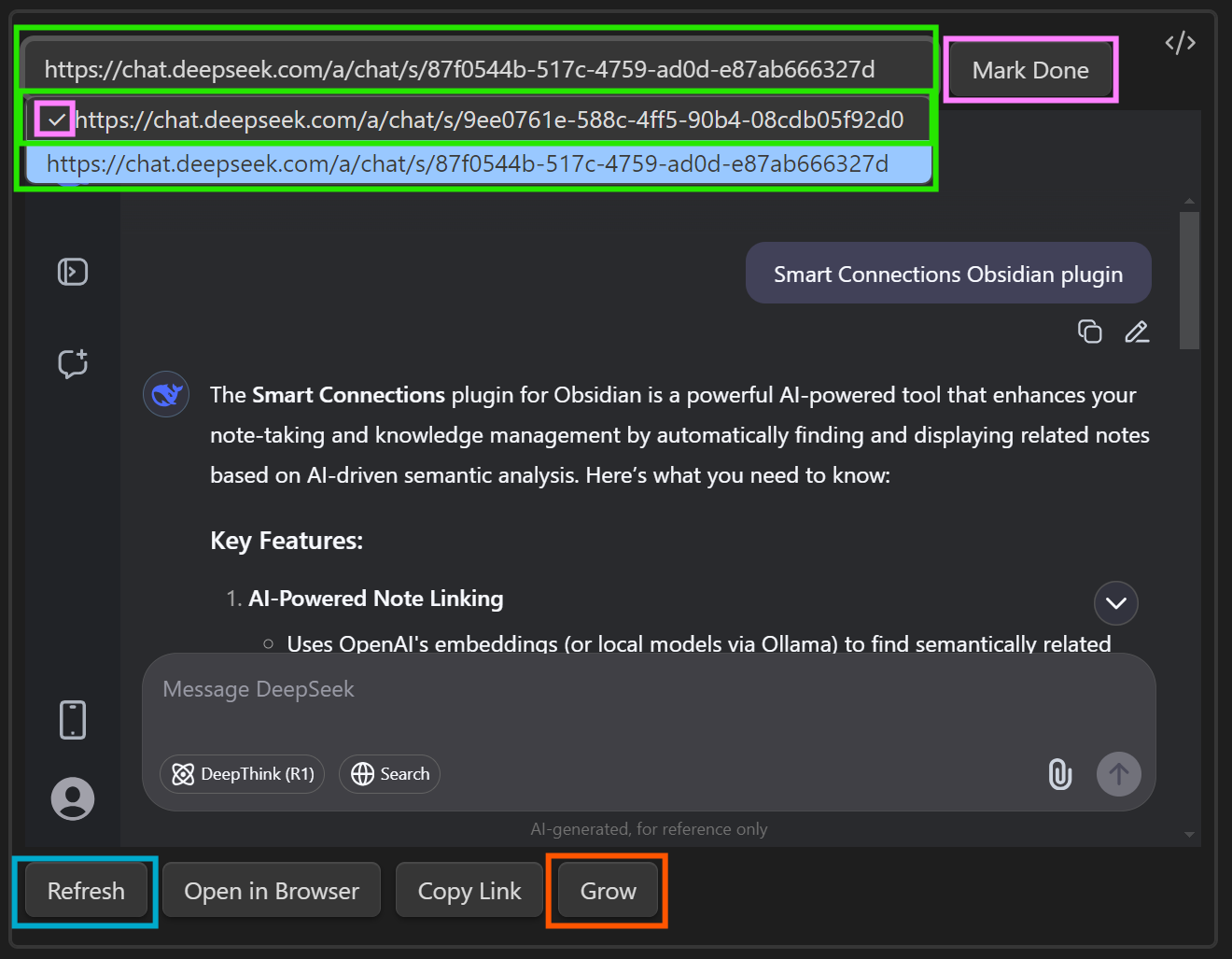
Below are examples of the same workflow across different providers.
- Green: saved thread URLs inside the codeblock
- Magenta: Mark done
- Orange: size/visibility controls (Grow)
- Cyan: utility controls (Refresh / Open / Copy)
Provider UIs change frequently, but the workflow stays the same: save the thread link into the note, then track it until you are done.
ChatGPT
Claude
Grok
Gemini
Perplexity
Deepseek
AI Studio
Dashboards with Dataview
Because thread state is stored as chat-active:: and chat-done:: in your notes, Dataview can turn your vault into an async dashboard.
Dataview plugin:
Install Dataview
In Progress:
```dataview
LIST WITHOUT ID file.link
WHERE chat-active
SORT file.mtime DESC
```
Completed:
```dataview
LIST WITHOUT ID file.link
WHERE chat-done
SORT file.mtime DESC
```
Show totals
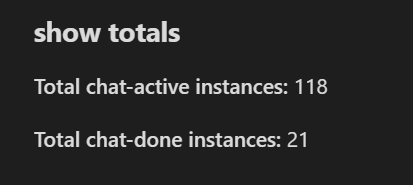
If you want a quick "how much am I actually using this" metric across your vault, use this DataviewJS snippet:
```dataviewjs
function count_field_value_instances(value) {
	if (value === null || value === undefined) return 0;
	return Array.isArray(value) ? value.length : 1;
}

const pages = dv.pages()
	.where(p => p["chat-active"] || p["chat-done"])
	.array();

const totals = pages.reduce((acc, page) => {
	acc.active_total += count_field_value_instances(page["chat-active"]);
	acc.done_total += count_field_value_instances(page["chat-done"]);
	return acc;
}, { active_total: 0, done_total: 0 });

dv.paragraph(`**Total chat-active instances:** ${totals.active_total}`);
dv.paragraph(`**Total chat-done instances:** ${totals.done_total}`);
dv.paragraph(`**Total tracked threads:** ${totals.active_total + totals.done_total}`);
```
Tip: To scope this to a folder, replace dv.pages() with dv.pages('"YourFolderName"').
Troubleshooting
Having trouble with signing in (common gotchas)?
Some providers use sign-in flows that are easier to complete in Obsidian's Web viewer first:
- Claude sign-in: enable Obsidian's Web viewer core plugin, log in there, then return and Refresh the embed.
- Google sign-in (Gemini / AI Studio): same idea - complete sign-in in Web viewer, then Refresh.
- AI Studio: after sending the first message, click Save in AI Studio so Smart Chat can capture the thread URL.
Still having trouble?
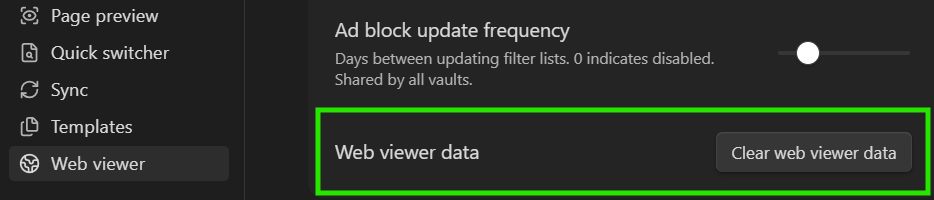
Is the "prove you are a human" continuously displayed?
Try clearing the Web Viewer browser data in the settings.
Does it work on mobile?
These embeds rely on Obsidian desktop (Electron) webview support.
On mobile (iOS/Android), the embedded web UI cannot render the same way.
Practical takeaway:
- Desktop: full embedded chat UI + controls
- Mobile: treat the codeblock as a thread bookmark list (still useful for continuity)
Technical background:
https://github.com/brianpetro/smart-chatgpt-obsidian/issues/7#issuecomment-3505152432
Next steps
- Add one embedded chat codeblock to your highest-value project hub note.
- Create a "Chat Inbox" dashboard note with Dataview.
- If you routinely reuse context, build your first named context pack:
Smart Context Builder
If you want the broader Smart Chat story (and how this relates to Pro capabilities), start here:
https://smartconnections.app/smart-chat/
If you are deciding between Core and Pro:
https://smartconnections.app/pro-plugins/