
Workflow: Copy context with media (Pro)
Copy with media is for the cases where the "why" lives in the visuals:
- screenshots of UI state
- diagrams / whiteboards
- PDF tables / charts / figures
- slide snapshots
Instead of pasting a bunch of separate images (and hoping you did not miss one), Smart Context compiles the relevant visuals into a single image and puts it on your clipboard alongside the text context.
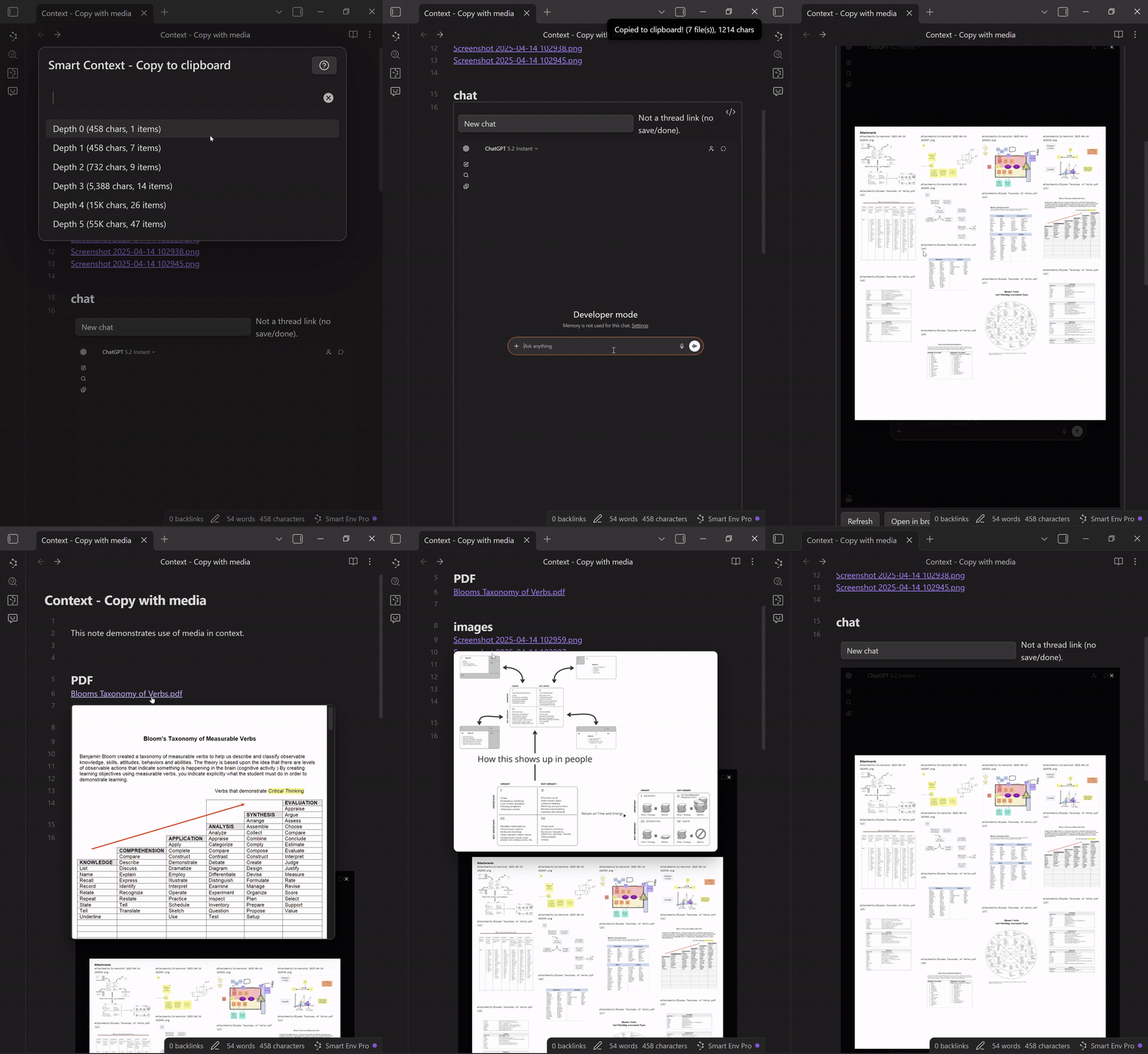
The recording above shows the full loop end-to-end.
1) Prepare the note (make the media reachable)
Put the media you want the model to see inside your context graph:
- Add links or embeds to your images and PDFs in the note(s) you plan to copy.
- If you want a visual included even at Depth 0, embed it in the starting note (example:
![[some-image.png]]). - If your note only links to attachments (not embeds), you will typically include them by choosing Depth 1 (one hop from the note to the linked files).
Practical pattern: add an "Attachments" section near the top of your note and put the key images/PDFs there, so you can quickly sanity-check what will be included.
2) Copy with media
- Open the Smart Context clipboard flow (current note, selected notes, or folder).
- In the Copy to clipboard modal, choose a link depth.
- Use the item count + size estimate to pick the smallest depth that still includes the visuals you need.
- Click Copy with media (Pro).
You should see a confirmation like:
- "Copied to clipboard! (N file(s)), N chars"
That file count is a quick sanity check that your attachments were picked up (note(s) + linked/embedded media).
3) Paste into your chat (text + image together)
- Go to your chat tool (Smart Chat, ChatGPT, Claude, etc.).
- Click into the message box.
- Paste (Ctrl+V / Cmd+V).
What you should see:
- the text context is pasted into the message box, and
- an image thumbnail is attached in the composer (this is the compiled media bundle)
Send the message like you normally would.
What "compiled media" means
When you choose Copy with media, Smart Context creates a single collage-style image that contains:
- each referenced image (screenshots, diagrams, etc.)
- each referenced PDF rendered as pages (so the model can "see" the PDF content)
The compiled image is labeled with source filenames (and PDF page numbers) so the visuals stay attributable and easy to reference in follow-up prompts.