
Manage Smart Chat threads with Chat Manager
This page is retained temporarily and may contain outdated details. Use the current Chat Manager documentation for current behavior. Start with Getting started with Smart Chat API Extension for the shortest verified workflow.
Chat Manager is the current Smart Chat Pro surface for opening, filtering, renaming, and review-first cleanup of Smart Chat API Extension thread records.
The current surface is Chat Manager.
Older routes and filenames may still contain thread-manager, but current instructions should use the visible product name and command below.
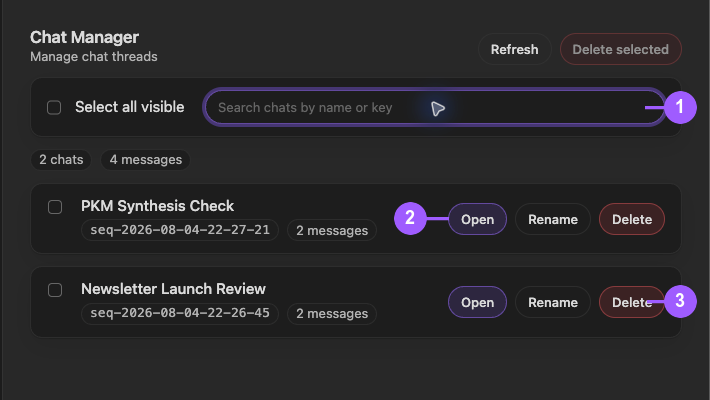
Open Chat Manager
Run:
Open: Chat Manager view
This command appears under Smart Chat Pro.
Chat Manager does not list provider URLs stored only in Markdown codeblocks.
What this solves
Use Chat Manager when saved API-model threads have become records you need to manage deliberately:
- find a thread by name or key
- open a thread before deciding what to do
- rename vague records inline
- review thread and completion counts
- delete one confirmed record
- delete only selected visible records after confirmation
Review-first cleanup
- Search or filter to a narrow visible set.
- Open uncertain threads.
- Rename useful threads that are merely hard to identify.
- Select only records you intend to remove.
- Confirm destructive actions inline.
- Review the remaining list.
Do not use Chat Manager as a blind age-based cleanup tool.
Core actions
Open a thread
Use Open when the record is active, useful, or uncertain.
Rename inline
Rename a thread when its current title does not explain the outcome, project, or waiting state.
Delete one record
Single-record deletion requires visible inline confirmation.
Delete selected visible records
Bulk deletion applies only to rows that are both visible and selected after filtering.
Review counts
Thread and completion counts support review. They do not prove that a record is safe to delete.
Chat Manager vs Chat History vs Chat Inbox
| Surface | Use it for |
|---|---|
| Chat History | Reopen or begin confirmed deletion of a known recent API thread quickly. |
| Chat Manager | Filter names or keys, inspect counts, rename records, and perform deliberate confirmed cleanup. |
| Chat Inbox with Dataview | Review provider bookmarks stored as chat-active or chat-done fields in Markdown notes. |
FAQ
Does deleting a thread require confirmation?
Yes. Single and selected-visible deletion should use inline confirmation.
Can I rename without opening the thread?
Yes. Rename is inline in the Chat Manager row.
Does Chat Manager search every message body?
No. Current management search is limited to documented thread fields such as name or key. Open an uncertain thread instead of assuming a phrase from the middle of the conversation is searchable.
Is Chat Manager the same as a Chat Inbox?
No. Chat Manager owns Smart Chat API Extension records. A Chat Inbox reads provider bookmark state from Markdown notes.