
Smart Chat API integration
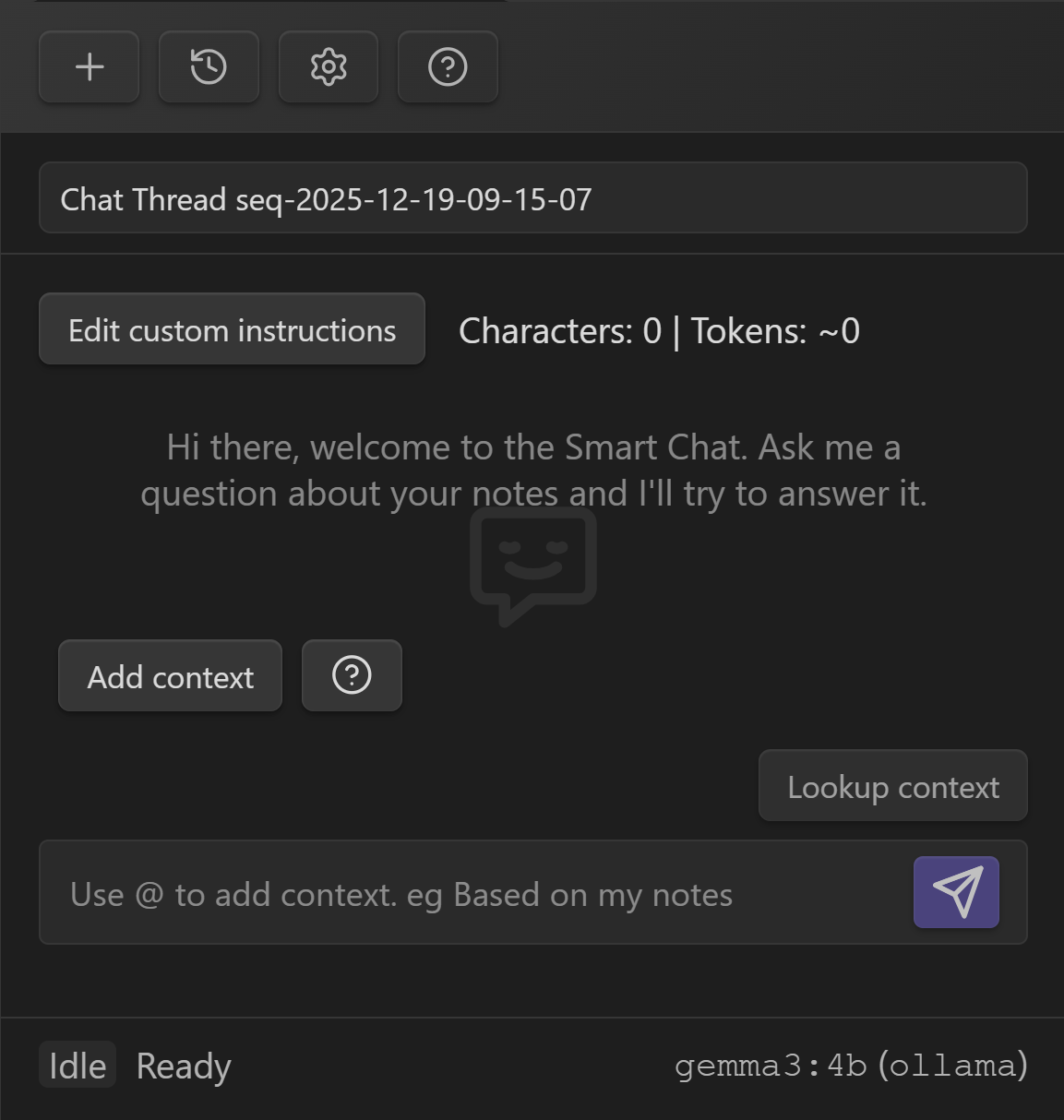
Smart Chat is a full-screen chat workspace inside Obsidian that lets you use local models and cloud APIs in one consistent UI, without breaking your note workflow.
It is designed for power users who want:
- model choice per task (local or cloud)
- vault-grounded answers (notes as context)
- thread continuity (history, search, reuse)
- control (custom instructions, exclude turns, budget awareness)
- Pick a model
- Attach context
- Ask for an outcome
- Keep the thread clean (exclude noise, reuse good prompts)
Who this helps
You will get immediate value if any of these are true:
- You run local models for privacy/offline work, but still want cloud models for harder tasks.
- You use multiple providers and want one consistent UI to compare outputs.
- You want vault-grounded answers (notes as context), not generic chat.
- You want to control token budgets and reduce drift.
- You want to find and reuse your best prompts from history.
Open Smart Chat
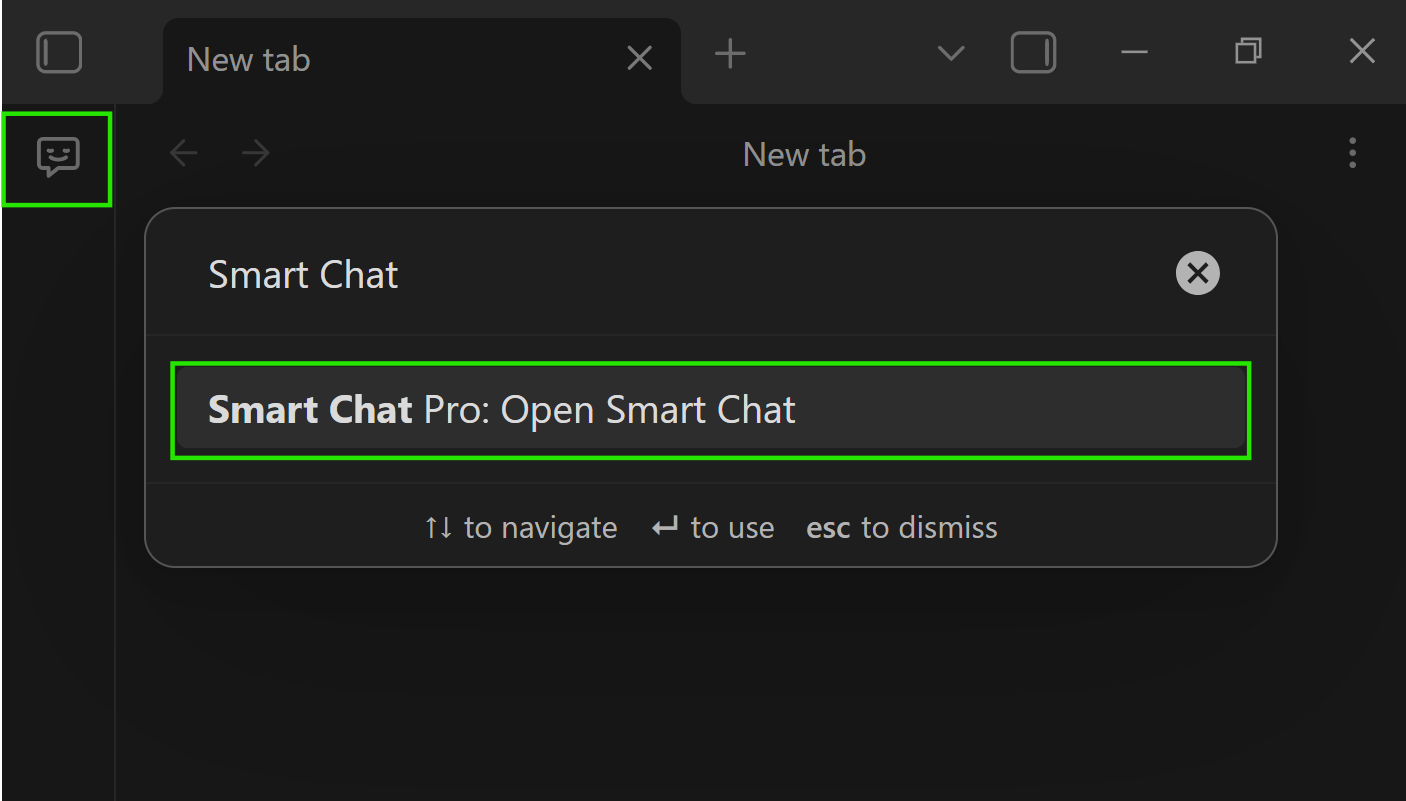
Launch from:
- the ribbon icon, or
- the command palette (recommended), or
- a hotkey you assign
Quick start (2 minutes)
Goal: ask a grounded question using the best model for the job.
- Open Smart Chat.
- Attach context using one of:
- Lookup context (retrieve relevant notes automatically)
- Add context (manual selection)
- Drag and drop notes/files into the chat
- Ask for an outcome.
- If the thread drifts, exclude irrelevant message pairs so they do not contaminate the next turn.
- Use history search to return to strong threads.
Example prompts that work well:
- "Based on the attached notes, summarize the current state and list the next 5 actions."
- "Extract constraints from context and propose a plan that satisfies every constraint."
- "Find contradictions between these notes and list what needs clarification."
UI tour (what you are looking at)
Key parts of the Smart Chat UI:
- Thread name: your current conversation.
- Custom instructions: thread-level system prompt (inherits global by default).
- Character + token estimate: quick budget feedback before sending.
- Context controls:
- Add context (manual selection)
- Lookup context (retrieval)
- Composer: type your message; use
@to attach context quickly. - Status + model indicator: shows readiness and the active model.
Configure your API key
To connect a provider (OpenAI, Anthropic, Gemini, OpenRouter, etc.):
- In Smart Chat, click the gear icon to open Chat settings.
- Choose the provider and paste your API key.
- Save, then select the model from the Smart Chat header.
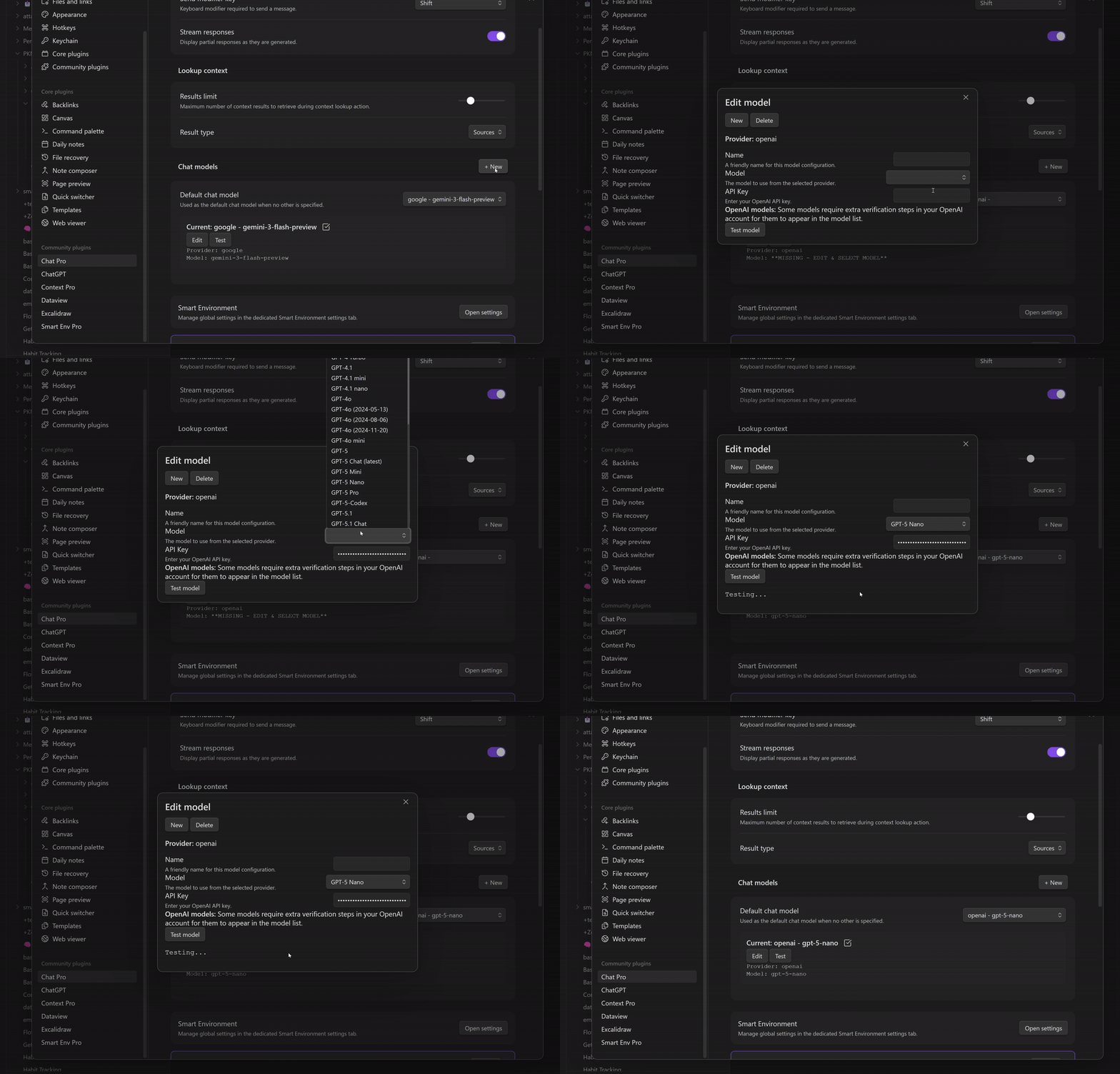
If a model fails, switch providers/models and keep moving.
Smart Chat is built for "fallback without losing your thread."
Custom instructions (thread-level system prompt)
Use Edit custom instructions to set the system prompt for the current thread.
This is where you put stable rules like:
- "Use only the attached context when answering."
- "If something is missing, ask the minimum questions needed."
- "Return outputs as checklists."
- "Cite note titles/sections when making claims."
Treat this as:
- Custom instructions = "how this thread behaves"
- Your message = "what you want right now"
Context is first-class
Smart Chat is built around a simple truth:
the quality of the output is mostly about the quality of the context.
You have three fast ways to attach context.
Option 1: Select context manually (high precision)
Use Add context when you already know what matters.
This pairs well with Smart Context Builder:
- build a reusable named context (project working set, constraints pack, meeting continuity)
- reuse it repeatedly in Smart Chat
Related: Smart Context Builder
Option 2: Drag notes/files into the conversation (fastest)
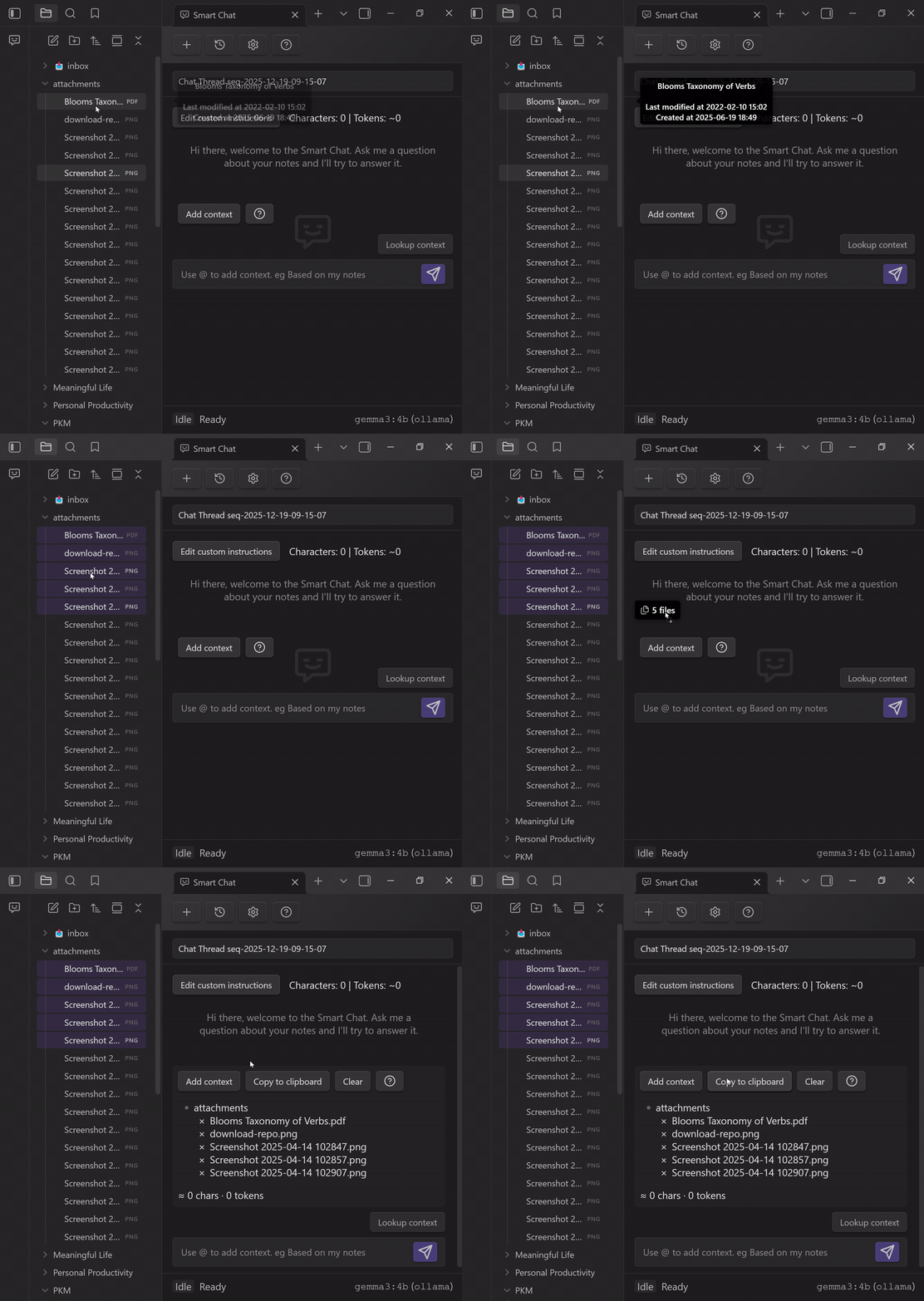
Drag notes or files into the chat to attach them as context.
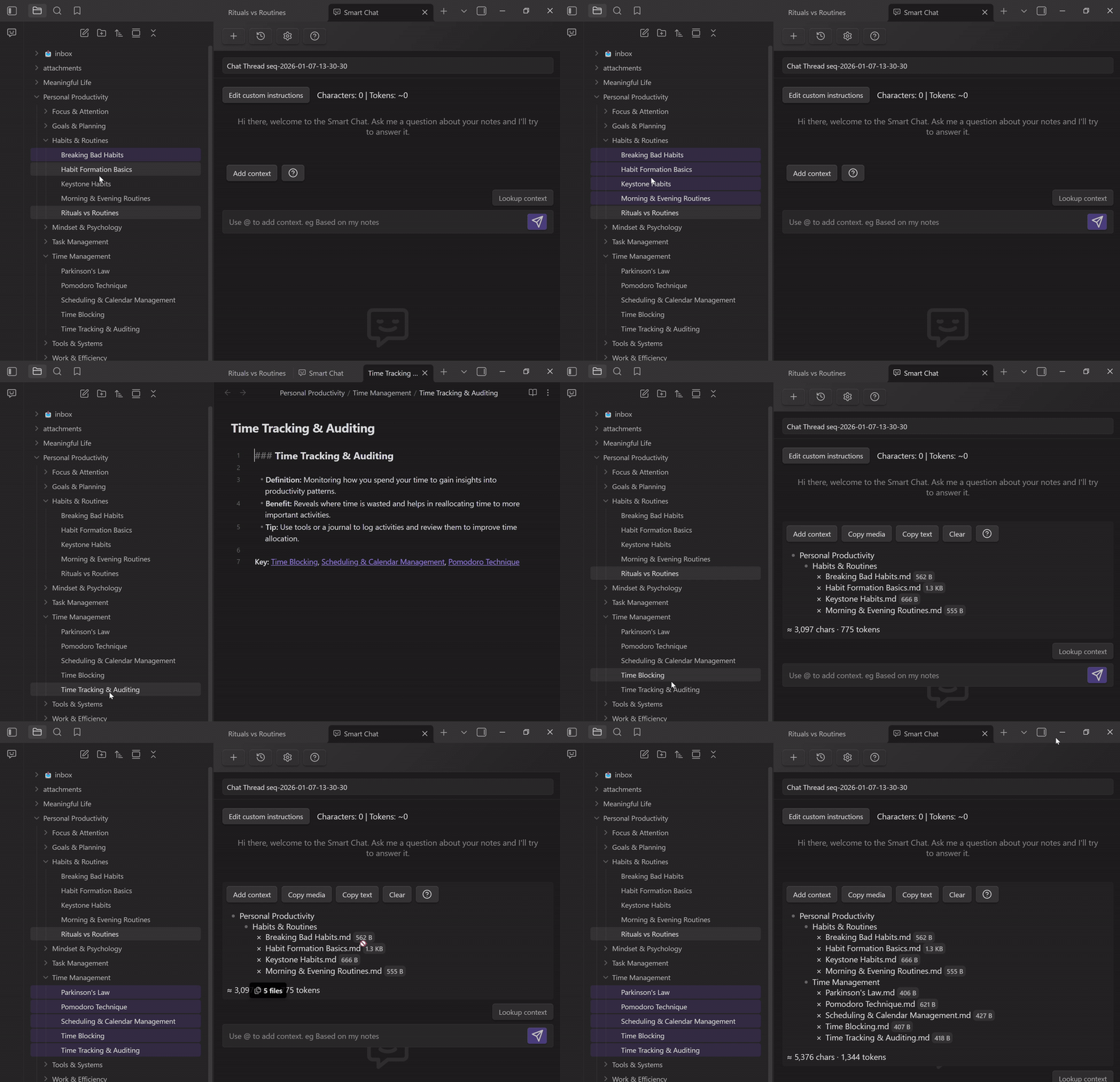
Use this when you are moving quickly and you already have the right items in view.
Option 3: Lookup context (retrieval / "find the right notes for me")
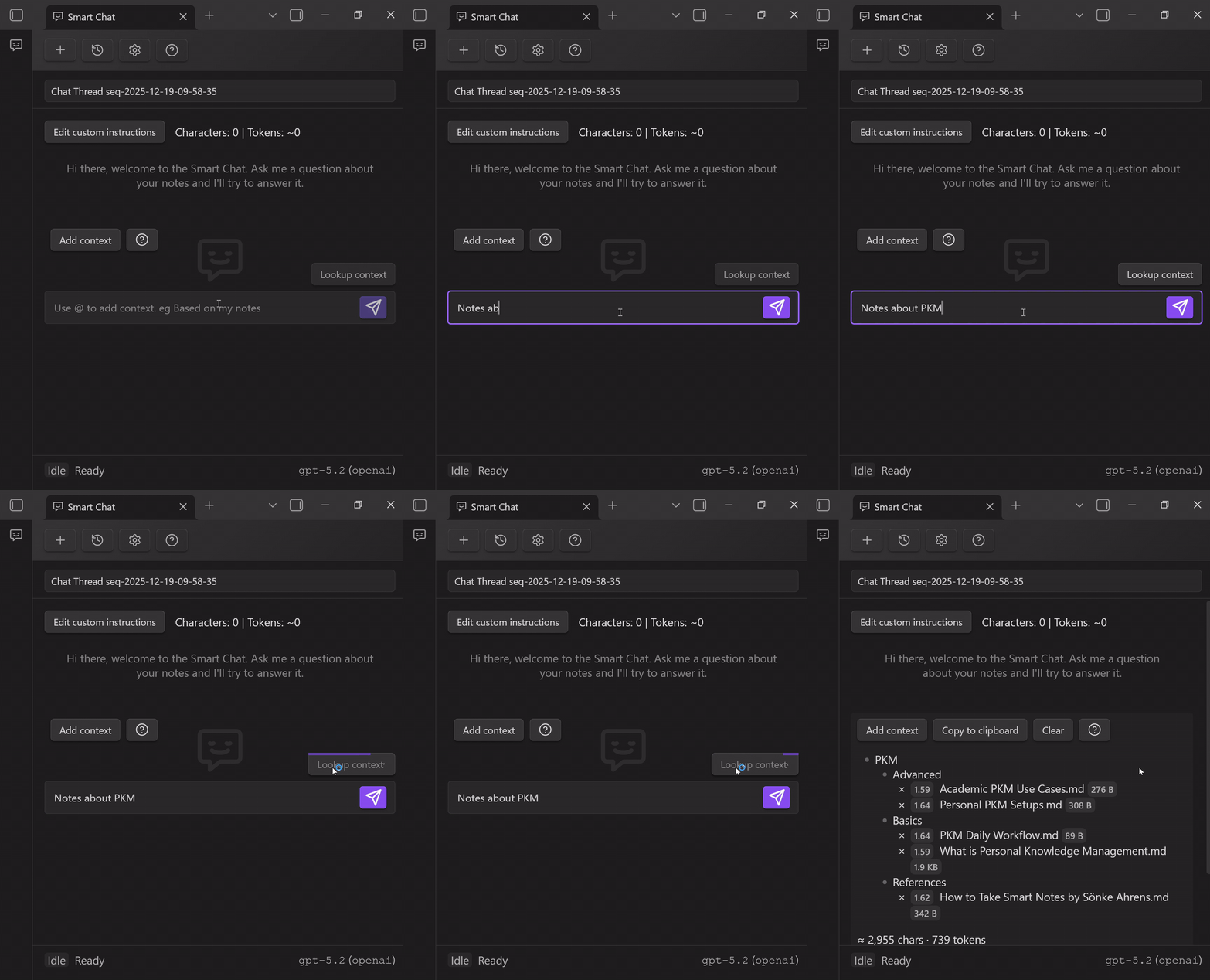
Use Lookup context when you have a question, but you are not sure which notes contain the answer.
Mental model:
- you write the question
- Smart Chat retrieves likely-relevant notes/blocks
- you review the context before sending (so you stay in control)
Preventing ungrounded messages (no-context warning)
If you try to send a message without any context attached, Smart Chat can warn you and offer three paths:
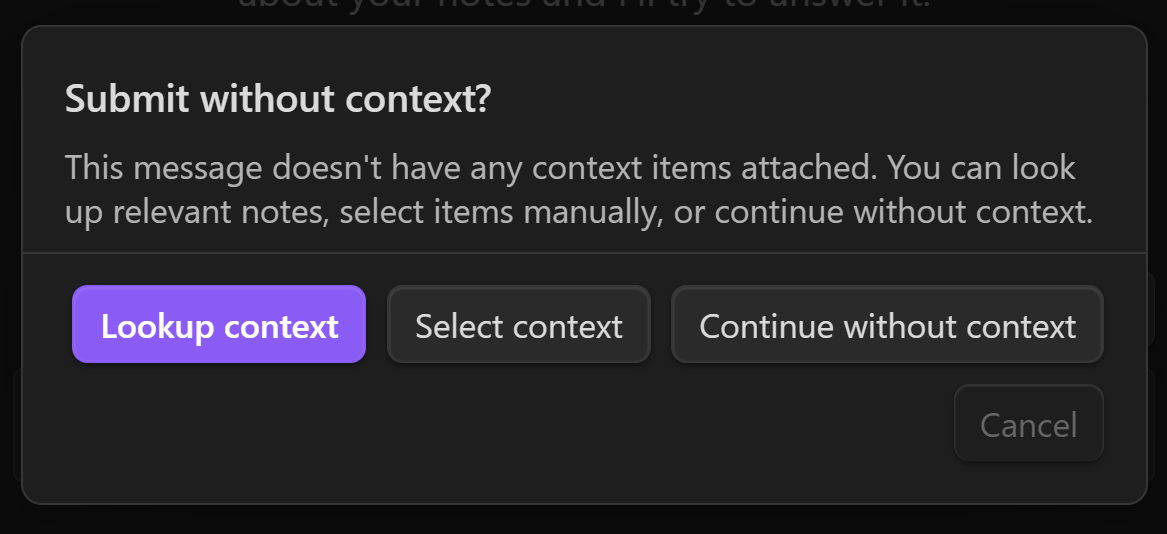
- Lookup context: retrieve relevant notes automatically
- Select context: open the selector and choose items manually
- Continue without context: intentionally run as general chat
This friction is intentional: most "AI got it wrong" problems start with "AI did not have the right context".
Thread list and history search
Smart Chat keeps your work in threads so you can return to:
- strong prompts
- good answers
- ongoing projects
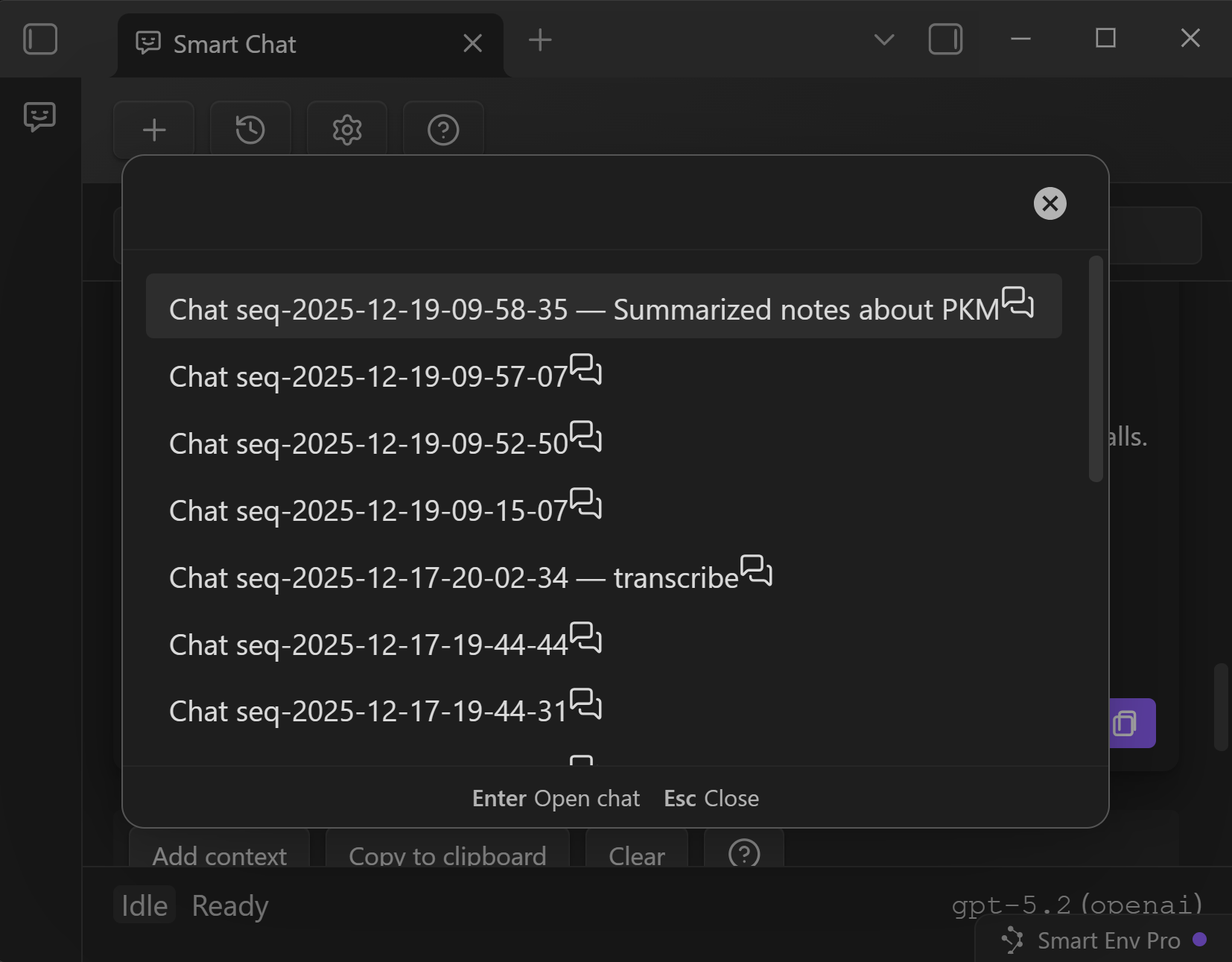
History search helps you find threads by:
- thread name, or
- content inside messages (when you remember what you said, not what the thread was called)
Control what gets included next (exclude/include message pairs)
As a thread grows, the fastest way to lose quality is to keep dragging old, irrelevant turns forward.
Smart Chat gives you per-turn control:
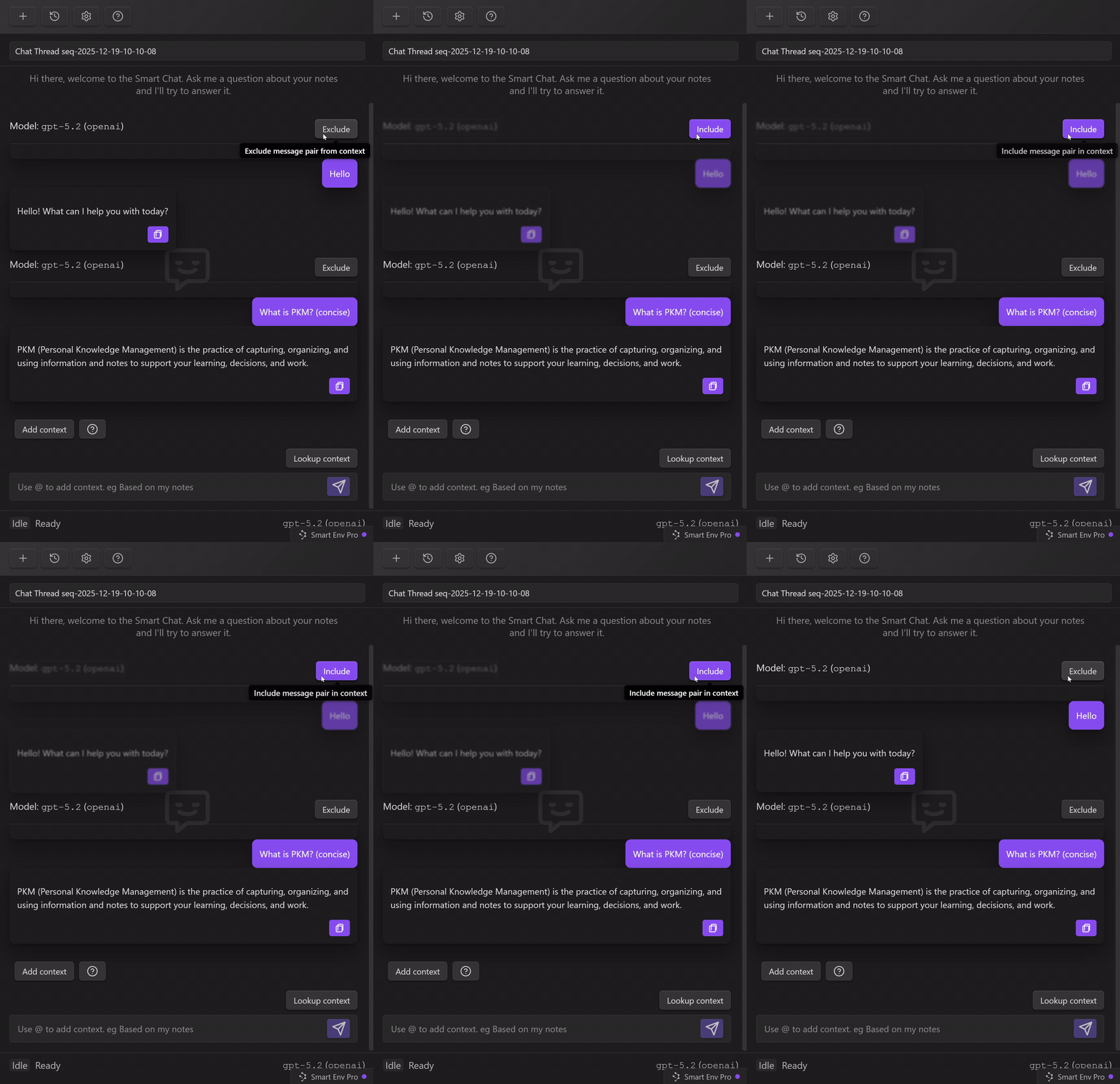
Exclude a message pair (user message + assistant response) to keep it from being included as context for future messages.
Use this when:
- early turns were exploratory and wrong
- you changed your mind about the goal
- there is a detour (brainstorming, tangents, debugging noise)
- you are tightening a token budget
- you want the model to stop inheriting a bad framing
Simple rule:
- keep decisions, constraints, and ground truth
- exclude greetings, false starts, and discarded drafts
Errors and retries (provider reality, surfaced in the UI)
Common causes:
- missing/invalid API key for a provider
- model not available to your account or plan
- rate limits / quota exhaustion
- local model server not running (for local providers)
Fast recovery sequence:
- confirm the selected model/provider
- retry once (transient errors happen)
- check provider credentials and availability
- switch models if necessary to keep moving