
Smart Chat settings
Smart Chat lets you chat with models inside Obsidian, with practical controls for:
- Default instructions (so new chats start in the right mode)
- Keyboard send behavior (so writing multiline messages is painless)
- Streaming output (so responses feel fast)
- Context lookup (so retrieval pulls the right amount and type)
- Default chat model (so new threads use the model you expect)
Jump to:
Where to find these settings in Obsidian
Open Settings -> Community plugins -> Smart Chat.
See the Smart Environment settings for indexing/embedding and shared model configuration:
Smart Chat
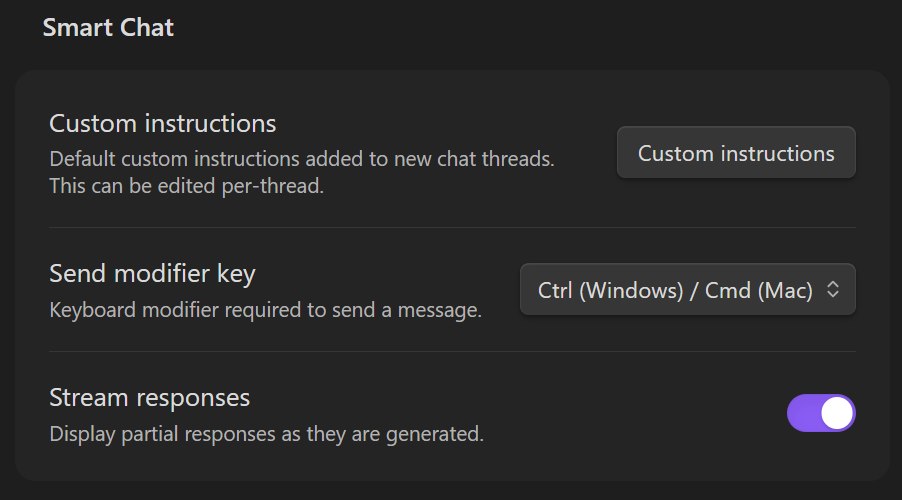
Custom instructions
What it is
- Default custom instructions added to new chat threads.
- The UI copy notes: "This can be edited per-thread."
When to use it
- You want all new chats to start with a consistent stance (tone, format, constraints, or a project role).
Example (keep it short)
Be concise.
Ask 1-2 clarifying questions when needed.
Prefer actionable next steps.
Send modifier key
What it is
- The keyboard modifier required to send a message.
Why it matters
- If you write multi-line prompts often, this prevents accidental sends and makes "Enter" behave like a newline.
What it changes
-
Example shown in the UI:
Ctrl (Windows) / Cmd (Mac) -
Typically means: press the modifier + Enter to send.
Stream responses
What it is
- When enabled, Smart Chat displays partial responses as they are generated.
Tradeoffs
- On: feels faster, you can start reading immediately.
- Off: you only see the final response once generation completes (can feel calmer if streaming distracts you).
Lookup context
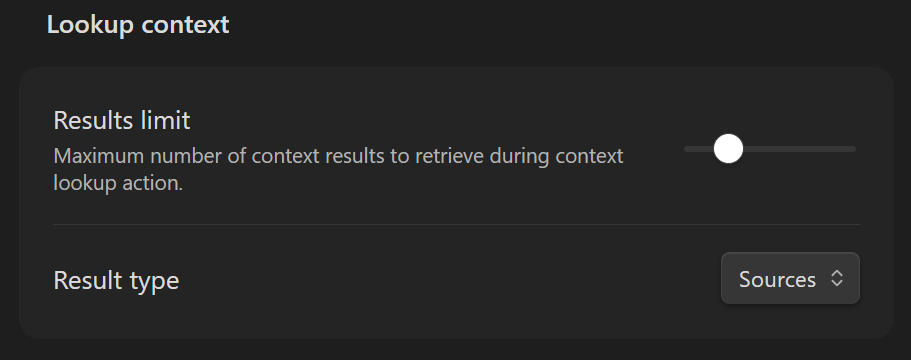
These settings control how many items Smart Chat retrieves when you run a context lookup action, and what type of results it returns.
Results limit
What it is
- "Maximum number of context results to retrieve during context lookup action."
How to tune it
- Lower values: faster, less noise, smaller prompt payload.
- Higher values: more recall, better coverage, more tokens.
Result type
What it is
- Controls the kind of items returned during context lookup.
- The screenshot shows the dropdown set to Sources.
Typical meaning
- Sources: whole notes (coarser, usually smaller count).
- If your setup supports it, other granularities may appear (for example, block-level results).
Chat models
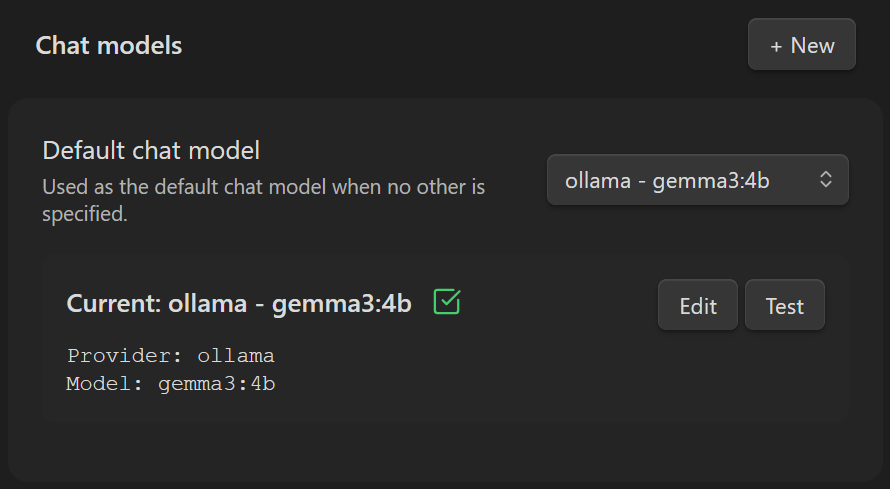
This section controls which model new chat threads use by default, and lets you add/edit/test model configurations.
Default chat model
What it is
- "Used as the default chat model when no other is specified."
How it behaves
- New chat threads start with this model unless you explicitly choose another model.
Current model card
What you see
-
A "Current: provider - model" label (example shown:
ollama - gemma3:4b) -
Provider and Model fields (example shown:
Provider: ollama,Model: gemma3:4b) -
Buttons:
-
Edit: modify the current model configuration
- Test: verify the current configuration works (connectivity/auth/model availability)
Add another model
- Click + New to create an additional chat model configuration.
- After adding multiple configurations, use the Default chat model dropdown to choose which one becomes the default.