
Getting Started with Smart Context
Smart Context removes the friction of building prompts and assembling context inside Obsidian. Copy entire folders, drag in related notes, and export a clean, templated bundle to your clipboard in seconds.
Who this helps
- Researchers and writers who copy multiple notes for each prompt.
- Anyone who needs consistent, templated context with minimum clicks.
- Power users who want to grow context by semantic matches and link paths.
Quick start
Copy a folder's notes to your clipboard
Use this when you already keep project notes in a single folder.
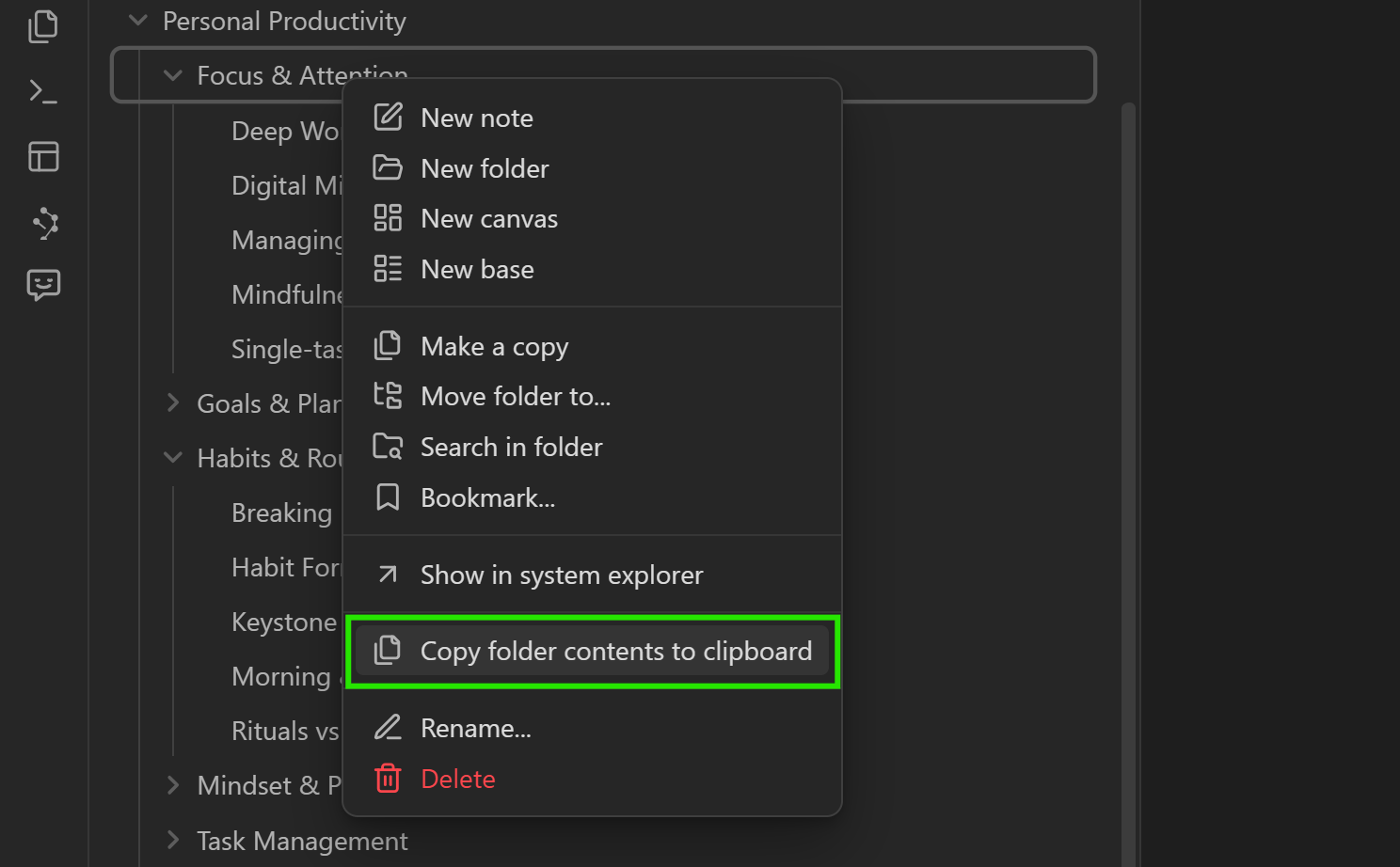
- Right click any folder, then choose Copy contents.
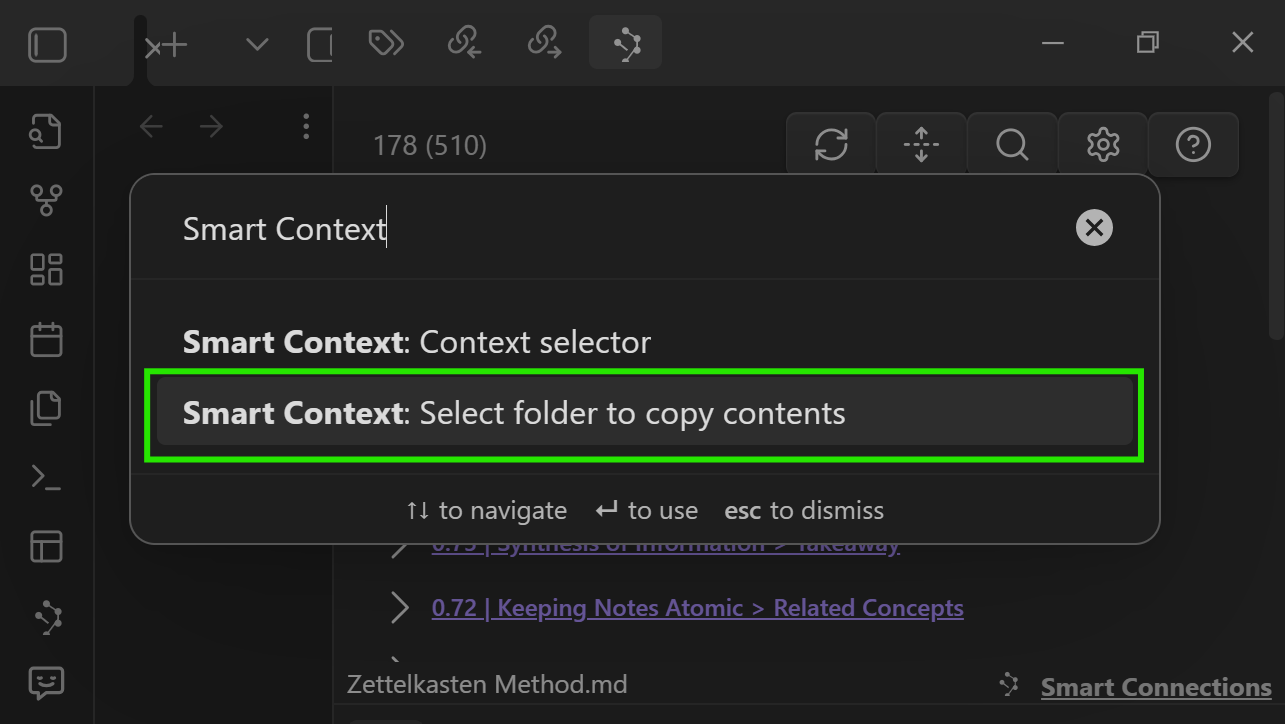
- Or run the command Select folder to copy contents from the command palette and assign a hotkey for one touch export.
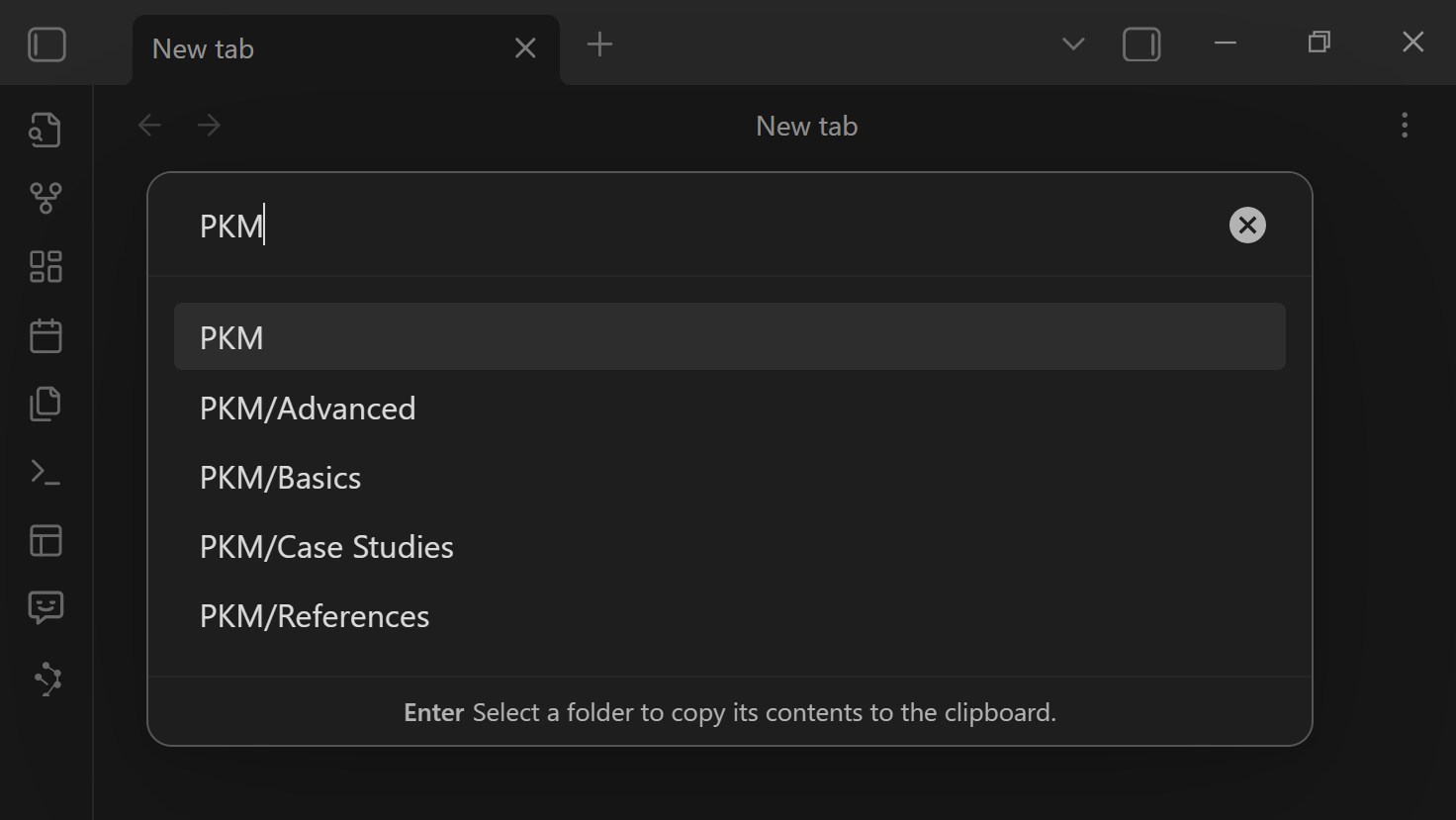
Paste directly into your doc or chat.
Build a custom context set
Use this when the notes you need are spread across folders or open panes.
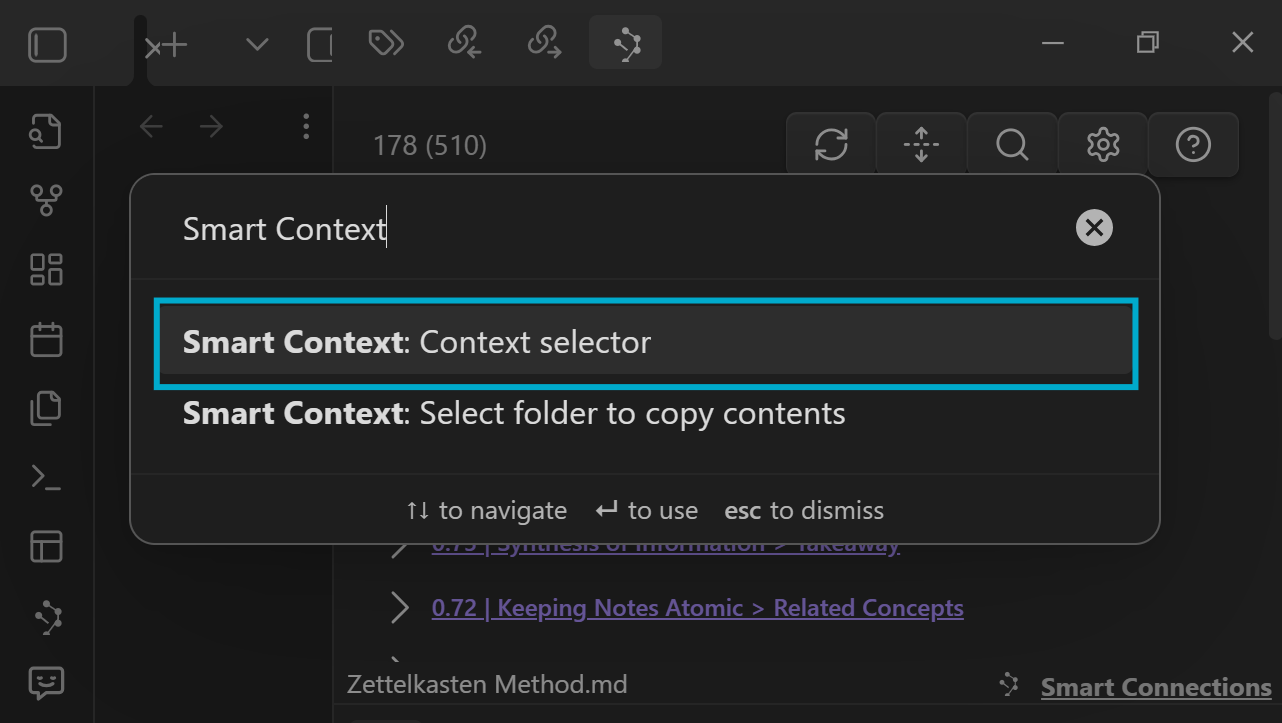
Open Context Selector. Then add notes in any mix:
- Visible notes adds every pane you can see.
- Open notes adds all tabs, even those behind other panes.
- Search filters by folder or file name as you type.
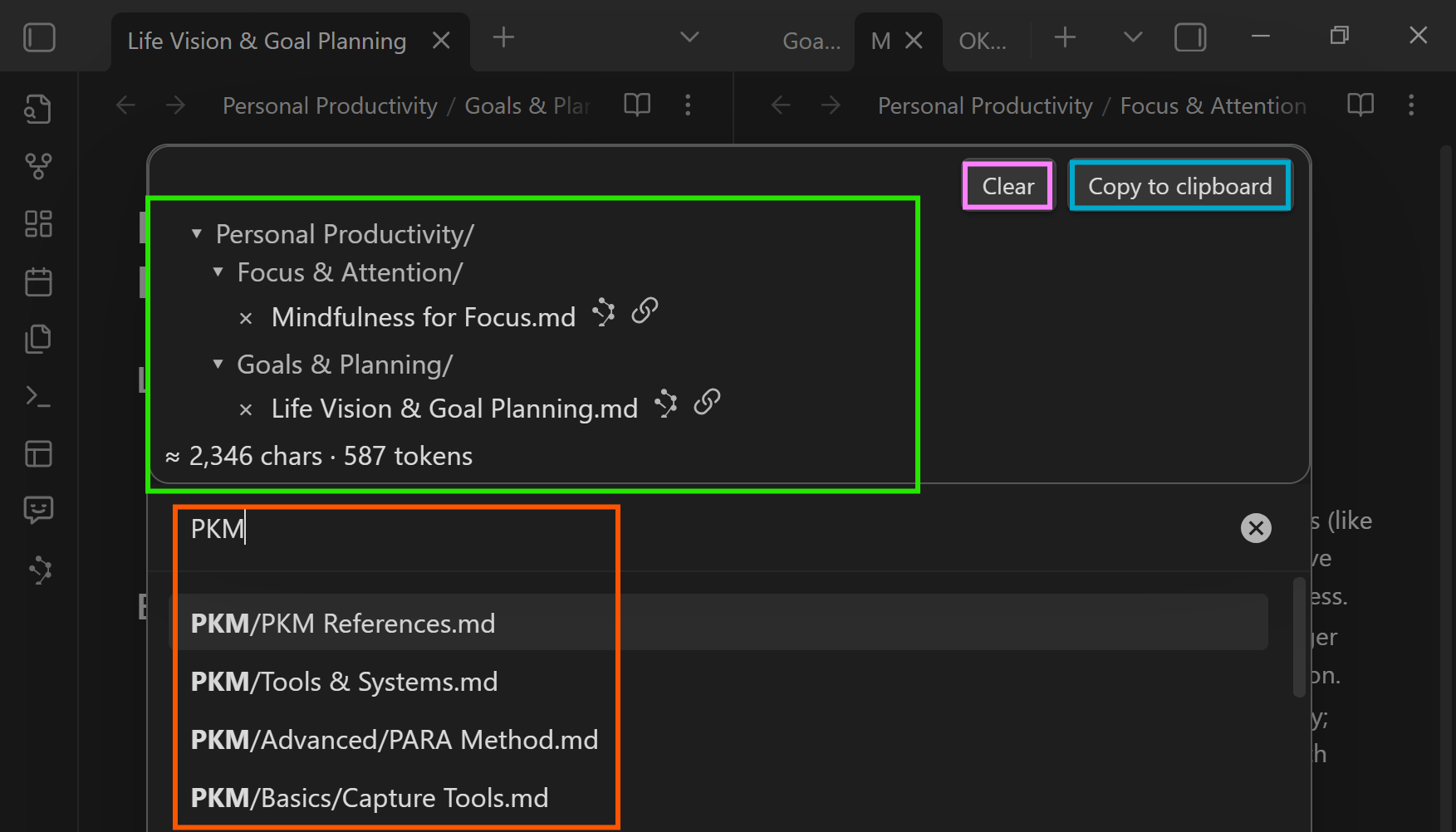
Manage the selection with simple controls:
- Remove any item with the x icon.
- Use Clear to reset selection.
- Hit Copy to send the current set to your clipboard.
Grow the set with relevance and links
Add semantically related notes
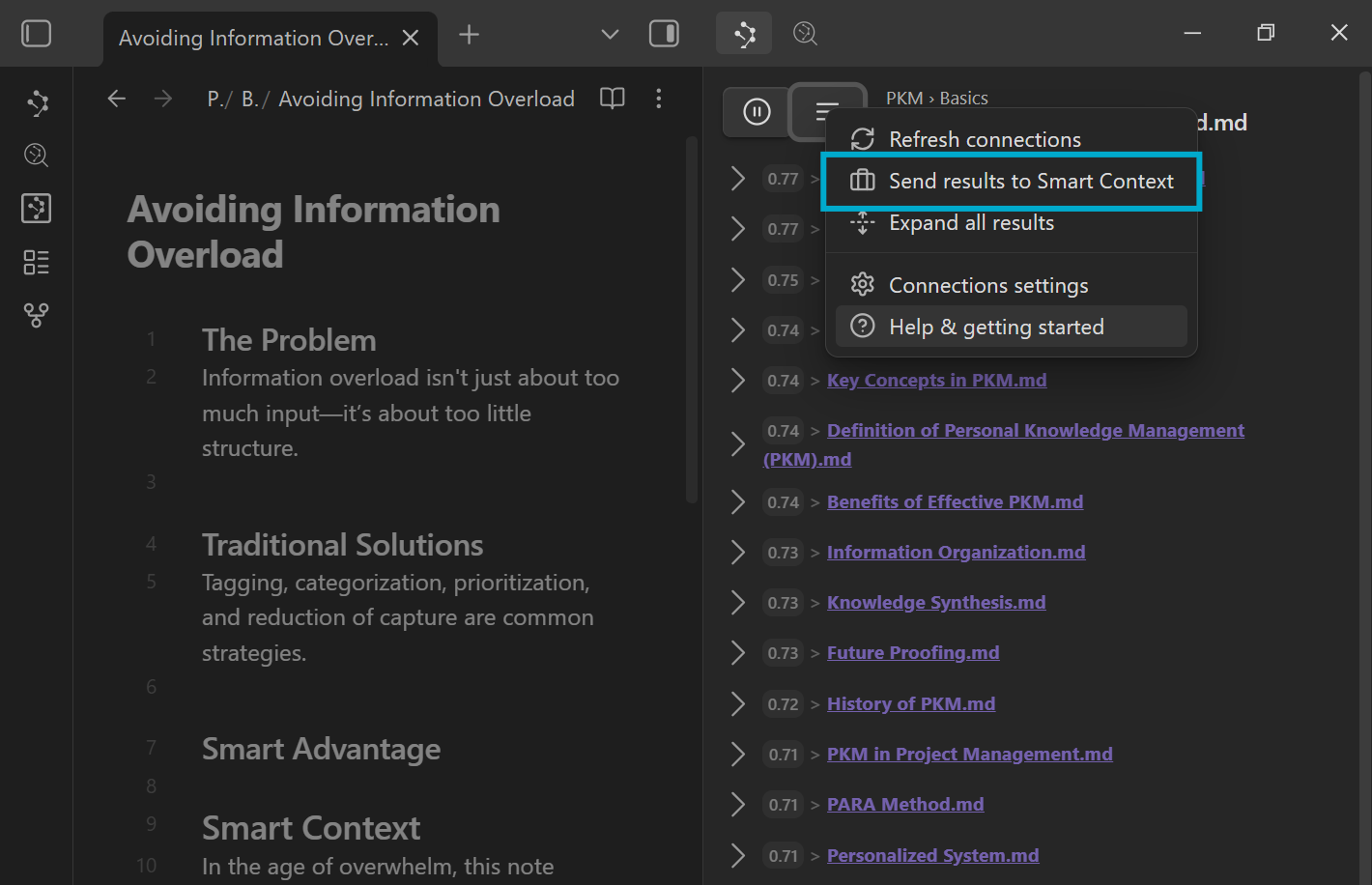
- Click the Send results to Smart Context option in Smart Connections to create a new context using the current Connections.
Include linked notes on export
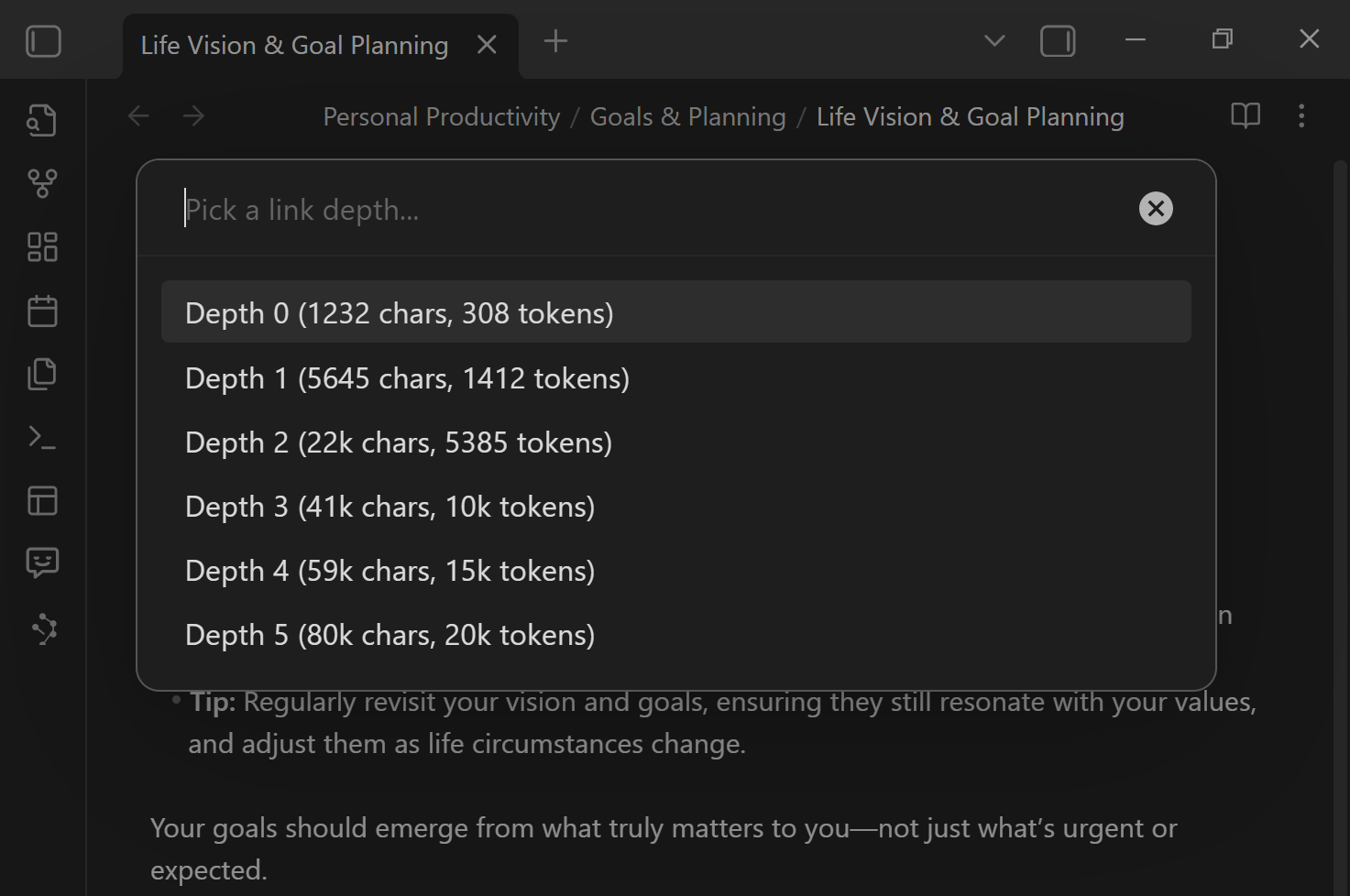
When exporting, choose a link depth to automatically pull in cited sources and related topics with the bundle.
Settings
Control the output of contexts.
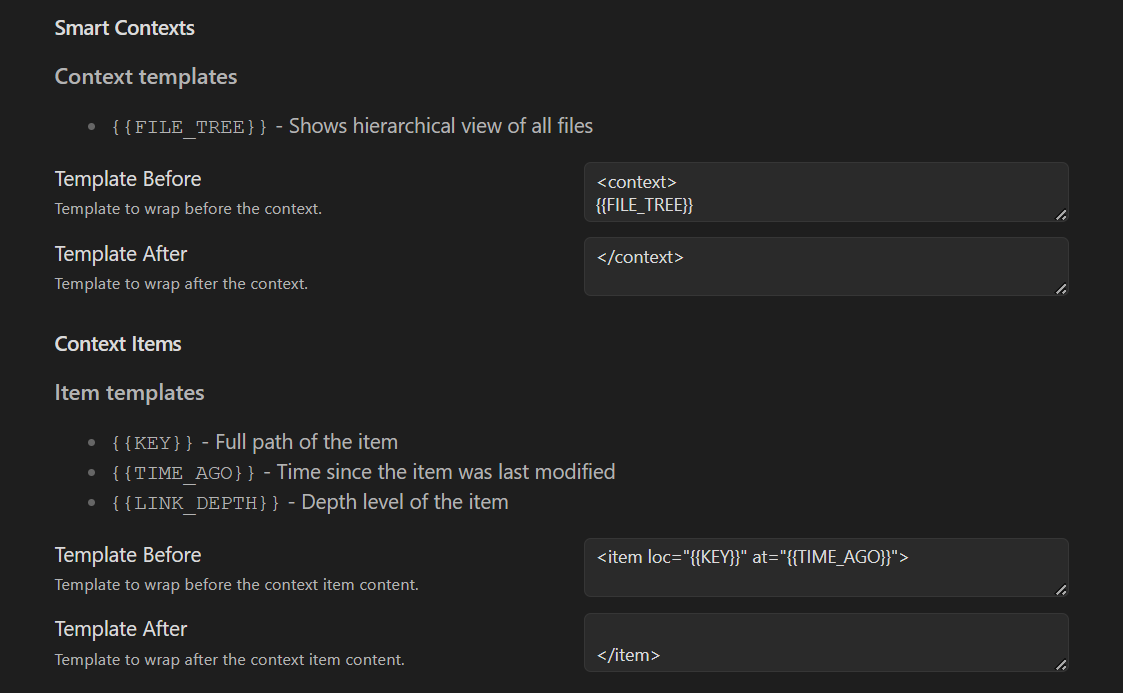
Context templates
- Add global before and after blocks that wrap the entire export.
- Insert
{{FILE_TREE}}anywhere to include an outline of the copied set.
Item templates
- Wrap each primary note with your own header or separators.
- Use variables like
{{ITEM_PATH}}and{{ITEM_TIME_AGO}}to show where the note lives and how fresh it is.