- ` path, and all embedded material are correct.
6. Widen the depth only when the missing evidence is linked from or back to the note.
In Pro, hold Shift while choosing a depth in the chooser when you intend to copy media instead of text.
## Build reusable AI context packages in Obsidian
From the Command Palette, run the Builder command for your installed edition:
- Core: `Smart Context: Open new context in builder`
- Pro: `Smart Context Pro: Open new context in builder`
In either edition, you can also choose the **Smart Context: Open Builder** ribbon action. Builder separates the package being reviewed from the source mode used to find evidence.
### Read the active package
The Builder header shows **Build context**, **Add sources**, and a review area with:
- the active or saved context name
- source count
- estimated token count
- a hierarchical source tree
- copy and package-management controls
In Pro, the header also shows the Rules count. Token counts are estimates. A destination can tokenize the same text differently.
### Choose among the nine source modes
| Source mode | Edition | Use it for |
| --- | --- | --- |
| Notes | Core and Pro | Markdown notes, Bases, and Canvas files. |
| Media | Pro | Images and PDF attachments that need visual context. |
| Folders | Pro | A dynamic folder-derived source group. Direct folder copy remains available in Core. |
| Sections | Core and Pro | A specific heading or block instead of a whole note. |
| Named contexts | Core and Pro | A saved, reusable source package. |
| Linked notes | Pro | Notes connected to an intentional starting source. |
| Similar notes | Pro | Semantically related candidates that still require review. |
| Tags | Pro | A snapshot of notes currently matching a tag; later tag changes do not update the package automatically. |
| External files | Pro, desktop | Files or folders outside the vault. |
The search footer shows the available keyboard action. **Enter** adds the highlighted source. `Cmd + Enter` or the right arrow opens available blocks or sections. **Shift + Enter** follows links up to the available depth. Use Left Arrow to return to the parent suggestion list.
Choose **Sections** when only one heading or block is relevant. A smaller section usually produces a more inspectable package than a whole long note.
### Check where each source came from
Keep the tree expanded long enough to verify where each source came from. Direct, section-derived, folder-derived, and named-context-derived items can have different update and exclusion behavior.
For mixed-origin packages, expand each branch and read its origin badge. A named context or folder can expand into more items than its dashboard count because its saved rules are applied when Builder resolves the package.
Leaf rows can show source type, size, share of the package, origin, and missing-source state. Remove or restore a missing source before relying on the result. In Core, edit a source named context when one of its derived items cannot be removed independently.
The current source-row menu lists **Open source**, **View connections**, and **Remove from context** in that order. Use the menu to inspect the source, continue discovery in Connections, or change package membership. Make sure that the intended destination or package change appears after the action.

### Remove, clear, or manage the package
Removing a direct source removes that selection. In Pro, an inherited item can come from a folder or another dynamic group. When you remove that item, Pro can create an exclusion rule. The rule keeps the item out while the group remains included.
After a rename, duplication, clear, deletion, or source removal, reopen the package. Make sure that the intended change appears. **Clear** removes the current package contents. **Delete context** removes a saved context definition.
### Inspect and recover Context rules
**Edition: Pro.**
Open the rule-count control before copying a package assembled from dynamic folder rules or named-context inclusions.

What the numbers show:
1. The visible `1 rule` chip preserves continuity with the reviewed package.
2. The global `1 exclude` count and override show the current exclusion state.
3. The Template global heading-exclusion row is visibly On for this package.
4. Source-mode tabs remain available while Rules are inspected.
Rules make dynamic packages easy to review:
- **Include** records a dynamic group that contributes sources.
- **Exclude** keeps a matching source or heading out.
- Switching off a global heading exclusion creates an exception for this context. It does not delete the global rule.
- Removing an included group changes the package. It is not the same as restoring one excluded child.
Source exclusions owned by the current context expose **Restore**; inherited source exclusions open their owning context for editing. The Rules overview exposes **Restore all excludes** for bulk recovery. Use the narrowest applicable control. These controls change Context rules, not the source notes. Reopen the package and make sure that the intended sources return before copying.


#### Override a global heading rule for one context
1. The context name and source boundary identify the package being edited.
2. `Template` is a global heading exclusion and is On for this package.

1. The package and sources stay the same.
2. Turning `Template` Off creates an exception for this context.
1. Switch the override.
2. Copy the package.
3. Make sure that the excluded heading appears.
4. Restore the rule.
5. Copy the package again.
6. Make sure that the heading is omitted.
7. Make sure that the source remains included.
The override does not change the source note.
With the package exception active, the compiled source includes **Template**, its two reviewed lines, and the following **Review boundary**.

[[context-per-context-template-override-sequence-03-exception-output-includes-template-sanitized-documentation-1280x280-desktop-2026-08-06.png|Open full-size image]]
After the global exclusion is restored, the same source wrapper and **Review boundary** remain while the **Template** section is absent.

*These excerpts verify the pictured heading boundary, not completeness of the whole context package.*
[[context-per-context-template-override-sequence-04-global-output-excludes-template-sanitized-documentation-1280x285-desktop-2026-08-06.png|Open full-size image]]
## Save and reuse named contexts
A named context stores a reviewed source definition. Reopen it to resolve the current context package.
### Save a named context
Enter a clear name in Builder after the source list is correct. In Pro, check Rules too. Use a name that describes the reusable source set. For example, use `Newsletter Launch Evidence` instead of the one-off prompt.
### Reopen and inspect before reuse
Open the named-context dashboard or select **Named contexts** in Builder. Before copying, check the source count, availability, and estimate. In Pro, also check Rules. A saved name does not guarantee that every source is present or current.

What the numbers show:
1. `Newsletter Launch Evidence` is the selected named context whose menu is open.
2. Copy text, media, ZIP, and link-tree choices provide different outputs from the same package. **Copy with Template** is supplied by Smart Templates when available.
3. Builder, copy, clear, and delete choices manage the selected named context.
Use the dashboard to:
- reopen a named context in Builder
- copy its resolved package
- duplicate a named context
- rename a named context
- clear a named context
- delete a named context
**Make a copy**, **Clear this context**, and **Delete context** affect the saved definition. Before you select one of these actions, make sure that the selected name is correct.
After a lifecycle action:
1. Reopen the package.
2. Check its name.
3. Check its source count.
4. Check source availability.
5. In Pro, check Rules.
### Add to and reuse a named context by drag and drop
Drop notes, folders, Connections results, Lookup results, and supported media where available onto an existing named-context row. Folders expand recursively into supported context items. After the drop, verify the updated source count and resolved tree.
Named-context-to-named-context drops are not supported because they can create direct or transitive cycles. When one saved context should reference another, add the referenced named context through **Named contexts** in Builder.
Drag the row header into Smart Chat to add a named-context reference. Drag the same header into a supported Markdown editor to insert a complete canonical `ctx` codeblock.
## Attach an AI context manifest to an Obsidian note
A Smart Context codeblock keeps a source manifest beside the note that uses it. Run the command for your installed edition:
- Core: `Smart Context: Insert codeblock`
- Pro: `Smart Context Pro: Insert codeblock`
Core codeblocks accept local note paths and `ctx::` named-context lines:
~~~~markdown
```ctx
projects/Newsletter Launch/00 - Newsletter Launch Plan.md
projects/Newsletter Launch/04 - Channel Plan.md
ctx:: Newsletter Launch Evidence
```
~~~~
Pro also accepts supported relative external include and exclude lines:
~~~~markdown
```ctx
../example-project/src
!../example-project/dist
!*.test.js
```
~~~~
In Reading view, use the rendered action bar only after the source and rendered tree match. The `ctx`, `context`, and `smart-context` fence aliases render the same Smart Context surface. Rewrites preserve the alias used in the note.

*Open the manifest in Builder when it needs review. Copy text, media, ZIP, or a link tree only after the rendered sources match the fence.*
The menu can also create a named context, open the named-context dashboard, or copy at a selected depth. Pro external include lines and `!` exclusion lines remain visible in the note so the package boundary can be reviewed later.

### Choose the copy scope
Use the codeblock copy action when you want only the package resolved from that codeblock.
Use the regular current-note copy workflow when you want one package containing the active note, sources selected by the current-note depth, and the first Smart Context codeblock's resolved sources. Direct declarations from that codeblock join the current-note package at Depth 0 and do not start additional link traversal by themselves.
### Check the rendered codeblock
Compare the fenced source with the rendered tree. Use an action only after the two views match. After copying or opening the block in Builder, make sure that named contexts resolve to the intended sources. In Pro, make sure that external paths also resolve correctly.
## Add external files and code repositories to Smart Context
**Edition: Pro. Desktop only.**
**External files** adds files and folders outside the vault. Store portable relative paths when possible. Never publish an absolute home path.

*Set **Max search depth** and **Max search items** to bound external discovery. Before you scan a repository, exclude dependencies, generated output, caches, and secrets with ignore patterns.*
The supported syntax includes:
- `../example-project/src` to include a relative source tree
- `!../example-project/dist` to exclude a relative subtree
- `!*.test.js` to exclude matching files
After you add an external path, expand the resolved tree. Make sure that included files are present. Make sure that excluded folders and patterns are absent. External files are desktop-oriented.
Use **Max search depth**, **Max search items**, ignore patterns, and scan limits to keep repositories reviewable. In the supplied Pro implementation, scan-time regex filters and structured exact/folder exclusions apply before eligible candidates consume the external-folder item cap for each expansion. Exclude dependencies, builds, caches, generated output, secrets, and unrelated packages before copying. Prefer one broad folder exclusion over many child exclusions when the boundary is stable.
## Copy images and PDF pages as AI context
**Edition: Pro.**
Use **Copy media** for screenshots, diagrams, whiteboards, PDF tables, charts, figures, slide snapshots, and other visual evidence. It places media on the clipboard separately from **Copy text**.
Prepare the sources before copying:
- Embed a required visual in the starting note when it must be available at Depth 0.
- When the note only links to an attachment, use the smallest depth that reaches it.
- The media count reports how many items the selected package and depth resolved.
Use the route that matches the package you are reviewing:
- **Current note:** Use the current-note controls described above. In the Pro menu, choose the smallest useful depth and then **Copy media**. In the estimated depth chooser, **Shift + Select** copies media for the selected depth.
- **Builder or named context:** Review the resolved package, then choose **Copy media** from its copy menu. In Builder, use **Media** to add the intended images or PDF files before copying.
At Depth 0, supported media embedded in the starting note is eligible. Linked attachments are eligible only when they fall within the selected link depth. Use the media count to choose the smallest depth that still includes the intended visuals. Text estimates describe the text package; the media count describes the candidate composite image.
**Copy media** renders supported images and each selected PDF page into one composite clipboard image. Image aspect ratios are preserved, and PDF pages remain attributable through their file and page labels. The clipboard result contains media only. When the task also needs text, run **Copy text** separately and verify both pasted outputs.
After copying:
1. Read the copy notice. Use its media count as a quick check that the intended attachments were found.
2. Paste into the exact destination you plan to use.
3. Confirm that a destination which accepts pasted images shows an image attachment or thumbnail for the composite.
4. Confirm that every intended image and PDF page is present and readable.
5. Check filenames and page labels where the destination displays them.
6. Compare the pasted composite with the reviewed package before sending.
7. If the destination rejects the paste, retry in an empty composer before changing the sources.
8. If the destination is text-only, use **Copy text** instead.

Clipboard capabilities vary by platform and destination, so an app can paste only the format it supports. Smart Context does not fetch images that exist only as external web URLs. If the safety limit appears, reduce the number of items or their resolution.
## Use Canvas as a source
Use the current-note copy workflow while a Canvas file is active. The Notes source mode also includes Canvas files for Builder workflows. Add a Canvas only when its referenced material belongs in the package, then inspect the resolved source tree before copying.
Use a Canvas when you already organize the project visually, want to review relationships before copying, or need a quick snapshot of linked notes. Supported file cards provide the starting sources, and the selected depth determines whether Smart Context also follows links from them.
At Depth 0, the active Canvas contributes sources represented directly by its supported file cards. Higher depths follow linked evidence from those resolved sources. The copied result represents source content, not the Canvas layout: card positions, groups, and edge meaning are not encoded as semantic structure. Use **Copy media** or another visual export when the Canvas arrangement itself is part of the evidence.

*The chooser applies link depth to the Canvas-resolved file cards. Text copy does not preserve card positions, groups, or edge meaning.*
## Use Bases as a source
The Notes source mode includes Bases. Add the Base. Then examine which notes or rows appear in the reviewed tree.
Use depth 0 for the rendered Base itself. Use depth 1 only when notes linked from the rendered output are required. Narrow the Base first: the rows currently visible in the source view are not a guaranteed copy boundary. After copying, inspect which rows, filters, properties, links, and rendered text reached the destination. Relative `this.file` or `this.note` behavior must be judged from the compiled result, not the Base view alone.
Smart Context can compile a `.base` as context. Semantic Connections scoring inside Bases is a separate [Connections Pro](https://smartconnections.app/docs/connections/#smart-connections-bases) capability.
### Add a Base in Builder
1. Open Builder.
2. Choose **Notes**.
3. Search for and add the `.base` file.
4. Expand the context tree to see the resolved rows or notes.
5. Remove unrelated material.
6. Use Depth 0 for the rendered Base. Use Depth 1 only for a known linked note.
If more records appear than expected, return to Depth 0 or add the required notes directly instead of widening the package again.
## Customize copied text
Smart Context settings control how the complete package and each source item are formatted. Current presets include structured XML, Markdown headings, JSON, and custom templates.

*Choose an output preset. Paste a small package. Examine the exact structure. Then use the preset in a larger workflow.*
> [!IMPORTANT] JSON output
> **JSON Stringify** is the Pro serializer-backed output path. Handwritten JSON templates can become invalid when copied content contains quotes, backslashes, newlines, control characters, or trailing delimiters. Test pasted JSON with a parser before you use it in downstream automation.
The context template controls the overall wrapper, including headers, footers, and the optional file tree. The item template controls how each note title or path appears and, where supported, can format whole-note and block items differently.
Long wrappers and a file tree increase copied size. Remove nonessential wrapper content when the package exceeds the destination limit.
The context template can use `{{FILE_TREE}}` for a hierarchical source map. Item templates support:
| Variable | Value |
| --- | --- |
| `{{KEY}}` | Full item key or path |
| `{{ITEM_NAME}}` | File or block name without folder path or extension |
| `{{TIME_AGO}}` | Relative modified time or `Missing` |
| `{{LINK_DEPTH}}` | Link depth, default `0` |
| `{{EXT}}` | File extension when available |
| `{{IS_CURRENT}}` | A marker when the item belongs to the active note |
`{{FILE_TREE}}` marks the first active-note match as current. Use `{{IS_CURRENT}}` when every matching item needs a marker.
### Apply heading filters
**Edition: Pro.**
Heading filters change the copied package, not the source notes. Matching is case-insensitive. When a source has at least one configured Include heading, Smart Context copies only sections whose headings match. Otherwise, it removes sections that match Exclude headings and preserves the remaining content.
Block-only items and external-file items are not sliced by source-note heading filters. Examine a small pasted package before you apply heading filters to a larger workflow.
## Use Smart Context on mobile
In-vault note, section, named-context, codeblock, and text-copy workflows can remain useful on mobile. External file and folder browsing requires desktop filesystem access. A named context created on desktop can still open on mobile, but external items in it cannot resolve there.
Clipboard behavior depends on the mobile operating system, Obsidian version, destination app, and payload size. There is no universal maximum: start with a small depth and verify the actual paste in the destination.
## Recover from missing or oversized sources
| What you see | What to do |
| --- | --- |
| A missing-source row | Remove the row or restore the file. Reopen the context. Check the tree. |
| A folder marked truncated | Narrow the folder, use a Section, or split the package. |
| An incomplete-output confirmation | Cancel the copy. Reduce the selection. Copy again unless the partial package is intentional. |
| A media safety-limit warning | Reduce the number of images or PDF pages, or lower their resolution. |
| An empty copy result | Make sure that the package contains at least one included item. Make sure that Rules did not exclude all items. |
| Clipboard copy fails | Keep Builder open. Retry once. If the copy fails again, copy a smaller package or use ZIP. |
| Current-note package is too broad | Reduce link depth. |
| Folder package is too broad | Use a hand-picked selection or open the folder in Builder. |
| Template overhead is too large | Remove nonessential wrappers and the file tree. |
| One long note dominates the package | Select a Section or block-level item in Builder. |
Character, item, token, and size estimates are approximate; destination limits apply to the actual copied or archived output.
## Privacy and trust
Smart Context assembles the package in Obsidian. Content can leave Obsidian when you copy, paste, export, or send it to another application or provider.
Before sending:
- inspect every source and exclusion
- remove private or irrelevant material
- verify relative paths do not reveal a host identity
- inspect the pasted text or media in the destination
- treat model output as untrusted until reviewed against the sources
## Requirements and availability
This page documents the current desktop Pro interface. The first useful copy does not require Pro.
| Edition | Current boundary |
| --- | --- |
| Core | Current-note copy with the depth chooser.
Direct selected-note and folder copy.
Builder note and block selection.
Named contexts.
Note and named-context codeblocks.
Template-driven exports.
Canvas sources. |
| Pro | Media, images, and PDFs.
External files, folders, and repositories.
Dynamic folder rules and selection of currently matching tagged notes in Builder.
Exclusions and heading filters.
Richer Bases rendering and advanced workflows. |
Direct folder copy is Core. Dynamic folder rules and Tags selection are Pro; Tags adds current matches without following later tag membership changes. Basic `.base` source handling is not a Pro-only claim. Pro adds the richer Bases workflow.
Use the live Smart Plugins Store to see which Context edition is installed and active. **External files** requires desktop file access. **Copy with Template** requires Smart Templates. On mobile, use only the source and output controls visible in that build. Examine the pasted result before you send it.
## Related documentation
- [Getting started with Smart Context](https://smartconnections.app/smart-context/getting-started/)
- [Smart Context FAQs](https://smartconnections.app/smart-context/faq/)
- [Structure a reviewed context as a reusable prompt](https://smartconnections.app/docs/templates/)
- [Find candidate sources with Smart Connections](https://smartconnections.app/docs/connections/)
- [Use reviewed context in Smart Chat](https://smartconnections.app/docs/chat/)
---
## Smart Loop
canonical: https://smartconnections.app/smart-loop/
html_url: https://smartconnections.app/smart-loop/
markdown_url: https://smartconnections.app/smart-loop.md
llms_url: https://smartconnections.app/smart-loop/llms.txt
last_modified: 2026-10-28T14:05:27.698Z
usage_notes: |-
Use this page to answer questions about Smart Loop.
excerpt: |-
Turn AI motion into progress that survives in your notes Start your first Smart Loop Build one outcome note that helps you return to the work, judge the result, and continue from a stronger starting point. Create your outcome note now — give one desired outcome a home; no plugin is needed for this first step. Prefer guided pacing? Get the email course. AI made work cheaper to start than to…
suggested_links:
- title: Ai Help For Projects
url: https://smartconnections.app/ai-help-for-projects/
- title: Build Context In Obsidian Notes
url: https://smartconnections.app/build-context-in-obsidian-notes/
- title: Community Content
url: https://smartconnections.app/community-content/
- title: Connect Pro
url: https://smartconnections.app/connect-pro/
- title: Core Plugins
url: https://smartconnections.app/core-plugins/
# Turn AI motion into progress that survives in your notes
> [!tip] Start your first Smart Loop
> Build one outcome note that helps you return to the work, judge the result, and continue from a stronger starting point.
>
> [Create your outcome note now](https://smartconnections.app/smart-loop/core/outcome-note/) — give one desired outcome a home; no plugin is needed for this first step.
>
> Prefer guided pacing? [Get the email course](https://smartconnections.app/smart-loop/start/).
## AI made work cheaper to start than to continue
I kept losing useful AI work in plain sight.
The answer was in a tab.
The goal was in my head.
The source material was in my notes.
The review standard was implied.
The next action disappeared when my attention moved.
The AI had produced something useful, but the work itself had not become easier to continue.
That is the problem Smart Loop is designed to solve.
The answer is not the system.
Progress is what survives in the note where the work lives.
## What is Smart Loop?
Smart Loop is a note-native workflow for turning delegated AI work into durable progress:
1. **Clarify** the outcome, finish line, and selected context in one note.
2. **Delegate** from that note and keep the delegated work recoverable from it.
3. **Compound** the result by reviewing it into a stronger note or a usable deliverable.
The AI helps do the work.
The outcome note preserves the work state you need to judge the result, improve the note, evaluate what is trusted, and continue.

## What your first Smart Loop creates
By the end of the first loop, one outcome note can show:
- the desired outcome
- what done looks like
- selected context
- delegated work
- what survived review
- the next action
The result is not a perfect system.
It is a note you can reopen and use without reconstructing the goal, context, thread, and next step from memory.
## Where Smart Plugins fit
Smart Plugins reduce friction without replacing your judgment.
- Smart Connections and Smart Lookup can help surface useful notes.
- Smart Context can help attach and copy selected context.
- Smart Chat can help keep delegated work attached to the note.
The user remains the judge of what belongs, what is trusted, and what counts as progress.
> [!NOTE] See the full workflow in use
> [](https://youtu.be/_i3577ti8jg?t=1440)
>
> Callum shows related notes becoming selected context, that context becoming an AI assignment, and the useful work returning to the project note.
## Complete your first loop in 5 emails
The first 5 emails build one outcome note through the complete Core Smart Loop:
1. Give one outcome a home.
2. Clarify what done looks like.
3. Attach selected context.
4. Keep delegated work recoverable.
5. Review the result into durable progress.
Two continuation emails then show how to protect trusted context and move another outcome without losing the first.
[Start your first Smart Loop](https://smartconnections.app/smart-loop/start/)
## FAQs
- [Do I have to change AI providers?](https://smartconnections.app/smart-loop/faq/#do-i-have-to-change-ai-providers-to-use-smart-loop)
- [Do I have to let AI edit my notes?](https://smartconnections.app/smart-loop/faq/#do-i-have-to-let-ai-edit-my-notes-to-use-smart-loop)
- [Does Smart Loop work with agents?](https://smartconnections.app/smart-loop/faq/#does-smart-loop-work-with-agents-projects-and-model-owned-workspaces)
- [Is this another agentic system I have to spend more time setting up?](https://smartconnections.app/smart-loop/faq/#is-smart-loop-another-agentic-system-or-something-else)
Read the full [Smart Loop FAQs](https://smartconnections.app/smart-loop/faq/).
---
## Getting Started
canonical: https://smartconnections.app/smart-plugins/getting-started/
html_url: https://smartconnections.app/smart-plugins/getting-started/
markdown_url: https://smartconnections.app/smart-plugins/getting-started.md
llms_url: https://smartconnections.app/smart-plugins/getting-started/llms.txt
last_modified: 2026-10-26T23:05:42.870Z
usage_notes: |-
Use this page to answer questions about Getting Started.
excerpt: |-
Getting Started with Smart Plugins Start with one plugin and one task. A Store row can show that a plugin is loaded. Complete one result inside the plugin before you treat setup as finished. When to use this guide Use this guide when you install your first Smart Plugin or return after an update. Also use it when a Store state is unclear. The first workflow uses Connections because it gives a…
suggested_links:
- title: Connections Early Getting Started
url: https://smartconnections.app/smart-plugins/connections-early-getting-started/
- title: Core Vs Pro
url: https://smartconnections.app/smart-plugins/core-vs-pro/
- title: Faq
url: https://smartconnections.app/smart-plugins/faq/
- title: For Entrepreneur Coders
url: https://smartconnections.app/smart-plugins/for-entrepreneur-coders/
- title: Mobile
url: https://smartconnections.app/smart-plugins/mobile/
# Getting Started with Smart Plugins
Start with one plugin and one task. A Store row can show that a plugin is loaded. Complete one result inside the plugin before you treat setup as finished.
## When to use this guide
Use this guide when you install your first Smart Plugin or return after an update. Also use it when a Store state is unclear. The first workflow uses Connections because it gives a visible note-level result without a chat provider.
## Before you start
- Open Obsidian Desktop with the vault where you want to use Smart Plugins.
- Open a meaningful note with enough text to compare against other notes.
- Make sure that **Browse Smart Plugins** is available from at least one of these locations:
- a Smart Plugin settings page
- the Smart Environment status menu
- the Command Palette
## First win: open one related note
This is the shortest first result when you already have a meaningful note in view.
### 1. Activate Connections
Open **Browse Smart Plugins**. Find the Connections edition that you intend to use. Complete the action shown on its row.
The normal lifecycle is:
`Installed` -> **Enable** -> `Enabled` -> `Active`
If the row shows **Reload required to activate _version_**, complete that instruction. If the row shows **Reload required to disable**, complete that instruction. If the row shows **Reload required for Smart Environment**, complete that instruction. Continue only after the reload is complete. **Configured** is not a Store badge. It means that the plugin-specific prerequisites are complete.
In the Store, track and lifecycle are separate. Core and Pro identify the edition. **Active** rows expose **Open settings**. An installed but disabled row exposes **Enable**. Version and update timing can change. Follow the action on your row.

*Use the track label to select an edition. Follow the exact state or action on that row. Complete the plugin-specific prerequisites. Then test one real result.*
See [all Store states and recovery actions](https://smartconnections.app/docs/plugins/#install-and-update-smart-plugins-in-obsidian).
### 2. Prepare the current note
Open a note with enough meaningful text to be indexed. For Connections, Smart Environment must be ready and the active note must be an eligible Smart Source.
If the status bar is still loading, wait. If the note is missing, choose **Inspect active note** from the Environment menu.
### 3. Open Connections
Use the command for the loaded edition:
- Core: `Smart Connections: Open: Connections view`
- Pro: `Smart Connections Pro: Open: Connections view`
The view should target the active note and show ranked related notes.

### 4. Open one useful result
Examine a promising title and score. Open the note. Make sure that the opened content helps the starting note.
That is the first win: active note -> related results -> reviewed source -> opened note.
Continue with [Getting started with Smart Connections](https://smartconnections.app/smart-connections/getting-started/).
## Find the shared Smart Plugin surfaces
Open these after the first result so you know where to diagnose setup, source, and model problems.
### Smart Environment menu
The status-bar menu provides the current entries:
- **Open status view**
- **Inspect active note**
- **Show stats**
- **Export data**
- **Milestones**
- **Notifications**
- **Browse Smart Plugins**
See [Store entry points](https://smartconnections.app/docs/plugins/#open-the-smart-plugins-store), [Stats](https://smartconnections.app/smart-environment/faq/#what-do-environment-stats-tell-me), and [Milestones](https://smartconnections.app/docs/plugins/#open-smart-milestones).
### Status view

**Smart Environment ready** and **Ready** mean no import or embedding work is active. They do not prove that a plugin result will be useful. The view also exposes **Open events feed**, **Environment stats**, and **Browse Smart Plugins**.
See [Environment readiness and recovery](https://smartconnections.app/smart-environment/faq/#how-do-i-know-smart-plugins-are-ready-to-test).
### Environment stats

Check **Eligible**, **Current**, **Missing**, **Skipped**, and **Unexpected** separately. `100% coverage` applies to eligible items under the current policy and model. It does not mean that every vault file is embedded.
See [How to read Environment stats](https://smartconnections.app/smart-environment/faq/#what-do-environment-stats-tell-me).
### Sources and models

Smart Environment settings control source exclusions, block embedding, minimum lengths, and default models. Change one global setting at a time. Wait for preparation to finish. Then compare the results.

The built-in picker includes exact worker labels and marks experimental models. Switching models can require a separate index. Use **Re-index embeddings** only when you intend to rebuild that model's embeddings.
See [Model changes and re-indexing](https://smartconnections.app/smart-environment/faq/#i-changed-embedding-models-but-results-did-not-change-why).
### Events and notifications
Select **Notifications** or **Open events feed**. Filter by Milestone, Attention, Error, Warning, Info, or Debug. Use this feed to understand retained background events. Before you send debug output to support, remove sensitive paths and content.
### Smart Milestones

Milestones group detected actions by plugin. A checked row means the event was detected. It does not grade the quality of the result.
See [How Milestones work](https://smartconnections.app/docs/plugins/#track-smart-plugin-progress-with-smart-milestones).
## Choose the next result
| Desired result | Start here | Prerequisite | Done when | Go deeper |
| --- | --- | --- | --- | --- |
| Open a related note | Connections from a meaningful active note | The current note is eligible. Smart Environment is **Ready**. | One reviewed result opens and helps the starting note. | [Getting Started](https://smartconnections.app/smart-connections/getting-started/) -> [Docs](https://smartconnections.app/docs/connections/) |
| Search by a phrase or question | `Smart Lookup: Open: Lookup view` | Eligible indexed sources | One ranked source opens and supports the query. | [Getting Started](https://smartconnections.app/smart-lookup/getting-started/) -> [Docs](https://smartconnections.app/docs/lookup/) |
| Copy the active note as context | Core: `Smart Context: Copy current text to clipboard (choose link depth)` -> **Depth 0** / **Current note**. Pro: **Smart Context: Copy current** -> **Choose link depth...** -> **Depth 0 - current note** -> **Copy text**. | Context active | The pasted package matches the current note and embeds. | [Getting Started](https://smartconnections.app/smart-context/getting-started/) -> [Docs](https://smartconnections.app/docs/context/) |
| Use a provider website in a note | Insert the provider-specific Core block | The provider page is available. Sign-in is complete when required. | A real response appears and the provider URL can be reopened when the provider supplies one. | [Getting Started](https://smartconnections.app/smart-chat/getting-started/) -> [Docs](https://smartconnections.app/docs/chat/) |
| Use Smart Chat API Extension | `Smart Chat Pro: Open Smart Chat` | A compatible chat model and provider credential are configured. Smart Environment must be **Ready** only when the workflow uses indexed **Lookup context**. | A completed response is visible and reviewed. | [API Extension Getting Started](https://smartconnections.app/smart-chat/api/getting-started/) -> [Docs](https://smartconnections.app/docs/chat/) |
| Explore from the current note | `Smart Graph Pro: Create graph from current note` | The active note is indexed. Smart Environment is **Ready**. | One related note opens from the Neighborhood. | [Getting Started](https://smartconnections.app/smart-graph/getting-started/) -> [Docs](https://smartconnections.app/docs/graph/) |
| Reuse an output structure | **Open template context** | Smart Templates is **Active**. | The copied prompt contains the intended context, template, and instructions when examined in its destination. | [Getting Started](https://smartconnections.app/smart-templates/getting-started/) -> [Docs](https://smartconnections.app/docs/templates/) |
| Review possible duplicates | Open Dedupe from its current ribbon or Command Palette action | Smart Dedupe is **Active**. The scan scope is clear. | A completed scan is interpreted within its scope and settings; if candidates are returned, one pair is reviewed and a deliberate decision is made. No note change is required. | [Getting Started](https://smartconnections.app/smart-dedupe/getting-started/) -> [Docs](https://smartconnections.app/docs/dedupe/) |
| Review a proposed vault change | Complete Connect Pro 2.0 setup and use one dedicated proposal Tool | Keep the intended desktop vault open. For Local MCP, the server is Running and a trusted supported client completes one recognizable read; Remote GPT is not required. Smart CLI requires the host CLI integration. | The source stays unchanged while pending. An applied or rejected Inbox decision and the resulting files match the review. Other direct writes are not automatically held for approval. | [Connect Pro Getting Started](https://smartconnections.app/connect-pro/getting-started/) -> [Docs](https://smartconnections.app/docs/connect-pro/) |
## Recovery map
| Problem | Open | First action |
| --- | --- | --- |
| Plugin files are present but the feature is unavailable | Smart Plugins Store | Complete **Enable** or the full reload-required action. |
| Environment is loading, importing, embedding, or queued | **Open status view** | Wait while work is active. If embedding is paused, select **Resume embedding**. If re-import work is queued, select **Run re-import**. |
| One note is missing | **Inspect active note** | Fix the reported exclusion, length, import, or embedding state. |
| Coverage looks wrong | **Show stats** / **Environment stats** | Inspect Missing, Skipped, and Unexpected for the affected collection. |
| A recent error needs detail | **Notifications** / **Open events feed** | Filter to Error or Warning. Expand the event. |
| Source boundaries or model choice are wrong | Smart Environment settings | Change one setting. Wait for preparation to finish. |
| Store access is missing | Smart Plugins Store | Use **Refresh**, **Login**, or the action shown for the current account state. |
## Next steps
- [Smart Plugins Store and Milestones documentation](https://smartconnections.app/docs/plugins/)
- [Smart Environment FAQs](https://smartconnections.app/smart-environment/faq/)
- [Continue into the Smart Loop after one single-plugin result works](https://smartconnections.app/smart-loop/)
---
## Milestones
canonical: https://smartconnections.app/smart-environment/milestones/
html_url: https://smartconnections.app/smart-environment/milestones/
markdown_url: https://smartconnections.app/smart-environment/milestones.md
llms_url: https://smartconnections.app/smart-environment/milestones/llms.txt
last_modified: 2026-10-26T20:30:49.606Z
usage_notes: |-
Use this page to answer questions about Milestones.
excerpt: |-
Smart Milestones Deprecated page This page is retained temporarily and may contain outdated details. Use the current Smart Milestones documentation for current behavior. Start with Getting started with Smart Plugins for the shortest verified workflow. Smart Milestones are a guided, in-app checklist that helps you learn Smart Plugins by doing the smallest actions that unlock real value. Instead of…
suggested_links:
- title: Faq
url: https://smartconnections.app/smart-environment/faq/
- title: Settings
url: https://smartconnections.app/smart-environment/settings/
- title: Started
url: https://smartconnections.app/ai-help-for-projects/started/
- title: Ai Help For Projects
url: https://smartconnections.app/ai-help-for-projects/
- title: Build Context In Obsidian Notes
url: https://smartconnections.app/build-context-in-obsidian-notes/
# Smart Milestones
> [!WARNING] Deprecated page
> This page is retained temporarily and may contain outdated details. Use the [current Smart Milestones documentation](https://smartconnections.app/docs/plugins/#smart-plugins-milestones) for current behavior. Start with [Getting started with Smart Plugins](https://smartconnections.app/getting-started/) for the shortest verified workflow.
Smart Milestones are a guided, in-app checklist that helps you learn Smart Plugins by doing the smallest actions that unlock real value.
Instead of reading docs first, you can:
- Do one "first win" action
- Watch it get checked automatically
- Click any milestone to open the relevant docs when you want details

> [!TLDR] The Milestones loop
> 1. Open Milestones.
> 2. Complete the next unchecked item in the top group.
> 3. Use the feature once in a real note.
> 4. Repeat until you hit the workflow you care about (linking, lookup, context, chat).
## Where to find Milestones
Milestones live in the Smart Environment status bar menu.
1. Click the Smart Environment indicator in Obsidian's status bar.
2. Choose **Milestones**.

## How Milestones work
The Milestones modal is organized by feature area (Environment, Connections, Lookup, Context, Chat, and Pro).
What each line means:
- Each line is a "first time" action (open a view, run a command, drag a result, copy a context).
- A milestone checks itself the first time Smart Plugins detect you did it.
- Click any milestone to open the relevant docs (so you can go deeper only when you need to).
- Some milestones are labeled **PRO**. Those are optional and are there to show what is possible with Pro plugins enabled.
### How to read the UI quickly
- **Progress bar**: how many milestones are complete overall.
- **Group counters** (example: `3/8`): your progress in that feature area.
- **Check icon**: complete.
- **Empty circle**: not complete yet.
- **PRO badge**: requires Pro plugins.
## Your fastest first win
If you only do a few milestones, do these in order.
### 1) Finish setup (Environment)
Complete the Environment milestones so the rest of the features can work:
- "Initial vault import completed (all sources discovered)."
- "Initial embedding completed, you are ready to make connections!"
> [!Note]
> Connections and Lookup depend on embeddings. If embedding is still running, Milestones will reflect that.
### 2) Make your first meaningful link (Connections)
This is the shortest path from "I have notes" to "my vault is connected".
1. Open the Connections view.
2. Preview 1-2 results (Cmd/Ctrl hover).
3. Drag a result into your note to create a link.
Optional but useful:
- Open a random connection (it teaches you the "browse by meaning" behavior fast).
### 3) Use Lookup once (Lookup)
Use Lookup when you remember the idea, not the exact words.
1. Submit a lookup query (start a semantic search).
2. Open a result.
3. (Optional) Drag a Lookup result into a note to create a link.
### 4) Copy a tiny context pack (Context)
This is the bridge from "I found the right notes" to "I can paste grounded context into chat".
1. Create your first context.
2. Copy context to clipboard.
3. Open the Context Builder selector modal (so you know where saved packs live).
### 5) Close a loop with chat (Chat)
This turns "random chats" into trackable work.
1. Start a chat in a Smart Chat codeblock (opened the loop).
2. Mark the chat thread as done (closed the loop).
## Milestone notifications
When you complete a milestone, Smart Environment can show an achievement notification.

Use **View milestones** to jump back to the Milestones modal and pick the next action.
## Pick a path based on what you are trying to do
You do not need to complete everything. Use Milestones like a menu.
### If you want "related notes while writing"
Focus on **Connections**.
Next: try [Inline connections](https://smartconnections.app/smart-connections/inline/) so relevance shows up inside the editor.
### If you want "search by meaning"
Focus on **Lookup**.
Goal: run one query, open 1-2 results, link the best one.
### If you want "better AI answers with less copy/paste"
Focus on **Context**.
Next: use [Context Builder feature](https://smartconnections.app/smart-context/builder/) for reusable packs and [Context clipboard feature](https://smartconnections.app/smart-context/clipboard/) for one-off exports.
### If you want "threads that are organized inside your notes"
Focus on **Chat**.
Next: use [Chat codeblock](https://smartconnections.app/smart-chat/codeblock/) so each thread lives where the work lives.
## About Pro milestones
Pro milestones exist so you can:
- see what is possible,
- evaluate Pro by completing 1-2 high-signal actions,
- adopt only what actually improves your workflow.
If you are not using Pro, ignore PRO milestones and focus on completing the core milestones in Environment, Connections, Lookup, Context, and Chat.
## Troubleshooting
### "I did the thing, but it did not check"
Most milestones are detected the first time you perform an action. If one does not check:
- Do the action once more (slowly, in the same Obsidian window).
- Close and reopen the Milestones modal.
- Confirm prerequisites are complete (for example, embeddings must be ready before Connections and Lookup can work well).
### "Do I need to complete every milestone?"
No. Milestones are onboarding, not homework.
Complete the ones that match your workflow, and ignore the rest.
## Ready for your first win?
Open **Milestones** from the Smart Environment status bar, complete the next unchecked item, and follow the docs link to go deeper.
---
## Bases
canonical: https://smartconnections.app/smart-connections/bases/
html_url: https://smartconnections.app/smart-connections/bases/
markdown_url: https://smartconnections.app/smart-connections/bases.md
llms_url: https://smartconnections.app/smart-connections/bases/llms.txt
last_modified: 2026-10-26T18:12:54.659Z
usage_notes: |-
Use this page to answer questions about Bases.
excerpt: |-
Connections in Bases Deprecated page This page is retained temporarily and may contain outdated details. Use the current Connections in Bases documentation for current behavior. Start with Getting started with Smart Connections for the shortest verified workflow. Obsidian Bases is great at helping you manage a collection of notes. Smart Connections is great at telling you what is related to a…
suggested_links:
- title: Custom Algorithms
url: https://smartconnections.app/smart-connections/custom-algorithms/
- title: Faq
url: https://smartconnections.app/smart-connections/faq/
- title: Footer
url: https://smartconnections.app/smart-connections/footer/
- title: Getting Started
url: https://smartconnections.app/smart-connections/getting-started/
- title: Inline
url: https://smartconnections.app/smart-connections/inline/
# Connections in Bases
> [!WARNING] Deprecated page
> This page is retained temporarily and may contain outdated details. Use the [current Connections in Bases documentation](https://smartconnections.app/docs/connections/#smart-connections-bases) for current behavior. Start with [Getting started with Smart Connections](https://smartconnections.app/smart-connections/getting-started/) for the shortest verified workflow.
Obsidian Bases is great at helping you manage a collection of notes. Smart Connections is great at telling you what is related to a reference note.
The Bases integration combines both:
- Add a Connections score column to any `.base` file
- Sort and filter your collection by relevance to a reference note
- Use `score_connection` and `list_connections` directly in Bases formulas
> [!NOTE]
> Connections in Bases is part of Connections Pro. Use this page when Smart Connections already works for your vault and you have a `.base` collection you want to score or sort.
>
> If you have not seen any useful Connections result yet, start with [Getting Started](https://smartconnections.app/smart-connections/getting-started/).

> [!TLDR] The Bases + Connections loop
> 1. Open a `.base` file.
> 2. Run `Add: Connections score bases column`.
> 3. Pick a reference note or choose `Current/active file (dynamic)`.
> 4. Sort by the new score column to find relevant notes in the collection.
> 5. Optional: add a `list_connections` column to see quick link trails per row.
## Who this helps
Use this when you:
- prefer dashboards and tables for planning, triage, or review
- want to compare many notes against one reference note, such as a goal, project, outline, or research question
- want a sortable shortlist before deciding what to read, link, or review
- want to prepare a reviewed candidate set before sending notes to Smart Context
## Quick start
### Add a Connections score column
1. Open any `.base` file.
2. Open the command palette.
3. Run:
- **Smart Connections Pro: Add: Connections score bases column**
4. Select the reference note you want to compare everything against.
5. The Base refreshes and the new column appears, ready to sort.

> [!TIP]
> If you do not see the command, make sure the active note is a `.base` file.
> The command only appears when a Base is the current file.
## Pick a reference point
After running the command, you choose what the score should be relative to.

### Use a fixed note
Pick a specific note when you want a stable lens, like:
- a project hub note
- a goal or objective note
- a draft outline
- a research question note
- a decision or planning note
This is useful for planning dashboards because the meaning of the score stays consistent over time.
### Use the current note
Choose **Current/active file (dynamic)** when you want the Base to update as your active note changes.
Use this when:
- your Base is already filtered to a useful domain, such as a project folder, tag, or reading list
- you want the table to respond to the note you are currently reviewing
- you want a focused relevance dashboard rather than the full Connections list
> [!NOTE]
> Like other Bases functions that use the `this.file` property, the dynamic option works best when the Base is open in the sidebar.
## Use Connections functions in Bases formulas
You can also build your own formula columns using the two Bases functions:
- `score_connection`
- Returns a connection score.
- `list_connections`
- Returns a list of links prefixed with the connection score.
These functions appear in Bases formula autocomplete.

### Example formula usage
Use the instance form when you want the formula to read naturally for each row:
- `file.score_connection("+Projects/Project Alpha.md")`
- `file.list_connections()`
Use the global form if you prefer explicit inputs:
- `score_connection(file, "+Projects/Project Alpha.md")`
- `list_connections(file)`
### Pair score with link trails
A score column is useful for sorting, but it can be more useful when you can jump into related context immediately.
Add a `list_connections` column to show a small trail of related links beside each result.

Use this when you want to sort the collection and then open the context that explains why a row may matter.
## Understanding the score
Each score is calculated using your configured Connections scoring algorithm.
A few practical rules:
1. Treat the number as a relative signal, not an absolute grade.
2. Compare scores within the same Base and reference point.
3. Score ranges vary by embedding model, vault content, and candidate set.
4. Preview or open the row before treating it as useful.
5. If your configured algorithm uses feedback signals, hidden or pinned items can affect future ordering. Your Base reflects those changes the next time it recalculates.
> [!TIP]
> Bases is where you want the score to be actionable:
> - filter first to limit the candidate set
> - then sort by score to rank inside that set
## Workflow recipes
These workflows are for collection-level relevance: a set of rows, one or more reference notes, and a decision about what deserves attention next.
### 1) Goal-driven prioritization
Use this when you have too many notes and not enough clarity about what matters for the goal.
1. Create a Base for your project folder or tag.
2. Add a Connections score column.
3. Choose your goal note as the reference.
4. Sort descending by score.
5. Review the top rows and turn the useful ones into next actions.
Outcome: your review starts with notes most related to the goal note instead of folder order or memory.
### 2) Drafting with grounded references
Use this when you are writing and want your draft to stay anchored in existing notes.
1. Make a Base of your reference notes, sources, excerpts, or prior drafts.
2. Add a score column referenced to your outline or current draft note.
3. Sort descending.
4. Keep the Base open while you write.
5. Drag useful rows into a References section as you go.
Outcome: the draft gains a reviewed reference trail from the collection you chose.
### 3) Research triage and reading order
Use this when you have a pile of reading and need a starting sequence.
1. Make a Base for your reading list folder.
2. Add a score column referenced to your research question note.
3. Sort descending.
4. Start reviewing from the top.
5. Remove, defer, or mark rows as you decide what belongs in the current research pass.
Outcome: the reference note creates a relevance-ordered review sequence.
### 4) Compare against multiple anchors
Use this when you are balancing tradeoffs: multiple goals, multiple audiences, or multiple projects.
1. Add one score column per anchor note, such as Goal A, Goal B, Draft, or Constraints.
2. Sort by one column, then scan the others to see tradeoffs.
3. Filter to the notes that score well across the lenses you care about.
4. Review the outliers before making the decision.
Outcome: relevance becomes visible across multiple lenses instead of being hidden in a single list.
### 5) Prepare a reviewed context shortlist
Use this when you want a reviewed candidate set before packaging notes for an AI workflow.
1. Add a score column referenced to the question note, draft, or assignment note.
2. Sort descending.
3. Select the top 5 to 15 useful rows.
4. Copy links or send selected notes to Smart Context.
5. Remove noise before using the bundle.
Outcome: a reviewed candidate set that is easier to package in Smart Context or another AI workflow.
### 6) Filtered relevance dashboard for a narrow domain
Use this when the global Connections view is too broad for a recurring review.
1. Create a Base filtered to a narrow set, such as one folder, tag, project, or reading list.
2. Add a score column using `Current/active file (dynamic)`.
3. Dock the Base so it stays visible.
4. Browse notes normally.
5. Review only the rows in the chosen collection.
Outcome: a sortable relevance dashboard limited to the collection you chose.
## If Bases relevance does not help
| Symptom | Try first |
| --- | --- |
| The command does not appear | Make sure the active file is a `.base` file. |
| Scores are empty or missing across the vault | Use [Getting Started](https://smartconnections.app/smart-connections/getting-started/) to verify note eligibility and vault coverage. |
| Scores feel too broad | Filter the Base first, then sort by score inside that filtered collection. |
| A dynamic reference does not update as expected | Keep the Base open in the sidebar and confirm the reference option uses `Current/active file (dynamic)`. |
| Scores are present but ordering feels wrong repeatedly | Review [Custom algorithms](https://smartconnections.app/smart-connections/custom-algorithms/) and [Connections settings](https://smartconnections.app/smart-connections/settings/). |
| You have a question, not a table to score | Use [Smart Lookup](https://smartconnections.app/smart-lookup/search/). |
## Related pages
- Use the default list surface first: [Exploring the Connections view](https://smartconnections.app/smart-connections/list-feature/)
- Ask a question instead of scoring a table: [Smart Lookup](https://smartconnections.app/smart-lookup/search/)
- Tune relevance and limits: [Connections settings](https://smartconnections.app/smart-connections/settings/)
- Tune scoring and ranking behavior: [Custom algorithms](https://smartconnections.app/smart-connections/custom-algorithms/)
- Package reviewed rows for AI workflows: [Smart Context Clipboard](https://smartconnections.app/smart-context/clipboard/)
---
## Settings
canonical: https://smartconnections.app/smart-environment/settings/
html_url: https://smartconnections.app/smart-environment/settings/
markdown_url: https://smartconnections.app/smart-environment/settings.md
llms_url: https://smartconnections.app/smart-environment/settings/llms.txt
last_modified: 2026-10-24T20:43:52.663Z
usage_notes: |-
Use this page to answer questions about Settings.
excerpt: |-
Smart Environment settings Smart Environment is the setup Smart Plugins reuse. Set sources, models, and exclusions once. Smart Plugins reuse them across Connections, Lookup, Context, Chat, Templates, and other Smart Plugin workflows. Use these settings to: Include or exclude vault content from indexing. See whether Smart Plugins are preparing, ready, or need attention. Rebuild or change…
suggested_links:
- title: Faq
url: https://smartconnections.app/smart-environment/faq/
- title: Milestones
url: https://smartconnections.app/smart-environment/milestones/
- title: Started
url: https://smartconnections.app/ai-help-for-projects/started/
- title: Ai Help For Projects
url: https://smartconnections.app/ai-help-for-projects/
- title: Build Context In Obsidian Notes
url: https://smartconnections.app/build-context-in-obsidian-notes/
# Smart Environment settings
**Smart Environment** is the setup Smart Plugins reuse.
Set sources, models, and exclusions once. Smart Plugins reuse them across Connections, Lookup, Context, Chat, Templates, and other Smart Plugin workflows.
Use these settings to:
* Include or exclude vault content from indexing.
* See whether Smart Plugins are preparing, ready, or need attention.
* Rebuild or change embedding, chat, or ranking models.
* Tune indexing granularity and performance.
* Diagnose stale or missing results before judging a workflow.
Depending on your setup, these controls appear either inline within plugin settings or as a full Smart Environment page with Pro options.
Depending on what you have installed, you may see:
- **Core**: A compact set of controls inside Smart Plugin settings, or
- **Pro**: A full "Env Pro" settings tab with all Pro options
Source and embedding data is stored inside a `.smart-env/` folder within your vault.
Jump to:
- [Before first retrieval](https://smartconnections.app/smart-environment/settings/#before-first-retrieval)
- [Boundary quick check](https://smartconnections.app/smart-environment/settings/#boundary-quick-check)
- [Sources](https://smartconnections.app/smart-environment/settings/#sources)
- [Manage excluded folders](https://smartconnections.app/smart-environment/settings/#manage-excluded-folders)
- [View all exclusions](https://smartconnections.app/smart-environment/settings/#view-all-exclusions)
- [Embedding models](https://smartconnections.app/smart-environment/settings/#embedding-models)
- [Chat models (PRO)](https://smartconnections.app/smart-environment/settings/#chat-models)
- [Ranking models (PRO)](https://smartconnections.app/smart-environment/settings/#ranking-models)
- [Notifications](https://smartconnections.app/smart-environment/settings/#notifications)
- [Common problems](https://smartconnections.app/smart-environment/settings/#troubleshooting)
## Before first retrieval
If Connections or Lookup returns weak, empty, or stale results, check Smart Environment before deciding the product failed.
You know the setup is ready enough to test when:
- sources have been discovered or are visibly importing
- embeddings are complete or visibly progressing
- excluded folders/files match your expectations
- the active embedding model is configured
- mobile users have loaded Smart Environment when needed
Use [Smart Milestones](https://smartconnections.app/smart-environment/milestones/) when you want a guided readiness view.
Then test with one real note:
1. Open a note with enough meaningful text to anchor results.
2. Open Connections or Lookup.
3. Preview one result.
4. If results are still wrong, check sources, exclusions, model changes, and reset/re-import guidance below.
## Boundary quick check
Smart Environment settings make the main boundaries visible.
| Boundary | What to review | Practical meaning |
| --- | --- | --- |
| Sources | included notes, folders, and source types | What Smart Plugins can prepare for retrieval and context. |
| Exclusions | excluded folders/files | What Smart Plugins should ignore during indexing. |
| Embedding model | local/default embedding configuration | Core semantic retrieval can run locally after indexing. |
| Provider models | chat/ranking providers where configured | Provider workflows use enabled integrations and the context you choose to send. |
| Status | import, embedding, rebuild, and notices | Whether it is fair to judge result quality yet. |
Related note retrieval can start locally after indexing. Provider-backed workflows are separate: when you use a configured cloud provider, that provider receives the context you explicitly choose to send through that workflow.
> [!NOTE] Watch Smart Environment as the shared setup
> [Watch the Smart Environment walkthrough](https://youtu.be/_i3577ti8jg?t=188)
>
> Callum frames Smart Environment as the shared source, model, exclusion, event, and status layer reused by Smart Plugins.
## Core vs Pro settings
Core Smart Environment settings are intentionally minimal: the goal is to keep setup simple while still giving you the controls you need to rebuild and troubleshoot.
### Where to find these settings in Obsidian
In Obsidian, open **Settings** then look for the **Community plugins** section. Smart Environment settings are located in one of two places depending on whether you are a Pro user:
- **Core**: Smart Connections or another Smart Plugin
- **Pro**: Dedicated **Env Pro** settings tab
## Core settings
### Sources
- Notes become sources automatically; you do not need to manage them one by one.
- Additional plugins may create specialized sources such as blocks, bases, or external files.

#### Manage excluded folders
"Manage excluded folders" button opens a folder selection UI so you can exclude entire folders from processing.
The "Manage excluded folders" UI looks like:

- A search input to quickly find folders.
- A list of folders you can select.
- Excluded folders appear in a list at the top. Click the `x` to remove an exclusion.
Excluded folders are not indexed, so they will not appear in Connections/Lookup and will not be used for embeddings.
**Common exclusions:**
- Archives
- Backups
- Export folders
- Third-party content
- Anything you do not want to be used by Smart Plugins
> After large exclusion changes, you may need to **restart Obsidian or Reset data** to get a clean state.
#### View all exclusions
Shows all files excluded from processing. This is useful to confirm whether a file is missing because it is excluded.
Use it to confirm that:
- A folder exclusion is active
- A file exclusion is active
- Something is not being excluded unexpectedly
Some exclusions may be automatic, for example items that cannot be safely processed because the file path is too long.
#### Reset data
**Reset data** / **Re-import sources** rebuilds Smart Environment source data and starts source preparation again. Eligible content may then require embedding preparation.
Use it when the source dataset itself must be rebuilt, such as after a damaged import or a source-policy change that cannot be resolved through normal re-indexing.
Do not use Reset data for a normal embedding-model change.
- **Does not delete**:
- Notes or vault files
- Smart Environment settings
- Non-source records such as Smart Chat threads
> [!TIP] Reset data and re-import are intensive, especially for large vaults. Exclude archives, exports, and other low-impact sources before rebuilding the source dataset.
### Embedding models
This controls the embedding model used for semantic features.
What you will see:
- A **Default embedding model** selector.
- A model marked **Current**.
- Separate actions such as **Test model** and **Re-index embeddings**.
After changing the model:
1. Confirm the intended model is selected and marked **Current**.
2. Choose **Re-index embeddings** when the selected model or embedding policy requires new vectors.
3. If embedding is paused, choose **Resume embedding**.
4. Wait until Smart Environment shows **Ready**.
5. Open Environment stats and confirm the required eligible items have current embeddings.
> Recommendation: start with the default local model. Switch only when you know the capability you need, such as multilingual or code-focused retrieval.
### Muted notices
If you mute a Smart Environment notification, it will show up here.
*See the "Notifications" section below for more details.*
## Pro settings
Pro adds deeper control over:
- What gets embedded, sources vs blocks
- Minimum lengths, to avoid embedding tiny or noisy content
- Excluding individual files
- Model configurations, including more providers and model types
### Sources
Sources settings control what gets processed and what is ignored, plus the actions that rebuild source and embedding data.
This view exposes additional source-processing controls. Items marked **PRO** require the Pro tier.

#### Manage excluded folders
Same as the Core setting. See [Manage excluded folders](https://smartconnections.app/smart-environment/settings/#manage-excluded-folders) above for more details.
#### Manage excluded files (PRO)
Exclude specific files without excluding an entire folder.
Useful when:
- One large file lives in an otherwise useful folder
- You want most of a folder indexed but need to ignore a few specific files
#### View all exclusions
Same as the Core setting. See [View all exclusions](https://smartconnections.app/smart-environment/settings/#view-all-exclusions) above for more details.
#### Re-import wait time (PRO)
"Time in seconds to wait before re-importing a file after modification."
This is the wait-time before re-embedding after making edits:
- **Higher** = fewer repeated re-imports while editing, less CPU churn
- **Lower** = updates appear sooner, more frequent processing
##### Manually triggering re-import
As soon as you make a change the Smart Environment status bar element will change to "Embed now" followed by the number of changed files detected. **Click "Embed now"** to manually trigger the re-import process.
#### Embed blocks (PRO)
Blocks represent parts/sections of notes. Embedding allows more granular results in semantic lookups. When enabled, large documents are split into fine-grained blocks based on headings and structure, improving semantic search and context relevance.
- When enabled, the environment can embed content at a finer granularity, not just whole notes.
What it changes:
- **On**: Smart Environment embeds smaller chunks for finer-grained matches
- **Off**: embeddings are coarser and more note-level
Tradeoffs:
- **On**: better precision inside long notes, more storage/compute
- **Off**: faster, lighter, less granular
Why enable it:
- More precise semantic matches, especially for long notes.
- Better results for workflows that benefit from paragraph/section-level retrieval.
#### Minimum length to embed (Sources) (PRO)
"Minimum number of characters a source must have to be embedded."
If a source is shorter than this threshold, it will be skipped for embeddings.
Use cases:
- Increase the threshold to reduce noise from tiny notes/templates
- Decrease the threshold if you rely on very short notes being discoverable
#### Minimum length to embed (Blocks) (PRO)
"Minimum number of characters a block must have to be embedded."
Same concept as Sources minimum length, but applied to block chunks.
#### Reset data
Same as the Core setting. See [Reset data](https://smartconnections.app/smart-environment/settings/#reset-data) above for more details.
### Models
Model settings control which model is used for embeddings, chat generation, and ranking/reranking.

This view breaks models into three groups.
#### Embedding models
Embedding models generate vectors used for semantic similarity.
- Used as the default embedding model when no other is specified.
- Set the default from the dropdown.
- Click **+ New** to add another embedding model config.
- Use **Edit** to change the selected model config.
- Use **Test** to verify the model is working.
- **Current embedding model**
#### Chat models (PRO)
Chat models are used to interact with language models via an API. These API models may be local or cloud.
- **Local providers** run on your machine and may need local setup.
- **Cloud providers** call a remote API and require keys and internet.
You can keep multiple chat model configs, local and cloud, and choose a default.
What you see:
- **Default chat model**: used when no other is specified
- A **Current** model card showing provider and model
If you see a "missing" message like the screenshot, it means:
- A provider is selected, but no specific model is configured yet.
- Fix by editing the chat model and selecting an actual model.
Provider options shown in the dropdown:
- Open Router (cloud)
- PRO: LM Studio (local, requires LM Studio app)
- PRO: Ollama (local, requires Ollama app)
- PRO: OpenAI (cloud)
- PRO: Google Gemini (cloud)
- PRO: Cohere (cloud)
- PRO: xAI Grok (cloud)
- PRO: Anthropic Claude (cloud)
- PRO: Deepseek (cloud)
#### Ranking models (PRO)
Ranking, or reranking, models can reorder retrieved results for better relevance after initial retrieval.
- These are used when a workflow needs a dedicated ranking/reranking model, for example to reorder results after retrieval.
- **Default ranking model**: used when no other is specified downstream
- "Downstream" means specific Smart Plugins may allow you to set a specific model.
- Controls:
- **New**: add another ranking model configuration
- **Edit**: change the model/provider configuration
- **Test**: verify the model can run
Ranking models are typically used to improve ordering of candidate results after retrieval when supported.
## Events, status, and notifications
Smart Environment keeps progress visible without relying on repeated native notices.
On desktop, loading, importing, and embedding activity appears primarily in the Smart Environment status bar when possible. This keeps progress visible without interrupting the work in your note.

### Open the status bar menu
Click the Smart Environment status bar item to open its current actions and inspection surfaces.

Use the menu when you want to:
- inspect current loading or embedding state
- open Smart Environment settings
- open Milestones
- review Events & notifications
- reach other Smart Plugins management surfaces available in your setup
### Review the Events & notifications feed
Open **Events & notifications** when you need the full record of what happened.

The feed can retain events even when the corresponding native notice is muted. Use it to inspect:
- milestones
- information messages
- warnings
- errors
- attention events
- richer event details and history
This is the best place to answer questions such as:
- Did the initial import complete?
- Did embedding finish?
- Was a file skipped or excluded?
- Did a model or provider report an error?
- Is Smart Environment ready enough to judge Connections or Lookup?
### Control notification levels and event types
Notification controls let you reduce interruption without losing the event history.

Depending on the current version, controls can include event levels such as:
- Info
- Warning
- Error
- Attention
- Milestone
Muting a notice level stops matching native Obsidian notices. The underlying events can still remain available in the Events & notifications feed.
### Mute from a native notice
When Smart Environment does show a native notice, the notice can include its event level and a direct mute action.

Use the direct mute action when one event type is interrupting you, then return to the feed when you need to review what happened.
### Mobile status
Obsidian mobile does not have the same persistent desktop status bar. Smart Environment uses a dedicated mobile status view for loading, embedding, readiness, and event review.
See [Smart Plugins on mobile](https://smartconnections.app/smart-plugins/mobile/) for the current mobile screenshots and workflow.
## Common problems
### "Some notes never show up"
- Check **View all exclusions** to confirm the note or folder is not excluded.
### "It keeps reprocessing while I edit" (PRO)
- Increase **Re-import wait time**.
### "Matches feel too broad" (Pro)
- Enable **Embed blocks** and set Smart Connections result type to "Blocks"
### "Everything feels slow"
- Exclude heavy folders/files and re-import
- Pro options
- Disable **Embed blocks**
- Increase **Minimum length to embed** thresholds
## FAQs
### Where does Smart Connections store embeddings / index data?
Embeddings and index data are stored locally in your vault under `.smart-env/`. That keeps Core retrieval data portable with your vault. Provider-backed workflows are separate and use the context you explicitly choose to send through configured integrations. See [Smart Environment settings](https://smartconnections.app/smart-environment/settings/), [Smart Connections for Obsidian](https://smartconnections.app/smart-connections/), and the [Privacy Policy](https://smartconnections.app/privacy-policy/).
### Syncthing / third-party sync: what should I ignore?
If you use Syncthing or similar third-party sync, add `.smart-env/` to ignore patterns to reduce duplicate writes and conflicts. Follow [Smart Environment settings](https://smartconnections.app/smart-environment/settings/), review [Getting Started](https://smartconnections.app/smart-connections/getting-started/), and keep [Smart Connections for Obsidian](https://smartconnections.app/smart-connections/) as the canonical feature reference.
### I changed embedding models but results did not change. Why?
Selecting a model does not make its embeddings current immediately. Confirm the model marked **Current**, choose **Re-index embeddings**, resume embedding if paused, wait for **Ready**, then inspect Environment stats before retuning Connections.
### What embedding model does Smart Connections use by default?
Open Smart Environment settings and read **Default embedding model**. Use the model marked **Current** instead of relying on a remembered model name. **Re-index embeddings** and **Test model** are separate actions.
---
## Smart Graph
canonical: https://smartconnections.app/smart-graph/
html_url: https://smartconnections.app/smart-graph/
markdown_url: https://smartconnections.app/smart-graph.md
llms_url: https://smartconnections.app/smart-graph/llms.txt
last_modified: 2026-10-21T22:54:59.715Z
usage_notes: |-
Use this page to answer questions about Smart Graph.
excerpt: |-
Semantic graph for Obsidian Smart Graph: see patterns across your notes Smart Graph arranges indexed notes by semantic similarity so you can explore regions, possible bridges, and outliers — then open the notes behind them. Get Smart Graph with Pro See the replays Available with Pro on Obsidian desktop. Actual Canvas result from one eight-source example. Historical capture: Smart Graph Pro 1.2.1…
suggested_links:
- title: Ai Help For Projects
url: https://smartconnections.app/ai-help-for-projects/
- title: Build Context In Obsidian Notes
url: https://smartconnections.app/build-context-in-obsidian-notes/
- title: Community Content
url: https://smartconnections.app/community-content/
- title: Connect Pro
url: https://smartconnections.app/connect-pro/
- title: Core Plugins
url: https://smartconnections.app/core-plugins/
Semantic graph for Obsidian
# Smart Graph: see patterns across your notes
Smart Graph arranges indexed notes by semantic similarity so you can explore regions, possible bridges, and outliers — then open the notes behind them.
[Get Smart Graph with Pro](/pro-plugins/)
[See the replays](#replays)
Available with Pro on Obsidian desktop.
[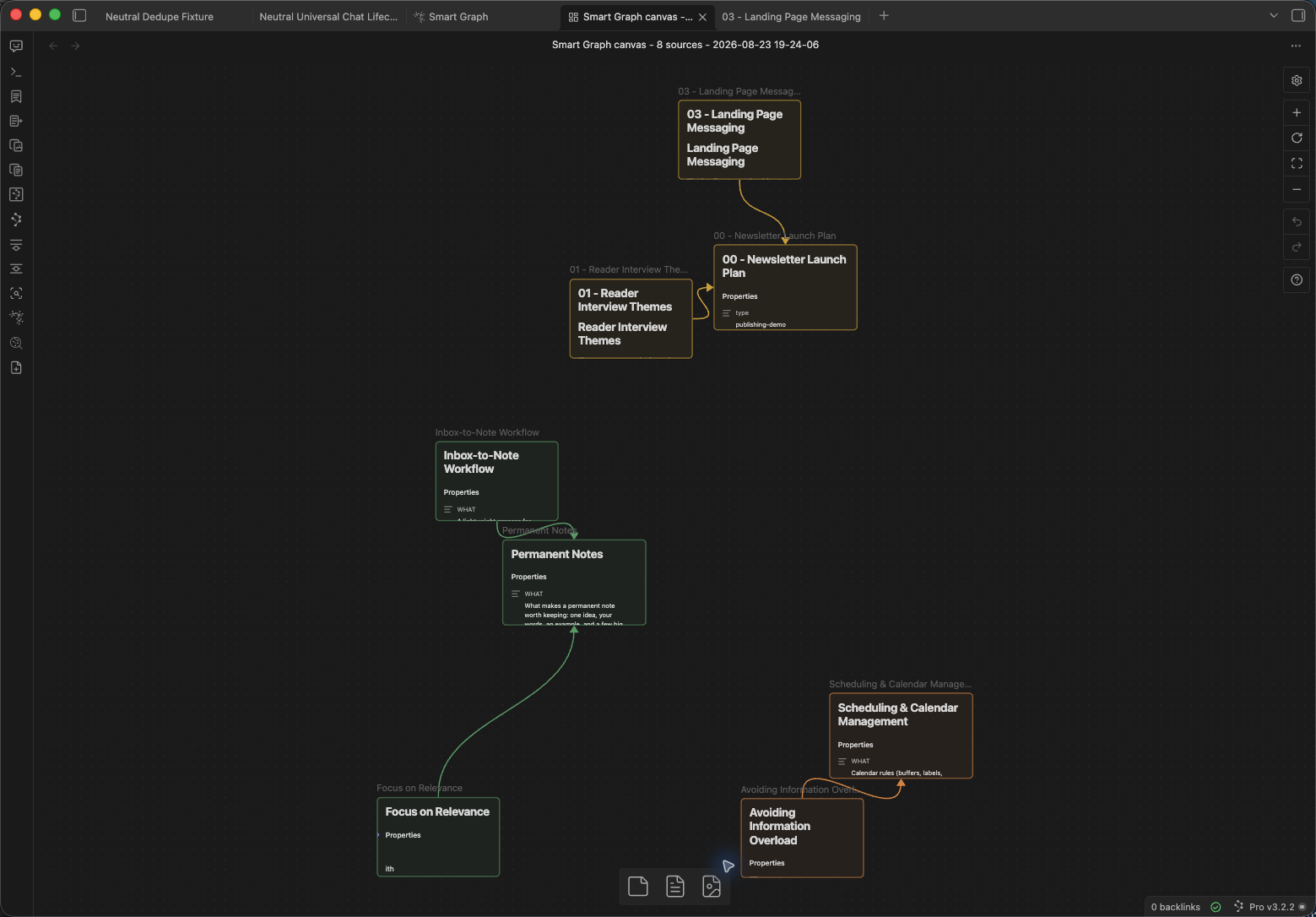](/assets/graph-canvas-result-pro1.2.1-obsidian1.13.7-2026-10-21.png)
Actual Canvas result from one eight-source example. Historical capture: Smart Graph Pro 1.2.1 / Obsidian 1.13.7. Card text is small in this overview.
[View full size ↗](/assets/graph-canvas-result-pro1.2.1-obsidian1.13.7-2026-10-21.png)
From selected notes to Canvas
## Create an editable Canvas from selected notes {#canvas-result-preview-title}
Choose useful sources in Smart Graph, then create a Canvas to continue working with their note cards.
Requires Pro on Obsidian desktop and indexed source notes. Inspect the result and adjust the layout for your work.
[Get Smart Graph with Pro](/pro-plugins/)
[How Canvas creation works](/docs/graph/#smart-graph-actions-create-canvas)
Choose a scope
Whole vault
Neighborhood
Focus nodes
Choose a replay
Semantic cascade
Graph reveal
[Open the Whole vault Semantic cascade video](/assets/graph-replay-v2/whole-vault-cascade.mp4).
7.5 s loop · Silent · 1,050 sources in this recording
Play replay
Restart
[View larger ↗](/assets/graph-replay-v2/whole-vault-cascade.mp4)
**Whole vault · Semantic cascade** — The replay moves through representative notes and semantic regions, then returns to the whole-vault map.
These are separate recorded examples, not a continuous scope-changing workflow.
Use the video controls to play. All six edited replays: [Whole vault: Semantic cascade](/assets/graph-replay-v2/whole-vault-cascade.mp4) · [Whole vault: Graph reveal](/assets/graph-replay-v2/whole-vault-reveal.mp4) · [Neighborhood: Semantic cascade](/assets/graph-replay-v2/neighborhood-cascade.mp4) · [Neighborhood: Graph reveal](/assets/graph-replay-v2/neighborhood-reveal.mp4) · [Focus nodes: Semantic cascade](/assets/graph-replay-v2/focus-nodes-cascade.mp4) · [Focus nodes: Graph reveal](/assets/graph-replay-v2/focus-nodes-reveal.mp4).
Read the map
## Use the map to choose where to look next
Regions, possible bridges, and outliers can direct attention across a growing body of notes.

Region
A dense group can suggest a shared theme worth investigating.
[Understand regions](/docs/graph/#understand-cluster-regions)

Bridge
A generated bridge between regions can point to an overlap worth checking. It is not a link written in your notes.
[Understand bridges and links](/docs/graph/#understand-visible-bridges)

Outlier
A small or distant group can suggest a niche topic, a coverage gap, or an unexpected note worth checking.
[Interpret Graph patterns](/docs/graph/#interpret-clusters-representatives-and-affinities)
Why another graph
## Links show what you connected. Smart Graph adds a semantic view.
Obsidian native graph
### Trace explicit links
- Shows links already written into the vault.
- Shows how your notes are explicitly linked.
Smart Graph
### See notes that are close in meaning
- Groups indexed source notes by semantic similarity.
- Overlay authored links to compare semantic proximity with the links you created.
Use both when you want to compare semantic proximity with the links you created. See
[the native Graph comparison](/smart-graph/faq/#how-is-smart-graph-different-from-obsidians-native-graph)
and
[how Graph lines work](/docs/graph/#understand-visible-bridges).
Move through the map
## Move from the landscape to sources you can inspect
Search finds labels and paths, selection keeps chosen notes visible, and scope redraws the map around a smaller source set.
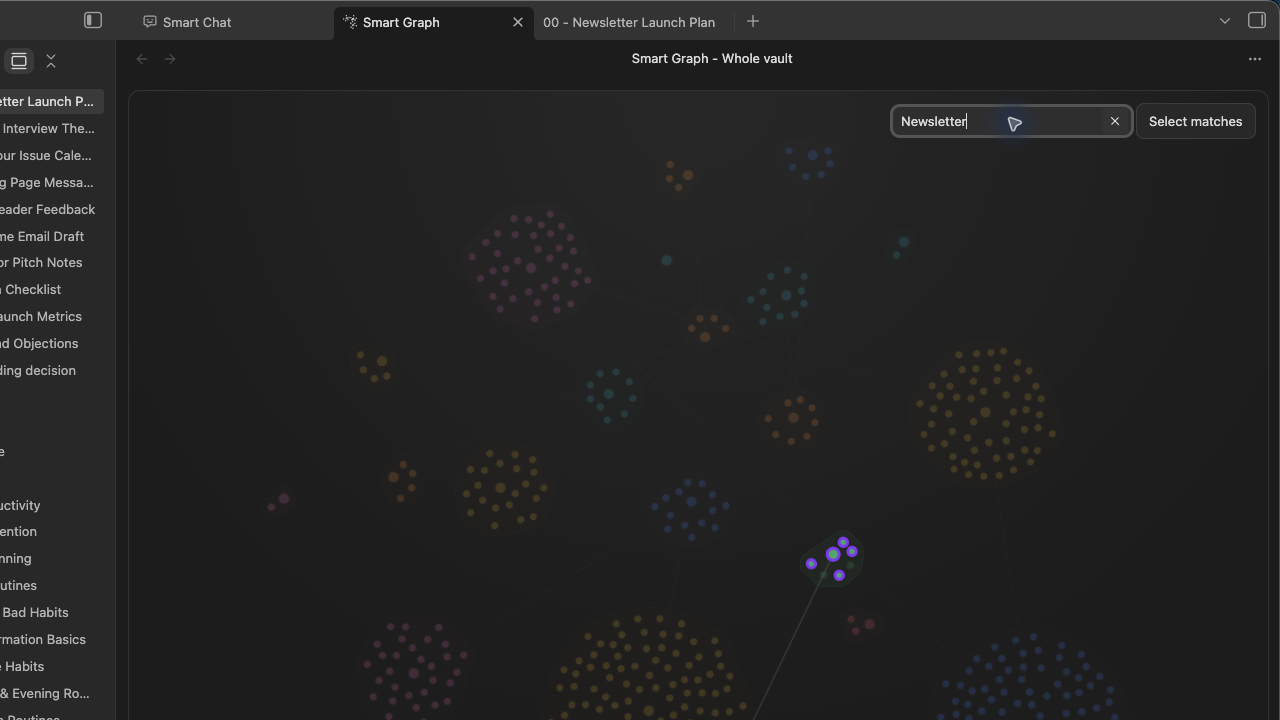
Search the graph
Find matching labels and paths while the rest stays visible.
[Use Graph search](/docs/graph/#search-the-graph)
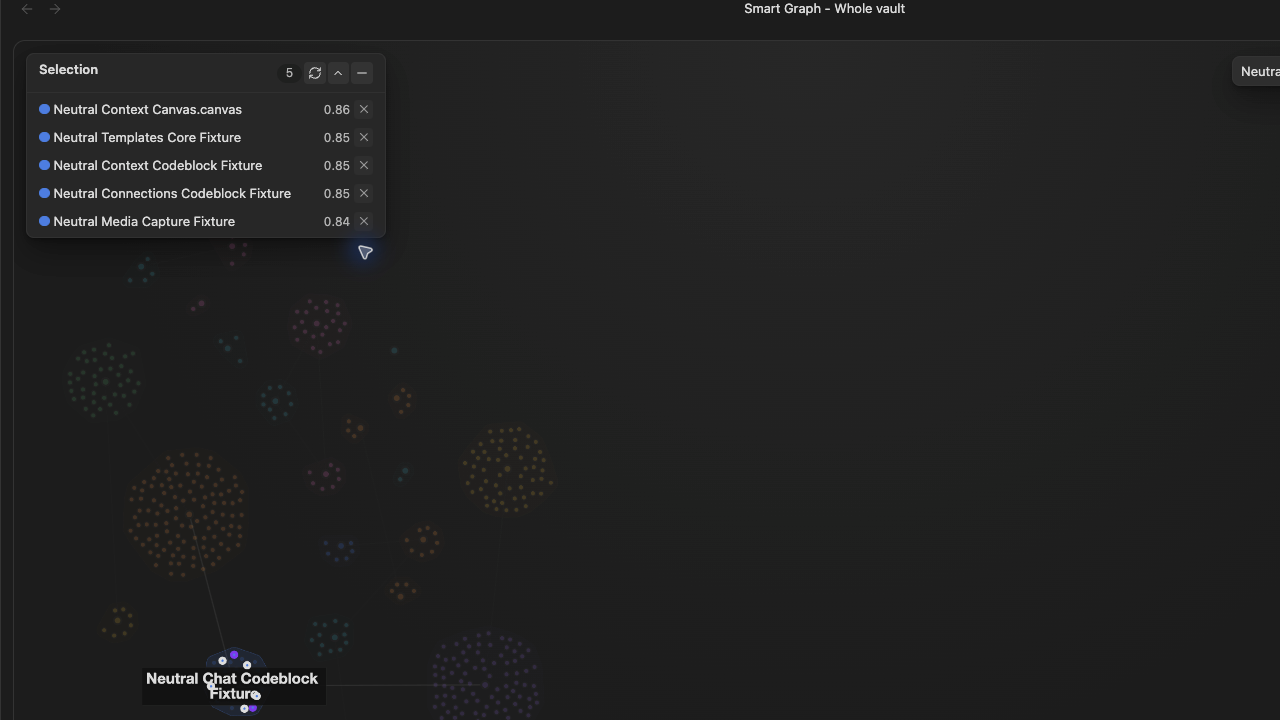
Select notes to review
Keep selected note names visible in the Notes panel while you decide which sources to inspect or use.
[Use the Notes panel](/docs/graph/#use-the-notes-panel)
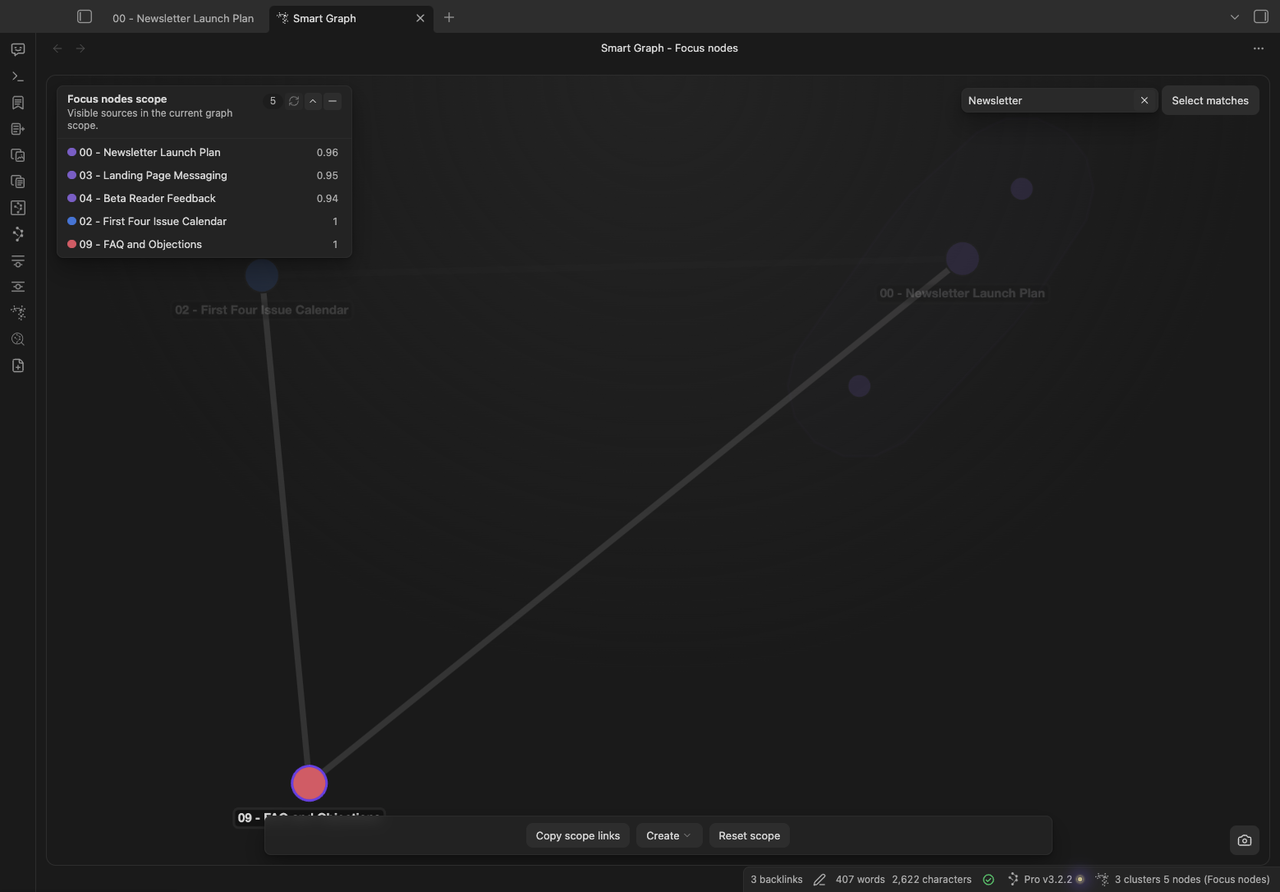
Focus the view
Render the graph around a cluster, selected notes, or a Neighborhood.
[Compare Graph scopes](/docs/graph/#choose-a-graph-scope)
Follow the trail
## Follow a pattern back to the notes
The graph directs attention; the original notes provide the evidence. Select a node or region, confirm its notes, and open them before deciding what the pattern means.
1. 1
Select one node or a small region.
2. 2
See the selected note names in the Notes panel.
3. 3
Open the notes you want to inspect in Obsidian.
Follow the first note-opening walkthrough in
[Getting Started](/smart-graph/getting-started/#first-win-open-one-related-note).
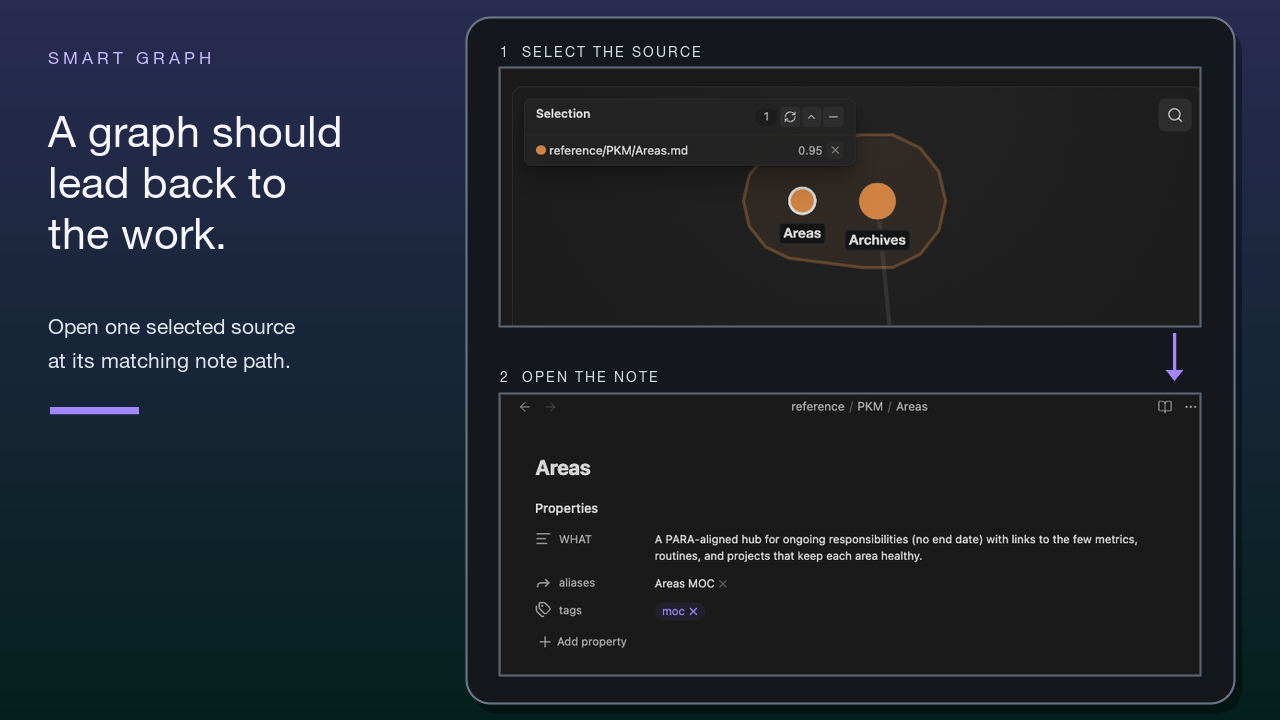
Smart Graph can open a selected source directly in Obsidian.
[How opening source notes works](/docs/graph/#smart-graph-actions-open).
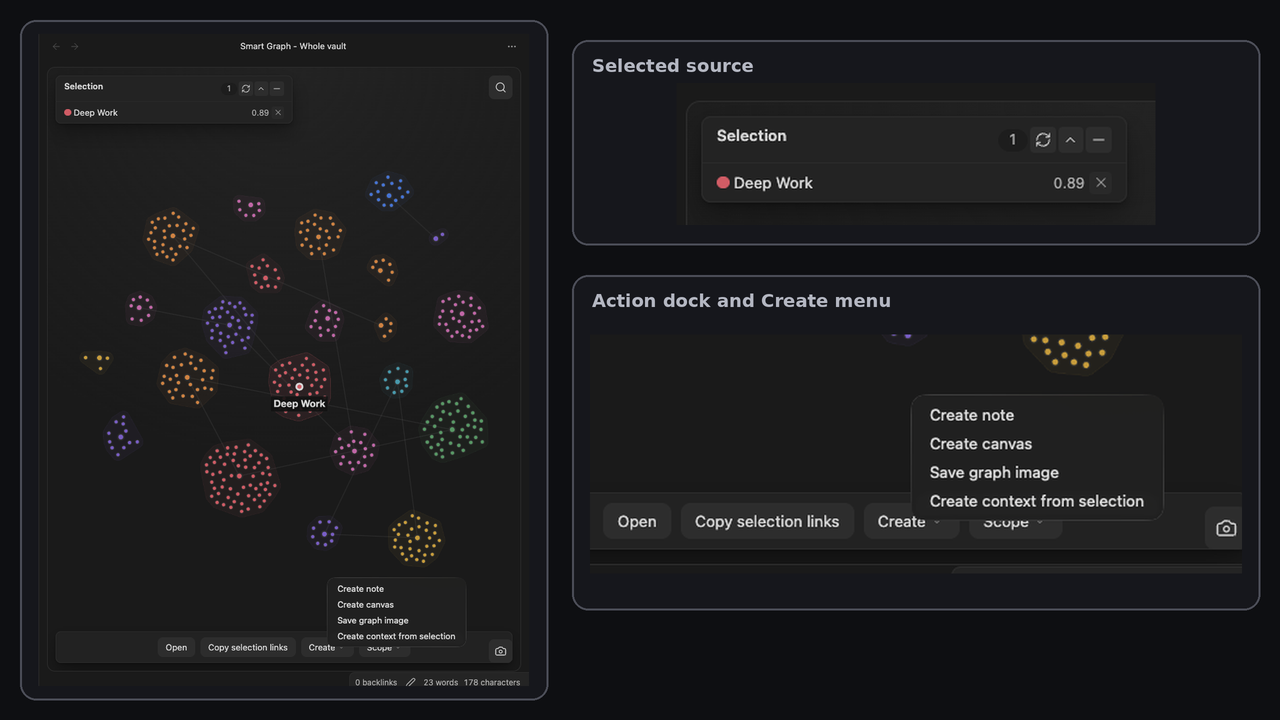
Carry it forward
## Carry reviewed sources into the next step
- **Inspect sources:** Open selected notes in Obsidian.
- **Carry them forward:** Copy links, create a note or Canvas, or add selected notes to Smart Context when available.
- **Keep exploring:** Save the graph as an image or focus the map on a cluster, selected nodes, or a Neighborhood.
[Explore Smart Graph actions](/docs/graph/#use-smart-graph-actions)
Choose by question
## Different questions need different starting points
Smart Graph starts with a set of notes and asks what patterns appear. Other surfaces start from a current note, a typed question, exact text, or authored links.
### Smart Graph
Explore patterns across several notes.
[### Connections
Surface related notes from the note in view.](/smart-connections/)
[### Lookup
Search semantically from a typed phrase or question.](/smart-lookup/)
### Obsidian Search
Find exact text, paths, tags, operators, or regex.
### Native Graph
Explore authored links between notes.
How it works
## Semantic similarity shapes the layout
Smart Graph uses embeddings to place indexed notes closer together when their content is semantically similar. The selected scope determines which notes enter the map.
What can change
## The view changes with its inputs
What appears can change with the indexed sources, embedding model, scope, and layout settings.
[Learn how to interpret Graph](/docs/graph/#interpret-clusters-representatives-and-affinities)
Available with Pro
## Add a semantic view when scale makes relationships harder to see
Smart Graph is available through Pro on desktop. The sources you want to explore must be indexed; a current-note Neighborhood also needs the active note in that index. Check the live Smart Plugins Store for current access.
[Get Smart Graph with Pro](/pro-plugins/)
[Open Getting Started](/smart-graph/getting-started/)
Questions before you add it
## Smart Graph FAQ
What is Smart Graph for Obsidian?
+
Smart Graph arranges indexed notes by semantic similarity into regions you can explore, with source nodes you can select and open.
How is Smart Graph different from Obsidian's native graph?
+
Obsidian's native graph centers authored links. Smart Graph starts from semantic similarity and can also overlay authored links when **Show links** is active.
What do the lines mean?
+
Semantic bridges are generated lines between cluster representatives. **Show links** adds authored links with arrowheads that show direction; **Hide links** removes that overlay.
Are the nodes real notes I can open?
+
Yes. Nodes resolve to indexed source notes. Select a node to inspect or open its source in Obsidian.
[Learn about Graph nodes](/docs/graph/#understand-source-nodes)
Does Smart Graph help if my notes are not heavily linked?
+
Yes. Because Smart Graph uses semantic similarity, it can form Neighborhoods even when authored links are sparse.
What can I do after I review a region?
+
Inspect sources by opening selected notes. Carry a reviewed set forward by copying links, creating a note or Canvas, or adding it to Smart Context when available. Continue exploring by saving the graph image or changing scope.
What does Smart Graph require?
+
Smart Graph is a Pro desktop plugin. It needs eligible indexed Smart Sources and current embeddings. A current-note Neighborhood also requires the active note to be indexed.
Is Smart Graph experimental?
+
The current Store lists Smart Graph in the main Pro catalog rather than under Experimental. Check the live Store for the latest grouping.
## See where to look next
Get Smart Graph through Pro, start from a note or source set you understand, and choose what to inspect next.
[Get Smart Graph with Pro](/pro-plugins/)
[Open Getting Started](/smart-graph/getting-started/)
[Documentation](/docs/graph/)
[FAQ](/smart-graph/faq/)
---
## Ai Help For Projects
canonical: https://smartconnections.app/ai-help-for-projects/
html_url: https://smartconnections.app/ai-help-for-projects/
markdown_url: https://smartconnections.app/ai-help-for-projects.md
llms_url: https://smartconnections.app/ai-help-for-projects/llms.txt
last_modified: 2026-10-21T22:54:59.714Z
usage_notes: |-
Use this page to answer questions about Ai Help For Projects.
excerpt: |-
Get useful AI help with the projects in your Obsidian vault Practical lessons for turning your notes into clearer assignments, reviewing what AI proposes, and keeping the work moving. Learn from the tools and workflows behind Smart Plugins. Put them to use in a project already in your vault. Send me the lessons Already looking for the software? Explore Pro options, including Connect Pro. Put the…
suggested_links:
- title: Build Context In Obsidian Notes
url: https://smartconnections.app/build-context-in-obsidian-notes/
- title: Community Content
url: https://smartconnections.app/community-content/
- title: Connect Pro
url: https://smartconnections.app/connect-pro/
- title: Core Plugins
url: https://smartconnections.app/core-plugins/
- title: Faq
url: https://smartconnections.app/faq/
# Get useful AI help with the projects in your Obsidian vault
Practical lessons for turning your notes into clearer assignments, reviewing what AI proposes, and keeping the work moving.
**Learn from the tools and workflows behind Smart Plugins. Put them to use in a project already in your vault.**
[Send me the lessons](#subscribe)
Already looking for the software? [Explore Pro options, including Connect Pro](/pro-plugins/).
## Put the thinking you already have to work
Your notes may hold the brief, the research, the decisions, and the reasons behind them. Let that work inform what you ask AI to do next.
If you already use Obsidian and AI for work you return to, these lessons help you give the next request a better starting point. That might mean checking a plan against a changed brief or bringing a product description into line with an accepted decision.
Identify a useful contribution, give it relevant context, and judge what comes back. The result might be a clearer assignment, a supported improvement to the project, or accepted work you can use.
Keep the project's direction yours while getting help with the work that advances it.
## Here is where we start
The four opening emails address four practical questions:
- **What should AI help with next?** Start from an existing project and clarify a useful contribution.
- **Which proposed changes belong?** Examine a real Smart Inbox review decision from Brian's business and the direction it changed.
- **What should the next request know?** Reuse relevant context and keep the conversation associated with the work.
- **Where does this earn a place in my workflow?** Evaluate Connect Pro against a recurring job and the effort it involves.
Along the way, learn **Smart Loop: Clarify → Delegate → Compound**: make the work clear, get a contribution, then use your judgment to improve the result or the next starting point.
Follow the examples or apply them to your own work. The [complete practical guide](/project-work-guide/) is available without subscribing; the emails add interpretation and a connected learning progression.
## The work behind the lessons
Brian builds Smart Connections and the wider Smart Plugins suite while using the products, systems, and operating knowledge in his own business.
Pursuing an ambitious one-person business gives that work a practical focus: direct assignments clearly, maintain relevant context, and decide what to accept. The emails draw lessons from those decisions so you can adapt useful parts to your goals.
After the introduction, the learning continues with selected examples: larger assignments, useful context, product choices, and the reasoning behind them.
## The tools have specific jobs
Smart Connections helps surface relevant thinking. Connect Pro can turn an AI-assisted source comparison into an exact proposed note change for review in Smart Inbox. Smart Context and Smart Chat support source reuse and conversation continuity. Smart Graph Pro offers visual source selection when it helps the task.
The connected proposal exercise requires the relevant Connect Pro access and setup. The guide explains those requirements and the boundaries of review. You can learn the method without installing the entire suite.
## Get the lessons behind the tools
Begin with the four-part introduction. Continue learning from the systems, tools, and workflows behind Smart Plugins.
Working on something now? [Start with the guide](/project-work-guide/). Ready to evaluate the software? [See current Pro options](/pro-plugins/).
---
## Getting Started
canonical: https://smartconnections.app/docs/pro/getting-started/
html_url: https://smartconnections.app/docs/pro/getting-started/
markdown_url: https://smartconnections.app/docs/pro/getting-started.md
llms_url: https://smartconnections.app/docs/pro/getting-started/llms.txt
last_modified: 2026-10-21T18:49:48.572Z
usage_notes: |-
Use this page to answer questions about Getting Started.
excerpt: |-
Getting started with Pro plugins Choose one Pro workflow that solves a real problem. The goal is not to activate every plugin. Complete one result. Review it. Already know which Pro plugin you want to try? Complete account sign-in, then use that plugin's first-result guide. The Context Pro walkthrough below is an optional starting point when you have not chosen; it produces a visible result…
suggested_links:
- title: Started
url: https://smartconnections.app/ai-help-for-projects/started/
- title: Ai Help For Projects
url: https://smartconnections.app/ai-help-for-projects/
- title: Build Context In Obsidian Notes
url: https://smartconnections.app/build-context-in-obsidian-notes/
- title: Community Content
url: https://smartconnections.app/community-content/
- title: Faq
url: https://smartconnections.app/connect-pro/faq/
# Getting started with Pro plugins
Choose one Pro workflow that solves a real problem. The goal is not to activate every plugin. Complete one result. Review it.
Already know which Pro plugin you want to try? Complete [account sign-in](#sign-in-to-your-pro-account), then use that plugin's [first-result guide](#choose-another-first-result). The Context Pro walkthrough below is an optional starting point when you have not chosen; it produces a visible result without a cloud model or provider key.
## Before you start
- Open Obsidian Desktop in the vault where the result belongs.
- Open **Browse Smart Plugins**.
- Choose one small source set whose contents you can recognize.
## Sign in to your Pro account
If the Store already says **Signed in to Smart Plugins account**, check its access message and continue to activation below.
1. In **Browse Smart Plugins**, find **Connect account** and choose **Login**.
2. The browser opens **Smart Connect**. Enter your account **email** and the **connection key** from your Pro welcome email. Existing supporters can use their supporter key in the same **connection key** field.
3. Choose **Login**. Allow the browser to return to Obsidian if prompted, then check the Store in the intended vault.

The default sign-in host is `connect.smartconnections.app`. Start from the Store's **Login** action so the link includes the information needed to return to Obsidian. If the browser does not open, use **Copy link to login instead** and open the generated link in your browser.
Keep your email and key private. The connection key is not a model-provider API key or your Obsidian account password.
### Check the account status in Obsidian
Look for **Signed in to Smart Plugins account** and read the access status beside it.

This example account has lifetime access; your access message may differ. The screenshot shows an existing signed-in session, not a newly completed login.
If the account is not recognized or access is missing, use the [sign-in recovery steps](https://smartconnections.app/pro/faq/#what-if-sign-in-does-not-complete).
## Check activation separately
Use this lifecycle throughout Pro:
```text
Installed -> Enabled -> Active -> Configured or Ready -> Successful result
```

An **Active** row means the plugin loaded. Continue until the plugin itself produces the expected result.
## First win: build and verify one Context Pro package
### 1. Activate Context Pro
In **Browse Smart Plugins**, find Context Pro. Complete the action shown on its row. If **Enable** appears, choose it. If a reload action appears, complete it. Continue when the row is **Active**.
### 2. Open Context Builder
Run:
```obsidian-command
Smart Context Pro: Open new context in builder
```
Choose **Folders** and use the folder suggestion's modifier action, shown in the search footer, to add one small dynamic folder rule whose members you can identify before copying. Dynamic folder and tag groups are Pro contributions; direct folder copy and named-context reuse are already available in Core.
### 3. Review the boundary
Open **Rules**. Confirm the dynamic group's included sources. Review any existing exclusion or heading rule rather than changing a shared rule only for this test.

A useful first package has a clear purpose and a source set small enough to inspect.
### 4. Copy and verify the result
Choose **Copy context**. Paste the output into a clean note. Compare the output with the package that you reviewed.

The first win is complete when:
- the dynamic group's expected sources appear
- unrelated sources do not appear
- any existing exclusion behaves as expected
- the pasted output is useful for a real next action
Continue with the [Context Rules documentation](https://smartconnections.app/docs/context/#smart-context-builder-rules) when you need dynamic include and exclude behavior.
## Use the same completion test for any Pro plugin
| Check | Complete when |
| --- | --- |
| Store | The intended plugin is **Active** and no enable or reload action remains. |
| Setup | Its required model, provider, source index, permission, or connection is ready. |
| Result | The product produces one visible output that matches the task and has been reviewed. |
Do not evaluate Pro from the Store row alone.
## Choose another first result
| Workflow | Start | First complete result | Guide |
| --- | --- | --- | --- |
| Connections Pro | Open a note with authored outlinks and inspect its Connections results. Enable **Exclude outlinks** in Pro settings. | Already-linked candidates disappear while unrelated candidates remain; one useful remaining source is inspected. Decide whether the filter helps your task compared with the baseline. | [Connections filters](https://smartconnections.app/docs/connections/#connections-view-exclude-outlinks) |
| Context Pro | Add a small dynamic folder rule with the folder suggestion's modifier action in Builder and inspect its Rules. | The resolved sources and any existing exclusions match the verified pasted package. Decide whether dynamic grouping helps a recurring task compared with direct Core copy. | [Context Rules](https://smartconnections.app/docs/context/#smart-context-builder-rules) |
| Smart Chat API Extension | Confirm one working model. Open Smart Chat. | One useful response is generated from the intended context. | [Smart Chat API Extension](https://smartconnections.app/smart-chat/api/getting-started/) |
| Smart Graph | Open a current-note Neighborhood. | One meaningful relationship leads to a real note action. | [Graph](https://smartconnections.app/smart-graph/getting-started/) |
| Smart Dedupe | Open the Duplicate Detector from a note with known overlap. | One candidate pair is reviewed without automatic deletion. | [Dedupe](https://smartconnections.app/smart-dedupe/getting-started/) |
| Connect Pro | Connect a trusted supported desktop client through Local MCP. Read one recognizable note, then use its relevant sources for a useful contribution in your chosen AI app. | Source access works in the intended vault and the contribution is useful enough to keep. A note edit is not required; dedicated proposal practice is an optional separate workflow. | [Connect Pro setup](https://smartconnections.app/connect-pro/getting-started/) / [optional Inbox review](https://smartconnections.app/docs/connect-pro/#first-reviewed-change) |
## When Smart Environment matters
Connections, Lookup, Graph, Dedupe semantic matching, and other indexed-source workflows depend on Smart Environment readiness. Check [Smart Environment](https://smartconnections.app/smart-environment/faq/) when known sources are missing or stale.
A provider-backed Chat workflow also needs one working configured model. Current Smart Templates prepares and copies a prompt without a Templates model; the destination where you send that prompt may require its own account or model configuration. Connect Pro needs the intended running Obsidian Desktop vault and a ready chosen connector. Enable Obsidian CLI for Smart CLI Pro and native CLI operations; Local MCP does not require Remote GPT to be connected. Inbox approval applies only to the dedicated proposal Tools, not every vault write.
## You are done when
You have:
1. activated one Pro plugin
2. completed only its necessary setup
3. produced one visible result
4. reviewed that result in its destination
5. decided whether the workflow removes enough friction to keep using it
Only then broaden the scope or enable another plugin.
---
## Project Work Guide
canonical: https://smartconnections.app/project-work-guide/
html_url: https://smartconnections.app/project-work-guide/
markdown_url: https://smartconnections.app/project-work-guide.md
llms_url: https://smartconnections.app/project-work-guide/llms.txt
last_modified: 2026-10-21T18:49:36.465Z
usage_notes: |-
Use this page to answer questions about Project Work Guide.
excerpt: |-
Use your notes to move a project forward Choose the result you need: a useful draft from your notes, or a supported change to an existing plan. The first route uses a client-review email throughout. The second uses the recorded PDF and pilot demonstrations. Route A: turn project notes into a useful draft Start with the work Choose a draft you already need: a message, proposal, or project update.…
suggested_links:
- title: Ai Help For Projects
url: https://smartconnections.app/ai-help-for-projects/
- title: Build Context In Obsidian Notes
url: https://smartconnections.app/build-context-in-obsidian-notes/
- title: Community Content
url: https://smartconnections.app/community-content/
- title: Connect Pro
url: https://smartconnections.app/connect-pro/
- title: Core Plugins
url: https://smartconnections.app/core-plugins/
# Use your notes to move a project forward
Choose the result you need: [a useful draft from your notes](#start), or [a supported change to an existing plan](#case). The first route uses a client-review email throughout. The second uses the recorded PDF and pilot demonstrations.
## Route A: turn project notes into a useful draft
### Start with the work
Choose a draft you already need: a message, proposal, or project update. Open the note where that work belongs and identify the decisions or requirements the draft must preserve.
The example below uses a client-review email. Its purpose is to get the feedback needed to finish a website. Follow the example, or use the same approach with your own draft and sources.
An outcome note can begin with that desired result and links to the two sources:
| Source | What it contributes |
| --- | --- |
| **Review decision** | The first review is a PDF walkthrough, not a live website. Written approval is required before the site goes live. |
| **Review scope** | Ask for feedback on page order, wording, and proposed interactions. |
These are demonstration inputs. Use the actual decisions and requirements for your own project.
If the relevant source is not in mind, use Smart Connections from the note you're working on. It can surface related notes or sections; read the passage to decide whether it helps. Use Smart Lookup for a typed idea, or Obsidian Search for exact wording. [Connections getting started](https://smartconnections.app/smart-connections/getting-started/) supplies the discovery steps.
### Select the sources for this request
To try this with your existing AI app, copy the relevant passages from your chosen notes, keeping each note's name above its text. The table above supplies the two facts for the sample. Share only material suitable for that service, then [ask for the draft](#choose-contribution). No additional plugin is required for this route.
To assemble the sources with Smart Context instead, open Context Builder using the command for your edition:
- Core: `Smart Context: Open new context in builder`
- Pro: `Smart Context Pro: Open new context in builder`
Use **Notes** to add Review decision and Review scope. Read the source names and contents in the package. Leave Launch ideas out: it concerns a later announcement, not this review email. Removing a directly selected item with **Remove from context** changes the package, not the note in the vault.
Use the available text-copy action and examine the pasted text before sending it. It must contain the two intended sources and their relevant instructions. Token counts do not establish that the contents are correct.

*Demo: Website review contains Review decision and Review scope. Launch ideas stays outside this package.*
This direct-note workflow is available in Core. [Smart Context documentation](https://smartconnections.app/docs/context/) covers the exact controls for your edition. You can also supply the two passages through your existing AI workflow, keeping their note names attached.
**Sharing boundary:** give an external AI service only material suitable for that destination. The provider receives the text you send under its own data-handling terms.
### Ask for the message itself
With the two sources supplied, adapt this request:
```text
Use only Review decision and Review scope supplied with this request.
Draft a short client review email. Explain the review format, what
feedback to give, and the approval needed before launch.
Do not invent a date, link, attachment, or client decision.
Return the email body. List missing information separately.
Do not send the email, change notes, or create proposals.
```
In the recorded demonstration, embedded ChatGPT returned this feedback request:
> Please review the page order, wording, and proposed interactions, and let us know any changes you would like made in those areas.
The full draft also names the PDF walkthrough and preserves written approval before launch. It was checked against the two sources, accepted without revision, and manually pasted into **Review email**, then reopened to verify the saved wording. For your own request, make a specific revision when needed. Before sending, prepare the walkthrough and add the real recipient and available link or attachment.

*Demo: the supplied decision and scope appear in the returned draft. Excerpts from one request and its response; no email was sent.*
To work inside an Obsidian note, a Core Smart Chat provider codeblock can render a supported provider on desktop. It does not automatically attach your active note: deliberately supply the context you examined. [Smart Chat getting started](https://smartconnections.app/smart-chat/getting-started/) explains the provider-codeblock route. Smart Chat API Extension is a separate configured-model workflow with its own prerequisites.
| Problem | Smallest useful response |
| --- | --- |
| The answer is generic | Check that the actual source passages reached the request and that the requested result is specific. |
| The answer invents a date or promise | Compare it with the source, remove the unsupported detail, and keep missing information explicit. |
| The context contains unrelated material | Remove the direct selection or start with the two intended notes. Examine the pasted result again. |
| The model or provider fails | Correct its reported access/configuration problem before sending more note content. |
### Keep the result and make returning easier
Link Review email from the outcome note. Record the real next task there: for this example, prepare the PDF walkthrough before sending the message. Keeping the draft does not complete that task.
When the source selection will be useful again, name it **Website review** in Smart Context. Reopen it before reuse and read the resolved notes. A named context saves a definition, not a frozen copy of the source text. To revise the email later, deliberately add its current draft to that request.
A saved Smart Chat provider-thread link can provide a way back to the discussion. Trust continuity only after the recognized URL reopens the same thread. Core bookmarks store the reference and tracking state, not the full provider transcript. Smart Chat API Extension source attachments are request-specific; select them again when needed.
Keep the accepted email as ordinary text in its draft. Changes to its sources do not replace that copied passage. You can continue from the accepted work rather than recover it from a conversation each time.
## Route B: carry a decision into an existing plan
A recorded demonstration used two fictional notes. Review decision called for a PDF walkthrough, while Launch plan still called for a live website. A dedicated correction changed that sentence. The writer then added the more specific preparation task separately.

*Demo: correction applied; next task added by the writer.*
You can make a known edit yourself. Connect Pro becomes worth evaluating when reading, comparing, and preparing a supported change are part of the work you want help with.
### Delegate the comparison, not just the replacement
In a separate recorded pilot demonstration, the request supplied the decision and plan paths without the discrepancy or replacement. The connected AI app read both, found that the plan included all teams while the decision limited it to three, and prepared one correction. That item remained pending; it was not the applied PDF correction above.

*Demo: pending proposal. The proposed correction follows the three-team decision; the plan remains unchanged.*
### Prepare access and request one proposal
Connect Pro requires its relevant Pro access, the intended running Obsidian Desktop vault, and a supported client. Already have Connect Pro access? [Follow Connect Pro setup]({{connect_pro_setup_url}}). Otherwise, [review the current Pro trial and access options]({{pro_access_url}}), then return here to compare your decision and plan. Complete one recognizable read before relying on the connection.
Examine **Tool permissions**. Only dedicated proposal tools hold their source changes for Inbox review; other enabled tools can write directly. Broad CLI access is separate from individual tool switches. Connected tools can pass returned notes to the client's model provider. A prompt is not an access control. [Permission details](https://smartconnections.app/docs/connect-pro/#tool-permissions) explain the boundaries.
Adapt this request to exact existing notes and the intended connection:
```text
Use only Connect Pro for [vault name].
Read [decision note path] and [plan note path].
Compare the plan's instructions with the decision.
If one instruction conflicts, use propose_correction to propose one
supported correction. Include its reference excerpt, leave it pending,
and report its item key. If no correction is supported, explain why.
Do not directly edit either note or use another connection.
```
A successful proposal returns its identity, `status: pending`, and `source_files_changed: false`. Check that the target remains unchanged. Do not request it again just because it is waiting for your decision. If the tool is unavailable or the evidence does not support a correction, stop rather than substitute a direct write.
### Examine and apply only the intended change
In the documented Connect Pro 2.0.3 correction flow:
1. Open the pending item in **Connect Pro Inbox**. Compare the evidence, original text, proposed replacement, and reason.
2. Edit the permitted replacement when necessary. **Done editing** retains a review draft; it does not apply the change. Examine the updated preview.
3. Select **Apply correction**. Examine the separate final confirmation, then confirm only the intended change. **Cancel** returns to pending review.
4. Alternatively, use **Reject proposal** to record rejection without changing the source. Leaving an item pending is different.
5. After application, read the target and reference. Check the saved wording and surrounding meaning, and make sure the reference is unchanged. History is a decision record, not an Undo mechanism or source-file proof.
For control details and other installed versions, use the [Connect Pro documentation](https://smartconnections.app/docs/connect-pro/). A **Manual recovery required** warning needs inspection of the named files and saved decision; blindly retrying or rejecting the item does not repair a partial write. Keep a backup or version-history route.
Use the actual next project change to evaluate whether this helps more than your existing approach. Include source preparation, comparison, review, and any repair in that judgment. A useful AI answer alone does not establish the value of the connector.
[Explore Pro options]({{pro_access_url}}). Already have the relevant access? Continue with the project rather than obtain another plan.
[Get the project lessons by email]({{landing_page_url}}#subscribe)
---
## 1 2
canonical: https://smartconnections.app/smart-graph/releases/1-2/
html_url: https://smartconnections.app/smart-graph/releases/1-2/
markdown_url: https://smartconnections.app/smart-graph/releases/1-2.md
llms_url: https://smartconnections.app/smart-graph/releases/1-2/llms.txt
last_modified: 2026-10-21T17:17:50.592Z
usage_notes: |-
Use this page to answer questions about 1 2.
excerpt: |-
Smart Graph Pro v1.2 Turn a cluster into a working set A graph that ends as a picture is a dead end. Smart Graph Pro v1.2 lets you recognize a meaningful region, review the actual notes inside it, and turn that decision into Context, Canvas, a note, links, or a PNG without selecting the sources again. The graph becomes a place to decide what belongs together, not just a different way to look at…
suggested_links:
- title: 1 0
url: https://smartconnections.app/smart-graph/releases/1-0/
- title: Started
url: https://smartconnections.app/ai-help-for-projects/started/
- title: Ai Help For Projects
url: https://smartconnections.app/ai-help-for-projects/
- title: Build Context In Obsidian Notes
url: https://smartconnections.app/build-context-in-obsidian-notes/
- title: Community Content
url: https://smartconnections.app/community-content/
# Smart Graph Pro v1.2
## Turn a cluster into a working set
A graph that ends as a picture is a dead end. Smart Graph Pro v1.2 lets you recognize a meaningful region, review the actual notes inside it, and turn that decision into Context, Canvas, a note, links, or a PNG without selecting the sources again.
The graph becomes a place to decide what belongs together, not just a different way to look at the vault.

> Update all installed Smart Plugins together, then restart Obsidian. Smart Graph Pro v1.2 requires Smart Environment v3.
## A better semantic foundation for the graph
The shape of Smart Graph begins with embeddings, so Smart Environment v3 is a substantial part of this release. Graph gets a faster shared startup path, the Pro accelerated vector index, a broader built-in local model catalog, and the ability to switch embedding models without deleting the embedding set you may want to revisit.
That makes it easier to choose a lighter or multilingual model for a particular vault, compare how the semantic landscape changes, and return to the earlier model without treating the experiment as irreversible.
Shared drag-and-drop and menu actions also make Graph a more natural continuation from Connections, Lookup, Context, or the note already in front of you.
Learn more about the release of [Smart Environment v3](https://smartconnections.app/smart-environment/releases/3-0/).
## 1. Find the region that matters
Select one note, several nodes, or a semantic cluster. Search while non-matches dim, drop indexed notes or folders onto the graph, or send a Smart Lookup result set into a new visual scope.
The surrounding shape remains visible, so bridge notes, isolated ideas, and neighboring clusters can change your understanding without changing the exact working set you are building.
## 2. Review the sources as notes
The new Notes panel turns the visual selection into a readable list. Selected clusters and notes remain grouped, and you can open a source, remove one item, clear the selection, or move the panel out of the way. Minimized and collapsed states keep the graph usable in smaller panes.

Link previews, authored-link display, graph reveal, and semantic-cascade replay help explain the region without forcing you to leave the visual and reconstruct the list elsewhere.
## 3. Turn the decision into work
From the same reviewed selection or scope, you can:
- Add the sources to Smart Context.
- Create an Obsidian Canvas.
- Create a source-linked note, with optional synthesis support.
- Copy selected or scoped links.
- Save the graph as a PNG.
One source set can become a spatial workspace, a written draft, reusable Context, or a shareable image without being selected again.


## Before / After
| Before | With Smart Graph Pro v1.2 |
| --- | --- |
| A useful visual cluster often ended as a screenshot or memory. | Preserve the exact selection as Context, Canvas, note, links, or PNG. |
| It was difficult to review a dense region as ordinary notes. | The Notes panel makes the source set readable and editable. |
| Lookup and Graph required a manual handoff. | Send a reviewed Lookup result set directly into a visual scope. |
| Trying another embedding model risked discarding the earlier semantic index. | Smart Environment v3 keeps previous model embeddings available when you switch. |
| Refreshes and pane changes could leave stale graph state behind. | Deterministic refresh and lifecycle cleanup rebuild the graph more reliably. |
## Supporting improvements
- Drag-and-drop visual feedback for indexed notes and folders.
- Search dimming, label prioritization, empty states, and performance reporting.
- More consistent Context, scope, link, and Create menus.
- Deterministic refresh and cleanup across close, reopen, pane movement, and new windows.
- Added the Notes panel for selected clusters and notes, including drag, minimize, collapse, clear, and remove controls.
- Added Canvas, note, optional synthesis, PNG, Context, scope, and link actions for reviewed selections.
- Added drag and drop for indexed items and folders with visual feedback.
- Added Smart Lookup handoff into Smart Graph.
- Added source-link hover, authored-link display, graph reveal, semantic cascade, and replay actions.
- Improved labels, search dimming, empty states, performance reporting, and action-overlay behavior.
- Fixed deterministic refresh and lifecycle cleanup across refresh, close, reopen, pane movement, and new windows.
- Updated Smart Graph Pro to Smart Environment Pro v3.2.0.
- Requires Smart Environment v3.0.0 or newer.
## Learn more
- [Smart Graph overview](https://smartconnections.app/smart-graph/)
- [Smart Graph documentation](https://smartconnections.app/docs/graph/)
- [Smart Graph FAQ](https://smartconnections.app/smart-graph/faq/)
## Release notes
### `v1.2.2`
#### Shape the graph around what matters
Start a graph from a Bases file, dim nodes by how recently their sources were edited, and remove selected nodes from the current graph without deleting the underlying notes. Opening and navigating graphs is also more reliable as you move between selections and panels.
#### Turn a graph selection into a note or Canvas
Move from exploration to a reusable artifact without leaving the graph. Creating a note or Canvas from the current selection has been streamlined.

*Turn the current graph selection into a note or Canvas from the Create menu.*
#### Full release notes
##### Exploration
- Create graph scopes from Bases files.
- Dim nodes according to how recently their sources were edited.
- Remove selected nodes from the current graph scope without deleting the source notes.
##### Interaction and output
- Improved graph-open requests, deferred rendering, and view-state handling.
- Improved Escape-key behavior for clearing selections and managing panels.
- Streamlined Canvas and note creation.
- Updated the Connections-to-graph handoff to remain compatible with the revised Connections integration.
##### Reliability and maintenance
- Added cluster-graph decoding and simplified the related processing.
- Added an explicit error when required seeded-cluster graph support is unavailable in the index, and simplified the related ranking logic.
- Added automated checks for graph replay and PNG capture.
### `v1.2.1`
Updated: Smart Environment
### `v1.2.0`
Improved: compatibility with new windows
Improved: Connections list Graph integration using Smart Environment menu actions pattern
Refactor smart graph label handling and rendering logic
- Moved label-related constants to `smart_graph_utils.js` for better organization.
- Consolidated label measurement and collision detection functions.
- Enhanced label rendering logic to prioritize selected and search match nodes.
- Introduced new utility functions for generating action payloads and render signatures.
- Updated tests to cover new label admission logic and rendering status handling.
- Removed deprecated functions and streamlined label budget calculations.
Refactor smart graph utility functions and add tests for capture filename and search query normalization
Enhance smart graph rendering: add empty state handling and performance logging functions
Refactor smart graph actions: remove legacy code, introduce overlay component, and enhance utility functions
- Deleted `smart_graph_actions.js` and moved relevant functions to `smart_graph_utils.js`.
- Added new `smart_graph_actions_overlay.js` to handle UI rendering and action execution.
- Simplified utility functions for selecting nodes and checking visible actions.
- Updated tests to reflect changes in utility functions and removed obsolete tests.
Add scope management actions: implement graph_add_scope_to_smart_context and graph_copy_scope_links, enhance smart_graph with scope item handling
Add PNG saving functionality: implement graph_save_png action and related utilities for capturing and saving graph images
Refactor render event handling: update payload structure and enhance error reporting in emit_rendered_event
Add notes panel component: implement smart_graph_notes_panel for enhanced graph interaction (displays selected clusters/nodes)
Enhance notes panel state management: implement cluster grouping logic and add unit tests for selection behavior
feat: enhance smart graph notes panel with drag-and-drop functionality and UI improvements
- Added dragging capability to the notes panel for better user interaction.
- Introduced minimized and collapsed states for the notes panel, allowing users to manage space effectively.
- Updated styles for the notes panel header and controls to improve usability and visual feedback.
- Implemented new control buttons for clearing selection and toggling panel states.
- Enhanced accessibility with ARIA attributes for interactive elements.
- Refactored panel rendering logic to accommodate new UI states and improve performance.
feat: add create canvas and create note functionalities with respective menus and actions
- Implemented graph_create_canvas action to create a canvas from selected items.
- Implemented graph_create_note action to create a note summarizing selected items.
- Added menus for creating canvas and notes in the graph actions overlay.
- Enhanced smart_graph_actions_overlay to handle new menu actions.
- Updated smart_env.config.js to include new actions for canvas and note creation.
feat: enhance smart graph notes panel with remove selection functionality
- Added a remove button for selected nodes in the notes panel.
- Implemented logic to handle the removal of selections from the graph.
- Updated styles for the new remove button to ensure consistency with existing controls.
- Enhanced search functionality to dim non-matching nodes and edges during searches.
- Introduced utility functions for managing source selection and search dimming states.
- Added tests to verify the new functionality and ensure existing features remain intact.
feat: implement note creation features with synthesis support and bridge review candidates
feat: enhance context menus with new actions for scope management and copying links
feat: hide save button when it's the only action in the smart graph actions
added: graph animation (reveal)
feat: add hover link functionality for source nodes and style adjustments for source links
Added: show links action
Added: graph reveal animation
Added animation action
Fixed: deterministic Smart Graph refresh
- Forced refresh now disposes the active Cytoscape runtime and replaces its graph container.
- Render revisions and latest-request coalescing prevent superseded work from committing graph, DOM, status, or rendered-event state.
- View close, reopen, and window migration invalidate pending renders and clean up listeners, observers, schedulers, replay state, and search timers.
Improved: Smart Context creation actions
- Moved selection and scope context creation into the Create menu while preserving the existing action keys.
- Hid the scope action when selection and scope resolve to the same source set.
Documented: Show links, Replay graph reveal, and Replay semantic cascade as release-supported actions
Implement graph_add_items_to_scope action and associated tests; enhance smart_graph with drag-and-drop functionality for indexed items
Add lookup_list_send_to_smart_graph action and associated menu for exploring lookup results in Smart Graph
Refactor get_dropped_folder_sources to improve path normalization and matching logic
Add drag-and-drop visual feedback for the smart graph main area
Updated: Smart Environment v3
---
## Plugins
canonical: https://smartconnections.app/docs/plugins/
html_url: https://smartconnections.app/docs/plugins/
markdown_url: https://smartconnections.app/docs/plugins.md
llms_url: https://smartconnections.app/docs/plugins/llms.txt
last_modified: 2026-10-21T16:51:19.099Z
usage_notes: |-
Use this page to answer questions about Plugins.
excerpt: |-
Smart Plugins Use the Smart Plugins Store to install Core and Pro plugins. Complete the next lifecycle action. If the workflow uses indexed sources, prepare Smart Environment. Confirm one plugin result. New to Smart Plugins? Start with Getting Started with Smart Plugins for the first workflow. Use this page for exact Store and Environment recovery. In this guide Install and update Smart Plugins…
suggested_links:
- title: Chat
url: https://smartconnections.app/docs/chat/
- title: Connect Pro
url: https://smartconnections.app/docs/connect-pro/
- title: Connections
url: https://smartconnections.app/docs/connections/
- title: Context
url: https://smartconnections.app/docs/context/
- title: Dedupe
url: https://smartconnections.app/docs/dedupe/
# Smart Plugins
Use the Smart Plugins Store to install Core and Pro plugins. Complete the next lifecycle action. If the workflow uses indexed sources, prepare Smart Environment. Confirm one plugin result.
> [!TIP] New to Smart Plugins?
> Start with [Getting Started with Smart Plugins](https://smartconnections.app/smart-plugins/getting-started/) for the first workflow. Use this page for exact Store and Environment recovery.
## In this guide
- [Install and update Smart Plugins in Obsidian](https://smartconnections.app/docs/plugins/#smart-plugins-store)
- [Prepare Smart Environment for a plugin workflow](https://smartconnections.app/docs/plugins/#smart-environment-runtime)
- [Track Smart Plugin progress with Smart Milestones](https://smartconnections.app/docs/plugins/#smart-plugins-milestones)
- [Check mobile capability boundaries](https://smartconnections.app/smart-plugins/faq/#is-deferred-loading-on-mobile-a-bug)
## Install and update Smart Plugins in Obsidian
The Smart Plugins Store is the in-app catalog for Core and Pro Smart Plugins. Core and Pro identify product tracks. They do not tell you whether a plugin is installed, loaded, configured, or producing a useful result.
### Open the Smart Plugins Store
Select **Browse Smart Plugins** from one of these locations:
- Smart Environment settings
- a Smart Plugin settings page
- the Smart Environment status menu
- the Command Palette
### Complete the shortest install path
1. Find the plugin.
2. Make sure that its **Core** or **Pro** label is correct.
3. Select the action shown by the row: **Install**, **Install Core**, or **Install Pro**.
4. If the row shows **Enable**, select it.
5. Complete any exact **Reload required...** action shown by the Store.
6. When the row shows **Active**, open its settings if configuration is required.
7. If the workflow uses indexed sources, prepare Smart Environment.
8. If the workflow uses indexed sources, continue when the status view shows **Smart Environment ready** or **Ready**.
9. Provider codeblocks can skip the Environment steps.
10. Open the plugin.
11. Make sure that the plugin gives one result you can examine.

The numbers explain the Store boundaries in the image:
1. **Core** and **Pro** identify product tracks, not workflow success.
2. **Included in Pro** describes how a Core capability relates to Pro. It is not an activation state.
3. **Active**, **Open settings**, and the enabled toggle show that the Pro plugin is loaded.
4. **Installed** with **Enable** means the Core plugin files exist but the plugin is disabled.
Use the Core or Pro label to select the edition. Follow the action shown on the live row. **Active** confirms that a plugin is loaded. It does not confirm that the workflow is configured or working. Store versions and update actions change with releases. Use the current row, not a remembered label.
### Read the account row
The account row can show these exact states and actions:
| Account state | Next action |
| --- | --- |
| **Checking session...** | Wait for the session check to finish. |
| **Connect account** | Select **Login**, or **Copy link to login instead**. |
| **Session needs refresh** | Select **Refresh**. Use **Logout** when the saved session should be removed instead. |
| **All-access subscription expired** | Select **Get Pro**, **Update subscription**, or **Refresh**, as appropriate. |
| Signed in | Pro install and update access follows the current account access. **Logout** remains available. |
Signed-out users can browse the catalog and install eligible Core plugins. Pro installation and updates require current Pro access.

### Browse the catalog sections
The Store shows the main catalog and a separate **Experimental** section when experimental plugins are available.
### Interpret Store lifecycle states
Follow the exact label shown. The Store does not use a standalone **Reload** state or a visible **Configured** state.
| Row label or action | Meaning |
| --- | --- |
| **Install** / **Install Core** | Install the eligible Core package. |
| **Install Pro** | Install the Pro package when the account has access. |
| **Requires Pro** | Current access does not permit that Pro install. |
| **Included in Pro** | The capability is included with the Pro track shown by the Store. |
| **Core installed** | The Core package is installed while the grouped row also describes a Pro option. |
| **Installed** + **Enable** | Files are installed, but the plugin is disabled. Select **Enable**. |
| **Enabled** | The plugin is enabled in Obsidian but is not reported as loaded and active in the current session. |
| **Active** | The plugin is loaded. **Open settings** and the enabled toggle are available when applicable. |
| **Update to vX** | A newer eligible package is available. Apply the update. Then follow any reload-required label. |
| **Reload required to activate vX** | Reload Obsidian so the installed version becomes active. |
| **Reload required to disable** | Reload Obsidian to finish disabling the plugin. |
| **Reload required for Smart Environment** | Reload Obsidian so the required Smart Environment state can take effect. |
An enabled toggle labeled **Enabled** describes the toggle state. It is not the same as the **Enable** action for an installed but disabled plugin.
### Separate loaded, configured, ready, and working
Use four checks:
1. **Active**: the plugin code is loaded.
2. **Configured**: required model, provider, or plugin settings are complete. This is a workflow check, not a Store label.
3. **Smart Environment ready** or **Ready**: required only when the workflow uses shared indexed sources. It means that Environment work is loaded and idle.
4. **Working**: the plugin produces one result you can examine.
Do not stop at **Installed**, **Enabled**, or **Active** when the desired outcome is a usable workflow.
### Update an installed plugin
When the Store shows **Update to vX**, select it. Complete the exact reload-required action that appears. Make sure that the row returns to **Active**. Test the plugin result again.
Smart Environment v3 is a coordinated suite upgrade. Update every installed Smart Plugin before you restart Obsidian. Mixed v2 and v3 environments are blocked so a partial upgrade cannot appear healthy.

### Open settings and release information
Use **Open settings** for the active plugin. Use the row's details or release action for the documentation or release page available to that edition.
### Recover when a Store action does not complete
| Symptom | Recovery |
| --- | --- |
| Pro install or update is unavailable | Resolve **Connect account**, **Session needs refresh**, or **All-access subscription expired** in the account row. |
| Row shows **Installed** | Select **Enable**. |
| Row shows a reload-required label | Select that exact action and let Obsidian reload. |
| Row shows **Enabled**, not **Active** | Make sure that no reload-required action remains. Reload Obsidian. Reopen the Store. |
| **Events & notifications** says a plugin is waiting to load and shows **Restart Obsidian** | Select **Restart Obsidian**. Reopen the Store. Make sure that the plugin row is **Active** before testing its workflow. |
| Row shows **Active**, but the workflow fails | Complete plugin configuration. For an indexed-source workflow, make sure that Smart Environment is **Ready**. Make sure that the sources are eligible. Test one result. |
| Store says Smart Environment is required | Complete **Reload required for Smart Environment**. Then use the Environment recovery below. |
## Prepare Smart Environment for a plugin workflow
Smart Environment supplies source discovery, import, embedding, model settings, status, events, and diagnostics used by Smart Plugins.
### Read the Environment status
| Status | Meaning or next action |
| --- | --- |
| **Smart Environment not loaded** / **Idle** | Select **Load Smart Environment**. |
| **Loading Smart Environment** | Wait for loading to finish. |
| **Importing** / **Re-importing** | Source preparation is running. |
| **Embedding** | Embedding preparation is running. |
| **Embedding paused** | Select **Resume embedding** when preparation should continue. |
| **Queued re-import work** | Select **Run re-import** when the queued work should start now. |
| **Smart Environment ready** / **Ready** | The Environment is loaded and idle. Test the plugin result. |

What the numbers identify:
1. **Smart Environment ready** means Environment is loaded with no active import or embedding work.
2. **Open events feed** and **Environment stats** open retained events and source-coverage diagnostics.
3. **Browse Smart Plugins** returns to installation and activation controls.
The status view also provides **Pause embedding**, **Open events feed**, **Environment stats**, and **Browse Smart Plugins**.
### Load Smart Environment from settings
When Environment settings show the pre-load state, select **Load Smart Environment**. **Show loading status** opens the current loading view.
### Configure the Environment
Use the exact settings that match the task:
- **Default embedding model** chooses the fallback embedding model.
- **Default chat model** chooses the fallback Chat model when no other model is specified.
- **Default ranking model** chooses the fallback ranking model used by applicable features, including Connections re-ranking.
- **Test model** checks the selected model.
- **Re-index embeddings** starts embedding preparation for the current model and policy.
- **Embed blocks** makes eligible note sections available as smaller retrieval units.
- **Minimum length to embed (Sources)** (Pro) sets the minimum number of characters a source must have to be embedded. Shorter sources are skipped for embeddings.
- **Minimum length to embed (Blocks)** (Pro) sets the minimum number of characters a block must have to be embedded. Shorter blocks are skipped for embeddings.
- **Re-import wait time** delays automatic re-import after file activity.
- **Manage excluded folders** controls folder exclusions.
- **Manage excluded files** is available in Pro for file-level exclusions.
- **View all exclusions** reviews the combined exclusion set.
- **Reset data** opens an explicit source-data clearing confirmation. Choose **Cancel** unless a rebuild is intended. Choose **Re-import** to begin the rebuild. The confirmation does not establish deletion of Markdown note files.
Installed model lists expose **+ New** and row controls such as **Edit**, **Test**, and **Current**. **Current** means selected. It does not prove that a test succeeded, authorization is valid, or the model will produce useful output.

What the numbers identify:
1. **Manage excluded folders** changes folder-level source boundaries.
2. **Manage excluded files** adds Pro file-level exclusions.
3. **View all exclusions** reviews the combined exclusion set.
4. **Embed blocks** and minimum-length controls change which source and block items are eligible.

What the numbers identify:
1. The selected built-in embedding model for this configuration.
2. The exact available model labels, including choices marked experimental.
3. **Re-index embeddings** and **Test model** as separate actions after model selection.
### Export Environment data
Choose **Export data** from the Environment status-bar menu. The export produces one JSON file.
1. Select **Sources**, **Blocks**, or both. At least one collection is required.
2. Enable **Include embedding vectors** only when downstream work needs the current vector in each item's `vec` field. Vectors can make the export much larger.
3. Choose **Export**. The dialog states that the JSON file will be saved in the vault root.
4. Monitor the visible **Sources** and **Blocks** progress phases and the output filename.
5. On completion, make sure that the filename and 100 percent state appear, then open the file in the vault root. **Export again** starts another export.


A failed run shows `Export failed: ...` and **Retry export**. Do not treat an in-progress or failed state as success, and do not rely on the dialog alone when the JSON file must be delivered.

### Inspect one source
Keep the intended note active. Choose **Inspect active note** from the Environment status-bar menu. Source inspector can show the source identity and path, properties and links, block coverage, source data, and indexed block excerpts.

Use its status filters to narrow the diagnostic view:
- **All** shows the complete current diagnostic set.
- **Needs embedding** and **Current** separate pending from current block state.
- **Skipped** shows omitted block rows and their visible diagnostics.
- **Unexpected** can expose a retained row labeled **Unexpected vector**.

These states help locate a boundary. They do not establish root cause, repair, re-import success, or retrieval quality.
### Recover by symptom
| Symptom | Recovery |
| --- | --- |
| One active note is missing | Keep the note active. Select **Inspect active note** from the status menu. |
| Several notes are missing | Select **Show stats** from the status menu or **Environment stats** from the status view. Examine eligibility. Examine current embeddings. Examine exclusions. |
| Import or embedding appears stuck | Select **Open events feed**. Examine retained events before you reset data. |
| Embedding is paused | Select **Resume embedding**. |
| Re-import work is queued | Select **Run re-import**. |
| Plugin is **Active** but returns no usable result | Make sure that configuration is complete. For an indexed-source workflow, make sure that Environment is **Ready**. Make sure that the relevant sources are eligible. Examine the product result. |

What the numbers identify:
1. Total indexed items across Smart Sources and Smart Blocks.
2. Work still needed plus any unexpected embeddings.
3. Smart Sources eligibility and current coverage.
4. Smart Blocks eligibility and current coverage.
## Track Smart Plugin progress with Smart Milestones
Smart Milestones records supported first-use actions and can suggest the next feature to try. Confirm usefulness in the plugin's own workflow rather than treating a checked milestone as the result itself.

What the numbers identify:
1. Overall detected progress across the visible milestone set.
2. A completed Environment group.
3. A partially completed Connections group.
4. A partially completed Lookup group.
Open the related plugin. Examine the actual result. Milestone progress does not grade result quality.
### Open Smart Milestones
Select **Milestones** from the Smart Environment status menu.
### Review milestone progress
The modal groups milestones by plugin and workflow. Complete only the groups that support the workflows you are adopting.
A checked row means the detector recorded its action, event, or installed-plugin state. Select a milestone to open its documentation when detailed steps or recovery are needed.
### Understand optional Pro milestones
Pro milestones are labeled separately and require the related Pro plugin, prerequisites, and account access.
### Achievement notifications
A completed milestone can show an achievement notification after Obsidian becomes idle. Notifications appear one at a time while the app is visible.
### Troubleshoot an unchecked milestone
1. Confirm that the action exists in the installed plugin release.
2. Confirm its prerequisites, including source import and embedding readiness when that milestone uses indexed sources.
3. Repeat the action in the same Obsidian window.
4. Reopen Smart Milestones.
5. Inspect the feature result even if the milestone becomes checked.
## Related documentation
- [Use the Connections view](https://smartconnections.app/docs/connections/#find-related-notes-in-obsidian-with-smart-connections)
- [Run Smart Lookup](https://smartconnections.app/docs/lookup/#search-obsidian-notes-by-meaning-with-smart-lookup)
- [Open Smart Context Builder](https://smartconnections.app/docs/context/#build-reusable-ai-context-bundles-in-obsidian)
- [Save a provider thread](https://smartconnections.app/docs/chat/#embed-and-organize-ai-chat-threads-in-obsidian)
---
## Graph
canonical: https://smartconnections.app/docs/graph/
html_url: https://smartconnections.app/docs/graph/
markdown_url: https://smartconnections.app/docs/graph.md
llms_url: https://smartconnections.app/docs/graph/llms.txt
last_modified: 2026-10-21T16:51:10.317Z
usage_notes: |-
Use this page to answer questions about Graph.
excerpt: |-
Smart Graph Smart Graph maps indexed notes into a semantic landscape. Start from one current note when you want a related note. Open Whole vault when you want a wider pattern. New to Smart Graph? Start with Getting started with Smart Graph. Create a Neighborhood from the current note. Then open one related note. Explore semantic clusters in Obsidian with Smart Graph Smart Graph presents indexed…
suggested_links:
- title: Chat
url: https://smartconnections.app/docs/chat/
- title: Connect Pro
url: https://smartconnections.app/docs/connect-pro/
- title: Connections
url: https://smartconnections.app/docs/connections/
- title: Context
url: https://smartconnections.app/docs/context/
- title: Dedupe
url: https://smartconnections.app/docs/dedupe/
# Smart Graph
Smart Graph maps indexed notes into a semantic landscape. Start from one current note when you want a related note. Open Whole vault when you want a wider pattern.
> [!TIP] New to Smart Graph?
> Start with [Getting started with Smart Graph](https://smartconnections.app/smart-graph/getting-started/). Create a Neighborhood from the current note. Then open one related note.
## Explore semantic clusters in Obsidian with Smart Graph
Smart Graph presents indexed source notes as a semantic landscape. Clusters, representatives, and affinities are current hypotheses for inspection, not permanent authored categories.
The Whole vault view establishes the current Graph surface and cluster landscape. Narrow it before you act. Clustering and scores are exploration signals, not final judgments.
### Before opening Smart Graph
Smart Graph requires eligible Smart Sources and current embeddings. To start from the active note, that note must be indexed. Use **Inspect active note** or **Environment stats** when Graph reports that the note or source set is unavailable.
### Open Smart Graph
Choose the entry that matches the task:
| Command | Result |
| --- | --- |
| `Smart Graph Pro: Create graph from current note` | Opens a **Neighborhood** seeded by the indexed active note and selects that seed. |
| `Smart Graph Pro: Create graph from selected note` | Opens a source-seeded graph for the selected indexed note. |
| `Smart Graph Pro: Open: Smart Graph view` | Reveals the existing Smart Graph view without changing its scope; if no view is open, opens a dedicated root tab in **Whole vault**. The **Open Smart Graph** ribbon action uses this route. |
| `Smart Graph Pro: Refresh Smart Graph` | Rebuilds the current Graph view from the current index. |
Foreground nodes represent indexed source notes. Blocks resolve to their owning notes rather than appearing as separate foreground nodes.

What to notice:
1. The active tab identifies the Smart Graph workspace.
2. **Smart Graph - Whole vault** states the current scope.
3. Search is available before narrowing or selecting the graph.
Use the view title to confirm whether you opened **Whole vault** or **Neighborhood of _source_**.
### Choose a graph scope
Smart Graph supports:
- **Whole vault**
- **Neighborhood**
- **Focus cluster**
- **Focus nodes**
The current scope is shown in the view title after **Smart Graph -**.

*Compare a focused source scope with the same vault's broader graph.*
### Add notes and folders by dropping them into Smart Graph
Drop indexed notes, supported folders, Connections or Lookup results, or a graph source onto Smart Graph.
- Whole vault becomes a **Focus nodes** scope containing the dropped indexed sources.
- An existing focused scope keeps its current members, adds newly dropped sources, and becomes a **Focus nodes** scope.
- A dropped folder expands recursively to indexed source notes.
- A dropped block resolves to its owning indexed source note.
The resolved dropped sources become the current selection when the scope changes. A duplicate-only drop leaves the scope unchanged. Unindexed items and ambiguous paths are rejected.
### Understand source nodes
Foreground nodes represent indexed source notes. Visual emphasis can reflect stronger members or the current representative without changing the note's identity.
### Understand cluster regions
Semantic regions sit behind source nodes and can be selected as a group. They are current clustering results, not permanent topic objects.
#### Are semantic regions permanent topics?
No. They can change after note edits, reindexing, reclustering, model changes, or scope changes.
### Understand visible bridges
Smart Graph can show two different edge types:
- Semantic bridges connect current cluster representatives. They are generated from the current index and scope. Treat them as exploration signals.
- Authored source links appear after **Show links**. They come from note links, use arrowheads for direction, and can show arrows in both directions.
Use **Hide links** to remove authored-link edges. Do not describe a semantic bridge as an authored link, or an authored link as proof of semantic similarity.
### Select sources and clusters
- Click a source to add it to the selection.
- Alt/Option-click removes only that source.
- Drag across the graph to select by area.
- Click a semantic region to add its members.
- Click the background to clear the selection.
- Hold Space while dragging to pan without changing selection.
- While holding Space, use the scroll wheel to zoom in or out.
- Mod-click a source to open it while preserving the previous selection.

### Use the Notes panel
The Notes panel changes its visible heading with its contents:
- **Selection** for an ordinary source selection
- **Selected cluster** or **Selected clusters** when the selection contains complete semantic regions
- **Focus nodes scope**, **Focus cluster scope**, or **Neighborhood scope** when no source is selected and the panel is listing an explicit scope
Hover a row to highlight its node. Select a row to move the camera to that source without changing the graph selection. Use the row remove control to subtract a selected source.

### Search the graph

The Newsletter Launch query highlights matching sources while preserving the surrounding landscape.
What to notice:
1. The query defines the current visual search filter.
2. **Select matches** adds the visible matches to the selection.
3. Matching nodes are emphasized but are not selected until committed.
4. Nonmatches remain visible in a dimmed surrounding landscape.
Search matches source labels and full source paths.
- Matches are emphasized without being selected.
- Nonmatches are dimmed.
- Selected nonmatches remain visible.
- A zero-match query leaves the graph usable instead of hiding everything.
- **Select matches** adds all current matches to the selection.
- Clear or press Escape to close search while preserving the committed selection.

#### Does selecting a search match change the graph scope?
No. Search, selection, and scope are separate. Use **Select matches** or a scope action explicitly.
### Use graph context menus
Right-click behavior depends on the target:
- source: include that source in the selection and show relevant actions
- semantic region: include its members and show relevant actions
- background or visible bridge: preserve the current selection and show graph-wide actions


### Camera and viewport behavior
A graph rebuild refits the rendered scope so its visible elements return to view.
The camera button in the lower-right corner saves the current graph image to the vault root with a name shaped like `smart-graph-YYYY-MM-DD-hh-mm-ss.png`. After saving, Graph attempts to copy the same image to the clipboard for pasting. Verify the saved file and clipboard result separately.
#### Why did the camera refit after refresh?
A graph rebuild refits the current rendered scope.
### Empty and error states
| Message | Recovery |
| --- | --- |
| `Smart Graph needs indexed Smart Sources before it can render.` | Prepare eligible sources in Smart Environment. Refresh Graph. |
| `Current note is not indexed by Smart Environment.` | Inspect the active note. Resolve the reported exclusion or source-eligibility problem. Re-import the note. |
| `This scope did not return any cluster data. Reset scope to show the whole vault.` | Choose **Reset scope**. |
| `Unable to build Smart Graph cluster data.` | Confirm source and embedding readiness. Run `Smart Graph Pro: Refresh Smart Graph`. |
| `Smart Graph canvas was not ready to render.` | Refresh or reopen the Graph tab. |
### Use Smart Graph actions
The actions overlay and right-click menus provide the same selected-source, scope, creation, and save actions.
#### Actions overlay
The actions overlay exposes operations for the current source selection and the current graph scope. Controls appear only when their required selection or scope is available.
Its primary controls include **Open**, **Copy**, **Create**, **Scope**, and **View** when their grouped menus are needed; a group with only one visible action renders that action directly. Open **Create** to choose an artifact, **Scope** to change the rendered source set, or **View** for link and replay controls.

What to notice:
1. The selected-source panel shows the reviewed source that remains active while the menu is open.
2. **Open** acts on the reviewed source.
3. **Copy selection links** copies the reviewed source identity.
4. **Create** exposes note, Canvas, graph-image, and Context choices. **Scope** remains a separate boundary.

After you use an action, check its destination. Make sure that the applicable output matches the reviewed selection or scope. The output can be opened notes, pasted links, a created note or Canvas, a saved image, or sources transferred to Context Builder.
#### Open
**Open** launches the selected source notes. For a large selection, read and confirm any warning before opening many notes at once.
##### Why did Open ask for confirmation?
More than ten sources were selected. The second click confirms the large open action.
#### Copy selected links
Use **Copy selection links**. Paste the result into a clean note. Make sure that every intended source appears as an Obsidian wikilink.


#### Copy scope links
Use **Copy scope links**. Paste the result into a clean note. Make sure that the links match the current explicit Graph scope.


#### Add the selection to Smart Context
Choose **Create context from selection**. Confirm every transferred source in Smart Context Builder. Then copy or save the package.
1. Select the intended sources. Here, **Selection 3** contains **03 - Landing Page Messaging**, **Deep Work**, and **Time Blocking**. The muted **00 - Newsletter Launch Plan** row is an unselected parent, not a fourth source.

2. Keep that selection unchanged. Open **Create** and choose **Create context from selection**, not **Create context from scope**.

3. Review the receipt in Builder. **3 sources** and the expanded paths match the three selected notes, with no extra source.

*Matched capture: Smart Graph 1.2.1 and Smart Context 3.4.1. This sequence ends at the reviewed package; it does not show copying or sending.*
#### Add the scope to Smart Context
If **Create context from scope** is missing, check the source boundary first: it requires a non-empty explicit scope, and Graph hides it when that scope contains exactly the same sources as the selection; use **Create context from selection** in that case. If Smart Context itself is unavailable, check it in **Browse Smart Plugins**. Install it if it is not installed. Enable it if it is not enabled. Choose **Create context from scope**, or **Create context from selection** when selection and scope are identical. Make sure that Builder contains every intended source from the explicit Graph scope.

#### Create a note
With one selected source, choose **Create note**. With two or more selected sources, the label becomes **Create synthesis note**. Inspect the new note. Depending on the selection, it can include:
- current scope
- selected-source count
- editable synthesis prompts
- source links grouped by current semantic group
- possible bridge candidates when the graph contains them
Group and bridge suggestions are review aids, not conclusions.

*The generated note remains editable after Graph creates it from the selected sources.*
##### Does Create note infer a final topic name for each group?
No. It creates an editable synthesis scaffold from the current graph.
#### Create a Canvas
Choose **Create canvas**. Inspect the new Canvas. Make sure that every selected source appears. Cards can use Graph positions and colors when available. Adjust the layout before you treat it as a durable artifact.
The generated Canvas does not add Canvas group boxes.

*The created Canvas includes every selected file card and may also include each selected cluster's representative file card even when that representative was not selected. It uses available Graph placement; Graph groups are not converted into Canvas group boxes.*
##### Does Create canvas add Canvas group boxes?
No. It arranges file cards spatially without adding group boxes.
#### Save graph image
Choose **Save graph image** or use the lower-right camera button. Open the timestamped PNG in the vault root. Make sure that it contains the intended viewport, scope label, selected-source markers, and a readable source key. Paste the clipboard image separately and compare it with the saved output.

*This is the saved output itself: selected-node markers and the source key remain visible without live Graph controls.*
#### Focus nodes
**Focus nodes** changes the graph to the selected-source scope. The manual action is available when at least three sources are selected.
After the scope changes, the view title reads **Smart Graph - Focus nodes**. Clear the selection to review the full focused set under **Focus nodes scope** in the Notes panel. Treat the topic interpretation and node positions as current exploration results.

What to notice:
1. **Focus nodes scope** lists the five sources now visible in the graph.
2. The `Newsletter` query remains a search filter inside the focused scope.
3. A matching source stays emphasized without changing the scope.
4. Visible relationships are recomputed Graph signals, not new authored links.
#### Focus cluster
**Focus cluster** limits the graph to the selected semantic group's members. Use it to review that source set separately from the rest of the vault.
1. Select a complete cluster. The **Selected cluster** panel identifies its three members in Whole vault.

2. Open **Scope** and choose **Focus cluster**.

3. Confirm **Smart Graph - Focus cluster** and the same three notes under **Focus cluster scope**.

*Pro 1.2.2, one matched run. Membership is preserved, but the focused sources can regroup: this run rendered two clusters containing the same three notes. The crops foreground scope and source identity, not the full graph layout.*
#### Neighborhood
**Neighborhood** creates a local graph around a source or selected semantic group.
#### Reset scope
**Reset scope** returns a scoped graph to **Whole vault**. It is hidden while Whole vault is already active.
##### Why is Reset scope missing?
The graph is already in Whole-vault scope, or the active view does not have a narrower scope to reset.
#### Right-click menus
- Right-click a source or semantic region for selection actions and graph-wide actions.
- Right-click the graph background or a visible bridge to keep the current selection and open graph-wide actions.
- With no selection, background and bridge menus omit selection-only actions.
#### Replay and link controls
Graph-wide actions can include **Show links** or **Hide links**, **Replay graph reveal**, and **Replay semantic cascade**. Replay actions animate the existing view. They do not change source content or create a durable artifact.
### Interpret clusters, representatives, and affinities
Clustering describes the current index and scope. Identifiers and affinities can change after edits, reindexing, or another run.
#### Whole-vault clustering
Whole-vault scope groups the currently indexed notes by semantic similarity. The groups are recomputed from the current index rather than stored as permanent folders or tags.
#### Scoped clustering
Focused scopes cluster only the source notes included in that scope. Block-based entry points resolve to their owning notes before graph construction.
#### Neighborhood clustering
Neighborhood scope uses the selected source or cluster as a seed so the local graph stays centered on that starting point.
#### Cluster representative
Each group uses one current note as its representative. The representative is the note nearest the group's semantic center. It is not an authored title or permanent category name.
##### Is the representative note the official group name?
No. It is only the current note nearest the group center.
#### Group members
A note's strength inside a group is relative to the current clustering run. Use it for visual emphasis and review, not as a durable score to store in notes.
#### Relationships between groups
Smart Graph ranks current relationships between groups. These signals can support layout, visible bridges, and bridge candidates in generated notes, but they remain hypotheses for inspection.
#### Interpret clustering scores
Compare scores only within the same graph generation and scope. Reindexing, changing models, editing notes, or changing scope can change membership and score ranges.
#### Durability limits
Do not treat current group numbers, positions, representatives, or bridge scores as permanent identifiers. Use normal note links or durable note metadata when a relationship must persist beyond the current graph.
##### Why did a note move to another group?
The graph was recomputed from a changed index, scope, model, or note content.
##### Can I save a group number as a permanent label?
No. Current group identities are not durable.
### Large-vault and performance guidance
Use a bounded scope when Whole vault is dense or slow. Start with `Create graph from current note`. You can also use Search, Focus nodes, Focus cluster, or Neighborhood. A ready view or a smaller scope is not a speed benchmark.
### Troubleshooting Smart Graph
1. Read the Graph view title to identify the current scope.
2. Clear Search if nonmatches are merely dimmed.
3. Read the Notes panel heading: **Selection** describes selected sources, while a heading ending in **scope** describes the visible scope.
4. Choose **Reset scope** when a focused scope is empty.
5. Check Source Inspector or Environment stats for missing sources or embeddings.
6. Run `Smart Graph Pro: Refresh Smart Graph`.
7. If rendering still fails, reopen the tab.
### Requirements and availability
This page documents Smart Graph Pro on desktop. The current Store lists Smart Graph in the main Pro catalog rather than under **Experimental**. Use the live Store as the authority if that grouping changes. Context creation actions require Smart Context. Graph image, note, Canvas, and Context actions should be considered complete only after their destination opens and matches the reviewed selection or scope.
## Related documentation
- [Explore a current-note result list](https://smartconnections.app/docs/connections/#find-related-notes-in-obsidian-with-smart-connections)
- [Review a Smart Context source package](https://smartconnections.app/docs/context/#build-reusable-ai-context-bundles-in-obsidian)
---
## Dedupe
canonical: https://smartconnections.app/docs/dedupe/
html_url: https://smartconnections.app/docs/dedupe/
markdown_url: https://smartconnections.app/docs/dedupe.md
llms_url: https://smartconnections.app/docs/dedupe/llms.txt
last_modified: 2026-10-21T16:51:03.779Z
usage_notes: |-
Use this page to answer questions about Dedupe.
excerpt: |-
Smart Dedupe Smart Dedupe finds exact and semantically similar blocks so you can compare both sources before deciding what to keep or change. New to Smart Dedupe? Start with Getting started with Smart Dedupe for one controlled current-note scan. The persistent Duplicate Detector keeps the scan boundary, progress, and candidates in one view. Similarity creates a review question Smart Dedupe does…
suggested_links:
- title: Chat
url: https://smartconnections.app/docs/chat/
- title: Connect Pro
url: https://smartconnections.app/docs/connect-pro/
- title: Connections
url: https://smartconnections.app/docs/connections/
- title: Context
url: https://smartconnections.app/docs/context/
- title: Graph
url: https://smartconnections.app/docs/graph/
# Smart Dedupe
Smart Dedupe finds exact and semantically similar blocks so you can compare both sources before deciding what to keep or change.
> [!TIP] New to Smart Dedupe?
> Start with [Getting started with Smart Dedupe](https://smartconnections.app/smart-dedupe/getting-started/) for one controlled current-note scan.

The persistent Duplicate Detector keeps the scan boundary, progress, and candidates in one view.
> [!IMPORTANT] Similarity creates a review question
> Smart Dedupe does not merge, archive, or delete notes. A high score or exact match still requires you to inspect both sources and decide what each should do.
## Find duplicate and near-duplicate notes in Obsidian
Use Dedupe when repeated passages create conflicting drafts, repeated decisions, or bloated AI context. Use Connections when similar notes are useful neighbors rather than cleanup candidates.
Use Smart Lookup when you remember an idea or can phrase a question. Use Obsidian Search when you need an exact text match.
### Prepare the first scan
Smart Dedupe is a Pro plugin. Use this sequence:
1. Enable Smart Dedupe.
2. Open a meaningful note.
3. From the Command Palette, run **Smart Dedupe Pro: Open Duplicate Detector**.
Exact matching can find repeated text without embeddings. Semantic matching requires the relevant blocks to be prepared by Smart Environment. If semantic results are missing, check [Smart Environment readiness](https://smartconnections.app/smart-environment/faq/#how-do-i-know-smart-plugins-are-ready-to-test) before changing the threshold.
### Scan the current note
The current-note scan compares blocks in the active note with candidates in other notes. It excludes pairs from the same note. Start here because the source of every comparison is easy to understand.
1. Open the note that owns the passage you want to review.
2. Choose **Current note**.
3. Set a bounded threshold and result count.
4. Keep exact matches visible for the first pass.
5. Choose **Run note scan**.
### Scan the full vault
The full-vault scan compares blocks across different notes. Use it after a current-note scan has taught you what useful and noisy candidates look like.
Before choosing **Run vault scan**, review the threshold, maximum results, minimum length, and exact/frontmatter options. A full-vault result set is bounded by those choices and may not contain every qualifying pair.
### Open the persistent Duplicate Detector
Run **Smart Dedupe Pro: Open Duplicate Detector**. The current Detector is a persistent Obsidian view, not the older sequence of threshold, progress, and results pop-ups.
Keep the Detector open or return to its tab while a scan runs.
### Configure the scan
Before running a scan, review:
- **Current note** or **Full vault** scope
- **Similarity threshold**
- **Max results**
- **Minimum length**
- **Skip exact matches**
- **Exclude frontmatter matches**

1. **Scan scope** chooses the active note or the full vault.
2. **Similarity threshold** sets the minimum semantic similarity.
3. **Max results** bounds the review set.
4. The checkboxes can hide exact matches or frontmatter matches.
**Minimum length** and the run action appear farther to the right in the full Detector.
### Choose a similarity threshold
Higher values return stricter semantic candidates. Lower values broaden the set and usually increase false positives.
For a conservative first review, start around `0.90`. Lower toward `0.85` when you intentionally want paraphrases or when the stricter pass returns too little. Change one setting at a time so you can tell what improved the result.
### Bound the result count
**Max results** limits the collected review set. Use a number you can realistically inspect in one session.
A full-vault scan may stop after collecting enough qualifying semantic matches. The displayed set is sorted by score, but it is not guaranteed to be an exhaustive global top-N across the vault.
### Exclude frontmatter matches
Enable **Exclude frontmatter matches** when repeated YAML properties or metadata blocks are not useful cleanup candidates.
### Understand exact matching
Exact repeated text is checked separately from semantic similarity. An exact match can appear even when one or both blocks do not have embeddings.
Use **Skip exact matches** only after you have reviewed obvious repeats and intentionally want to concentrate on paraphrases.
### Set the minimum length
**Minimum length** applies to the exact-hash pass only. Raise it when short exact repeats such as headings, labels, or boilerplate dominate. It does not filter semantic candidates; use **Similarity threshold** for weaker semantic matches.
### Monitor progress
During a longer scan, the Detector shows the current phase, a progress bar, the processed and total block counts, `Scanning...`, and **Cancel**. It does not show the scanner's internal `results_found` value. Short scans may finish before the running state remains visible long enough to read.

#### Why might progress be hard to inspect?
A small current-note scan can settle almost immediately. Continue with the completed result instead of rerunning only to watch the progress state.
### Keep or restore the scan view
The current Detector is a persistent view, so it does not use the older pop-up minimize-and-restore workflow. Keep its tab open or return to the Detector while the scan is active.
### Cancel a scan
Choose **Cancel** while a scan is running. Wait for `Scan cancelled.` and a scope summary ending in `| cancelled`. The run action becomes available again after the running state settles. Any candidates left in the view form a partial result set, not a completed scan.

#### Can I cancel a full-vault scan?
Yes. Cancel it in the Detector. Treat the remaining candidates as incomplete.
### Review candidates side by side
Each result shows two block previews with a similarity value and source identity. Check:
1. whether the candidate is exact or semantic
2. the **Source** and **Duplicate** note names
3. the line ranges or headings
4. enough surrounding text to understand each passage's purpose
A score helps order review. It does not tell you which passage is canonical or whether either should change.

### Copy or open a result
Use **Open** when the excerpt is not enough and you need the full note. Use **Copy** when you deliberately need the passage text for comparison. Neither action changes the notes.
Use [Connections](https://smartconnections.app/docs/connections/) for useful related material. After cleanup, rebuild an affected AI package with [Smart Context](https://smartconnections.app/docs/context/).
> [!NOTE] **Source** and **Duplicate** name the two sides of the candidate pair. Neither tells you which note to keep.
### Decide what happens to the overlap
After reading both sources, choose deliberately:
- keep both because they serve different jobs
- rewrite one to make the distinction explicit
- consolidate useful material manually
- archive a genuinely redundant source through your normal workflow
- ignore the candidate
#### Does a score of 1.00 mean the blocks should be merged?
No. It is a strong overlap signal. The notes' roles and surrounding context determine the cleanup decision.
#### Does Smart Dedupe delete or merge notes automatically?
No. It presents candidates for human review.
### Interpret result-set limits
No result set proves that every duplicate has been found. Threshold, scope, minimum length, exclusions, maximum results, embedding readiness, and cancellation all affect what appears.
A completed zero-result scan means no candidates matched the current boundary; a cancelled scan does not establish that conclusion. It does not mean the vault contains no repeated material.
### Troubleshoot a scan
| Symptom | First adjustment |
| --- | --- |
| No semantic candidates | Confirm block readiness. If the blocks are ready, lower the threshold slightly. |
| Too many weak semantic candidates | Raise the similarity threshold or return to **Current note**. Use **Minimum length** only to suppress short exact-hash repeats. |
| Boilerplate dominates | Enable **Exclude frontmatter matches**. Raise **Minimum length**. |
| Exact repeats hide paraphrases | Review the exact matches. Then try **Skip exact matches** deliberately. |
| Scan stops early | Wait for the status to settle. Treat any candidates as partial. |
| You expected automatic cleanup | Open both sources. Make the change manually. |
## Related documentation
- [Getting started with Smart Dedupe](https://smartconnections.app/smart-dedupe/getting-started/)
- [Find related rather than duplicate notes](https://smartconnections.app/docs/connections/#find-related-notes-in-obsidian-with-smart-connections)
- [Rebuild a cleaner context package](https://smartconnections.app/docs/context/#build-reusable-ai-context-bundles-in-obsidian)
- [Check Smart Environment readiness](https://smartconnections.app/smart-environment/faq/#how-do-i-know-smart-plugins-are-ready-to-test)
---
## Lookup
canonical: https://smartconnections.app/docs/lookup/
html_url: https://smartconnections.app/docs/lookup/
markdown_url: https://smartconnections.app/docs/lookup.md
llms_url: https://smartconnections.app/docs/lookup/llms.txt
last_modified: 2026-10-21T16:50:31.849Z
usage_notes: |-
Use this page to answer questions about Lookup.
excerpt: |-
Smart Lookup Smart Lookup finds notes by meaning when you know the idea but not the exact words. It starts from a query rather than from the active note. New to Smart Lookup? Start with Getting started with Smart Lookup. Run one real query. Review one result. Use the source. Lookup retrieves source material A ranked row, score, and excerpt help you decide what to inspect. Lookup does not compose…
suggested_links:
- title: Chat
url: https://smartconnections.app/docs/chat/
- title: Connect Pro
url: https://smartconnections.app/docs/connect-pro/
- title: Connections
url: https://smartconnections.app/docs/connections/
- title: Context
url: https://smartconnections.app/docs/context/
- title: Dedupe
url: https://smartconnections.app/docs/dedupe/
# Smart Lookup
Smart Lookup finds notes by meaning when you know the idea but not the exact words. It starts from a query rather than from the active note.
> [!TIP] New to Smart Lookup?
> Start with [Getting started with Smart Lookup](https://smartconnections.app/smart-lookup/getting-started/). Run one real query. Review one result. Use the source.
> [!IMPORTANT] Lookup retrieves source material
> A ranked row, score, and excerpt help you decide what to inspect. Lookup does not compose an answer or establish that a source is correct.
## Search Obsidian notes by meaning with Smart Lookup
Use Lookup when a question, idea, or remembered concept is the starting point. Use Connections when the current note is the starting point. Use Obsidian Search when exact text or syntax matters.
### Open the Lookup view
Open Smart Lookup from its ribbon action or run this Command Palette command:
```obsidian-command
Smart Lookup: Open: Lookup view
```
1. Filter the Command Palette to Smart Lookup.
2. Run **Smart Lookup: Open: Lookup view**.
The text in the Lookup query box is the retrieval anchor. Lookup does not automatically treat the entire current note as the query. The search-control reference images on this page use Smart Lookup Pro v0.2.2; the [Lookup-to-Context handoff](#context-handoff) uses Smart Lookup Pro v0.4.0 and Smart Context Pro v3.4.2. The separate **Generate HyDE** action is not required for ordinary Lookup.

### Write a useful semantic query
Use one clear idea, topic, or question in ordinary language. A useful pattern is:
```text
subject + context + distinguishing detail
```
Examples:
```text
customer onboarding friction and activation
```
```text
prior decisions about Context Builder tradeoffs
```
```text
preventing information overload during research
```
When the intended query already exists in a note, select the complete phrase. From the editor context menu, choose **Search selection with Smart Lookup**.

1. Select only the text that expresses the retrieval intent.
2. Choose **Search selection with Smart Lookup** to send it into the Lookup pane.
Describe the material you want to recover, not the report you want an AI to write afterward. Search for `project risks, unresolved decisions, and next actions` rather than `summarize everything and recommend what to do`.
### Use Auto-submit
With **Auto-submit** enabled, Lookup runs after a short pause in typing. Disable it when you want to review the complete query before each run.
### Run Lookup manually
With Auto-submit disabled, choose **Lookup** to execute the current query. One clear intent usually works better than a long multi-part prompt.
Normal **Lookup** searches from the query without calling a chat model. **Generate HyDE** is a separate, explicit action.

### Revisit a previous query
Use **Previous query** and **Next query** in the Lookup toolbar to move between searches. Check the restored question and its results before continuing. Query navigation does not open the first result in the editor automatically.

### Understand Generate HyDE
In Smart Lookup Pro, **Generate HyDE** is an optional model-backed search action. It sends the query and bounded excerpts from the configured number of top query matches to your default chat model, then uses a generated hypothetical document for retrieval. The generated document is not a source note or a validated answer.
In Lookup settings, **HyDE context results** controls the excerpt count from `0` to `20`, with a default of `5`. Zero omits source excerpts. This is separate from **Results limit**, which controls how many Lookup results are displayed.

Review the query, source scope, and configured provider before using HyDE. If generation fails, Lookup can fall back to ordinary query results; check **Events and notifications** instead of treating a returned list as proof that generation succeeded.
After generation and retrieval complete, Lookup combines query matches with hypothetical-document matches and returns real sources to inspect. This view does not display the generated document.

Expand a result to read the original source, not the generated retrieval text. Combined scores can exceed `1`; they are not confidence percentages or evidence that a result is better than an ordinary Lookup match.
### Read result rows

1. The query remains visible above the result set.
2. Each row is a ranked source candidate, not a generated answer.
Rows can include the note or block identity, heading or line context, a relative score, and an expand control. Use the score to choose what to inspect first. Do not use it as a correctness grade. Treat scores as relative signals within the current query and result set. Do not compare score values from different queries directly.
### Expand a result
Expand a promising row to read the source text without leaving Lookup. Check the title and path; for Blocks, also review the heading or line context when shown.

Here, the source contains the requested voice and format feedback. Reading that passage, rather than relying on its score, establishes why it is worth opening.
### Preview on hover
On desktop, hold `Cmd/Ctrl` while hovering a result to use Obsidian Hover Preview when available. Open the source when you need more context than the preview provides.
### Drag a reviewed result into the next workflow
A reviewed result can be dragged to supported destinations such as:
- a Markdown editor to create an Obsidian link
- Smart Chat as current response context
- a named-context dashboard for durable curation
- Smart Graph as the current graph scope
- the live Connections view as a fixed current target
After the drop, confirm that the expected source appears in the destination.
### Review a result set in Smart Graph
Use **More actions** at the left of the Lookup toolbar when a reviewed set should be explored spatially. This menu applies to the result list, not an individual row.

1. Review the query and ranked sources before transfer.
2. Open **More actions**.
3. Choose **Explore in Smart Graph**.
Smart Graph opens with the current result list as distinct indexed source notes, including results below the visible portion of the list. Multiple Blocks from one note become one Graph source; results that cannot resolve to an indexed source are skipped. In this ordinary-Lookup example, the same 20 source identities arrived in Graph. The selection list below has been scrolled to **Beta Reader Feedback**; no sources were added or removed.

Check the source identities and scope before taking another action. Graph groups sources spatially and ranks selection-list members against cluster centers, so its ordering and scores need not match Lookup's query ranking. This handoff used ordinary Lookup results, not the separate HyDE example above.
### Open the reviewed result set in Context Builder
Use the Lookup list menu when the current result set should become an inspectable package in [Smart Context Builder](https://smartconnections.app/docs/context/#smart-context-builder):
1. Review the complete query and settled result set.
This ordinary-Lookup run used **Sources**, a temporary **Results limit** of **3**, and **Auto-submit** off. No chat model or HyDE generation was used.
```text
What did beta readers say about the newsletter's voice and weekly format?
```

2. Open **More actions** at the left of the Lookup toolbar.

*The native menu overlaps the start of the query. The preceding image preserves the complete query and result set.*
3. Choose **Open in Context Builder**, then verify the received sources.
The action opened a new, unnamed Builder context with the same three notes: **Beta Reader Feedback**, **Newsletter Launch Plan**, and **Campaign Claims Review**. The received package shows **3 sources**, about **1.1K tokens**, and **1 rule**.

Builder displays the sources in a folder hierarchy rather than Lookup's ranked order. Its percentage labels are not Lookup similarity scores. These are captured native handoff states, not a continuous recording; no context was named, copied, sent, or reopened in this sequence.
4. Remove unrelated, stale, duplicated, or untrusted sources before copying or sending the package. This capture ends at the received-source review, not a completed copy or send.
This is a list-level handoff. There is no verified per-result button named **Add to Context**. Open or drag one reviewed row only when the next workflow should receive that single source.
Optional walkthrough: this ten-second loop is assembled from the three accepted stills above, not a continuous screen recording. The numbered steps and static images remain available for careful review.

> [!NOTE] Data boundary
> Ordinary Lookup searches the local Smart Environment index after your notes are prepared. If a cloud embedding provider is configured, it receives eligible source text during embedding. Provider-backed downstream workflows also receive the content you explicitly attach, copy, paste, or send.
### Open a result
Open the source when the excerpt is not enough to judge the match. A useful Lookup workflow ends with a real note-level action, not merely a ranked list.

*The opened source matches the expanded Lookup result shown above. This focused editor crop omits the Lookup pane; the accepted native capture retains both panes.*
### Choose Sources or Blocks
**Sources** returns whole notes. **Blocks** returns smaller sections.
Start with Sources for discovery. Switch to Blocks when the correct note appears but the useful passage is buried inside a long source.
In Lookup settings, use **Lookup results type** to choose the result unit. The selector below shows Sources selected and Blocks available; **Results limit** is a separate control.

### Choose Lookup, Connections, or Obsidian Search
| Starting point | Use |
| --- | --- |
| A typed idea or question | Smart Lookup |
| The active note | Smart Connections |
| An exact word, filename, heading, tag, syntax, or regex | Obsidian Search |
#### Why did Lookup return a note without my exact words?
Lookup ranks semantic similarity. Different wording can express the same idea. Use Obsidian Search when literal text matters.
#### Does Lookup answer my question?
No. It finds candidate source material. Review a small set. Then use Smart Context or Smart Chat when you need a grounded answer.
### Improve weak or overly broad results
| Symptom | First adjustment |
| --- | --- |
| Too broad | Add one distinguishing project, audience, constraint, or problem. |
| Too narrow | Remove the least important detail. |
| Exact phrase needed | Use Obsidian Search. |
| Whole note hides the passage | Switch to Blocks. |
| Empty or stale across known topics | Check Environment import, embeddings, exclusions, and readiness. |
## Related documentation
- [Getting started with Smart Lookup](https://smartconnections.app/smart-lookup/getting-started/)
- [Find related notes from the active note](https://smartconnections.app/docs/connections/)
- [Build a reviewed source package](https://smartconnections.app/docs/context/)
- [Ask a model using approved notes](https://smartconnections.app/docs/chat/)
---
## Chat
canonical: https://smartconnections.app/docs/chat/
html_url: https://smartconnections.app/docs/chat/
markdown_url: https://smartconnections.app/docs/chat.md
llms_url: https://smartconnections.app/docs/chat/llms.txt
last_modified: 2026-10-21T16:49:04.396Z
usage_notes: |-
Use this page to answer questions about Chat.
excerpt: |-
Smart Chat Smart Chat has three distinct surfaces. Choose the one that matches the result you need. Surface Purpose Required readiness First-win signal Core provider codeblock Render one provider web interface in a note. Core Smart Chat enabled. Provider access or sign-in when required. The provider returns a visible response. Universal Smart Chat codeblock (Pro) Use one smart-chat codeblock to…
suggested_links:
- title: Connect Pro
url: https://smartconnections.app/docs/connect-pro/
- title: Connections
url: https://smartconnections.app/docs/connections/
- title: Context
url: https://smartconnections.app/docs/context/
- title: Dedupe
url: https://smartconnections.app/docs/dedupe/
- title: Graph
url: https://smartconnections.app/docs/graph/
# Smart Chat
Smart Chat has three distinct surfaces. Choose the one that matches the result you need.
| Surface | Purpose | Required readiness | First-win signal |
| --- | --- | --- | --- |
| Core provider codeblock | Render one provider web interface in a note. | Core Smart Chat enabled. Provider access or sign-in when required. | The provider returns a visible response. |
| Universal Smart Chat codeblock (Pro) | Use one `smart-chat` codeblock to select and track supported provider web threads or Smart Chat API Extension threads. | Smart Chat Pro enabled; provider access/sign-in for web threads or one compatible working model for API Extension threads. | The selected provider returns a visible response, or the selected API model completes the intended response. |
| Smart Chat API Extension | Ask a configured local or cloud model in the Smart Chat workspace, with optional approved note context. | Smart Chat Pro plus a working model. Environment retrieval readiness only for **Lookup context**. | A completed response appears with the intended model and context. |
> [!TIP] New to Smart Chat?
> Start with [Getting Started with Smart Chat](https://smartconnections.app/smart-chat/getting-started/) for a Core provider response. Use [Smart Chat API Extension Getting Started](https://smartconnections.app/smart-chat/api/getting-started/) for a model-backed answer inside Obsidian.
Opening a view, selecting a model, inserting a block, or saving a URL is not a completed Chat result. The first win is a visible response to a concrete prompt.
## In this guide
- [Embed and organize AI chat threads in Obsidian](https://smartconnections.app/docs/chat/#smart-chat-codeblocks)
- [Chat with Obsidian notes using local and API models](https://smartconnections.app/docs/chat/#smart-chat-local-api-models)
- [Manage Smart Chat threads in Obsidian](https://smartconnections.app/docs/chat/#smart-chat-thread-management)
## Embed and organize AI chat threads in Obsidian
Provider codeblocks render supported provider web interfaces inside an Obsidian note. After a provider creates a recognized durable conversation URL, the block can store that URL and user-owned Active or Done state in readable Markdown.
Response success and durable saving are separate. A provider can answer while the block still represents a new or unsaved chat.
### Where Smart Chat works
Provider-specific Core codeblocks and the universal Smart Chat codeblock require Obsidian desktop for the embedded provider surface and automatic URL capture. On mobile, already-saved web URLs can remain useful as external bookmarks.
The interactive codeblock must render in the main Markdown pane. If only the fence is visible, switch to Reading view in the note.
### Supported providers
| Provider | Core fence | Command Palette action |
| --- | --- | --- |
| ChatGPT | `smart-chatgpt` | **Insert OpenAI ChatGPT codeblock** |
| Claude | `smart-claude` | **Insert Anthropic Claude codeblock** |
| Gemini | `smart-gemini` | **Insert Google Gemini codeblock** |
| DeepSeek | `smart-deepseek` | **Insert DeepSeek codeblock** |
| Perplexity | `smart-perplexity` | **Insert Perplexity codeblock** |
| Grok | `smart-grok` | **Insert Grok codeblock** |
| Google AI Studio | `smart-aistudio` | **Insert Google AI Studio codeblock** |
| Open WebUI | `smart-openwebui` | **Insert Open WebUI codeblock** |
| Kimi | `smart-kimi` | **Insert Kimi codeblock** |
The ChatGPT family also recognizes supported ChatGPT, custom GPT, Codex task, and Sora routes. Open WebUI appears when its base URL is configured.
Smart Chat Pro adds the universal `smart-chat` fence. Its **New chat** menu shows Smart Chat, ChatGPT, Claude, and Gemini directly. The additional-provider branch shows AI Studio, DeepSeek, Perplexity, Grok, Kimi, and configured Open WebUI.
### Insert a Smart Chat codeblock
1. Open the owning note in edit mode.
2. Run the exact provider action listed above.
For the universal codeblock, run **Insert Smart Chat codeblock**.
1. Switch to Reading view.
2. Enter a prompt in the provider's input.
3. Use the provider's send control.
4. Make sure that a visible response appears.
A visible response shows that the workflow is working.

*The completed response shows that the provider can answer inside the note. Saving and reopening the conversation requires a recognized durable thread URL.*
### Provider-specific and universal codeblocks
A provider-specific fence keeps one web-provider identity in the codeblock language. The universal Smart Chat codeblock can store supported provider web-thread references and native `smart-chat:` Smart Chat API Extension references.
Use a provider-specific Core codeblock for one web provider. Use the universal codeblock when one note should track several supported web-provider threads, Smart Chat API Extension threads, or both.
#### Can one note track several providers?
Yes. Use several provider-specific codeblocks or the universal `smart-chat` codeblock.
### Thread storage grammar
Saved state remains readable Markdown:
```txt
chat-active::
chat-done::
```
- `chat-active::` means the thread still needs attention.
- `chat-done::` means you reviewed the thread and closed it for now.
- The timestamp supports recency displays and Dataview queries.
- The provider URL remains the durable thread reference.
- Text after a valid URL can remain as an annotation.
These fields do not store the provider transcript. They store a bookmark and user-owned review state.
### Select a saved thread
When a block contains several saved threads, use the selector to choose the record the block displays. The selector shows provider, recency, and Active or Done state where supported. Selecting a thread does not remove or reorder its Markdown record.

### Start a new provider chat
The Core provider codeblock opens its configured web provider. In the universal Smart Chat codeblock, **New chat** can start a supported provider web thread or a native Smart Chat API Extension thread.

*Choose a provider. Send a concrete prompt. Treat the visible response as the first result. Save the thread separately when a durable conversation URL appears.*
For a small, useful first request, send:
```prompt
Create a five-item review checklist for this task: [describe the task in one sentence].
Keep each item specific and testable.
```
Replace the bracketed text with the task owned by the note.
A relevant visible response completes the provider-response check. Durable saving is a separate step.
Smart Chat writes a bookmark only after it recognizes a durable provider conversation URL. Provider home pages, temporary new-chat routes, and unsupported routes cannot be captured automatically.
#### Why was a new chat not saved automatically?
The provider has not navigated to a recognized durable conversation URL, or the route is unsupported. The response can still be usable, but the block is not yet a durable bookmark.
### Mark done and Mark active
Use **Mark done** when the selected thread no longer needs attention.
- The Markdown field changes from `chat-active::` to `chat-done::`.
- The provider conversation is not deleted or archived.
- **Mark active** changes the field back to `chat-active::`.
- Repeating the current state does not create a duplicate update.
Keep a thread Active until its saved URL reopens and its response has been reviewed. Then select **Mark done** and confirm that the same record appears as Done.


#### Does marking a thread done change the provider conversation?
No. It changes only the Markdown tracking state in the note.
### Build context
**Build context** opens or reuses thread-specific Smart Context when that integration is available. It prepares a context package. It does not send a prompt.
Review the selected notes, blocks, and size estimate before copying or sending context to the provider.
### Open, copy, and refresh
- **Open in browser** opens the selected provider thread outside the embed.
- **Copy link** copies its saved thread URL.
- **Refresh** reloads the current embedded provider page.

*Use **Build context** before sending reviewed note material. **Copy link**, **Open in browser**, and **Refresh** operate on the selected provider thread.*
These controls do not change Active or Done state. Use **Show developer console** only when following troubleshooting or support guidance.
### Grow and contain
Use **Grow / contain** to toggle the embedded provider surface between expanded and note-width presentation.
This is a display setting. It does not change the thread record.
### Build a thread dashboard with Dataview
If Dataview is enabled, run **Insert Smart Chat thread Dataview blocks**. This action inserts the supplied dashboard blocks. Alternatively, use queries such as the following.
Because state is stored as inline fields, Dataview can list Active and Done provider bookmarks.
````
```dataview
LIST WITHOUT ID file.link
WHERE chat-active
SORT file.mtime DESC
```
````
````
```dataview
LIST WITHOUT ID file.link
WHERE chat-done
SORT file.mtime DESC
```
````
These queries read note-owned provider bookmarks. They do not list Smart Chat API Extension thread records.
### Provider sign-in and browser data
When a provider does not share the expected signed-in session with the embed:
1. Sign in through Web Viewer.
2. Return to the codeblock.
3. Select **Refresh**.
Make sure that you can recreate the sign-in before you clear Web Viewer browser data. If refresh does not restore the session, use the provider's account-recovery guidance. Alternatively, open the saved thread externally.
### Desktop and mobile behavior
Desktop provides the full embedded provider surface, automatic URL recognition, and thread controls when the block is rendered in the main Markdown pane.
On mobile or another no-webview surface, saved web thread URLs can open externally. Embedded input, new-chat capture, automatic URL saving, and state actions are unavailable.
### Universal Smart Chat codeblock behavior (Pro)
The universal codeblock adds shared provider selection, stable codeblock identity, managed provider surfaces, and cross-provider controls. Insert it with **Insert Smart Chat codeblock**.
#### `smart-chat` codeblock
Smart Chat Pro adds one universal codeblock for supported provider threads and Smart Chat API Extension thread references.
````md
```smart-chat
chat-id:: 002a41caaf2a4be9
chat-active:: 1700000100 https://chatgpt.com/c/example
chat-done:: 1700000200 https://claude.ai/chat/example
```
````
#### `chat-id::`
`chat-id:: ` gives the rendered block a stable identity. Smart Chat adds it during desktop initialization when it is missing. If you copy a block, remove the copied ID from the new block. Smart Chat can then assign a different ID.
#### `chat-active::`
`chat-active:: ` tracks a saved thread that still needs attention. Text after the thread reference is preserved as a trailing annotation.
#### `chat-done::`
`chat-done:: ` tracks a thread that you reviewed and closed for now. Marking a thread done changes only the note's tracking state. It does not archive or delete the provider conversation.
##### Does marking done change the provider conversation?
No. It changes only the Markdown tracking state.
#### Supported provider types
The universal codeblock supports ChatGPT, Claude, Gemini, AI Studio, DeepSeek, Perplexity, Grok, Kimi, and configured Open WebUI instances. Saved unknown HTTP links can still be opened as generic links, but Smart Chat cannot automatically recognize their new-thread URLs.
#### New chat menu
1. Choose a provider from **New chat**.
2. Send a concrete prompt.
3. Make sure that a visible response appears.
Provider web threads are added to Markdown after Smart Chat recognizes a durable conversation URL.
##### Why was a new chat not saved?
The provider did not navigate to a recognized durable conversation URL, or the page could not be captured. A successful response and a saved bookmark are separate outcomes.
#### Saved thread selector
The selector shows saved active and done threads with provider and recency information. When the saved list is large, done threads move into a separate submenu so active work remains easier to reach.

#### Thread actions
Visible controls depend on the selected provider and thread state. They can include:
- **New chat**
- saved-thread selector
- **Mark done** or **Mark active**
- **Insert into chat**
- **Refresh embedded chat**
- **Collapse embedded chat** or **Expand embedded chat**
- **Grow codeblock width** or **Contain codeblock width**
The **Insert into chat** menu can include:
- **Clipboard**
- **Current selection**
- **Current note**
- **Note...**

*Selected text is visible behind the menu, and Current selection is available. This frame shows menu availability, not completed insertion or a sent message.*
[[chat-note-thread-insert-selection-enabled-menu-pro-crop-desktop-2026-07-27.png|Open full-size image]]

*Current selection is unavailable in this captured state. The other insertion choices remain visible.*
[[chat-note-thread-insert-menu-pro-crop-desktop-2026-07-27.png|Open full-size image]]
The additional-actions menu can include:
- **Build context**
- **Copy link**
- **Open in browser**
- **Refresh**
- **Show developer console**
- **Help**
- **Use Web Viewer user-agent**
- **Grow / contain**
- **Show here** when the same managed provider surface is active elsewhere
#### Embedded provider surface
A saved provider thread keeps one managed embedded surface per thread and workspace document. When the same thread is already displayed elsewhere, use **Show here** to move the active surface to the current block.
##### Why does the same thread say it is shown elsewhere?
One embedded provider surface is reused for that thread. Choose **Show here** to move it to the current block.
#### Web Viewer user-agent
Enable **Use Web Viewer user-agent** when a provider requires the Obsidian Web Viewer browser identity. This setting can improve sign-in or compatibility.
#### Configure embedded provider webviews
Open **Chat Settings** to configure the shared embedded surfaces:
- **Height (px)** sets the iframe height for embedded webviews.
- **Zoom** sets the zoom factor for all embedded webviews.
- **Open WebUI URL** sets the base URL used by the `smart-openwebui` codeblock.
These settings change embedded display or routing. They do not authenticate provider accounts, save a provider thread, or prove that a Chat model is working.
#### Obsidian hotkeys inside the provider surface
Supported configured Obsidian modifier hotkeys can pass through the embedded provider page. Provider input and send behavior remain controlled by that provider.
#### Mobile and no-webview fallback
When embedded webviews are unavailable, the codeblock renders a static bookmark list:
- saved web threads open externally
- native `smart-chat:` references display as labels
- new-chat capture, automatic URL saving, state actions, and embedded input automation are unavailable
### Troubleshooting Smart Chat codeblocks
| Problem | Recovery |
| --- | --- |
| Provider surface is blank or stalled | Choose **Refresh**. If sign-in is required, sign in through Obsidian Web Viewer. Return to the block. Choose **Refresh** again. |
| Provider returns an error instead of a response | Make sure that account access works. Make sure that the provider is available. Retry the same bounded prompt. |
| Response succeeds but the block remains new or unsaved | Do not claim durable saving. Continue until the provider creates a recognized conversation URL. |
| Saved selector opens the wrong thread | Select or save the correct provider URL. Reopen it. Then change its state. |
| Two copied universal codeblocks share a `chat-id::` | Back up the note. Remove the ID only from the copied codeblock. Let desktop initialization assign a new ID. |
| Only static links appear | Use the main Markdown pane on desktop for the interactive block. Static links are expected on mobile and no-webview surfaces. |
## Chat with Obsidian notes using local and API models
Smart Chat API Extension is the Smart Chat Pro workflow for configured local and cloud chat models inside Obsidian. Each completed response can record the model, user message, response, and request-specific Smart Context.
> [!WARNING] Select a model before continuing
> **Send** and **Lookup context** require a compatible working model. A model marked **Current** is selected, but provider credentials or a local server can still prevent it from answering.
### Before using local or API models
This workflow requires Smart Chat Pro and at least one compatible chat-completion model configured through Smart Environment. Make sure that its provider credential or local server works. Then run **Test** when that action is available.
If the test returns an authorization error such as `401`, repair the credential before sending note content. Smart Environment retrieval readiness is required for **Lookup context**, but not for a general response or manually selected known context.
### Open Smart Chat
Open Smart Chat with one of these actions:
- Run **Open Smart Chat** from the Command Palette under Smart Chat Pro.
- Use the Smart Chat ribbon action.
- Use an assigned hotkey.
The view reopens the active saved thread when possible. If that record is unavailable, it opens the newest non-deleted thread or creates a new one. Use **New Chat** when the reopened thread is not the right place for the next request.
### Confirm or change the chat model
The thread status bar shows the default model for new completions. Select it to open the model menu.
To configure and select a working model:
1. Open **Browse Smart Plugins**.
2. Make sure that Chat Pro is enabled.
3. Select **Open settings** on the Chat Pro row. Alternatively, open the Chat model controls in Smart Environment settings.
4. Under **Chat models**, choose **+ New**.
5. Select an enabled provider. Examples include **PRO: Open Router (cloud)**, **PRO: OpenAI (cloud)**, and **PRO: Ollama (local, requires Ollama app)**.
6. Enter the provider fields.
7. For a cloud provider, enter its **API Key**.
8. For Ollama, enter the **Ollama host**.
9. If you use Ollama, start the Ollama app.
10. If the provider must load its model list, choose **Refresh Models**.
11. Choose **Chat Model**.
12. Save or close the editor.
13. If several models exist, choose **Default chat model**.
14. Make sure that the intended row is **Current**.
15. Run **Test** on the row or **Test model** in the editor.

| Visible state | Meaning | Action |
| --- | --- | --- |
| `MISSING MODEL` | No usable chat model is selected. | Configure a compatible model. Select it. |
| `MISSING PROVIDER` | The selected model has no usable provider. | Repair provider configuration, credentials, or local server details. |
| `Idle` or `Ready` | The composer is available for a request. | Check the context. Send a small prompt. |
| `Typing` or `Generating...` | A request is in progress. | Wait for completion or an error. |
| `Error` | Generation failed. | Read the error. Correct its cause. Retry the same bounded prompt once. |

- **Current** means that the model is selected. Run the model test to check authorization and provider access.
- **Test** must succeed when the model setup provides that action.
- Choosing a model changes the default for future responses.
- A completed response retains the model and provider used for its request.
#### Does changing the status-bar model change an earlier response?
No. It changes the default for later responses. Completed responses retain the model metadata from their own request.
### Use the thread toolbar
The toolbar contains:
- **New Chat**
- **Chat History**
- **Chat Settings**
- **Chat Help**
- a thread-name field
A changed thread name is saved when the field is committed with Enter or loses focus.
### Write and send a message
The composer accepts normal text and large pasted input. Its context hint is `Use @ to add context. eg Based on my notes`.
- Type `@` to choose context for the current response.
- **Send** remains unavailable when the composer is empty or no usable model is configured.
- **Send shortcut** selects what sends from the chat input. The default is `Shift + Enter`; when the selected shortcut is not pressed, Enter inserts a line break.
- **Stream responses** controls whether partial responses appear as they are generated. A partial stream is not a completed response.
- `Typing` or `Generating...` means the request is in progress.
- `Error` means that generation failed. It is not a completed response.
- After correcting the reported cause, retry the same bounded prompt before changing several variables.
### Add known notes as context
**Add context** opens Smart Context for the current response. After context is attached, the control changes to **Open context builder**.

*Select the exact note, then review the resulting one-source tree before Send.*
Each response keeps its own reviewed context set. A later request includes prior non-excluded conversation messages, but it does not automatically copy the prior response's attached source context. Reopen the builder or select the required sources again.
### Find context with Lookup
**Lookup context** uses the current question to retrieve likely notes or blocks.
On the first response, enter at least three words or more than ten characters before expecting **Lookup context** to enable. After a completed response, it can be available for a continuation.
Review the proposed sources. Remove weak, stale, duplicated, or unrelated items before sending. Lookup proposes context. It does not make the sources authoritative.
In **Chat Settings**, **Results limit** bounds the number of candidates proposed by Lookup context. **Result type** selects whole-note **Sources** or smaller **Blocks**. These settings change the proposed review set, not source authority or response correctness.
### Drag notes, results, and named contexts into a thread
Drop any of these onto the active Smart Chat thread to add them to the current response context:
- notes and supported files from File Navigator
- Connections list results or graph nodes
- Lookup results
- named-context dashboard rows
Notes, blocks, and results are added directly. A named context is added as one reusable selection and expands to its saved sources.
#### Add a saved named context from the selector
You can also add a saved context without dragging it. Choose **+ Named contexts** in the context selector. Select one saved context, then expand its source tree. Smart Chat preserves the named origin so the bundle remains distinguishable from unrelated direct attachments.

*Choose one saved context, then inspect every expanded source before Send.*
Review the context tree before sending. If nothing is added, the item can be unsupported, unresolved, or unavailable to the current Smart Environment. Use **Add context** as the fallback.
### Send intentionally without context
When no context is attached, Smart Chat can offer:
- **Lookup context**
- **Select context**
- **Continue without context**
- **Cancel**
Choose **Continue without context** only when a general, ungrounded conversation is intentional. For a note-grounded request, cancel the send. Then attach or retrieve the intended sources.
The dialog appears only after a send attempt with a usable model and no attached context.
#### Why did Smart Chat warn before sending?
The current response had no attached context. Choose Lookup, select known sources, continue intentionally without context, or cancel.
### Include or exclude prior messages
Exclude an earlier exchange when you do not want it to influence later responses. The exchange remains visible in the saved thread. Exclusion changes only the prior-message history sent with future requests.
Keep decisions, constraints, and ground truth. Exclude false starts, discarded drafts, and wrong assumptions.
Use **Include** to restore an excluded exchange to future conversation history. Neither action rewrites the completed response.
### Custom instructions
Open **Chat Settings**. Then choose **Custom instructions** to manage the default instructions added to new threads. Smart Chat also supports instructions saved for one thread.
Thread instructions take precedence in that thread. Review persistent instructions when an otherwise well-grounded response behaves unexpectedly.
### Chat History
Choose **Chat History** from the thread toolbar when you want to reopen a recent saved thread. Suggestions can show the thread name and a recent user-prompt preview.

Type to filter the displayed suggestions. Press `Enter` to open the selected thread. History does not search every word in every message. See [Use Chat History](https://smartconnections.app/docs/chat/#use-chat-history) for deletion shortcuts and search limits.
#### Can Chat History search every word in every message?
No. History searches thread names and displayed recent user-prompt previews, not complete message bodies.
### Chat Manager
Run **Open: Chat Manager view** from the Command Palette under Smart Chat Pro when you need deliberate thread maintenance.

Search by thread name or key. Open uncertain records. Use the row-specific **Rename** or **Delete** action only after the intended thread is visible. See [Manage Smart Chat threads](https://smartconnections.app/docs/chat/#manage-smart-chat-threads-in-obsidian) for bulk selection, counts, confirmation behavior, and recovery.
### Thread data, persistence, and sync
Provider codeblocks store thread URLs in Markdown. Smart Chat API Extension stores its threads, responses, and attached context as Smart Plugin application data rather than ordinary Markdown notes.
That application data can remain device-local unless your sync setup explicitly includes it. During synchronization, do not change the data on several devices at the same time. Reopen one thread. Make sure that it still contains its messages and context. Provider bookmarks stored in Markdown continue to sync with their notes.
### What Smart Chat sends
Smart Chat sends only what the selected workflow needs:
- A provider codeblock sends what you type or upload through that provider's web interface. The active note and vault are not attached automatically.
- Smart Chat API Extension sends the prompt, included prior messages, and the source context selected for that response. It does not send the whole vault automatically.
- A cloud model provider receives that request under the provider's data-handling terms. A local model can keep the request on the machine when its local runtime is active.
Before you send sensitive material:
1. Open the context tree.
2. Remove unrelated sources.
3. Make sure that the correct model or provider is selected.
4. Review the destination's retention settings.
#### Are Smart Chat API Extension threads the same as provider codeblock bookmarks?
No. Provider codeblocks store URLs and active/done fields in Markdown. Smart Chat API Extension threads use Smart Environment records.
### Review context before sending
Review source names, blocks, origin badges, and size estimates in the current Smart Context tree.
Prior non-excluded user and assistant messages can influence a later response. Attached source context is request-specific and does not automatically copy to the next response. Select or reuse the intended source set again. Remove stale items before sending.
### Review completed responses
A completed response can show recorded model information, included context, the user message, and the assistant response. **Include** or **Exclude** affects future conversation history. It does not rewrite completed output.
Before promoting an answer into a trusted note:
1. Make sure that the intended model handled the request.
2. Open the attached context.
3. Examine the source set.
4. Compare factual claims with the cited or attached passages.
5. Separate source-backed statements from suggestions.
6. Treat a fluent but unsupported answer as a bad response, not a successful grounded result.
### Recover from model and completion errors
| Failure | Recovery |
| --- | --- |
| `MISSING MODEL` | Under **Chat models**, choose **+ New**.
Complete its provider and **Chat Model** fields.
Select it under **Default chat model**.
Make sure that the row is **Current**.
Run **Test** or **Test model**. |
| `MISSING PROVIDER` | Repair the provider, credential, or local server configuration. |
| Model test returns `401` | Replace or repair the provider credential before sending note content. |
| Request ends in `Error` | Read the error.
Correct its cause.
Retry the same bounded prompt once. |
| Provider rate limit, exhausted quota, or temporary unavailability | Wait until the provider permits another request, repair billing or quota when applicable, or select another working provider.
Retry one bounded request. |
| Unsupported attached source type or oversized request | Remove the unsupported source, convert it to a supported format, or reduce the request.
Retry the request. |
| Response is generic or contradicts sources | Keep the completed response for comparison.
Reattach the intended context.
Tighten the evidence requirement.
Send a new request. |
| Expected sources are missing on the next response | Open **Add context** or **Open context builder**.
Select the sources again.
Attached context does not automatically carry forward. |
## Manage Smart Chat threads in Obsidian
Smart Chat API Extension stores conversations as thread records. Use **Chat History** to reopen a recent thread quickly and **Chat Manager** for deliberate maintenance.
> [!NOTE] Use Chat Manager for deliberate maintenance
> 1. Search for the target record.
> 2. If its truncated name is uncertain, open the record.
> 3. After a rename, make sure that the new name is saved.
> 4. Use the name as a deletion cue only after this check.
> 5. Delete only after the intended row or selection is visible.
### Open Chat Manager
Run **Open: Chat Manager view** from the Command Palette under Smart Chat Pro.
Chat Manager lists Smart Chat API Extension thread records. It does not list provider URLs stored only in Markdown codeblocks.
#### Is Chat Manager the same as a Dataview Chat Inbox?
No. Chat Manager manages Smart Chat API Extension thread records. A Chat Inbox lists `chat-active` and `chat-done` fields stored in notes.
### Search and filter
Use `Search chats by name or key` to filter visible rows. Filtering does not rename or delete hidden records.
### Open a thread
Use **Open** to load the selected thread in Smart Chat. Open uncertain threads before renaming or deleting them.
### Rename a thread inline
Rename happens inline in the row with **Rename**, **Save**, and **Cancel**.
1. Enter rename mode.
2. Change the name.
3. Save or cancel.
A saved name remains attached to that thread record.
After choosing **Save**, make sure that the changed name remains on the intended row. Then use it as a cleanup cue.
#### Can I rename a thread without opening it?
Yes. Rename is inline in the manager row.
### Delete one thread
Single-thread deletion requires confirmation beside the target row. Verify the thread name before confirming.
This removes the Smart Chat API Extension thread record. It does not remove provider-thread URLs stored in Markdown codeblocks.
### Select and delete visible threads
Use **Select all visible** or select individual visible rows. Then choose **Delete selected**.
1. Filter to a narrow working set.
2. Select only the intended visible rows.
3. Choose **Delete selected**.
4. Confirm the bulk action.
5. Review the remaining list.
#### Does bulk delete remove every thread matching the search?
No. It removes only selected visible rows after confirmation.
### Review thread and message counts
The manager shows thread and completion totals for the current list. Counts support review. They do not indicate that a thread is safe to delete.
### Confirmation and refresh states
Delete confirmation stays inside the manager and beside the affected row or selection. Use **Refresh** after an external change or when the visible list appears stale.
### Use Chat History
**Chat History** is optimized for opening a saved thread from the active Smart Chat workspace. Chat Manager owns deliberate filtering, row controls, and count review.
#### Open History
Choose **Chat History** from the active thread toolbar.
History lists saved, non-deleted threads.
#### Thread suggestions
Each suggestion identifies a saved thread and can include its name plus a recent user-message preview.
#### Completion search
History filters saved thread names and displayed recent user-prompt previews. It does not provide exhaustive search across every word in saved messages.
#### Open the selected thread
Press Enter on a suggestion to open that thread in Smart Chat.
#### Delete from History
On macOS, press `Cmd + Enter` on a History suggestion to request deletion. On other platforms, press `Ctrl + Enter`. Confirm the named thread before deleting it.
##### What does Mod+Enter do in History?
It requests deletion of the selected History thread: `Cmd + Enter` on macOS and `Ctrl + Enter` on other platforms. The confirmation names the thread and states that deletion cannot be undone.
#### Search limitations
Search is designed for fast thread retrieval by the information shown in suggestions. Use Chat Manager for deliberate record maintenance.
##### Why can I find a thread by name but not by a phrase from the middle of the conversation?
History does not perform exhaustive full-message search.
### Chat History vs Chat Manager
Use **Chat History** to reopen or delete a known recent thread quickly. Use Chat Manager to:
- filter names or keys
- examine counts
- rename threads
- manage selected rows
Neither tool searches every word in every message.
### Troubleshooting thread management
- When a thread is missing, clear the filter.
- After you clear the filter, choose **Refresh**.
- Choose **Save** before expecting an inline rename to persist.
- History searches names and displayed recent user-prompt previews.
- Chat Manager searches names and keys.
- Review visible selected rows again after filtering.
- Open an uncertain thread instead of deleting it based only on age.
> [!NOTE] When to use Connect Pro
> Smart Chat does not apply arbitrary AI-generated edits to your notes. It does write its own thread/bookmark state into Markdown and Smart Plugin application data. Use [Connect Pro](https://smartconnections.app/docs/connect-pro/) when you want an explicit general-purpose vault change.
## Related documentation
- [Build reviewable thread context](https://smartconnections.app/docs/context/#build-reusable-ai-context-bundles-in-obsidian)
- [Find notes by meaning](https://smartconnections.app/docs/lookup/#search-obsidian-notes-by-meaning-with-smart-lookup)
---
## Templates
canonical: https://smartconnections.app/docs/templates/
html_url: https://smartconnections.app/docs/templates/
markdown_url: https://smartconnections.app/docs/templates.md
llms_url: https://smartconnections.app/docs/templates/llms.txt
last_modified: 2026-10-21T16:48:51.345Z
usage_notes: |-
Use this page to answer questions about Templates.
excerpt: |-
Smart Templates Smart Templates combines the current note or selection, optional supporting context, one or more reusable Markdown templates, and a request-specific instruction. Current Smart Templates 2.3 ends at Copy prompt in Core and Pro. Paste the reviewed prompt into the chosen AI tool. Examine the pasted request before you send it. Current output path Path Use when Completion Copy prompt…
suggested_links:
- title: Chat
url: https://smartconnections.app/docs/chat/
- title: Connect Pro
url: https://smartconnections.app/docs/connect-pro/
- title: Connections
url: https://smartconnections.app/docs/connections/
- title: Context
url: https://smartconnections.app/docs/context/
- title: Dedupe
url: https://smartconnections.app/docs/dedupe/
# Smart Templates
Smart Templates combines the current note or selection, optional supporting context, one or more reusable Markdown templates, and a request-specific instruction.
Current Smart Templates 2.3 ends at **Copy prompt** in Core and Pro. Paste the reviewed prompt into the chosen AI tool. Examine the pasted request before you send it.

## Current output path
| Path | Use when | Completion |
| --- | --- | --- |
| **Copy prompt** | You want to use ChatGPT, Claude, Gemini, Smart Chat, or another AI interface. | The pasted prompt contains the intended context, template, and instructions. |
The current workflow is:
```text
current note or selection -> context -> template -> instructions -> Copy prompt -> paste -> examine -> send
```
## In this guide
- [Open Template Context](https://smartconnections.app/docs/templates/#smart-templates-clipboard-open)
- [Build and copy a prompt](https://smartconnections.app/docs/templates/#smart-templates-clipboard)
- [Review the shared modal](https://smartconnections.app/docs/templates/#smart-templates-clipboard-modal)
- [Understand the retired Templates v1 generation workflow](https://smartconnections.app/docs/templates/#smart-templates-generate)
- [Troubleshoot the workflow](https://smartconnections.app/docs/templates/#smart-templates-clipboard-troubleshooting)
## Build and copy AI prompts from Obsidian templates
### Open Template Context
Run:
```obsidian-command
Smart Templates: Open template context
```
The ribbon opens the same shared modal. In the file navigator, right-click a Markdown or text file. Select **Open template context**. This action uses the selected file as the source, even when another note is active.

Core and Pro use the same open command and preparation modal. In current Smart Templates 2.3, both editions complete the workflow with **Copy prompt**.
### Start from the current note or selection
Opening from the editor uses the active note as the context anchor. When supported text is selected first, the selection becomes the starting context instead of the whole note.

If a selection unexpectedly replaced the note:
1. Close Template Context.
2. Clear or adjust the editor selection.
3. Reopen Template Context.
If a file-menu action used the wrong note, open the menu from the intended file. Do not rely on the active note.
### Add and review context
Choose **Add context** only when the current note or selection does not contain enough evidence. Opening the chooser does not add a source by itself.
Review every included source before you copy. When the assignment needs a deliberately composed or reusable package, first build it with [Smart Context](https://smartconnections.app/docs/context/). Review the package. Then open the package in Smart Templates.


The Template Context package menu manages supporting context separately from the prepared request. Core exposes **Copy text**, **Copy link tree**, and **Clear this context**. Pro can also expose richer Context outputs plus **Open in context builder** and **Make a copy**. The primary **Copy prompt** action remains separate and completes the prepared template workflow.
### Configure template discovery
Open Templates settings and use the controls that match the vault convention:
- **Templates folder** selects a folder whose matching notes are imported as templates.
- **Naming convention** specifies the file name used to detect template notes.
- **Template headings** selects headings whose matching blocks are imported as templates.
**Open settings** under Smart Environment and **Browse Smart Plugins** are suite handoffs, not template definitions. After changing discovery settings, reopen Template Context and make sure that the expected picker entries appear.
### Select one or more templates
Choose **Select**. If a template is already selected, choose **Change** instead. Smart Templates can use:
- built-in templates
- templates from configured folders
- the Obsidian Templates folder
- notes marked with `smart template: true`
- notes matching configured filename rules
- matching headings inside notes
Built-in defaults allow a first workflow before vault-specific configuration.
When you select multiple templates, Smart Templates combines them in selection order. Review the finished request when order affects section sequence or instruction priority.

Use `{{vault_tags}}` in a template when the workflow should expand the vault's current tags. Verify the expansion in the finished prompt before sending it.
### Add request-specific instructions
Templates should hold reusable structure. The instruction should describe what is unique about this run.
For example:
```text
Focus on the unresolved decision, strongest evidence, and next reversible action.
```
Avoid repeating the complete template in the instruction. Shorter, discriminating constraints are easier to inspect and reuse.
### Review the shared Template Context modal
Before choosing an output action, check:
1. the starting note or selection
2. any added context
3. the selected templates and their order
4. the request-specific instruction
5. the visible size or scope estimate
6. the destination you intend to use
Template suggestions and context suggestions are separate modes. Use the mode control to return to the source type you need. Selecting or clearing a template should update the request panel before you continue.
Core and Pro use the same Template Context workspace. Current Smart Templates 2.3 does not add Generate or model controls to this modal.
### Copy the completed prompt in Core or Pro
After you review the request:
1. Select **Copy prompt**.
2. Paste the copied content into a clean composer or temporary note.
3. Make sure that:
- the intended context is present
- unrelated sources are absent
- the selected template structure is recognizable
- the request-specific instruction is included
- source material and instructions are clearly separated
The current Core and Pro workflow does not require a Templates model because it stops at the clipboard. Content leaves Obsidian when you paste or send the copied prompt into another application or provider.
## Retired Smart Templates v1 generation workflow
Smart Templates 2.3 ends at **Copy prompt**.
The following controls belonged to Smart Templates v1 and are not current Smart Templates controls:
- **Generate**
- **Regenerate**
- **Insert**
- **Create note**
- generated-output review inside Smart Templates
- the Templates-specific default or per-request model selector
The former `/docs/templates/generate/` and `/smart-templates/generate/` routes remain mapped to this section for migration. An older guide that names these controls describes the retired v1 workflow.
To complete the current workflow, reopen Template Context from the intended note or selection. Review the context, templates, and instructions. Select **Copy prompt**. Paste the request into the chosen AI tool. Examine the pasted request before you send it.
## Troubleshooting Smart Templates
| What happened | Try first |
| --- | --- |
| No templates appear | Check the template folder, Obsidian Templates fallback, flags, filename rules, and heading detection in settings. |
| The wrong source is seeded | Close the modal. Clear the editor selection. Reopen the modal from the intended note or file. |
| The request is too large | Remove optional sources or build a narrower Smart Context package. |
| Copy prompt appears incomplete | Check the context. Check the template selection. Check the instructions. Copy the prompt again. Paste it into a clean destination. |
| An older guide says to use Generate, Regenerate, Insert, or Create note | That guide describes the retired v1 workflow. Use **Copy prompt** in current Smart Templates 2.3. |
| The pasted request is too generic | Clarify the instruction or add the missing evidence. Select **Copy prompt** again. Examine the pasted request before sending. |
| You expected Smart Templates to modify a note | The current workflow copies a prompt. Place reviewed output into a note through the destination workflow you chose. |
## Related documentation
- [Getting started with Smart Templates](https://smartconnections.app/smart-templates/getting-started/)
- [Smart Templates FAQs](https://smartconnections.app/smart-templates/faq/)
- [Build reviewed context](https://smartconnections.app/docs/context/)
- [Use copied prompts or attached context in Smart Chat](https://smartconnections.app/docs/chat/)
---
## Named
canonical: https://smartconnections.app/smart-context/builder/named/
html_url: https://smartconnections.app/smart-context/builder/named/
markdown_url: https://smartconnections.app/smart-context/builder/named.md
llms_url: https://smartconnections.app/smart-context/builder/named/llms.txt
last_modified: 2026-10-20T18:16:43.263Z
usage_notes: |-
Use this page to answer questions about Named.
excerpt: |-
Named contexts Deprecated page This page is retained temporarily and may contain outdated details. Use the current named-context documentation for current behavior. Start with Getting started with Smart Context for the shortest verified workflow. Named contexts are saved Smart Context bundles you can reopen, copy, and refine without rebuilding the same selection every time. Build it once. Name it…
suggested_links:
- title: Started
url: https://smartconnections.app/ai-help-for-projects/started/
- title: Ai Help For Projects
url: https://smartconnections.app/ai-help-for-projects/
- title: Build Context In Obsidian Notes
url: https://smartconnections.app/build-context-in-obsidian-notes/
- title: Community Content
url: https://smartconnections.app/community-content/
- title: Faq
url: https://smartconnections.app/connect-pro/faq/
# Named contexts
> [!WARNING] Deprecated page
> This page is retained temporarily and may contain outdated details. Use the [current named-context documentation](https://smartconnections.app/docs/context/#smart-context-named-contexts) for current behavior. Start with [Getting started with Smart Context](https://smartconnections.app/smart-context/getting-started/) for the shortest verified workflow.
Named contexts are saved Smart Context bundles you can reopen, copy, and refine without rebuilding the same selection every time.
Build it once. Name it once. Reuse it anywhere the same job comes back.

## Save a named context
Build a working set in Smart Context Builder, then type a name in the header.
As soon as the context has a name, it becomes a saved Smart Context that you can reopen later.
Name the context bundles however you like.
Slash names also group cleanly in the dashboard list, like "nested tags" in Obsidian.
## Open the named contexts dashboard
Use the named contexts dashboard to browse saved contexts and reopen them in the Builder.

From the dashboard, you can:
- open a saved context back in the Builder
- copy it directly to the clipboard
- delete it when it is no longer useful
That makes the dashboard the home base for reusable context packs.
## Add items by dropping them onto a saved context
Drop notes, supported media, folders, Connections results, or Lookup results onto an existing row. Folders expand recursively to supported context items.
Named-context-to-named-context drops remain unavailable until cycle handling is explicit. Add a named context through Builder when one saved context should reference another.
## Drag a named context into Smart Chat or a note
Drag the row header into Smart Chat to add the saved bundle as a named-context reference. Drag the same header into a supported Markdown editor to insert a complete canonical `ctx` codeblock.
## Common workflow
1. Build a working set in the Builder.
2. Give it a name.
3. Reopen it from the dashboard the next time the same problem returns.
4. Copy it directly, or edit it in the Builder before copying.
Named contexts work especially well for:
- recurring project briefs
- meeting prep packs
- writing voice packs
- bug triage bundles
- client handoff sets
> [!NOTE] Watch a named context become reusable
> [](https://youtu.be/_i3577ti8jg?t=675)
>
> Callum shows a saved context as a reusable bundle that can be reopened, reused, and kept lean as the project changes.
## Named context vs codeblock
Use a named context when:
- the bundle should be reused across many notes
- the selection is a repeatable working set
- you want one saved item in the dashboard
Use a codeblock when:
- the context should stay attached to one specific note
- the note itself is the brief, prompt, or control surface
- the manifest should stay visible in the note body
## Related pages
- [Build and save reusable context packs](https://smartconnections.app/smart-context/builder/)
- [Copy notes and folders as AI-ready context](https://smartconnections.app/smart-context/clipboard/)
- [Attach a Smart Context codeblock to a note](https://smartconnections.app/smart-context/codeblock/)
- [Use file navigator actions to copy notes and folders as context](https://smartconnections.app/smart-context/file-nav-actions/)
- [Copy the current note with link-depth control](https://smartconnections.app/smart-context/clipboard/current/)
- [Control Smart Context templates and export format](https://smartconnections.app/smart-context/settings/)
---
## Getting Started
canonical: https://smartconnections.app/smart-connections/getting-started/
html_url: https://smartconnections.app/smart-connections/getting-started/
markdown_url: https://smartconnections.app/smart-connections/getting-started.md
llms_url: https://smartconnections.app/smart-connections/getting-started/llms.txt
last_modified: 2026-10-18T21:55:08.054Z
usage_notes: |-
Use this page to answer questions about Getting Started.
excerpt: |-
Getting started with Smart Connections Install Smart Connections Core for free. Then use the note already in view to surface related notes without writing a search query. Pro is optional; it is not required for this first workflow. Still deciding whether Smart Connections fits your workflow? Start with the Smart Connections overview. Use this when Use Connections when a note is already open. Use…
suggested_links:
- title: Bases
url: https://smartconnections.app/smart-connections/bases/
- title: Custom Algorithms
url: https://smartconnections.app/smart-connections/custom-algorithms/
- title: Faq
url: https://smartconnections.app/smart-connections/faq/
- title: Footer
url: https://smartconnections.app/smart-connections/footer/
- title: Inline
url: https://smartconnections.app/smart-connections/inline/
# Getting started with Smart Connections
Install Smart Connections Core for free. Then use the note already in view to surface related notes without writing a search query. Pro is optional; it is not required for this first workflow.
Still deciding whether Smart Connections fits your workflow? Start with the [Smart Connections overview](https://smartconnections.app/smart-connections/?utm_source=connections-getting-started).
## Use this when
Use Connections when a note is already open. Use it to find earlier work, reconstruct a decision, or identify relevant missing material.
For example, Connections might surface a meeting note while you draft a project brief. Preview the result. Recover the earlier decision. Then drag the useful source into the draft to preserve the link.
## Quick Start
### Before you start
- [Install Smart Connections](https://community.obsidian.md/plugins/smart-connections) from Obsidian Community Plugins. Enable it.
- Open a note with meaningful text: a project note, meeting note, draft, research note, or decision note.
- If Smart Environment is not loaded, select **Load Smart Environment**. Continue when the status view shows **Smart Environment ready** or **Ready**.
Core includes the Connections view, Footer connections, and the 2D similarity map. Start with the Connections view; choose extra presentation options after you have inspected one useful result.
> [!TIP] Note selection
> Don't start with an empty test note. Connections uses the text in the note you are looking at as the anchor for finding connections.
### Open the Connections view
1. Open the note you are actively working on.
2. Open the Command Palette.
3. Run the command for your installed edition:
- Core: `Smart Connections: Open: Connections view`
- Pro: `Smart Connections Pro: Open: Connections view`
4. Leave auto-refresh running. When it is active, the menu offers **Pause auto-refresh**.
5. Make sure that ranked results appear beside the note.

The image shows the Pro command. Core uses the same **Open: Connections view** command under the **Smart Connections** prefix.
The ribbon action opens the same Connections view when it is available. See [Open the Connections view](https://smartconnections.app/docs/connections/#connections-view-open-view) for the current entry points and [auto-refresh and fixed-target behavior](https://smartconnections.app/docs/connections/#connections-view-play-pause).
### Find one useful related note
Look for ranked rows with readable source identities and relative scores. The graph is optional: choose **Graph style > None** to hide it while keeping the result list available. Start with the list if that is easier to read.

*In this earlier Pro 4.8.1 example, **Landing Page Messaging** is the target and **Beta Reader Feedback** appears near the top. The same example continues through source review below; it is not a demonstration of the newer Pro result style.*
Continue with [how to read result rows](https://smartconnections.app/docs/connections/#connections-view-result-rows) and [how the 2D similarity map works](https://smartconnections.app/docs/connections/#2d-similarity-map).
1. Scan the first few results in the Connections view.
2. Expand one promising result to inspect its contents.
3. Open the source when the excerpt is not enough to judge the relationship.
See [Read result rows](https://smartconnections.app/docs/connections/#connections-view-result-rows), [Expand a result](https://smartconnections.app/docs/connections/#connections-view-expand-collapse), and [Hover preview](https://smartconnections.app/docs/connections/#connections-view-hover-preview) for more detail.
#### Review one source without losing the anchor
Expand a row or use Hover Preview when a quick inspection is enough. To open a source while keeping the original result set visible, choose **Pause auto-refresh** first. During normal note-to-note work, leave auto-refresh running.
After opening the candidate, check that the Connections target still names the starting note. The open note and the preserved target should be different. Treat the displayed score as a relative ranking signal, not a probability or quality judgment.

***Beta Reader Feedback*** is open in the editor while **Landing Page Messaging** remains the fixed Connections target.
In this example, **Landing Page Messaging** remains the fixed target while **Beta Reader Feedback** opens for review. The source supports a bounded decision: keep the page concrete, avoid exaggerated claims, and write for a working consultant rather than a generic course audience.
Connections surfaced the source. The reviewer decides whether to change the landing page. Connections did not write or independently validate the source.
> [!TIP] You know it worked when...
> You can name the source, what it contributed, and which note, decision, or next action should change. A populated list or high score is not enough.
### Use the result
After you review the source, complete the loop with one of these actions:
- Write the useful conclusion in your own words.
- Drag the result into the destination note to create an Obsidian link.
- Keep the source open for closer review.
Connections does not change the note for you.

*Preview the matching passage first. Add an Obsidian link only when the relationship belongs in the note.*
See [Drag a result into a note](https://smartconnections.app/docs/connections/#connections-view-drag-result) when the relationship should become a durable link.
### Choose optional presentation controls
Once the list is useful, open the Connections menu and choose **Settings > Graph style**. Select **None** for results only, or select a component to show a graph. The same choice is available in Connections settings under **Display > Graph style**; there is no second graph-visibility switch to enable.
Core includes the **2D similarity map**. Pro also offers **2D semantic neighborhood (Pro)** and **3D semantic neighborhood (Pro)**. These present the current Connections candidates, not different searches or a whole-vault graph.

*Pro 4.8.3 settings example: None and the graph components are choices in one selector. A graph is not required to finish setup; Pro-only components are labeled.*
In Pro, note-link arrows represent existing authored links. Name leaders and dashed inspection guides do not. The **Latest** result style and **Show formatted text** control how source content is displayed; they do not change the source note. See [presentation controls](https://smartconnections.app/docs/connections/#configure-result-presentation) for the visual alternatives and their limits.
### Open another Connections surface
Complete the Connections view workflow first. Then choose another surface when its placement fits the work.
| View | Edition | How to open it |
| --- | --- | --- |
| Footer connections | Core, included with Pro | Run `Smart Connections: Toggle: Footer connections`, or enable Footer connections in Connections settings. |
| Inline connections | Pro | Run `Smart Connections Pro: Toggle: Inline connections`. |
| Connections in Bases | Pro | Open a `.base` file. Run `Smart Connections Pro: Add: Connections score bases column`. |

*Pro 4.8.3 settings example: Inline is on and Footer is enabled with no graph. These are captured choices, not recommended defaults. Footer enablement and its Graph style are separate controls.*
#### Inline connections

*Earlier Pro 4.8.1 output example: Inline Connections uses the nearby passage as its anchor and shows its line range, source names, and relative scores. This is separate from the current settings capture above.*
Continue with [the Inline connections guide](https://smartconnections.app/docs/connections/#smart-connections-inline).
#### Footer connections

*Earlier Pro 4.8.1 desktop output example: Footer Connections appears at the end of the note. Expand a result to inspect its contents before opening or linking it. Footer remains included in Core.*
Use **Show footer connections** to enable the surface. Set the Footer's **Graph style** to **None** for a compact list, or choose a component to include its graph. This choice is independent of the sidebar's Graph style. From an expanded Footer, right-click a result and choose **Settings > Graph style** to change the Footer component.
Continue with [the Footer behavior and recovery reference](https://smartconnections.app/docs/connections/#smart-connections-footer).
#### Connections in Bases

*After choosing **Landing Page Messaging** as the reference, the same five Base rows receive relative relevance values.*
> [!NOTE] Connections in Bases
> If **Add: Connections score bases column** is absent, make sure that Smart Connections Pro is active. Make sure that the Base contains a supported note-file column.
## If useful results do not appear (troubleshooting)
### 1. Try a richer note
Open a different note with more meaningful text. Then reopen Connections.
Empty or very short notes often provide too little material for useful results.
### 2. Verify the active note
If a substantive note still produces no results:
1. Open [Smart Environment settings](https://smartconnections.app/smart-environment/settings/?utm_source=connections-getting-started).
2. Make sure that the note's path is inside the intended source scope.
3. Make sure that no exclusion removes the note.
4. Update the source or exclusion setting.
5. Reopen Connections for the same note.
See [Troubleshoot empty or stale results](https://smartconnections.app/docs/connections/#connections-view-empty-stale) for the full recovery sequence, including the **Inspect active note** route.
### 3. Verify vault coverage
If several substantive notes produce no results:

*Notice **Needs embedding** and the Sources and Blocks coverage cards. Finish preparation before changing Connections Pro ranking settings.*
Open Environment stats through one of these paths:
- Right-click the Smart Connections status-bar item. Select **Show stats**.
- Open the status view. Select **Environment stats**.
Compare **Eligible**, **Current embeddings**, **Needs embedding**, and the Smart Sources/Smart Blocks collection cards.
Eligible items should be current before retrieval is treated as ready. If **Needs embedding** remains non-zero or a collection is incomplete, allow preparation to finish or review:
- [Environment status and preparation](https://smartconnections.app/docs/plugins/#read-the-environment-status)
- [Smart Environment settings](https://smartconnections.app/smart-environment/settings/?utm_source=connections-getting-started)
When eligible coverage is current, reopen Connections from a meaningful note. Preview one result.
## Choose the right starting point
Connections is for current-note discovery, not every search job.
| What starts the task | Use | Why |
|---|---|---|
| A note you are already working in | Connections | The note in view determines the results. |
| A question or idea you can type | [Smart Lookup](https://smartconnections.app/smart-lookup/getting-started/#open-lookup) | The written query determines the results. |
| An exact word, filename, heading, tag, syntax, or regex | Obsidian search | You need exact text matching. |
| A visual map of a topic or its relationships | [Smart Graph](https://smartconnections.app/smart-graph/getting-started/) | You want to explore related notes visually instead of using one ranked list. |
| Repeated or near-duplicate material | [Smart Dedupe](https://smartconnections.app/smart-dedupe/getting-started/) | You need to decide what to keep, combine, archive, or ignore. |
| A reusable set of sources for AI | [Smart Context](https://smartconnections.app/smart-context/getting-started/) | You want to assemble and reuse a specific set of notes. |
Use [Smart Lookup](https://smartconnections.app/smart-lookup/getting-started/#open-lookup) when you are starting from a question instead of the current note.
## Make it routine
For the lowest-friction routine, leave the Connections view open beside your notes while you work.
Return to it whenever the note in view makes you:
- search for earlier work
- reconstruct prior reasoning or a decision
- wonder what relevant material is missing
Repeat the same loop:
1. Open or return to Connections.
2. Preview one promising result.
3. Apply a useful result to the work, deliberately set it aside, or hand the source to the next appropriate review surface.
When a result is useful, apply it to the note, decision, or next action.
## Continue from here
Use the references below for the capability or question you want to explore next.
| When you need | Continue with |
| -------------------------------------------------------------------------------- | ------------------------------------------------------------------------------------------------------------------------------------ |
| Hide erroneous or pin useful results | [Hide a result](https://smartconnections.app/docs/connections/#connections-view-hide-result) and [Pin a result](https://smartconnections.app/docs/connections/#connections-view-pin-result) |
| Links based on connections | [Make a useful relationship durable](https://smartconnections.app/docs/connections/#connections-view-drag-result) |
| Paragraph-level connections in the editor (Pro) | [Inline connections](https://smartconnections.app/docs/connections/#smart-connections-inline) |
| Related notes at the bottom of a note (Core, with a desktop example shown here) | [Footer connections](https://smartconnections.app/docs/connections/#smart-connections-footer) |
| Bases functions (Pro) | [Connections in Bases](https://smartconnections.app/docs/connections/#smart-connections-bases) |
| Scoring and ranking controls (Pro) | [Scoring and ranking](https://smartconnections.app/docs/connections/#smart-connections-scoring) |
| Visual vault exploration | [Getting started with Smart Graph](https://smartconnections.app/smart-graph/getting-started/) |
| Sources vs Blocks, result limits, display controls, or symptom-driven tuning | [Sources or Blocks](https://smartconnections.app/docs/connections/#connections-view-sources-blocks) and [Tuning order](https://smartconnections.app/docs/connections/#connections-algorithms-tuning-order) |
---
## Faq
canonical: https://smartconnections.app/smart-context/faq/
html_url: https://smartconnections.app/smart-context/faq/
markdown_url: https://smartconnections.app/smart-context/faq.md
llms_url: https://smartconnections.app/smart-context/faq/llms.txt
last_modified: 2026-10-18T18:44:10.340Z
usage_notes: |-
Use this page to answer questions about Faq.
excerpt: |-
Smart Context FAQs What is Smart Context for Obsidian?#Smart Context packages selected Obsidian content so you can review exactly what will be copied, exported, or sent.What should I copy first?#Open the note that owns the task. Use the procedure for your installed edition: Core: Run Smart Context: Copy current text to clipboard (choose link depth). In Copy context, select the Depth 0 row marked…
suggested_links:
- title: Bases
url: https://smartconnections.app/smart-context/bases/
- title: Builder
url: https://smartconnections.app/smart-context/builder/
- title: Canvas
url: https://smartconnections.app/smart-context/canvas/
- title: Clipboard
url: https://smartconnections.app/smart-context/clipboard/
- title: Codeblock
url: https://smartconnections.app/smart-context/codeblock/
# Smart Context FAQs
## What is Smart Context for Obsidian?
[Smart Context](https://smartconnections.app/smart-context/) packages selected Obsidian content so you can review exactly what will be copied, exported, or sent.
## What should I copy first?
Open the note that owns the task. Use the procedure for your installed edition:
- **Core:** Run `Smart Context: Copy current text to clipboard (choose link depth)`. In **Copy context**, select the **Depth 0** row marked **Current note**. Selecting it copies immediately.
- **Pro:** Select the **Smart Context: Copy current** ribbon action. Open **Depth 0 - current note**. Select **Copy text**.
Paste the result into a clean destination. Examine the result before you send it.
Use Builder only when the active note is not enough.
## What do Depth 0, Depth 1, Depth 2, and Depth 3 mean?
- **Depth 0** starts with the current note and material it embeds. It does not follow ordinary links.
- **Depth 1 - outlinks only** also follows outgoing links.
- **Depth 1 - include backlinks** follows outgoing and incoming links.
- Higher depths repeat that traversal one link layer at a time.
Choose the smallest depth that contains the evidence you intend to send.
## How do I know Smart Context worked?
The pasted content must match the selected depth or reviewed Builder tree. For a model workflow, the answer must use details from those sources. Otherwise, it must identify a specific evidence gap. A copy notice alone does not prove the package is correct.

In this Pro example, the compiled result keeps the source wrapper, includes the reviewed **Template** section, and preserves the following **Review boundary**. For a current-note copy, perform the same check against the depth and source tree you selected.
## Which source modes are current?
Core Builder exposes **Notes**, **Sections**, and **Named contexts**. Pro adds **Media**, **Folders**, **Linked notes**, **Similar notes**, **Tags**, and **External files**.
Each result is a candidate until you deliberately add it. Review the active tree after every addition.
## Which output should I choose?
- **Copy text** for a readable context tree and source bodies in Core or Pro.
- **Copy media** for one composite clipboard image made from selected images and PDF pages in Pro.
- **Copy ZIP** for an archive file reference in Pro.
- **Copy link tree** for a compact source hierarchy. Core exposes a current-note link-tree command. Pro also exposes package menus.
- **Copy with Template** when Smart Templates is installed and the package contains items.
**Copy text** and **Copy media** are separate because some destinations handle text and images differently. When you need both, copy each output separately.
Use **Copy link tree** when the destination needs a compact outline of the source hierarchy instead of the note contents, and when that option is available. Use **Copy text** when the destination needs the contents of the sources.
Paste or open the result. Compare it with the reviewed package.
## When should I use Builder instead of a direct file action?
In Core, use Builder for source-by-source review, precise sections, source and token estimates, and named reuse. Use Pro Builder when you also need dynamic folder rules, selection of currently matching tagged notes, Rules, exclusions, media, or external files.
Run the command for your edition:
- Core: `Smart Context: Open new context in builder`
- Pro: `Smart Context Pro: Open new context in builder`
In either edition, you can also select **Smart Context: Open Builder**.
## Can I copy selected notes or folders directly from the file navigator?
Yes. For a direct copy:
1. Select at least two supported notes or folders.
2. Open the context menu.
3. Select **Copy selected notes as context** or **Copy selected folders as context**.
The selection copies directly without a link-depth chooser. Select **Open selection in Context Builder** when you must:
- remove sources
- select sections
- estimate the package size
- save the package for reuse
Run **Select folder to copy contents** when a searchable folder picker is faster.

Direct file and folder actions use the supported content in the files or folders you selected. Use current-note copy when you want Smart Context to follow links from the current note.

## How do Context rules work?
Rules are a Pro feature. They record dynamic package boundaries. An **Include** can contribute a folder or another group. An **Exclude** can keep an exact child or heading out while the group remains included.

What the numbers show:
1. The visible `1 rule` chip preserves continuity with the reviewed package.
2. The global `1 exclude` count and override show the current exclusion state.
3. The Template global heading-exclusion row is visibly On for this package.
4. Source-mode tabs remain available while Rules are inspected.
An Include rule contributes a dynamic source. An Exclude rule keeps matching content out. Turning off a global heading exclusion creates an exception for this context without deleting the global rule. Copy again after any change. Examine the result.
## Can I save reusable context sets?
Yes. Name a reviewed package in Builder. Reopen it through **Named contexts** or the named-context dashboard.
Recheck source availability and size before reuse. In Pro, also check Rules. Saved groups can expand when Pro rules resolve, so the Builder source count can be larger than the dashboard item count.
## How do I review a named context before reuse?

1. Open the dashboard.
2. Make sure that the saved name and item count are correct.
3. Select **Open in context builder** before copying.
**Clear this context** and **Delete context** change the saved definition. Make sure that the selected name is correct before you use these actions.
## What is the difference between a named context and a codeblock?
Use a named context when the same reviewed package should be reused across tasks. Use a Smart Context codeblock when the source manifest should remain visible inside one note.
Simple rule:
> Named context = reusable package. Codeblock = visible manifest attached to a note.
## What can a Smart Context codeblock contain?
Core codeblocks accept local note paths and `ctx::` named-context references. Pro also accepts supported relative external include or exclude lines.
Run the codeblock command for your edition:
- Core: `Smart Context: Insert codeblock`
- Pro: `Smart Context Pro: Insert codeblock`
Compare the fenced source with the rendered tree. After you copy or open the codeblock in Builder, make sure that each path resolves to the intended source.
## Can I send Smart Connections results into Context?
Yes. Select **Send to Smart Context** from a reviewed Connections result set. Make sure that the same sources appear in Builder. If the action is unavailable, open the Smart Plugins Store. Install Smart Context if it is not installed. Enable Smart Context if it is disabled.
## How do I keep a package small enough to review?
- Start from one task-owning note.
- Add a Section when only one heading matters.
- Prefer reviewed Linked notes over broad discovery.
- Remove irrelevant direct sources.
- Inspect Rules for items inherited from dynamic folder rules or named contexts.
- Treat the token estimate as directional, not provider-exact.
## Can I include only part of a long note?
Yes. Add a **Section**, heading, or block instead of the whole note. Examine the resolved package before copying. This keeps unrelated material out of the package.
## Can I customize the copied format?
Yes. Smart Context settings provide XML, Markdown, JSON, and custom output templates. The context template can insert `{{FILE_TREE}}`. Item templates can use path, name, modified-time, link-depth, extension, and current-note variables. Test the format with a small package. Examine the pasted result before you use the format broadly.
## What if a source is missing or a folder is truncated?
Restore or remove a missing source. If a folder is marked truncated, use one of these actions:
- Narrow the folder.
- Use a **Section**.
- Split the package.
Cancel an incomplete-output confirmation unless a partial package is intentional.
## What if Copy media is too large?
In Pro, reduce the number of selected images or PDF pages. Lower the media resolution if necessary. Copy again. Examine the composite image in the destination.
## What if the clipboard result is empty?
Make sure that the package contains at least one included item. In Pro, make sure that Rules did not exclude everything. Keep Builder open. Reduce the package. Retry the copy. In Pro, use ZIP when a clipboard workflow is unsuitable.
## Does Smart Context upload my notes?
Smart Context assembles the package in Obsidian. Content can leave Obsidian when you copy, paste, export, or send it to another application or provider. Inspect the package before sending sensitive material.
See the [Privacy Policy](https://smartconnections.app/legal/privacy-policy/).
## Can I use Smart Context with ChatGPT, Claude, Gemini, or Smart Chat?
Yes. Smart Context prepares a reviewed package for another destination. Check the included sources. Then paste, upload, or attach the package. The destination receives the content you send under its own privacy and retention terms.
## Does Smart Context change my notes?
Building or copying a package does not rewrite source notes. Saving a named context stores the package definition. A codeblock changes a note only when you choose to insert or edit that manifest. Rules change the package boundary, not the source files.
## Can I include images and PDFs?
Yes, with Pro. Add the intended images or PDF pages through **Media**. Select **Copy media**. Smart Context places one composite image on the clipboard. Make sure that every intended image and page appears in the destination.
**Copy media** includes only the images and PDF pages it finds. Run **Copy text** separately when the task also needs note text, paths, or other written source material.

*The chooser reports the media found at the selected depth before copying.*
## What does the Copy media count tell me?
It shows how many media items Smart Context found in the current note, selection, or context. An unexpectedly small count usually means that the selected depth did not reach every attachment.
## Why did an image or PDF not appear in Copy media?
An image embedded in the starting note can be available at Depth 0. An attachment reached through a link requires enough depth to reach it. Check the media count, then retry in an empty composer that accepts pasted images. Use **Copy text** when the destination is text-only.
## Can I include repos or external files?
Yes, with Pro on desktop. Use **External files** or supported relative-path codeblock syntax. Prefer portable paths such as `../example-project/src`. Explicitly exclude generated output or tests.
Expand the resolved tree. Make sure that included files are present. Make sure that excluded folders or patterns are absent before copying.
## Can I include Canvas or Bases?
Yes. Core and Pro Notes mode searches Markdown notes, Bases, and Canvas files. Pro adds richer Bases rendering and advanced workflows. Add the source. Then examine the resolved tree.
After copying, inspect which Canvas nodes, embedded cards, Base rows, filters, properties, and rendered text reached the destination. Do not infer the compiled output from the source view alone.
Copying text from a Canvas includes supported content from its file cards. It does not preserve card positions, groups, or edge meaning. Use **Copy media** or another visual output when the arrangement itself matters.
## Why did a Base copy more rows or records than I expected?
The rows visible in the Base are not always the exact copy boundary. Builder shows the resolved tree. Depth 0 uses the rendered Base; Depth 1 follows known linked notes. Filters, properties, links, rendered text, and relative `this.file` or `this.note` references affect the compiled output.
## What if a Base does not appear as a Context source?
Make sure that the `.base` file exists, then try adding it through **Builder > Notes**. For version-specific troubleshooting, use the current [Context documentation](https://smartconnections.app/docs/context/#use-bases-as-a-source), because older Environment or exclusion labels may no longer match the interface.
## What should I do when a Base omits a required reference?
Check that the Base displays the link or record you need. Widen to Depth 1 only when a known linked source is missing. When you need exact control, add the required note directly in Builder instead of increasing depth again.
## What does Context Pro add over Core?
Core covers the first useful workflow: current-note copy with a depth chooser. It also supports direct selected-note and folder copy, Builder note and block selection, named contexts, note and named-context codeblocks, template-driven exports, and Canvas sources.
Pro adds:
- images, PDF pages, and other Media sources
- external files, folders, and repositories
- dynamic folder rules and selection of currently matching tagged notes in Builder
- exclusions and heading filters
- richer Bases rendering and advanced workflows
Direct folder copy is Core. Dynamic folder rules and Tags selection are Pro; Tags adds current matches without following later tag membership changes. Basic `.base` source handling is not a Pro-only claim.
## Does Smart Context work on mobile?
Yes for supported in-vault notes, sections, named contexts, codeblocks, and text copy. External file and folder browsing requires desktop filesystem access, and external items in a desktop-created named context cannot resolve on mobile. Clipboard limits vary by device and destination. Begin with a small package. Examine the pasted result before you send it.
---
## Faq
canonical: https://smartconnections.app/smart-dedupe/faq/
html_url: https://smartconnections.app/smart-dedupe/faq/
markdown_url: https://smartconnections.app/smart-dedupe/faq.md
llms_url: https://smartconnections.app/smart-dedupe/faq/llms.txt
last_modified: 2026-10-18T18:42:47.689Z
usage_notes: |-
Use this page to answer questions about Faq.
excerpt: |-
Smart Dedupe FAQs What is Smart Dedupe?#Smart Dedupe finds likely exact and near-duplicate blocks across notes. It places candidates side by side so you can decide whether to keep them separate, consolidate useful material manually, archive a redundant source, or ignore the match.Does 1.00 similarity mean an exact duplicate?#It is a very strong signal, and an Exact hash match identifies identical…
suggested_links:
- title: Getting Started
url: https://smartconnections.app/smart-dedupe/getting-started/
- title: Started
url: https://smartconnections.app/ai-help-for-projects/started/
- title: Ai Help For Projects
url: https://smartconnections.app/ai-help-for-projects/
- title: Build Context In Obsidian Notes
url: https://smartconnections.app/build-context-in-obsidian-notes/
- title: Community Content
url: https://smartconnections.app/community-content/
# Smart Dedupe FAQs
## What is Smart Dedupe?
[Smart Dedupe](https://smartconnections.app/smart-dedupe/getting-started/) finds likely exact and near-duplicate blocks across notes. It places candidates side by side so you can decide whether to keep them separate, consolidate useful material manually, archive a redundant source, or ignore the match.
## Does 1.00 similarity mean an exact duplicate?
It is a very strong signal, and an **Exact hash match** identifies identical normalized text, but neither tells you what the notes are for. Open both sources before merging, archiving, or deleting anything.
## Can I cancel a scan?
Yes. Choose **Cancel** while the scan is running. Wait for the Detector to settle before you start another scan. Treat any displayed candidates as a partial result set.


*While a scan runs, you can monitor processed-note progress or cancel it. A cancelled scan keeps only the candidates found so far, so treat that result set as partial.*
## What is a good starting threshold?
For a conservative first review, start around `0.90`. Lower the threshold toward `0.85` when you intentionally want to find paraphrases. Raise it when weak matches create noise. The threshold controls which semantic candidates qualify, not whether two passages should be consolidated.
## Does the running scan show how many results have been found?
The Detector shows scan progress, processed-note counts, and **Cancel**, but not a running match count. Candidate rows are available after completion or cancellation.
## Will this delete or merge my notes?
No. Smart Dedupe is review-first. **Copy** and **Open** help you inspect a candidate, but cleanup remains a deliberate action in your normal Obsidian workflow.
## How does it find duplicates?
Smart Dedupe can use an exact-text pass and semantic similarity over prepared block embeddings. Exact matching can work without embeddings. Semantic matching requires Smart Environment to prepare the relevant blocks.
## What if two similar notes are both useful?
Keep them separate. Similar passages can serve different audiences, projects, stages, or decisions. Use [Smart Connections](https://smartconnections.app/docs/connections/) when the relationship is useful. Use Dedupe only when the overlap creates rework, conflict, or context bloat.
## Is Smart Dedupe just another Connections view?
No. Connections is for discovering related notes from the current note. Dedupe is for reviewing repeated work and deciding whether anything should change.
## Will cleanup improve AI output?
It can make context easier to inspect by reducing repeated or conflicting source material, but it does not guarantee a better model answer. After cleanup, rebuild the affected package with [Smart Context](https://smartconnections.app/docs/context/).
## Will a full-vault scan be slow?
It can be heavier than a current-note scan. Start with **Current note**. Use a stricter threshold. Set a bounded result count. Use **Full vault** only after you understand the controls and have a review session you can finish.
## Do Source and Duplicate tell me which note to keep?
No. They name the two sides of a candidate pair. Neither label tells you which note is the original or which passage you should keep.
## Do zero results mean the vault has no other duplicates?
No. A completed zero-result scan means no candidates matched the selected scope and settings; a cancelled scan does not establish that conclusion. Scope, threshold, minimum length, exclusions, result limit, embedding readiness, and cancellation can all change what appears. Change one setting at a time before drawing a broader conclusion.
## When should I use Lookup or Obsidian Search instead?
Use Smart Lookup when you remember an idea or can phrase a question. Use Obsidian Search when exact text, titles, tags, syntax, or regex matter. Use Dedupe when you need to decide what repeated material to keep, combine, archive, or ignore.
## What scope should I start with?
Start with one current note where repeated material already creates a decision. Review one candidate pair to completion before broadening the scan.
---
## Getting Started
canonical: https://smartconnections.app/smart-context/getting-started/
html_url: https://smartconnections.app/smart-context/getting-started/
markdown_url: https://smartconnections.app/smart-context/getting-started.md
llms_url: https://smartconnections.app/smart-context/getting-started/llms.txt
last_modified: 2026-10-18T14:49:42.531Z
usage_notes: |-
Use this page to answer questions about Getting Started.
excerpt: |-
Getting started with Smart Context The fastest useful result is not a large context package. It is one note copied into a format you can inspect before sending it anywhere. When to use Smart Context Use Smart Context when an AI tool needs a bounded set of source material from your vault. Review that material before you send it. Before you start Install Smart Context Core or Pro. Enable it. Open a…
suggested_links:
- title: Bases
url: https://smartconnections.app/smart-context/bases/
- title: Builder
url: https://smartconnections.app/smart-context/builder/
- title: Canvas
url: https://smartconnections.app/smart-context/canvas/
- title: Clipboard
url: https://smartconnections.app/smart-context/clipboard/
- title: Codeblock
url: https://smartconnections.app/smart-context/codeblock/
# Getting started with Smart Context
The fastest useful result is not a large context package. It is one note copied into a format you can inspect before sending it anywhere.
## When to use Smart Context
Use Smart Context when an AI tool needs a bounded set of source material from your vault. Review that material before you send it.
## Before you start
- Install Smart Context Core or Pro. Enable it.
- Open a meaningful Markdown note.
- Have a clean note or composer ready for the paste check.
## First win: copy the current note
**Edition: Core and Pro. Use the path for your installed edition.**
### 1. Open the note that owns the task
Choose a note with a real question, desired outcome, or decision. If the note embeds another note, that embedded content can be included at Depth 0. Ordinary links are not followed until you choose a wider depth.
### 2. Open the current-note copy controls
Use the path for your installed edition:
- **Core:** From the Command Palette, run `Smart Context: Copy current text to clipboard (choose link depth)`. This opens the **Copy context** modal.
- **Pro:** Choose the **Smart Context: Copy current** ribbon action. This opens the current-note menu.

The Pro menu begins with **Choose link depth...** and then lists direct depth choices. Use the direct Depth 0 path for this first result.
### 3. Copy at Depth 0

Use the path that matches the interface in front of you:
- **Core modal:** Select the **Depth 0** row marked **Current note**. Selecting the row copies the text immediately. There is no separate **Copy text** step.
- **Pro menu:** Open **Depth 0 - current note**, then choose **Copy text**.
Use outlinks or backlinks only when the current note is not enough.
### 4. Paste and inspect the result
Paste into a clean note or composer. With the default structured output, confirm that:
- the `` tree names the active note as `(current)`
- each `- ` path is expected
- embedded material belongs in the package
- no unrelated linked note was pulled in
When you use a different output template, check the equivalent source names, paths, and content in that format.
The copy notice reports the number of files and characters. It confirms that the copy action ran. Inspect the pasted content to confirm that the package is correct.

If nothing pastes, keep the source note active. Repeat the path for your edition. In Core, selecting the depth row copies immediately. In Pro, make sure that you choose **Copy text** from the depth submenu. Paste into a plain note first. This separates a clipboard problem from a destination-specific paste problem.
See [Start from the current note](https://smartconnections.app/docs/context/#start-from-the-current-note) for depth behavior, output choices, and recovery.
## When to use Depth 1
Stay at Depth 0 when the active note and its embeds contain everything the task needs. Widen to Depth 1 only when linked notes hold necessary evidence.
- Choose **Depth 1 - outlinks only** when the active note intentionally links to the supporting notes.
- Choose **Depth 1 - include backlinks** when notes that link to the active note also contain required context.
Paste the result into a clean destination. Compare the source tree with the links that you expected. Make sure that each added note contributes evidence that the task needs. If the package becomes noisy, return to Depth 0. Alternatively, use Builder to choose sources deliberately.
## When to open Context Builder
Use Builder when the package needs more than the active note. Core supports reviewed note and block selection, named contexts, and codeblocks. Pro adds dynamic folder rules and selection of currently matching tagged notes, exclusions and heading filters, media, external files and repositories, and richer Bases workflows.
From the Command Palette, run the Builder command for your installed edition:
- Core: `Smart Context: Open new context in builder`
- Pro: `Smart Context Pro: Open new context in builder`
In either edition, you can also choose the **Smart Context: Open Builder** ribbon action.

Before copying, check the source count, token estimate, and source tree. In Pro, also check the Rules count. Search results remain suggestions until you add them.
Core Builder provides **Notes**, **Sections**, and **Named contexts**. Pro adds **Media**, **Folders**, **Linked notes**, **Similar notes**, **Tags**, and **External files**. Choose the smallest source type that fills the gap.
Continue with [the Builder guide](https://smartconnections.app/docs/context/#build-reusable-ai-context-bundles-in-obsidian).
## Check Rules for dynamic sources
**Edition: Pro.**
Dynamic folder rules and named-context inclusions can expand into several items; Tags adds current matches as direct sources without following later tag membership changes. Open the rule-count control before copying.

An Include rule contributes sources. An Exclude rule keeps matching material out. A global heading exclusion can be switched off for one context without deleting the global rule. Recheck the compiled output after any override.
Continue with [Inspect and recover Context rules](https://smartconnections.app/docs/context/#inspect-and-recover-context-rules).
## Reopen a named context before reuse

The dashboard shows saved names and item counts. Open the named context. Recheck its resolved sources and estimate before copying. In Pro, also recheck its Rules. **Copy with Template** appears only when Smart Templates is installed and the resolved package contains items.
See [Save and reuse named contexts](https://smartconnections.app/docs/context/#save-and-reuse-named-context-bundles).
## Find the other Context surfaces
Use this map after the Depth 0 result works.
| Tool | How to open it | Ready when... | Learn more |
| --- | --- | --- | --- |
| Current-note copy | In Core, run `Smart Context: Copy current text to clipboard (choose link depth)`. In Pro, choose **Smart Context: Copy current**. | The chosen depth is visible and the pasted package matches it. | [Copy the current note](https://smartconnections.app/docs/context/#start-from-the-current-note) |
| Context Builder | In Core, run `Smart Context: Open new context in builder`. In Pro, run `Smart Context Pro: Open new context in builder`. | The intended sources and estimate are reviewable. In Pro, Rules are also reviewable. | [Build a reviewed package](https://smartconnections.app/docs/context/#build-reusable-ai-context-bundles-in-obsidian) |
| Source chooser | In Core Builder, choose **Notes**, **Sections**, or **Named contexts**. Pro adds the other six source modes. | The intended mode is highlighted and its candidates are visible. | [Choose a source mode](https://smartconnections.app/docs/context/#choose-among-the-nine-source-modes) |
| Context rules | In Pro, choose the rule-count control beside the source and token summary. | Include, exclude, and package-specific override behavior is clear. | [Inspect Rules](https://smartconnections.app/docs/context/#inspect-and-recover-context-rules) |
| Named contexts | Name a reviewed package in Builder. Reopen it through the dashboard or **Named contexts** under **Add sources**. | The saved name, source count, and package actions are visible. | [Save and reuse named contexts](https://smartconnections.app/docs/context/#save-and-reuse-named-context-bundles) |
| Smart Context codeblock | Run `Smart Context: Insert codeblock` in Core or `Smart Context Pro: Insert codeblock` in Pro. Compare source and Reading view. | The fenced `ctx` manifest and rendered tree describe the same sources. | [Use a codeblock](https://smartconnections.app/docs/context/#attach-an-ai-context-manifest-to-an-obsidian-note) |
| Media | In Pro Builder, choose **Media**. | The reviewed images or PDF pages also appear after paste. | [Copy media](https://smartconnections.app/docs/context/#copy-images-and-pdf-pages-as-ai-context) |
## If the answer is generic
Improve the package before making it larger:
1. Put the real question and desired outcome in the task-owning note.
2. Remove unrelated or stale sources.
3. Replace a long note with one relevant Section.
4. Check whether a folder or tag added unexpected children.
5. Ask the model to name missing evidence instead of guessing.
For symptom-specific recovery, use [Smart Context FAQs](https://smartconnections.app/smart-context/faq/).
## What done looks like
| Check | Done when... |
| --- | --- |
| Source review | Every included source and Rule has an intentional reason to be present. |
| Product result | The pasted content matches the selected depth or reviewed Builder package. |
| Workflow result | The answer uses source details or names exactly what evidence is missing. |
## Related pages
- [Smart Context documentation](https://smartconnections.app/docs/context/)
- [Smart Context FAQs](https://smartconnections.app/smart-context/faq/)
- [Structure a reviewed package with Smart Templates](https://smartconnections.app/smart-templates/getting-started/)
---
## Faq
canonical: https://smartconnections.app/smart-connections/faq/
html_url: https://smartconnections.app/smart-connections/faq/
markdown_url: https://smartconnections.app/smart-connections/faq.md
llms_url: https://smartconnections.app/smart-connections/faq/llms.txt
last_modified: 2026-10-18T14:41:34.503Z
usage_notes: |-
Use this page to answer questions about Faq.
excerpt: |-
Smart Connections FAQs Does Smart Connections cost anything?#Smart Connections Core is free for Obsidian. You can install Smart Connections for free. Optional advanced workflows are available through Pro plugins.Do I need an API key?#Not for Smart Connections Core semantic retrieval. Core can surface related notes using the default local semantic retrieval path without an API key. API keys only…
suggested_links:
- title: Bases
url: https://smartconnections.app/smart-connections/bases/
- title: Custom Algorithms
url: https://smartconnections.app/smart-connections/custom-algorithms/
- title: Footer
url: https://smartconnections.app/smart-connections/footer/
- title: Getting Started
url: https://smartconnections.app/smart-connections/getting-started/
- title: Inline
url: https://smartconnections.app/smart-connections/inline/
# Smart Connections FAQs
## Does Smart Connections cost anything?
Smart Connections Core is free for Obsidian. You can [install Smart Connections](https://community.obsidian.md/plugins/smart-connections) for free. Optional advanced workflows are available through [Pro plugins](https://smartconnections.app/pro-plugins/).
## Do I need an API key?
Not for Smart Connections Core semantic retrieval.
Core can surface related notes using the default local semantic retrieval path without an API key. API keys only matter if you intentionally enable provider-backed workflows or integrations that require them.
See [Getting Started](https://smartconnections.app/smart-connections/getting-started/).
## Does Smart Connections send my notes to the cloud?
Smart Connections Core retrieval uses local embeddings by default. Provider-backed workflows are separate and explicit. A configured cloud embedding provider receives eligible source text during embedding. A cloud chat provider receives the prompt and context for that request.
Review:
- [Smart Environment settings](https://smartconnections.app/smart-environment/settings/)
- [Privacy Policy](https://smartconnections.app/legal/privacy-policy/)
## What data does Smart Connections collect?
Your notes are used by the plugin inside your vault for local retrieval by default. Website, subscription, support, and provider-backed workflows may involve operational data or user-selected context as described in the [Privacy Policy](https://smartconnections.app/legal/privacy-policy/).
If you enable a cloud provider, review that provider's terms too.
## Does Smart Connections work offline / without internet?
Connections can stay useful offline after local indexing for the local retrieval path.
Internet may still be needed for installation, updates, model downloads, documentation, subscription services, or provider-backed workflows. Remote integrations remain separate from Core local retrieval.
See [Smart Environment settings](https://smartconnections.app/smart-environment/settings/).
## Can I use Smart Connections on mobile?
Smart Connections is available on mobile. Footer connections are included in Core for note-end use without a sidebar. Available controls can vary by platform.
If Smart Environment loading is deferred:
1. Select **Load Smart Environment**.
2. Wait for **Smart Environment ready** or **Ready**.
See [Smart Plugins on mobile](https://smartconnections.app/smart-plugins/mobile/) and [Footer connections](https://smartconnections.app/smart-connections/footer/).
## Will it slow down my vault?
Initial indexing can use more resources in large vaults. Limit the work with source eligibility, exclusions, result type, and result limits. Then evaluate the current vault with one representative retrieval task.
Use:
- [Connections settings](https://smartconnections.app/smart-connections/settings/)
- [Smart Environment settings](https://smartconnections.app/smart-environment/settings/)
Pro includes local performance-index workflows described on the [Pro page](https://smartconnections.app/pro-plugins/). To evaluate the effect in your vault, compare several runs of the same representative retrieval task before and after the change, using the same vault snapshot and machine. Index readiness and coverage do not establish the speed of your task.
## How do I install Smart Connections?
1. Install Smart Connections from [Obsidian Community Plugins](https://community.obsidian.md/plugins/smart-connections).
2. Enable Smart Connections.
3. Open one real note.
4. If prompted, select **Load Smart Environment**.
5. Wait until Smart Environment shows **Smart Environment ready** or **Ready**.
6. Run the command for your edition:
- Core: `Smart Connections: Open: Connections view`
- Pro: `Smart Connections Pro: Open: Connections view`
Preview one result. If the result is useful, drag it into the note or open it.
Core is enough for this workflow. Pro activation is not an installation prerequisite; verify setup with a meaningful note and one inspectable result.
See [Getting started with Smart Connections](https://smartconnections.app/smart-connections/getting-started/).
## What is the first thing I should do after installing?
Open one real note with meaningful text.
Open Connections.
Preview one result.
If the result helps, drag it into the note or open it.
You know it worked when one useful related note from your own vault becomes actionable before you reorganize anything.

*This Pro 4.8.3 example has Graph style set to None. The result list remains available. The first-win workflow also works in Core: start with a meaningful note, inspect one result, and decide whether to use it.*
## What is the difference between Connections and Lookup?
Connections is note-first.
Lookup is question-first.
Use this rule:
```md
Current note -> Connections.
Question -> Lookup.
Exact phrase -> Obsidian search.
```
Learn more:
- [Exploring the Connections view](https://smartconnections.app/smart-connections/list-feature/)
- [Smart Lookup](https://smartconnections.app/smart-lookup/search/)
## How is this different from keyword search?
Smart Connections surfaces notes by meaning, not just matching exact words.
Use Connections when the note you are looking at is the anchor. Use Lookup when a question is the anchor. Use Obsidian search when the exact word, filename, heading, tag, syntax, or regex matters.
## Does Smart Connections replace exact search?
No.
Connections complements exact search. It is for related notes from the current note. Lookup is for question-first semantic search. Obsidian search remains the right tool for exact phrases, filenames, headings, tags, syntax, and regex.
## Do I need to reorganize my vault first?
No.
Your vault can be useful before it is perfectly linked, tagged, or organized in folders. Start with one working note. Preview one result. Then drag or open the useful result.
See [Exploring the Connections view](https://smartconnections.app/smart-connections/list-feature/).
## Does Smart Connections replace backlinks?
No.
Backlinks show links you already made. Connections can surface semantically related notes even when no link exists yet. When a result is useful, drag it into your note to turn relevance into an explicit link.

*Exact search reflects the words entered. Backlinks reflects relationships already authored. Connections can surface a meaning-related source from the note in view.*
## Are related notes duplicates?
Not necessarily.
Related notes can be useful neighbors. Use [Smart Dedupe](https://smartconnections.app/smart-dedupe/getting-started/) when repeated blocks or near-duplicates need review before changing notes.
## What does the score mean?
Score is a ranking signal, not a grade.
Higher scores generally mean that a result is closer to the current Connections target. The selected scoring path determines this value. Preview the result before you act on it.

*The target, source identity, score, and actual source text remain available for review with the graph hidden. This Pro example uses Latest with formatted text on.*
The semantic neighborhoods can also show an embedding **Cosine** label. That label may differ from a configured or rounded list score. Node position and apparent size are not exact screen-space measures of relevance.
*A high score is a reason to inspect the result, not a command to use or link it.*
See [Connections settings](https://smartconnections.app/smart-connections/settings/).
## What are Pro plugins / what does Connections Pro add?
The Connections view, Footer connections, and the **2D similarity map** are included in Core. Inline connections and Connections in Bases require Pro. Connections Pro also adds **2D semantic neighborhood (Pro)** and **3D semantic neighborhood (Pro)**, optional note-link arrows, the **Latest** result style, and advanced filtering, scoring, and ranking controls.
When there is no previous result-style choice and Latest is available, Pro uses it as the fallback. Existing explicit choices are retained; upgrading does not force every user to Latest. **Show formatted text** controls source rendering, not the note's saved contents.
Examples include:
- [Inline connections](https://smartconnections.app/smart-connections/inline/) inside the editor
- [Connections in Bases](https://smartconnections.app/smart-connections/bases/)
- path and frontmatter filters
- exclude inlinks/outlinks
- scoring algorithm selection
- ranking and reranking

The separate controls are:
- **Show inline connections**, its score threshold, and **Skip code blocks**.
- **Show footer connections** enables the Footer surface; its **Graph style** chooses None or a graph component.
*This Pro 4.8.3 capture has Inline on at 0.86, Skip code blocks off, and Footer enabled with no graph. These are captured values, not universal defaults or proof of a threshold's effectiveness.*

*The Bases image is an earlier Pro 4.8.1 example. Inline controls and Connections in Bases require Pro; Footer remains included in Core even when Pro is active.*
See [Pro plugins](https://smartconnections.app/pro-plugins/).
## Is Footer connections Core or Pro?
Footer connections are included in Smart Connections Core and remain available when Connections Pro is active. Enable **Show footer connections** for note-end results. In the Footer's **Graph style**, choose **None** to hide only its graph or choose a component to display one. The sidebar and Footer keep separate component choices.
Use Footer when you want related notes at the bottom of the note without managing a sidebar.

*Pro 4.8.3 desktop example: Footer results remain visible with its graph set to None, while the sidebar graph is present. Footer remains included in Core. Collapsing the Footer bar is different from disabling it.*
To change the Footer component in place, right-click a **Footer result**, then choose **Settings > Graph style**. The Footer heading folds the surface; it is not the menu entry point. The enablement toggle remains in settings, not in that menu.
See [Footer connections](https://smartconnections.app/smart-connections/footer/).
## Which Connections graph styles are Core or Pro?
The **2D similarity map** is included in Core. Pro adds two distinct choices: **2D semantic neighborhood (Pro)** and **3D semantic neighborhood (Pro)**. They present Connections candidates around the current note; they are not a whole-vault view or a different retrieval result.

**Graph style** is one choice: **None** hides the graph; selecting a component makes it visible. There is no additional visibility toggle. Use **Settings > Graph style** in the Connections menu or the selector in **Display** settings. Footer has its own choice, documented above. None hides a graph, not the result list or the entire Footer.
In Pro, right-click the graph and use **Show note links** or **Hide note links** to control arrows for existing authored links. The graph menu also offers **Graph style**, without a separate Show graph action. Dashed inspection guides and name leaders are not authored links, and none of these display controls creates a note link.
[Smart Graph](https://smartconnections.app/smart-graph/) is a separate Pro plugin with its own graph workflows. Do not treat the Connections **2D similarity map** as Smart Graph.
## Where does Smart Connections store embeddings / index data?
Smart Environment stores local index data in your vault, including under `.smart-env/`.
Review storage, source, model, and exclusion settings in [Smart Environment settings](https://smartconnections.app/smart-environment/settings/).
## Syncthing / third-party sync: what should I ignore?
If you use Syncthing or similar third-party sync, consider adding `.smart-env/` to ignore patterns to reduce conflicts.
See [Smart Environment settings](https://smartconnections.app/smart-environment/settings/).
## How do I exclude folders/files from indexing?
Use Smart Environment exclusions when you want notes or folders excluded from indexing/embedding.
Use Connections filters when you only want to hide or focus displayed results after the dataset exists.
Start with [Smart Environment settings](https://smartconnections.app/smart-environment/settings/). Then tune [Connections settings](https://smartconnections.app/smart-connections/settings/).

*Notice the global source, exclusion, **Embed blocks**, and minimum-length controls. After you change them, examine the affected note. Then test Connections again.*
## How do I hide notes that are already linked from the current note?
In Connections Pro settings, enable **Exclude outlinks**. It hides notes already linked from the current note from that note's displayed Connections results. It does not delete the links or remove those notes from Smart Environment.

What the numbers identify:
1. The exact **Exclude outlinks** label and its displayed-result boundary.
2. The enabled toggle.
Return to the same anchor. Make sure that linked notes are absent. Make sure that unrelated results remain. Disable **Exclude outlinks** when you want linked notes to be eligible again. See [the full procedure](https://smartconnections.app/docs/connections/#connections-view-exclude-outlinks).

## I installed Smart Connections but do not see results yet. What should I check?
Use this order:

*Notice **Needs embedding** and the Sources and Blocks coverage cards. Finish preparation before changing Connections Pro ranking settings.*
*Embedding health and coverage provide the quickest vault-wide readiness check.*
1. Open a real note with meaningful text.
2. If the status says **Smart Environment not loaded** or **Idle**, select **Load Smart Environment**.
3. If embedding is paused, open the status view.
4. If embedding is paused, select **Resume embedding**.
5. If re-import work is queued, select **Run re-import**.
6. Wait for **Smart Environment ready** or **Ready**.
7. Run the command for your edition:
- Core: `Smart Connections: Open: Connections view`
- Pro: `Smart Connections Pro: Open: Connections view`
8. Leave auto-refresh running when you want results to follow the active note.
9. After major edits or settings changes, select **Refresh connections**.
If one meaningful note is missing:
1. Keep that note active.
2. Select **Inspect active note** from the Smart Environment status menu.
If several notes are missing:
1. Open statistics in one of these ways:
- Select **Show stats** from the status menu.
- Select **Environment stats** from the status view.
2. Check source eligibility.
3. Check the current embeddings.
See [Getting Started](https://smartconnections.app/smart-connections/getting-started/) and [Smart Environment settings](https://smartconnections.app/smart-environment/settings/).
## What does Sources vs Blocks mean?
Sources return whole notes for broader, faster context. Blocks return smaller sections for more precise matches when block indexing is configured.
Set **Connection results type** in Connections settings. Do not confuse this setting with **Change target -> History / Blocks**, which changes the reference target instead of the result type.

The visible controls:
- **Connection results type** chooses Sources or Blocks.
- **Results limit** bounds the visible result count.
- **Connections sidebar location** controls where the persistent view opens.
Configure this in [Connections settings](https://smartconnections.app/smart-connections/settings/).
## How do I tune relevance?
Start with result type and limits when results are too broad or noisy.
Then adjust the minimum layer that matches the symptom:
In the current Connections menu, open **Settings > Scoring algorithm** or **Settings > Ranking algorithm**. The earlier Pro 4.8.1 settings examples below illustrate their separate roles; they are not screenshots of the current menu route. Ranking **None** preserves scored order; it is distinct from Graph style **None**, which hides a graph.

In the scoring image:
1. **Scoring algorithm** is the candidate-fit control.
2. **Cosine Similarity** is selected.
3. The menu shows the other shipping scoring choices.
4. **Ranking algorithm** remains a separate step below scoring.

In the ranking image:
1. **Cosine Similarity** remains the selected scoring method.
2. **Ranking algorithm** controls the final ordering step.
3. **None** leaves the scored order unchanged.
4. The menu shows the available reranking choices.
*Change scoring only after the candidate scope is useful. Add ranking only if the correct candidates are in the wrong order. Compare the same note before and after the change.*
| Symptom | Try first |
|---|---|
| Results are too broad | Lower limits, switch Sources vs Blocks, or add filters where available. |
| Results come from the wrong area | Use include/exclude filters where available, or Smart Environment exclusions for indexing scope. |
| Results are relevant but ordered poorly | Use Pro scoring/ranking controls where available. |
| Same low-value notes keep returning | Hide the noise. Then use Connections Pro feedback-aware scoring where available. |
| Similar results look like repeated work | Use Smart Dedupe for review. |
See:
- [Connections settings](https://smartconnections.app/smart-connections/settings/)
- [Custom algorithms](https://smartconnections.app/smart-connections/custom-algorithms/)
## How do I refresh or re-embed a specific note?
Use **Refresh connections** when results for the current note feel stale.
For a model or source-rule change:
1. Open the Smart Environment status view.
2. If embedding is paused, select **Resume embedding**.
3. If re-import work is queued, select **Run re-import**.
4. Use **Reset data** only when Environment source data must be rebuilt.
## I changed embedding models but results did not change. Why?
Selecting a new **Default embedding model** does not make its embeddings ready immediately. Wait until the status view shows **Smart Environment ready** or **Ready**. Select **Environment stats**. Make sure that the embedding coverage is current. See [the model-change checklist](https://smartconnections.app/smart-environment/faq/#i-changed-embedding-models-but-results-did-not-change-why).
## What embedding model does Smart Connections use by default?
Read **Default embedding model** in [Smart Environment settings](https://smartconnections.app/smart-environment/settings/). Core provides a built-in local Transformers path, but the selected model can differ by release and profile. Use the model marked **Current** instead of relying on a remembered default or a retained model card.
## Where is Smart Chat?
[Smart Chat](https://smartconnections.app/smart-chat/) is a separate Obsidian plugin.
Smart Connections focuses on related notes. Smart Lookup is another plugin for question-first retrieval. Smart Chat handles chat workflows, thread continuity, and provider routing.
## Can I mix Smart Plugins with Obsidian Copilot?
Yes, you can run Smart Connections alongside Obsidian Copilot. If features overlap, adjust the hotkeys. Keep the workflows that you prefer.
See the [Obsidian Copilot alternative comparison](https://smartconnections.app/obsidian-copilot/).
## Is Smart Connections open source?
Smart Connections is source-available under the [Smart Plugins License](https://smartconnections.app/legal/license/). It is not OSI open source because the license includes restrictions on direct general-purpose competing Obsidian offerings.
See the [GitHub repository](https://github.com/brianpetro/obsidian-smart-connections/) and [license page](https://smartconnections.app/legal/license/).
---
## Connections
canonical: https://smartconnections.app/docs/connections/
html_url: https://smartconnections.app/docs/connections/
markdown_url: https://smartconnections.app/docs/connections.md
llms_url: https://smartconnections.app/docs/connections/llms.txt
last_modified: 2026-10-17T00:38:07.029Z
usage_notes: |-
Use this page to answer questions about Connections.
excerpt: |-
Smart Connections Find related notes from the current note, an exact block, the note footer, or an Obsidian Base. The Connections view and Footer connections are included in Core and remain available when Pro is active. Inline connections and Connections in Bases require Pro. New to Smart Connections? Start with Getting started with Smart Connections. Open the Connections view. Complete one…
suggested_links:
- title: Chat
url: https://smartconnections.app/docs/chat/
- title: Connect Pro
url: https://smartconnections.app/docs/connect-pro/
- title: Context
url: https://smartconnections.app/docs/context/
- title: Dedupe
url: https://smartconnections.app/docs/dedupe/
- title: Graph
url: https://smartconnections.app/docs/graph/
# Smart Connections
Find related notes from the current note, an exact block, the note footer, or an Obsidian Base. The Connections view and Footer connections are included in Core and remain available when Pro is active. Inline connections and Connections in Bases require Pro.
> [!TIP] New to Smart Connections?
> Start with [Getting started with Smart Connections](https://smartconnections.app/smart-connections/getting-started/). Open the Connections view. Complete one note-first discovery. Then use the detailed controls below.
## In this guide
- [Find related notes in Obsidian with Smart Connections (Core and Pro)](https://smartconnections.app/docs/connections/#smart-connections-view)
- [Find related notes beside the text you are writing (Pro)](https://smartconnections.app/docs/connections/#smart-connections-inline)
- [Show related notes at the bottom of an Obsidian note (Core and Pro)](https://smartconnections.app/docs/connections/#smart-connections-footer)
- [Tune Smart Connections scoring and ranking (Pro)](https://smartconnections.app/docs/connections/#smart-connections-scoring)
- [Rank Obsidian Bases rows by semantic relevance (Pro)](https://smartconnections.app/docs/connections/#smart-connections-bases)
## Find related notes in Obsidian with Smart Connections
**Edition: Core and Pro.**
The Connections view is note-anchored semantic discovery: while auto-refresh is running, the current note determines the related notes or blocks shown beside it.

*A note-first example captured in Pro 4.8.1: Landing Page Promise supplies the context, and Beta Reader Language is available to inspect without a typed query. The current note does not link to that source. The passage, not its score, is the evidence to evaluate.*
The ranked list is the primary workflow. **Graph style** is one choice: **None** hides the graph; selecting a component makes it visible above the results. The result list remains available. Core includes the **2D similarity map**; Pro adds two semantic neighborhood styles. These are Connections presentations, not the separate Smart Graph product.
Use the populated list to choose a result to inspect. Scores are relative signals, not a guarantee that a source is useful.
### Open the Connections view
Open the Command Palette. Run the command for your installed edition:
- Core: `Smart Connections: Open: Connections view`
- Pro: `Smart Connections Pro: Open: Connections view`

What the numbers identify:
1. The full Pro command in the Command Palette search field.
2. The matching **Open: Connections view** command ready to run.
Core uses the same command suffix under the **Smart Connections** prefix.
The Smart Connections ribbon action opens the same Connections view when that entry is available. Run the command or select the ribbon action. Wait for the populated Connections view.
The default view uses the active note as the reference source and updates when that source changes while auto-refresh is running.
#### When should I use Smart Lookup instead?
Use Lookup when a question or typed idea should determine the results. Use Connections when the current note is the anchor.
### Auto-refresh and fixed-target behavior
When the active-state menu offers **Pause auto-refresh**, active-note changes drive the result set. Select **Pause auto-refresh** when one reference note must remain fixed while you open or compare results.
If the list appears stuck after changing notes, examine the auto-refresh menu state. If auto-refresh is paused, use the available resume action.

What the numbers identify:
1. **Beta Reader Feedback** is open in the editor.
2. **Landing Page Messaging** remains the fixed Connections target.
3. The play control resumes auto-refresh.
4. The ranked result set remains attached to the fixed target.
*The target stays fixed while another note is open. Resume auto-refresh when you want results to follow the active note again.*
#### Why did the list change when I opened a result?
The Connections view follows the active note while auto-refresh is running. Select **Pause auto-refresh** before opening results when one reference note must remain fixed.
### Drop an item anywhere in Connections to change the target
Drop one indexed note or block anywhere inside the live Connections view. Valid drop areas include the top bar, target label, graph, result list, and background.
The target menu groups recently used notes under **History** and heading or line-range targets under **Blocks**. Changing the target does not change whether result rows use Sources or Blocks.
Accepted sources include a File Navigator note and a Connections, Lookup, or graph result. The view rerenders around the dropped target.
Folders, unindexed items, ambiguous paths, and multi-item drops are rejected because one Connections view has one target.
### Refresh connections
**Refresh connections** recomputes results for the current reference note.
Use it after substantial note edits, a settings change, or a stale result state.

The current menu keeps refresh, copy, and handoff actions at the top level. Configuration is grouped under **Settings**:
- **Settings > Graph style** chooses None or a graph component.
- **Settings > Scoring algorithm** selects the Pro primary-score method.
- **Settings > Ranking algorithm** selects the Pro final-ordering method.
- **Settings > All Connections settings** opens the complete settings page.
*Pro 4.8.3 menu availability, before any action is chosen. Review the current target and result set before choosing an action.*
**Send to Smart Context** requires Smart Context. **Explore in Smart Graph** requires Smart Graph. Scoring and ranking controls require Connections Pro. Check the Store when a handoff is unavailable.
### Explore these results in Smart Graph
Use **More actions > Explore in Smart Graph** to continue with the current target and its related sources in the separate Smart Graph plugin. The handoff deduplicates source identities; it is a bounded results scope, not a whole-vault graph or a new typed search.

The continuous walkthrough shows:
1. **Explore in Smart Graph** opens the current context.
2. The opening semantic cascade runs automatically, then leaves **11 nodes**: Writing Pipeline plus its ten related sources.
3. **Clear current selection** clears selection without changing that eleven-node scope.
4. Clicking **Creating Output** in Notes focuses its graph node. It does not open the source note.
*Captured with Connections Pro 4.8.2 and Smart Graph Pro 1.2.2. This is the complete action-to-inspection run; the animation does not establish clustering accuracy or source relevance.*
### Read result rows
Each row represents a related Smart Source or Smart Block.
A row can show:
- source or block label
- path or heading context
- relative connection score
- expand/collapse state
- pinned or hidden feedback state where applicable

*Pro 4.8.2 source-review example: AI Prompt Pack remains the target while Verification Checklist exposes source text in the Latest presentation. The graph is hidden. **Show formatted text** renders the source's Markdown; turning it off presents plain text without editing the note.*
*The score is relative to this result set. Expand the row to inspect the source before deciding whether to use it.*
### Expand and collapse a result
Expand a result to inspect more source content without opening the note.
**Expand all results** and **Collapse all results** apply the same presentation state to the visible rows.
### Hover preview
On desktop, hold Cmd/Ctrl while hovering a result to use Obsidian Hover Preview.
Preview lets you confirm relevance without changing the active note or the list anchor.
### Open a result
Clicking a result follows Obsidian's default link behavior:
- Click: open in the current pane.
- Cmd/Ctrl + click: open in a new tab.
- Cmd/Ctrl + Alt + click: open in a new pane or split.
### Drag a result into a note or another Smart Plugin
Drag a result to:
- a Markdown editor to create an Obsidian link (Core and Pro)
- Smart Chat to add it to the current response context (requires Smart Chat)
- an existing named-context dashboard row to curate it into that saved context (requires Smart Context)
- Smart Graph to add its indexed source to the current graph scope (requires Smart Graph)
- the live Connections view to make it the single current target (Core and Pro)
Use the editor route when a suggested relationship should become an authored relationship in the current note.

*The preview supports the decision. The inserted Obsidian link makes the reviewed relationship durable.*
### Copy as a list of links
**Copy as list of links** copies the current result set as Obsidian links.
The output is suitable for a Related section, reading trail, project hub, or review note.
### Send to Smart Context
**Send to Smart Context** opens a reviewable context set from the current Connections results.
Remove noisy results before copying or using the set in an AI workflow.
This action requires Smart Context. If Context is unavailable:
1. Open the Smart Plugins Store.
2. Install Smart Context if it is not installed.
3. Enable Smart Context if it is disabled.
4. If the Store shows **Reload required**, complete that action.
5. Return to Connections.
> [!IMPORTANT] Verify the destination
> After sending results, open Smart Context. Make sure that the source identities are correct before you copy or send them onward.

What the numbers identify:
1. **Undo** reverses the handoff before you copy or send the reviewed set onward.
2. The summary reports 15 sources, the estimated token size, and one rule.
3. The expanded **Newsletter Launch** tree preserves the transferred source hierarchy and names.
4. **Copy context** is available after review.
*Sending results creates a reviewable source set. Confirm the identities before copying or sending it onward.*
### Hide a result
In the **Latest** result style, use the row's **Mark as not relevant** thumbs-down control to hide that connection. It removes the result from the visible list, not the source note.
1. Identify the result before acting. Here, **Beta Reader Feedback** appears at 0.84 under **Landing Page Messaging**.

2. After the action, the native **Connection hidden.** notice offers **Undo**.

3. The result is absent from the settled list, and the root menu offers **Unhide All (1)**.

*Pro 4.8.3, one matched run with Cosine Similarity and ranking None. The native notice confirms hiding; this example does not demonstrate feedback-aware ranking or persistence after reload.*
**Unhide All (n)** reports the current hidden-result count and is available when there are hidden results. After using it, refresh the same target and make sure that the intended results return. In Pro, hidden feedback can also affect feedback-aware scoring when one of those algorithms is selected.
### Pin a result
Pin keeps an important result at the front of the list.

*Earlier result-menu presentation. The current Latest feedback controls are shown above.*
Pinned results remain at the front while still showing a score for the current reference note.
The root list menu exposes **Unpin All (n)**, where `n` is the current pinned-result count. Its enabled or disabled state shows whether a bulk reversal is available. After using it, refresh the same target and make sure that the intended pin state appears.
### Interpret connection scores
The score is a relative ranking signal for the current result list.
- Compare scores inside the same list.
- Do not treat the score as an absolute grade.
- Preview or open the source before using it.
- Score ranges vary by model, candidate pool, and algorithm.
#### Does a high score mean the notes should be linked?
No. It means the result ranked highly for the current comparison. Add a link only after the relationship helps the note.
### Choose whole-note Sources or smaller Blocks
**Sources** returns whole-note candidates. **Blocks** returns heading or block candidates.
Start with Sources for broad discovery. Use Blocks when long notes hide the useful section.

### Hide notes already linked from the current note
**Edition: Pro.**
Use **Exclude outlinks** when the current note already links to sources that should not be suggested again. This setting filters the displayed Connections list. It does not delete links, remove notes from the vault, or change Smart Environment indexing scope.
Workflow:
- Start from a note that links to one or more current Connections results.
- Open Connections Pro settings.
- Enable **Exclude outlinks**.

What the numbers identify:
1. The description limits **Exclude outlinks** to displayed Connections results. It does not change Smart Environment indexing.
2. The enabled toggle applies that display filter to the current anchor.
After enabling it:
1. Return to the same anchor.
2. Make sure that linked notes are absent.
3. Make sure that unrelated results remain.

Disable **Exclude outlinks** when you want linked notes to be eligible again.
See [the filter explanation](https://smartconnections.app/smart-connections/faq/#how-do-i-hide-notes-that-are-already-linked-from-the-current-note) for the control and comparison steps.
### Troubleshoot empty or stale results
Use the smallest recovery that matches the state.
| State | First check |
| --- | --- |
| Empty on a tiny note | Open a note with enough meaningful text. |
| Not updating | Confirm auto-refresh is running. |
| Stale after edits | Use **Refresh connections**. |
| Smart Environment not loaded | Select **Load Smart Environment**.
Wait for **Smart Environment ready** or **Ready**. |
| Embedding paused | Open the status view.
Select **Resume embedding**. |
| One expected note missing | Keep the note active.
Select **Inspect active note** from the status menu. |
| Several expected notes missing | Select **Show stats** from the status menu.
Alternatively, select **Environment stats** from the status view.
Check source eligibility.
Check the current embeddings. |
| Queued re-import work | Open the status view.
Select **Run re-import**. |
| Broad or noisy | Tune result type and limits first. Use Pro filters or scoring only after one useful result is confirmed. |

What the numbers identify:
1. Total indexed items.
2. Remaining and unexpected embedding work.
3. Smart Sources eligibility and current coverage.
4. Smart Blocks eligibility and current coverage.
*Coverage shows preparation status. Relevance still depends on the active note and Connections settings.*
#### Inspect one active note with Source Inspector
When one meaningful note is unexpectedly missing:
1. Keep that note active.
2. Choose **Inspect active note** from the Smart Environment status menu.
3. In Source Inspector, make sure that the note is eligible.
4. Make sure that its required Smart Source or Smart Block state is current.
5. Correct its inclusion or content before you change Connections Pro ranking controls.
#### Are similar results duplicates?
Not necessarily. Use Smart Dedupe when repeated material needs side-by-side review.
### Connections sidebar behavior
The sidebar owns active-file refresh, pause state, folding, settings access, and visibility recovery.
#### Auto-open behavior
New installations can open the Connections sidebar automatically so the first results are visible.
Existing workspaces retain normal Obsidian view persistence.
#### Active-file refresh
While auto-refresh is running, the sidebar refreshes when the active note changes.
The view also updates after **Refresh connections** and relevant Connections-list settings changes.
#### Fixed-target behavior
**Pause auto-refresh** keeps the current reference source while the active editor changes.
While auto-refresh is paused, active-note changes do not refresh the list.
##### Why are results still anchored to an older note?
Auto-refresh may be paused. Turn it back on from the same control to resume active-note updates.
#### Settings gear
The gear control opens the relevant Connections settings.
From the Connections menu, use **Settings > All Connections settings** for the full page, or choose **Graph style**, **Scoring algorithm**, or **Ranking algorithm** within the Settings submenu for that control.
Settings changes that affect list filters trigger a result refresh.
#### Expand or collapse all results
The root list menu shows **Expand all results** or **Collapse all results**, depending on the current row state. These actions change the expanded state of visible result rows without changing the result set.
#### Sidebar visibility recovery
When the sidebar is hidden, it defers refresh work. When it becomes visible again, it updates if the active note changed and auto-refresh is running.
##### Why did the sidebar not update while it was hidden?
Hidden views defer unnecessary work. The pending source is checked when the view becomes visible again.
### Choose a Connections graph style
Open the Connections menu and choose **Settings > Graph style**, or use **Display > Graph style** in Connections settings. Select **None** to hide the graph, or select a component to show it. There is no second visibility switch to enable.

*In this Pro 4.8.3 capture, None is selected and the graph is hidden. The same ten source identities, scores, and order were retained. The menu naturally overlaps part of its parent; the full Settings route is shown above.*
| Graph style | Edition | Use it to |
| --- | --- | --- |
| **None** | Core and Pro | Keep related results without a graph. |
| **2D similarity map (Classic)** in Core; **2D similarity map** in Pro | Core and Pro | Scan temporary groups in the current result set. |
| **2D semantic neighborhood (Pro)** | Pro | Identify named candidates around the current-note center. |
| **3D semantic neighborhood (Pro)** | Pro | Orbit the neighborhood and inspect a candidate against its result row. |
The three graph components show the current Connections candidates, including applicable pinned or hidden feedback. They are not whole-vault graphs. Graph style None changes presentation, not result eligibility or ranking; a different display does not make a relevance score more accurate.

*This 13.5-second Pro 4.8.3 recording starts with visible 3D rotation, selects 2D similarity map and None, then ends on the new 2D semantic neighborhood. None hides only the graph; the candidates, scores, and order stay fixed throughout. After None, the main Connections menu > Settings > Graph style restores the graph. The loop restarts from the new 2D ending to the 3D opening. This is a separate capture run from the still examples above.*
### 2D similarity map
The **2D similarity map** is the Connections graph style included in Core. Select it instead of None to show the current candidate set above the ranked result list. It is not the separate Smart Graph product.
Choose Graph style in the surface you are configuring. The sidebar and Footer have separate component choices, and choosing None for one does not require hiding the other. Footer configuration does not change Connections codeblocks.
Use the **2D similarity map** to scan the result set. Then use the list to open a source. Review the source before you keep the relationship.
#### Connections graph
The graph displays the current Connections result set as nodes arranged around temporary semantic groups. Use it to examine the shape of the results. Then use the list to review a source. Act on the source only after this review.
#### Node states
Pinned results use the Connections accent treatment. Hidden results remain visible as muted nodes so prior feedback is still recognizable in the graph.

*Pin and Hide feedback remain distinguishable in the map. A retained hidden node is not a visible result row or an endorsement of the source.*
##### Why can a hidden result still appear?
The graph can keep it as a muted node so prior feedback remains visible.
#### Graph lines
Semantic guide lines are exploratory signals, not authored links. In Pro, the graph's **Show note links** action displays arrows for existing note links. **Hide note links** removes that overlay without deleting links or changing the result set.
Right-click the graph for **Hide note links** or **Show note links** and **Graph style**. The graph menu has no separate Show graph action; None belongs to Graph style. No separate note-link setting is shown in the Display capture with 2D semantic neighborhood selected.

*Pro 4.8.3 graph-local menu. The hover over None is not a selection: 2D semantic neighborhood (Pro) remains checked and visible.*
##### Do graph lines create links in my notes?
No. Note-link arrows represent links already authored in notes; semantic guides do not create any. Add a normal Obsidian link when you deliberately want to retain a reviewed source.
#### Preview a node
On desktop, hold Cmd/Ctrl while hovering a node to use Obsidian Hover Preview for the corresponding note or block.
#### Select a node
Selecting a node scrolls the matching Connections row into view and expands it for review.
#### Semantic groups
Group placement is recalculated from the current result set. A node can move when the reference note, result set, model, or indexing state changes. The groups are not a durable taxonomy.
### 2D and 3D semantic neighborhoods (Pro)
These are additional Graph style options, distinct from the original 2D similarity map. Both place the current note at the center of a local candidate view and connect native candidate inspection to the readable result list.

*2D neighborhood: named candidates surround AI Prompt Pack. Keyboard focus identifies Verification Checklist and its corresponding row without expanding or opening the source.*
In 3D, continue from candidate identity to the actual source passage:
1. Identify **Beta Reader Feedback** and its matching collapsed row beneath **Landing Page Messaging**.

2. Click that named, non-center node. Its matching row expands to expose the feedback about practical examples and a working-consultant voice.

*Pro 4.8.3, one matched run. The second view follows a small native upward scroll to keep the target header and passage readable after activation. No source note was opened or edited. These stills show inspection, not camera movement.*
- Hover or Tab focus identifies a candidate and its matching row. Focus alone does not open the note or expand the result.
- Click a candidate, or activate the focused node with Enter or Space, to bring its matching row into view and expand it.
- The native cosine label can differ from a configured or rounded list score. Read the source before deciding whether it is useful.
- Dotted name leaders and dashed inspection guides are not authored links. Existing note-link arrows are controlled separately.
- Pixel spacing and apparent node size are not exact similarity measurements: the 2D layout uses a non-linear radial presentation, and the 3D projection changes how distance and depth appear.
#### Orbit and inspect in 3D
With the 3D canvas focused, Space starts or pauses automatic orbit. Tab to a candidate to stop rotation and inspect its identity against the result list. Space on a focused node activates that node instead, so keyboard focus matters.

*This 9.4-second continuous Pro 4.8.2 recording shows automatic orbit followed by Creating Output inspection. It does not show a manual drag or source opening. Creating Output already links back to Writing Pipeline; this example is not proof of an entirely unlinked discovery.*
If the 3D renderer is unavailable, use the result list or choose a 2D style. A rendering failure does not automatically switch styles.
### Troubleshooting weak or noisy Connections
1. Open a meaningful note.
2. Make sure that source import and embeddings are current.
3. Leave auto-refresh running.
4. After major edits, use **Refresh connections**.
5. Examine the exclusions.
6. Tune Sources, Blocks, filters, Hide, Pin, or Pro algorithms only after the basic view returns a useful result.
## Find related notes beside the text you are writing
**Edition: Pro.**
Inline connections use the current paragraph, heading, or block as the semantic anchor and open a focused result popover in the editor.

What the numbers identify:
1. The purple marker belongs to the nearby editor passage.
2. **Lines 3-11** names the block range used as the anchor.
3. Each row names a candidate source.
4. The displayed values are relative connection scores.
*Earlier Pro 4.8.1 output example: the marker and popover are discovery controls, not persisted links. The current settings were captured separately; this image does not document the latest popover layout.*
### Enable or disable Inline connections
Run `Smart Connections Pro: Toggle: Inline connections` to show or hide inline result markers.
Assign the command to a hotkey when Inline connections are useful only during review passes.
For an on-demand review pass, draft with Inline off, enable it when you are ready to recover related context or add links, review the useful matches, then disable it when you return to focused writing.
### Understand the inline indicator
Inline enablement, block eligibility, and the inline threshold determine which blocks receive markers. Use the popover to inspect the actual candidates; a marker alone does not establish that a match is useful.
The marker identifies block-scoped related material. It is not a persisted link.
#### Why do some paragraphs have no inline marker?
Check whether Inline is enabled, the block is eligible and indexed, and the configured score threshold is suitable. Not every paragraph necessarily produces an indicator.
#### Does the marker create a permanent link?
No. Drag the useful result into the note when the relationship should become durable.
### Open the Inline connections popover
Hover the marker to open the related-result popover for that block.
The popover shows the strongest visible candidates and a path to the full list.
### Preview and open a result
Hold Cmd/Ctrl while hovering a result to use Obsidian Hover Preview on desktop. Click a result to open its note.
### Open the full result list for a block
Select the popover header that includes the Connections label and line range. The Connections view opens the full result set for that block.
#### How do I see more than the popover results?
Open the popover header to send that block anchor to the full Connections view.
### Tune the inline score threshold
Inline inherits Connections candidate scoping and adds controls for how much signal appears while editing:
| Control | Effect |
| --- | --- |
| **Inline connections score threshold** | Sets how strong a match must be before a marker appears. |
| **Include filter** and **Exclude filter** | Restrict candidates by file path where available. |
If normal Connections results work but inline markers do not appear, review the inline threshold and block eligibility. If the popover is too broad or noisy, narrow the candidate paths before changing indexing or model settings. Open the popover header when you need the full block-anchored result list.
### Code blocks and unsupported content
Inline processing can skip fenced codeblocks so generated markers do not interfere with code, prompts, or structured block content.
The setting applies only to inline markers. Normal Connections results remain available elsewhere.
### Inline vs Footer vs the Connections view
Use the surfaces as follows:
- Use Inline when one exact block is the intended target.
- Use Footer for note-end review.
- Use the Connections view for persistent whole-note exploration.

- **Show inline connections** enables block-level markers; the threshold and **Skip code blocks** tune their eligibility.
- **Show footer connections** enables note-end results.
- Footer **Graph style** chooses None or a component independently of Footer enablement and the sidebar's component choice.
*Pro 4.8.3 settings captured September 14, 2026: Inline is on at 0.86, Skip code blocks is off, and Footer is enabled with Graph style None. Footer was temporarily enabled for this capture. These are captured values, not defaults or proof of setting persistence.*
### Troubleshooting Inline connections
- If normal Connections works but no indicators appear, lower the threshold.
- If the editor is noisy, raise the threshold.
- Make sure that the block is eligible.
- Reopen the Inline connections popover after material edits.
## Show related notes at the bottom of an Obsidian note
**Edition: Core and Pro.**
Footer connections mount the Connections result display at the end of the current note and appear when the note ending is visible.

*Pro 4.8.3 desktop example: Footer Graph style is None, but its related-note rows remain available. The sidebar graph stays visible. This shows the note-end surface, not an expanded source passage; placement and gestures can vary on mobile.*
### Enable Footer connections
Run `Smart Connections: Toggle: Footer connections`, or enable **Show footer connections** in Connections settings. This toggle controls the whole Footer surface, not just its graph.
Footer uses the same related-result model as the Connections list, mounted at the end of the editor.
### Configure the Footer graph
Footer connections use the canonical result list at the bottom of notes, with their own **Graph style** choice.
- Choose **None** to keep the note ending compact and put result rows first.
- Choose a graph component to include it above the Footer list when the overview is worth the additional vertical space.
Use the selector under **Footer connections** in settings. In an expanded Footer, right-click a **result**, then choose **Settings > Graph style**. The Footer heading folds the surface; it is not the menu entry point. **Show footer connections** remains a settings toggle, not an action in this menu.

*The complete native Footer result-menu route in Pro 4.8.3. None is checked; a source passage has not been expanded or opened.*
The sidebar and Footer can use different graph components. Their configuration is separate from Footer enablement:

*Two settings captures, not one native frame: Footer was enabled between them, while sidebar 2D semantic neighborhood (Pro) and Footer None stayed unchanged. This shows separate configuration, not reload persistence.*
#### Why is there no graph in the footer?
The Footer has no graph when its **Graph style** is **None**. Enable Footer connections, then choose a component if you want a graph. Choosing None hides only the graph; disabling Show footer connections hides the whole Footer.
### When the footer appears
The footer renders only when the end of the note is visible.
This keeps Footer connections at the end of the note instead of occupying space throughout the document.
#### Why is the footer not visible?
Confirm Footer connections are enabled and scroll until the last line of the note is visible.
### Expand or collapse the footer
Use the footer header to collapse or expand the results.
The footer remembers its folded state.
#### Does collapsing the footer disable Connections?
No. It changes only the footer presentation. Re-expand it to see the same note-level results.
### Read and expand Footer connections results
Expand a result to inspect more context before opening the source.
Expansion does not create a link or change the current note.

The numbers identify the note ending, the Footer heading, the expanded source identity and score, and its passage. This earlier Pro 4.8.1 example illustrates source expansion, not the current component menu.
### Drag to create a link
On desktop, drag a result from the footer into the editor to insert an Obsidian link.
### Open a result
Open a result when the inline preview is not sufficient.
### Use Footer connections on mobile or without a sidebar
Footer connections provide a note-end surface when a sidebar is impractical. On mobile, use the controls available in your installation.
Where **Graph style** is available, choose **None** to keep the Footer compact or a component when a graph is worth the extra space. The current control screenshots are desktop evidence, not a new mobile capture.
If Smart Environment loading is deferred:
1. Select **Load Smart Environment**.
2. Wait for **Smart Environment ready** or **Ready**.
3. Then diagnose the Footer.
#### When should I use the sidebar instead?
Use the sidebar for continuous exploration, **Pause auto-refresh**, copying links, and sending a result set to Smart Context.
### Footer vs Inline vs the Connections view
Use the surfaces as follows:
- Use Footer for note-end review.
- Use [Inline connections](https://smartconnections.app/docs/connections/#smart-connections-inline) when one block is the intended target.
- Use the [Smart Connections view](https://smartconnections.app/docs/connections/#smart-connections-view) for persistent whole-note exploration.
### Troubleshooting Footer connections
1. Make sure that the setting is enabled.
2. Scroll to the end of the note.
3. Expand the Footer.
4. Make sure that the current note produces normal Connections results.
If the Footer is too large, choose **Graph style > None**. Choose a component when you want a graph above Footer results; leave Show footer connections enabled to keep the result list.
## Tune Smart Connections scoring and ranking
**Edition: Pro.**
These Connections Pro controls shape results in three layers: candidate scope, primary scoring, and final ranking.
### Set the candidate type before scoring
Select **Sources** for note-level candidates or **Blocks** for heading/block-level candidates.
Candidate selection happens before scoring. Fix an overly broad pool before tuning the score.

The visible controls:
- **Connection results type** chooses Sources or Blocks.
- **Results limit** bounds the visible candidate count.
- **Connections sidebar location** controls where the persistent view opens.
*Candidate type and limit shape the pool before scoring or ranking.*
### Configure result presentation
**Edition: Pro.**
- **Result style** selects how result rows are displayed, with **Latest** as the Pro default for new or unset configurations. An existing explicit choice is preserved rather than universally replaced on upgrade.
- **Show full path** includes the folder path in displayed results.
- **Show formatted text** shows links, headings, bold text, and other formatting in connection results. Turn it off to show plain text.
These controls change presentation. They do not change candidate eligibility, scoring, or ranking.

### Configure candidate filters
Filters decide which candidates are eligible.
Use include and exclude rules to set structural boundaries. Examples include project paths, archives, templates, and tags. Apply these rules before you add a more complex scoring algorithm.


What the numbers identify:
1. The filter notes distinguish display filtering from Smart Environment ingestion.
2. **Exclude inlinks (backlinks)** removes notes that already link to the target from displayed results.
3. **Exclude outlinks** removes notes already linked from the target from displayed results.
4. **Include filter** restricts displayed results to paths containing **Newsletter Launch**.
Additional Pro controls in the same settings group:
- **Exclude filter** removes results whose path contains any listed fragment. It runs before **Include filter**.
- **Frontmatter include filter** accepts newline-delimited matchers such as `status` or `status:open`. Frontmatter keys and values are matched case-insensitively.
- **Frontmatter exclude filter** removes matching results. Exclude entries take precedence over frontmatter include entries.
- **Hide frontmatter blocks in results** omits frontmatter-derived Blocks from displayed results so the list shows Sources instead of frontmatter blocks.
*Connections filters change the visible candidate set after Smart Environment builds the dataset. They do not delete notes or change which sources Smart Environment indexes. To stop indexing content, change the applicable Smart Environment include or exclude settings.*
### Choose a score algorithm
Score algorithms compute the primary relevance value.
Open **Settings > Scoring algorithm** in the Connections menu, or use the Scoring algorithm selector on the settings page. The earlier Pro 4.8.1 settings example below illustrates the control's role, not the current menu route.

What the numbers identify:
1. The scoring selector controls the primary relevance calculation.
2. **Cosine Similarity** is selected.
3. The menu lists the current feedback and key/frontmatter alternatives.
4. Ranking remains a separate step below scoring.
*Choose one algorithm. Refresh the same target. Compare the results. Keep the change only when the results improve consistently.*
| Algorithm | Use |
| --- | --- |
| Cosine Similarity | Stable baseline without feedback. |
| Similarity Adjusted by Feedback | Penalize candidates similar to hidden results. |
| Similarity Weighted by Feedback | Boost pinned-like signals and dampen hidden-like signals. |
| Similarity Weighted by Key + Frontmatter | Apply path, key, heading, or metadata multipliers. |
### Choose a ranking algorithm
Ranking algorithms reorder already-scored candidates. Open **Settings > Ranking algorithm** in the Connections menu, or use the Ranking algorithm selector on the settings page. The example below is from Pro 4.8.1.
Ranking **None** preserves scored order. It is different from Graph style **None**, which hides a graph without removing result rows.

What the numbers identify:
1. Scoring remains **Cosine Similarity**.
2. The separate Ranking algorithm control changes final order.
3. **None** preserves score order.
4. **Re-ranking model** and **Recency rank** are the other visible choices.
*Select a ranking method. Refresh the same target. Compare the results. Keep the change only when the results improve.*
| Algorithm | Use |
| --- | --- |
| None | Preserve score order. |
| Re-ranking model | Apply a configured Smart Rank model to top candidates. |
| Recency rank | Make modification time dominate final order. |
### Start from a known preset
| Goal | Candidate type | Score | Ranking |
| --- | --- | --- | --- |
| Stable note-level baseline | Sources | Cosine Similarity | None |
| Reduce recurring noise after deliberate hides | Sources | Similarity Adjusted by Feedback | None |
| Use stable pinned and hidden preferences | Sources | Similarity Weighted by Feedback | None; add a reranking model only if useful candidates remain out of order. |
| Emphasize paths, headings, or metadata | Blocks | Similarity Weighted by Key + Frontmatter | None; use Recency rank only when freshness should dominate. |
Keep the target, filters, and result limit stable while testing one preset.
#### What is the difference between scoring and ranking?
Scoring decides the primary relevance value. Ranking changes the final order after scoring.
### Use feedback-aware scoring
Feedback-aware algorithms use pinned and hidden signals.
Use them only when those actions represent stable preference. A one-off hide can otherwise create an unintended recurring bias.
### Weight paths, keys, headings, and frontmatter
Weight configuration multiplies the base score when key fragments or metadata match.
```json
{
"key_weights": {
"Projects/": 1.2,
"Readwise/": 0.8
},
"meta_weights": {
"status:evergreen": 1.15,
"type=spec": 1.1
}
}
```
- `key_weights` applies substring matches to source keys, paths, or headings.
- `meta_weights` accepts `key` to match the presence of a frontmatter key, and `key:value` or `key=value` to match a key/value pair.
- Multiple matching weights multiply together.
Use weights for structural intent. Use Recency rank for freshness intent.
### Configure a reranking model
Re-ranking requires a configured Smart Rank model in Smart Environment Pro. Configure the default ranking model in Smart Environment Pro settings before relying on this mode.
When **Re-ranking model** is selected, **Show original connection score** can display the original score alongside the re-ranked score. This changes visible score detail, not model availability or result order.

If no compatible ranking model is available, use None or Recency rank.
### Rank by recency
Recency rank reorders the scored candidates by modification time.
Use it when freshness should dominate. Do not use it to solve an eligibility or semantic-scope problem.
### Troubleshoot broad, weak, or noisy results
| Symptom | First adjustment |
| --- | --- |
| Results are too broad | Lower result limits, add include filters, exclude archives, templates, or exports, or switch to Blocks when long notes hide useful sections. |
| Blocks are too noisy or expensive | Return to Sources or tune block preparation in Smart Environment. |
| The same low-value notes keep returning | Hide them, test Similarity Adjusted by Feedback, or add path or frontmatter excludes. |
| Valuable tagged or foldered notes are under-ranked | Add key or frontmatter weights and verify metadata spelling while keeping other settings stable. |
| Useful candidates are present but ordered poorly | Add one ranking algorithm and compare against the baseline. |
| No useful results appear anywhere | Stop tuning algorithms and verify note eligibility, source preparation, and vault coverage in [Getting started with Smart Connections](https://smartconnections.app/smart-connections/getting-started/). |
Change one layer at a time: scope, then filters and limits, then scoring, then ranking.
#### Why did changing three settings at once make results harder to evaluate?
Scope, score, and ranking changed simultaneously. Return to a baseline and alter one layer at a time.
#### Should I use Dedupe when similar notes keep appearing?
Use Dedupe when repeated material needs a keep, merge, archive, or ignore decision. Use algorithm tuning when the issue is result ordering.
### Tune in the correct order
1. Choose Sources or Blocks.
2. Narrow the candidate pool.
3. Establish Cosine Similarity as the baseline.
4. Change scoring only when relevance is consistently wrong.
5. Add ranking only when the correct candidates are in the wrong order.
### Compare algorithm changes
Keep the target, candidate pool, and filters stable. Test one change. Compare useful results across several representative notes. Do not compare score ranges alone.
Do not judge an algorithm from its settings alone. Compare result sets while keeping the target, scope, filters, and candidate pool fixed.
## Rank Obsidian Bases rows by semantic relevance
**Edition: Pro.**
Connections in Bases compares each represented note with a reference note and exposes the result as formula values that can be sorted or filtered.
### Requirements
To check source preparation, you can first confirm that Smart Connections returns useful results. The active file must be a `.base` file and Connections Pro must expose the score and link-list functions. Both functions appear in Bases formula autocomplete when the integration is active.
### Add a Connections score column
1. Open a `.base` file.
2. Run `Smart Connections Pro: Add: Connections score bases column`.
The command opens a reference-note selector and inserts a formula column that scores each row relative to the selected note.

What the numbers identify:
1. A `.base` file with five reviewed source rows is active.
2. The full **Add: Connections score bases column** command is entered.
3. The matching command is ready to run.
*Run the command while the intended Base is active. Make sure that the new score column appears. Then configure its reference.*
> [!TIP] If the command does not appear
> 1. Make sure that Connections Pro is active.
> 2. Make sure that the Base contains a supported note-file column.
> 3. Reopen the Base.
> 4. Search the Command Palette again.
#### Why does the score-column command not appear?
The active file must be a `.base` file and the Pro Bases integration must be available.
### Choose a fixed reference note
Choose one reference:
- Choose a fixed note for a stable comparison.
- Choose **Current/active file (dynamic)** for a Base that follows the active note.
Dynamic references work best when the Base is kept in the sidebar.

What the numbers identify:
1. The same five-row Base remains visible behind the selector.
2. The requested reference path is visible in the selector.
3. **Landing Page Messaging.md** is the fixed note ready to choose.
#### Why do scores differ from another Base?
Candidate filters, reference note, embedding model, and scoring algorithm can differ. Compare scores only inside the same configured view.
### Use the current active note as a dynamic reference
The dynamic option uses the current active file as the comparison target.
Keep the Base visible in a sidebar when it should behave like a filtered, sortable Connections dashboard.

What the numbers identify:
1. The `.base` file remains the destination for the generated column.
2. The selector is filtered to the active-file option.
3. **Current/active file (dynamic)** is ready to choose.
*Choose a dynamic reference. Change the active note. Make sure that the scores update as expected.*
### Use `score_connection`
`score_connection` returns a numeric connection score using the configured Connections scoring algorithm.
```txt
score_connection(file, file2)
file.score_connection(file2)
```
### Use `list_connections`
`list_connections` returns a list of related links prefixed with their connection scores for a row.
```txt
list_connections(file)
file.list_connections()
```
Use it beside a score column when the Base should show both ranking and an actionable link trail.
#### Should I use `score_connection` or `list_connections`?
Use the score for sorting and filtering. Use the link list when you also want immediate navigation to related notes.
### Bases formula examples
Fixed-reference examples:
```txt
file.score_connection("+Projects/Project Alpha.md")
score_connection(file, "+Projects/Project Alpha.md")
```
Related-link examples:
```txt
file.list_connections()
list_connections(file)
```
### Compare multiple anchors and prepare a shortlist
Add one score column per reference note when a collection must be evaluated across multiple lenses, such as Goal A, Goal B, Draft, or Constraints. Sort by one column, scan the others, then filter to rows that perform well across the lenses that matter. Review outliers before deciding.
For a grounded AI handoff, review a small shortlist, send only the selected notes to Smart Context, and remove noise before copying or sending the package.
### Sort and filter by relevance
Filter the Base first to define the candidate set, then sort the score column descending.
A score is most useful as a relative ranking inside one Base and one reference point.

What the numbers identify:
1. The Base still contains the same five reviewed rows.
2. The **Relevance** formula column contains Connections values.
3. The fixed reference note scores `1` against itself.
4. The remaining values are ordered from highest to lowest.
*Compare values only inside this Base and reference configuration.*
### Use a dynamic Base in the sidebar
A Base using the active-file reference can stay docked while you move through notes.
The table then reranks only the rows allowed by the Base filters.
### Interpret Connections scores in Bases
Treat the score as a relative signal inside the same Base and reference point. Model, candidate scope, filters, and algorithm choice can change the range. When the configured scoring algorithm uses feedback, pinned or hidden signals can affect values the next time the Base recalculates.
### Troubleshooting Connections in Bases
1. Make sure that a `.base` file is active.
2. Check source preparation.
3. Check the reference note.
4. Dock dynamic Bases in the sidebar.
5. Filter broad collections.
6. Check the configured score algorithm.
## Related documentation
- [Search by a typed question](https://smartconnections.app/docs/lookup/#smart-lookup-search)
- [Review repeated content](https://smartconnections.app/docs/dedupe/#smart-dedupe-scan)
- [Copy a Base as AI context](https://smartconnections.app/docs/context/#smart-context-bases)
---
## Smart Connections Getting Started
canonical: https://smartconnections.app/story/smart-connections-getting-started/
html_url: https://smartconnections.app/story/smart-connections-getting-started/
markdown_url: https://smartconnections.app/story/smart-connections-getting-started.md
llms_url: https://smartconnections.app/story/smart-connections-getting-started/llms.txt
last_modified: 2026-10-16T23:44:40.086Z
usage_notes: |-
Use this page to answer questions about Smart Connections Getting Started.
excerpt: |-
Welcome to Smart Connections Getting started Notes everywhere. Progress nowhere? Useful ideas hide behind folders, titles, and old wording Manual linking and rereading steals writing time Explore Connections Start from the note in front of you Open a project, meeting, draft, research, or decision note The note in view becomes the anchor No query or prior links required Start with a note Open…
suggested_links:
- title: Build Moc With Smart Connections
url: https://smartconnections.app/story/build-moc-with-smart-connections/
- title: Smart Chat Getting Started
url: https://smartconnections.app/story/smart-chat-getting-started/
- title: Smart Connect Getting Started
url: https://smartconnections.app/story/smart-connect-getting-started/
- title: Smart Connections Getting Started New
url: https://smartconnections.app/story/smart-connections-getting-started-new/
- title: Smart Connections
url: https://smartconnections.app/story/smart-connections/
# Welcome to Smart Connections
[Getting started](https://smartconnections.app/smart-connections/getting-started/?utm_source=sc-story-welcome)
# Notes everywhere. Progress nowhere?
- Useful ideas hide behind folders, titles, and old wording
- Manual linking and rereading steals writing time
[Explore Connections](https://smartconnections.app/docs/connections/?utm_source=sc-story-problem#smart-connections-view)
# Start from the note in front of you
- Open a project, meeting, draft, research, or decision note
- The note in view becomes the anchor
- No query or prior links required
[Start with a note](https://smartconnections.app/smart-connections/getting-started/?utm_source=sc-story-start-real-note)
# Open Connections
- Run Open: Connections view for your installed edition
- Or click the connections icon
- Keep it open in the sidebar while you work
[Open Connections](https://smartconnections.app/smart-connections/getting-started/?utm_source=sc-story-open-connections#open-the-main-connections-view)
# Create your first related link
- Preview one promising result
- Drag it into the note to create a link
- Keep only the relationship that helps the work
[Create a link](https://smartconnections.app/docs/connections/?utm_source=sc-story-first-link-drag#connections-view-drag-result)
# You know it worked when...
- A related note changes what you write next
- The current note gains an insight, source, decision, or link
- Progress in the note is the value
[Explore useful results](https://smartconnections.app/smart-connections/getting-started/?utm_source=sc-story-know-it-worked#find-one-useful-related-note)
"I moved my entire workflow to Obsidian because of this plugin."- Community member
"Tamed decades of scattered research in one evening."- Ronny
"Cuts case-law summarizing time in half."- Carey
[Try the quick start](https://smartconnections.app/smart-connections/getting-started/?utm_source=sc-story-testimonials)
# The current note is the anchor
- Results follow the active note while auto-refresh is running
- Score is a lead to inspect, not a grade
- Pause holds one anchor steady
[Understand the controls](https://smartconnections.app/docs/connections/?utm_source=sc-story-current-note-anchor#connections-view-play-pause)
# Weak results? Use a richer note
- Empty or tiny notes provide weak anchors
- Open a note with project, research, meeting, or decision text
- Try Connections again
[Fix missing results](https://smartconnections.app/docs/connections/?utm_source=sc-story-richer-note#connections-view-empty-stale)
# Let preparation finish
- Smart Environment prepares eligible notes for local retrieval
- No API key is needed for Core retrieval
- Readiness depends on vault size and device
[Check Environment status](https://smartconnections.app/docs/plugins/?utm_source=sc-story-readiness#read-the-environment-status)
# Still empty? Inspect the note
- Use the Smart Environment status menu
- Run: Inspect active note
- Review block coverage and the Needs embedding and Current states
[Inspect the active note](https://smartconnections.app/docs/plugins/?utm_source=sc-story-inspect-active-note#inspect-one-source)
# Check vault coverage
- Run: Show stats
- Check that eligible Sources and Blocks have current embeddings
- If preparation appears stuck, select Open events feed
[Check vault coverage](https://smartconnections.app/docs/plugins/?utm_source=sc-story-check-vault-coverage#recover-by-symptom)
# Watch related notes appear
- See a note become a stronger anchor as it gains meaning
- Notice how related notes change without a search query
[Getting started guide](https://smartconnections.app/smart-connections/getting-started/?utm_source=sc-story-video-discovery-layer#find-one-useful-related-note)
[Watch segment](https://www.youtube.com/watch?v=_i3577ti8jg&t=116s&utm_source=sc-story-video-segment)
# Full notes or precise excerpts?
- Sources return whole notes for overview
- Blocks return smaller sections for precision
- Start broad, switch when the useful part is buried
[Sources or Blocks](https://smartconnections.app/docs/connections/?utm_source=sc-story-blocks-sources#connections-view-sources-blocks)
# Useful but noisy?
- Lower result limit for clarity
- Move the sidebar where it fits your layout
- Tune after one useful result, not before
[Tune result settings](https://smartconnections.app/docs/connections/?utm_source=sc-story-settings-tune#connections-custom-algorithms-candidate-pool)
# Finish notes with related links
- Footer connections appear at the end of the note
- Useful on mobile and no-sidebar layouts
- Review related notes before leaving the page
[Footer connections](https://smartconnections.app/docs/connections/?utm_source=sc-story-footer-connections#smart-connections-footer)
# Starting from a question?
- Ask in plain language
- Search by meaning, not exact keywords
- Use Lookup when the query is the anchor
[Get started with Lookup](https://smartconnections.app/smart-lookup/getting-started/?utm_source=sc-story-lookup-question)
# Need paragraph-level context?
- Inline connections appear beside specific blocks
- Hover to scan related matches in the editor
- Use after the whole-note workflow works
[Inline connections](https://smartconnections.app/docs/connections/?utm_source=sc-story-inline-connections#smart-connections-inline)
# Open the exact match
- Click a block match to open the note
- Use this when a paragraph needs closer review
- Return to the current paragraph with the useful part
[Inline connections](https://smartconnections.app/docs/connections/?utm_source=sc-story-inline-open-note#connections-inline-hover-preview)
# Preview without leaving flow
- Hold Cmd or Ctrl while hovering
- Inspect the related block before switching context
- Keep only the match that helps the sentence or paragraph
[Preview Inline results](https://smartconnections.app/docs/connections/?utm_source=sc-story-inline-hover-preview#connections-inline-hover-preview)
# Need relevance in a table?
- Add a Connections score column to a Base
- Compare rows against a reference note
- Sort planning, research, or triage by relevance
[Add a Bases score column](https://smartconnections.app/docs/connections/?utm_source=sc-story-bases-score-column#connections-bases-add-score-column)
# Want link trails per row?
- Use list_connections in a Bases column
- See related links beside each row
- Build review dashboards without leaving Bases
[Use Bases link lists](https://smartconnections.app/docs/connections/?utm_source=sc-story-bases-link-trails#connections-bases-list-function)
# Recurring result problem?
- Fix scope first
- Then tune scoring or ranking
- Change one layer at a time
[Tune scoring and ranking](https://smartconnections.app/docs/connections/?utm_source=sc-story-custom-algorithms#connections-algorithms-tuning-order)
# Need the shape of a topic?
- Use a graph when a list feels too flat
- Look for clusters, bridges, and neighborhoods
- Act on selected notes after the shape is useful
[Get started with Graph](https://smartconnections.app/smart-graph/getting-started/?utm_source=sc-story-smart-graph)
# Turning matches into AI context?
- Use Connections to find strong candidates
- Review what belongs before packaging
- Send selected material when the next step needs AI
[Build reviewed context](https://smartconnections.app/docs/context/?utm_source=sc-story-smart-context#smart-context-builder)
# Still blocked?
- Check the FAQ before changing everything
- Use the page that matches your symptom
- Then return to one meaningful note
[Open FAQ](https://smartconnections.app/smart-connections/faq/?utm_source=sc-story-faq-support)
# Get one useful related note today
- Open a meaningful note
- Open Connections
- Preview and apply one result
[Learn Smart Loop](https://smartconnections.app/smart-loop/?utm_source=sc-story-final-cta)
[Start with Connections](https://smartconnections.app/smart-connections/getting-started/?utm_source=sc-story-final-cta)
# Watch Wanderloots' Walkthrough
See Smart Connections in action.
[Learn more about Smart Plugins](https://smartconnections.app/ai-help-for-projects/?utm_source=sc-story-callum-video) | [Smart Loop](https://smartconnections.app/smart-loop/?utm_source=sc-story-callum-video)
[Watch on YouTube](https://www.youtube.com/watch?v=7Rvl9Sl29Jk)
---
## Manage Chats Inside Obsidian Notes
canonical: https://smartconnections.app/manage-chats-inside-obsidian-notes/
html_url: https://smartconnections.app/manage-chats-inside-obsidian-notes/
markdown_url: https://smartconnections.app/manage-chats-inside-obsidian-notes.md
llms_url: https://smartconnections.app/manage-chats-inside-obsidian-notes/llms.txt
last_modified: 2026-10-14T14:52:52.644Z
usage_notes: |-
Use this page to answer questions about Manage Chats Inside Obsidian Notes.
excerpt: |-
How I manage chat threads in my Obsidian notes I delegate a lot to chat, but I do not want chat to become the place where the work lives. For me, the outcome note owns the work. The chat thread is where I delegate work. And I want that work to be attached to the note that owns the work. Smart Chat codeblocks make this simple by saving provider thread URLs and whether the thread is "active" or…
suggested_links:
- title: Ai Help For Projects
url: https://smartconnections.app/ai-help-for-projects/
- title: Build Context In Obsidian Notes
url: https://smartconnections.app/build-context-in-obsidian-notes/
- title: Community Content
url: https://smartconnections.app/community-content/
- title: Connect Pro
url: https://smartconnections.app/connect-pro/
- title: Core Plugins
url: https://smartconnections.app/core-plugins/
# How I manage chat threads in my Obsidian notes
I delegate a lot to chat, but I do not want chat to become the place where the work lives.
For me, the [outcome note](https://smartconnections.app/getting-things-done-in-obsidian/) owns the work. The chat thread is where I delegate work. And I want that work to be attached to the note that owns the work.
[Smart Chat codeblocks](https://smartconnections.app/smart-chat/codeblock/) make this simple by saving provider thread URLs and whether the thread is "active" or "done" right inside the note.
## What I am trying to avoid
I do not want useful work disappearing in browser tabs.
I do not want to search history to find what I delegated.
I do not want raw AI responses mixed into my trusted notes.
I do not want any AI app to become the system of record for my work.
## What I do instead
I keep relevant chat threads attached to the notes where I manage the work.
My priorities, desired outcomes, and Next Actions already live in those notes. When I return to a note, I am already thinking about that work, and the related AI conversations are right there.
This helps with both reflection and execution. I may return to a mission or vision discussion after weeks or months and compare that earlier thinking with what I think now. For a plugin fix, I can delegate a Next Action, move on, and return later to review the response and decide what to apply.
I do not have to make delegating and reviewing part of the same sitting. When a response is ready on my return, I can begin with review rather than wait for it to be produced.
## The rule I use
I attach a chat thread to the note when I expect to return to that conversation while developing or advancing the work represented by the note.
## The exact workflow
> [!INFO] Tools used in this workflow
> [Smart Chat codeblocks](https://smartconnections.app/smart-chat/codeblock/) to manage chat threads from inside the note.
> [Dataview](https://community.obsidian.md/plugins/dataview) (optional) for dynamic lists of notes with active chat threads.
### Readiness check
- Use Obsidian desktop with Smart Chat installed and enabled.
### 1. Open the note that should own the chat thread
My workflow mostly revolves around outcome notes, so it's easy to determine which note should own the chat thread.
I usually start from the outcome note, based on which desired outcome is highest priority. Then I use the content of the outcome note to determine what should be delegated next.
Once I decide what the next action is, I delegate the work directly from the note.
### 2. Insert the Smart Chat codeblock
This part only has to be done once per provider block. The block can store recognized durable thread URLs and user-owned Active or Done state for the provider attached to that fence.
Add the codeblock for the provider you want to use.
For ChatGPT:
````md
## Delegated work
```smart-chatgpt
```
````
The example uses the ChatGPT-specific Core fence. The universal `smart-chat` fence requires Smart Chat Pro.
Available provider codeblocks:
| Provider | Codeblock |
| ---------- | ------------------ |
| ChatGPT | `smart-chatgpt` |
| Claude | `smart-claude` |
| Gemini | `smart-gemini` |
| Grok | `smart-grok` |
| Perplexity | `smart-perplexity` |
| DeepSeek | `smart-deepseek` |
| AI Studio | `smart-aistudio` |
| Open WebUI | `smart-openwebui` |
| Kimi | `smart-kimi` |
A new thread starts unsaved.

First confirm that the provider returns a visible response. Durable saving is separate: after the provider creates a recognized conversation URL, Smart Chat can store that URL in the codeblock. Reopen the saved URL before relying on it for continuity.
> [!NOTE] Watch the thread stay attached after it is done
> [](https://youtu.be/_i3577ti8jg?t=1230)
>
> Callum marks one chat done, starts another, and can still return to the archived thread from the project note. That is the difference between a chat tab and managed delegated work.

### 3. Add a "Waiting for" section
If I delegate work and move on before reviewing the results, I move the next action that was delegated into a "waiting for" section.
```md
## Waiting for
```
The waiting for section has a few important benefits:
- It helps me pick up from where I left off, making the review process easier to start
- It makes it easier to delegate multiple next actions and keep track of what was delegated without having to scroll through the chat threads themselves
- It enables use of advanced dynamic views that can prioritize a note based on the number of tasks in the "waiting for" section
### 4. Review and track progress
After reviewing the work I delegated to the chat thread, I mark a thread "done". If I need to go back to the thread, it is still available in the dropdown menu and can be changed back to "active" if necessary.

### 5. Track chat threads with Dataview
Because the Smart Chat codeblock saves the threads using inline variables, `chat-active::` and `chat-done::`, Dataview can use the saved threads to produce dynamic views.
I use a simple dataview query to list recent notes with active chat threads.
````md
```dataview
LIST WITHOUT ID file.link
WHERE chat-active
SORT file.mtime DESC
```
````
The query can be modified to see "done" threads like this:
````md
```dataview
LIST WITHOUT ID file.link
WHERE chat-done
SORT file.mtime DESC
```
````
Dataview JS can also be used for more advanced queries.
Click to see the Dataview JS for showing totals
````md
```dataviewjs
function count_field_value_instances(value) {
if (value === null || value === undefined) return 0;
return Array.isArray(value) ? value.length : 1;
}
const pages = dv.pages()
.where(p => p["chat-active"] || p["chat-done"])
.array();
const totals = pages.reduce((acc, page) => {
acc.active_total += count_field_value_instances(page["chat-active"]);
acc.done_total += count_field_value_instances(page["chat-done"]);
return acc;
}, { active_total: 0, done_total: 0 });
dv.paragraph(`**Total chat-active instances:** ${totals.active_total}`);
dv.paragraph(`**Total chat-done instances:** ${totals.done_total}`);
dv.paragraph(`**Total tracked threads:** ${totals.active_total + totals.done_total}`);
```
````

I even used this dataview compatibility to generate a nice graph comparing my chat vs cloud-codex usage since I handle threads from both platforms this way.
## Common mistakes
### Tracking every chat thread
Not every chat deserves management.
I track threads when losing them would create rework. I don't worry about tracking threads when I'm looking for a quick answer.
### Unable to sign-in to chat via the codeblock
Enable the Obsidian "Web viewer" core plugin and sign-in using the built-in Obsidian browser. When you re-open the note with the chat codeblock then you should already be signed-in.
For more details, see the [Smart Chat FAQs](https://smartconnections.app/smart-chat/faq/#what-if-provider-sign-in-is-difficult).
## Related
| When I need to... | I use... |
| --------------------------------------------- | ----------------------------------------------------------------------------------------------------------------------------------------------- |
| Create the note that owns the outcome | [How I use outcome notes to go from idea to outcome in Obsidian](https://smartconnections.app/getting-things-done-in-obsidian/) |
| Build or attach the context package | [How I build context in my Obsidian notes](https://smartconnections.app/build-context-in-obsidian-notes/) |
| Copy the note and context as an AI assignment | [How I use my notes as assignments for delegating work to AI in Obsidian](https://smartconnections.app/use-notes-with-context-to-delegate/) |
| Find useful notes before delegating | [How I link notes without spending time organizing or searching in Obsidian](https://smartconnections.app/just-in-time-linking-obsidian-notes/) |
| Separate trusted notes from raw AI output | [How I maintain trust while leveraging AI in my notes](https://smartconnections.app/maintain-trust-while-using-ai-in-notes/) |
| Read the Smart Chat codeblock docs | [Smart Chat codeblocks](https://smartconnections.app/smart-chat/codeblock/) |
---
## Connect Pro
canonical: https://smartconnections.app/connect-pro/
html_url: https://smartconnections.app/connect-pro/
markdown_url: https://smartconnections.app/connect-pro.md
llms_url: https://smartconnections.app/connect-pro/llms.txt
last_modified: 2026-10-12T15:31:53.550Z
usage_notes: |-
Use this page to answer questions about Connect Pro.
excerpt: |-
Connect Pro for Obsidian Improve your noteswithout losing trust in them. Bring AI help into your Obsidian vault while keeping the decisions, details, and context you rely on in view. Connect Pro's proposal tools hold suggested edits in Smart Inbox. Check a correction against its source, refine the wording, and see what a move would change before applying it. Start 14-day free trial See how…
suggested_links:
- title: Ai Help For Projects
url: https://smartconnections.app/ai-help-for-projects/
- title: Build Context In Obsidian Notes
url: https://smartconnections.app/build-context-in-obsidian-notes/
- title: Community Content
url: https://smartconnections.app/community-content/
- title: Core Plugins
url: https://smartconnections.app/core-plugins/
- title: Faq
url: https://smartconnections.app/faq/
# Connect Pro
Connect Pro is designed to connect Obsidian Desktop to the Official GPT for supported, reviewed vault actions.
> [!WARNING] Finish setup before running an action
> Connect Pro requires Obsidian CLI and Obsidian 1.12+.
>
> Continue only after the desktop shows an explicit connected status and a visible **Disconnect** control. An installed or Active plugin row alone does not prove that the vault is connected.
## First verified workflow
1. Confirm the current Obsidian and CLI prerequisites shown by the plugin.
2. Enable Connect Pro and complete the setup presented by the current build.
3. Wait for an explicit connected status and visible **Disconnect** control.
4. Confirm that the GPT identifies the intended vault.
5. Choose one low-risk, reversible action shown by the connected interface.
6. Review the exact request and target before sending it.
7. Compare the GPT confirmation with the resulting state in Obsidian.
8. Disconnect when the workflow is complete.
A useful first task is small, clearly named, easy to inspect, and easy to reverse.
## What the visible connection proves
| Evidence | What it proves |
| --- | --- |
| Connected status | The desktop connection reached its current connected state. |
| **Disconnect** control | The user has an explicit way to end the connected session. |
| Intended vault identified | The GPT is operating against the vault the user expects. |
| Reviewed reversible result | One bounded action completed and was checked on both sides. |
None of these signals make Connect Pro an autonomous background agent, Obsidian Sync, a mobile vault replacement, unrestricted shell access, or permission to run undocumented actions.
## Use only current visible actions
The connected interface defines the actions available in the installed build.
- Review the command and target before execution.
- Start with a single-note or read-only task when possible.
- Avoid destructive or broad actions until the smaller path is verified.
- Compare every write with the resulting note or property in Obsidian.
- Disconnect when the connected workflow no longer needs to remain open.
Do not infer an action inventory from older screenshots, announcement copy, or legacy Smart Connect instructions.
## Use from another device
The Official GPT can be used from another device only after:
- Obsidian Desktop remains running
- Connect Pro shows an explicit connected state
- **Disconnect** is visible
- the GPT identifies the intended vault
The desktop still owns the vault side of the workflow.
## Existing Smart Connect users
Contact support for the supported migration path before changing an existing Smart Connect setup.
Installing Connect Pro does not migrate the older setup automatically. Preserve a working configuration until the current migration path is confirmed.
## API and OpenAPI questions
Contact support for the currently supported API integration path.
This guide documents the verified Connect Pro connection and review boundary. It does not define a separate OpenAPI workflow.
## FAQ
### Does Connect Pro run a hidden background agent?
Do not assume a connection is running. Require an explicit connected status and visible **Disconnect** control; otherwise return to setup.
### Is Connect Pro Obsidian Sync or a mobile vault replacement?
No. The running desktop vault remains the execution side of the workflow.
### What actions can Connect Pro run?
Use only actions shown by the connected interface. Review each request and start with a low-risk reversible task.
### Where is the Smart Connect app?
Contact support before changing an existing Smart Connect setup. Installation of Connect Pro does not migrate it automatically.
### Is SC App still available?
Contact support to confirm current support and migration options before changing the existing setup.
### Is there an OpenAPI endpoint?
Contact support for the currently supported API integration path. This page does not define a separate OpenAPI workflow.
## Related pages
- [Connect Pro FAQs](https://smartconnections.app/connect-pro/faq/)
- [Current Pro access](https://smartconnections.app/pro-plugins/)
---
## Search
canonical: https://smartconnections.app/smart-lookup/search/
html_url: https://smartconnections.app/smart-lookup/search/
markdown_url: https://smartconnections.app/smart-lookup/search.md
llms_url: https://smartconnections.app/smart-lookup/search/llms.txt
last_modified: 2026-10-12T13:28:58.345Z
usage_notes: |-
Use this page to answer questions about Search.
excerpt: |-
Find notes by meaning with Smart Lookup Deprecated page This page is retained temporarily and may contain outdated details. Use the current Smart Lookup search documentation for current behavior. Start with Getting started with Smart Lookup for the shortest verified workflow. Smart Lookup searches your Obsidian vault by meaning, not only by exact words. Type an idea, topic, or question. Lookup…
suggested_links:
- title: Faq
url: https://smartconnections.app/smart-lookup/faq/
- title: Getting Started
url: https://smartconnections.app/smart-lookup/getting-started/
- title: Started
url: https://smartconnections.app/ai-help-for-projects/started/
- title: Ai Help For Projects
url: https://smartconnections.app/ai-help-for-projects/
- title: Build Context In Obsidian Notes
url: https://smartconnections.app/build-context-in-obsidian-notes/
# Find notes by meaning with Smart Lookup
> [!WARNING] Deprecated page
> This page is retained temporarily and may contain outdated details. Use the [current Smart Lookup search documentation](https://smartconnections.app/docs/lookup/#smart-lookup-search) for current behavior. Start with [Getting started with Smart Lookup](https://smartconnections.app/smart-lookup/getting-started/) for the shortest verified workflow.
Smart Lookup searches your Obsidian vault by meaning, not only by exact words.
Type an idea, topic, or question. Lookup returns a ranked list of notes or note sections that may contain useful source material, even when your notes use different wording.
> [!IMPORTANT] Smart Lookup finds sources. It does not write an answer.
> To receive a written answer based on your notes, first verify the useful results, then continue to [Get a written answer from the notes you found](#context-handoff).
> [!TLDR] First useful result
> 1. Click the Smart Lookup magnifying-glass icon, or run `Smart Lookup: Open: Lookup view`.
> 2. Describe the idea you want to find.
> 3. Leave **Auto-submit** enabled, or click **Lookup**.
> 4. Expand or preview 1 to 3 promising results.
> 5. Open the result that helps your work.
You know it worked when:
> One result contains useful material related to your query, even though the note may use different words.
## Quick start
### 1. Open Smart Lookup
Use either route:
- Click the Smart Lookup magnifying-glass icon in Obsidian's ribbon.
- Press `Ctrl/Cmd + P`, then run:
```obsidian-command
Smart Lookup: Open: Lookup view
```
The Smart Lookup view opens in the sidebar with a query box that says:
```txt
Describe the idea, topic, or question you want to explore...
```

> [!NOTE] If the exact command is missing
> Confirm Smart Connections is enabled, then restart Obsidian after installing or updating it.
>
> If the command still does not appear, the instructions do not match your installed build. Do not keep looking for a control that is not there. Use Help opened from that build or verify which version supports Smart Lookup.
### 2. Describe what you want to find
Use ordinary language. A useful pattern is:
```txt
subject + context + distinguishing detail
```
Examples:
```txt
preventing information overload while researching
```
```txt
prior decisions about the Smart Context Builder
```
```txt
customer onboarding friction and activation
```
A question also works:
```txt
What have I written about information overload and focus?
```
Lookup uses the question to find likely source notes. The result is still a list, not a composed answer.
### 3. Run the search
- With **Auto-submit** enabled, pause briefly after typing and the results update automatically.
- With **Auto-submit** disabled, click **Lookup**.
Use one clear intent per query. A longer prompt is not automatically a better search.

### 4. Verify the strongest candidates
Start with the first 1 to 3 results.
1. Click the arrow beside a promising result to expand its excerpt.
2. Read enough to confirm why it matched.
3. On desktop, hold `Ctrl/Cmd` while hovering the result to use Obsidian's preview when available.
4. Click the result title when you need the full note.

Treat each result as a lead to inspect, not a conclusion to trust.
### 5. Use the result
A useful result should change the work, not remain in a result list.
You can:
- recover an idea, decision, example, or constraint from the source
- add a normal Obsidian link to the note you are working in
- drag one verified result into a supported destination where available
- open the list-level **More actions** menu and choose **Open in Context Builder** to review the current result set
- choose **Explore in Smart Graph** when the result set should become a graph scope
A purposeful link is easier to reuse:
```md
## Context
- [[Useful result note]]
- Use for: [why this note matters to the current question or outcome]
```
> [!NOTE] Lookup-to-Context behavior
> There is no verified per-result button literally named **Add to Context**.
>
> The current list-level handoff is **More actions** -> **Open in Context Builder**. Use that action to review the result set before copying or sending it.
## Choose the result you want
| What you want | Use | What it returns |
| --- | --- | --- |
| Notes that match an idea you type | **Smart Lookup** | Ranked notes or note sections |
| Notes related to the note already open | [Smart Connections](https://smartconnections.app/smart-connections/list-feature/) | Ranked results based on the current note |
| An exact word, title, heading, tag, syntax, or regex | Obsidian search | Exact text matches |
| A written answer based on selected notes | [Smart Chat API Extension](https://smartconnections.app/smart-chat/api/getting-started/) or [Smart Context](https://smartconnections.app/smart-context/getting-started/) plus your AI tool | A generated answer after source review |
```txt
Idea or question -> Smart Lookup finds sources.
Current note -> Smart Connections finds related sources.
Exact words -> Obsidian search finds exact matches.
Written answer -> AI uses the sources you approve.
```
## Write better Lookup queries
Describe the material you want to find, not the report you want an AI to write afterward.
| Too broad | More useful |
| --- | --- |
| `focus` | `focus while researching information overload` |
| `GTD` | `getting things done task prioritization` |
| `Smart Context` | `prior decisions about the Smart Context Builder` |
| `onboarding` | `customer onboarding friction and activation` |
Avoid using Lookup as though it were a chat prompt:
```txt
Summarize my notes and recommend the best next actions.
```
Search for the source material instead:
```txt
notes about project risks, unresolved decisions, and next actions
```
Then give the summarizing or recommendation instruction to the AI workflow that receives the verified notes.
If results are too broad, add one distinguishing detail. If they are too narrow, remove the least important detail.
## How to read Lookup results
Depending on your result settings, a row may show:
| Detail | Meaning |
| --- | --- |
| Score | Relative similarity to the current query |
| Note title | The source file containing the result |
| Heading path | The section where the matched material appears |
| Line range | The approximate source lines for a section result |
| Expand arrow | Opens an inline excerpt for verification |
Use the score to decide what to inspect first.
Do not assume that a high score makes the source correct, that the first result is the only useful result, or that scores from different queries are directly comparable.
Preview before opening. Open before trusting. Link only when the result improves the current work.
## Get a written answer from the notes you found
For a vault with hundreds or thousands of notes, use this flow:
```txt
search the local index -> verify a small source set -> send only approved sources -> review the answer
```
Do not send all 1,500 notes to a model for every question.
### Answer inside Obsidian with Smart Chat API Extension (Pro)
1. Open [Smart Chat API Extension](https://smartconnections.app/smart-chat/api/getting-started/).
2. Add the notes you verified, or use Smart Chat's **Lookup context** action.
3. Review the proposed source list and remove anything that should not guide the answer.
4. Ask the question.
5. Compare the response with the attached sources before adding anything to a trusted note.
### Answer with the AI tool you already use
1. Verify the useful Lookup results.
2. Open the list-level **More actions** menu.
3. Choose **Open in Context Builder**.
4. Remove anything unrelated, stale, duplicated, or untrusted.
5. Copy the reviewed context bundle.
6. Paste it into ChatGPT, Claude, Gemini, or another AI tool and ask the question.
Prompt starter:
```prompt
Use only the attached notes as source material.
Question: [your question]
Name the notes or sections you relied on.
If the sources do not contain enough information, identify the exact missing note, fact, or decision instead of guessing.
```
> [!NOTE] Data boundary
> Core Smart Lookup can search the local Smart Environment index after your notes are prepared.
>
> A cloud provider receives note content only when you explicitly attach, copy, paste, or send approved sources through that provider-backed workflow.
## Useful workflows
### Recover an idea without remembering its words
1. Describe the idea.
2. Expand the top results.
3. Open the note that confirms the match.
4. Add the recovered insight or a purposeful link to the current work.
### Find prior decisions before repeating work
1. Search for the topic plus `decision`, `tradeoff`, or the project name.
2. Preview the strongest candidates.
3. Open the source containing the actual reasoning.
4. Add the useful decision or constraint to the current note in your own words.
### Prepare source-grounded AI context
1. Search for the evidence the assignment needs.
2. Verify the useful results.
3. Use **More actions** -> **Open in Context Builder**.
4. Remove noise before copying.
5. Ask for the outcome only after the source set is reviewable.
## When results are weak
| What happened | Try first | Why |
| --- | --- | --- |
| Results are too broad | Add 1 or 2 distinguishing details. | The query needs more context to separate nearby topics. |
| Results are too narrow | Remove one detail or use a broader phrase. | Too many constraints can hide useful neighboring notes. |
| You need an exact phrase | Use Obsidian search. | Exact words, titles, tags, headings, and regex are lexical jobs. |
| You are starting from one open note | Use Smart Connections. | The current note should determine the results. |
| Results run while you are typing | Turn off **Auto-submit** and click **Lookup** manually. | Auto-submit runs after a short pause. |
| Results do not update after typing | Enable **Auto-submit** or click **Lookup**. | The query has not been submitted yet. |
| Whole-note results hide the useful passage | Change the result type from Sources to Blocks. | Blocks return smaller note sections. |
| Results are empty or stale across several queries | Check Smart Environment readiness, exclusions, and embedding progress. | Lookup depends on prepared source embeddings. |
If this is your first run, verify readiness before judging result quality:
- [Smart Milestones](https://smartconnections.app/smart-environment/milestones/)
- [Smart Environment settings](https://smartconnections.app/smart-environment/settings/)
## Optional: Sources vs Blocks
Start with the default result type and find one useful result before tuning.
Lookup reuses result-list configuration from Smart Connections, so some changes can affect both retrieval surfaces.
| Result type | Best when | Tradeoff |
| --- | --- | --- |
| Sources | You want broad whole-note discovery. | Easier to scan, but you may need to open the note to find the exact passage. |
| Blocks | Long notes hide the useful section. | More precise, but creates more granular candidates and depends on block preparation. |
Start with **Sources**. Use **Blocks** when the correct note appears but the useful section is buried inside it.
For the current controls, see [Smart Connections settings](https://smartconnections.app/smart-connections/settings/#lookup-lists).
## FAQ
### Why did a result appear without my exact words?
That is the purpose of searching by meaning. Use Obsidian search when exact wording matters.
### Should I trust the first result?
No. Expand or preview it, open the source when needed, and decide whether it actually helps the work.
### Where is Add to Context?
There is no verified per-result button literally named **Add to Context**. Open the list-level **More actions** menu and choose **Open in Context Builder** to review the current result set. Drag one verified result into another supported surface only when you want that single result.
## Related pages
- [Find notes related to the current note](https://smartconnections.app/smart-connections/list-feature/)
- [Build a reviewed source set with Smart Context](https://smartconnections.app/smart-context/builder/)
- [Get a written answer with Smart Chat API Extension](https://smartconnections.app/smart-chat/api/getting-started/)
- [Check Smart Environment readiness](https://smartconnections.app/smart-environment/settings/)
---
## Api
canonical: https://smartconnections.app/smart-chat/api/
html_url: https://smartconnections.app/smart-chat/api/
markdown_url: https://smartconnections.app/smart-chat/api.md
llms_url: https://smartconnections.app/smart-chat/api/llms.txt
last_modified: 2026-10-11T21:01:43.038Z
usage_notes: |-
Use this page to answer questions about Api.
excerpt: |-
Smart Chat API Extension Deprecated page This page is retained temporarily and may contain outdated details. Use the current Smart Chat local and API model documentation for current behavior. Start with Getting started with Smart Chat API Extension for the shortest verified workflow. Use local and API models in Smart Chat Smart Chat API Extension is the Smart Chat path for configured local and…
suggested_links:
- title: Codeblock
url: https://smartconnections.app/smart-chat/codeblock/
- title: Faq
url: https://smartconnections.app/smart-chat/faq/
- title: Getting Started
url: https://smartconnections.app/smart-chat/getting-started/
- title: Settings
url: https://smartconnections.app/smart-chat/settings/
- title: Thread Dashboard
url: https://smartconnections.app/smart-chat/thread-dashboard/
# Smart Chat API Extension
> [!WARNING] Deprecated page
> This page is retained temporarily and may contain outdated details. Use the [current Smart Chat local and API model documentation](https://smartconnections.app/docs/chat/#smart-chat-local-api-models) for current behavior. Start with [Getting started with Smart Chat API Extension](https://smartconnections.app/smart-chat/api/getting-started/) for the shortest verified workflow.
## Use local and API models in Smart Chat
Smart Chat API Extension is the Smart Chat path for configured local and cloud models inside Obsidian.
Use it when the job is not just saving a provider thread link, but choosing a configured model, attaching or retrieving sources, reviewing those sources, and keeping the response inside a saved Smart Chat thread.
> [!Note] Looking for provider thread links in notes?
> Use [Smart Chat codeblocks](https://smartconnections.app/smart-chat/codeblock/) when you only need to keep an official ChatGPT, Claude, Gemini, Grok, Perplexity, or other provider thread attached to the note it serves.
>
> ***Did you know the Smart Chat codeblock also works with local chat models?***
> Using Open WebUI you can use local models via Ollama, LM Studio, and other local model setups while still keeping chats in the notes where they belong. Learn more about [Getting started with the Smart Chat codeblock](https://smartconnections.app/smart-chat/getting-started/).

## First win: start one grounded thread
Do not start by configuring everything.
Start with one grounded thread:
1. Open Smart Chat.
2. Confirm one configured model.
3. Attach one known source.
4. Ask one outcome-focused question.
5. Review the response before promoting anything into a trusted note.
You know it worked when:
> The model, attached source, current thread, and response are visible before you trust the answer.
The response is not the deliverable yet.
Use it to improve the note, work item, review area, or next action that owns the assignment.
## Quick start
Goal: ask one question using a model and source set you can see.
### 1. Open Smart Chat
Launch Smart Chat from the ribbon, command palette, or a hotkey you assign.

You should see the current thread or a new thread ready for input.
### 2. Confirm the model
Use the status/model indicator to confirm the model path before sending.
Current behavior:
- the status bar model picker updates the default chat completion model for future completions
- each response records the model/provider used for its request
Use settings if the model is missing, fails, or needs to be changed:
[Smart Chat settings](https://smartconnections.app/smart-chat/settings/)
### 3. Attach one known source
Use **Add context** when you already know which note or source matters.
Keep the first source path simple.
Do not start by testing every source feature.
### 4. Ask one outcome-focused question
Good first prompts:
```prompt
Based on the attached source, summarize the current state and list the next 5 actions.
```
```prompt
Extract constraints from this source and propose a plan that satisfies every constraint.
```
```prompt
Find contradictions in the attached source and list what needs clarification.
```
### 5. Review before promotion
The thread can help you think.
Your note remains the trusted place where reviewed learning, decisions, and deliverables belong.
## Configure one model
Smart Chat uses models configured through Smart Environment.
Use the settings page to add, edit, test, or choose the default chat model.

A model may fail because:
- provider credentials are missing or invalid
- the selected model is unavailable to your account or local setup
- a local model server is not running
- the selected model cannot handle the attached source type
- rate limits, quota, or provider availability changed
Fast recovery:
1. Confirm the selected model and provider.
2. Retry once.
3. Check credentials or local server state.
4. Switch to another configured model if needed.
5. Recheck sources before judging the next response.
## Review sources before sending
Most weak AI answers start with missing, noisy, or unreviewed context.
Smart Chat gives you three source paths.
### Add context when you know the source
Use **Add context** when you already know which note or source should ground the answer.
This is the best first-use path because the source is known and easy to check.
### Lookup when you know the question, not the notes
Use **Lookup context** when you know the question but do not know which notes matter.
The workflow is:
1. write the question
2. run Lookup
3. review the candidate sources
4. remove anything that should not count as truth
5. send the message with the approved set
Lookup proposes sources.
You decide what belongs in the request.

### Drag notes, results, or a named context
Drag File Navigator notes or supported files, Connections or Lookup results, graph nodes, or named-context dashboard rows into Smart Chat when the source should travel with the current question.

A named context is added as a reusable reference. Other accepted Smart items are added by exact source or block identity. Media, PDF, and image behavior still depends on the current model and setup.
Use this path only where the selected model/provider supports the attached source type.
## Sending without sources can be intentional
If no sources are attached, Smart Chat can offer a choice before sending:

Typical choices:
- **Lookup context**: retrieve likely sources for review
- **Select context**: choose sources manually
- **Continue without context**: run general chat on purpose
- **Cancel**: stop and adjust the request
Continuing without sources can be valid.
The important part is making the choice deliberate.
## Keep long threads useful
A useful Smart Chat thread should stay recoverable, named, and reviewable.
### Name the thread by outcome
Use a thread name that future-you can recognize.
Weak:
```txt
Chat with notes
```
Better:
```txt
API integration page rewrite - source review
```
### Use custom instructions for stable behavior
Use custom instructions when repeated threads need stable rules.
Good instruction blocks are short and concrete:
```txt
Use only the attached context when answering.
If context is missing, say what source is needed.
Return outputs as checklists.
Cite note titles when making claims.
```
Custom instructions guide behavior.
They do not remove the need to review the response.
### Exclude old detours when the thread drifts
Long threads can inherit old assumptions.
Use include/exclude controls when an old exchange should not affect later replies.
Simple rule:
- keep decisions, constraints, and ground truth
- exclude false starts, discarded drafts, and wrong assumptions
## Find and manage saved threads
Smart Chat stores its own API-model thread records.
Use history or [Chat Manager](https://smartconnections.app/docs/chat/#manage-smart-chat-threads-in-obsidian) when you need to:
- open a saved thread
- rename a thread by outcome
- search or filter by currently supported fields, such as name or key
- delete selected stale threads with confirmation
Do not assume full-message search unless current docs and UI confirm it.
A separate [Chat Inbox](https://smartconnections.app/smart-chat/thread-dashboard/) can list Core codeblock `chat-active` and `chat-done` links from Markdown.
That dashboard is different from Chat Manager.
| Thread view | What it manages |
|---|---|
| Chat Inbox with Dataview | Core codeblock links and `chat-active` / `chat-done` Markdown state |
| Chat Manager | saved API-model thread records |
## Mobile and sync expectations
Core thread-link continuity and API-model thread storage are different.
Core codeblocks store provider thread links in Markdown, so those links sync like normal notes.
Smart Chat API-model thread data lives in `.smart-env` records, including `chat_threads/` and `smart_completions/`, with possible references to `smart_contexts/`.
Syncing `.smart-env` is currently not the recommended default because it can be risky and may cause overwritten data.
For the full answer, see:
[Smart Chat mobile and sync FAQ](https://smartconnections.app/smart-chat/mobile-sync/)
## When codeblocks are enough
Use Core Smart Chat codeblocks when your main job is:
- saving provider thread URLs into the originating note
- marking threads active or done
- using web-based provider UIs inside Obsidian desktop
- keeping mobile useful as a thread bookmark list
- preserving continuity without model/provider setup inside Obsidian
Use this page when you need a configured model, custom instructions, include/exclude controls, or saved API-model threads.
## Related pages
- [Smart Chat overview](https://smartconnections.app/smart-chat/)
- [Smart Chat codeblocks](https://smartconnections.app/smart-chat/codeblock/)
- [Smart Chat settings](https://smartconnections.app/smart-chat/settings/)
- [Manage Smart Chat threads from one dashboard](https://smartconnections.app/smart-chat/thread-manager/)
- [Smart Chat mobile and sync FAQ](https://smartconnections.app/smart-chat/mobile-sync/)
- [Build a Chat Inbox with Dataview](https://smartconnections.app/smart-chat/thread-dashboard/)
- [Smart Context Builder](https://smartconnections.app/smart-context/builder/)
- [Smart Context Clipboard](https://smartconnections.app/smart-context/clipboard/)
- [Smart Loop](https://smartconnections.app/smart-loop/)
---
## 1 5
canonical: https://smartconnections.app/smart-chat/releases/1-5/
html_url: https://smartconnections.app/smart-chat/releases/1-5/
markdown_url: https://smartconnections.app/smart-chat/releases/1-5.md
llms_url: https://smartconnections.app/smart-chat/releases/1-5/llms.txt
last_modified: 2026-10-11T19:29:42.673Z
usage_notes: |-
Use this page to answer questions about 1 5.
excerpt: |-
Smart Chat Core v1.5 Open the note. Pick up the conversation. Smart Chat Core still does one job: keep a supported provider conversation attached to the note it serves. Leave the note, close Obsidian, and come back later. The thread reference is still where the work is, instead of buried in browser tabs or provider history. v1.5 preserves that deliberately simple workflow while the entire Smart…
suggested_links:
- title: 1 3
url: https://smartconnections.app/smart-chat/releases/1-3/
- title: 2 2
url: https://smartconnections.app/smart-chat/releases/2-2/
- title: Started
url: https://smartconnections.app/ai-help-for-projects/started/
- title: Ai Help For Projects
url: https://smartconnections.app/ai-help-for-projects/
- title: Build Context In Obsidian Notes
url: https://smartconnections.app/build-context-in-obsidian-notes/
# Smart Chat Core v1.5
## Open the note. Pick up the conversation.
Smart Chat Core still does one job: keep a supported provider conversation attached to the note it serves. Leave the note, close Obsidian, and come back later. The thread reference is still where the work is, instead of buried in browser tabs or provider history.
v1.5 preserves that deliberately simple workflow while the entire Smart Plugin suite moves onto Smart Environment v3.
> Update all installed Smart Plugins together, then restart Obsidian. Smart Chat Core v1.5 requires Smart Environment v3.
## The simplest Chat workflow stays simple
The note remains the durable home for the thread reference. The provider remains the home for its transcript. Smart Chat Core does not add another transcript store, model picker, or setup branch between you and the conversation.
- Put the provider thread in the note that gives it meaning.
- Reopen that note when you want to continue.
- Keep the relationship between the conversation and the work without reorganizing either one.
## A quiet but important upgrade underneath
Smart Environment v3 gets the suite ready faster and gives every current Smart Plugin one compatible shared foundation. That matters most when Chat sits beside the rest of the workflow: Connections, Lookup, and Context can start sooner, use a broader catalog of built-in local embedding models, and switch models without deleting the embeddings you may want to return to.
Learn more about the release of [Smart Environment v3](https://smartconnections.app/smart-environment/releases/3-0/).
## Learn more
- [Smart Chat overview](https://smartconnections.app/smart-chat/)
- [Smart Chat documentation](https://smartconnections.app/docs/chat/)
- [Smart Chat getting started](https://smartconnections.app/smart-chat/getting-started/)
- [Smart Chat codeblocks](https://smartconnections.app/smart-chat/codeblock/)
- [Smart Chat FAQ](https://smartconnections.app/smart-chat/faq/)
## Release notes
### v1.5.0
- Updated Smart Chat Core to Smart Environment Core v3.1.0.
- Preserved the existing note-attached provider-thread workflow without adding new Core controls.
- Requires Smart Environment v3.0.0 or newer.
---
## Redirecting to checkout...
canonical: https://smartconnections.app/r/checkout/
html_url: https://smartconnections.app/r/checkout/
markdown_url: https://smartconnections.app/r/checkout.md
llms_url: https://smartconnections.app/r/checkout/llms.txt
last_modified: 2026-10-11T16:44:03.482Z
usage_notes: |-
Use this page to answer questions about Redirecting to checkout....
excerpt: |-
Redirecting to checkout... Checkout Redirecting to secure checkout... One moment while we prepare your checkout session. Checkout redirect is unavailable. Retry the same-domain handoff first. If the service is still unavailable, use one of these direct Stripe links. Retry checkout Monthly fallback Yearly fallback Secure checkout handoff Privacy Policy | Terms of Service
suggested_links:
- title: Started
url: https://smartconnections.app/ai-help-for-projects/started/
- title: Ai Help For Projects
url: https://smartconnections.app/ai-help-for-projects/
- title: Build Context In Obsidian Notes
url: https://smartconnections.app/build-context-in-obsidian-notes/
- title: Community Content
url: https://smartconnections.app/community-content/
- title: Faq
url: https://smartconnections.app/connect-pro/faq/
Redirecting to checkout...
Checkout
# Redirecting to secure checkout...
One moment while we prepare your checkout session.
Checkout redirect is unavailable.
Retry the same-domain handoff first. If the service is still unavailable, use one of these direct Stripe links.
[Retry checkout](#)
[Monthly fallback](https://buy.stripe.com/8x29AUfpm3eZfzcd9IgA80t)
[Yearly fallback](https://buy.stripe.com/00w5kE3GE2aV86Kd9IgA80v)
Secure checkout handoff
[Privacy Policy](https://smartconnections.app/legal/privacy-policy/)
|
[Terms of Service](https://smartconnections.app/legal/terms-of-service/)
---
## Referral
canonical: https://smartconnections.app/pro-plugins/referral/
html_url: https://smartconnections.app/pro-plugins/referral/
markdown_url: https://smartconnections.app/pro-plugins/referral.md
llms_url: https://smartconnections.app/pro-plugins/referral/llms.txt
last_modified: 2026-10-11T16:44:03.473Z
usage_notes: |-
Use this page to answer questions about Referral.
excerpt: |-
Referral checkout Give $30 off Pro. Get 30 days of Pro. Start a 14-day free trial and get $30 off Pro automatically ($10 off/mo for 3 months or $30 off yearly). After your first paid invoice succeeds, the friend who referred you earns 30 days of Pro. Discount details 14-day free trial. Cancel anytime during the trial. Monthly: $10 off each of your first 3 payments. Yearly: $30 off your first…
suggested_links:
- title: Thank You
url: https://smartconnections.app/pro-plugins/thank-you/
- title: Started
url: https://smartconnections.app/ai-help-for-projects/started/
- title: Ai Help For Projects
url: https://smartconnections.app/ai-help-for-projects/
- title: Build Context In Obsidian Notes
url: https://smartconnections.app/build-context-in-obsidian-notes/
- title: Community Content
url: https://smartconnections.app/community-content/
Referral checkout
# Give $30 off Pro. Get 30 days of Pro.
Start a 14-day free trial and get $30 off Pro automatically ($10 off/mo for 3 months or $30 off yearly).
After your first paid invoice succeeds, the friend who referred you earns 30 days of Pro.
## Discount details
- 14-day free trial.
- Cancel anytime during the trial.
- Monthly: $10 off each of your first 3 payments.
- Yearly: $30 off your first yearly payment.
## Credit timing
Your friend earns 30 days of Pro after your first paid invoice succeeds (trial invoices do not count).
If their subscription is inactive when the reward is earned, we bank it and apply it when they start a subscription again.
Referral
Detecting...
Checking
Looking for a referral link...
Got a referral link or code?
Paste the link or code your friend sent. This recovers attribution if your URL lost the parameter.
Apply
Continue without a referral
You can still start Pro from the main page. The referrer will not receive credit.
[Continue to Pro](https://smartconnections.app/pro-plugins/)
[Monthly](#)
[Yearly](#)
Monthly: $10 off each of your first 3 payments.
Yearly: $30 off your first yearly payment.
Trial: Cancel anytime before the trial ends.
Tap a plan to continue to secure checkout. If you expected a referral, open the link again or paste the code above.
Referral codes are safe to share.
They map to an account and never contain license keys or authentication secrets.
---
## Pro Plugins
canonical: https://smartconnections.app/pro-plugins/
html_url: https://smartconnections.app/pro-plugins/
markdown_url: https://smartconnections.app/pro-plugins.md
llms_url: https://smartconnections.app/pro-plugins/llms.txt
last_modified: 2026-10-11T16:44:03.468Z
usage_notes: |-
Use this page to answer questions about Pro Plugins.
excerpt: |-
Smart Plugins Pro Pro plugins for Obsidian from the maker of Smart Connections Evaluate one recurring task with the Pro plugins available in a 14-day All-access trial. Choose the contribution your work needs: inline discovery, dynamic context rules, external or media sources, configured API chat, semantic maps, or enabled vault tools for an AI app. Start 14-day free trial View pricing No charge…
suggested_links:
- title: Ai Help For Projects
url: https://smartconnections.app/ai-help-for-projects/
- title: Build Context In Obsidian Notes
url: https://smartconnections.app/build-context-in-obsidian-notes/
- title: Community Content
url: https://smartconnections.app/community-content/
- title: Connect Pro
url: https://smartconnections.app/connect-pro/
- title: Core Plugins
url: https://smartconnections.app/core-plugins/
Smart Plugins Pro
# Pro plugins for Obsidian from the maker of Smart Connections
## Evaluate one recurring task with the Pro plugins available in a 14-day All-access trial.
Choose the contribution your work needs: inline discovery, dynamic context rules, external or media sources, configured API chat, semantic maps, or enabled vault tools for an AI app.
[Start 14-day free trial](#pro-checkout-email)
[View pricing](#plans)
No charge today. Cancel before trial renewal to avoid charges.
### Find a useful passage for free
Open a real draft and Core Connections. Read a related passage, then decide whether it helps the draft. The related-note list, result actions, and mini graph are complete free features.
[Try the free Connections workflow](/smart-connections/getting-started/)
### Bring project decisions into an AI assignment
Use Connect Pro to read the current sources in a supported AI app, produce a contribution, and review it for the project. Compare the complete route with your current approach, including setup and review. You can evaluate this Pro job directly.
[Check the Connect Pro requirements and workflow](/connect-pro/getting-started/)
Connections Pro
### Stay in flow while writing in large vaults
See related material at a paragraph or section and configure the result set for your task.
[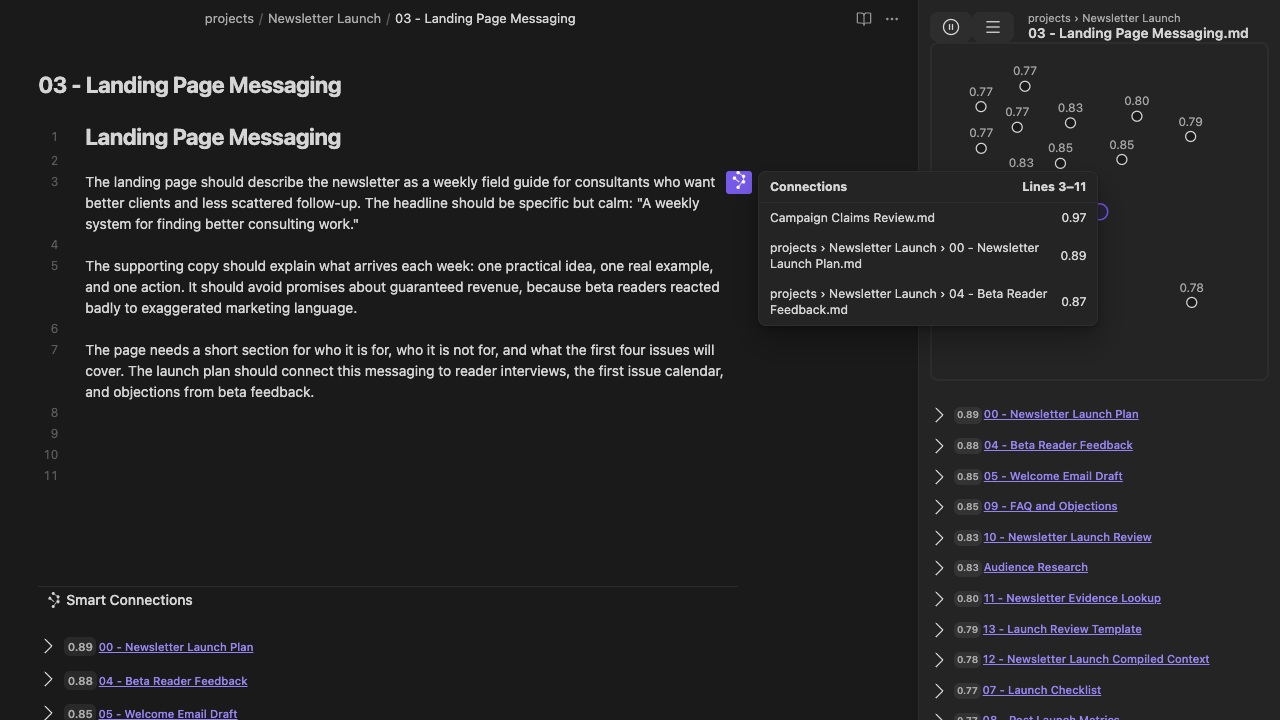
Screenshot unavailable. Open the image to try again.](/assets/connections-current-inline-popover-v4-8-1-documentation-1280x720-desktop-2026-08-07.png)
Paragraph-level connections beside the draft. Earlier v4.8.1 example.
- Granular inline connections in the editor
- Local performance index for compatible semantic workflows
- Ranking and filtering controls for larger or noisy vaults
- Customizable connections algorithms and filters
Who this is for: writers, researchers, and Obsidian power users with large vaults.
Inspect a related passage where you draft.
Smart Graph
### See vault relationships as clusters and hubs
Explore how notes and blocks relate, then move from map-level insight back into writing, lookup, or cleanup.
[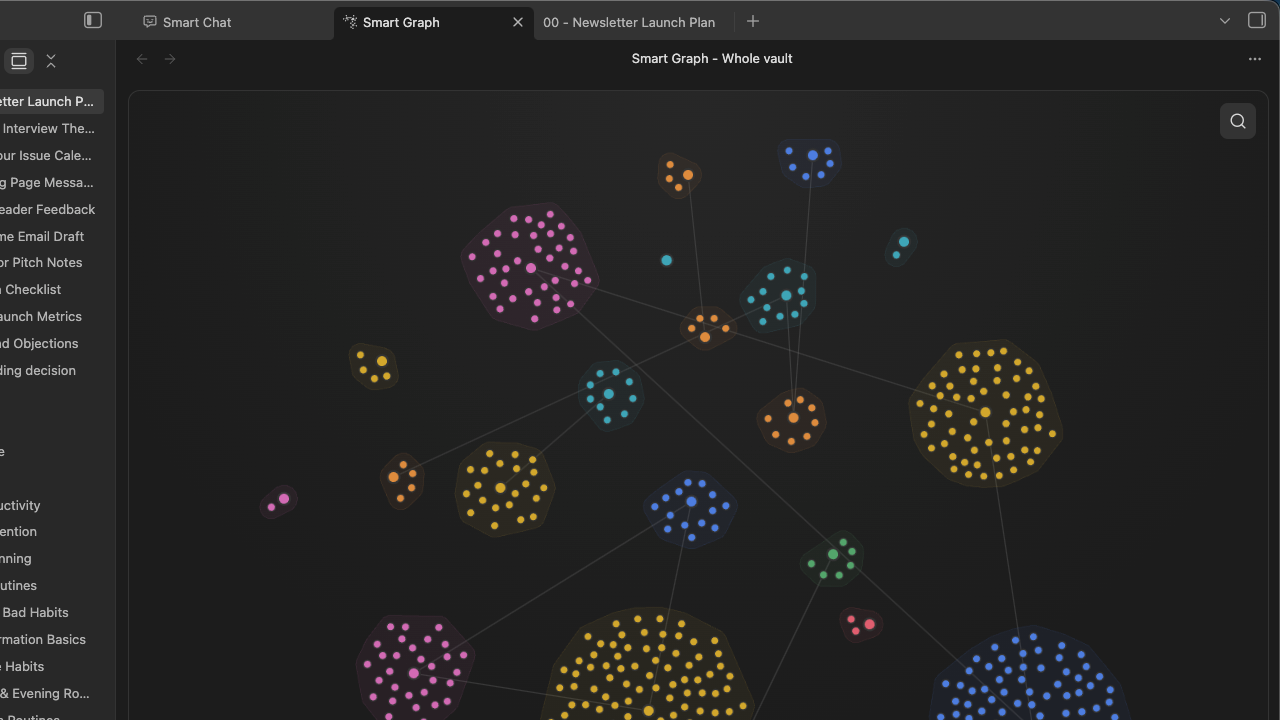
Screenshot unavailable. Open the image to try again.](/assets/graph-whole-vault-current-documentation-1280x720-desktop-2026-08-05.png)
Explore the whole-vault map as connected source clusters with sparse bridges.
- Visualize semantic clusters, hubs, and nearby notes
- Use the local performance index for calculation-heavy vault maps
- Explore result clusters before tuning Connections, Lookup, or Dedupe
- Built for large-vault relationship discovery
Who this is for: visual thinkers, researchers, and power users mapping large vaults.
Follow a relationship back to its source.
Context Pro
### Add dynamic rules and richer context inputs
Core already names and reuses text context. Pro adds dynamic selection rules and richer inputs when the assignment needs them.
[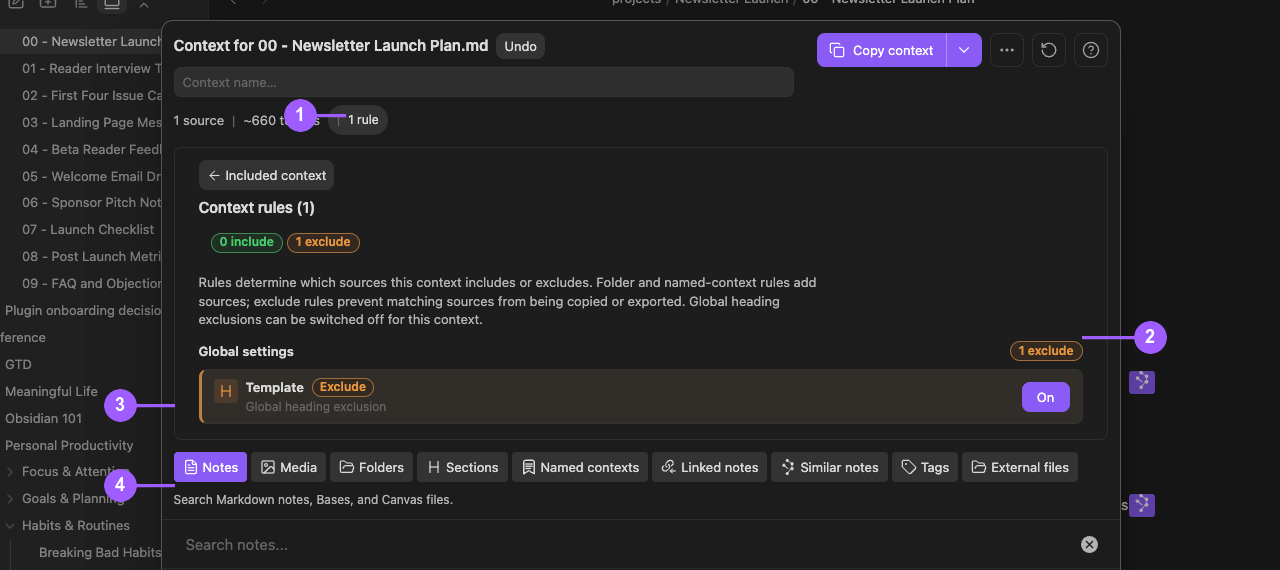
Screenshot unavailable. Open the image to try again.](/assets/context-rules-current-sanitized-annotated-1280x570-desktop-2026-08-06.png)
Exclude an unwanted heading from the context bundle before using it.
Shown: 0 include rules, 1 exclusion and an approximately 660-token estimate. This example demonstrates exclusion controls.
- Dynamic rules, exclusions, and heading controls
- Add repositories and local files as context
- Include supported PDFs and images in reviewed exports
Who this is for: developers, analysts, and researchers shipping with AI.
Review what the next assignment needs.
Connect Pro
### Use project sources from your AI app
Expose enabled tools from your running desktop vault. The AI app produces the analysis or draft; you decide what belongs in the work.
[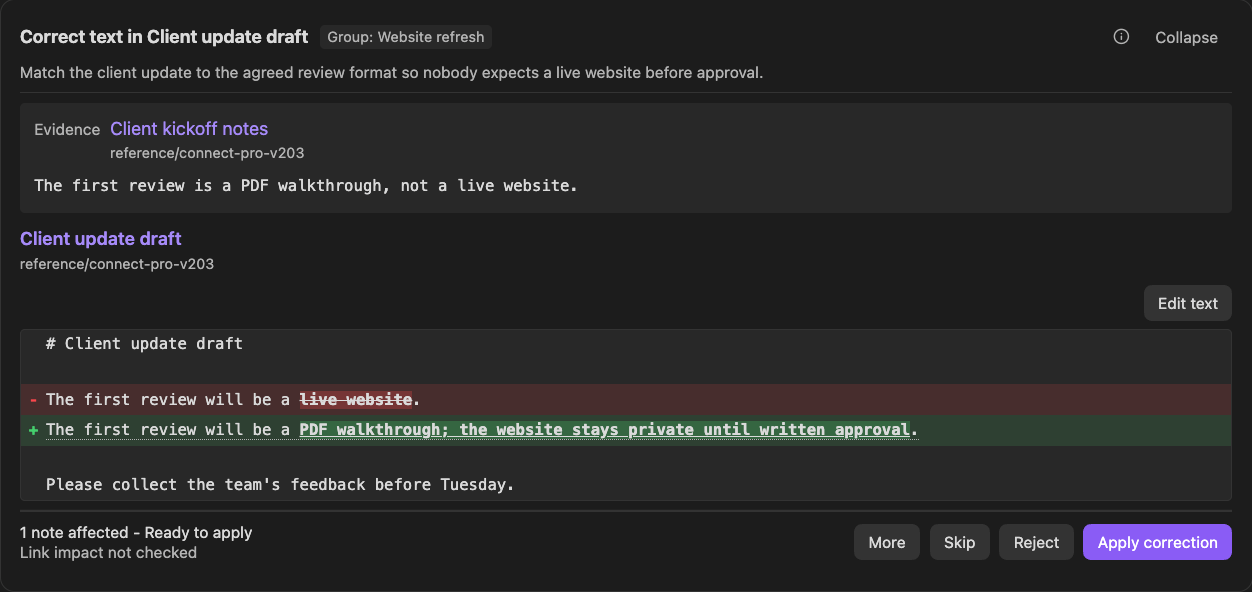
Screenshot unavailable. Open the image to try again.](/assets/connect-pro-inbox-correction-review-crop-1252x592-dark-v2.0.3.png)
Review the source and proposed correction before applying this Inbox item.
Dedicated proposal tools create Inbox items for review. Other enabled write tools can change data directly.
- Independent Local MCP, Smart CLI, and separate Remote GPT routes
- Read sources or queue dedicated proposals for Inbox review
- Other enabled write tools can change data directly
Who this is for: operators and builders who want chat to do real vault work.
Inspect enabled tools before connecting.
Chat Pro
### Choose models and sources inside Obsidian
Keep long-running conversations organized inside Obsidian.
- Smart Chat API Extension for configured local or cloud models
- Vault-aware context lookup and review before sending
- Saved API threads, search by name or recent prompt preview, and per-thread instructions
- Universal codeblock for supported provider and API thread references
Who this is for: builders who return to the same projects daily.
Return to the thread that serves the project.
Pricing
## Choose your Smart Connections Pro trial
Start with 14 days free. All-access includes the available Pro plugins and their local performance index.
Yearly saves ~17%
· 2 months free
Monthly for flexibility
switch to yearly to save $61
Monthly
Flexible billing, cancel anytime
Yearly
2 months free
Best value
Yearly selected. Save about 17% (around $61 per year) compared to paying monthly.
Monthly selected. Switch to yearly to get 2 months free (about 17% off).
Complete free workflows
### Core Smart Plugins
$0 forever
- ✔
Essential product-specific features.
- ✔
Local-first defaults.
- ✔
Use a complete free workflow for the task it serves.
[Install core plugins (free)](https://smartconnections.app/core-plugins/)
All-access
Best value · 2 months free
### Smart Connections Pro All-access
Configurable workflows, richer inputs, and enabled integrations across the Smart Plugins suite. No charge today. Cancel before trial renewal to avoid charges.
$30/month
$299/year
Flexible billing, cancel anytime. Or switch to $299/year (about $25/month) to save $61 per year.
~ $25/month · Save $61 vs paying monthly.
- ✔
Access to all Pro plugins while your plan is active.
- ✔
New Pro plugins included automatically.
- ✔
Available Pro plugins include Connections Pro, Context Pro, Chat Pro, Connect Pro, and Smart Graph. Check the Store for the current catalog and access.
- ✔
Local performance index for compatible Connections, Lookup, Smart Graph, inline connections, and Dedupe workflows.
- ✔
Connect Pro exposes enabled vault tools through Local MCP, Smart CLI, or the separate Remote GPT connection.
Connect Pro requires a running Obsidian Desktop vault on 1.12.2 or later. Obsidian CLI is required for Smart CLI and native CLI operations, not every Local MCP Smart action.
[Start monthly trial](#pro-checkout-email)
[Start yearly trial](#pro-checkout-email)
No charge today. Cancel anytime in 2 clicks.
1. 1) Start your 14-day free trial.
2. 2) Install or enable your Pro plugins.
3. 3) Use your vault workflows with full Pro access.
Roadmap pricing (coming soon): single-plugin and 3-plugin bundle options
Those options are in active roadmap planning and are not available for purchase yet.
If you want an update when they launch, join the waitlist:
[Join pricing waitlist](https://docs.google.com/forms/d/e/1FAIpQLSfzjnNFKKp1Z1_odShZtTRD84P8pFqrIemEG4p92MbC-nnyHQ/viewform)
Power-user performance
### Evaluate performance on the task you repeat
Pro adds a local performance index for compatible semantic workflows. Its effect depends on the task, vault, and machine; a note-count threshold alone does not establish a speed improvement.
Compare the same representative task with and without the Pro index on the same vault snapshot and machine, after each index is ready. Repeat the comparison and include preparation and review effort when judging whether it helps.
Connections and Lookup
Use the local performance index for compatible related-note and query workflows.
Inline connections
Reuse the same local performance layer for paragraph and section-level relationships.
Smart Graph
Calculation-heavy graph workflows use the same local performance layer.
Dedupe scanner
Compatible duplicate-candidate workflows use the local index; review each pair before acting.
The local index does not require a third-party vector database. Check index readiness before comparing results.
Smart Plugins
### Choose one contribution and inspect its result
[One relevant workflow](/docs/pro/getting-started/)
Complete its required setup and inspect a useful result.
[Check the boundary](/smart-plugins/core-vs-pro/)
Choose Core or a relevant Pro contribution by the task.
[Know the requirements](/pro/faq/)
Check access, models, sources, and connection requirements.
Evaluate: local performance
Compare a repeated task after index readiness on the same vault and machine.
Evaluate: inline discovery
Connections Pro adds paragraph and section relationships plus configurable scoring and ranking.
Evaluate: richer AI inputs
Core reuses named text context. Context Pro adds dynamic rules, external files, and media; Chat Pro adds configured API threads.
Evaluate: connected source access
Connect Pro exposes enabled reads, dedicated review proposals, and direct actions to the route you configure.
### Core vs Pro features
Core stays free and product-specific. Pro adds advanced control across the Smart Plugins suite.
#### Core vs Pro in 20 seconds
Core provides complete free workflows. Pro adds specific controls, richer inputs, configured API chat, local indexing, and enabled vault integrations when a recurring task needs them.
| Outcome | Core (free) | Pro (trial) |
| --- | --- | --- |
| Stay in flow while writing | - Local related-note discovery after indexing - Sidebar results and actions - Footer connections and the Connections mini graph | - Granular inline connections - Section-level connections - Ranking, filtering, and algorithm controls |
| Evaluate semantic workflow performance | - Standard local embeddings - Related-note discovery in Connections | - Local performance index for compatible workflows - Compare the same task, vault snapshot, and machine after readiness - No third-party vector database required |
| Reuse grounded context for AI work | - Text context from notes, blocks, and folders - Current-note text copy with link depth; direct selected-note and folder copy - Name contexts to reuse | - Add repos and local files as context - Dynamic rules, exclusions, and heading controls - Include PDFs and images for grounded outputs - Render embedded bases into copied context |
| Keep project chat organized | - Provider web codeblocks in notes - Saved provider links and Active/Done state in Markdown, not transcripts | - Configured local/cloud models through Smart Chat API Extension - Saved API threads; History searches names and recent prompt previews - Per-thread instructions and a universal provider/API codeblock - Drag notes and files into chat with review |
| Turn chat into vault actions | - No remote action bridge - Run vault steps yourself inside Obsidian | - Independent Local MCP, Smart CLI, and separate Remote GPT routes - Enabled reads and dedicated Inbox proposals - Other enabled write actions run directly |
| Support and sustainability | - Free and source-available - Great for getting started | - Priority email support - Funds ongoing development |
Want the full breakdown? Expand the detailed feature tables by plugin below.
Full feature breakdown by plugin
#### Smart Connections
Core Smart Connections includes related-note results and the mini graph. Connections Pro adds inline discovery,
advanced controls, semantic neighborhoods, and a local performance index whose benefit you can test on your task.
| Feature | Core | Pro |
| --- | --- | --- |
| Core features (included in both) |
| Bundled local embeddings i The bundled local model does not require a provider API key. Wait for indexing readiness before judging results. Note content stays on your device for this local embedding operation. | ✔ Included in Core | ✔ Included in Pro |
| Real-time connections i Surface relevant content based on your current note. Displays semantically related notes in the sidebar while you work. | ✔ Included in Core | ✔ Included in Pro |
| Footer connections view (great for mobile!) i View connections at the bottom of each note. No switching to sidebar necessary. | ✔ Included in Core | ✔ Included in Pro |
| Actions for utilizing connections results i Drag results into notes to create links. Hide or pin results per active note. Copy results as a list of links. | ✔ Included in Core | ✔ Included in Pro |
| Mobile compatible i Works in the Obsidian mobile app. | ✔ Included in Core | ✔ Included in Pro |
| Smart Lookup (separate Core Store plugin) i Install the separate Smart Lookup product for semantic queries. Its Core route searches by meaning after index readiness; this is not an extra Connections edition feature. | ✔ Included in Core | ✔ Included in Pro |
| Connections mini graph and random walk i Inspect current related-note results in the Core mini graph or explore a random connection. | ✔ Included in Core | ✔ Included in Pro |
| Pro-only additions |
| Semantic neighborhoods and Graph + List controls i Configure a semantic neighborhood and inspect its results. The Core Connections mini graph remains free; Smart Graph is a separate Pro Store product for broader semantic scopes and exports. | × Not in Core | ✔ Included in Pro |
| Large-vault performance index i Provides a local index for compatible semantic workflows without a third-party vector database. Compare the same task, vault, and machine after readiness to evaluate its effect. | × Not in Core | ✔ Included in Pro |
| Granular inline connections i See connections for specific paragraphs or sections in your notes without leaving the editor. | × Not in Core | ✔ Included in Pro |
| Smart Dedupe (separate Pro Store product) i Install Smart Dedupe separately to inspect duplicate candidates. Review the source pair before deciding what to retain; detection does not merge or delete notes automatically. | × Not in Core | ✔ Included in Pro |
| Bases Connections functions (score and list) i Use bases to build a custom connections view. Add a column for scoring connection to a target note. Or add a column that lists links to connections for each result. | × Not in Core | ✔ Included in Pro |
| Advanced control over connections algorithms i Configure algorithms, filters, and ranking. | × Not in Core | ✔ Included in Pro |
Smart Lookup, Smart Graph, and Smart Dedupe are separate Store products. Check their guides and required setup for the workflow you need.
[Learn more about Smart Connections](/smart-connections/)
#### Smart Context
Core Smart Context assembles, names, and reuses text bundles with size estimates. Context Pro adds dynamic
rules, exclusions, external files and repositories, and supported media exports.
| Feature | Core | Pro |
| --- | --- | --- |
| Core features (included in both) |
| Efficient context building i Assemble text context from notes, folders, and blocks. Character counts and approximate tokens help estimate size; verify the destination model's actual limits before sending. | ✔ Included in Core | ✔ Included in Pro |
| Copy reviewed text context i Copy all notes included in context with one click. Include linked notes up to a specific depth. | ✔ Included in Core | ✔ Included in Pro |
| Name contexts to save and reuse them i Save curated contexts so you can reuse your best setups across projects. | ✔ Included in Core | ✔ Included in Pro |
| Copy from file navigator i Right-click folders or selected files in the file-folder navigator to copy the entire selection in one click. | ✔ Included in Core | ✔ Included in Pro |
| Pro-only additions |
| Dynamic rules and external context i Apply dynamic inclusion, exclusion, and heading rules, or add supported external files and repositories. Inspect the resolved package before copying or exporting it to the chosen app. | × Not in Core | ✔ Included in Pro |
| Let AI see media in your context i Export supported images and PDF pages in a media package. Confirm that the receiving app or model supports the exported format; copying text alone does not send those images. | × Not in Core | ✔ Included in Pro |
| Embedded bases rendering i Includes embedded bases, rendered as markdown tables, in context that is copied to the clipboard. Treats links in bases as normal links so results can also be included when copying with links. | × Not in Core | ✔ Included in Pro |
[Learn more about Smart Context](/smart-context/)
#### Smart Chat
Core Smart Chat uses provider web codeblocks and saves provider links with Active/Done state in Markdown,
not full transcripts. Pro adds the universal codeblock and Smart Chat API Extension for configured models.
| Feature | Core | Pro |
| --- | --- | --- |
| Core chat in your editor |
| Inline chat in your notes. i Render a supported provider web interface in the owning note on desktop. Markdown stores a recognized provider thread link and tracking state; the transcript remains with the provider. | ✔ Included in Core Chat | ✔ Available alongside Smart Chat |
| Pro-only Smart Chat API Extension and universal codeblock |
| Universal codeblock and local/cloud API Extension i The universal codeblock selects supported provider web threads or API Extension thread references. Smart Chat API Extension uses a compatible configured local or cloud model; its runtime or provider credentials are separate prerequisites. Provider web threads do not require an API model. | × Not in Core Chat | ✔ Included in Smart Chat |
| Per-thread custom instructions i Set a default system prompt and refine instructions per chat thread so each project can have its own voice and constraints. | × Not in Core Chat | ✔ Included in Smart Chat |
| AI-assisted context retrieval i Preview and edit context before sending to the model. | × Not in Core Chat | ✔ Included in Smart Chat |
| Drag notes and files into chat i Quickly add notes, images, and PDFs into your current chat. | × Not in Core Chat | ✔ Included in Smart Chat |
| Saved API threads and bounded search i Chat History searches thread names and displayed recent user-prompt previews. Chat Manager searches names or keys. Neither performs exhaustive full-message search. | × Not in Core Chat | ✔ Included in Smart Chat |
[Learn more about Smart Chat](/smart-chat/)
#### Connect Pro
Connect Pro exposes enabled tools from your running desktop vault through Local MCP, Smart CLI, or the
separate Remote GPT connection. Local transport does not mean the AI app's model processes content locally.
| Feature | Core | Pro |
| --- | --- | --- |
| Pro-only bridge to vault actions |
| Independent Local MCP and separate Remote GPT connections | × Not in Core | ✔ Included in Pro |
| Enabled Smart CLI and native CLI operations when host CLI support is configured | × Not in Core | ✔ Included in Pro |
| Enabled source reads and dedicated correction, move, or merge proposals for Inbox review | × Not in Core | ✔ Included in Pro |
| Other enabled tools can change vault or Context data directly | × Not in Core | ✔ Included in Pro |
| Explicit connect/disconnect control and status visibility in the plugin | × Not in Core | ✔ Included in Pro |
Requires a running Obsidian Desktop vault on 1.12.2 or later, active Pro access, and a supported client.
Obsidian CLI is required for Smart CLI and native CLI operations, not every Local MCP Smart action.
Only dedicated proposal tools hold their source changes for Inbox review. Inspect the enabled tools and permissions.
[Learn more about Connect Pro](/connect-pro/)
Core Smart Plugins remain free and source-available. Pro plugins exist to fund ongoing development.
### Questions before you start?
Quick answers about setup, privacy, trial control, large-vault performance, Connect Pro requirements, and supporter access.
What if I encounter an issue with the Pro plugin?
Pro subscribers get priority email support, just reply to your welcome email. Please include any screenshots that help show the issue.
What's the process to cancel a subscription?
Use this [manage your subscription](https://smartconnections.app/subscription-manage/) link. Cancel before the end of the 14-day free trial to prevent charges. Your welcome email also includes this link.
What if I have not received my key after starting a trial?
Your Pro plugins license key and manage-subscription link are in your welcome email. If it did not arrive, email [brian@smartconnections.app](mailto:brian@smartconnections.app) and we will resend access details.
Do you offer a student discount?
Yes. Student discounts are currently reviewed manually. Sign up for a free trial and reply to your welcome requesting the student discount. Please include a screenshot of your student ID or other proof of enrollment.
Is Pro complicated to set up?
Setup depends on the job and plugin. Choose a complete free workflow or go directly to the relevant Pro
contribution. Configure only its required index, provider, source, or connection, then inspect the result.
Will Pro help if my large vault feels slow?
Pro adds a local performance index for compatible semantic workflows. The effect depends on the task, vault,
and machine. Compare the same representative task with and without the Pro index after each index is ready,
on the same vault snapshot and machine. Repeat the comparison and include preparation and review effort.
Are free Core plugins going away?
No. Core Smart Plugins remain free and [source-available](/legal/license/). Pro plans fund development while keeping the free
experience strong.
Does Pro upload my notes?
Pro access does not upload notes by itself. A configured cloud embedding or ranking provider can receive
eligible source text for that operation. Chat and connected AI apps may send prompts and returned sources to
their provider. Review the selected sources and provider; Local MCP is local transport, not a local-model guarantee.
What is Connect Pro?
Connect Pro makes enabled vault tools available to a supported AI app through Local MCP, through Smart CLI,
or through the separate Remote GPT route. Read sources, inspect context, or request dedicated proposals for
Inbox review. Other enabled write tools can change data directly; Inbox does not intercept every write.
Does Connect Pro require anything extra?
Keep the intended vault running in Obsidian Desktop 1.12.2 or later with Connect Pro enabled and Pro access
active. Local MCP needs a supported client on the same computer; Remote GPT has its own connection.
Obsidian CLI is needed for Smart CLI and native CLI operations, not every Local MCP Smart action.
Do I need all Pro plugins to get value?
No. Start with one workflow that already matters in your day-to-day vault work. All-access includes every Pro plugin, but you can keep your focus narrow and only expand when you actually need the next workflow.
Can I switch which Pro plugins I use during the trial?
Yes. During the 14-day All-access trial you can test the Pro plugins available to your account in the live
Store. Complete one relevant result before switching so you can identify what helped or failed.
What if I am not sure Pro is for me yet?
Choose one real task during the 14-day trial. Compare its result, setup, preparation, review, and repair with
your current approach, including AI tools you already use. A genuine later occasion of use helps assess whether
the contribution repeats.
Is Pro only for developers?
No. Pro is built for anyone shipping meaningful work in Obsidian. Developers, writers, researchers, and operators use it to keep context organized and workflows in one place.
What if I am already a supporter?
Everyone that supported the project prior to 2026 is automatically grandfathered in to the All-access plan.
Use your existing supporter key to log in and gain access to Pro plugins.
Ready to choose a Pro plan? Jump back to pricing.
View pricing
×
Lock-in Lifetime All-access
## All-access + Private Community for Founding Supporters {#founding-supporter-heading}
Before you start your 14-day all-access trial, you can instead become a Founding Supporter. For a one-time
contribution you get lifetime all-access to Pro plugins plus private supporter chat access.
- ★
One-time contribution for lifetime perks
- ★
Private supporter chat
- ★
Review the current Founding Supporter offer before contributing
Compare the current lifetime offer with the trial and subscription options above.
[Lock-in Lifetime All-access](https://donate.stripe.com/6oUdRacdabLvcn0fhQgA80w)
[Continue with 14-day trial only](#pro-checkout-email)
If you are already a monthly, yearly, or Founding supporter, your supporter benefits already include Pro
plugins. You do not need this Pro trial plan on top of your pledge.
×
## Enter your email to continue {#pro-checkout-email-heading}
We'll use this email to create your account and send your free-trial key.
Email address
Send me the Smart Plugins essential workflows
Optional now. Included when your free trial starts; unsubscribe anytime.
Continue
JavaScript is required to enter your email and start secure checkout.
---
## Why
canonical: https://smartconnections.app/smart-plugins/why/
html_url: https://smartconnections.app/smart-plugins/why/
markdown_url: https://smartconnections.app/smart-plugins/why.md
llms_url: https://smartconnections.app/smart-plugins/why/llms.txt
last_modified: 2026-10-07T16:48:25.130Z
usage_notes: |-
Use this page to answer questions about Why.
excerpt: |-
WHY Smart Plugins Your vault is the shared workspace between you and AI. Smart Plugins are a focused set of Obsidian companions that make your vault feel more responsive, more useful, and easier to trust. Not louder. Not more complicated. Just easier to use the work you already did. If you have ever thought: I know I wrote about this, but I cannot find it I keep re-explaining the same project to…
suggested_links:
- title: Connections Early Getting Started
url: https://smartconnections.app/smart-plugins/connections-early-getting-started/
- title: Core Vs Pro
url: https://smartconnections.app/smart-plugins/core-vs-pro/
- title: Faq
url: https://smartconnections.app/smart-plugins/faq/
- title: For Entrepreneur Coders
url: https://smartconnections.app/smart-plugins/for-entrepreneur-coders/
- title: Getting Started
url: https://smartconnections.app/smart-plugins/getting-started/
# WHY Smart Plugins
Your vault is the shared workspace between you and AI.
Smart Plugins are a focused set of Obsidian companions that make your vault feel more responsive, more useful, and easier to trust.
Not louder.
Not more complicated.
Just easier to use the work you already did.
If you have ever thought:
* I know I wrote about this, but I cannot find it
* I keep re-explaining the same project to AI
* My notes are growing faster than my ability to connect them
* I want AI help, but I want it grounded in my own writing
* I want chat, context, and next actions to stay attached to the work
Smart Plugins are built for that.
> [!NOTE] A simple premise
> Better models do not fix fragmented work.
> Smart Plugins reduce the cost of finding, packaging, continuing, structuring, and reviewing AI work inside Obsidian.
## What changes when Smart Plugins are part of your flow
You stop treating your vault like storage.
You start treating it like a working environment:
* Smart Connections surfaces related notes while you write
* Smart Lookup retrieves by meaning when you have a question but not the exact words
* Smart Context turns scattered notes into a clean, reusable context bundle
* Smart Templates gives repeated work a trusted structure
* Smart Chat keeps conversations attached to your notes
* Smart Graph shows topic landscapes when a list is too flat
* Connect Pro brings vault knowledge to compatible external AI tools through configured reads, retrieval, and reusable context; dedicated edit proposals stay pending for your review
The point is not more features.
The point is less friction between thinking, grounding, delegating, reviewing, and shipping.
## The problem Smart Plugins solve
### Your vault has signal, but it is hard to access on demand
Obsidian is excellent at capturing.
Most people get stuck on retrieval and reuse.
* search requires you to remember the right words
* folders require you to pre-organize perfectly
* tags drift over time
* AI without context drifts even faster
Smart Plugins help your notes become useful before your vault is perfectly tidy.
### AI adds a new problem: fragmented work
Default AI workflows scatter work across tabs, prompts, tools, and unfinished threads.
The source material lives in your notes.
The prompt lives in a chat box.
The next action lives in your head.
The output lives somewhere else.
That fragmentation is why Smart Loop matters:
> Keep the outcome, context, thread, review state, and draft together in one note.
The note becomes the work item.
> [!NOTE] Watch the problem: useful work gets scattered
> [](https://youtu.be/_i3577ti8jg?t=14)
>
> Callum opens with the real pain: capture is easy, but notes and chats stop being useful when context gets scattered and cannot be recovered in the moment of work.
It can hold the outcome, context, thread, review state, and deliverable.
## What Smart Plugins are
Smart Plugins are built on Smart Environment:
* local-first by default
* shared sources, models, providers, exclusions, indexing, events, and status
* compatible with different model providers and setups
* minimal dependencies and inspectable foundations
* designed to improve as underlying models improve
They are intentionally modular.
Instead of one giant plugin with endless settings, you get focused tools that work together.
## Pick the right surface
| User intent | Best surface | Why |
| --- | --- | --- |
| I am writing in a note and want related material | Smart Connections | the current note is the anchor |
| I have a question but not the exact words | Smart Lookup | the query is the anchor |
| I know the exact word, filename, heading, tag, or regex | Obsidian search | lexical matching is the goal |
| I need to see the shape of a topic | Smart Graph | clusters and neighborhoods are the goal |
| I need reusable context for AI | Smart Context | selected notes need packaging |
| I need structure for repeatable output | Smart Templates | repeated work needs a form |
| I need a thread that stays with the work | Smart Chat | the conversation should remain attached |
| I want my AI tool to work with my notes | Connect Pro | configured vault access, with dedicated proposals for reviewed edits |
| I need to reduce repeated work or repeated context | Smart Dedupe | likely overlap needs review |
Compressed rule:
> Current note -> Connections. Question -> Lookup. Exact phrase -> Obsidian search. Landscape -> Smart Graph. Reusable set -> Context. Repeatable form -> Templates. Durable thread -> Chat. External AI access -> Connect Pro.
## Pick a starting path
### You want immediate wins while writing
Start with Smart Connections.
* Use the Connections view to surface relevant notes anchored to your current note
* Use Smart Lookup when you want query-first semantic search
* Core includes sidebar and footer workflows
* If you are a power user, explore inline discovery, graph/list exploration, Bases workflows, ranking, filtering, custom algorithms, and large-vault performance
Links:
* [Getting Started with Smart Connections](https://smartconnections.app/smart-connections/getting-started/)
* [Exploring the Connections view](https://smartconnections.app/smart-connections/list-feature/)
* [Smart Lookup](https://smartconnections.app/smart-lookup/search/)
* [Inline connections](https://smartconnections.app/smart-connections/inline/) (Pro)
### You want better AI outputs with less setup
Start with Smart Context.
* Copy a folder or selection as a predictable bundle
* Build and save named context packs for projects you revisit
* Use link depth when your hub note already points to the true references
* Keep context small enough to review before you send it
Links:
* [Getting Started with Smart Context](https://smartconnections.app/smart-context/getting-started/)
* [Smart Context Builder](https://smartconnections.app/smart-context/builder/)
* [Smart Context Clipboard](https://smartconnections.app/smart-context/clipboard/)
* [Smart Context file nav actions](https://smartconnections.app/smart-context/file-nav-actions/)
### You want a real chat workspace inside Obsidian
Start with Smart Chat.
* Keep threads attached to your notes
* Review or add context when it matters
* Route to local or cloud models when you need different strengths (Pro)
* Mark threads active or done so follow-up is not memory-based
Links:
* [Smart Chat codeblocks](https://smartconnections.app/smart-chat/codeblock/)
* [Smart Chat API integration](https://smartconnections.app/smart-chat/api/)
### You repeat the same output structure
Start with Smart Templates.
* Start from the current note or selection
* Add context before choosing the template
* Use trusted Markdown templates from your vault
* Copy a reviewed prompt, then use it in the AI chat you choose
Links:
* [Smart Templates documentation](https://smartconnections.app/docs/templates/)
* [Smart Templates Clipboard](https://smartconnections.app/smart-templates/clipboard/)
* [Smart Templates settings](https://smartconnections.app/smart-templates/settings/)
### You already use an AI tool and want it to work with your notes
Start with Connect Pro and a compatible external AI app.
* Connect the intended desktop vault and review tool permissions before sharing content
* Begin with a read-only request for a short, non-sensitive note; compare the returned text with Obsidian
* Use available retrieval and context tools for a real assignment, and request a dedicated proposal when you want to review a correction or move before it is applied
Some actions change notes directly. Inbox review applies to proposals, not every write.
Follow [Getting started with Connect Pro](https://smartconnections.app/connect-pro/getting-started/) for setup and compatibility requirements.
## Core vs Pro, without the confusion
Core is designed to feel like:
* install
* open the view
* get one useful result from your own notes
Pro is designed for specific advanced needs:
* richer context
* deeper configuration
* faster large-vault workflows
* provider/API workflows
* native chat with configured local or cloud models
* approved vault actions
> [!NOTE] Why split it this way
> A stable Core keeps onboarding clean.
> A sustainable Pro layer keeps the fast-moving parts healthy.
If you want the details:
* [Core vs Pro](https://smartconnections.app/smart-plugins/core-vs-pro/)
* [Introducing Pro plugins](https://smartconnections.app/introducing-pro-plugins/)
## Trust comes from boundaries, not slogans
Smart Plugins are local-first by default, but workflows differ.
Use this rule:
> Private by default. Clear about what leaves your machine.
Core local retrieval can run inside Obsidian.
Clipboard workflows send content when you paste it elsewhere.
Provider-backed generation, chat, media, API, and action workflows use the scope you explicitly send through configured integrations.
Review sources, exclusions, and provider settings before sensitive workflows.
## Explore Smart Plugins
If you want the map of what is available and how the pieces fit:
* [Explore Smart Plugins](https://smartconnections.app/smart-plugins/)
* [Getting Started with Smart Plugins](https://smartconnections.app/getting-started/)
* [Smart Loop](https://smartconnections.app/smart-loop/)
If you already know you want advanced workflows:
* [Explore Pro plugins](https://smartconnections.app/pro-plugins/)
---
## Getting Started
canonical: https://smartconnections.app/smart-lookup/getting-started/
html_url: https://smartconnections.app/smart-lookup/getting-started/
markdown_url: https://smartconnections.app/smart-lookup/getting-started.md
llms_url: https://smartconnections.app/smart-lookup/getting-started/llms.txt
last_modified: 2026-10-06T15:15:41.365Z
usage_notes: |-
Use this page to answer questions about Getting Started.
excerpt: |-
Getting started with Smart Lookup Smart Lookup helps when you remember an idea but not the exact words, title, or location. The first win is one recovered source that becomes useful in your current work. [!IMPORTANT] Lookup finds sources You can type a question, but Lookup returns ranked notes or note sections. It does not write the answer. What you will do Open Smart Lookup. Describe one idea…
suggested_links:
- title: Faq
url: https://smartconnections.app/smart-lookup/faq/
- title: Search
url: https://smartconnections.app/smart-lookup/search/
- title: Started
url: https://smartconnections.app/ai-help-for-projects/started/
- title: Ai Help For Projects
url: https://smartconnections.app/ai-help-for-projects/
- title: Build Context In Obsidian Notes
url: https://smartconnections.app/build-context-in-obsidian-notes/
# Getting started with Smart Lookup
Smart Lookup helps when you remember an idea but not the exact words, title, or location. The first win is one recovered source that becomes useful in your current work.
> [!IMPORTANT] Lookup finds sources
> You can type a question, but Lookup returns ranked notes or note sections. It does not write the answer.
## What you will do
1. Open Smart Lookup.
2. Describe one idea you know exists in your notes.
3. Run the query.
4. Expand one result.
5. Verify the result.
6. Open or use the source.
No API key, chat model, or Smart Context setup is required for this first search.
## Before you start
Confirm that:
- Smart Lookup is installed and active; use its live Smart Plugins Store row to check access and complete any install or enable action
- Smart Environment has prepared the relevant sources and embeddings
- the vault contains at least one meaningful note about the topic
Use a real topic whose good result you could recognize. A generic demo query is difficult to judge.
## 1. Open Smart Lookup
Use the ribbon magnifying-glass action or run:
```obsidian-command
Smart Lookup: Open: Lookup view
```

The Lookup sidebar opens with a query box. If the command is missing, use this sequence:
1. Open **Browse Smart Plugins** and find Smart Lookup.
2. Complete the install or enable action shown by its row, resolving any access message first.
3. Complete a reload action if shown, then confirm that Smart Lookup is **Active** before opening its command again.
## 2. Describe what you want to find
Use one semantic intent:
```text
subject + context + distinguishing detail
```
For example, a newsletter writer could ask:
```text
What did beta readers say about the newsletter's voice and weekly format?
```
The example below follows that query through to the matching source. Use a question about your own notes. You can also select a complete phrase in a note and choose **Search selection with Smart Lookup** from the editor context menu.
Search for the material that you want to recover. Do not search for the report that you hope to create later. For example, use `project risks, unresolved decisions, and next actions` instead of `summarize everything and recommend the best action`.
## 3. Run the search
- With **Auto-submit** enabled, pause after typing and let Lookup refresh.
- With Auto-submit disabled, choose **Lookup**.
Use ordinary **Lookup** for this first search; it does not call a chat model. **Generate HyDE** is a separate optional action, not a prerequisite.

*Shown in Smart Lookup Pro v0.2.2 with Sources as the result type.*
One clear intent usually produces a more interpretable result set than a long multi-part prompt.
Use **Previous query** and **Next query** in the Lookup toolbar when you want to return to a question you already ran.
## 4. Verify one result
Start with the first one to three rows.
1. Expand a promising result.
2. Read enough of the excerpt to understand why it matched.
3. Check the note title, heading, path, or line range.
4. Open the source when the excerpt is not enough.
The score helps order inspection. It does not guarantee usefulness or correctness.

The expanded **Beta Reader Feedback** source answers the question with reader comments about voice, practical examples, and a format that fits between calls.
> Preview before opening. Open before trusting.

*The opened source matches the expanded Lookup result shown above. This focused editor crop omits the Lookup pane; the accepted native capture retains both panes.*
## 5. Use the useful source
Lookup has created value when the recovered note changes what you can do next. For example:
- continue reading the source
- add a normal Obsidian link to the working note and explain why it matters
- drag the source to a supported Context, Chat, Graph, or Connections destination
- use the evidence in a decision, draft, or review
After a drag or handoff, confirm that the expected source appears in the destination.
You know the first workflow succeeded when:
| Check | Successful state |
| --- | --- |
| Lookup opened | The sidebar shows the query box. |
| Query ran | A ranked result list appears. |
| Match was verified | An expanded or opened source contains relevant material. |
| Result became useful | You opened, linked, transferred, or applied the source. |
The **Open in Context Builder** and **Explore in Smart Graph** actions in the toolbar's **More actions** menu apply to the result list, not one result.
### Optional: check the Context Builder handoff
When the reviewed result set belongs in a source package, choose **More actions -> Open in Context Builder**. Check the received source identities before copying or sending anything.

*This receipt comes from a separate ordinary-Lookup run in Smart Lookup Pro v0.4.0 and Smart Context Pro v3.4.2, with Sources and a result limit of three. It does not continue the v0.2.2 first-search captures above. No copying or sending is shown.*
See the [complete Lookup-to-Context handoff](https://smartconnections.app/docs/lookup/#context-handoff) for the query, list-menu action, and matching received sources. Smart Context remains optional for the first search.
## If the first Lookup does not work
| What happened | Try first |
| --- | --- |
| The command is missing | Check the Smart Lookup Store row. Complete its install, enable, access, or reload step, then confirm that it is Active. |
| No results appear | Wait for Environment preparation. Query a topic known to exist in several notes. |
| Results are too broad | Add one project, audience, constraint, or other distinguishing detail. |
| Results are too narrow | Remove the least important detail. |
| You need an exact phrase or title | Use Obsidian Search. |
| You expected a written answer | Review the sources. Then continue with Smart Context or Smart Chat. |
If several known topics remain empty or stale, review [Smart Environment readiness](https://smartconnections.app/smart-environment/faq/) before tuning retrieval behavior.
## Continue after the first result
Use the [complete Smart Lookup documentation](https://smartconnections.app/docs/lookup/) to:
- choose Sources or Blocks
- understand result metadata and scores
- drag reviewed sources into another workflow
- explore a result set in Smart Graph
- refine broad or narrow queries
Do not tune advanced settings until the basic workflow has recovered one source worth using.
---
## Faq
canonical: https://smartconnections.app/pro/faq/
html_url: https://smartconnections.app/pro/faq/
markdown_url: https://smartconnections.app/pro/faq.md
llms_url: https://smartconnections.app/pro/faq/llms.txt
last_modified: 2026-10-06T15:15:14.199Z
usage_notes: |-
Use this page to answer questions about Faq.
excerpt: |-
Pro Plugins FAQs What are Pro plugins?#Pro plugins add advanced Smart Plugin workflows. Examples include configurable retrieval, reusable external or media context, Smart Chat API Extension, Smart Graph, large-vault indexing, and supported vault actions through Connect Pro. Start with the one workflow that removes a real bottleneck. You do not need to install or enable every Pro plugin.What if I…
suggested_links:
- title: Started
url: https://smartconnections.app/ai-help-for-projects/started/
- title: Ai Help For Projects
url: https://smartconnections.app/ai-help-for-projects/
- title: Build Context In Obsidian Notes
url: https://smartconnections.app/build-context-in-obsidian-notes/
- title: Community Content
url: https://smartconnections.app/community-content/
- title: Faq
url: https://smartconnections.app/connect-pro/faq/
# Pro Plugins FAQs
## What are Pro plugins?
[Pro plugins](https://smartconnections.app/pro-plugins/) add advanced Smart Plugin workflows. Examples include configurable retrieval, reusable external or media context, Smart Chat API Extension, Smart Graph, large-vault indexing, and supported vault actions through Connect Pro.
Start with the one workflow that removes a real bottleneck. You do not need to install or enable every Pro plugin.
## What if I am already a supporter?
Supporters from before 2026 are grandfathered into All-access. Sign in with your account email and existing supporter key in the **connection key** field. If access is missing, reply to the original welcome email or use the support path on the [Pro page](https://smartconnections.app/pro-plugins/).
## How do I sign in to Pro plugins?
Open **Browse Smart Plugins** in the intended Obsidian vault. Under **Connect account**, choose **Login**. The browser's **Smart Connect** page asks for your account **email** and **connection key**. An existing supporter key works in the same key field.

Choose **Login**, allow the return to Obsidian if prompted, and check the Store for **Signed in to Smart Plugins account** and your access status. Keep your key private; do not substitute a model-provider API key or Obsidian account password.
## What if sign-in does not complete?
Start from **Login** in the Store. If the browser does not open, use **Copy link to login instead**. Open that generated link, not the bare sign-in-page URL: the generated link carries the return information. The default sign-in host is `connect.smartconnections.app`.
After the browser step, return to the intended vault and reopen the Store. Follow the state it actually shows:
- **Connect account**: start **Login** again.
- **Session needs refresh**: choose **Refresh** and check the resulting status. If it still needs refresh, make sure you have your connection key before choosing **Logout**, then **Login** again.
- **All-access subscription expired**: check your account's subscription status; repeating browser login is not evidence of renewed access.
Do not share your key or the full generated login or callback URL when asking for help.
## Why am I signed in but my Pro workflow is not ready?
Account sign-in, Pro access, plugin activation, and workflow readiness are separate checks. Read the Store's access message, confirm that the chosen plugin is **Active**, then complete its required model, index, permission, or connection setup. Finish with one useful result you can inspect.
The [Pro getting-started guide](https://smartconnections.app/docs/pro/getting-started) shows the account-status screenshot and walks through a complete first result. The example account's lifetime-access message is not a promise that all accounts have lifetime access.
## Are free Core plugins going away?
No. Core remains free and source-available under the [Smart Plugins License](https://smartconnections.app/legal/license/). That license is not an OSI open-source license.
## Does Pro upload my notes?
Pro access does not upload notes by itself. Smart Plugins are local-first by default.
A configured cloud embedding or ranking provider can receive eligible source text needed for that operation. Provider-backed chat and other downstream workflows can also receive the prompt or context you explicitly send through them. Review the context package and provider before sending a Smart Chat message or using another verified remote-model action. See the [Privacy Policy](https://smartconnections.app/legal/privacy-policy/).
## Where are Pro API keys stored?
Supported Pro integrations can store API keys through Obsidian's native keychain-backed secret storage. This protects the credential. It does not change which reviewed note content is sent when a provider-backed action runs. Examine the selected context and provider before you send sensitive material.
## Is Pro complicated to set up?
Setup depends on the plugin. Use this sequence:
```text
Installed -> Enabled -> Active -> Configured or Ready -> Successful result
```

An **Active** Store row means the plugin loaded in the current Obsidian session. It does not mean that a required model, provider, source index, or connection is ready, and it does not replace a visible product result.
The [Pro getting-started guide](https://smartconnections.app/docs/pro/getting-started) walks through one complete result before introducing the other plugins.
## What if I am not sure Pro is for me yet?
Use the trial shown on the [Pro page](https://smartconnections.app/pro-plugins/) to test one real workflow. The current offer includes a 14-day All-access trial. Confirm the current price, renewal date, and cancellation terms at checkout.
Choose one bottleneck. Complete only its prerequisite. Judge the result in its destination. Avoid changing several plugins or shared settings at once.
## What is included in the 14-day free trial?
The current offer provides 14 days of All-access with no charge on the first day. Use the live Pro page to see the packages included now. Use the billing portal to see the renewal date and terms attached to your account.
## What does Experimental mean in the Store?
Experimental plugins are available to eligible Pro accounts but may change more quickly than the main catalog. Use the live Store grouping as the current authority. Do not make an experimental workflow critical until you test its behavior and recovery path with your vault.
## Do you offer a student discount?
The current Pro offer provides a manual student-discount review. Start the trial. Reply to the welcome email. Follow the current proof-of-enrollment instructions. Send only the information requested.
## What's the process to cancel a subscription?
Use [Manage subscription](https://smartconnections.app/subscription-manage/). Confirm the effective cancellation date and remaining access in the billing portal.
## What if I have not received my key after starting a trial?
Check the email address used at checkout and its spam folder for your Pro welcome email and key. The browser sign-in form calls this the **connection key**. If it is still missing, contact support through the [Pro page](https://smartconnections.app/pro-plugins/) with non-sensitive purchase details. Do not include the key in a public post or screenshot.
## What if I encounter an issue with a Pro plugin?
Include:
- the plugin name
- the exact action you took
- what you expected
- what happened instead
- the complete error message
- your Obsidian version
- Environment readiness when the workflow uses indexed sources
Remove note content, account details, license keys, provider credentials, and local paths from screenshots before sharing them.
## Do I need all Pro plugins to get value?
No. Enable only the workflow that solves the current problem. Milestones and other learning aids are optional.
## Can I switch which Pro plugins I use during the trial?
Yes. All-access lets you test the Pro plugins available to your account in the live Store. Finish one result before switching so you can identify what caused an improvement or failure.
## Will Pro help if my large vault feels slow?
Some Pro workflows add a local performance index used by Connections, Lookup, Inline Connections, Smart Graph, and Dedupe. Its effect depends on the task, vault, and machine. Environment stats show index readiness and coverage; they do not establish a speed improvement in your workflow.

To evaluate a performance change, compare the same representative task with and without the Pro index on the same vault snapshot and machine, after each index is ready. Compare several runs and include preparation or review effort when judging whether the change helps.
## What is Connect Pro?
[Connect Pro](https://smartconnections.app/docs/connect-pro/) exposes enabled vault tools to a supported AI app through Local MCP, or through Smart CLI Pro. Connect Pro 2.0.3 includes the **Connect Pro Inbox** for reviewing dedicated correction, excerpt-move, block-move, and complete-note-merge proposals before those proposals change source notes.
The legacy **Remote GPT** connection is separate; the Official Connect Pro GPT is not required for Local MCP. Connect Pro is not Sync, a mobile-vault replacement, or an autonomous background agent. Only the dedicated proposal Tools are held for Inbox review; other direct-write Tools are not automatically intercepted.
## Does Connect Pro require anything extra?
Keep the intended vault open in Obsidian Desktop 1.12.2 or later with Connect Pro enabled and its required Pro access active. Select the setup for the route you will use:
| Route | Required setup | First evidence |
| --- | --- | --- |
| Local MCP | **Desktop apps (Local MCP)** shows **Running on this computer**; follow **Set up a desktop app** for a trusted supported client on the same computer. Remote GPT is not required. | The client discovers the enabled tools and returns one recognizable note from the intended vault. |
| Smart CLI Pro | Enable Obsidian CLI and check **Advanced** > **Obsidian CLI integration** and the registered enabled actions. | One bounded read returns the intended content. |
| Legacy Remote GPT | An available supported dedicated GPT integration and a connected **Smart Connect Pro GPT** row, with native CLI support for that route. | **Disconnect** is available, and one bounded read returns the intended vault content. |
Review **Tool permissions** before delegating changes; new actions default to enabled. The broad `obsidian_cli` Tool is not restricted by the individual CLI command toggles. Local MCP describes transport location, not a guarantee that the client's model provider receives no vault content.
The [Connect Pro getting-started guide](https://smartconnections.app/connect-pro/getting-started/) completes setup with one recognizable read from the intended vault. Dedicated proposals are optional next steps; [practice one reviewed change](https://smartconnections.app/docs/connect-pro/#first-reviewed-change) when the task needs that capability. A pending proposal leaves source files unchanged. Complete that separate exercise by applying or rejecting it in Obsidian and inspecting the files and recorded decision. Proposal feedback is historical decision evidence, not automatic preference learning.
## How do you decide what goes into Core vs Pro?
Core focuses on broadly useful workflows with little setup. Pro adds deeper configuration, specialized integrations, large-vault infrastructure, and higher-maintenance workflows. See [Core vs Pro](https://smartconnections.app/smart-plugins/core-vs-pro/) for the current comparison.
---
## Smart Templates
canonical: https://smartconnections.app/smart-templates/
html_url: https://smartconnections.app/smart-templates/
markdown_url: https://smartconnections.app/smart-templates.md
llms_url: https://smartconnections.app/smart-templates/llms.txt
last_modified: 2026-10-06T15:12:49.890Z
usage_notes: |-
Use this page to answer questions about Smart Templates.
excerpt: |-
Reusable AI prompts for Obsidian Smart Templates for Obsidian: Reuse your Markdown templates as AI prompts Stop rebuilding the same prompt every time you use AI. Start from the note or selection you care about, apply one or more templates you already trust, and get a repeatable prompt for meeting follow-ups, research briefs, summaries, and outlines. Current Smart Templates 2.3 completes this…
suggested_links:
- title: Ai Help For Projects
url: https://smartconnections.app/ai-help-for-projects/
- title: Build Context In Obsidian Notes
url: https://smartconnections.app/build-context-in-obsidian-notes/
- title: Community Content
url: https://smartconnections.app/community-content/
- title: Connect Pro
url: https://smartconnections.app/connect-pro/
- title: Core Plugins
url: https://smartconnections.app/core-plugins/
Reusable AI prompts for Obsidian
# Smart Templates for Obsidian: Reuse your Markdown templates as AI prompts
Stop rebuilding the same prompt every time you use AI.
Start from the note or selection you care about, apply one or more templates you already trust,
and get a repeatable prompt for meeting follow-ups, research briefs, summaries, and outlines.
Current Smart Templates 2.3 completes this workflow with Copy prompt in Core and Pro.
[Install from Community Plugins](https://obsidian.md/plugins?id=smart-templates)
[See the current Pro offer](/pro-plugins/)
Works with your existing templates | Current note or selection as context | Core and Pro: Copy prompt
Core and Pro
### Build the prompt and copy it
Best when you use ChatGPT, Claude, Gemini, Smart Chat, or another chat UI and just want a better prompt.
Your chosen AI tool
### Paste, examine, and send
Check the copied context, template, and instructions before sending the request. The destination produces the AI output.
[Install + first win](#first-win)
[Obsidian Templates vs Smart Templates](#obsidian-templates-vs-smart-templates)
[Proof](#proof)
[Core vs Pro](#core-vs-pro)
[Workflow fit](#workflow-fit)
[FAQ](#faq)
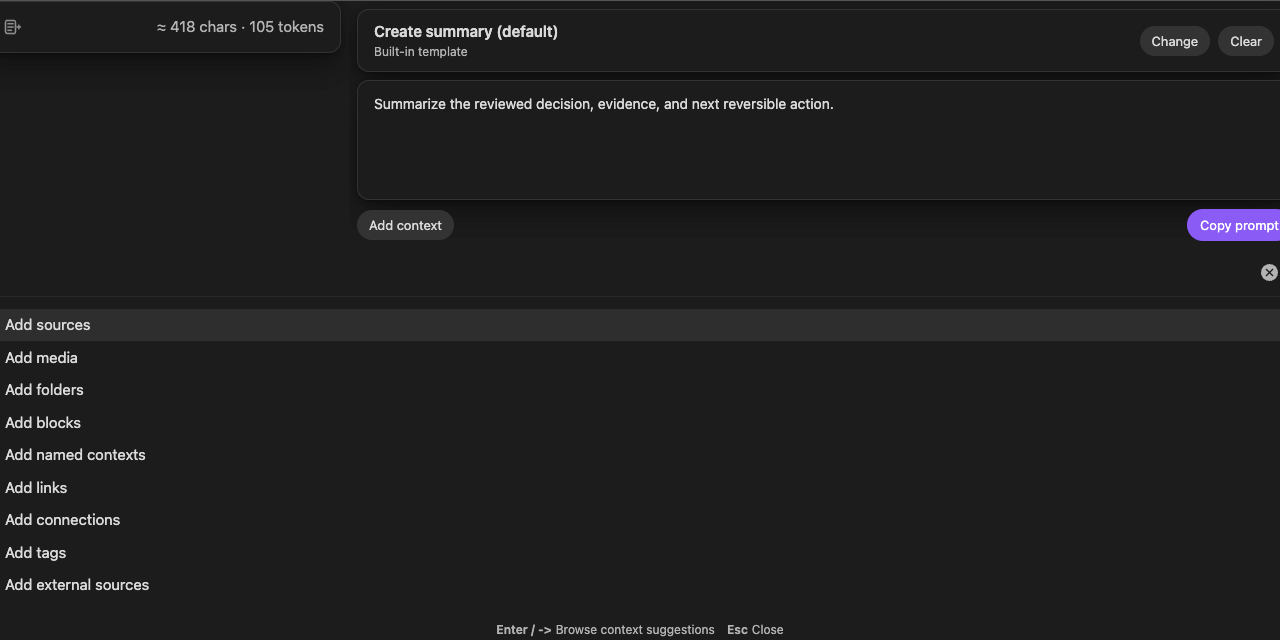
Smart Templates 2.3: start from context, select templates, and copy the prepared prompt in Core or Pro.
## Install Smart Templates and build your first useful prompt
Install the plugin, open a note you care about, and turn that note plus one template into a repeatable AI prompt.
1. Step 1
### Open the shared modal
Install Smart Templates from Community Plugins, then run Smart Templates: Open template context from the command palette or ribbon.
2. Step 2
### Start from the current note or selection
The current note is the context anchor. If you highlight text first, the selection becomes the starting context.
3. Step 3
### Choose a template and copy the prompt
Pick one template, add a short instruction, and review the request. Click Copy prompt, paste it into your chosen AI tool, and examine it before sending.
### First-win use cases
**Meeting notes:** prepare a request for action items, decisions, and follow-ups.
**Research notes:** prepare a request for summaries, open questions, and next steps.
**Drafts and outlines:** keep your preferred structure instead of re-explaining it every time.
## Obsidian Templates vs Smart Templates
Obsidian Templates inserts predefined note content. Smart Templates uses note context plus templates to build and copy a prompt for your chosen AI tool.
### Obsidian Templates
- ✓Insert predefined content into notes.
- ✓Great for note scaffolding and repeatable note creation.
- ✓Does not package the current note as AI context.
### Smart Templates
- ✓Starts from the current note or selection.
- ✓Reuses existing template files, flags, filename rules, or template headings.
- ✓Builds and copies the prepared prompt in Core and Pro.
Already use the Obsidian Templates folder? Point Smart Templates at the same source in
[Smart Templates settings](/smart-templates/settings/)
.
## Why Smart Templates works
It closes the gap between what your notes already know and what your prompt usually forgets.
### Start from context, not a blank box
The current note is the default anchor, and a text selection can replace it before you choose a template.
Learn the
[Template Context modal](/smart-templates/modal/)
.
### Detect templates where they already live
Use configured folders, the Obsidian Templates folder, a smart template: true flag, a filename rule, or matching headings.
Configure detection in
[Settings](/smart-templates/settings/)
.
### Use one shared flow for Core and Pro
Core and Pro both complete the current Smart Templates 2.3 workflow with Copy prompt. Your chosen AI tool handles the request after you paste and send it.
Read the
[clipboard workflow](/smart-templates/clipboard/)
or the
[retired v1 generation guidance](/smart-templates/generate/)
.
### Built-in defaults remove setup friction
Even before you configure vault-backed sources, Smart Templates includes defaults such as summary, tags, research paper, and diagram.
## Pick the workflow that matches your friction
Smart Templates pays off when the structure repeats even when the raw material changes.
### Meeting follow-up
Package meeting notes with a template requesting action items, owners, risks, and decisions.
### Research brief
Start from a source note or excerpt, add supporting context, then apply a briefing template.
### Writing structure
Keep your preferred outline, voice constraints, or section order without restating them every time.
### Multi-template request
Combine templates when one structure is not enough, such as a recommendation table plus an executive summary.
## Where Smart Templates fits in the Smart Plugins workflow
Use Smart Templates when structure is the problem. Use the rest of the ecosystem when discovery, context assembly, or ongoing chat is the bottleneck.
[Need better context
### Smart Context
Assemble the right notes, folders, or named packs before you apply a template.](/smart-context/)
[Continue with attached chat
### Smart Chat
Paste copied prompts into chats that stay attached to the right notes.](/smart-chat/)
[Need discovery
### Smart Connections
Find related notes before packaging them into a structured prompt.](/smart-connections/)
## Proof you can inspect right now
The best current proof is what you can inspect immediately: the plugin listing, the settings guide, and release notes.
Install
Obsidian Community plugin
Review the plugin entry and install Smart Templates from the official Obsidian directory.
[Inspect
Settings guide
See the live detection rules for folders, naming conventions, and heading-based discovery.](/smart-templates/settings/)
[Shipped changes
Release notes
See the release history and distinguish current prompt-copy behavior from older workflows.](/smart-templates/releases/2-3/)
## What stays under your control
- ✓
Smart Templates 2.3 prepares and copies the request in Obsidian. Examine the complete pasted prompt before sending it through your chosen AI tool.
- ✓
Your templates stay in Markdown inside the vault, where they remain inspectable, editable, and shareable.
- ✓
A configured cloud embedding or ranking provider can already receive eligible source text during Smart Environment processing. Copied content also leaves Obsidian when you paste or send it through another application or provider-backed tool.
## Smart Templates Core and Pro in version 2.3
Both editions use Template Context and finish with Copy prompt. Core completes the prompt-building workflow; a Pro upgrade is not required for it.
Core plugin
### Smart Templates Core
Free, context-first prompt building from the templates you already keep in your vault.
- ✓
Open one shared modal from the current note, selection, ribbon, or file menu.
- ✓
Add context, select one or more templates, and copy the final prompt.
- ✓
Reuse vault templates plus built-in defaults without a Templates model or API key.
Pro plugin
Copy prompt workflow
### Templates Pro
The current Pro surface shares the same preparation and Copy prompt completion as Core.
- ✓
Review the context, templates, and request-specific instructions in the shared modal.
- ✓
Copy the prompt and examine it in the AI interface you choose.
- ✓
Generate, Regenerate, Insert, Create note, and Templates model controls belonged to the retired v1 workflow.
## Guides and next steps
Start here
Getting Started with Smart Templates
The fastest path from one note to one repeatable prompt.
[Current workflow
Clipboard workflow for ChatGPT, Claude, Gemini, and more
Build a prompt from context plus templates and copy it for any external chat.](/smart-templates/clipboard/)
[Shared UX
Template Context modal
See the context-first runtime that powers both Core and Pro.](/smart-templates/modal/)
[Detection rules
Settings for folders, filenames, and headings
Configure where templates are found.](/smart-templates/settings/)
[Entry points
Commands, ribbon, and file-menu entry points
Open the shared modal from the command palette, ribbon, or file menu.](/smart-templates/commands/)
[Migration
Retired Templates v1 controls
Understand older generation guides and continue with Copy prompt in version 2.3.](/smart-templates/generate/)
## FAQ
Quick answers on compatibility, Core vs Pro, privacy, and fit.
What is Smart Templates for Obsidian?
Smart Templates turns the Markdown templates you already trust into reusable AI workflows. It starts from your current note or selection, adds context, then packages that context with one or more templates. Current Smart Templates 2.3 copies the prepared prompt in Core and Pro.
Does Smart Templates replace Obsidian Templates?
No. Obsidian Templates inserts predefined note content. Smart Templates uses those same templates as AI structure layered on top of the current note or selection.
Do I need an API key?
Not for the current Smart Templates 2.3 workflow in Core or Pro. It builds and copies the prompt for your chosen AI interface. The destination can require its own account, model, or provider configuration.
What is the difference between Smart Templates Core and Templates Pro?
Current Core and Pro use the same Template Context preparation flow and end at Copy prompt. Generate, Regenerate, Insert, Create note, and Templates model controls belonged to the retired v1 workflow. Use the current Smart Plugins Store for edition access.
How are templates detected?
Smart Templates can discover templates from configured folders, the Obsidian Templates folder as a fallback, notes flagged with smart template: true, a configured filename match, or matching headings. Built-in defaults stay available even before setup.
Can I keep multiple templates in one note?
Yes. Matching headings can act as templates, so you can keep multiple reusable template blocks inside one note.
Can I use more than one template at once?
Yes. Smart Templates can merge multiple templates in selection order when one output needs more than one reusable structure.
Can I use Smart Templates with ChatGPT, Claude, Gemini, or Smart Chat?
Yes. Select Copy prompt in Core or Pro, then paste the request into ChatGPT, Claude, Gemini, Smart Chat, or another compatible AI interface. Examine the complete pasted request before sending it.
How is Smart Templates different from Smart Context?
Smart Context assembles the right notes as grounded context. Smart Templates applies reusable output structure to that context. They work well together when you need both.
Does Smart Templates keep my notes private and local-first?
Smart Templates prepares the request in Obsidian and copies it to the clipboard. A configured cloud embedding or ranking provider can already receive eligible source text during Smart Environment processing. The copied prompt leaves Obsidian when you paste or send it through another application or provider-backed tool. Review the context and destination before sending sensitive material.
What is the fastest way to get started?
Install Smart Templates from Community Plugins, open a note you already care about, run the shared modal, choose one template, add a short instruction, then click Copy prompt. The [Getting Started guide](/smart-templates/getting-started/) walks through that first win.
Keep your best structures in Markdown, package them with the right context, and stop rebuilding prompts from scratch.
[Install from Community Plugins](https://obsidian.md/plugins?id=smart-templates)
[See Getting Started](/smart-templates/getting-started/)
---
## Smart Context
canonical: https://smartconnections.app/smart-context/
html_url: https://smartconnections.app/smart-context/
markdown_url: https://smartconnections.app/smart-context.md
llms_url: https://smartconnections.app/smart-context/llms.txt
last_modified: 2026-10-06T15:12:49.887Z
usage_notes: |-
Use this page to answer questions about Smart Context.
excerpt: |-
Smart Context Stop pasting vague prompts. Build grounded context packages from your actual notes, then reuse them across ChatGPT and other AI tools. Install Smart Context (Core, free) Explore Context Pro Smart Context assembles the package in Obsidian. Content leaves when you paste, export, or send it to another tool. A configured cloud embedding or ranking provider can separately receive…
suggested_links:
- title: Ai Help For Projects
url: https://smartconnections.app/ai-help-for-projects/
- title: Build Context In Obsidian Notes
url: https://smartconnections.app/build-context-in-obsidian-notes/
- title: Community Content
url: https://smartconnections.app/community-content/
- title: Connect Pro
url: https://smartconnections.app/connect-pro/
- title: Core Plugins
url: https://smartconnections.app/core-plugins/
# Smart Context
Stop pasting vague prompts.
Build grounded context packages from your actual notes, then reuse them across ChatGPT and other AI tools.
[Install Smart Context (Core, free)](https://obsidian.md/plugins?id=smart-context)
[Explore Context Pro](/pro-plugins/)
Smart Context assembles the package in Obsidian. Content leaves when you paste, export, or send it to another tool. A configured cloud embedding or ranking provider can separately receive eligible source text during Smart Environment processing.
Core: copy notes and folders, choose current-note link depth, save named contexts | Pro: media, external sources, dynamic groups, and Rules
[First win](#quick-start)
[Workflows](#workflows)
[Core vs Pro](#core-vs-pro)
[Docs](#docs)
[FAQ](#faq)
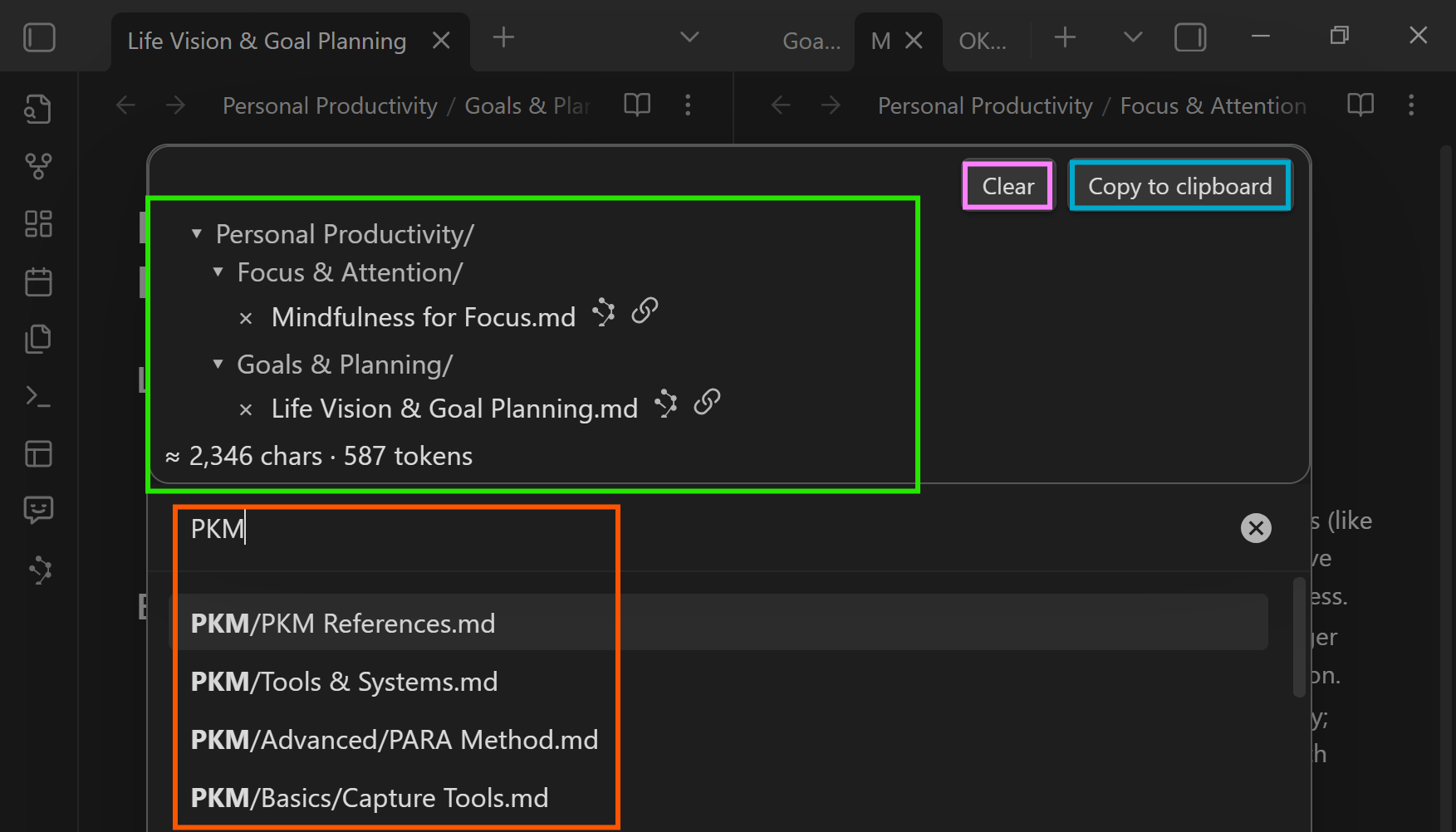
Fastest first win: follow the
[Getting Started guide](/smart-context/getting-started/)
and copy one reviewable context bundle today.
## Copy your first reviewable context bundle
Better AI output usually starts before the model.
Smart Context helps you copy the right notes in the right shape so the assignment stays grounded and reviewable.
Start with the smallest context that makes the assignment understandable.
Fastest path
### Copy the current note at Depth 0 or 1
Best when one note already anchors the assignment. Use Depth 0 when the note is enough and Depth 1 only when direct links hold ground truth.
Learn:
[Copy the current note with link-depth control](/smart-context/clipboard/current/)
Selected scope
### Copy selected notes or a project folder
Best when the scope is already chosen. Copy a small folder, file-nav selection, or short set of notes instead of the whole vault.
Learn:
[Use file navigator actions to copy notes and folders as context](/smart-context/file-nav-actions/)
Repeatable work
### Build a reusable context pack
Best when you repeat the same work. Save a named context once, then reuse it across chats and projects.
Learn:
[Build and save reusable context packs](/smart-context/builder/)
Want outputs that stay consistent? Use
[templates in Settings](/smart-context/settings/)
so every export has the same structure (headers, metadata, file tree).
Want the shortest reliable loop? Copy a note at Depth 0 or 1, then prompt:
"Use only this context. Extract constraints first, then propose next actions."
### When should you use each Smart Context path?
- **Need first value fast?** Start with [current-note copy](/smart-context/clipboard/current/).
- **Need reusable packs?** Build named context sets in the [Builder](/smart-context/builder/).
- **Need deterministic output format?** Configure template wrappers in [Settings](/smart-context/settings/).
- **Need external files for coding workflows?** Pin manifests with the [Codeblock workflow](/smart-context/codeblock/) (Pro).
## Is Smart Context the right workflow for you?
Use Smart Context when your notes already contain the answer, but your AI replies still drift because the right evidence is not packaged together.
### Great fit
- You already keep project notes, meeting notes, or research hubs in Obsidian.
- You need consistent context bundles for repeated tasks (status updates, prep briefs, drafting).
- You want to review exactly what travels before sending context to any model.
### Start here if you are new
- Run the [Getting Started guide](/smart-context/getting-started/) first.
- Then [copy the current note](/smart-context/clipboard/current/) and select a link depth.
- When you need repeatable packs, build a [named context set](/smart-context/builder/).
## Pick a workflow
This is where Smart Context pays off: when your notes are right, but your prompts are not.
Choose the job that matches your current friction and copy a pack that fixes it.
### Project working set
If every new chat starts with backstory, save a named pack once and reuse it.
Include: brief, constraints, decisions, latest status. Build it in the
[Builder](/smart-context/builder/).
Prompt starter
"Using only this context, summarize current state, risks, and the top 5 next actions. Cite the note title for each claim."
### Meeting continuity
If decisions keep getting lost between meetings, export a reliable prep + follow-up bundle.
Include: agenda, last notes, decisions, open tasks. Copy via
[Clipboard](/smart-context/clipboard/)
(or save as a named pack).
Prompt starter
"Draft a prep brief and follow-ups with owners. Pull action items from the context and keep wording concise."
### Research brief
If your hub note cites the real sources, copy it with Depth 1 so the references come along.
Include: hub note + cited notes. Use
[Depth 1](/smart-context/clipboard/current/)
to stay grounded.
Prompt starter
"Summarize, list open questions, and cite sources by note title. If evidence conflicts, call it out explicitly."
### Voice + draft pack
If your writing help keeps drifting, bundle your rules and examples with the draft.
Include: outline, draft, tone rules, 1-3 examples. Standardize output with
[templates](/smart-context/settings/).
Prompt starter
"Continue the draft in my voice. Follow the outline. Use only the provided references for claims."
### Context budget triage
If context keeps exceeding limits, treat depth and blocks as budget controls.
Start at Depth 0. Expand only when needed. Use the size estimate as a budget signal.
Prompt starter
"If this is too large, tell me what to remove first (in order) while preserving constraints and ground truth."
### Visual troubleshooting (Context Pro)
If the truth lives in screenshots, diagrams, or PDFs, export visuals alongside text.
Use
[Copy context with images and PDFs](/smart-context/clipboard/media/)
and paste into an image-capable model.
Prompt starter
"Use both the text and images. Call out any visual gaps or mismatches with the written notes."
Coders and agents: pin external repos and files inside a note with the
[Codeblock workflow](/smart-context/codeblock/)
(Context Pro).
## Smart Context Core vs Context Pro
Core includes reviewed note packages, named reuse, and basic Canvas and Bases sources. Choose Context Pro when the task needs media, external files on desktop, dynamic source groups, Rules, or richer Bases rendering.
Core plugin
### Smart Context Core
Build precise bundles of notes and reuse them across prompts and projects.
- ✓
Choose link depth for current-note copy. Copy selected notes or folders directly without a depth chooser.
- ✓
Save and reopen named contexts in Core. Recheck the resolved sources before reuse.
- ✓
Add supported Canvas and Bases files as basic note sources.
- ✓
Template-driven exports for stable formatting and metadata.
Pro plugin
Advanced context sources
### Context Pro
Advanced tools for context engineering: external sources, media-aware exports, and agent-ready outputs.
- ✓
Export context with images and PDFs so visual ground truth is not lost.
- ✓
Include external repos/files on desktop when the required sources live outside the vault.
- ✓
Use dynamic folder and tag groups, Rules, heading filters, and richer Bases rendering when the task needs them.
If your account already shows active Pro access in the Smart Plugins Store, use that access; you do not need another subscription. Check the signed-in account's access status rather than assuming every supporter pledge enables every Pro workflow.
## Docs and next steps
Start simple, then level up to reusable packs, predictable templates, and Pro workflows.
Get started
Getting Started
Screenshots + the fastest first-win workflows.
[Copy loop
Copy notes and folders as AI-ready context
Choose current-note depth, or copy an already-selected set of notes or folders directly.](/smart-context/clipboard/)
[Reuse
Build and save reusable context packs
Save trusted context packs and reopen them instantly.](/smart-context/builder/)
[Format control
Control Smart Context templates and export format
Standardize wrappers, metadata, and file tree output.](/smart-context/settings/)
[Core manifest; Pro external sources
Attach a Smart Context codeblock to a note
Core manifests can reference notes and named contexts. Pro adds supported external include and exclude paths on desktop.](/smart-context/codeblock/)
[File navigator
Use file navigator actions to copy notes and folders as context
Copy selected notes, folders, or curated file-nav selections without opening another surface.](/smart-context/file-nav-actions/)
[Current note
Copy the current note with link-depth control
Start from the note you are already working in and choose how far links should expand.](/smart-context/clipboard/current/)
[Canvas
Copy context from Obsidian Canvas files
Use a visual project map as the starting point for copied AI context.](/smart-context/canvas/)
[Context Pro
Copy context with images and PDFs
Include visual ground truth when text alone is not enough.](/smart-context/clipboard/media/)
[Saved packs
Reopen and reuse saved named contexts
Turn recurring project context into a reusable working set.](/smart-context/builder/named/)
[Structure
Apply reusable prompt structure with Smart Templates
Context supplies the evidence; Templates supplies the repeatable form.](/smart-templates/)
[Upgrade
Unlock advanced Smart Plugins Pro workflows
Context Pro, Smart Chat, and more advanced workflows.](/pro-plugins/)
## FAQ
Quick answers to the highest-intent pre-install questions about compatibility, privacy, first wins, token budgets, and Pro workflows.
What is Smart Context for Obsidian?
Smart Context helps you build grounded context packages from your actual Obsidian notes, then reuse them across ChatGPT and other AI tools. It reduces vague prompts by helping you copy the right notes in a clean, repeatable format.
Can I use Smart Context with ChatGPT, Claude, Gemini, or Smart Chat?
Yes. Smart Context is clipboard-based, so you can paste exported context into ChatGPT, Claude, Gemini, [Smart Chat](/smart-chat/), or another AI tool. The same context bundle can be reused anywhere that accepts pasted text.
Does Smart Context keep my notes private and local-first?
Smart Context assembles the package in Obsidian. Content leaves when you paste, export, or send it to another tool. A configured cloud embedding or ranking provider can separately receive eligible source text during Smart Environment processing. Review providers and data boundaries in [Smart Environment settings](/smart-environment/settings/) and the [Privacy Policy](/legal/privacy-policy/).
What is the fastest way to get started with Smart Context?
Copy the current note with Depth 0 or 1, then paste it into the AI tool or Smart Chat thread you already use. You know it worked when the copied bundle is small enough to inspect and includes the context the assignment needs.
Should I copy the current note, a whole folder, or build a reusable context pack?
Use the current note when one note anchors the task, a folder when the project already lives together, and a reusable pack when you need a curated working set you will reopen across sessions.
How does link depth work in Smart Context?
Depth 0 copies the starting note. Depth 1 adds directly linked notes. Depth 2 adds links of links, and deeper levels expand further. Start small and expand only when the extra evidence is needed. See [Clipboard + depth](/smart-context/clipboard/).
How do I keep Obsidian AI context under token limits?
Start at Depth 0, expand only when needed, and use the size estimate as a budget signal. If one note is too large, switch to a smaller selection or a curated pack instead of copying the entire folder.
Can I save reusable context packs or named contexts?
Yes, in Core and Pro. The [Builder](/smart-context/builder/) lets you create, name, reopen, and reuse reviewed context sets across tasks. Recheck source availability and size before reuse; in Pro, check Rules too.
Can I customize the exported prompt format and file tree?
Yes. [Settings](/smart-context/settings/) lets you customize context templates, item templates, wrappers, file paths, and file tree output so exports stay stable across workflows.
What does Context Pro add over the free Smart Context Core plugin?
Core covers note and section selection, current-note link depth, direct folder copy, named contexts, codeblocks, template-driven exports, and basic Canvas and Bases sources. [Context Pro](/pro-plugins/) adds media and ZIP outputs, external files on desktop, dynamic groups, Rules, heading filters, and richer Bases rendering.
Can I include images, PDFs, repos, or external files in my AI context?
Yes, with Context Pro. [Copy media](/smart-context/clipboard/media/) creates a composite image from supported images and PDF pages. Run Copy text separately when the task also needs written sources. The [Codeblock workflow](/smart-context/codeblock/) can include supported external repos or files on desktop.
Can I use Smart Connections results to build a context pack?
Yes. You can send results from the Connections view to Smart Context, remove noise, and copy the curated pack. See the [Connections view guide](/smart-connections/list-feature/).
Build your first context pack now and watch your prompts level up. Start with the free Core plugin, then add Context Pro when you need media, external sources,
and agent-ready bundles.
[Install Smart Context (Core, free)](https://obsidian.md/plugins?id=smart-context)
[See Getting Started](/smart-context/getting-started/)
---
## Core Vs Pro
canonical: https://smartconnections.app/smart-plugins/core-vs-pro/
html_url: https://smartconnections.app/smart-plugins/core-vs-pro/
markdown_url: https://smartconnections.app/smart-plugins/core-vs-pro.md
llms_url: https://smartconnections.app/smart-plugins/core-vs-pro/llms.txt
last_modified: 2026-10-06T15:12:49.887Z
usage_notes: |-
Use this page to answer questions about Core Vs Pro.
excerpt: |-
Choose Core or Pro by the work Core completes useful free workflows with your notes. Satisfied free use is a valid outcome, not an unfinished trial. Evaluate Pro directly when an existing recurring task needs a verified paid contribution. Core does not have to precede that evaluation. Pro can add finer controls, richer inputs, configured API chat, local indexing, or enabled source-access and…
suggested_links:
- title: Connections Early Getting Started
url: https://smartconnections.app/smart-plugins/connections-early-getting-started/
- title: Faq
url: https://smartconnections.app/smart-plugins/faq/
- title: For Entrepreneur Coders
url: https://smartconnections.app/smart-plugins/for-entrepreneur-coders/
- title: Getting Started
url: https://smartconnections.app/smart-plugins/getting-started/
- title: Mobile
url: https://smartconnections.app/smart-plugins/mobile/
# Start with Core. Add Pro when a workflow needs more depth.
Core is the shortest path to one result you can inspect from your own notes.
Pro adds higher-change workflows that need more configuration, richer inputs, model-backed operations, performance work, or approved vault action.
[Explore Core plugins](https://smartconnections.app/core-plugins/)
[Explore Pro plugins](https://smartconnections.app/pro-plugins/)
## Current product boundary
| Product | Core first-win path | Pro depth |
| --- | --- | --- |
| Smart Connections | Main ranked Connections list, Footer connections, and Smart Lookup. | Inline Connections, Bases relevance, advanced filters/scoring/ranking, current Graph + List renderer, large-vault workflows, Smart Graph handoff, and Dedupe. |
| Smart Context | Text context from notes, blocks, folders, named contexts, codeblocks, current-note depth, link trees, and basic Base source handling. | Composite media image, ZIP output, external files and repositories, dynamic rules, exclusions, heading controls, and richer Base workflows. |
| Smart Chat | Provider-specific note-attached codeblocks and Markdown URL/Active/Done continuity. | Configured local or cloud API Chat, reviewed context attachment, Chat History, and Chat Manager. |
| Smart Templates | Context + Markdown template + instructions -> **Copy prompt**. | No current Templates-specific generation lane. Generate, Regenerate, Insert, Create note, and output review belonged to Templates v1 and are retired. |
| Smart Graph | Not a Core product surface. | Semantic scopes, selections, clusters, notes, Canvas output, Context handoff, and graph image export. |
| Connect Pro | Not a Core product surface. | Reviewed supported actions through an explicitly connected desktop vault. |
## Why Core stays simple
Core should let a new user:
1. install one plugin
2. open one real note or query
3. get one visible result
4. inspect the result before trusting it
A smaller Core is easier to learn, document, and keep stable.
## Why Pro goes deeper
Use Pro after a specific workflow earns the additional complexity.
Good reasons include:
- related material should appear at the exact block you are editing
- a large or noisy vault needs stronger filtering, ranking, or performance controls
- the assignment needs images, PDF pages, external files, or repository context
- a configured local or cloud model should answer inside Obsidian
- duplicate candidates need a persistent review surface
- a semantic landscape is more useful than a ranked list
- ChatGPT should perform one reviewed action in a connected vault
Pro access does not automatically upload notes. A cloud provider receives only the source text, prompt, or context required by the operation you explicitly run.
## Smart Environment ties the suite together
Smart Environment centralizes shared sources, models, exclusions, indexing, events, status, and diagnostics.
A plugin marked Active is loaded. A model marked Current is selected. Neither state proves the first result is correct. Complete one workflow and verify its visible output before expanding scope.
## How to evaluate Pro
1. Start from a Core workflow that already helps.
2. Name the exact limitation.
3. Enable one Pro capability that addresses it.
4. Run the same real task.
5. Keep Pro enabled only when the result is more useful, reviewable, or reliable.
For today's capability boundary, use the current product documentation. Use versioned release notes for historical movement between editions instead of inferring that the boundary has never changed.
---
## Smart Chat
canonical: https://smartconnections.app/smart-chat/
html_url: https://smartconnections.app/smart-chat/
markdown_url: https://smartconnections.app/smart-chat.md
llms_url: https://smartconnections.app/smart-chat/llms.txt
last_modified: 2026-10-06T15:12:49.884Z
usage_notes: |-
Use this page to answer questions about Smart Chat.
excerpt: |-
Smart Chat Keep AI conversations where the work lives. Core provider codeblocks save web-thread links in the notes they serve. The Pro universal codeblock brings supported provider threads into one selector. Smart Chat API Extension adds configured local or cloud models and context you review inside Obsidian. Install Smart Chat Core Use Smart Chat API Extension Core: provider links and…
suggested_links:
- title: Ai Help For Projects
url: https://smartconnections.app/ai-help-for-projects/
- title: Build Context In Obsidian Notes
url: https://smartconnections.app/build-context-in-obsidian-notes/
- title: Community Content
url: https://smartconnections.app/community-content/
- title: Connect Pro
url: https://smartconnections.app/connect-pro/
- title: Core Plugins
url: https://smartconnections.app/core-plugins/
# Smart Chat
Keep AI conversations where the work lives. Core provider codeblocks save web-thread links in the notes they serve. The Pro universal codeblock brings supported provider threads into one selector. Smart Chat API Extension adds configured local or cloud models and context you review inside Obsidian.
[Install Smart Chat Core](https://obsidian.md/plugins?id=smart-chatgpt)
[Use Smart Chat API Extension](/smart-chat/api/)
Core: provider links and active/done state | Pro universal codeblock: shared thread selection | API Extension: configured models and reviewed context
[Core first](#core-first)
[API Extension](#api-extension)
[Which path?](#core-vs-api)
[Guides](#docs)
[FAQ](#faq)
## Choose by the job
Choose a provider-specific Core codeblock, the Pro universal codeblock, or Smart Chat API Extension for the conversation you need.
Use Core when...
### The thread should stay attached to a note
Render a provider web interface, save its recognized thread link in Markdown, and track active or done state. The saved link reopens the provider conversation; it is not a transcript stored in the note.
Use the Pro universal codeblock when...
### One block should track several supported providers
Use one `smart-chat` codeblock to select supported provider web threads or Smart Chat API Extension threads. Web threads use provider sign-in; API Extension threads require a working configured model.
[Learn the universal codeblock](/docs/chat/#smart-chat-codeblocks-universal-pro)
Use API Extension when...
### You need a configured local or cloud model
Choose a configured local or cloud model, attach or retrieve sources, review them before sending, and manage API Extension threads.
## Start with Core: save one thread link
Smart Chat Core keeps provider conversations attached to the notes they serve.
1. Step 1
### Open the note
Use the project, meeting, research, decision, or draft note where the AI thread belongs.
2. Step 2
### Add a provider codeblock
Start or open a provider thread using the web UI you already use, such as ChatGPT, Claude, Gemini, Grok, or Perplexity.
3. Step 3
### Save the thread link
After a visible provider response creates a recognized conversation URL, save the thread link and reopen it to verify the same conversation. Active/done records track your review state.
You know it worked when the note contains a provider thread link you can reopen later.
[Learn Core codeblocks](/smart-chat/codeblock/)
## Pro model workflow: Smart Chat API Extension
API Extension is the Smart Chat path for local or cloud models you have set up, source review before sending, custom instructions, and API Extension thread recovery.
1. Proof 1
### Confirm model
See the selected/default model before sending.
2. Proof 2
### Attach source
Add one known source or use Lookup to retrieve candidates for review.
3. Proof 3
### Use thread
Ask one outcome-focused question in the current API Extension thread.
4. Proof 4
### Review response
Promote only the parts that match your outcome and sources.
You know it worked when the model, sources, thread, and response are visible before you trust the answer.
[Start API Extension workflow](/smart-chat/api/)
## Smart Chat guides
Pick the guide for the thread state you need to manage.
Start here
Getting Started
Add one Core codeblock and save one provider thread link.
[Core and Pro codeblocks
Smart Chat codeblocks
Use Core provider blocks or Pro universal selection; saved web links and active/done state stay in Markdown.](/smart-chat/codeblock/)
[API Extension
Model and source control
Confirm model, review sources, ask one outcome-focused question.](/smart-chat/api/)
[Core dashboard
Chat Inbox with Dataview
List note-attached `chat-active` and `chat-done` thread links.](/smart-chat/thread-dashboard/)
[API Extension dashboard
Thread Manager
Open, rename, search/filter, and clean up API Extension thread records.](/smart-chat/thread-manager/)
[Mobile and sync
Mobile/sync FAQ
Separate Core Markdown link sync from API Extension `.smart-env` storage.](/smart-plugins/mobile/)
## The thread is not the deliverable
Smart Chat helps preserve or control the conversation. Your note remains the trusted place where reviewed decisions, context, next actions, and deliverables belong.
1. Open the note that owns the work.
2. Reopen the saved provider thread or API Extension thread.
3. Compare the output against the outcome and sources.
4. Promote only the useful parts.
5. Mark the thread done or keep it active with a clearer next action.
## See Smart Chat in action
Watch a thread stay attached to the note it serves.
## FAQ
Do I need an API key?
Core provider codeblocks and Pro universal web threads use provider web interfaces and may require sign-in, without an API model. Smart Chat API Extension threads require a compatible working local model or the credentials required by their cloud provider.
What does Core store?
Core stores provider thread links and active/done state in your notes, not the provider transcript. Reopening the link depends on the provider conversation remaining available to your account.
What does the Pro universal codeblock add?
One `smart-chat` block can select supported provider web-thread references and Smart Chat API Extension thread references. It adds shared provider selection, stable block identity, and managed provider surfaces. Provider web threads remain distinct from API Extension model requests.
What does Smart Chat API Extension add?
It adds the API integration for configured local or cloud models, reviewed sources before sending, custom instructions, include/exclude controls, and API Extension thread history/management.
Does this work on mobile?
Saved provider links sync with Markdown and can open externally on mobile. Embedded provider surfaces and automatic URL capture require the desktop main Markdown pane. API Extension uses Smart Plugin application data, which can remain device-local unless your sync setup includes it. See the mobile/sync FAQ for setup guidance.
What content reaches a provider?
Web-provider threads receive what you enter or upload through their interface. API Extension sends your prompt, included prior messages, and the context selected for that response to the chosen model. The active note and whole vault are not attached automatically. Configured cloud embedding or ranking providers can separately receive eligible source text during Smart Environment processing.
Is Thread Manager the same as a Chat Inbox?
No. Chat Inbox reads Core `chat-active` and `chat-done` Markdown fields. Thread Manager manages Smart Chat API Extension thread records.
Save one provider thread link with Core, choose the Pro universal codeblock for shared thread selection, or use Smart Chat API Extension for configured models and reviewed context.
[Install Smart Chat Core](https://obsidian.md/plugins?id=smart-chatgpt)
[Start API Extension guide](/smart-chat/api/)
---
## Smart Connections
canonical: https://smartconnections.app/smart-connections/
html_url: https://smartconnections.app/smart-connections/
markdown_url: https://smartconnections.app/smart-connections.md
llms_url: https://smartconnections.app/smart-connections/llms.txt
last_modified: 2026-10-06T15:12:49.884Z
usage_notes: |-
Use this page to answer questions about Smart Connections.
excerpt: |-
Related notes for Obsidian Smart Connections: related notes while you work Smart Connections uses the note in front of you to surface related notes and passages, including ideas you did not think to search for or link. Earlier research and decisions can contribute again while you work. Install Smart Connections free See an example Free Core plugin No API key required Local embeddings by default…
suggested_links:
- title: Ai Help For Projects
url: https://smartconnections.app/ai-help-for-projects/
- title: Build Context In Obsidian Notes
url: https://smartconnections.app/build-context-in-obsidian-notes/
- title: Community Content
url: https://smartconnections.app/community-content/
- title: Connect Pro
url: https://smartconnections.app/connect-pro/
- title: Core Plugins
url: https://smartconnections.app/core-plugins/
Related notes for Obsidian
# Smart Connections: related notes while you work
Smart Connections uses the note in front of you to surface related notes and passages, including ideas you did not think to search for or link. Earlier research and decisions can contribute again while you work.
[Install Smart Connections free](https://community.obsidian.md/plugins/smart-connections)
[See an example](#proof)
- Free Core plugin
- No API key required
- Local embeddings by default
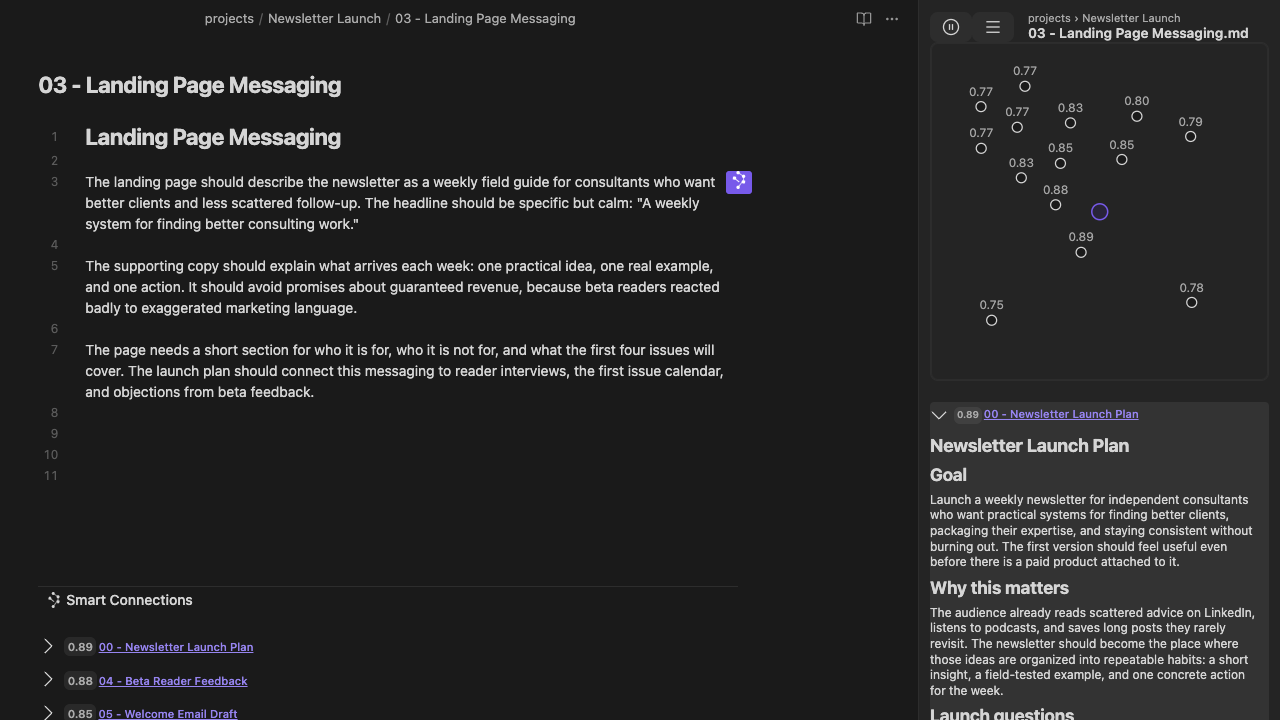
Open a result to read the matching passage without leaving the note you are working in. This Pro 4.8.1 capture illustrates source inspection also available in Core.
Why it matters
## A growing vault can outpace what you can keep in mind
Research, conversations, decisions, and AI-created notes can accumulate faster than you can integrate them. Work gets repeated, decisions reopen without their reasoning, and useful ideas fail to reach the next task.
### Avoid repeated research
Bring earlier interviews, evidence, and comparisons back before you repeat the work.
### Carry decisions forward
Recover the constraint or rationale before the same debate starts again.
### Find the idea, not the filename
Recover related thinking when the title, folder, or exact wording is no longer in memory.
Choose the starting point
## Each tool starts from a different clue
S
Exact search
Start with words, filenames, headings, tags, syntax, or regex you remember.
B
Backlinks
Start with relationships already written into your notes.
C
Smart Connections
Start with the note in view and surface notes with similar meaning, even without matching wording or links.
[Compare Connections with exact search](/smart-connections/faq/#how-is-this-different-from-keyword-search)
A first useful result
## Start with one note you already understand
1. 1
Open a note with enough text to show what you are working on.
2. 2
Scan the first few results and expand one promising match.
3. 3
Open the original note, bring what applies into the work, and leave the rest behind.
Follow the full first-use path in
[Getting Started](/smart-connections/getting-started/#find-one-useful-related-note).
[Learn about fixed-target behavior](/docs/connections/#connections-view-play-pause).
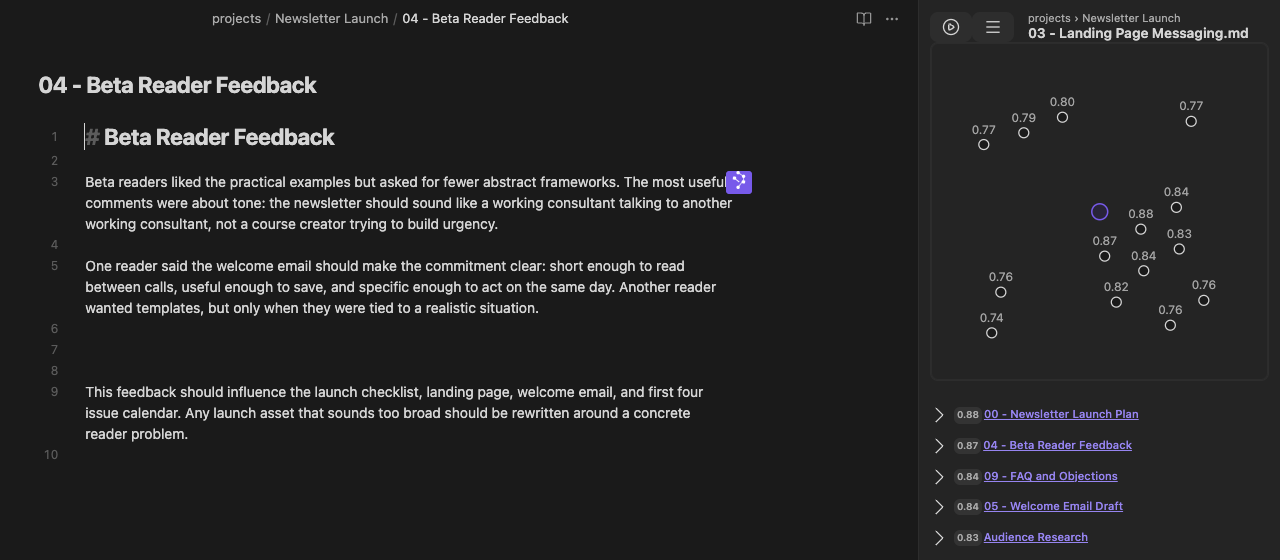
Open a result while Connections keeps comparing against the note you started from.
Where it helps
## Let past work contribute to new work
Writing
### Bring earlier evidence into the draft
Recover interview language, examples, and earlier framing while you write.
Projects
### Resume without reopening every decision
Bring constraints, experiments, and discarded options back into view when work resumes.
Meetings
### Prepare with the surrounding context
See related people, plans, and prior conversations before the meeting starts.
Core and Pro
## Start with Core. Add Pro for finer placement and ranking.
Core puts related notes in the Connections view and at the end of notes. Pro adds Inline suggestions, relevance-ranked Base rows, advanced filtering and ranking controls, and 2D and 3D semantic neighborhoods.
In either surface, Graph style None keeps the list without a graph. The 2D similarity map is included in Core; Pro adds 2D and 3D semantic neighborhoods for the same current candidate set. These displays are separate from the Smart Graph Pro plugin.
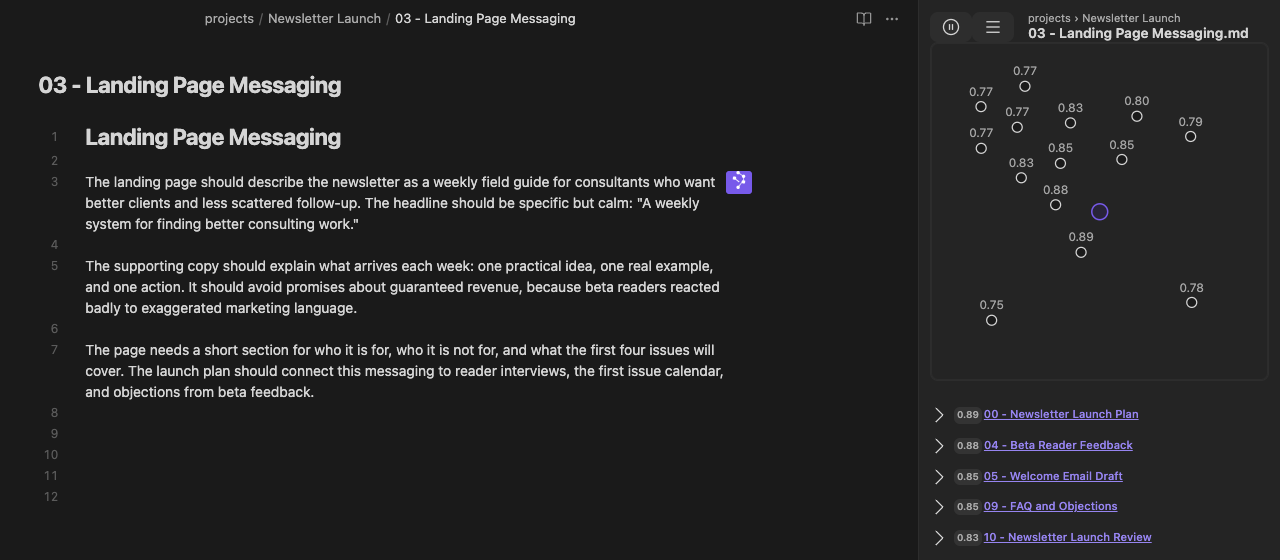
Core
### Connections view
Keep a dedicated related-note list beside the note in view, then expand or open results without leaving the workspace. Shown in Pro 4.8.1; the workflow is also included in Core.
[Explore the Connections view](/docs/connections/#connections-view-open-view)
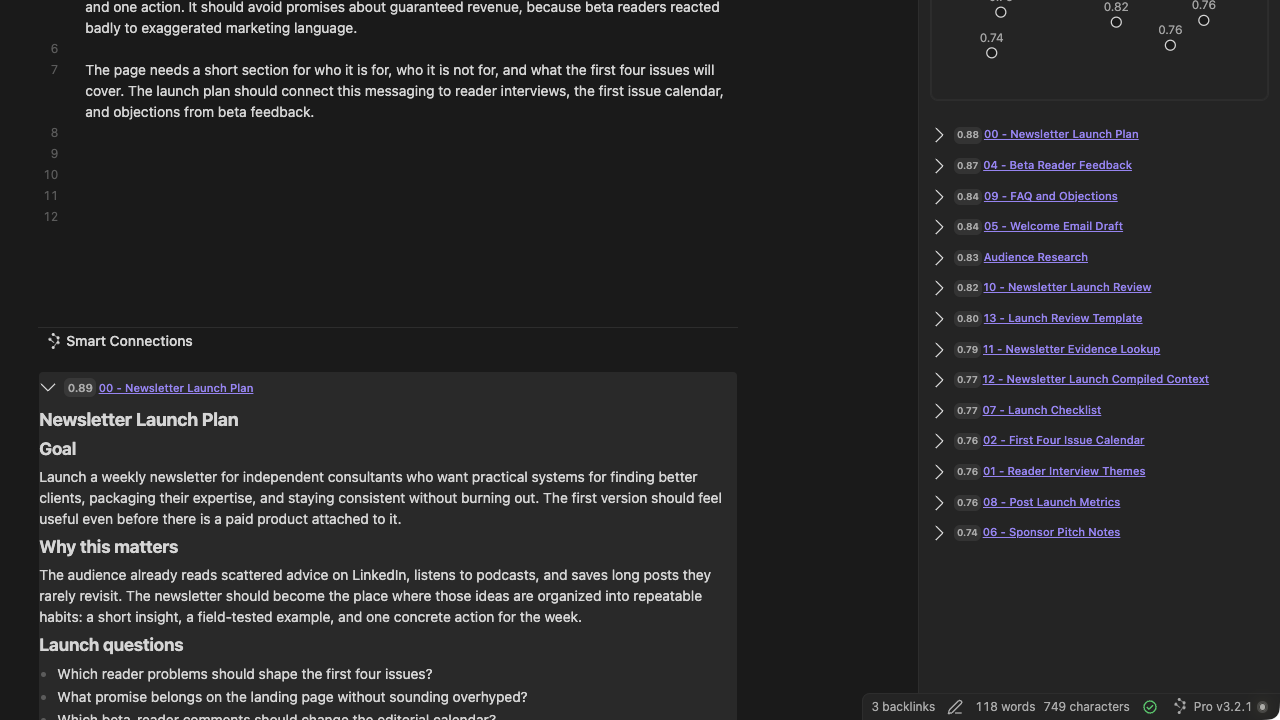
Core
### Footer connections
Put related notes at the end of each note, which is useful on mobile or when the sidebar is closed. This is a Pro 4.8.1 desktop example of the shared Core surface; mobile controls can vary.
[Explore Footer connections](/docs/connections/#smart-connections-footer)

Pro
### Inline connections
See related material for the paragraph, heading, or block you are editing without leaving the editor.
[Explore Inline connections](/docs/connections/#smart-connections-inline)
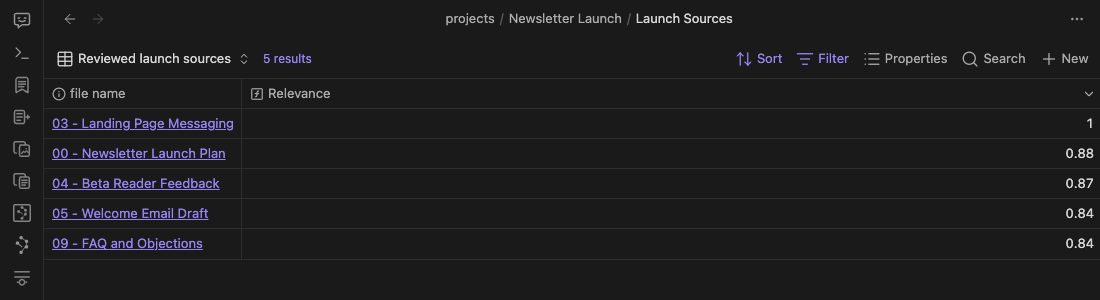
Pro
### Connections in Bases
Use a reference note to rank Base rows by semantic relevance.
[Explore Connections in Bases](/docs/connections/#smart-connections-bases)
Local by default
## Start without an API key
Smart Connections Core runs its standard related-note workflow with local embeddings. Cloud providers are involved only when you choose to configure them.
Useful offline after indexing
Local retrieval can keep working after indexing. Installation, updates, model downloads, and cloud workflows still need internet.
You decide what to use
Connections suggests related notes. You choose what to open, link, reuse, or ignore.
See what is indexed
Smart Environment shows included sources, exclusions, embedding status, and index readiness.
[API key FAQ](/smart-connections/faq/#do-i-need-an-api-key)
[Smart Environment settings](/smart-environment/settings/)
[Privacy Policy](/legal/privacy-policy/)
Questions before you install
## Smart Connections FAQ
Do I need an API key?
+
No. Smart Connections Core uses local embeddings by default, so its standard related-note retrieval does not need an API key. An API key is only needed for optional cloud providers or integrations you choose to configure.
[Read the full API key answer](/smart-connections/faq/#do-i-need-an-api-key)
Are Footer connections included in Core?
+
Footer connections are included in Core. Its Graph style can use **None** for results without a graph or the included **2D similarity map**. Pro adds 2D and 3D semantic neighborhoods. Footer and sidebar keep separate graph-style choices.
[Read the Footer edition answer](/smart-connections/faq/#is-footer-connections-core-or-pro)
Is the Connections mini graph the same as Smart Graph?
+
No. Connections graph styles present the current result list: Core includes the 2D similarity map, while Pro adds 2D and 3D semantic neighborhoods. Smart Graph is a separate Pro desktop plugin for Whole vault and scoped semantic exploration.
How is Smart Connections different from keyword search?
+
Exact search starts with words or syntax you remember. Smart Connections starts with the note in view and surfaces related notes or passages even when the wording or title differs.
What does Connections Pro add?
+
Pro adds Inline connections, Connections in Bases, advanced filtering, scoring and ranking, 2D and 3D semantic neighborhoods, and optional authored note-link arrows. The Connections view, Footer connections, and 2D similarity map are included in Core.
Does Smart Connections send my notes to the cloud?
+
Core retrieval uses local embeddings by default. A cloud embedding provider receives eligible source text only when you configure one. A cloud chat provider receives the prompt and context for the request you send.
Can I use Smart Connections on mobile?
+
Yes. The Connections view and Footer connections are available on mobile; some controls vary by platform.
[Review Smart Plugins on mobile](/smart-plugins/mobile/)
## Bring past work back into the moment
Open the work already in front of you and see what relevant past notes can contribute.
[Install Smart Connections free](https://community.obsidian.md/plugins/smart-connections)
[Open Getting Started](/smart-connections/getting-started/)
[Documentation](/docs/connections/)
[FAQ](/smart-connections/faq/)
---
## Index
canonical: https://smartconnections.app
html_url: https://smartconnections.app
markdown_url: https://smartconnections.app/index.md
llms_url: https://smartconnections.app/index/llms.txt
last_modified: 2026-10-06T15:12:49.881Z
usage_notes: |-
Use this page to answer questions about Index.
excerpt: |-
Smart Plugins for Obsidian Find related notes while you work. Smart Connections shows related notes and passages beside the note you're working on, without a search query or existing links. Bring earlier research and decisions into your current task. Open in Obsidian View plugin listing Local embeddings by default No API key required Current note Related passage Enlarge screenshot ↗ Your…
suggested_links:
- title: Ai Help For Projects
url: https://smartconnections.app/ai-help-for-projects/
- title: Build Context In Obsidian Notes
url: https://smartconnections.app/build-context-in-obsidian-notes/
- title: Community Content
url: https://smartconnections.app/community-content/
- title: Connect Pro
url: https://smartconnections.app/connect-pro/
- title: Core Plugins
url: https://smartconnections.app/core-plugins/
Smart Plugins for Obsidian
# Find related notes
while you work. {#home-heading}
Smart Connections shows related notes and passages beside the note you're working on, without a search query or existing links. Bring earlier research and decisions into your current task.
Open in Obsidian
[View plugin listing](https://community.obsidian.md/plugins/smart-connections)
Local embeddings by default
No API key required
Current note
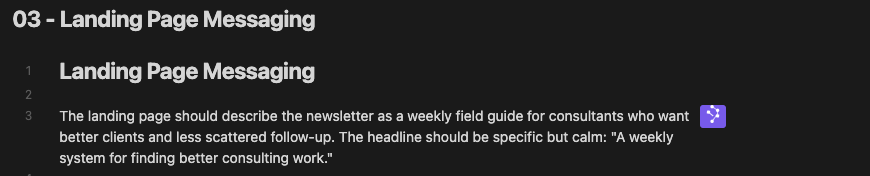
Related passage
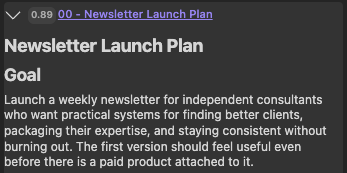
Enlarge screenshot ↗
## Your vault can grow faster than you can make sense of it. {#problem-heading}
Research, decisions, and AI drafts accumulate. Useful background can get left out of the next task.
### Ideas you meant to revisit
You save an idea for later, then miss it when the project starts.
### Decisions without the background
A decision is recorded, but the research behind it is hard to find.
### AI drafts without context
Drafts pile up, separate from the sources and goals they were meant to support.
## Bring your notes into the next AI task. {#ecosystem-heading}
Smart Connections works on its own. Add other plugins only as needed.
01
### Find related notes
[Smart Connections](/smart-connections/) starts from your current note. [Smart Lookup](/smart-lookup/) starts from a question.
02
### Choose what to include
[Smart Context](/smart-context/) lets you choose and review the sources for your AI request.
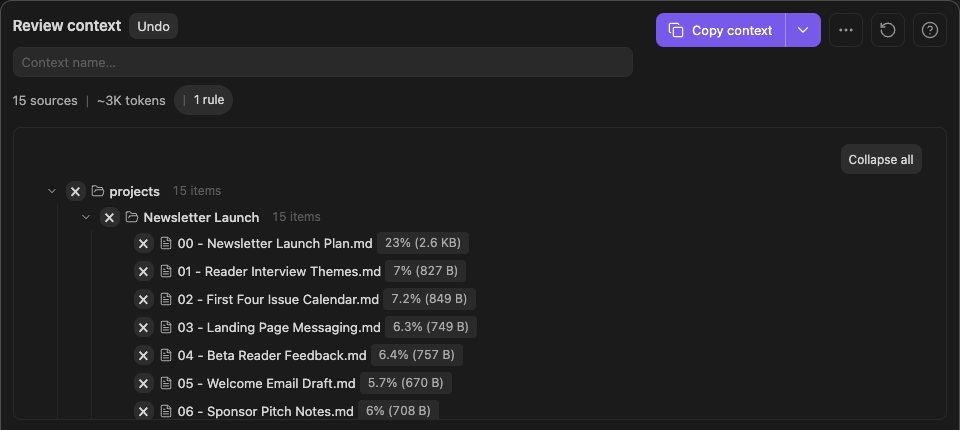
Enlarge screenshot ↗
03
### Keep AI work attached to the note
[Smart Chat Core](/smart-chat/) saves a link to the AI conversation in your note, so you can return to it as the work continues.
A conversation link stays with your note
Concept illustration: an Obsidian note contains a saved link that leads back to a conversation at the AI provider. This is not the Smart Chat interface.
Your note
Saved link
AI conversation
at the provider
Illustration: your note keeps the link, not a copy of the conversation.
[Explore all Smart Plugins →](/smart-plugins/)
Smart Graph · Pro on Obsidian desktop
## Explore your notes by meaning. {#graph-heading}
Smart Graph groups indexed notes by semantic similarity, whether or not you've linked them. See the patterns, then explore the notes behind them.
[Explore Smart Graph →](/smart-graph/#replays)
[Open the Whole vault Semantic cascade video](/assets/graph-replay-v2/whole-vault-cascade.mp4).
7.5 s loop · Silent · 1,050 sources in this recording
Play replay
Restart
[View larger ↗](/assets/graph-replay-v2/whole-vault-cascade.mp4)
**Whole vault · Semantic cascade** — The replay moves through representative notes and semantic regions, then returns to the whole-vault map.
Core and Pro
## Use free Core, or evaluate the Pro capability your task needs. {#editions-heading}
Smart Plugins Core
### Find and reuse your notes.
Use the Connections view beside your note, or Footer connections at the end.
Other free Smart Plugins help you review context and keep AI conversation links in your notes.
[Explore Smart Plugins Core →](/core-plugins/)
Smart Plugins Pro
### Visual exploration and finer controls.
Explore notes visually with Smart Graph or see passage-level suggestions with Inline connections.
Advanced ranking controls let you adjust how results are ordered.
[Explore Pro workflows →](/pro-plugins/)
## Let past work contribute again. {#start-heading}
Open the note you're working on. See which earlier ideas are worth bringing into your next draft or decision.
Smart Connections Core matches notes locally by default. Suggestions do not edit your notes.
[Open in Obsidian](obsidian://show-plugin?id=smart-connections)
[View plugin listing](https://community.obsidian.md/plugins/smart-connections)
[Open Getting Started →](/smart-connections/getting-started/)
## Smart Connections screenshot {#connections-proof-dialog-title}
Close

[Open original image →](/assets/connections-current-main-expanded-v4-8-1-documentation-1280x720-desktop-2026-08-07.png)
## Smart Context screenshot {#context-proof-dialog-title}
Close
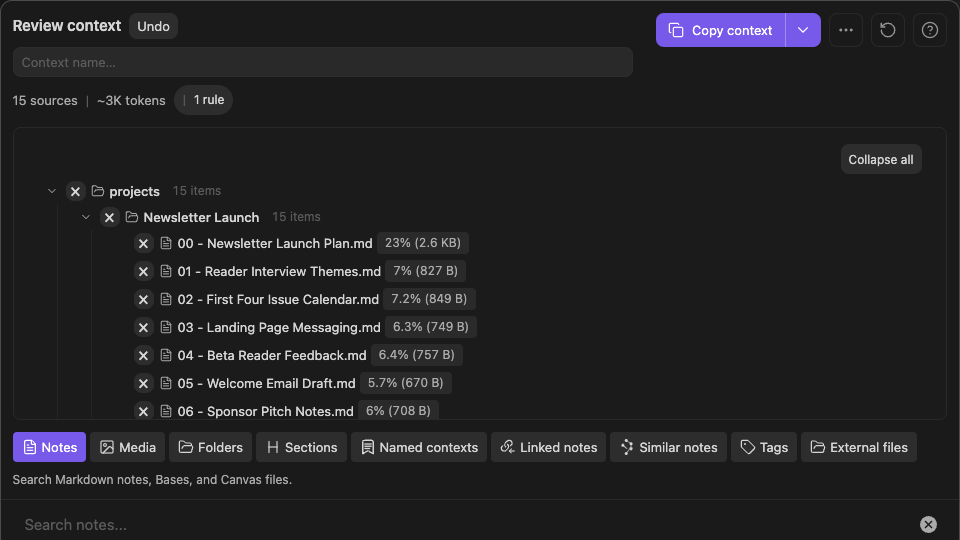
[Open original image →](/assets/connections-to-context-current-v4-8-1-v3-4-1-documentation-960x540-desktop-2026-08-07.png)
---
## Core Plugins
canonical: https://smartconnections.app/core-plugins/
html_url: https://smartconnections.app/core-plugins/
markdown_url: https://smartconnections.app/core-plugins.md
llms_url: https://smartconnections.app/core-plugins/llms.txt
last_modified: 2026-10-06T15:12:49.878Z
usage_notes: |-
Use this page to answer questions about Core Plugins.
excerpt: |-
Start here with Smart Plugins Start with core Smart Plugins for Obsidian Start with Smart Connections and get one useful result from your own notes. Add Smart Context, Smart Chat, and Smart Templates when the next workflow needs context, continuity, or structure. Need a side-by-side Copilot alternative comparison first? Review the migration path and feature tradeoffs. Core retrieval uses local…
suggested_links:
- title: Ai Help For Projects
url: https://smartconnections.app/ai-help-for-projects/
- title: Build Context In Obsidian Notes
url: https://smartconnections.app/build-context-in-obsidian-notes/
- title: Community Content
url: https://smartconnections.app/community-content/
- title: Connect Pro
url: https://smartconnections.app/connect-pro/
- title: Faq
url: https://smartconnections.app/faq/
Start here with Smart Plugins
# Start with core Smart Plugins for Obsidian
Start with Smart Connections and get one useful result from your own notes. Add Smart Context, Smart Chat, and Smart Templates when the next workflow needs context, continuity, or structure.
Need a side-by-side [Copilot alternative](/obsidian-copilot/) comparison first? Review the migration path and feature tradeoffs.
Core retrieval uses local embeddings by default, and templates stay in Markdown. Provider workflows receive what you send; a configured cloud embedding or ranking provider can separately receive eligible source text during preparation.
## Which Core plugin does what?
Use this quick map to decide where to start. Each plugin covers a different workflow layer, and Core remains useful before Pro.
| Plugin | What it is best for | Typical result |
| --- | --- | --- |
| Smart Connections | Finding related notes while you write | One useful related note from your own vault |
| Smart Context | Copying reviewable context from notes and folders | A smaller, clearer context bundle |
| Smart Chat | Keeping AI threads attached to the notes they serve | A saved provider thread link and active/done state, not a transcript stored in the note |
| Smart Templates | Turning current work and Markdown templates into structured prompts | A copied prompt with context, task, and trusted form |
## Core Smart Plugins for your Obsidian vault
Install Smart Connections first when you want to see relevant content. Add Context, Chat, and Templates when discovery needs packaging, the thread should stay with the note, or the output form repeats.
Core plugin
### Smart Connections
Related notes surface while you write.
- -
Open one real note and see what connects.
- -
Preview, drag, copy, or send strong matches to Smart Context.
- -
Use the Connections view, Footer, or included 2D similarity map to inspect the current result set.
[Open in Obsidian marketplace](https://community.obsidian.md/plugins/smart-connections)
[Learn the Smart Connections workflow](/smart-connections/)
Core plugin
### Smart Context
Copy the context your AI work needs.
- -
Start with the current note or a small selected set.
- -
Choose Depth 0 or 1 so the bundle stays reviewable.
- -
Save named contexts when the same work repeats.
[Open in Obsidian marketplace](https://obsidian.md/plugins?id=smart-context)
[Learn the Smart Context workflow](/smart-context/)
Core plugin
### Smart Chat
Keep AI threads attached to the notes they serve.
- -
Store provider thread links and active/done state inside the note; the transcript remains with the provider.
- -
Return later without hunting through browser tabs.
- -
Review output before it earns a place in the trusted note.
[Open in Obsidian marketplace](https://obsidian.md/plugins?id=smart-chatgpt)
[Learn the Smart Chat workflow](/smart-chat/)
Core plugin
### Smart Templates
Turn current work and Markdown templates into structured prompts.
- -
Start from the current note or selection instead of a blank prompt.
- -
Combine reviewed context, templates, and request instructions.
- -
Copy a ready-to-run prompt for the AI tool you already use.
[Open in Obsidian marketplace](https://obsidian.md/plugins?id=smart-templates)
[Learn the Smart Templates workflow](/smart-templates/)
## How to install core plugins
Install the Core plugins from Obsidian's Community plugins tab. They share Smart Environment setup where relevant.
1. 1
Open Obsidian, go to Settings -> Community plugins, and turn on community plugins.
2. 2
Click Browse, then search for Smart Connections, Smart Context, Smart Chat, or Smart Templates.
3. 3
Install and enable the plugin that matches your current workflow. Start with one visible result before adding the next plugin.
Need a specific advanced workflow? Smart Plugins Pro adds richer context, semantic graph exploration, API chat, duplicate review, model routing, performance infrastructure, and configured vault Tools. Dedicated Connect Pro proposals can be reviewed before application.
[Explore Smart Plugins Pro](/pro-plugins/)
---
## Getting Started
canonical: https://smartconnections.app/smart-dedupe/getting-started/
html_url: https://smartconnections.app/smart-dedupe/getting-started/
markdown_url: https://smartconnections.app/smart-dedupe/getting-started.md
llms_url: https://smartconnections.app/smart-dedupe/getting-started/llms.txt
last_modified: 2026-10-04T22:10:31.993Z
usage_notes: |-
Use this page to answer questions about Getting Started.
excerpt: |-
Getting started with Smart Dedupe This procedure scans one note. Review one candidate pair when candidates are returned. If the completed scan returns no candidates, interpret that result within the selected scope and settings. Review before changing anything A 100% similarity value or Exact hash match label identifies strong overlap. It does not tell you whether the two passages serve the same…
suggested_links:
- title: Faq
url: https://smartconnections.app/smart-dedupe/faq/
- title: Started
url: https://smartconnections.app/ai-help-for-projects/started/
- title: Ai Help For Projects
url: https://smartconnections.app/ai-help-for-projects/
- title: Build Context In Obsidian Notes
url: https://smartconnections.app/build-context-in-obsidian-notes/
- title: Community Content
url: https://smartconnections.app/community-content/
# Getting started with Smart Dedupe

This procedure scans one note. Review one candidate pair when candidates are returned. If the completed scan returns no candidates, interpret that result within the selected scope and settings.
> [!IMPORTANT] Review before changing anything
> A `100%` similarity value or **Exact hash match** label identifies strong overlap. It does not tell you whether the two passages serve the same purpose.
## Before you start
Confirm that:
- Smart Dedupe Pro is installed and active
- the note you want to review is open
- Smart Environment has prepared blocks when you want semantic matches
- the first note contains material you can evaluate safely
Start with a normal working note, not customer data, credentials, legal records, or another high-risk source.
## 1. Open the Duplicate Detector

Open the Command Palette. Run this command:

```obsidian-command
Smart Dedupe Pro: Open Duplicate Detector
```
The persistent **Duplicate Detector** keeps scope, controls, progress, and candidates in one view.

Choose **Current note** for the first pass. Use **Full vault** only after the controls and review process feel predictable.
## 2. Set a conservative first boundary

For the first current-note scan:
1. Keep exact matches visible.
2. Set **Max results** to a number you can review in one session.
3. Use **Minimum length** to suppress short exact-hash repeats such as headings and boilerplate. It does not filter semantic candidates.
4. Exclude frontmatter when repeated YAML is not useful.
5. Start around `0.90` for a strict review. Lower toward `0.85` when you intentionally want paraphrases.
The current controls may open with a different saved value. Review the visible setting instead of assuming it is a universal default.
See [Configure the scan](https://smartconnections.app/docs/dedupe/#smart-dedupe-scan-configure) for every control.
## 3. Run the note scan

Choose **Run note scan**. Let the Detector settle.
A short scan can complete before the running state is easy to read. A longer scan shows progress. It also shows a **Cancel** action. If you cancel, wait for the status to settle. Treat any remaining candidates as a partial set.
After a completed scan, continue to steps 4 and 5 only when candidates are returned. If no candidates are returned, check the scope and settings, then use the zero-result completion criteria below. Cancellation does not establish a completed scan; use the cancelled-scan guidance below.
## 4. Review one candidate pair

For one promising result, check:
1. exact or semantic match type
2. similarity value
3. **Source** and **Duplicate** note identities
4. headings or line ranges
5. surrounding text in both notes
Choose **Open** when the excerpt does not explain why each passage exists. Use **Copy** only when you deliberately need the text for comparison. **Copy** does not merge anything.
**Source** and **Duplicate** name the two sides of the candidate pair. Neither label tells you which note to keep.
## 5. Make one human decision
Choose the outcome that matches the notes' roles:
- **Keep both** when the passages serve different audiences, projects, or stages.
- **Clarify the distinction** when both notes are useful but too easy to confuse.
- **Consolidate manually** when one source should absorb the useful material.
- **Archive one source** when it is genuinely redundant but you want a reversible cleanup path.
- **Ignore the candidate** when the overlap is harmless.
Smart Dedupe does not perform this decision for you.
## You know it worked when
**Completed scan with candidates**
- The scan completed and returned at least one candidate you can examine.
- You inspected both sources rather than relying on the score.
- You made one explicit keep, clarify, consolidate, archive, or ignore decision.
- Any note change was deliberate and reversible.
**Completed scan without candidates**
- The scan completed and returned no candidates.
- You checked the selected scope and settings.
- You interpret the result only within that boundary, not as proof that the vault contains no duplicates.
- No candidate decision or note change is required.
**Cancelled scan**
- Wait for the status to settle and treat any remaining candidates as a partial set.
- Cancellation does not establish a completed scan or a zero-result conclusion.
- Complete a scan within the intended scope before using either completion branch above.
## If the first scan is weak
| What happened | Try first |
| --- | --- |
| No semantic candidates | Confirm block readiness, then lower the threshold slightly. |
| Too many weak candidates | Raise the threshold, increase minimum length, or reduce Max results. |
| Metadata dominates | Enable **Exclude frontmatter matches**. |
| Exact repeats hide paraphrases | Review the exact repeats. Then try **Skip exact matches**. |
| The scan finished too quickly to watch | Review the settled candidates. Do not rerun only to inspect progress. |
| The result set is empty | Confirm scope and settings. Zero results applies only to that boundary. |
| You expected automatic cleanup | Open both notes. Make the change through your normal Obsidian workflow. |
## Continue from here
- [Understand every Dedupe control](https://smartconnections.app/docs/dedupe/#smart-dedupe-scan-configure)
- [Review candidates and result limits](https://smartconnections.app/docs/dedupe/#smart-dedupe-scan-results)
- [Use Connections for related, non-duplicate material](https://smartconnections.app/docs/connections/)
- [Rebuild reviewed context after cleanup](https://smartconnections.app/docs/context/)
---
## Community Content
canonical: https://smartconnections.app/community-content/
html_url: https://smartconnections.app/community-content/
markdown_url: https://smartconnections.app/community-content.md
llms_url: https://smartconnections.app/community-content/llms.txt
last_modified: 2026-10-04T18:36:27.990Z
usage_notes: |-
Use this page to answer questions about Community Content.
excerpt: |-
Smart Community Content YouTube Video with Smart Context https://youtu.be/YAiEM59mpZc?si=5iPXWzu6Lqj1gMfF&t=623 https://youtu.be/8uBMjAoE--I?si=neZMan9d4mpaZIyM https://youtu.be/b-A5xfaVUEA?si=NyrYKsqx6csVxu01 https://youtu.be/Be3LMijZp3E https://youtu.be/d30jraaUmeY https://youtu.be/e5l7HWYW7rI?si=hWcS8D_OkhyEXi2l https://youtu.be/eFrlyHP2ZOk?si=F-bbHn8ve36eg3Qc…
suggested_links:
- title: Ai Help For Projects
url: https://smartconnections.app/ai-help-for-projects/
- title: Build Context In Obsidian Notes
url: https://smartconnections.app/build-context-in-obsidian-notes/
- title: Connect Pro
url: https://smartconnections.app/connect-pro/
- title: Core Plugins
url: https://smartconnections.app/core-plugins/
- title: Faq
url: https://smartconnections.app/faq/
# Smart Community Content
### YouTube
- Video with Smart Context
- https://youtu.be/YAiEM59mpZc?si=5iPXWzu6Lqj1gMfF&t=623
- https://youtu.be/8uBMjAoE--I?si=neZMan9d4mpaZIyM
- https://youtu.be/b-A5xfaVUEA?si=NyrYKsqx6csVxu01
- https://youtu.be/Be3LMijZp3E
- https://youtu.be/d30jraaUmeY
- https://youtu.be/e5l7HWYW7rI?si=hWcS8D_OkhyEXi2l
- https://youtu.be/eFrlyHP2ZOk?si=F-bbHn8ve36eg3Qc
- https://youtu.be/HFX0BHruCE4?si=SGCAHXrIAUUozk24
- https://youtu.be/IKbTC7Di4tQ?si=J6lgOsUJUag6M671
- https://youtu.be/IRPhIpsrisg?si=fHMSrVpt03meZMsK
- https://youtu.be/msnZjiZrSXs
- https://youtu.be/SG2ozNh-27Y
- https://youtu.be/UWq9jDYS_LU?si=6Rn20zcWv3u6BhTA
- https://youtu.be/vbvOj4UiIAo?si=sgERUomz-1zAuByu
- https://youtu.be/XJoVWK6qtoM?si=w5pPhOcgdGPBXKlU
### blogs
- https://medium.com/@dvansoye/get-smarter-faster-how-to-quickly-synthesize-information-e06f124af3ee
- https://careylening.substack.com/p/the-power-of-links-and-second-brains-d1d
- https://www.jasongilbertson.com/taking-the-zettelkasten-method-to-the-next-level-with-ai-in-obsidian/
- https://leafstrat.com/analyzing-20-openai-chatgpt-plugins-that-exist-for-obsidian
- https://publish.obsidian.md/johnmavrick/Smart+Connections+Plugin
- https://micazev.com/boosting-your-obsidian-second-brain-with-the-smart-connections-plugin/
- https://obsidianninja.com/best-obsidian-plugins/
- https://brianchristner.io/discover-the-top-5-obsidian-chatgpt-plugins-for-ultimate-productivity/
- https://www.toolify.ai/ai-news/unlock-the-power-of-ai-with-smart-connections-a-musthave-obsidian-plugin-1023621
- https://www.startuphub.ai/nvidia-launches-ai-blueprint-for-video-search-and-summarization-integrates-with-obsidian/
### discord
- https://discord.com/channels/686053708261228577/771575014382108672/1091442955455303750
### Obsidian plugin indexes
- https://community.obsidian.md/plugins/smart-connections
- https://obsidian-plugin-stats.vercel.app/plugins/smart-connections
### Obsidian forum
- https://forum.obsidian.md/t/my-reading-list-in-obsidian-setup/58038
---
## Clarify Done
canonical: https://smartconnections.app/smart-loop/core/clarify-done/
html_url: https://smartconnections.app/smart-loop/core/clarify-done/
markdown_url: https://smartconnections.app/smart-loop/core/clarify-done.md
llms_url: https://smartconnections.app/smart-loop/core/clarify-done/llms.txt
last_modified: 2026-10-03T18:45:46.208Z
usage_notes: |-
Use this page to answer questions about Clarify Done.
excerpt: |-
Clarify the Finish Line Your first Smart Loop - Day 2 resource Today: give the outcome note a finish line. Start from the same outcome note you used yesterday. Found this page without the email series? Start here: Your first Smart Loop Today's note change The What Done Looks Like section becomes useful enough to judge future delegated work. Instead of delegating from a note that only names the…
suggested_links:
- title: Build Context
url: https://smartconnections.app/smart-loop/core/build-context/
- title: Delegate Work
url: https://smartconnections.app/smart-loop/core/delegate-work/
- title: Outcome Note
url: https://smartconnections.app/smart-loop/core/outcome-note/
- title: Review Improve
url: https://smartconnections.app/smart-loop/core/review-improve/
- title: Scale
url: https://smartconnections.app/smart-loop/core/scale/
# Clarify the Finish Line
> [!INFO] Your first Smart Loop - Day 2 resource
> Today: give the outcome note a finish line.
> Start from the same outcome note you used yesterday.
> Found this page without the email series? Start here: [Your first Smart Loop](https://smartconnections.app/smart-loop/start/)

## Today's note change
The `What Done Looks Like` section becomes useful enough to judge future delegated work.
Instead of delegating from a note that only names the outcome, you add 3-5 lines so you can judge whether the next AI result actually helped.
## Before you start
Required:
- The desired outcome is written in one outcome note.
- Edit the same note you created on Day 1.
Optional:
- Smart Connections is installed and enabled if you want related notes to surface from the current note.
- Smart Lookup is installed and enabled if you want to search your vault by meaning.
- Smart Environment has indexed enough of the vault for related results to appear.
- The outcome note has enough meaningful text for related results to be useful.
## What your note should show
Before:
- the outcome has a home
- the finish line is still implied
- review would depend on memory or taste
After:
- 3-5 visible criteria define what done looks like
- future delegated work can be accepted, rejected, or improved against the note
- the note becomes a judge, not just a container
## Add this to your note
Copy this section, then replace the placeholders with criteria you would actually use to judge the result.
````md
## What Done Looks Like
- when [observable condition that would make the result good enough]
- when [constraint or boundary the result must respect]
- when [detail someone could use to judge the result]
- when not [what would make the result unusable]
````
## Brainstorming questions
- What finish-line detail might matter most?
- What detail might someone need to judge whether the result is good enough?
- What boundary or constraint might prevent a bad result?
- What decision might make the next step easier or unnecessary?
## Make the change
1. Start from the same outcome note.
2. Add or update the `What Done Looks Like` section.
3. Answer the questions in your own words.
4. Keep 3-5 criteria that make the next result judgeable.
5. Remove anything that describes vague effort instead of a visible finished state.
## Weak vs stronger
Weak:
- Make this better.
- Create a good draft.
- Use my notes.
Stronger:
- the note names what the result must include
- the note names at least one boundary or exclusion
- the note gives you a way to say yes, no, or not yet after review
## You know it worked when...
- The outcome has 3-5 lines under `What Done Looks Like`.
## Use Smart Plugins to make this easier
This step can be completed by writing directly in the note.
[Smart Connections](https://smartconnections.app/smart-connections/list-feature/) can surface related notes while the outcome is in view, helping you find prior thinking that might clarify the finish line.
[Smart Lookup](https://smartconnections.app/smart-lookup/search/) helps when you remember an idea, constraint, or prior decision, but not the exact note, phrase, tag, or filename.
Use either only when it helps you write the finish line faster. The note change is what matters.
## If you get stuck
| Stuck on... | Do this |
| --------------------------- | ------------------------------------------------------------------------------------------------------------------------------------------- |
| Missing the previous step | Go back to [Create the outcome note](https://smartconnections.app/smart-loop/core/outcome-note/) and write the desired outcome in one note. |
| Not sure what done means | Write what would make the next AI result usable enough to review. |
| The criteria feel too broad | Add one `when not` line to protect scope. |
| You keep adding details | Keep the top 3-5. Move the rest to `Context` or `Reference`. |
## How this same move scales
Bigger outcomes may need more finish-line details, sub-outcomes, or supporting references.
The move stays the same: make the work judgeable before delegating it.
## Additional resources
- [How I link notes without spending time organizing or searching in Obsidian](https://smartconnections.app/just-in-time-linking-obsidian-notes/)
## Continue the Smart Loop
1. [Create the outcome note](https://smartconnections.app/smart-loop/core/outcome-note/)
2. [Clarify the finish line](https://smartconnections.app/smart-loop/core/clarify-done/) (current)
3. [Build context](https://smartconnections.app/smart-loop/core/build-context/)
4. [Delegate the work](https://smartconnections.app/smart-loop/core/delegate-work/)
5. [Review and improve](https://smartconnections.app/smart-loop/core/review-improve/)
6. [Protect trusted context](https://smartconnections.app/smart-loop/core/trusted-notes/)
7. [Scale the Smart Loop](https://smartconnections.app/smart-loop/core/scale/)
Review the full workflow: [Smart Loop](https://smartconnections.app/smart-loop/)
---
## Codeblock
canonical: https://smartconnections.app/smart-context/codeblock/
html_url: https://smartconnections.app/smart-context/codeblock/
markdown_url: https://smartconnections.app/smart-context/codeblock.md
llms_url: https://smartconnections.app/smart-context/codeblock/llms.txt
last_modified: 2026-10-01T13:26:40.790Z
usage_notes: |-
Use this page to answer questions about Codeblock.
excerpt: |-
Smart Context codeblock Deprecated page This page is retained temporarily and may contain outdated details. Use the current Smart Context codeblock documentation for current behavior. Start with Getting started with Smart Context for the shortest verified workflow. The Smart Context Codeblock keeps a visible context manifest inside the note that needs it. Use it when the note body contains the…
suggested_links:
- title: Bases
url: https://smartconnections.app/smart-context/bases/
- title: Builder
url: https://smartconnections.app/smart-context/builder/
- title: Canvas
url: https://smartconnections.app/smart-context/canvas/
- title: Clipboard
url: https://smartconnections.app/smart-context/clipboard/
- title: Faq
url: https://smartconnections.app/smart-context/faq/
# Smart Context codeblock
> [!WARNING] Deprecated page
> This page is retained temporarily and may contain outdated details. Use the [current Smart Context codeblock documentation](https://smartconnections.app/docs/context/#smart-context-codeblock) for current behavior. Start with [Getting started with Smart Context](https://smartconnections.app/smart-context/getting-started/) for the shortest verified workflow.
The Smart Context Codeblock keeps a visible context manifest inside the note that needs it.
Use it when the note body contains the instructions, and the codeblock contains the exact notes or named contexts that should travel with those instructions.
## Insert the codeblock
Core command:
- `Smart Context: Insert codeblock (add notes & named contexts)`
Pro command:
- `Smart Context: Insert codeblock (add external files & named contexts)`


Run the command from any note to insert the block and start editing it in place.
## Supported aliases
All three aliases render the same native UI:
````md
```ctx
Projects/Alpha/Brief.md
ctx:: Weekly planning
```
````
- `ctx`
- `context`
- `smart-context`
The original alias is preserved when the block is rewritten.
## Empty state and actions
An empty codeblock renders a compact Smart Context UI directly in the note.

The codeblock stays in the note, so you can manage local context without switching to another surface.
## Open the codeblock menu
The menu exposes the main actions for the current codeblock.

The current menu shown here includes:
- `Create named context`
- `Open context builder`
- `Copy context to clipboard`
- `Open named contexts dashboard`
- `Help`
`Create named context` is the fastest way to turn a local codeblock working set into one reusable named context.

## When the block has context items
Once the block contains items, the UI shows live size estimates in the action bar.

The copy button becomes the fastest way to export the current codeblock context.

After copy, the notice confirms the export immediately inside Obsidian.

## What gets written into the block
Whole sources are stored as one line per source:

A named context is stored as a single named-context line:

That keeps the raw markdown readable and easy to diff.
> [!NOTE] Watch a context manifest live inside the note
> [](https://youtu.be/_i3577ti8jg?t=656)
>
> Callum inserts a Smart Context codeblock so the project note can carry the exact context list instead of depending on memory or a hidden working set.
Example:
````md
```ctx
Personal Productivity/Tools & Systems/Productivity Apps & Tools.md
PKM/Advanced/Integrating Tools and Techniques.md
PKM/Basics/Capture Tools.md
```
````
Named-context example:
````md
```ctx
ctx:: Smart Context 2026-03-26
```
````
## Copy behavior
Use the codeblock copy action when you want only the codeblock context.
Use the regular current-note copy command when you want:
* the current note
* the hydrated codeblock context
* one combined clipboard bundle
In that current-note flow, codeblock items are treated as depth `0`.
## Pro adds external files and folders
On Pro, the same codeblock surface also accepts:
* external files
* external folders
* exclusion lines starting with `!`
That lets one note carry both the writing instructions and the external repo files that should travel with them.
## Related pages
- [Build and save reusable context packs](https://smartconnections.app/smart-context/builder/)
- [Reopen and reuse saved named contexts](https://smartconnections.app/smart-context/builder/named/)
- [Copy notes and folders as AI-ready context](https://smartconnections.app/smart-context/clipboard/)
- [Copy the current note with link-depth control](https://smartconnections.app/smart-context/clipboard/current/)
- [Use file navigator actions to copy notes and folders as context](https://smartconnections.app/smart-context/file-nav-actions/)
- [Copy context from Obsidian Canvas files](https://smartconnections.app/smart-context/canvas/)
- [Copy context with images and PDFs](https://smartconnections.app/smart-context/clipboard/media/)
- [Control Smart Context templates and export format](https://smartconnections.app/smart-context/settings/)
---
## Introducing Pro Plugins
canonical: https://smartconnections.app/introducing-pro-plugins/
html_url: https://smartconnections.app/introducing-pro-plugins/
markdown_url: https://smartconnections.app/introducing-pro-plugins.md
llms_url: https://smartconnections.app/introducing-pro-plugins/llms.txt
last_modified: 2026-09-30T17:30:06.951Z
usage_notes: |-
Use this page to answer questions about Introducing Pro Plugins.
excerpt: |-
Introducing Pro plugins Pro plugins are the sustainable home for advanced Smart Plugins depth. Core Smart Plugins are built for the shortest path to trust: install, open, and get one useful result without negotiating a maze of settings. Pro plugins sit on top of that Core path. They give advanced users a focused place for deeper controls, higher-maintenance workflows, and faster-moving AI…
suggested_links:
- title: Ai Help For Projects
url: https://smartconnections.app/ai-help-for-projects/
- title: Build Context In Obsidian Notes
url: https://smartconnections.app/build-context-in-obsidian-notes/
- title: Community Content
url: https://smartconnections.app/community-content/
- title: Connect Pro
url: https://smartconnections.app/connect-pro/
- title: Core Plugins
url: https://smartconnections.app/core-plugins/
# Introducing Pro plugins
*Pro plugins are the sustainable home for advanced Smart Plugins depth.*
Core Smart Plugins are built for the shortest path to trust: install, open, and get one useful result without negotiating a maze of settings.
Pro plugins sit on top of that Core path. They give advanced users a focused place for deeper controls, higher-maintenance workflows, and faster-moving AI integrations while keeping Core simple, stable, and useful for everyone.
Start with Core when you want the fastest first win. Use Pro when a real workflow asks for more depth, scale, routing, generation, or controlled action.
**Fast facts**
- Core Smart Plugins remain free and source-available.
- Pro is optional depth, not a requirement for the Core first win.
- Pro funding supports advanced maintenance while helping Core stay simpler and calmer.
- Current plan, trial, billing, and access details live on the Pro plugins page and checkout flow.
**What Pro funding unlocks next**
- Stable, repeatable install-and-go defaults for new users.
- Faster refactors to keep AI-related features aligned with provider changes.
- Deeper documentation and walkthroughs that show complete workflows instead of every edge case.
- Clearer priorities: Pro subscriptions signal which advanced workflows deserve long-term maintenance.
#### Looking ahead: I had two ways forward
To keep Smart Plugins healthy for the long term, I had to choose how to grow.
- Keep adding advanced options into the free core plugins and try to support every edge case in the same place.
- **Or** give advanced features their own home in Pro plugins, with a small investment from power users that funds deeper work on the tools.
I chose the second path. It stacks more value for people who need advanced workflows and keeps the core experience accessible for everyone else.
> The goal is simple: make the Core Smart Plugins effortless for new users, and let Pro plugins fund the time, care, and experimentation that advanced features need.
#### How Pro plugins sustain Core Smart Plugins
Pro plugins fund the advanced lane and the shared foundations that also support Core. Use the current Core and Pro product pages for today's boundary, and versioned release notes for historical changes.
- **More time for core quality**
Pro revenue offsets support costs so I can focus on polishing core features instead of constantly firefighting complex setups.
- **Stable, well documented core plugins**
With advanced options separated into Pro, the core plugins change less often, which means clearer docs, better walkthroughs, and more training videos that stay up to date.
- **Continuous maintenance for AI features**
AI providers and APIs shift quickly. Pro subscriptions fund the ongoing work to keep AI features working smoothly as the landscape changes.
- **Future-proof roadmap**
Pro funding keeps integrations current and makes it safe to test AI-related features without breaking the stable core.
- **A clear signal of what to maintain**
When people subscribe to specific Pro plugins, it shows which advanced workflows are worth long term support, testing, and refinement.
#### How to read the Core and Pro boundary
Use the current Core and Pro product pages for the capability boundary that applies today.
Use versioned release notes to understand what changed in a specific release. Do not infer that every feature has always belonged to its current edition, and do not use an announcement post as a complete migration ledger.
#### What stays free for everyone
The mission has not changed: core Smart Plugins remain free and source available.
- Core Smart Plugins are designed for a zero setup experience that just works.
- They follow the 80-20 rule: the essential 20 percent of features that give most people 80 percent of the value.
- Core features change more slowly, so your workflows break less and docs stay accurate longer.
- The Smart Environment underneath continues to power all of this.
#### What Pro plugins unlock
Pro plugins are for people who want more control over the Smart Environment and are willing to support the project in return.
Examples of what Pro plugins focus on:
- Advanced Smart Environment settings that stay aligned with upstream provider changes.
- Deeper configuration for niche or complex workflows that would confuse most new users.
- Early release and experimental features that need rapid iteration before they are ready for the core plugins.
#### For existing supporters
If you supported the project before the current Pro subscription flow, thank you. Your access is managed through the Pro access flow tied to your supporter key, account, or welcome email.
Use the current Pro plugins page, checkout/subscription page, and welcome email as the source of truth for:
- whether your access is active or grandfathered
- which Pro plugins are included while access is active
- how to manage billing, cancellation, or access issues
If anything looks inconsistent, reply to your welcome email so support can verify your access from the current account state instead of old page copy.
#### Built on the Smart Environment
Pro plugins are built on the same Smart Environment that powers the core Smart Plugins.
- The Smart Environment stays source available, local first, and focused on minimal dependencies.
- Pro revenue funds maintenance, refactoring, and new capabilities in the Smart Environment that everyone benefits from.
- Smart Plugins continue to be trusted, inspectable wrappers on top of that environment, whether you are using the free core plugins or Pro plugins.
In other words: Pro plugins do not close off the project. They are how we keep the source-available parts strong.
#### What this unlocks in the future
Introducing Pro plugins sets Smart Plugins up for the next wave of work:
- Easier onboarding for new users, with install-and-go defaults.
- Clearer roadmaps: core plugins for everyday workflows, Pro plugins for advanced systems.
- Faster development of AI related features without breaking existing setups.
- More time for documentation, walkthroughs, and examples that show complete workflows instead of explaining every possible configuration.
#### How to get Pro plugins
Start from one workflow you can evaluate in real use.
Good first Pro workflows include:
- deeper Connections control for large or noisy vaults
- Context Pro when assignments need external files, repos, PDFs, or images
- Chat Pro when you need local/API model routing and longer thread control
Use the Pro plugins page for the current plan, trial, billing, and access terms:
[Explore Pro plugins](https://smartconnections.app/pro-plugins/)
**Quick start for new users**
- Start with a Core first win.
- Pick one Pro workflow only when the Core workflow asks for more depth.
- Keep using Core if you do not need the advanced lane yet.
---
At every level, the goal is the same: keep your notes private by default, keep the tools source-available and local first, and keep improving Smart Plugins for the long term. Pro plugins are how we make that sustainable.
---
## FAQs
> [!INFO]- What are Pro plugins?
> Pro plugins are focused plugins for advanced workflows and deeper Smart Environment configuration. They sit on top of the Core Smart Plugins and give power users more control, while keeping the core plugins simple and stable for everyone.
> [!INFO]- Why introduce Pro plugins now?
> Smart Plugins grew to serve a wide range of use cases, from simple note taking to very complex AI systems. Putting all of that into the same free plugins created confusion and high support costs. Pro plugins create a dedicated home for advanced features so I can keep improving everything without burning out the project.
> [!INFO]- Will the Core Smart Plugins stay free and source-available?
> Yes. Core Smart Plugins remain free and source-available. Pro funds advanced workflows, fast-moving integrations, and deeper maintenance so Core can stay simpler and more stable.
> [!INFO]- Are you taking features away from the core plugins?
> Use the current Core and Pro product pages for today's capability boundary. Use versioned release notes for historical movement. This page does not claim that no feature has ever moved, and it does not replace a release-by-release migration record.
> [!INFO]- How does this affect existing supporters?
> Existing supporter access is managed through the current Pro access flow tied to your supporter key, account, or welcome email. Use the Pro plugins page and your welcome/subscription email as the source of truth for the access attached to your account.
> [!INFO]- Where do I find current Pro pricing, trial, and access terms?
> The current Pro plugins page and checkout flow are the source of truth for plan, trial, renewal, cancellation, and access terms. Announcement posts explain the product direction, but billing-sensitive details should match the current checkout and subscription pages.
> [!INFO]- How should I evaluate Pro?
> Start with one Pro workflow during your trial or active subscription. You do not need to explore every Pro plugin at once. Pick the workflow that already has a clear job in your vault, validate it with real work, then add more depth only when the workflow asks for it.
> [!INFO]- How do you decide what goes into core vs Pro?
> Core plugins focus on a zero setup, just works experience and the most common workflows. Pro plugins focus on deeper configuration, niche integrations, and power user features that would confuse most new users or require ongoing maintenance that needs funding.
> [!INFO]- Are Pro plugins source available?
> Pro plugins are built on top of the source-available Smart Environment. Wherever possible, shared logic lives in that environment so everyone benefits from its improvements.
> [!INFO]- Do Pro plugins send my data to your servers?
> Pro access does not automatically upload your notes. Smart Plugins are local-first by default, and provider-backed, media, generation, chat, and action workflows should be explicit choices. Review the relevant settings before sending context through an enabled integration.
> [!INFO]- What happens to experimental features?
> Experimental features may appear in Pro first when they need faster iteration or may introduce instability. Polished versions can later move into Core when they become simple, stable, and broadly useful enough for the trust-first path.
> [!INFO]- Will there still be new features in the core plugins?
> Yes. Pro plugins actually make it easier to improve the free plugins, because advanced experiments can happen in Pro first. Once a pattern is proven, the simplest version can be moved into the core plugins without adding a lot of complexity.
> [!INFO]- How will this change support and documentation?
> Support for core plugins will focus on getting new users to a "just works" setup as quickly as possible. Documentation and videos will stabilize around a smaller set of core features, while Pro documentation will be more technical and go deeper into configuration and advanced workflows.
> [!INFO]- What if I cannot afford a Pro subscription?
> Core Smart Plugins will continue to provide strong value for free. When discount, scholarship, student, or complimentary access paths are available, use the current Pro plugins page or welcome/support email as the source of truth for how to request them.
> [!INFO]- How can I share feedback or influence the roadmap?
> Supporters and Pro users can share feedback through the current support and community channels. Non-supporters can still file issues and suggestions through the open channels. Pro plugins make it easier to fund the work needed to act on that feedback.
---
## Started
canonical: https://smartconnections.app/ai-help-for-projects/started/
html_url: https://smartconnections.app/ai-help-for-projects/started/
markdown_url: https://smartconnections.app/ai-help-for-projects/started.md
llms_url: https://smartconnections.app/ai-help-for-projects/started/llms.txt
last_modified: 2026-09-29T19:35:02.638Z
usage_notes: |-
Use this page to answer questions about Started.
excerpt: |-
One more step Check your inbox to confirm. Thanks for signing up for the Smart Project lessons. Confirm your email using the link in your inbox to begin the four-part introduction. If you do not see the confirmation email, check your spam or promotions folder. Working on something now? The complete practical guide is available without waiting for the emails. Start with the guide Back to the…
suggested_links:
- title: Ai Help For Projects
url: https://smartconnections.app/ai-help-for-projects/
- title: Build Context In Obsidian Notes
url: https://smartconnections.app/build-context-in-obsidian-notes/
- title: Community Content
url: https://smartconnections.app/community-content/
- title: Faq
url: https://smartconnections.app/connect-pro/faq/
- title: Getting Started
url: https://smartconnections.app/connect-pro/getting-started/
One more step
# Check your inbox to confirm. {#smart-project-next-step}
Thanks for signing up for the Smart Project lessons. Confirm your email using the link in your inbox to begin the four-part introduction.
If you do not see the confirmation email, check your spam or promotions folder.
Working on something now? The complete practical guide is available without waiting for the emails.
[Start with the guide](/project-work-guide/)
[Back to the lessons signup](/ai-help-for-projects/#subscribe)
---
## Faq
canonical: https://smartconnections.app/smart-environment/faq/
html_url: https://smartconnections.app/smart-environment/faq/
markdown_url: https://smartconnections.app/smart-environment/faq.md
llms_url: https://smartconnections.app/smart-environment/faq/llms.txt
last_modified: 2026-09-29T18:53:46.658Z
usage_notes: |-
Use this page to answer questions about Faq.
excerpt: |-
Smart Environment FAQs What is Smart Environment?#Smart Environment is the shared system Smart Plugins use for source discovery, import, embedding preparation, model configuration, background work, status, events, and diagnostics. It prepares data for indexed workflows such as Connections, Lookup, Graph, and semantic Dedupe. A provider codeblock or model-backed Chat request may not need indexed…
suggested_links:
- title: Milestones
url: https://smartconnections.app/smart-environment/milestones/
- title: Settings
url: https://smartconnections.app/smart-environment/settings/
- title: Started
url: https://smartconnections.app/ai-help-for-projects/started/
- title: Ai Help For Projects
url: https://smartconnections.app/ai-help-for-projects/
- title: Build Context In Obsidian Notes
url: https://smartconnections.app/build-context-in-obsidian-notes/
# Smart Environment FAQs
## What is Smart Environment?
[Smart Environment](https://smartconnections.app/smart-environment/) is the shared system Smart Plugins use for source discovery, import, embedding preparation, model configuration, background work, status, events, and diagnostics.
It prepares data for indexed workflows such as Connections, Lookup, Graph, and semantic Dedupe. A provider codeblock or model-backed Chat request may not need indexed Environment sources unless that workflow uses Lookup or other retrieval context.
## Where are embeddings and index data stored?
Smart Environment stores generated local data under `.smart-env/` in the vault. Your Markdown notes remain the source material. Smart Environment can rebuild `.smart-env/` from eligible content and current settings.
## What should I do with `.smart-env/` in Syncthing or other folder-sync tools?
Exclude `.smart-env/` from third-party file synchronization such as Syncthing unless the guidance for your specific setup says otherwise. It is generated index state, can create unnecessary writes and conflicts, and can be rebuilt on each device from the vault's source files.
This recommendation is for third-party folder sync. Follow the current instructions for the sync product you actually use.
## What do the Environment statuses mean?
| Status | Meaning or next action |
| --- | --- |
| **Smart Environment not loaded** / **Idle** | Choose **Load Smart Environment**. |
| **Loading Smart Environment** | Wait for loading to finish. |
| **Importing** / **Re-importing** | Source preparation is running. |
| **Embedding** | Embedding preparation is running. |
| **Embedding paused** | Choose **Resume embedding** when preparation should continue. |
| **Queued re-import work** | Choose **Run re-import** when queued work should start now. |
| **Smart Environment ready** / **Ready** | Environment is loaded and idle. Test the product workflow separately. |

The status view also provides **Pause embedding**, **Open events feed**, **Environment stats**, and **Browse Smart Plugins**.
## How do I know Smart Plugins are ready to test?
Use the checks required by the workflow:
1. The plugin is active and its provider, model, or plugin-specific settings are complete.
2. When the workflow uses indexed sources, Environment shows **Smart Environment ready** or **Ready**.
3. **Environment stats** shows the required Sources or Blocks as eligible and current.
4. The plugin produces one result you can inspect.

1. **Smart Environment ready** means loading, import, and embedding work are idle.
2. **Open events feed** and **Environment stats** help diagnose retained issues or source coverage.
3. **Browse Smart Plugins** returns to installation and activation controls.
**Ready** does not mean every plugin is configured, every result is relevant, or every workflow will be fast.
## What embedding model is used by default?
Open Smart Environment settings. Read **Default embedding model**. Use the model marked **Current** rather than relying on a remembered name.

**Re-index embeddings** and **Test model** are separate actions. Selecting a model does not make its embeddings current or prove that the model test passed.
## I changed embedding models but results did not change. Why?
A model selection affects future embedding preparation. It does not instantly replace existing vectors. Changing the active embedding model does not delete embeddings stored for the prior model. Each model can retain its own embeddings, and switching back can reuse that model's prior data. The newly selected model still needs current coverage or reindexing before its results change.
1. Confirm that the intended model is marked **Current**.
2. Choose **Test model** when you need to verify that the selected model can run.
3. Choose **Re-index embeddings** to prepare embeddings for the selected model.
4. Resume embedding when it is paused.
5. Wait for **Smart Environment ready** or **Ready**.
6. Check the required Sources or Blocks collection in **Environment stats**.
7. Refresh or reopen the product result.
Use **Reset data** only when Environment source data itself needs a broader rebuild. For a normal model change, use the dedicated **Re-index embeddings** action.
## How do I exclude folders or files from indexing?
Use these settings:
- **Manage excluded folders** for folder exclusions
- **Manage excluded files** in Pro for individual files
- **View all exclusions** to review the combined boundary

1. Folder exclusions
2. Pro file-level exclusions
3. Combined exclusions review
4. Block embedding and minimum-length controls
Excluded content is not eligible for Environment indexing or index-backed semantic retrieval. After changing an exclusion, inspect the affected note or review Environment stats before judging ranking again.
## Why does re-import keep starting after file changes?
Rapid edits or sync activity can queue repeated re-import work. Increase **Re-import wait time** gradually so changes can settle before automatic re-import begins. This delays preparation. It does not disable indexing.
When the status view shows **Queued re-import work**, choose **Run re-import** to start it immediately.

## What do Environment stats tell me?
**Environment stats** separates discovery, eligibility, and current embedding preparation.
| Stat | Meaning |
| --- | --- |
| Indexed items | Sources and blocks Environment discovered. |
| Eligible | Items selected by the current source and embedding rules. |
| Current embeddings | Stored vectors current for the active model and policy. |
| Needs embedding | Eligible items that still require current vectors. |
| Skipped | Items excluded by the current rules. |
| Unexpected | Items with a vector that the current rules no longer select. |
| Vector memory | Vectors loaded or reserved inside Environment, not total computer memory or disk use. |

1. Total indexed items
2. Work still needed and unexpected vectors
3. Sources eligibility and coverage
4. Blocks eligibility and coverage
Check the collection used by the product workflow. Treat **Unexpected** as a cleanup signal, not as missing work.
## One note is missing. What should I check?
Keep the note active. Choose **Inspect active note** from the Smart Environment status menu. Check its source eligibility, exclusions, and the Source or Block state required by the workflow before changing retrieval settings.

## Several notes are missing. What should I check?
Open **Environment stats**. Review eligible items, current embeddings, Sources and Blocks coverage, and exclusions.
If embedding is paused, choose **Resume embedding**. If re-import work is queued, choose **Run re-import**. Use **Open events feed** for retained warnings and errors.
## Does Ready or complete coverage mean Smart Plugins will be fast or accurate?
No. **Ready** is a loaded-and-idle state. Coverage describes preparation. Neither measures relevance, answer correctness, startup time, or performance in another vault.
Test the actual workflow with a representative note, query, or prompt. Compare the same task when evaluating speed or quality.
## What does Reset data do? Does it delete my notes?
**Reset data** or **Re-import sources** rebuilds Smart Environment source data and starts preparation again. Eligible content may then need new embeddings. It does not delete your Markdown notes.
Use **Export data** when you need a diagnostic JSON snapshot of sources, blocks, and optional vectors without resetting Environment.


*The captured export reports completion with embedding vectors included. Settings and source counts differ from the setup frame above; these images do not establish an unchanged-settings run. This is not proof of a complete vault backup or tested restoration.*
[[environment-export-data-completed-vectors-included-crop-desktop-publication-srgb-d7d9d7d03e10-2026-07-29.png|Open full-size image]]
## What does Embed blocks do?
**Embed blocks** makes eligible sections inside notes available as smaller retrieval units. It can improve precision for long notes, but it also increases the number of items, storage, and compute. It does not guarantee more relevant results.
## What is the difference between local and cloud models?
| Model type | Where it runs | What can leave the device |
| --- | --- | --- |
| Local embedding or chat | On the device | Nothing is sent to a remote model for that operation. |
| Cloud embedding or ranking | Through the configured provider API | Eligible source text needed for that operation. |
| Cloud chat | Through the configured provider API | The prompt and context included in the request. |
Cloud providers require their own credentials and connectivity. Review the selected provider before processing sensitive material.
## Is deferred loading on mobile a bug?
No. Mobile can defer Environment loading to keep startup lighter and make resource-heavy preparation explicit. Use this sequence before you test an indexed workflow:
1. Choose **Load Smart Environment**.
2. Keep the status view open.
3. Wait for **Smart Environment ready** or **Ready**.
## Why not load everything immediately on mobile?
Mobile devices have tighter startup, memory, battery, and background-processing constraints. Deferred loading lets you choose when Environment work begins instead of making every vault launch pay that cost.
## How do I know Smart Plugins are ready on mobile?
Use this sequence:
1. Open the Environment status view.
2. Choose **Load Smart Environment**.
3. Watch the loading, import, and embedding states.
4. Wait until Environment reaches **Ready**.
5. Run one product-owned result. For example, open Connections for a meaningful note or run a Lookup query.
## What if I muted Smart Environment notices?
Manage muted notices in Smart Environment settings. Muting a notice does not remove the retained event. Use **Open events feed** to inspect it later.
---
## 0 4
canonical: https://smartconnections.app/smart-lookup/releases/0-4/
html_url: https://smartconnections.app/smart-lookup/releases/0-4/
markdown_url: https://smartconnections.app/smart-lookup/releases/0-4.md
llms_url: https://smartconnections.app/smart-lookup/releases/0-4/llms.txt
last_modified: 2026-09-27T22:04:43.546Z
usage_notes: |-
Use this page to answer questions about 0 4.
excerpt: |-
Smart Lookup v0.4 Give a difficult search a second angle You remember the idea, but the first results aren't the notes you had in mind. Smart Lookup Pro v0.4 adds Generate HyDE: an optional way to search from what a relevant passage might say, alongside your original question. You still get real notes and sections to open, review, and use. Now you have another route to finding them, with query…
suggested_links:
- title: 0 1
url: https://smartconnections.app/smart-lookup/releases/0-1/
- title: 0 3
url: https://smartconnections.app/smart-lookup/releases/0-3/
- title: 1 0
url: https://smartconnections.app/smart-lookup/releases/1-0/
- title: Started
url: https://smartconnections.app/ai-help-for-projects/started/
- title: Ai Help For Projects
url: https://smartconnections.app/ai-help-for-projects/
# Smart Lookup `v0.4`
## Give a difficult search a second angle
You remember the idea, but the first results aren't the notes you had in mind. Smart Lookup Pro v0.4 adds **Generate HyDE**: an optional way to search from what a relevant passage might say, alongside your original question.
You still get real notes and sections to open, review, and use. Now you have another route to finding them, with query history that makes it easier to explore without losing a promising result set.

*Inspect the actual source passage without losing the question that led you there.*
> Update all installed Smart Plugins together, then restart Obsidian.
## Find another way back to the source
Describe the material you want to recover: reader feedback about a newsletter's voice, the reasoning behind a project decision, or an approach you remember researching.
When ordinary Lookup isn't enough, choose **Generate HyDE** beside **Lookup**. Your configured chat model drafts a short hypothetical passage, and Lookup uses it as another search input. Matches from that search and your original question come together in one result list.
The generated passage is a search aid, not an answer or a new note. Open the actual sources to decide what is useful. There is no generated document to file, rename, or clean up afterward.
## Choose when AI joins the search
Ordinary **Lookup** and **Auto-submit** remain available without a chat model. Typing a question does not trigger AI generation; **Generate HyDE** is a separate choice.
When you choose it, your query and short excerpts from the top matches go to your configured default chat model. **HyDE context results** lets you choose how many source excerpts to include. Set it to **0** to omit note excerpts.
If the HyDE step fails, Lookup will fall back to ordinary query results.

*Choose how many source excerpts to share with your chat model, including none.*
## Explore without losing a useful query
Use **Previous query** and **Next query** to move between searches in the current Lookup view. Return to an earlier question and its retained results without retyping it or generating again.
**Refresh lookup** runs the selected question again as an ordinary search. Use it to check current results; choose **Generate HyDE** separately when you want another model-assisted attempt.

*Return to an earlier question and its results without retyping the search.*
## Keep search focused as your vault grows
When exclusions remove early matches, Lookup keeps looking for eligible alternatives rather than stopping at an unnecessarily short list.
Keep the familiar **Sources** and **Blocks** choices: review whole notes when you need context, or individual sections when you need a specific passage. If acceleration is unavailable, Lookup can use its standard search instead.
## Put the recovered source to work
Once you find useful material, continue working with the result list. With the corresponding plugins installed, use **Open in Context Builder** to review and package it, or **Explore in Smart Graph** to explore its source notes visually.

*Choose where to take your results next, without rebuilding the source list.*
Improved drag-and-drop also helps you carry the right material forward. Drag a reviewed note or section into a supported destination. In supported Smart Chat Pro drops, a selected section stays that section instead of silently expanding into its whole parent note.
With **Connect Pro** configured, your connected assistant can also ask Lookup to find sources from a question, a proposed passage, or both. Bring relevant vault material into the conversation without repeating the search by hand.
## What v0.4 helps you do
| When you need to... | Smart Lookup Pro v0.4 |
| --- | --- |
| Try another angle on a difficult search | Use **Generate HyDE** alongside your original question. |
| Return to a promising search | Move backward and forward through queries and their retained results. |
| Decide whether a match is useful | Expand the result and inspect the real source passage. |
| Keep working if HyDE fails | Fall back to ordinary query results. |
## Supporting improvements
- Late results from an earlier query no longer replace the search you have moved on to.
- Clearer loading and error states help you tell when to wait and when to retry.
- Expand results in place to review source text before opening or transferring it.
## Try it on a question you already care about
Run an ordinary Lookup for something you remember saving. Review the first matches, then try **Generate HyDE** when you need another angle. The useful outcome is a real source you can bring back into your work.
## Learn more
- [Smart Lookup documentation](https://smartconnections.app/docs/lookup/)
- [Getting started with Smart Lookup](https://smartconnections.app/smart-lookup/getting-started/)
- [Smart Lookup FAQ](https://smartconnections.app/smart-lookup/faq/)
## Release notes
### `v0.4.0`
Initial Lookup Pro release:
- Improved Lookup UI in Obsidian
- Adds support for hypothetical document generation (HyDE) to the Lookup UI
- Adds tool actions for MCP and CLI connectors (via Connect Pro plugin)
---
## Maintain Trust While Using Ai In Notes
canonical: https://smartconnections.app/maintain-trust-while-using-ai-in-notes/
html_url: https://smartconnections.app/maintain-trust-while-using-ai-in-notes/
markdown_url: https://smartconnections.app/maintain-trust-while-using-ai-in-notes.md
llms_url: https://smartconnections.app/maintain-trust-while-using-ai-in-notes/llms.txt
last_modified: 2026-09-27T20:37:45.671Z
usage_notes: |-
Use this page to answer questions about Maintain Trust While Using Ai In Notes.
excerpt: |-
How I maintain trust while leveraging AI in my notes I use AI heavily, but I do not want AI output to silently become source-of-truth in my notes. My main rule is simple: Trusted notes should be in my own words, or reviewed well enough that I can trust them as context. Raw AI output and clipped website content can still be useful. I just do not want them mixed into the trusted parts of my vault…
suggested_links:
- title: Ai Help For Projects
url: https://smartconnections.app/ai-help-for-projects/
- title: Build Context In Obsidian Notes
url: https://smartconnections.app/build-context-in-obsidian-notes/
- title: Community Content
url: https://smartconnections.app/community-content/
- title: Connect Pro
url: https://smartconnections.app/connect-pro/
- title: Core Plugins
url: https://smartconnections.app/core-plugins/
# How I maintain trust while leveraging AI in my notes
I use AI heavily, but I do not want AI output to silently become source-of-truth in my notes.
My main rule is simple:
> Trusted notes should be in my own words, or reviewed well enough that I can trust them as context.
Raw AI output and clipped website content can still be useful. I just do not want them mixed into the trusted parts of my vault as if they already earned that trust.
## What I am trying to avoid
I do not want raw AI output mixed into trusted notes.
I do not want clipped website content and raw AI outputs to steer delegated work as if they were sources-of-truth.
## What I do instead
I keep a visible trust boundary.
- high-trust note sections that I maintain carefully
- a `workspace` section where clipped or copied content can exist without worry
- an empty staging note in my inbox for pasting and reviewing AI outputs
- links to external source material instead of copying it into trusted notes
## The rule I use
A note section is trusted when I understand it and would stand behind it.
If I do not understand it yet, I keep it in a workspace area, staging note, or clearly labeled workspace section.
| Material | Default location |
| ---------------------------------------------------- | ----------------------------------- |
| My own reviewed decisions, constraints, and criteria | Trusted section |
| Raw AI output | `Workspace` section or staging note |
| Clipped website content | Dedicated folder |
> [!WARNING] Reading is not understanding
> Don't make the mistake of treating clipped/copied content as trusted just because you read it through and it appears correct.
> One way to validate your understanding is rewriting the important parts in your own words, which produces trusted content in the process.
## Why this preserves control
I still use AI to help me review, compare, and find discrepancies in my notes. But I draw the line at letting it produce notes for me.
The note stays trustworthy exactly because I decide what gets included in trusted sections.
> [!NOTE] Watch explicit context protect the vault boundary
> [](https://youtu.be/_i3577ti8jg?t=1262)
>
> Callum states the boundary clearly: AI is not searching the whole vault; it only receives the context explicitly added to the chat. That is the same control this page protects in note form.
## The exact workflow
> [!INFO] Tools used in this workflow
> Markdown headings and sections create the visible trust boundary.
> [Smart Environment settings](https://smartconnections.app/smart-environment/settings/) exclude supported sources, folders, or files from indexing.
> [Smart Context](https://smartconnections.app/docs/context/) block selection and Pro heading filters control which sections enter a copied context package.
Smart Environment does not provide the section-level boundary described here. Section-level copy control belongs to Smart Context.
### 1. Add a visible trust boundary
When my note might benefit from clipped or copied content, I add a workspace section:
```md
# workspace
[pasted content goes here]
```
I like the label "workspace" because it also implies that the contents are being worked on, and not to be confused with higher-trust reference material.
Since I aim to minimize untrusted content in my vault, a single section in a note is usually sufficient.
Sometimes I also leverage a "staging" note, which is an empty note I keep in my inbox that explicitly for pasting content that I need to review.
For example, I like when chat produces tables for research, but I prefer copy and pasting the table into my staging note where I can use the native Obsidian table features to re-sort the rows or otherwise interact with the table to help my review process.
Another strategy is using folder organization to separate untrusted material. If generated content makes up more than 50% of the notes in your vault, folder organization is likely the best strategy.
### 2. Maintain the highest-trust section first
Long notes can become expensive to maintain.
So I focus first on the section that should be most trusted.
For outcome notes, that is:
```md
## What Done Looks Like
```
If this section is accurate, the rest of the note becomes easier to review.
If this section is wrong or vague, future delegated work can go in the wrong direction even when the context is large.
### 3. Use AI to help manage notes without generating note content
I aim to keep my high-trust sections of the note lean by moving details and supporting material to a reference section. But the reference section often gets bloated and that increases the risk of erroneous details that can derail delegated work.
I want AI to help maintain the accuracy of the reference section without introducing new untrusted content into my note.
So I often ask AI to help find possible discrepancies between a high-trust section and the rest of the note.
The important part is that I am asking for recommendations, not automatic edits.
```prompt
Produce a table of discrepancies between the "What Done Looks Like" section and the rest of the note. Include columns for:
- the discrepancy
- likelihood of outsized impact (%)
- why it matters
- recommended change
```
### 4. Keep context packages pointed at trusted material
When I am preparing context for AI, my goal is to only send the trusted parts of the note that are relevant to the current objective, not the entire workspace or notes about things I might want to do in the future.
Depending on the note, that might mean:
- selecting only trusted sections using a Smart Context codeblock
- excluding headings like `Workspace` when copying context
> [!NOTE] Optional Pro path
> Smart Context Pro can support heading exclusions for copied context. In addition to excluding the "workspace" section, I also exclude "completed" and "someday-maybe" sections.
## What should be visible after completion
The note should make trust boundary obvious.
Before:
- raw AI output, clipped content, and trusted notes blur together
- future context may include material that was never meant to be considered source-of-truth
- the vault/notes looks more valuable while becoming less reliable
After:
- high-trust material is separated from low-trust material
- raw outputs remain useful without risking confusion with sources-of-truth
- trusted context grows
- progress accelerates with less time spent course-correcting
## Common mistakes
### Treating all material the same
A note can be easy to retrieve and still be dangerous as context if the content is not trusted.
In addition to explicitly excluding untrusted sections when possible, I keep a few lines in my system prompts (AGENTS.md, skill files, "custom instructions" in chat, etc.) that explain my most trusted sections, like `What Done Looks Like`.
### Copying raw AI output into trusted sections
Raw output can be useful, but it should not be mixed with trusted notes.
### Hiding uncertainty
Uncertainty is not the problem. Unlabeled uncertainty is the problem.
If I'm unsure about something, it's easy as adding some question marks `?????` to signify the uncertainty.
### Making the workspace a permanent junk drawer
A workspace section is useful because it is temporary, reviewable, and clearly lower trust.
If it keeps growing, that means I'm not actually using it as a workspace but a junk drawer.
If I'm afraid to delete it, then I move the contents to an "archive" note so I can reclaim my workspace. That clean workspace tends to jumpstart my progress. That progress, and after some time passes where that archive note remains untouched, I usually feel a lot better about deleting the archive, too.
## Related
| When I need to... | I use... |
| -------------------------------------------------- | ------------------------------------------------------------------------------------------------------------------------------------------- |
| Create the note that owns the outcome | [How I use outcome notes to go from idea to outcome in Obsidian](https://smartconnections.app/getting-things-done-in-obsidian/) |
| Build trusted context before delegating | [How I build context in my Obsidian notes](https://smartconnections.app/build-context-in-obsidian-notes/) |
| Copy the note and context as an AI assignment | [How I use my notes as assignments for delegating work to AI in Obsidian](https://smartconnections.app/use-notes-with-context-to-delegate/) |
| Keep delegated work attached without trusting it yet | [How I manage chat threads in my Obsidian notes](https://smartconnections.app/manage-chats-inside-obsidian-notes/) |
| Find useful notes without organizing first | [How I link notes without spending time organizing or searching in Obsidian](https://smartconnections.app/just-in-time-linking-obsidian-notes/) |
| Understand the full Smart Loop workflow | [Smart Loop](https://smartconnections.app/smart-loop/) |
| Read the Smart Context docs | [Smart Context](https://smartconnections.app/smart-context/) |
---
## Mission
canonical: https://smartconnections.app/mission/
html_url: https://smartconnections.app/mission/
markdown_url: https://smartconnections.app/mission.md
llms_url: https://smartconnections.app/mission/llms.txt
last_modified: 2026-09-27T18:15:44.270Z
usage_notes: |-
Use this page to answer questions about Mission.
excerpt: |-
Smart Mission Smart Mission exists because AI is already reshaping every workplace. The choice is whether independent people keep agency over their workflows or rent it back from platforms. We design local-first, user-owned tools so creators, researchers, and teams can experiment faster without surrendering control of their notes or losing the review trail around their work. The problem Platforms…
suggested_links:
- title: Ai Help For Projects
url: https://smartconnections.app/ai-help-for-projects/
- title: Build Context In Obsidian Notes
url: https://smartconnections.app/build-context-in-obsidian-notes/
- title: Community Content
url: https://smartconnections.app/community-content/
- title: Connect Pro
url: https://smartconnections.app/connect-pro/
- title: Core Plugins
url: https://smartconnections.app/core-plugins/
# Smart Mission
Smart Mission exists because AI is already reshaping every workplace. The choice is whether independent people keep agency over their workflows or rent it back from platforms. We design local-first, user-owned tools so creators, researchers, and teams can experiment faster without surrendering control of their notes or losing the review trail around their work.
## The problem
- Platforms centralize knowledge, throttle experimentation, and turn innovators into renters.
- AI workflows often make it unclear what context was used, what left the user's machine, and where the outcome, thread, review state, and latest draft live afterward.
- Independent builders struggle to fund the tooling that keeps them competitive without becoming dependent on opaque platforms.
## Our promise
- **Private by default. Clear about what leaves your machine.** Core local retrieval can run inside Obsidian. A configured cloud embedding or ranking provider receives eligible source text for that operation. A cloud chat or generation provider receives the prompt and context sent with the request. Clipboard and action workflows cross a boundary only when the user copies, pastes, connects, or sends through the selected workflow.
- **Source-available Core and shared foundations.** Core Smart Plugins remain source-available under the Smart Plugins License, which is not an OSI open-source license. Source availability for a Pro component should be stated on that component's current product, repository, or license page rather than inferred from Pro access.
- **Community co-creation.** Users and supporters contribute priorities and shape how new plugins behave.
- **Practical guidance.** We turn abstract AI ideas into workflows you can run and review today.
## Invitation
If that future sounds right, join us in building it. The support of Pro users covers development hours, community sessions, and audits that keep the Core and shared foundations trustworthy.
[Support the mission: Learn more about Pro](https://smartconnections.app/pro-plugins/)
---